Xbox One Compatibility List: Full Backward Compatibility Guide & Supported Games
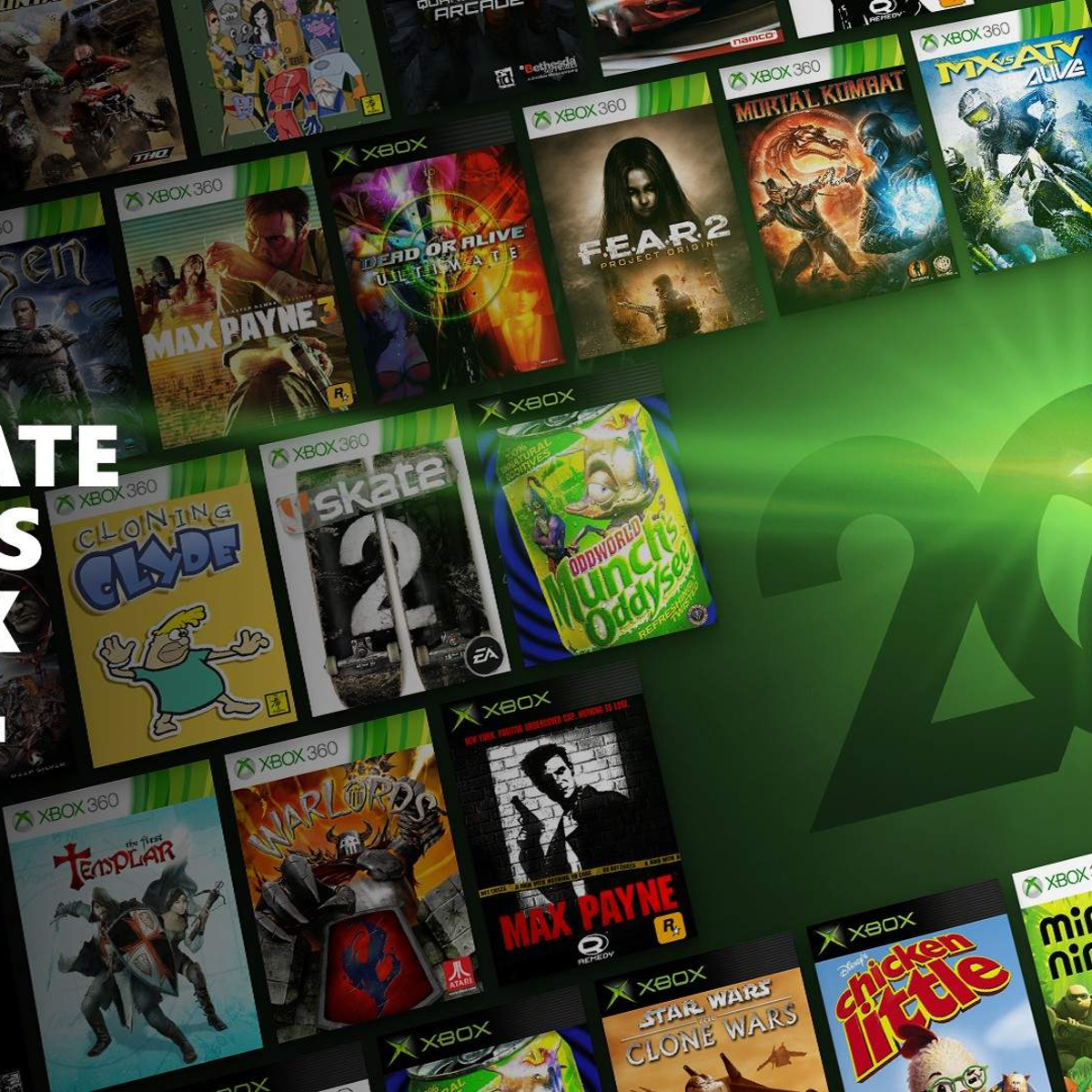
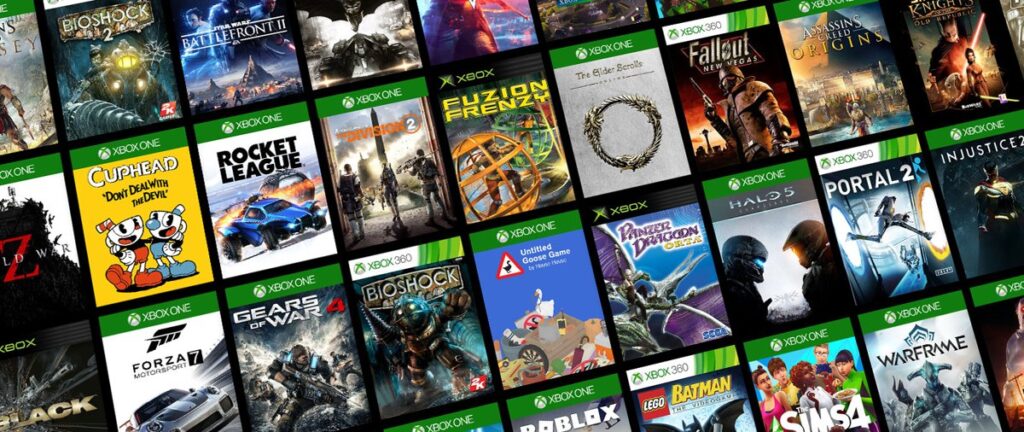
The Xbox One backward compatibility list includes over 630 Xbox 360 games and 63 original Xbox games, allowing players to run selected legacy titles natively on Xbox One hardware. Supported games feature automatic hardware performance...
The Xbox One backward compatibility list includes over 630 Xbox 360 games and 63 original Xbox games, allowing players to run selected legacy titles natively on Xbox One hardware. Supported games feature automatic hardware performance enhancements, fast loading times, cloud save synchronization, and system-level integration with the modern Xbox network.
Contents
How Xbox One Backward Compatibility Works
Microsoft introduced backward compatibility to the Xbox One console family using custom software emulation. Rather than running code directly off legacy media, the Xbox One system operates a virtual machine that emulates the hardware environments of both the original Xbox (released in 2001) and the Xbox 360 (released in 2005).
When you insert a supported physical disc into an Xbox One console, the optical drive reads the disc's header to verify ownership and grant an execution license. The console does not read game data directly off the disc during gameplay. Instead, it prompts the operating system to download a customized, digitally packaged version of the game from Xbox servers. This package contains the original game code wrapped in an emulated execution layer tailored specifically for x86-64 CPU architecture.
For digital purchases, any supported title linked to your Microsoft account automatically appears in your console's game library under the "Ready to Install" section.
Physical Disc Inserted -> Disc License Validated -> Package Downloaded from Xbox Network -> Game Runs inside Custom Emulation Layer
Because games run within this emulated framework, Xbox One consoles can apply modern system enhancements to classic titles without modifying the original source code:
- Forced V-Sync: Virtually eliminates screen tearing present in original console releases.
- Stable Frame Rates: Hardware reserves reduce or eliminate frame rate drops during heavy rendering scenes.
- Anisotropic Filtering: Texture clarity improves across environmental geometry automatically.
- Fast Storage Access: Solid-state drives (SSDs) or internal hard drives significantly reduce loading screen duration compared to legacy optical drives.
Key Games on the Xbox One Backward Compatibility List
The backward compatibility catalog spans hundreds of titles across multiple genres, representing critical acclaim, commercially successful franchises, and cult classics.
Supported Original Xbox Titles
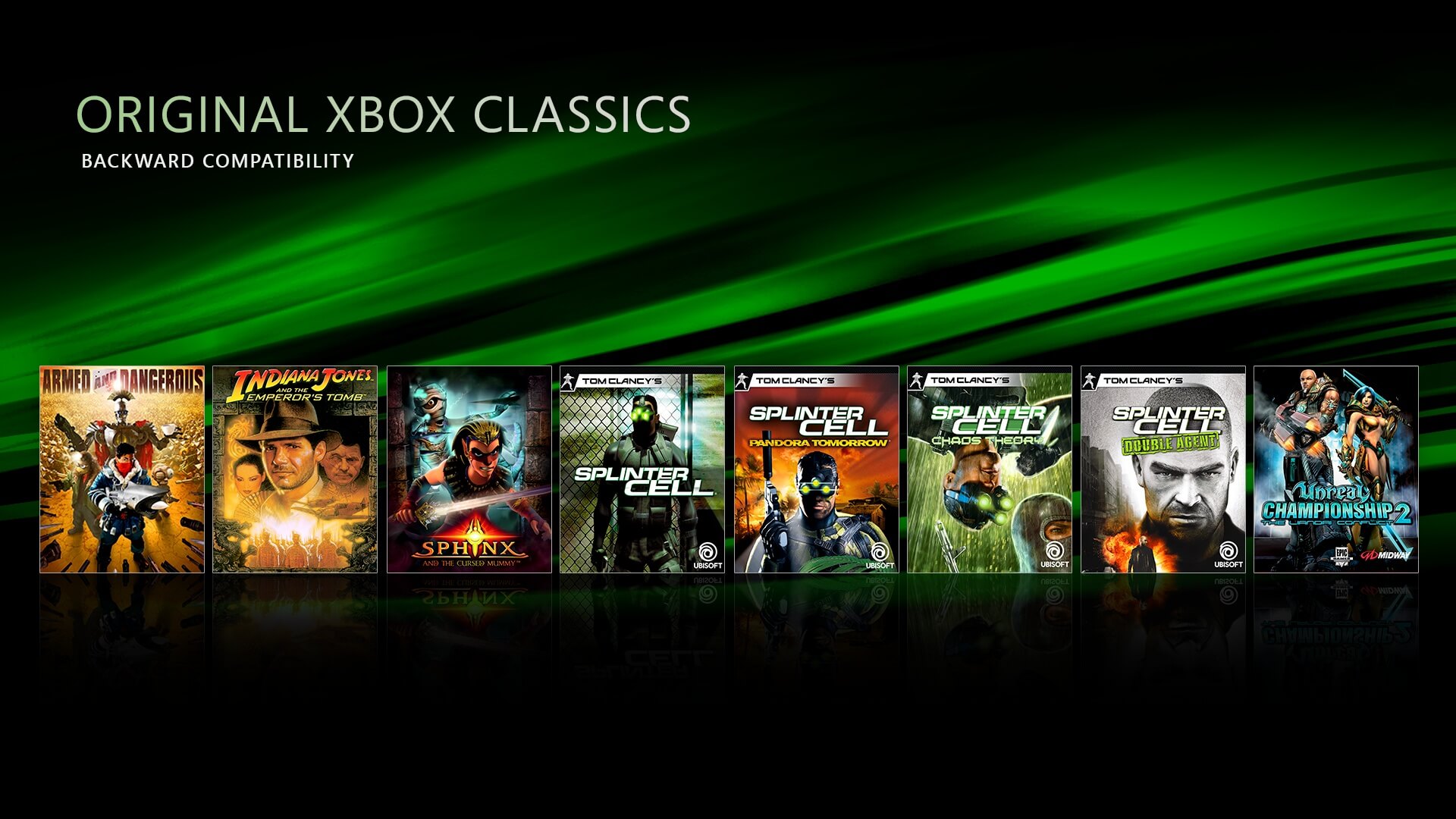
The original Xbox catalog on Xbox One includes over 60 curated titles. These games run at four times their original pixel resolution on standard Xbox One hardware and up to sixteen times their original resolution on Xbox One X.
- Star Wars Series: Star Wars: Knights of the Old Republic, Star Wars: Knights of the Old Republic II - The Sith Lords, Star Wars Republic Commando, Star Wars Battlefront (2004), and Star Wars Battlefront II (2005).
- Action & Adventure: Ninja Gaiden Black, Crimson Skies: High Road to Revenge, Psychonauts, Jade Empire, and Mercenaries: Playground of Destruction.
- Shooters & Stealth: Tom Clancy’s Splinter Cell (including Pandora Tomorrow, Chaos Theory, and Double Agent), TimeSplitters 2, and TimeSplitters: Future Perfect.
- Classic RPGs & Sci-Fi: Elder Scrolls III: Morrowind, Destroy All Humans!, and Panzer Dragoon Orta.
Major Xbox 360 Franchises
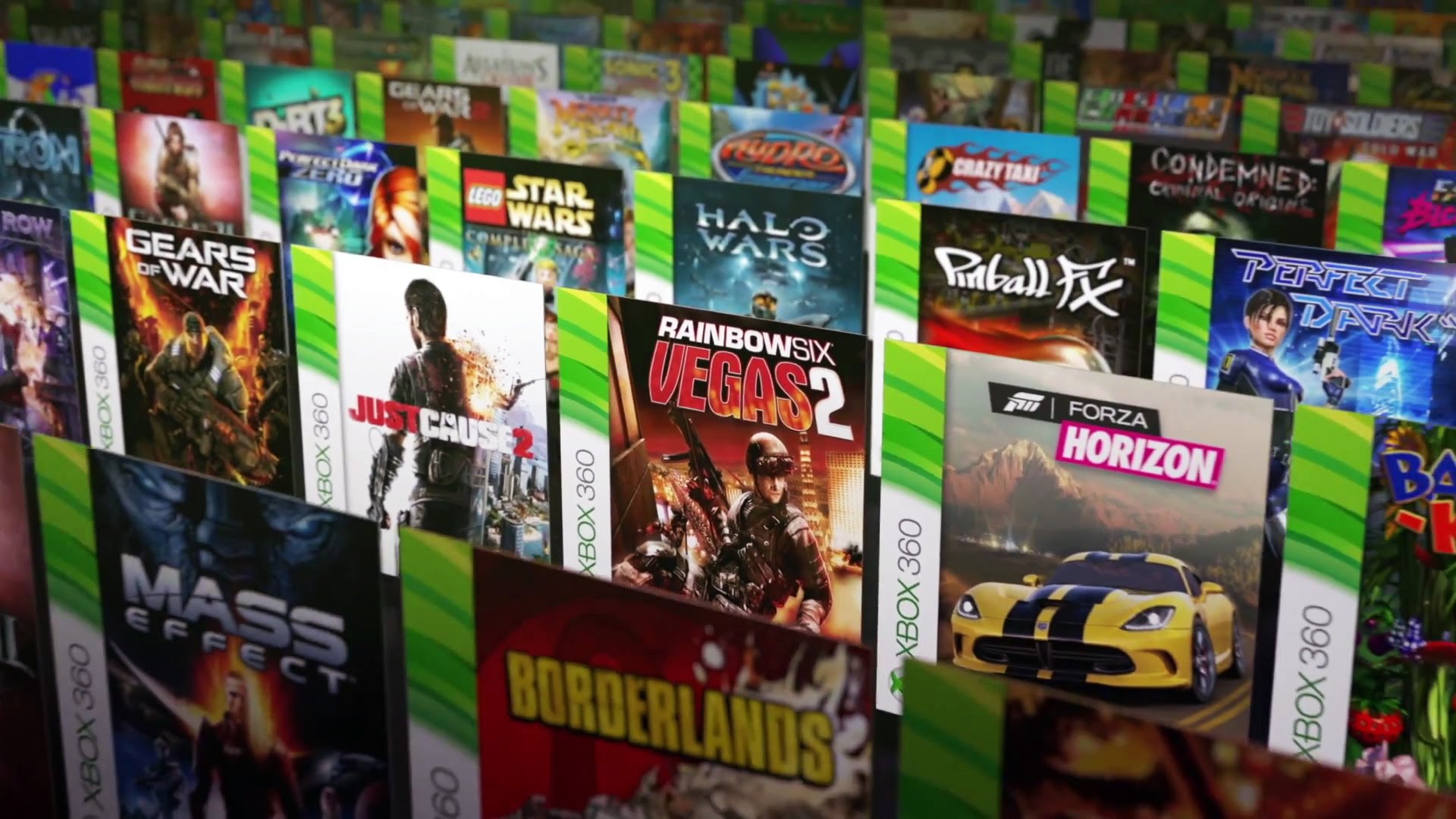
The Xbox 360 backward compatibility roster forms the bulk of the backward-compatible library, featuring over 600 titles across major publisher portfolios:
- The Halo Series: Halo 3, Halo 3: ODST, Halo 4, Halo: Reach, and Halo Wars.
- The Gears of War Franchise: Gears of War, Gears of War 2, Gears of War 3, and Gears of War: Judgment.
- Rockstar Games Catalog: Red Dead Redemption (including Undead Nightmare), Grand Theft Auto IV (with The Lost and Damned and The Ballad of Gay Tony), Bully: Scholarship Edition, Grand Theft Auto: San Andreas, Midnight Club: Los Angeles, and Rockstar Games Presents Table Tennis.
- Bethesda Softworks RPGs: The Elder Scrolls IV: Oblivion, Fallout 3, and Fallout: New Vegas.
- Mass Effect Trilogy: Mass Effect, Mass Effect 2, and Mass Effect 3 (including multi-disc support and downloadable content).
- Ubisoft Stealth & Action: Assassin’s Creed through Assassin’s Creed Rogue, Rayman Origins, Rayman Legends, and Far Cry 2 / Far Cry 3.
- Valve Classics: The Orange Box (containing Half-Life 2, Portal, and Team Fortress 2), Portal 2, Left 4 Dead, and Left 4 Dead 2.
- Bioshock & Borderlands: BioShock, BioShock 2, BioShock Infinite, Borderlands, Borderlands 2, and Borderlands: The Pre-Sequel.
Generation Compatibility Matrix
Understanding how legacy game formats behave across the Xbox console family helps clarify disc requirements, online functionality, and save transfers:
| Console Generation | Supported Media | Disc License Required? | Cloud Save Support | Online Multiplayer Access |
|---|---|---|---|---|
| Original Xbox Games | Physical Disc & Digital Download | Yes (Physical copies need disc inserted to play) | Yes (Saved to Xbox Network cloud storage) | Supported via Xbox Network where peer-to-peer or active custom servers exist; original Xbox Live servers shut down in 2010 |
| Xbox 360 Games | Physical Disc (Single & Multi-disc) & Digital Download | Yes (Physical copies need disc inserted to play) | Yes (Free cloud sync via Xbox Network) | Supported via active Xbox Network matching original Xbox 360 multiplayer infrastructure |
| Xbox One Games | Physical Blu-ray & Digital Download | Yes (Physical disc acts as license) | Yes (Automatic background cloud sync) | Fully supported via modern Xbox Network infrastructure |
| **Xbox Series X | S Games** | Digital Download (Series S); Physical UHD Blu-ray & Digital (Series X) | Yes (Physical copies on Series X) | Yes (Smart Delivery unified cloud saves) |
How to Access and Play Supported Titles on Xbox One
Playing compatible legacy titles on an Xbox One requires simple steps depending on whether you own physical media or digital licenses.
Method 1: Using Physical Discs
- Turn on your Xbox One console and sign in to your primary Microsoft account.
- Insert a supported Xbox 360 or Original Xbox game disc into the optical disc drive. (Note: The digital-only Xbox One S All-Digital Edition does not support physical discs).
- The console will automatically check the disc ID against the official backward compatibility catalog.
- If supported, a prompt will appear asking to download the emulated digital package. Select Install.
- Once the download finishes, launch the title from My games & apps.
- Keep the physical disc inside the console's disc drive while playing; it acts as the active license check.
Method 2: Installing Digital Purchases
- Navigate to My games & apps from the Xbox One home dashboard.
- Select Full library, then navigate to Owned games.
- Filter the list by console type or search for the specific title name.
- Select the game and click Install all to download the base game alongside any previously purchased downloadable content (DLC).
Dashboard -> My games & apps -> Full library -> Owned games -> Select Game -> Install All
Method 3: Managing Downloadable Content (DLC)
Legacy DLC purchased on the original Xbox 360 Marketplace carries over automatically to your Xbox One account.
- Highlight the emulated game icon in your installation library.
- Press the Menu button (three horizontal lines) on your Xbox controller.
- Select Manage game and add-ons.
- Highlight the game installation file and select Manage installation on internal storage (or your external drive).
- Check the boxes next to available add-ons, expansions, or pre-order bonuses, then select Save changes to begin downloading.
Save Data, Cloud Syncing, and Xbox Live Integration
One of the key technical features of Xbox One backward compatibility is preserving your original save files and achievement history.
Transferring Saved Games from Xbox 360 to Xbox One
To continue an existing Xbox 360 save file on your Xbox One, the save data must be synchronized with cloud storage:
- Turn on your physical Xbox 360 console.
- Navigate to Settings > System > Storage.
- Select your local hard drive or memory unit, then locate the Saved Games folder for your chosen title.
- Select the save file and choose Move or Copy.
- Select Cloud Saved Games as the destination folder.
- Once uploaded, boot the same title on your Xbox One while connected to the internet. The Xbox One emulation layer will automatically fetch the cloud save file and mount it seamlessly.
Xbox 360: Settings -> System -> Storage -> Saved Games -> Copy to Cloud | v Xbox One: Boot Game -> Automatic Cloud Synchronization -> Load Save
Note: Access to Xbox 360 Cloud Storage was made completely free for all Xbox network users. An active Xbox Game Pass Ultimate or Core subscription is not required to back up or retrieve Xbox 360 save data to the cloud.
Accessing the Xbox 360 System Menu on Xbox One
While running an emulated Xbox 360 title on Xbox One, you can open the legacy Xbox 360 Guide menu:
- Press the View button (left center) and Menu button (right center) simultaneously on your Xbox One controller.
- This overlay allows you to manage Xbox 360 friends lists, view legacy achievements, adjust system-level chat preferences, and monitor cloud storage synchronization in real time.
Limitations, Exclusions, and Hardware Requirements
While Microsoft’s software emulation layer covers the vast majority of popular legacy titles, specific technical and legal limitations prevent certain games from working on Xbox One.
1. Kinect Hardware Restrictions
Xbox 360 titles that require the Xbox 360 Kinect sensor are fundamentally incompatible with Xbox One. The Xbox One camera hardware uses a different sensor architecture and software API than the Xbox 360 Kinect. Games requiring the original peripheral (such as Kinect Sports, Dance Central, or Your Shape: Fitness Evolved) cannot be launched on Xbox One.
2. Expired Digital Licensing and Delisted Titles
Some games originally included on the backward compatibility list can no longer be purchased digitally due to expired intellectual property licenses, car model rights, or music streaming permits. Examples include select titles in the Forza Horizon and Forza Motorsport series, as well as licensed arcade games like After Burner Climax.
However, if you previously purchased a delisted title digitally, it remains permanently available in your account history to download. If you own a physical disc copy of a delisted backward-compatible title, inserting the disc will still authorize the download of the emulation package.
3. Program Conclusion Status
Microsoft officially concluded its periodic additions to the backward compatibility catalog in November 2021. The engineering team stated that the catalog reached its technical limits due to licensing agreements, copyright constraints, and technical hurdles with remaining legacy code bases. As a result, no new Xbox 360 or Original Xbox titles are currently being added to the supported compatibility list.
Impact of the 2024 Xbox 360 Marketplace Closure
In July 2024, Microsoft officially shut down the legacy Xbox 360 Marketplace digital store interface on physical Xbox 360 consoles. This change led to questions regarding backward compatibility access on Xbox One.
- Buying Compatible Titles: Backward-compatible Xbox 360 and Original Xbox games remain available for purchase digitally through the modern Xbox Store on Xbox One, Xbox Series X|S, and the official web storefront.
- Redeeming Owned Content: Re-downloading previously purchased digital games, expansion packs, and add-ons on Xbox One remains fully functional.
- Physical Media Functionality: Inserting a supported physical disc into an Xbox One continues to download the required emulated package as normal.
Forward Compatibility: Xbox One Games on Xbox Series X|S
Understanding Xbox One compatibility also involves looking forward to how Xbox One games perform on newer hardware like the Xbox Series X and Xbox Series S.
Every standard Xbox One title—excluding those that strictly require the Xbox One Kinect sensor—is fully backward-compatible on Xbox Series X|S. When played on next-generation hardware, Xbox One titles benefit from hardware features without requiring developer patches:
- Auto HDR: Machine learning automatically adds high dynamic range (HDR) enhancements to SDR Xbox One titles.
- FPS Boost: Selected Xbox One games receive frame-rate doubling or quadrupling (e.g., boosting 30 FPS titles to 60 FPS or 120 FPS).
- Velocity Architecture SSD Loading: Internal solid-state drives drastically cut down loading times across all Xbox One titles.
- Smart Delivery: Purchasing a supported digital game on Xbox One automatically grants access to the optimized Xbox Series X|S version at no additional cost.
Frequently Asked Questions
Can I play any Xbox 360 disc on my Xbox One console?
No. Only Xbox 360 games explicitly included on Microsoft's official backward compatibility list will work. Unlisted discs will display an error message stating the game is not playable on Xbox One.
Do multi-disc Xbox 360 games work on Xbox One?
Yes. Multi-disc Xbox 360 titles like Mass Effect 2, Mass Effect 3, Dead Space 2, and Lost Odyssey are fully supported. When installing via disc, inserting Disc 1 triggers the download of the entire digital game package, eliminating the need to swap discs during gameplay.
Do I need an Xbox Game Pass subscription to play backward-compatible games?
No. You do not need a subscription if you already own physical disc copies or digital licenses for supported titles. However, Xbox Game Pass offers a rotating library that frequently includes backward-compatible games from original Xbox and Xbox 360 generations.
Why does my Original Xbox game show black bars on the sides of the screen?
Most Original Xbox titles were developed natively in a 4:3 display aspect ratio. The Xbox One emulation layer maintains the authentic aspect ratio to prevent image stretching or distortion. You can adjust aspect ratio options through your TV settings if widescreen stretching is preferred.
Can I play online multiplayer with friends who are using an original Xbox 360 console?
Yes. For supported titles with active multiplayer servers, Xbox One users play on the same network environment as users running the original game on an Xbox 360 console.
Summary and Recommended Actions
The Xbox One backward compatibility catalog bridges multiple hardware generations into a unified software environment. With over 700 combined titles from the Original Xbox and Xbox 360 eras, players can access legacy libraries with auto-applied hardware enhancements, cloud save transfers, and modern dashboard integration.
Recommended Next Steps:
- Verify Title Compatibility: Check your collection of physical discs against the modern Xbox Store database to confirm backward compatibility support before installing.
- Sync Your Save Data: If you still own an operational Xbox 360, boot the console and transfer your local save files to Cloud Saved Games to carry your progress over to Xbox One.
- Check Storage Requirements: Legacy emulated downloads package game data into single digital files; ensure your Xbox One internal drive or external storage has sufficient free space for large initial downloads.
Image Gallery