How to Pair a Phone with Ford SYNC: Complete Guide Across All Generations
To pair your smartphone with Ford SYNC, turn on Bluetooth on your phone, place your vehicle in Park with the engine or accessory mode running, and select Add Phone on your SYNC touchscreen or press the Phone button. Select your Ford ve...
To pair your smartphone with Ford SYNC, turn on Bluetooth on your phone, place your vehicle in Park with the engine or accessory mode running, and select Add Phone on your SYNC touchscreen or press the Phone button. Select your Ford vehicle on your phone's Bluetooth menu, verify that the six-digit PIN matches on both screens, and accept the prompts on your phone for contact access.
Contents
Prerequisites Before Pairing Your Phone
Before initiating the Bluetooth pairing process, completing a few initial checks ensures a smooth connection between your mobile device and the Ford SYNC system. Skipping these preliminary requirements is the primary cause of connection failures during setup.
- Vehicle Positioning: Park the vehicle safely in a well-ventilated area. For safety and security reasons, Ford SYNC restricts initial Bluetooth pairing while the vehicle is in motion. Keep the gear shift in Park (P) for automatic transmissions or Neutral with the parking brake engaged for manual transmissions.
- Ignition Status: Ensure the vehicle engine is running or the ignition is set to Accessory Mode. The SYNC system requires consistent power throughout the pairing and initial synchronization process to prevent system timeouts.
- Smartphone Bluetooth Settings: Open the settings menu on your Apple iOS or Android device and turn on Bluetooth. Keep the Bluetooth settings screen active on your device during discovery so your phone remains visible to nearby devices.
- Remove Competing Connections: If your phone is currently paired with wireless headphones, smartwatches, or secondary Bluetooth accessories, temporarily disconnect them. Active high-bandwidth Bluetooth connections can interfere with initial discovery.
- Storage Limit Checks: Older Ford SYNC systems retain up to 12 paired devices in their memory cache. If the vehicle has reached its maximum stored device limit, delete an unused device profile from the system menu before attempting to pair a new device.
Step-by-Step Pairing Instructions by Ford SYNC Generation
Ford has evolved the SYNC platform across multiple hardware and software generations. Identifying your system version ensures you follow the appropriate step-by-step sequence.
- Ford SYNC Generations
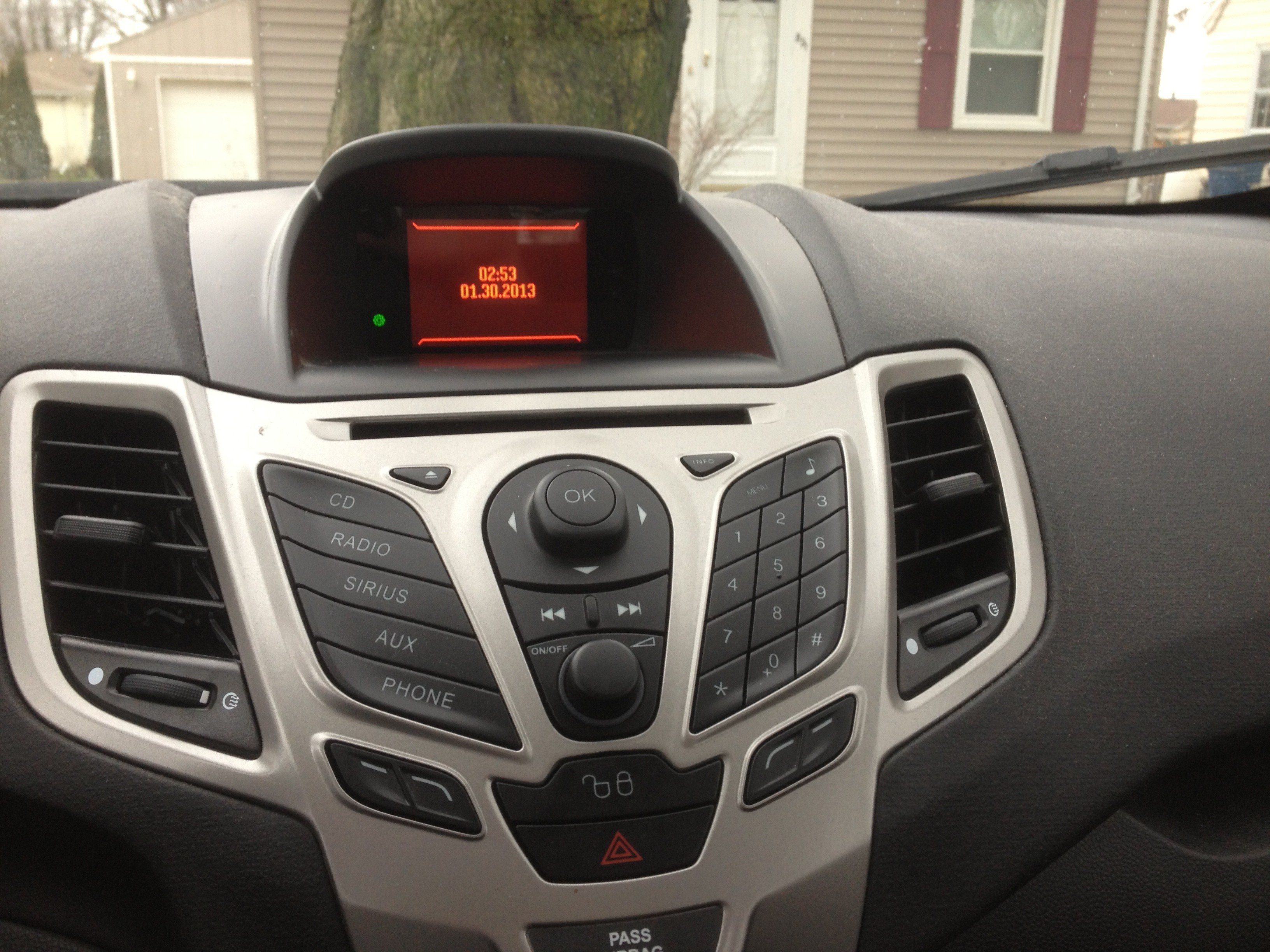
- SYNC 1 / Basic SYNC: Physical buttons, small display screen
- SYNC 2 / MyFord Touch: 4-quadrant screen (Phone top-left)
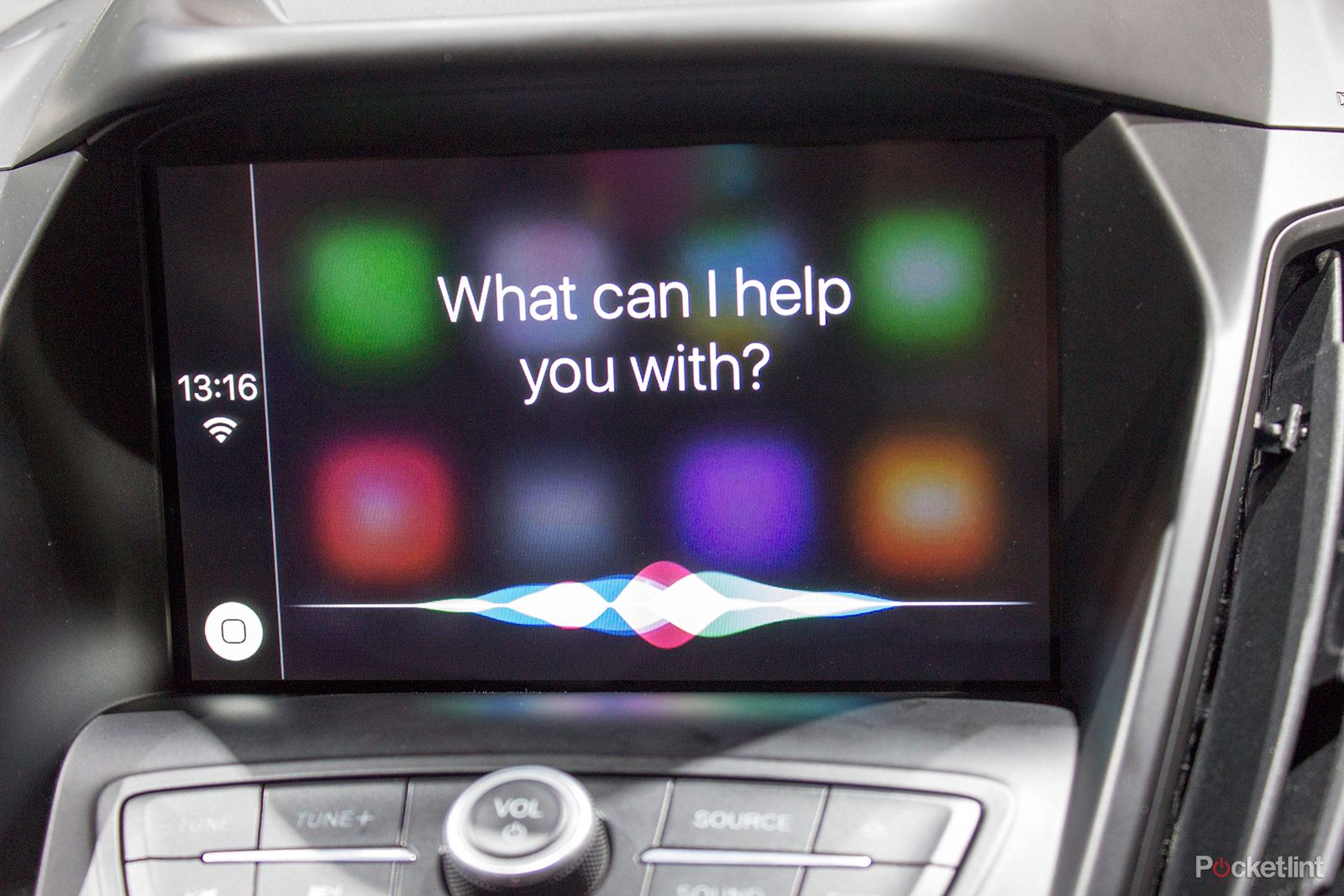
- SYNC 3: Capacitive screen, flat menu bar bottom
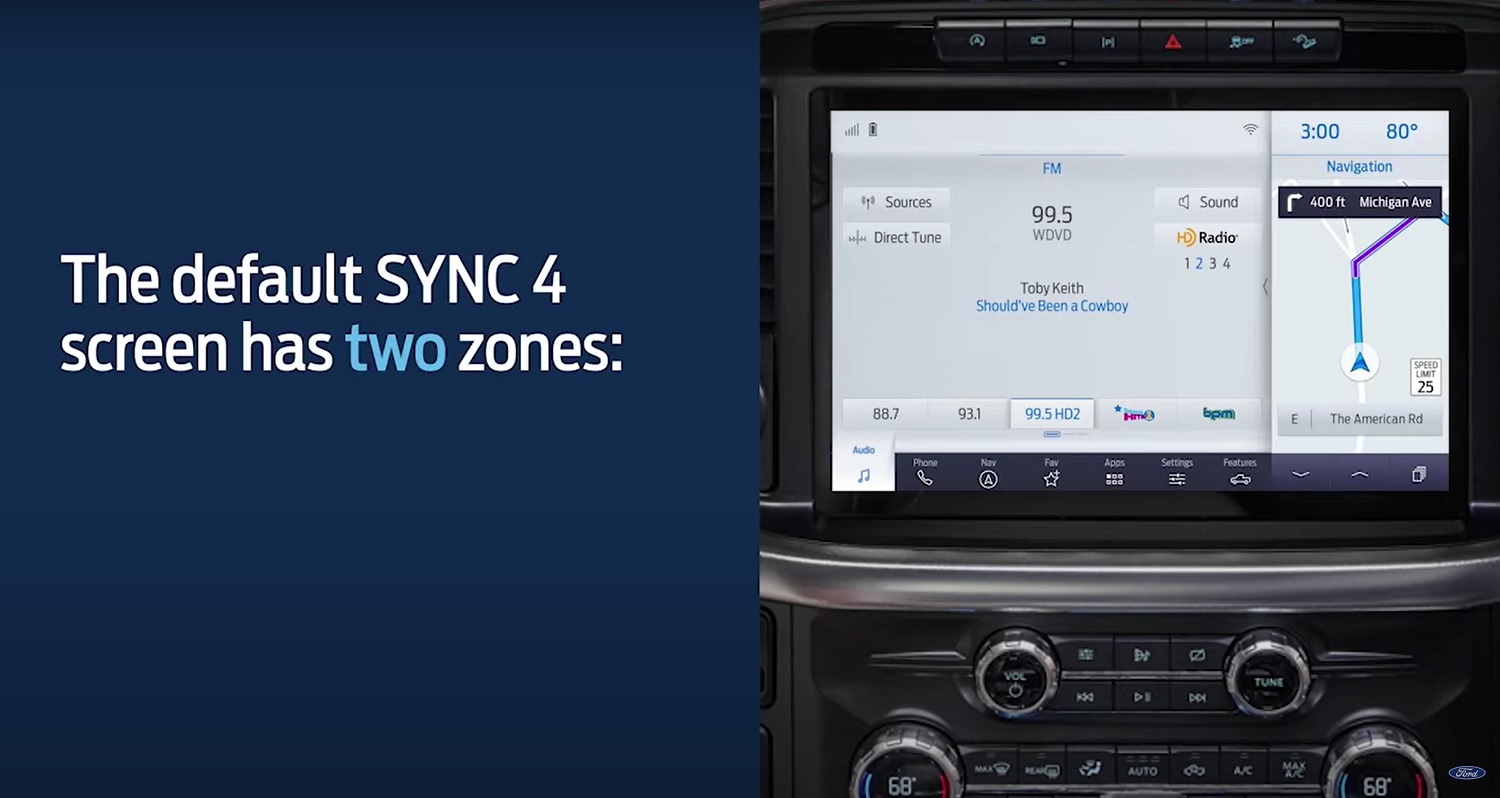
- SYNC 4 / SYNC 4A: 12" to 15.5" screen, wireless CarPlay
Pairing with Ford SYNC 4 and SYNC 4A
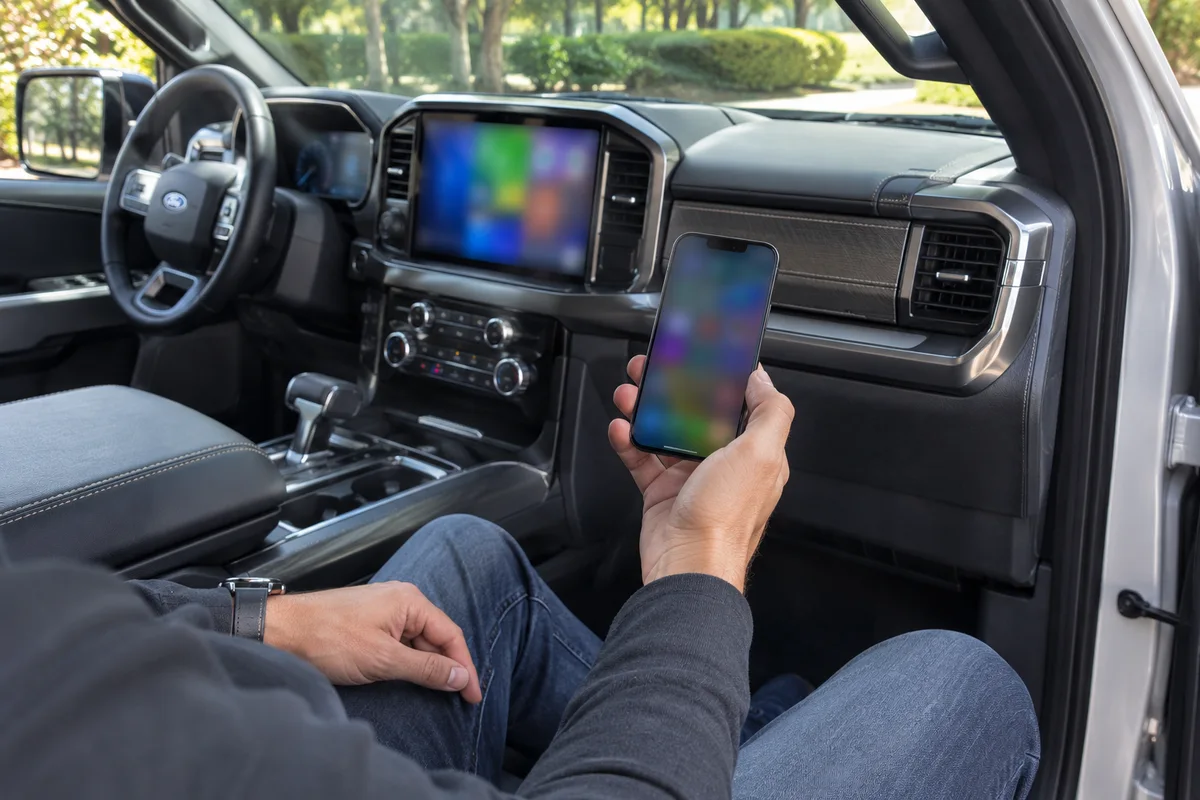
SYNC 4 and SYNC 4A are found on newer vehicles (such as recent F-150, Mustang Mach-E, Ford Lightning, Bronco, and Edge models). These systems feature large 12-inch or 15.5-inch vertical touchscreens and support wireless Apple CarPlay and Android Auto natively.
- Turn on Bluetooth on your smartphone and remain on the Bluetooth settings screen.
- On the SYNC touchscreen, tap the Phone tile or tap the Settings icon on the feature bar.
- Select Add Phone (or Device List > Add Device).
- A pop-up window will appear on the display, listing discovered Bluetooth devices and directing you to search for your vehicle on your mobile device.
- On your phone, select your Ford vehicle (typically listed as Ford Vehicle, Ford F-150, Mustang Mach-E, or similar model name) under available devices.
- A six-digit PIN code will appear on both the SYNC screen and your phone display. Confirm that the numbers match, then tap Pair or Yes on both screens.
- Choose whether to enable Wireless Apple CarPlay or Wireless Android Auto when prompted on the screen.
- Accept the pop-up requests on your smartphone to allow SYNC to access your contacts, text messages, and call history.
Pairing with Ford SYNC 3
SYNC 3 features a bright capacitive display with a permanent feature bar along the bottom of the screen. It is standard on most Ford models produced between 2016 and 2023.
- Ensure Bluetooth is switched on within your smartphone's settings menu.
- On the SYNC 3 display, press Add Device on the main screen, or tap Settings > Phone > Add Phone.
- A screen prompt will instruct you to search for your vehicle on your smartphone.
- Open the Bluetooth menu on your phone and select your Ford SYNC system from the list of available devices.
- Verify that the six-digit PIN displayed on the SYNC 3 screen matches the PIN prompt on your phone screen.
- Tap Pair on your phone and Yes on the SYNC screen.
- Select whether to enable Automatic Emergency Assistance (which automatically dials emergency services via your phone if an airbag deploys).
- Grant permission on your phone for contact synchronization and message notifications. If connecting an iPhone via USB for Apple CarPlay, follow the on-screen prompt to enable CarPlay access.
Pairing with SYNC with MyFord Touch (SYNC 2)
SYNC 2, commonly known as MyFord Touch, utilizes an eight-inch screen divided into four distinct color-coded corners: Phone (Yellow/Top-Left), Navigation (Green/Top-Right), Entertainment (Red/Bottom-Left), and Climate (Blue/Bottom-Right).
- Enable Bluetooth on your smartphone.
- Tap the yellow Phone quadrant at the top-left corner of the vehicle's touchscreen.
- Select Add Device or Connect a Phone.
- SYNC will search for visible Bluetooth devices, or display a prompt asking you to search from your phone.
- On your mobile device, select SYNC from the list of available Bluetooth devices.
- Confirm that the six-digit PIN displayed on the touchscreen matches the key on your smartphone, and confirm the connection on both devices.
- If your phone asks for a manual passkey entry instead of a matching six-digit prompt, enter the six-digit code displayed on the vehicle screen into your phone keypad.
- Select Yes on the vehicle screen to set the phone as the primary connected device and download your phonebook contacts.
Pairing with Basic Ford SYNC (Gen 1 & SYNC with Voice-Activated Navigation)
First-generation SYNC systems feature physical radio buttons and a small monochrome or multi-line text display screen without full touchscreen navigation.
- Activate Bluetooth on your mobile device.
- Press the physical Phone button on the vehicle center console or steering wheel controls.
- Scroll through the display menu using the radio control knobs until you reach Phone Settings, then press OK.
- Select Add Bluetooth Device and press OK. The display will read Search for SYNC.
- On your smartphone, search for Bluetooth devices and select SYNC.
- The vehicle display will show a six-digit PIN code. Enter this six-digit number directly into your smartphone when prompted.
- Upon successful PIN entry, the screen will display Device Paired.
- System voice prompts will ask if you want to set the device as your primary phone and auto-download your contacts. Use the steering wheel controls or physical OK button to confirm.
Post-Pairing Settings and Feature Access
Once the Bluetooth link is established, finalizing configuration settings unlocks full hands-free functionality and ensures smooth operation every time you enter the vehicle.
- Post-Pairing Checklist
- Grant Contact & Phonebook Access Prompts on Smartphone
- Set Primary / Default Driver Device in SYNC Settings
- Configure Text Message Notifications & Read-Aloud Options
- Toggle Apple CarPlay / Android Auto (Wired or Wireless)
Phonebook and Contact Synchronization
After pairing, your smartphone will trigger one or two permission pop-ups asking to grant Ford SYNC access to your contacts, call logs, and text messages. Select Allow or Always Allow, and check the box for "Don't ask again." If permission is denied, voice commands like "Call Jane Doe" will not function, and incoming calls will display phone numbers instead of contact names.
Setting a Primary Device
If multiple drivers share the vehicle with paired smartphones, Ford SYNC needs to know which device takes priority when multiple phones are inside the cabin simultaneously.
- Go to Settings > Phone > View Devices on your SYNC screen.
- Select your device from the list.
- Toggle the option for Set as Primary Device or Favorite Device.
- The primary phone will automatically connect first whenever the ignition is turned on.
Enabling Apple CarPlay and Android Auto
For vehicles equipped with SYNC 3, SYNC 4, or SYNC 4A, pairing your phone can unlock integrated smartphone interfaces:
- SYNC 3: Requires connecting your phone via an original USB cable to the vehicle's media hub (wired Apple CarPlay or Android Auto).
- SYNC 4 / 4A: Supports both wired connections and wireless Apple CarPlay and Android Auto directly over Bluetooth and Wi-Fi.
Ensure Wi-Fi and Bluetooth remain active on your phone to maintain wireless projection features.
Ford SYNC Version Comparison and Compatibility
Understanding the capabilities and connectivity protocols across SYNC versions helps set expectations for available features.
| Feature / Capability | Basic SYNC (Gen 1) | SYNC 2 (MyFord Touch) | SYNC 3 | SYNC 4 / SYNC 4A |
|---|---|---|---|---|
| Interface Style | Physical buttons / Text display | 4-Quadrant 8-inch Touch | 6.5–8" Capacitive Touch | 12" to 15.5" Touch |
| Bluetooth Pairing PIN | 6-digit manual entry code | 6-digit matching prompt | 6-digit matching prompt | 6-digit matching prompt |
| Phonebook Syncing | Yes (Manual or Auto) | Yes | Yes | Yes |
| Apple CarPlay | Not Supported | Not Supported | Wired USB | Wireless & Wired USB |
| Android Auto | Not Supported | Not Supported | Wired USB | Wireless & Wired USB |
| Max Paired Devices | Up to 12 devices | Up to 12 devices | Up to 12 devices | Up to 12 devices |
| Wireless Firmware Updates | USB only | USB / Dealer | Wi-Fi / USB | Over-The-Air (OTA) |
Troubleshooting Common Ford SYNC Bluetooth Connection Issues
Bluetooth setup can occasionally encounter communication errors, passcode failures, or sync drops. Follow these proven diagnostic steps to resolve pairing problems.
- Troubleshooting Flowchart
- Connection Fails: Toggle Phone Airplane Mode / Bluetooth (10 Sec)
- PIN Doesn't Match: Delete Device Profile from SYNC & Phone Bluetooth
- System Unresponsive: Perform System Soft Reset (Power + Next Track)
- Persistent Glitches: Execute SYNC Master Reset (Restores Defaults)
1. Phone Fails to Discover the Vehicle
If your vehicle name does not appear in your smartphone's Bluetooth scan menu:
- Toggle your phone's Bluetooth OFF for 10 seconds, then switch it back ON.
- Turn the vehicle ignition off, open and close the driver's door to shut off power to the accessory circuit, wait 30 seconds, and turn the ignition back on.
- Ensure your phone is set to "Discoverable" mode while on the Bluetooth settings page.
2. PIN Verification Mismatch or Timed Out
If the system displays a connection error or the six-digit PIN disappears before you can confirm it:
- Delete the partial profile from both devices. On your phone, go to Settings > Bluetooth, select the information icon
(i)or gear icon next to your vehicle name, and tap Forget This Device. - On the SYNC display, navigate to Phone > Device List, select your phone, and press Delete/Remove.
- Restart both the smartphone and the SYNC system, then re-initiate the pairing process from the beginning.
3. Contact List and Text Messages Not Syncing
If contacts or text messages fail to show up on the SYNC screen after pairing:
- iOS Devices: Go to Settings > Bluetooth, tap the
(i)next to your Ford vehicle, and toggle Show Notifications and Sync Contacts to ON. - Android Devices: Go to Settings > Bluetooth, tap the gear icon next to your vehicle, and ensure Contacts, Calls, and Text Messages access toggles are active.
4. Audio Lag, Skipping, or Frequent Disconnections
Intermittent audio dropouts or delayed voice response often stem from software conflicts or congested device memory caches.
- Close Background Apps: Force-close audio streaming or navigation apps on your smartphone and restart them.
- Disable Battery Saver Modes: Aggressive power-saving modes on iOS and Android can throttle Bluetooth transmission power, leading to weak connections.
- Perform a SYNC Soft Reset: A soft reset restarts the infotainment computer without deleting your stored contacts, navigation locations, or system preferences.
- For SYNC 3 & SYNC 4: Press and hold the Seek Up (Forward Arrow) button and the physical Audio Power button simultaneously on the center console for 5 to 10 seconds until the screen goes dark and reboots.
- For older SYNC systems: Temporarily disconnect the vehicle's 12V battery ground cable for 5 minutes, or pull the SYNC fuse from the passenger footwell fuse box to power-cycle the module.
5. Executing a SYNC Master Reset
If persistent software glitches prevent pairing after exhausting all standard steps, perform a full Master Reset.
Caution: A Master Reset restores the Ford SYNC system to factory settings. It permanently erases all paired Bluetooth devices, saved navigation destinations, radio presets, and personal data.
- On your touchscreen, navigate to Settings > General.
- Scroll down to select Reset (or Master Reset).
- Select Master Reset and confirm by pressing Continue.
- Allow 3 to 5 minutes for the system to erase stored data and re-initialize the software.
- Delete the vehicle profile from your mobile device's Bluetooth history.
- Re-pair your smartphone following the standard pairing procedures outlined above.
Frequently Asked Questions
Why won't my Ford SYNC system find my phone's Bluetooth?
Your phone may not be visible to nearby devices, or your SYNC memory cache might be full. Ensure Bluetooth is active and your phone remains on the Bluetooth settings screen during discovery. If your vehicle already has 12 paired devices stored in its system memory, delete an older phone profile from the device menu before attempting to discover new hardware.
How do I pair a secondary phone with Ford SYNC?
To pair an additional smartphone, keep your vehicle parked with the ignition on, then navigate to Settings > Phone > Add Phone (or Add Device) on the touchscreen. Complete the standard six-digit PIN verification process on the second phone. You can then assign primary connection status to your preferred device in the vehicle's device manager menu.
Can I pair my phone with Ford SYNC while driving?
No. For driver safety and regulatory compliance, Ford restricts the initial Bluetooth pairing process while the vehicle is in motion. The system disables the Add Device keyboard and pairing screens once the vehicle moves above 3 mph (5 km/h). You must bring the vehicle to a complete stop and place the transmission in Park to pair a new device.
How do I fix Ford SYNC Bluetooth connected but no audio playing?
If your screen displays an active Bluetooth connection but media audio remains silent, ensure that Media Audio is toggled on in your smartphone's Bluetooth device settings. On your SYNC display, press the Sources button and manually select Bluetooth Stereo or BT Audio instead of AM/FM radio or SiriusXM. Checking that your phone's media volume slider is turned up also resolves quiet playback.
Do I need a cable to use Apple CarPlay or Android Auto with Ford SYNC?
Vehicle requirements depend on your SYNC hardware generation. Ford vehicles equipped with SYNC 4 or SYNC 4A natively support wireless Apple CarPlay and Android Auto via Bluetooth and internal Wi-Fi. Vehicles operating on SYNC 3 require an official USB-to-Lightning, USB-C, or Micro-USB cable plugged directly into the vehicle's media hub to initiate CarPlay or Android Auto interfaces.
Recommended Next Actions
To maintain an optimal Bluetooth connection with your vehicle, keep your mobile device operating system updated to the latest iOS or Android software release. System updates contain critical Bluetooth protocol patches that prevent connectivity dropouts.
Additionally, check for available software updates for your vehicle's infotainment system. Visit the official Ford SYNC Support Page and enter your Vehicle Identification Number (VIN) to verify if an over-the-air (OTA) or USB-based firmware update is available for your vehicle.
Image Gallery