How to Check Storage on Samsung Devices: Step-by-Step Guide for Phones, Tablets, and TVs
To check storage on Samsung Galaxy phones and tablets running One UI, open Settings, scroll down, and select Device Care (or Battery and Device Care). Tap Storage to view a detailed breakdown of internal memory used by apps, images, vi...
To check storage on Samsung Galaxy phones and tablets running One UI, open Settings, scroll down, and select Device Care (or Battery and Device Care). Tap Storage to view a detailed breakdown of internal memory used by apps, images, videos, system files, and the trash bin.
Contents
Checking Storage on Samsung Galaxy Smartphones and Tablets (One UI)
Samsung Galaxy smartphones and tablets run Samsung’s custom user interface, One UI, built on top of the Android operating system. While the location of device settings remains consistent across recent updates, exact menu names vary slightly depending on your installed One UI version.
Step-by-Step Instructions for One UI 6 and One UI 5
- Swipe down from the top of your screen to open the Quick Settings panel, then tap the Settings icon (gear shape) in the top-right corner. Alternatively, open the Settings app directly from your app drawer.
- Scroll down through the primary menu list and select Device Care (labeled Battery and Device Care on One UI 5 and One UI 4).
- Tap Storage.
- The screen displays a total usage bar at the top alongside an exact percentage of used space. Below the graphic, internal memory is categorized into specific file types.
If your Samsung tablet or phone features an expandable memory slot and has a MicroSD card inserted, you can view the external card’s capacity by swiping left on the top storage panel or selecting the SD card tab at the top of the interface.
- Settings
- Device Care (or Battery and Device Care)
- Storage
- Internal Storage Breakdown
- SD Card (Swipe left, if installed)
- Storage
- Device Care (or Battery and Device Care)
Checking Storage via the Samsung "My Files" App
If you prefer to bypass system settings, Samsung includes a native file manager called My Files on every Galaxy device.
- Open the App Drawer by swiping up from your home screen.
- Search for or tap the Samsung folder, then select My Files.
- Under the Storage section on the main dashboard, you will instantly see the allocated space for Internal Storage, SD Card (if present), and linked cloud services such as Samsung Drive or Microsoft OneDrive.
- Tap Internal storage to browse physical directory folders or tap Analyze storage at the bottom of the screen to load the high-level Device Care storage breakdown.
Checking Storage on Legacy Samsung Android Devices (TouchWiz & Experience UI)
Older Samsung mobile devices operating on legacy software—such as Samsung Experience or TouchWiz (Android 8.1 Oreo and older)—use a different menu structure to organize internal hardware partitions.
- Open Settings.
- Select Device Maintenance (or Device Management).
- Tap Storage from the bottom navigation bar.
- The system calculates available capacity and breaks down consumption into Documents, Images, Audio, Videos, and Apps.
For legacy phones lacking the Device Maintenance suite, navigate to Settings > Storage (or Settings > System > Storage). Here, the OS lists overall internal storage, system memory reserved by Android, and user storage space.
How to Check Storage on Samsung Smart TVs (Tizen OS)
Samsung Smart TVs run on Tizen OS, an open-source operating system designed for smart appliances and display panels. Understanding available storage on a Smart TV is critical when installing streaming services, gaming applications, or firmware software updates.
Navigating Tizen OS Settings on Samsung TVs
- Press the Home button on your Samsung Smart Remote to bring up the main navigation hub.
- Navigate to the left side of the screen and select Settings (represented by the gear icon).
- Scroll down the left sidebar and select Support.
- Select Device Care from the sub-menu. (Note: On older Tizen OS models, this option is named TV Management or Self Diagnosis).
- Allow the system to run a quick diagnostic scan, then select Manage Storage.
The TV displays a visual progress bar indicating total internal memory, used capacity, and free space in megabytes (MB) or gigabytes (GB). A grid lists all installed applications—such as Netflix, Prime Video, YouTube, and Disney+—along with the exact file size of each application and its stored cache files.
How to Check Storage on Samsung Galaxy Book Laptops
Samsung’s line of personal computers, including the Galaxy Book, Galaxy Book Pro, and Galaxy Book Ultra series, operate on Microsoft Windows (Windows 11 or Windows 10). Storage verification on these devices follows standard Windows operating system paths.
Method 1: Windows System Settings
- Press Windows Key + I on your keyboard to open the Windows Settings app.
- Select System from the left navigation panel, then click Storage on the right pane.
- The top banner shows your main solid-state drive (typically named Local Disk C:), indicating total capacity and used space.
- Windows automatically divides your drive usage into subcategories: Installed apps, Temporary files, Documents, Pictures, and Other. Clicking Show more categories reveals hidden storage allocations like system recovery partitions.
Method 2: File Explorer
- Open File Explorer by clicking its folder icon on the taskbar or pressing Windows Key + E.
- Click This PC in the left navigation sidebar.
- Under the Devices and drives heading, locate your primary drive (Local Disk C:). A colored bar indicates remaining capacity, accompanied by text showing free space relative to total drive size (e.g., "142 GB free of 476 GB").
Breakdown of Samsung Storage Categories
When inspecting storage on Samsung One UI mobile devices, the system categorizes data to help users pinpoint which file types consume space. The table below details these standard software classifications, their functions, and recommended user management steps.
| Storage Category | System Description | Typical Size Range | Recommended Action |
|---|---|---|---|
| System | Core Android OS files, One UI framework, bootloaders, and board support packages. | 15 GB – 35 GB | Non-removable. Keep firmware updated to maintain efficiency. |
| Apps | Installed application binaries, user profiles, game assets, and app data. | 25 GB – 120+ GB | Uninstall unused applications; clear local app data for heavy apps. |
| Images & Videos | Media captured by the camera app, screenshots, screen recordings, and saved media. | 10 GB – 200+ GB | Back up to cloud platforms (Google Photos/OneDrive) or offload to external drives. |
| Audio & Documents | Saved music files, voice recordings, podcasts, PDFs, presentations, and downloads. | 1 GB – 20 GB | Review the Downloads directory via My Files and delete outdated documents. |
| Trash (Recycle Bin) | Files soft-deleted from Gallery, My Files, and Samsung Notes within the last 30 days. | 0 GB – 50+ GB | Empty the Trash manually to reclaim storage space instantly. |
| Other | System cache, app database indexes, and files from apps lacking permission access. | 5 GB – 30 GB | Grant usage permissions to Device Care or clear systemic app caches. |
| System Storage (Reserved) | Formatted partition overhead and system recovery files. | 5% – 10% of total memory | Standard hardware overhead; cannot be altered or reclaimed. |
Why Is Samsung Storage Full? Resolving the "Other" Category and System Calculations
Many users notice that their device indicates low storage despite possessing minimal photos or apps. This phenomenon usually stems from three distinct software factors: permission constraints, file system conversion math, and cached data holding policies.
1. The "Other" Storage Category Expansion
In recent iterations of Android, privacy permissions restrict the operating system from indexing specific third-party app folders unless explicit permission is granted. When the Device Care application scans internal storage without full system access permissions, it cannot categorize data saved within applications like WhatsApp, Telegram, Spotify, or mobile web browsers.
Instead of mislabeling these files, Samsung groups them into Other. If your "Other" folder displays an unusually high storage footprint:
- Go to Settings > Apps.
- Tap the Filter and Sort icon next to "Your apps," then toggle on Show system apps.
- Locate Device Care and My Files, select Permissions, and ensure Files and media (or Storage access) is set to Allow.
- Re-open Device Care > Storage. The OS will re-index your data, moving files out of "Other" and placing them into their actual categories, primarily Apps.
- Settings
- Apps
- Filter (Show system apps)
- Device Care
- Permissions
- Allow Storage Access
- Permissions
- Device Care
- Filter (Show system apps)
- Apps
2. Binary vs. Decimal Storage Calculation Discrepancies
Hardware manufacturers label storage capacity using the decimal system, where 1 Gigabyte (GB) equals $1,000,000,000$ bytes. However, operating systems compute storage space using binary values (gibibytes or GiB), where 1 GiB equals $1,073,741,824$ bytes ($2^{30}$).
When an Android OS reads a 256 GB flash storage module, it processes the raw capacity as approximately 238.4 GiB. In earlier versions of One UI, Samsung accounted for this missing binary difference by adding the calculated variance directly into the System storage metric. Consequently, user-facing interfaces displayed "System" taking up 30 GB to 40 GB of space out of the box. Modern One UI updates separate actual Android software files from formatting allocation losses to provide clearer accounting.
3. The 30-Day Trash Holding Policy
Deleting a file or photo on a Samsung device does not instantly erase it from physical storage. Samsung Gallery, Samsung Notes, and My Files route deleted items to an internal Trash folder. The system retains these files for 30 calendar days to allow user recovery before permanent deletion. If you delete several gigabytes of video recordings, your available capacity will not increase until the Trash is emptied manually.
Step-by-Step Instructions to Free Up Storage on Samsung Devices
Once you have checked your storage metrics and identified data hogs, use native One UI utility tools to safely free up storage space.
Method 1: Empty All Trash Bins
- Samsung Gallery: Open Gallery, tap the Menu button (three horizontal lines in the bottom right corner), select Trash, tap More options (three vertical dots), and tap Empty.
- Samsung My Files: Open My Files, scroll down to the Utilities section, tap Trash, tap More options, and select Empty.
Method 2: Clear Application Caches
Temporary cache files let apps load content faster, but accumulating cache over months can consume dozens of gigabytes.
- Open Settings and tap Apps.
- Tap the Sort button and select Size to list the largest applications at the top.
- Tap a high-usage application (such as TikTok, Chrome, or Instagram).
- Tap Storage.
- Tap Clear cache in the bottom right corner.
Caution: Do not tap Clear data unless you intend to reset the application back to its factory installation state, which removes account login details, saved offline files, and local settings.
Method 3: Use Samsung's Storage Auto-Optimization
One UI provides built-in recommendation scripts designed to identify duplicate, compressed, or unused files.
- Navigate to Settings > Device Care > Storage.
- Scroll down past the main usage bar to view the auto-analysis section.
- Review Unused apps (apps not opened within 30 days) and select candidate apps for uninstallation.
- Review Duplicate files to identify matching photos or downloaded documents, allowing you to delete redundant copies with one tap.
- Review Large files to sort your internal drive by file volume and manually remove media assets exceeding 500 MB.
Frequently Asked Questions
How do I check storage on a Samsung phone without opening Settings?
Open the pre-installed My Files app from your app drawer. The main landing screen displays immediate readouts of internal storage usage, inserted SD card space, and connected cloud storage partitions without requiring entry into system menus.
Why does my Samsung phone say storage is full when I deleted everything?
Your device retains deleted items in the Trash folder within Samsung Gallery and My Files for 30 days before permanent removal. To free space instantly, open My Files, tap Trash, select More options, and choose Empty.
What is the difference between System Storage and Other on Samsung One UI?
System Storage consists of core Android OS files, system frameworks, and hardware firmware necessary for the phone to run. Other consists of app databases, web browser cache, system temporary files, and data belonging to apps that have not been granted explicit file-indexing permissions.
Can I expand the internal storage on modern Samsung Galaxy phones?
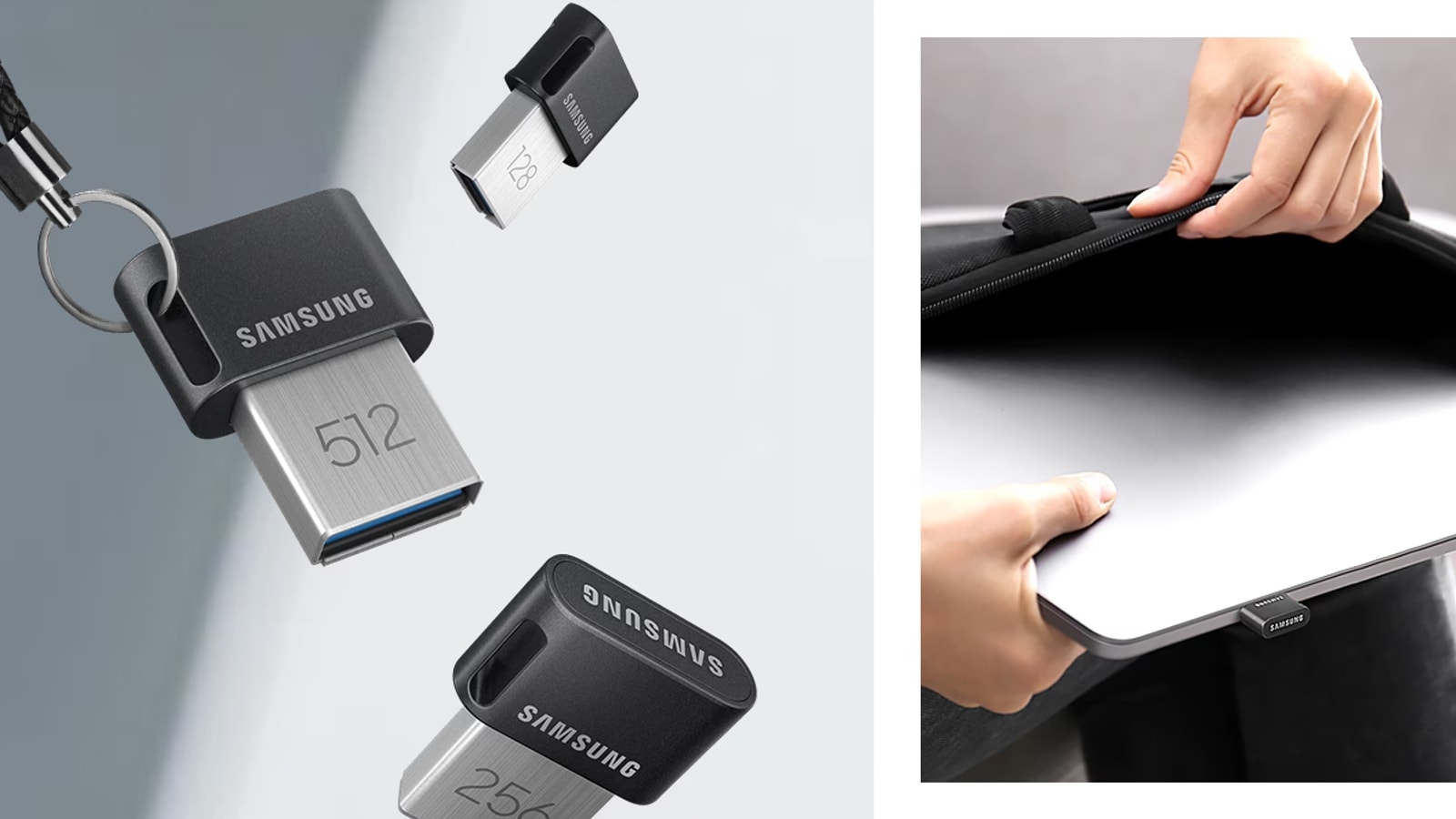
Recent flagship phones—such as the Galaxy S21, S22, S23, S24, and S25 series—do not feature MicroSD expansion slots. To expand accessible storage on these devices, connect a USB-C flash drive or external SSD directly to the charging port, or subscribe to cloud storage solutions such as Microsoft OneDrive or Google One. Select Samsung Galaxy A-series phones and Galaxy Tab tablet models continue to support MicroSD card expansion.
How do I check storage space on a Samsung Smart TV remote quickly?
Press the Home button on your remote, go to Settings > Support > Device Care, and select Manage Storage. This menu displays your installed application sizes and remaining internal TV flash memory.
Practical Recommendation for Ongoing Device Maintenance
To keep your Samsung device operating at optimal speeds and prevent unpredicted storage bottlenecks, configure One UI's native automation tools. Navigate to Settings > Device Care > Auto optimization, and turn on Auto restart. Modern smartphones run background memory consolidation scripts during scheduled restarts, clearing system RAM and flushing temporary cached logs automatically.
Additionally, set up cloud backup integration inside the native Samsung Gallery app by linking your Microsoft OneDrive account. This allows you to select Free up phone space under Gallery settings, which safely purges locally stored photos and videos from your physical memory once they have been backed up to secure cloud storage.
Image Gallery