How to Send a Text to a Phone: A Complete Guide Across Devices and Services
Sending a text to a phone requires transmitting a digital message over a cellular network or internet connection to a mobile handset. You can complete this process using a smartphone, a desktop computer, an email client, or an automate...
Sending a text to a phone requires transmitting a digital message over a cellular network or internet connection to a mobile handset. You can complete this process using a smartphone, a desktop computer, an email client, or an automated web platform, depending on your device availability, message format, and recipient carrier.
Contents
Understanding Text Messaging Technologies: SMS, MMS, RCS, and iMessage
Modern text messaging relies on distinct protocols that dictate how data travels between devices. Choosing the right method depends on the content of your message, network availability, and the hardware used by both sender and recipient.
| Protocol | Network Type | Content Capabilities |
|---|---|---|
| SMS | Cellular (SS7) | Plain text up to 160 chars |
| MMS | Cellular (Data) | Text + Media (Photos, Video) |
| RCS | IP Data / Wi-Fi | Rich Media, Typing Indicators |
| iMessage | IP Data / Wi-Fi | Apple Devices Only (E2EE) |
Short Message Service (SMS)
SMS is the universal baseline standard for text messaging. Created in the late 20th century, SMS transmits short text messages over the Signalling System No. 7 (SS7) protocol within standard cellular channels.
- Character Limit: A single standard SMS message is capped at 160 characters using 7-bit GSM 03.38 encoding. If you include special characters or emojis that require 16-bit UCS-2 encoding, the single-message limit drops to 70 characters.
- Concatenation: When a text exceeds the character limit, cellular networks break the transmission into multi-part messages (Concatenated SMS or CSMS). The receiving phone automatically reassembles these parts into one continuous string, though individual segments may still count toward cellular plan billing.
- Compatibility: Supported by virtually every mobile handset and network provider globally.
Multimedia Messaging Service (MMS)
MMS expands upon SMS capability by allowing users to send multimedia content over cellular data networks.
- Supported Media: Photos (JPEG, PNG), audio files (MP3, WAV), short video clips (MP4), and expanded text blocks exceeding the standard SMS character threshold.
- Data Dependency: Unlike SMS, which routes through voice signaling channels, MMS requires an active cellular data connection (3G, 4G, 5G). It will not transmit over voice-only signals without internet connectivity.
- File Size Constraints: Carriers generally enforce maximum file size limits for MMS transmissions, typically ranging from 300 KB to 3 MB depending on the service provider.
Rich Communication Services (RCS)
RCS is an advanced protocol designed to modernize carrier-based texting on mobile devices. Operating over IP data (Wi-Fi or mobile internet), RCS turns standard texting into a rich messaging platform similar to internet messaging applications.
- Key Features: High-resolution image and video sharing, real-time typing indicators, read receipts, group chat controls, and location sharing.
- Network Fallback: If an RCS message cannot be delivered due to network instability or lack of recipient support, the sender's messaging client automatically downgrades the transmission to standard SMS or MMS.
- Cross-Platform Adoption: Major operating systems, including Android and Apple iOS, support the RCS Universal Profile, making high-quality cross-platform messaging standard across network hardware.
Apple iMessage
iMessage is Apple's proprietary end-to-end encrypted messaging service designed exclusively for iOS, iPadOS, macOS, and watchOS devices.
- Data Transmission: Sent via Wi-Fi or cellular data directly through Apple servers rather than carrier cellular networks.
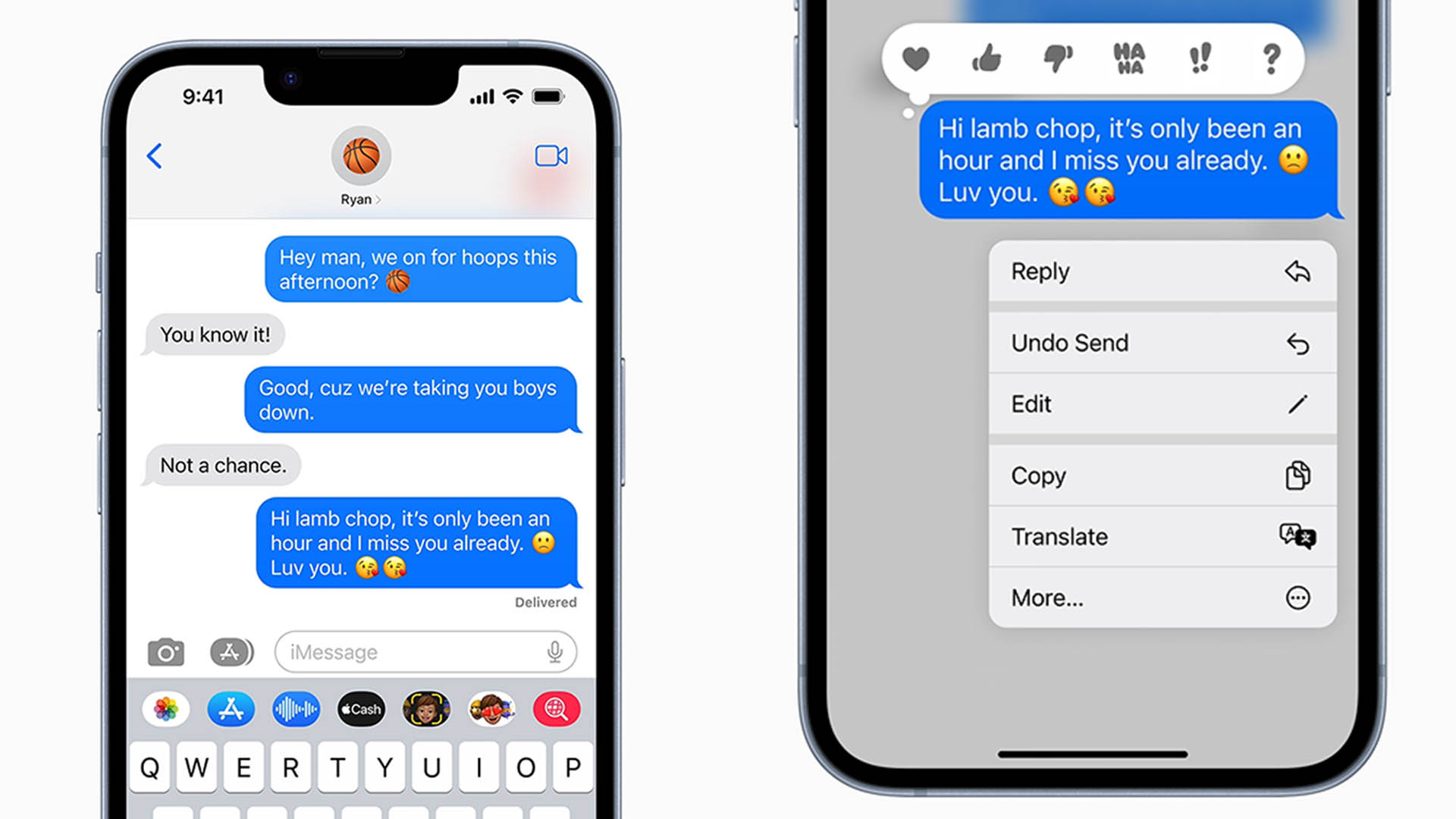
- Visual Distinction: Within the native Messages app on Apple devices, iMessages display in blue chat bubbles, while standard SMS/MMS messages appear in green bubbles.
How to Send a Text from a Smartphone
Mobile phones remain the primary tool for texting. The transmission steps vary slightly depending on your phone's operating system.
Sending a Text on Android
- Open the native Messages app (or your preferred third-party SMS application).
- Tap the Start chat or + button.
- In the To field, type the recipient’s mobile number or select a contact from your saved contact list.
- Tap the text box, enter your message, and attach any photos or files if needed.
- Tap the Send arrow (SMS/RCS) icon to transmit the message.
Sending a Text on iPhone (iOS)
- Open the Messages app.
- Tap the Compose icon (pencil and square) in the top-right corner.
- Type the recipient's phone number or contact name into the To field.
- Tap the input area, compose your text, and add optional attachments using the plus (+) menu.
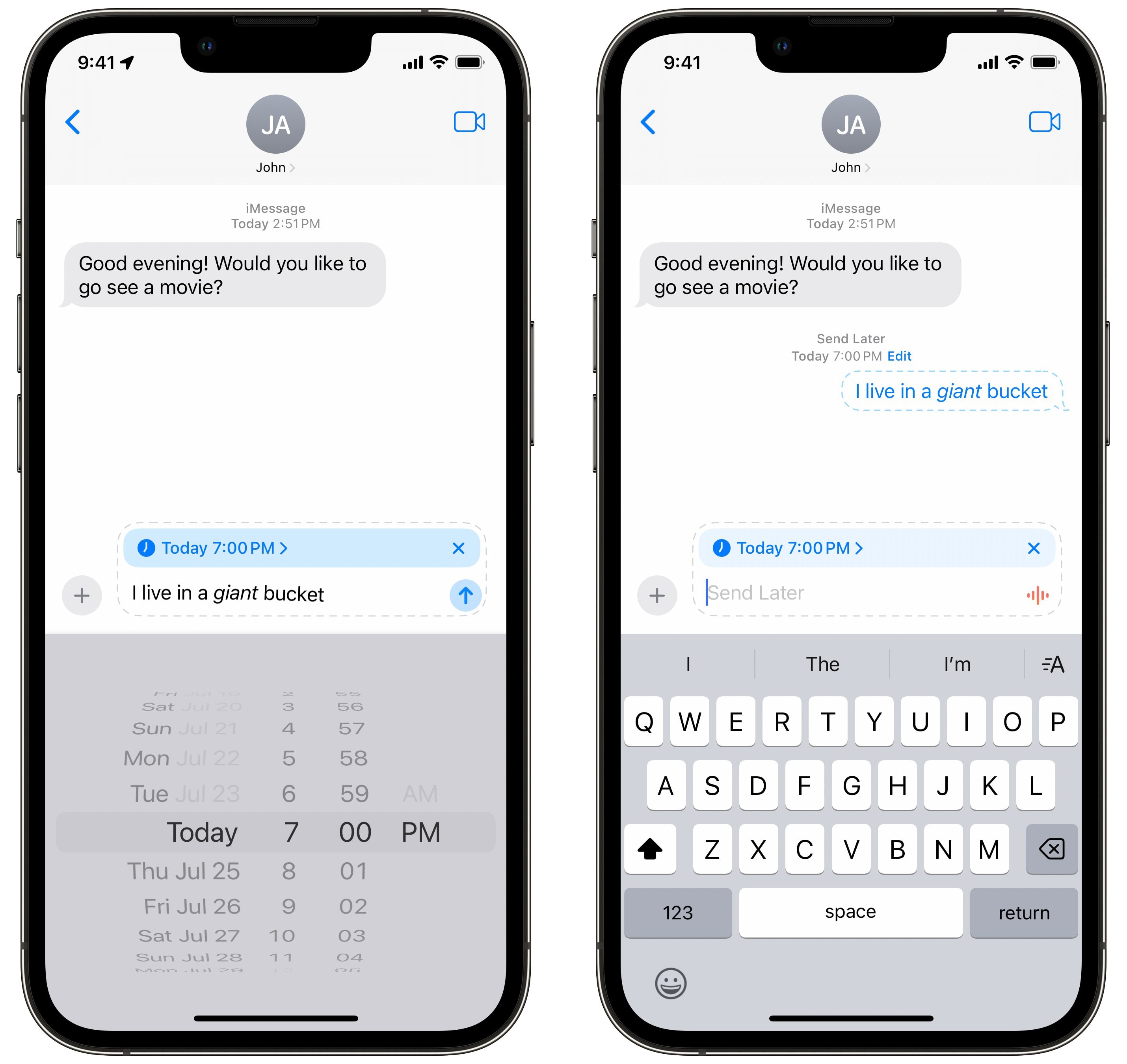
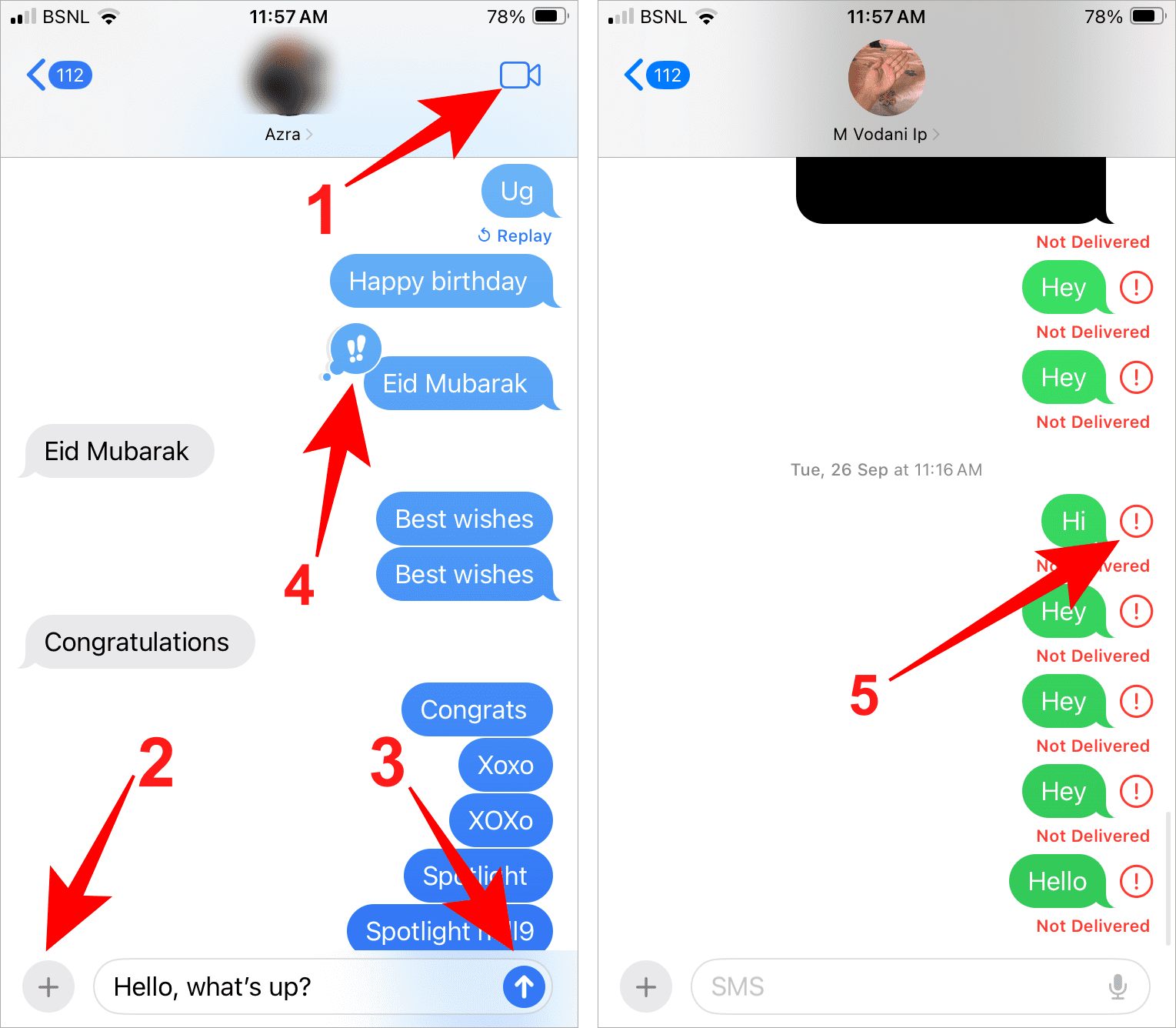
- Tap the Send button (an upward arrow). If the arrow is blue, the message transmits as an iMessage or RCS message; if green, it sends as a standard SMS/MMS.
How to Send a Text to a Phone from a Computer
Sending text messages from a desktop computer or laptop improves workflow efficiency, especially for long-form messaging, customer support, or when access to a mobile handset is restricted.
1. Using Web Syncing Apps (Google Messages for Web)
Android users can link their phone to a web browser to send SMS, MMS, and RCS messages directly from a PC or Mac.
- Prerequisites: An Android phone running Google Messages set as the default SMS app, plus an active internet connection on both phone and computer.
- Setup Instructions:
- Open a browser on your computer and navigate to
messages.google.com/web. - Open the Messages app on your Android phone, tap your profile icon or the menu, and select Device pairing.
- Tap QR code scanner on your phone and scan the code displayed on your computer screen.
- Once linked, you can send, receive, and manage text conversations straight from your browser window.
- Open a browser on your computer and navigate to
2. Using Microsoft Phone Link (Windows to Android/iOS)
Windows integrates with both Android and iOS devices using the native Phone Link application.
- Setup for Android: Install Link to Windows on your mobile device, launch Phone Link on Windows 11, and scan the pairing QR code. You can make calls, view notifications, and reply to SMS/MMS directly from your desktop.
- Setup for iOS: Pair your iPhone with Phone Link using Bluetooth. This setup routes basic SMS and iMessage threads to your Windows PC, though media sharing and group messaging feature access may be limited compared to direct mobile connections.
3. Using Apple Messages (Mac to iPhone)
Apple offers deep integration between iOS and macOS through iCloud messaging synchronization.
- Configuration: Sign into the same Apple ID on both your iPhone and Mac. On your iPhone, open Settings > Messages > Text Message Forwarding, then toggle on your Mac.
- Operation: Open the Messages app on macOS. You can initiate or reply to both iMessage (blue) and carrier SMS/MMS (green) texts using your Mac keyboard.
4. Using Web-to-SMS Cloud Platforms
If you do not want to pair a personal phone, specialized web applications allow you to send texts directly from a browser interface.
- Free Web-to-SMS Sites: Platforms such as Globfone or SendSMS allow users to type a destination number and message directly on a website. Note: Free web platforms often have lower delivery reliability, strict character limits, and potential privacy trade-offs.
- Business Messaging Portals: Cloud communications providers (e.g., Twilio, Plivo, Sinch) offer web-based dashboards and enterprise software designed to send transactional texts, appointment reminders, and mass notifications to cellular devices.
How to Send a Text to a Phone via Email (Email-to-SMS Gateways)
Major telecommunications carriers operate email-to-SMS gateways. These gateways allow you to compose an email in standard desktop or mobile email clients (such as Gmail, Outlook, or Apple Mail) and deliver it to a recipient's phone as a standard text message.
Carrier Email-to-SMS Gateway Formats
To send an email as a text message, replace phonenumber with the recipient's 10-digit mobile phone number (without dashes or spaces) and append the specific carrier domain:
| Carrier (US/Canada) | SMS Gateway Address | MMS Gateway Address |
|---|---|---|
| AT&T | phonenumber@txt.att.net |
phonenumber@mms.att.net |
| Verizon Wireless | phonenumber@vtext.com |
phonenumber@vzwpix.com |
| T-Mobile | phonenumber@tmomail.net |
phonenumber@tmomail.net |
| UScellular | phonenumber@email.uscc.net |
phonenumber@mms.uscc.net |
| Rogers (Canada) | phonenumber@pcs.rogers.com |
N/A |
| Bell Canada | phonenumber@txt.bell.ca |
phonenumber@txt.bell.ca |
Step-by-Step Instructions to Text via Email
- Open your email program and click Compose.
- In the To field, enter the recipient's 10-digit phone number followed by their carrier's SMS or MMS domain (for example,
5551234567@vtext.com). - Leave the Subject line blank (or keep it very short), as subject lines convert to brackets within the text message body and count toward the character limit.
- Type your message in the body section. Keep the text under 160 characters if sending to an SMS gateway to avoid truncation or multi-part splitting.
- Click Send. The carrier gateway translates the SMTP email into an SMS/MMS packet and delivers it to the handset. When the recipient replies to the text, their message is routed back to your email inbox.
Method Comparison for Sending Texts
The following table summarizes the key operational differences, limits, and technical requirements across primary texting methods:
| Texting Method | Underlying Network | Requirements | Character Limit | Ideal Use Case |
|---|---|---|---|---|
| Mobile App (SMS) | Cellular SS7 Channel | Active mobile carrier plan | 160 chars (7-bit) / 70 chars (UCS-2) | Quick, reliable 1-on-1 text communication without internet data. |
| Mobile App (RCS) | Cellular Data / Wi-Fi | RCS-enabled phone & carrier support | Unlimited (typically high threshold per carrier) | Rich media, group texting, and interactive chats across Android and iOS. |
| Desktop Web Sync | IP Data linking to SIM | Linked smartphone with active network | Dependent on underlying SIM protocol | Typing long messages from a computer keyboard while keeping your personal number. |
| Email-to-SMS | SMTP to Cellular Gateway | Sender's email account + knowledge of target carrier | 160 characters (SMS) | Automated alert generation from computers without specialized mobile software. |
| API / Enterprise Web | CPaaS Cloud Gateway | Application service subscription & virtual phone number | 160 per segment (CSMS supported) | Commercial broadcasts, verification codes (OTP), and scalable customer service. |
International Texting and E.164 Formatting Rules
When sending a text message to an international mobile phone number, standard localized dialing formats fail. You must structure the phone number using the E.164 international numbering standard to route the message through international gateway switches.
+[Country Code] [Area Code / Regional Prefix] [Subscriber Number]+symbol replaces international exit codes (e.g., 011 in North America)
The E.164 Structure
An E.164-compliant phone number can contain up to 15 digits structured as follows:
+[Country Code][Area Code][Local Subscriber Number]
- The Plus Sign (+): Represents the international exit code required to dial out of your current country. Modern cellular networks automatically handle the exit code when you type the
+symbol (accessed on mobile keypads by holding down the 0 key). - Country Code: A 1- to 3-digit numeric code assigned to a specific country or geographic territory (e.g.,
1for North America,44for the United Kingdom,49for Germany,81for Japan). - Subscriber Number: The full local area code and individual line number, dropping any leading zeros used for domestic trunk dialing.
International Texting Example
To text a mobile phone in London, UK, from any location globally:
- UK Country Code: 44
- Local Mobile Number (Domestic format): 07911 123456
- Correct E.164 International Format:
+447911123456(Note that the domestic leading0is removed).
Troubleshooting Text Message Delivery Failures
If your text fails to deliver, the underlying cause usually stems from network misconfigurations, hardware settings, or carrier restrictions. Use these steps to identify and resolve common texting errors.
- TEXT MESSAGE DELIVERY FAILURE
- Check Basic Settings
- Airplane Mode OFF
- Correct Number (+Country Code)
- Storage / Memory Available
- Check Network & Routing
- Carrier Data / APN Settings
- SMS Center (SMSC) Number
- Carrier Short-Code Filters
- Check Basic Settings
1. "Message Failed to Send" or Generic Delivery Errors
- Verify Signal Strength: SMS requires a stable cellular network signal, whereas MMS and RCS require active mobile data or Wi-Fi connectivity.
- Toggle Flight Mode: Turn Airplane Mode ON for 10 seconds, then turn it OFF. This forces your phone radio to re-register with local cellular towers.
- Confirm Account Status: Verify with your carrier that your line supports SMS messaging and that prepaid text/data balances have not expired.
2. Issues with Email-to-SMS Gateways
- Incorrect Gateway Address: Confirm that you are using the correct carrier domain for the target phone number. If a user ported their number from Verizon to T-Mobile, using the old
@vtext.comaddress will cause a delivery bounce. - Spam Filters: Mobile carriers implement strict spam detection filters on email-to-SMS gateways. Avoid placing marketing links, repetitive text, or attachments inside email bodies sent to SMS gateways.
3. RCS and iMessage Activation Failures
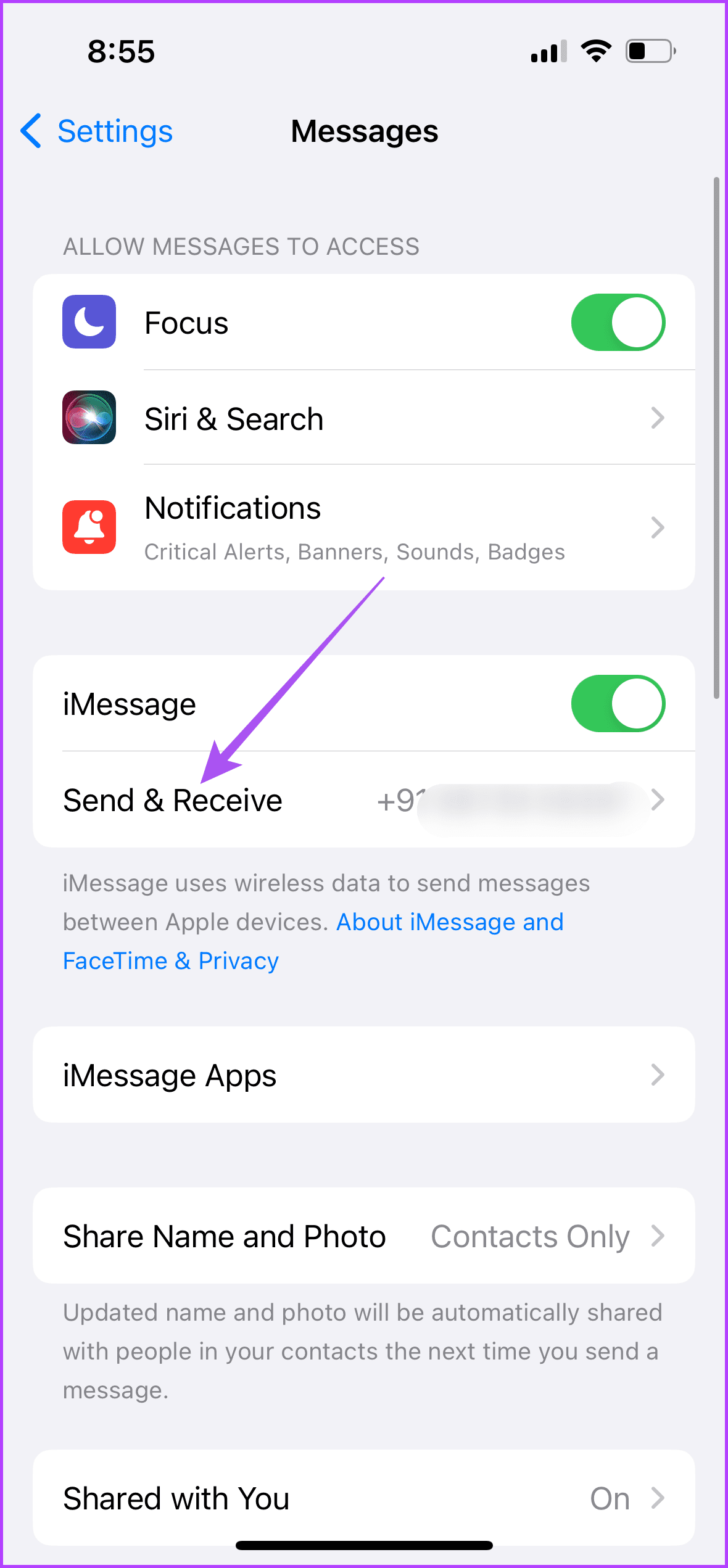
- Network Registration: If RCS or iMessage shows a "Waiting for Activation" error, check that your device has an active internet connection. On iOS, navigate to Settings > Messages, toggle iMessage off, restart your phone, and toggle it back on. On Android, toggle RCS chats off and on within Google Messages settings.
- Deregistering Ported Numbers: If you recently switched from iPhone to Android, your phone number may still be routed through Apple's iMessage servers, causing texts sent from iPhone users to fail. Use Apple's official online iMessage deregistration portal to unbind your phone number.
4. SMS Center (SMSC) Number Issues
Every Android and legacy phone relies on an SMSC number stored inside SIM card memory to handle outgoing message routing. If outgoing standard SMS messages consistently fail while incoming texts arrive normally, open your phone's diagnostic dialer (or mobile network settings), locate the SMSC setting, and verify that the number matches your carrier's default gateway service center number.
Security, Privacy, and Regulatory Standards
Text messaging protocol selection directly impacts the privacy and security of your communications.
Encryption Capabilities
- SMS and MMS: These legacy protocols are unencrypted during transit through cellular provider networks. Network operators and middle-mile telecom routing hubs store text records in plain text. Plain SMS is also susceptible to interception via IMSI-catchers (stingrays) and SIM-swapping fraud.
- RCS: Supports end-to-end encryption (E2EE) for standard one-on-one and group chats between compatible devices running modern messaging engines. E2EE ensures that neither carriers nor operating system vendors can read message payloads during transmission.
- iMessage: Fully end-to-end encrypted by default across all Apple hardware platforms.
Business Texting Compliance (TCPA & 10DLC)
In North America, business-to-consumer (B2C) text messaging is tightly regulated to prevent unsolicited spam.
- Telephone Consumer Protection Act (TCPA): US law requires organizations to secure explicit, opt-in consent before sending marketing or automated text messages to mobile phone numbers.
- 10-Digit Long Code (10DLC) Registration: Telecom carriers enforce strict verification controls on commercial 10-digit phone numbers. Businesses sending texts via web APIs must register their brand identity and campaign use cases with registry bodies (such as The Campaign Registry) to prevent message blocking by receiving carriers.
Frequently Asked Questions
Why did my text message turn green on an iPhone?
On an iPhone, a text message bubble turns green when the message is transmitted via standard cellular SMS/MMS instead of Apple's iMessage service. This occurs when you send a text to an Android user, when your phone lacks an active internet data connection, or if the recipient has iMessage turned off.
Can I text a landline phone number?
Yes, but with caveats. If you send a standard SMS to a landline, many landline providers use automated text-to-voice engines that convert your written message into a synthesized voice phone call. Alternatively, the message may trigger an automatic error notification indicating that the landline cannot receive text data.
How do I know if someone blocked my text messages?
Most cellular networks do not send a formal notification when a recipient blocks your number. On iPhone, iMessage will no longer display "Delivered" or "Read" status indicators below sent messages. On Android, your RCS message status will not advance to delivered, or the message will silently fail to trigger receipts on the receiving end.
Are email-to-SMS gateway messages free to send?
Sending an email to an SMS gateway is free from your email client. However, the recipient's mobile phone carrier may count the incoming text against their cell plan's text limits or apply standard data fees for incoming MMS transmissions.
What is the maximum file size for sending pictures via text message?
MMS file size limits vary by mobile provider, usually ranging between 300 KB and 3 MB per transmission. If you need to send larger image files or full-length videos, use RCS, iMessage, or share a cloud storage link (such as Google Drive or iCloud) via text.
Practical Recommendation
To guarantee reliable message delivery:
- For Personal Use: Use native messaging applications on modern Android or iOS devices. Ensure RCS chats (Android) or iMessage (iOS) are enabled in your app settings to take advantage of high-resolution media transfer and end-to-end encryption.
- For Computer-Based Texting: Link your mobile device to Google Messages for Web or Apple Messages on macOS. This preserves your personal phone number across devices without routing issues.
- For Automated Alerts without Apps: Use carrier email-to-SMS domain suffixes (
number@txt.att.net,number@vtext.com,number@tmomail.net) for simple, zero-cost notification scripting. - For Global Messaging: Format international phone numbers using the E.164 standard (
+[Country Code][Number]) to ensure correct routing across international switches.
Image Gallery