Best Free Online Shared Calendar Solutions for Teams, Families, and Projects
A free online shared calendar enables groups, families, and organizations to coordinate schedules, manage events, and track deadlines seamlessly across multiple devices without software costs. By centralizing appointments in real time,...
A free online shared calendar enables groups, families, and organizations to coordinate schedules, manage events, and track deadlines seamlessly across multiple devices without software costs. By centralizing appointments in real time, these platforms eliminate double-booking and streamline communication through automated notifications, custom permission levels, and cross-platform synchronization protocols.
Contents
Key Features to Look For in a Free Shared Calendar Platform
Selecting the right free online shared calendar requires assessing how well a tool fits your group's technical environment and organizational needs. While basic scheduling is standard across all platforms, underlying feature sets dictate how efficiently your team or family can collaborate.
Granular Access Controls and Permissions
Security and privacy start with access management. A robust shared calendar must allow administrators to assign specific roles to different users. Standard permission levels typically include:
- View Only (Free/Busy): Hides specific event titles and details, revealing only whether the user is occupied.
- View Full Details: Allows users to read all event descriptions, locations, attachments, and attendee lists without the ability to modify them.
- Edit Events: Grants authority to add, update, or delete calendar entries, suitable for active project contributors.
- Manage and Share: Provides full administrative control, enabling users to add new members, modify overall calendar settings, or delete the shared calendar entirely.
Cross-Platform Compatibility and Open Sync Standards
A shared calendar is only effective if every group member can access it from their preferred device. Platforms built on open web standards—such as iCalendar (.ics) publishing feeds and CalDAV protocol support—allow users to access shared events from desktop browsers, iOS, Android, and third-party desktop mail clients like Mozilla Thunderbird or Apple Calendar.
Automated Notifications and Reminders
To keep participants aligned, a calendar service must deliver reliable notifications. Look for tools that provide customizable alert triggers, such as browser push notifications, mobile app alerts, and automated email reminders. Flexible scheduling of alerts (e.g., 15 minutes prior, 1 day prior, or custom intervals) ensures critical events are not overlooked.
Integration Capabilities
Modern scheduling rarely happens in isolation. The most effective free shared calendars integrate directly with video conferencing software (such as Zoom, Google Meet, or Microsoft Teams), cloud storage services for file attachments, and task management applications. These integrations convert a simple date grid into a central operational hub.
Analysis of Top Free Online Shared Calendars
1. Google Calendar: Best Overall for Universal Compatibility
Google Calendar remains the industry standard for web-based collaborative scheduling. Tied to a free Google Account, it offers native cloud synchronization across desktop browsers and mobile operating systems.
| Pros | Cons |
|---|---|
| Universal account adoption | Requires Google account for full edit rights |
| Native Google Meet integration | Default privacy settings require auditing |
| Granular permission settings | |
| Real-time cloud sync across OS |
- Sharing Mechanics: Users can create dedicated secondary calendars specifically for projects or households and share them via email address or generate read-only public links.
- Permissions: Supports all four standard tiers, from "See only free/busy" to full administrative control.
- Integrations: Automatic creation of Google Meet video links, direct integration with Google Tasks, and attachment capabilities via Google Drive.
2. Microsoft Outlook Calendar (Web): Best for Office Ecosystem Integration
Microsoft offers a comprehensive free calendar interface via Outlook.com. It caters well to users who prefer a traditional email-and-calendar interface alongside web-based Microsoft 365 tools.
- Sharing Mechanics: Calendars can be shared with individual Microsoft account holders or published as HTML/iCal links for external viewing.
- Permissions: Grants view-only or edit access, along with delegated calendar management options.
- Integrations: Native generation of Microsoft Teams meeting links, direct attachment access via OneDrive, and seamless integration with Outlook web mail.
3. Apple iCloud Calendar: Best for Apple Device Ecosystems
For groups composed exclusively of iPhone, iPad, and Mac users, Apple's native iCloud Calendar provides low-friction scheduling integrated directly into iOS and macOS systems.
- Sharing Mechanics: Shared calendars can be created within the native Calendar app and distributed to contact lists via Apple ID. A "Public Calendar" toggle generates an iCal URL for non-Apple users.
- Permissions: Simple binary permission structures (View Only or View & Edit).
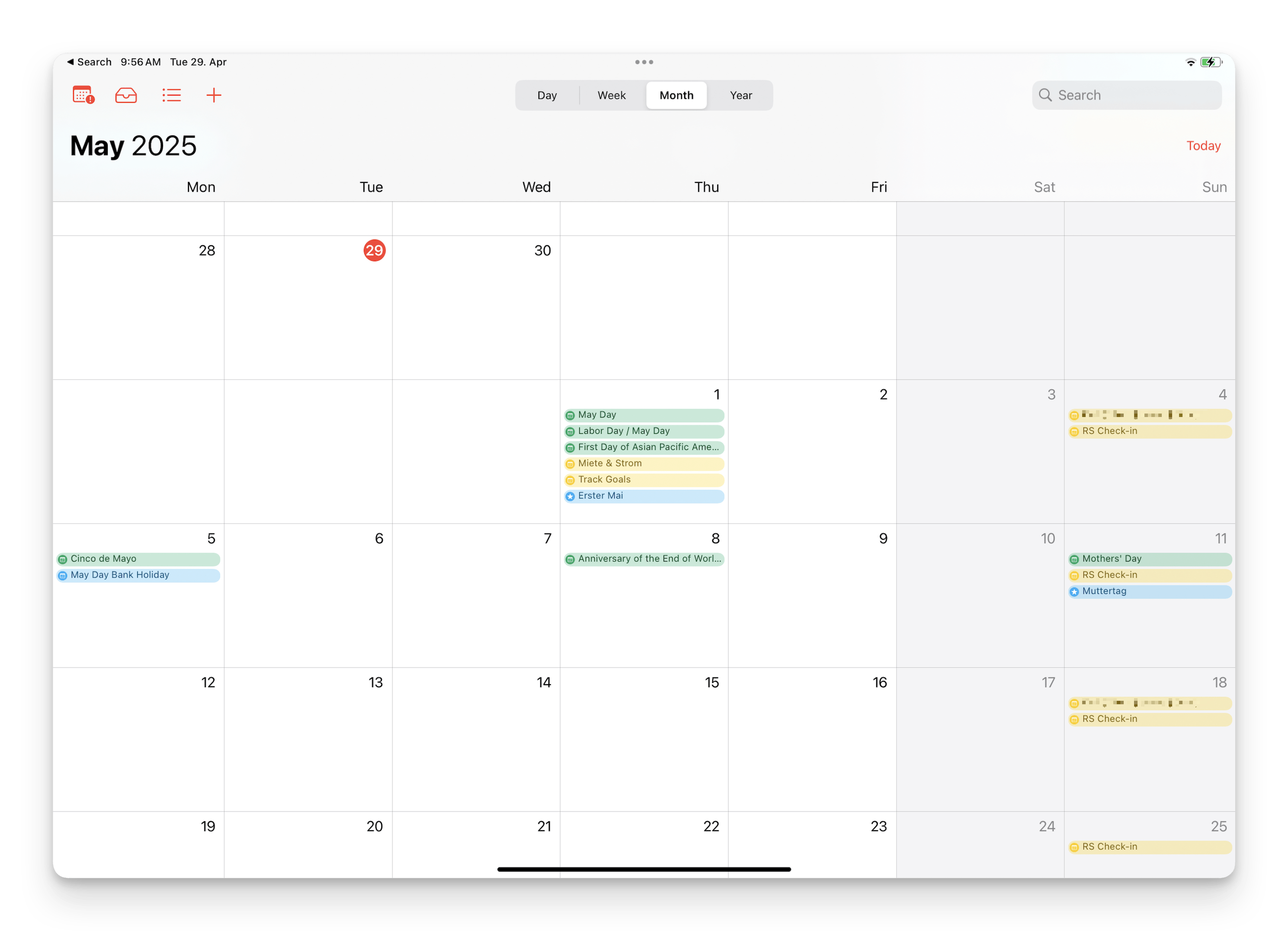
- Integrations: Deep OS-level integration, automated Siri event parsing, and native location-based travel time calculations.
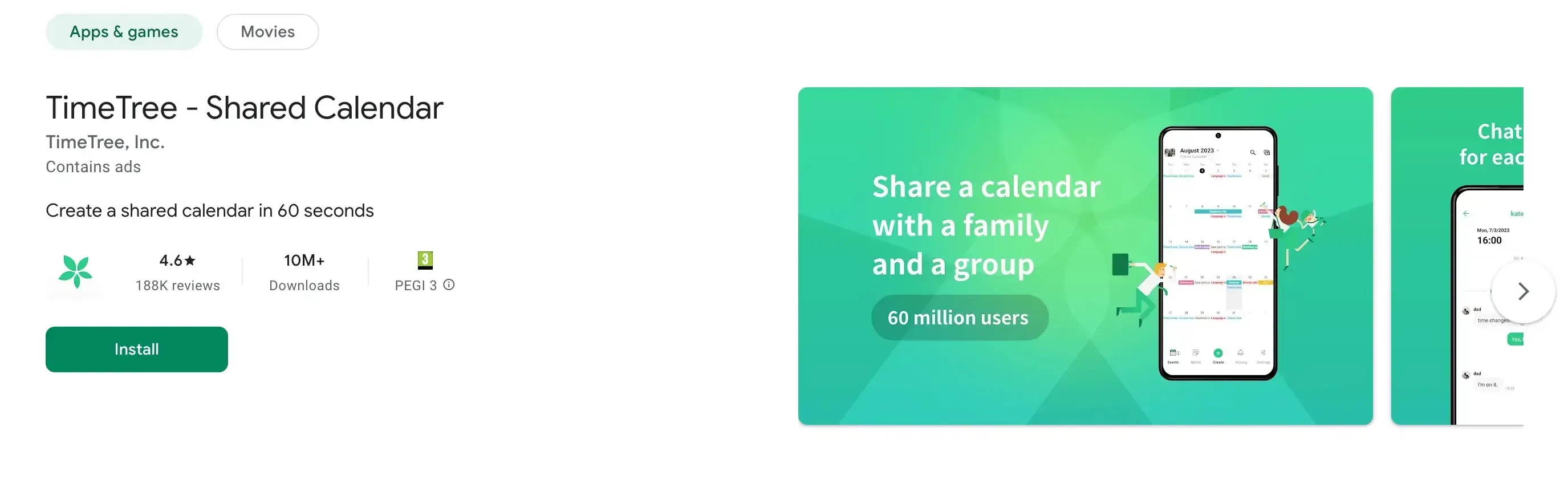
4. TimeTree: Best for Mobile-First Family and Group Coordination
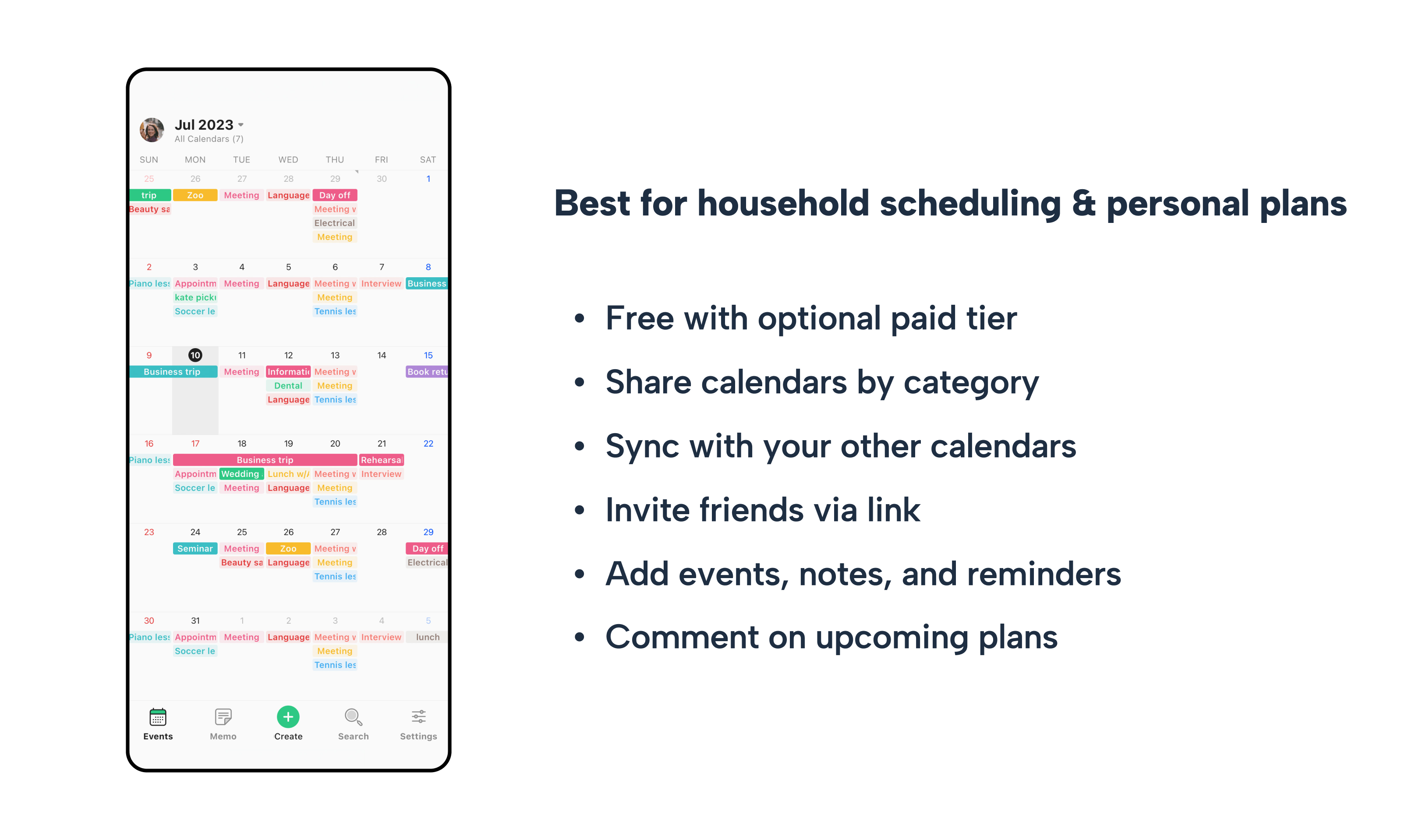
TimeTree is a specialized shared calendar app built explicitly for families, social groups, and small teams operating primarily on mobile devices.
- Sharing Mechanics: Organizes schedules into distinct shared calendars (e.g., "Family," "Work," "Social") where every member added to a specific calendar gets access without managing complex permission hierarchies.
- Unique Features: Integrated comment threads and photo uploads directly within individual event entries, functioning as both a schedule and a communication feed.
- Limitations: The free tier includes ad placements; desktop access is web-based but secondary to the mobile app experience.
5. Cozi Family Organizer: Best for Household Management
Cozi is engineered specifically for managing household logistics. Its free tier provides a shared color-coded calendar designed to keep track of family appointments, chores, and meal plans.
- Sharing Mechanics: Operates on a single household account model where all family members log in using a shared master password or individual emails linked to one family profile.
- Unique Features: Includes shared grocery lists, recipe boxes, and chore lists linked to daily calendar views.
- Limitations: Display ads in the free version; advanced features like change tracking and multiple reminders require a paid subscription.
6. Proton Calendar: Best for Data Privacy and Encryption
For users requiring strict confidentiality, Swiss-based Proton Calendar provides end-to-end encryption (E2EE) on a zero-access architecture, meaning even the service provider cannot view event details.
- Sharing Mechanics: Allows users to share encrypted calendars via secure links or invite other Proton users directly while maintaining cryptographic protection.
- Unique Features: Zero-knowledge encryption for event titles, descriptions, locations, and attendees.
- Limitations: Free plan limits the number of total calendars and storage capacity; reduced third-party integration options due to privacy constraints.
Step-by-Step Setup: Creating and Managing a Shared Calendar
Setting up a shared calendar correctly from the beginning prevents unauthorized access, accidental event deletions, and missing notifications. The following process applies to major web platforms like Google Calendar and Microsoft Outlook.
- Create Dedicated Secondary Cal
- Define Member Permission Tiers
- Issue Invites or iCal Feed Links
- Configure Mobile Sync & Alerts
Step 1: Create a Dedicated Shared Calendar
Avoid sharing your primary personal calendar. Creating a separate secondary calendar isolates group events from your private schedule.
- Open your online calendar interface on a desktop browser.
- Locate the "Other calendars" or "Add calendar" section (typically in the left sidebar).
- Select Create new calendar.
- Assign a clear, unambiguous title (e.g., Project Alpha Schedule or Smith Family Household) and choose a distinct color code to separate its entries visually.
Step 2: Configure Permission Tiers
- Open the settings menu for the newly created calendar.
- Navigate to the Share with specific people or Permissions section.
- Enter the email addresses of your team or family members.
- Select the appropriate access level for each user based on their role:
- Read-only for stakeholders who only need visibility.
- Make changes for active contributors who need to add or modify events.
Step 3: Issue Invitations and Subscriptions
- Click Send or Save. Invites will be dispatched via email containing direct links to join the calendar.
- For external stakeholders who do not use the same platform, locate the Integrate calendar section in your settings.
- Copy the Secret address in iCal format (a private
.icsURL) and distribute it to read-only subscribers. This feed allows them to subscribe via Apple Calendar, Outlook, or mobile devices without creating a new account on your primary platform.
Step 4: Verify Notification and Mobile Sync Settings
- Instruct members to accept the invitation in their email inbox.
- Open the mobile calendar application on Android or iOS.
- Ensure the newly added calendar is checked in the visible calendar list.
- Adjust default notification settings (e.g., set default alerts to 30 minutes before events) within your calendar preferences.
Comparative Matrix of Free Shared Calendar Platforms
| Platform | Free Tier Storage / Limits | Permission Granularity | Best Primary Use Case | Ecosystem & Sync Support | Privacy & Encryption |
|---|---|---|---|---|---|
| Google Calendar | Unlimited calendars (15 GB shared Google account limit) | High (4 distinct permission levels) | Work teams, cross-platform users | Web, iOS, Android, CalDAV | TLS in transit, encrypted at rest |
| Microsoft Outlook | Unlimited calendars (5 GB free OneDrive/Outlook limit) | High (View, Edit, Delegate options) | Office users, business logistics | Web, Windows, iOS, Android | TLS in transit, encrypted at rest |
| Apple iCloud | Unlimited calendars (5 GB free total iCloud storage) | Moderate (View Only, View & Edit) | iOS / macOS dedicated groups | iOS, macOS, Web (iCloud.com) | Standard iCloud encryption |
| TimeTree | Unlimited calendars (Ad-supported free version) | Low (All calendar members edit by default) | Mobile-first families, social groups | iOS, Android, Web browser | Standard cloud server security |
| Cozi Organizer | Single shared calendar per household (Ad-supported) | Low (Shared master account credentials) | Families, household coordination | iOS, Android, Web browser | Standard SSL/TLS transport encryption |
| Proton Calendar | Limited free calendar creation (1 calendar on base plan) | Moderate (Encrypted share links) | High-security projects, sensitive data | Web, iOS, Android | End-to-end encryption (E2EE) |
Troubleshooting Common Synchronization and Access Issues
Even established calendar platforms can encounter synchronization errors, missing events, or notification failures. Understanding the underlying causes helps resolve these issues quickly.
Time Zone Misalignments and Daylight Saving Changes
When group members operate across multiple geographic regions, events can appear at incorrect hours if time zones are improperly configured.
- Root Cause: A calendar or event is set to a static UTC offset rather than a specific dynamic time zone city (e.g., using
UTC-5instead ofAmerica/New_York). - Resolution: In your calendar settings, ensure the Primary Time Zone is set to your location's major reference city. When creating international events, explicitly specify the event time zone within the event creation modal.
Delayed Mobile Synchronization
Events added on a desktop web browser may fail to show up promptly on a smartphone.
- Root Cause: Mobile operating systems restrict background data usage to conserve battery, delaying account sync cycles.
- Resolution:
- Verify that Background App Refresh (iOS) or Background Data Usage (Android) is enabled for your calendar application.
- Open your smartphone's system settings, navigate to Accounts, select your calendar account, and verify that Calendar Sync is toggled on.
- Perform a manual pull-to-refresh inside the calendar app.
Read-Only Feed Latency (iCal Feeds)
When sharing calendars using private .ics web links, subscribers may report that updates take hours—or even a full day—to show up on their end.
- Root Cause: Subscribed iCal feeds rely on the fetching server's refresh schedule, not the publishing calendar's real-time updates. Google Calendar, for example, updates external iCal subscriptions only once every few hours.
- Resolution: For immediate, real-time sync, invite users directly using their account email addresses rather than providing a published web subscription URL.
Accidental Event Overwrites and Deletions
Multiple edit-capable users can lead to deleted events or conflicting event details.
- Root Cause: Excessive administrative or edit permissions granted to users who only require read-only access.
- Resolution: Limit "Make changes and manage sharing" privileges to one or two primary administrators. Use the Trash / Bin recovery feature available in platforms like Google Calendar and Outlook to restore accidentally deleted events within 30 days.
Frequently Asked Questions
Can I share a calendar with someone who uses a different platform?
Yes. You can share calendars across different platforms by sending an direct email invitation or providing an iCal (.ics) subscription link. Most major calendar tools, including Google Calendar, Microsoft Outlook, and Apple Calendar, can read standard iCal feeds published by competing platforms.
What is the difference between sharing an iCal link and inviting a user by email?
Inviting a user by email grants them direct access within their platform account, enabling real-time bidirectional syncing and customizable permissions (such as editing rights). Sharing an iCal link creates a one-way, read-only subscription feed that periodically pulls data from your calendar into their viewing client.
How do I restrict attendees from seeing who else is on a shared calendar event?
To hide attendee lists, mark the event as Private within its individual settings menu, or create the event on a dedicated broadcast calendar where participants are added as standard guests rather than full calendar collaborators.
Are free online shared calendars safe for confidential business information?
Standard free shared calendars encrypt data during transmission and while stored on cloud servers. However, providers generally hold encryption keys, meaning data could theoretically be accessed under legal subpoenas or data breaches. For sensitive medical, legal, or proprietary business data, use an end-to-end encrypted service like Proton Calendar.
Why are push notifications not working for shared calendar events?
Missing push notifications are usually caused by OS-level notification restrictions or incorrect calendar alert defaults. Check your smartphone's system settings to confirm that notifications are authorized for your calendar app, and review the specific shared calendar's settings to ensure default event reminders are active.
Practical Recommendations for Selecting Your Shared Calendar
To pick the best platform for your group, evaluate your setup against these core criteria:
- For Cross-Platform Business Teams & Projects: Choose Google Calendar. Its permission management, native video call creation via Google Meet, and universal web access make it the most flexible zero-cost collaboration platform.
- For Enterprise & Office-Centric Workflows: Opt for Microsoft Outlook Web. It integrates cleanly with Microsoft Teams and existing Office documents without requiring paid enterprise licenses.
- For Households with Non-Technical Users: Select TimeTree or Cozi. Their color-coded, mobile-centric interfaces require minimal setup and feature built-in shared lists for family logistics.
- For Strict Confidentiality Requirements: Deploy Proton Calendar to protect client scheduling and sensitive project timelines behind zero-access, end-to-end encryption.
Start by setting up a dedicated secondary calendar on your chosen platform, adding two-factor authentication (2FA) to your primary administrator account, and testing sync behavior across a small group before onboarding your entire team or family.
Image Gallery