Understanding WPS Support on Spectrum Routers
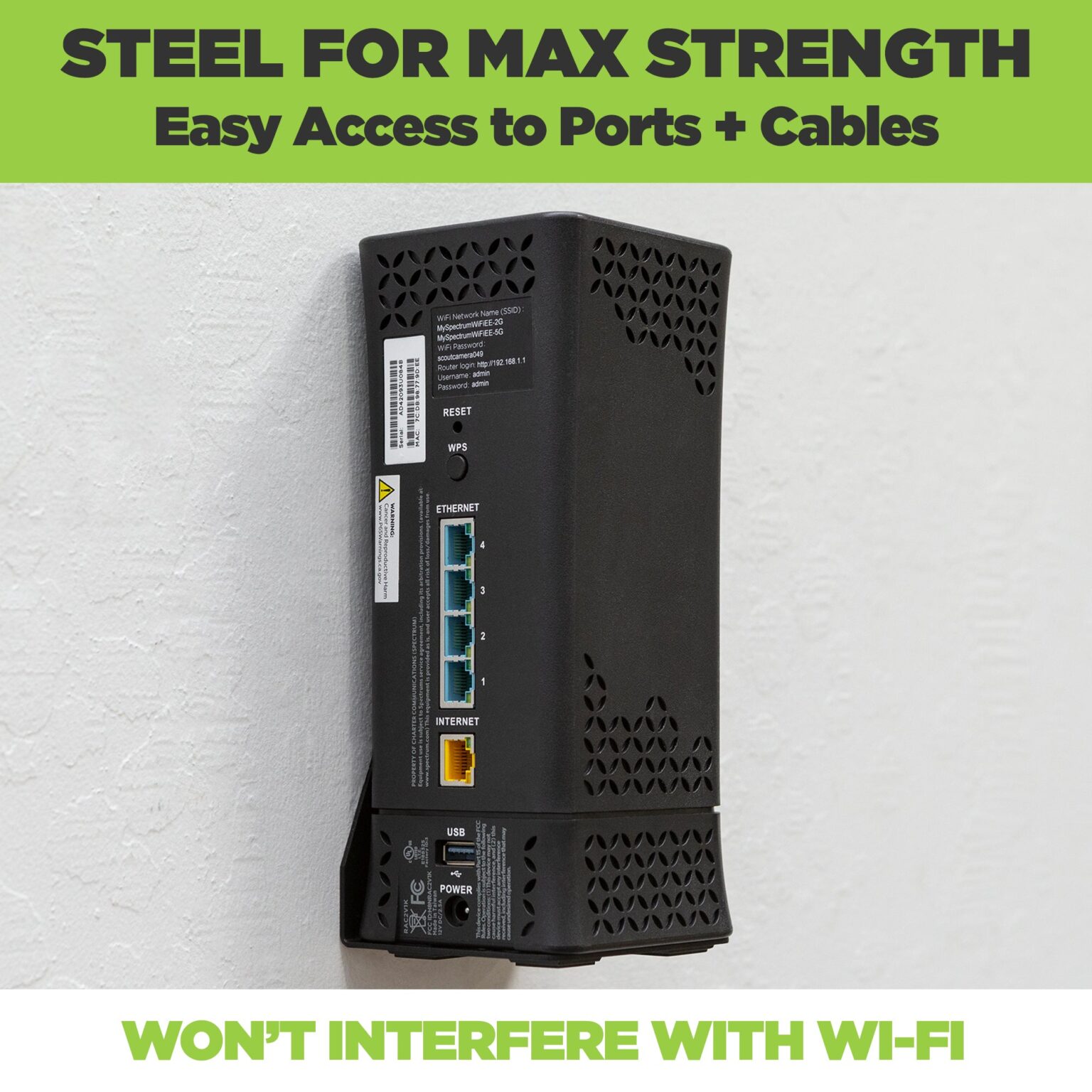
Spectrum routers, specifically the models provided by Charter Communications to their internet subscribers, generally do not feature a physical Wi-Fi Protected Setup (WPS) button. While older third-party routers often included this fea...
Spectrum routers, specifically the models provided by Charter Communications to their internet subscribers, generally do not feature a physical Wi-Fi Protected Setup (WPS) button. While older third-party routers often included this feature for simplifying device connections, Spectrum has largely moved toward more secure, software-driven configuration methods in their proprietary hardware to mitigate potential security vulnerabilities associated with the WPS protocol.
Contents
What Is Wi-Fi Protected Setup (WPS)?
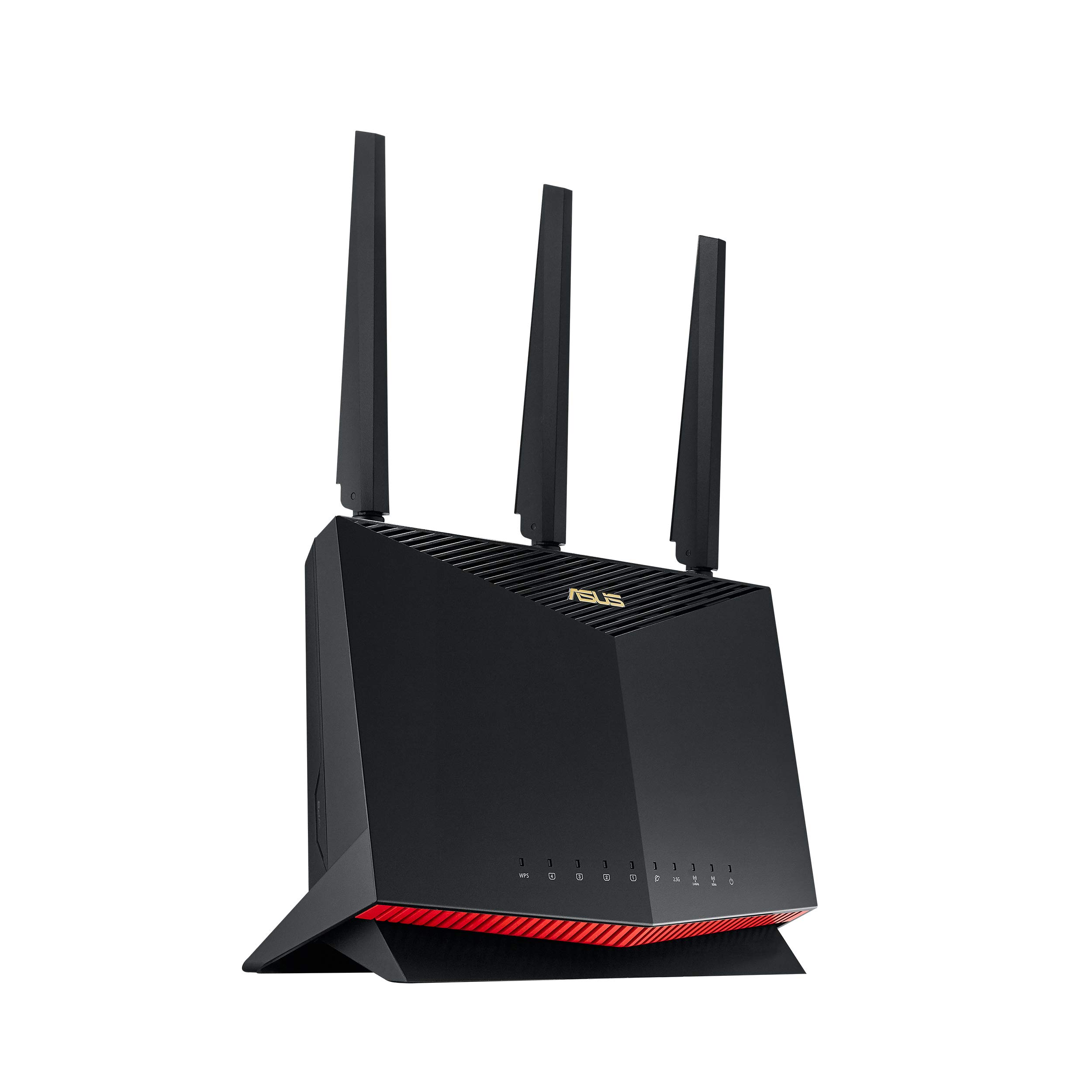
Wi-Fi Protected Setup (WPS) was introduced as a network security standard designed to simplify the process of connecting wireless devices to a secure home network. In its most common implementation, WPS allows a user to press a physical button on the router and a corresponding button (or software equivalent) on a wireless device to establish a connection without needing to manually input a complex WPA2 or WPA3 password.
The primary goal of this technology was to bridge the gap for non-technical users who might find typing long, alphanumeric passphrases on devices with limited input methods—such as printers, smart cameras, or media streamers—to be cumbersome. By utilizing a push-button configuration (PBC) or a Personal Identification Number (PIN), the router and the client device perform a "handshake" to share the network credentials automatically.
WPS on Spectrum-Provided Routers
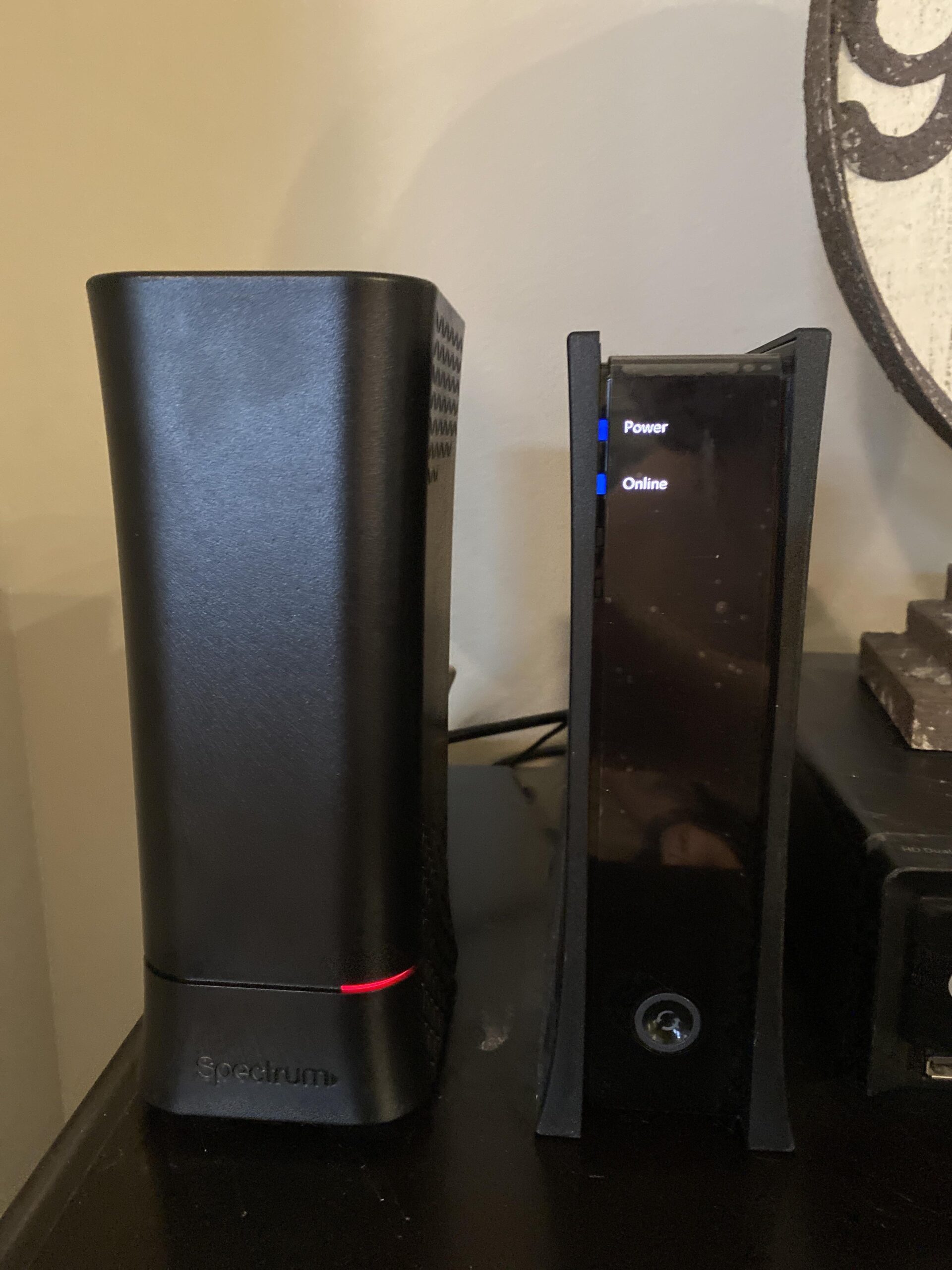
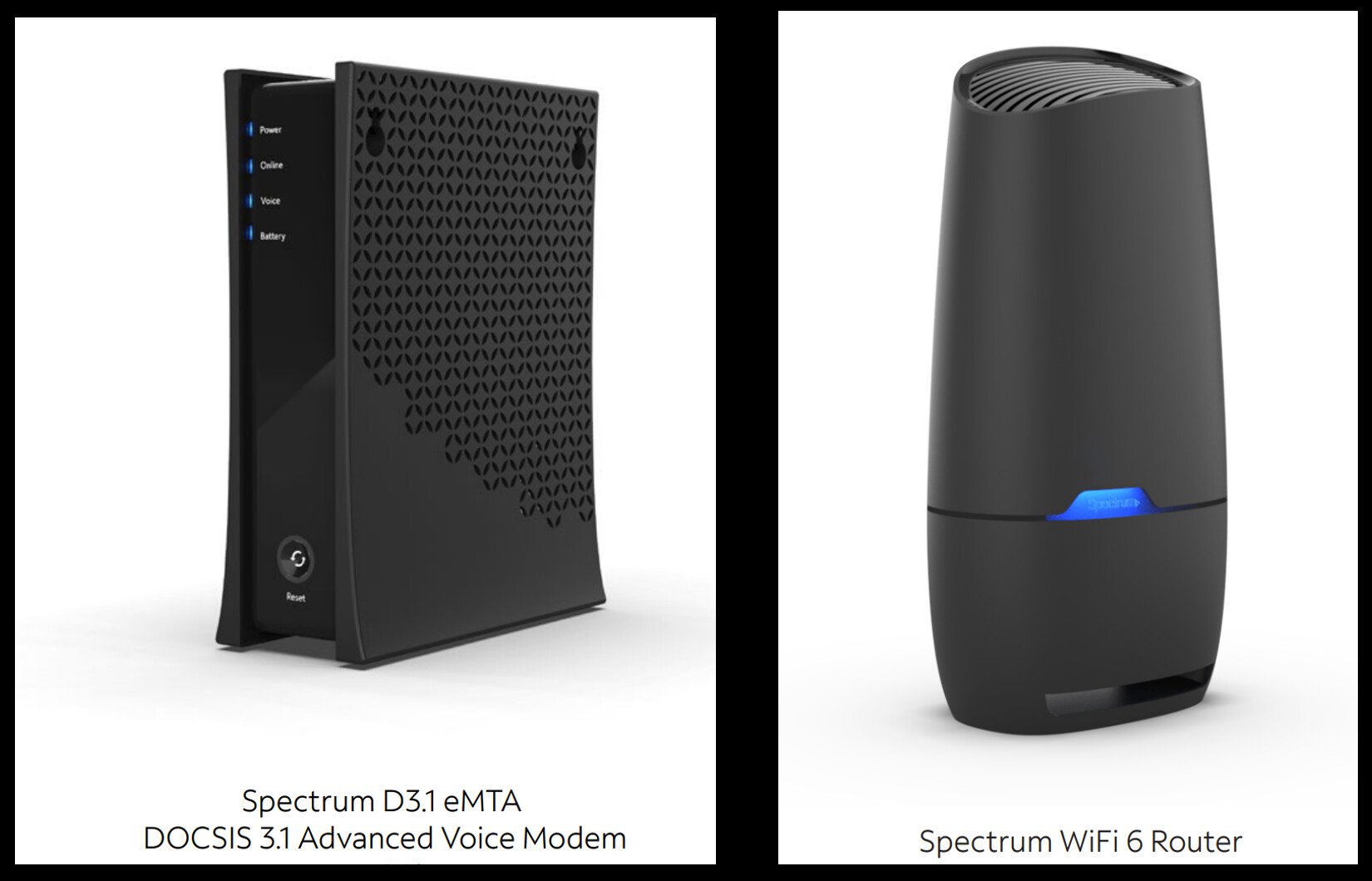
When you subscribe to Spectrum Internet, you are often provided with an Advanced Home WiFi router or a similar integrated modem-router gateway. As of 2026, the standard operating procedure for these devices prioritizes security protocols that disable or omit the traditional WPS functionality.
The reasoning behind the exclusion of WPS on these devices is largely attributed to well-documented security weaknesses inherent in the protocol. Security researchers have identified that the WPS PIN-based authentication method is susceptible to brute-force attacks. Because the PIN is relatively short and the router validates it in two halves, an attacker can theoretically determine the code with a finite number of attempts, subsequently gaining the network password.
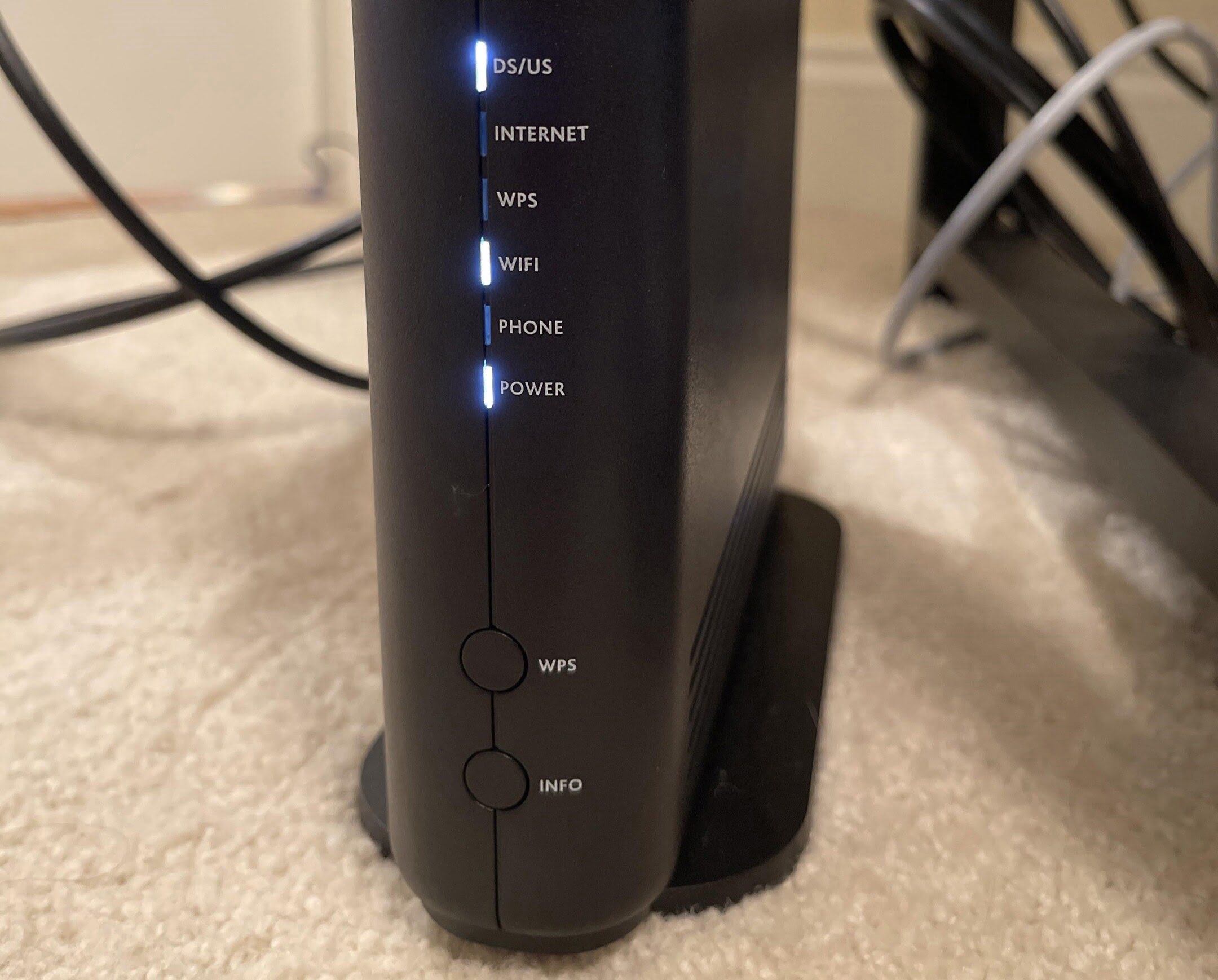
While Spectrum’s internal firmware management focuses on providing a stable and user-friendly experience, the removal of the physical WPS button is a deliberate design choice aimed at protecting the average subscriber’s network integrity. If you are searching for a physical button labeled "WPS" on your Spectrum-issued unit, it is highly likely that your model does not include this feature, or if the hardware chassis contains a blank space where a button might have been on a base model, the function is electronically disabled.
Assessing Network Security and Alternatives
Because WPS is disabled or absent on current Spectrum routers, users must connect their devices using the standard SSID (network name) and password method. While this may require more initial effort, it is significantly more secure.
To connect devices without a WPS button, utilize the following steps:
- Identify your Network Name and Password: These are typically found on the sticker located on the bottom or back of your Spectrum router. If you have customized these credentials, refer to your saved documentation or the Spectrum account portal.
- Access the Device's Wireless Settings: On the device you wish to connect (e.g., a smart printer or game console), navigate to the Network or Wi-Fi settings menu.
- Select Your SSID: Choose your specific Spectrum network name from the list of available networks.
- Enter the Credentials: Manually input the network password exactly as it appears. Ensure you observe case sensitivity, as most Wi-Fi passwords are case-sensitive.
If you are setting up a device that lacks a screen or keyboard, check the manufacturer’s documentation for "Manual Wireless Setup" or "Access Point Mode." Many modern IoT devices now utilize mobile applications that connect to the device via Bluetooth temporarily to transfer the Wi-Fi credentials from your smartphone to the target hardware.
Comparison of Connection Methods
The following table summarizes the differences between the legacy WPS method and the standard manual connection method utilized by Spectrum.
| Feature | Wi-Fi Protected Setup (WPS) | Manual Connection (Standard) |
|---|---|---|
| Ease of Use | High (Push-button) | Moderate (Manual entry) |
| Security Level | Low (Susceptible to brute force) | High (WPA2/WPA3 encryption) |
| Availability | Rare on modern ISP hardware | Universal across all devices |
| Requirement | Physical router button | SSID and Password |
Troubleshooting Common Connection Issues
If you are struggling to connect a device to your Spectrum network, the absence of WPS is rarely the cause. Consider these common troubleshooting steps instead:
- Frequency Band Confusion: Spectrum routers are often dual-band or tri-band, broadcasting both 2.4GHz and 5GHz signals. Some older smart home devices only support 2.4GHz. If your device cannot see the network, ensure you are not exclusively searching on the 5GHz frequency.
- Password Errors: Ensure that you are not using the "Admin" password to connect to Wi-Fi. The Admin password is for managing the router’s firmware settings, while the Wi-Fi password is for connecting devices to the internet. These are often different.
- Device Distance: During the initial setup, move the device closer to the router to rule out signal interference or attenuation caused by walls and furniture.
- Reboot the Network: A simple power cycle of the router—unplugging it for 30 seconds and plugging it back in—can often resolve handshake issues between the router and newer client devices.
Frequently Asked Questions
Can I enable WPS on my Spectrum router settings? Generally, no. Spectrum manages the firmware for their rental routers remotely. If the option is not visible in the My Spectrum app or the router’s web interface (usually accessed via 192.168.1.1), the feature is locked or disabled for security reasons and cannot be toggled by the user.
Is my connection less secure without WPS? Quite the opposite. Your connection is more secure without WPS. By requiring a password, you force the connection process to use the full extent of the router’s encryption standards (like WPA3), which are not compromised by the vulnerabilities found in the WPS PIN method.
How do I connect my printer if it only supports WPS? Check your printer’s manual for a "manual" or "infrastructure" setup mode. Most printers that support WPS also allow you to connect via a web browser by typing the printer's IP address into a computer on the same network, or by using a USB cable for the initial configuration.
Should I buy a third-party router to get WPS? While third-party routers offer more control, you should not purchase one solely to gain WPS functionality. The security risks associated with WPS outweigh the marginal convenience of the push-button method. If you require advanced features, focus on routers that support the latest security standards like WPA3.
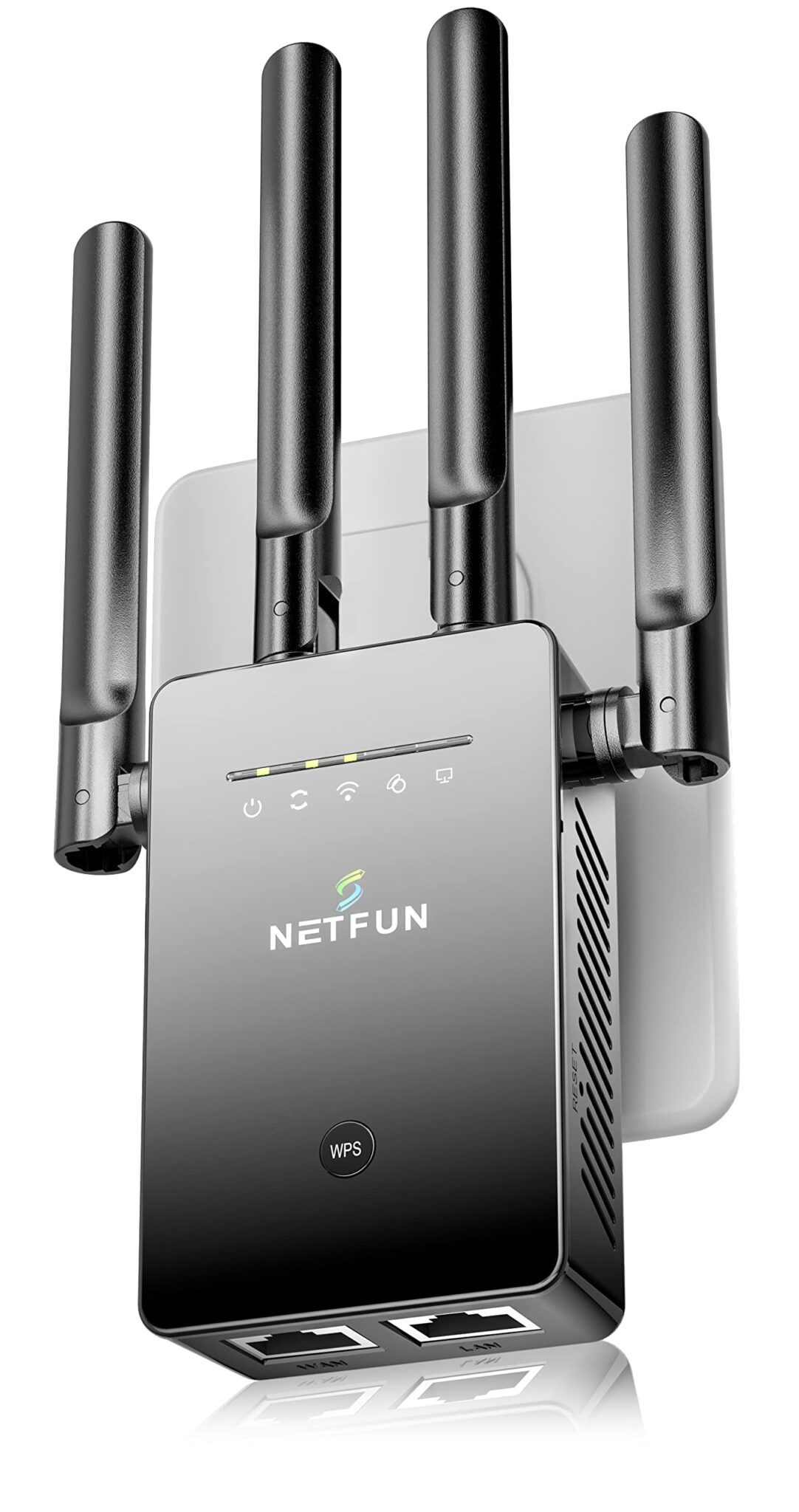
What should I do if a device absolutely requires WPS? If a specific device has no way to input a password, you may consider using a Wi-Fi range extender that supports WPS. You can connect the extender to your Spectrum router using a manual password, and then use the WPS function on the extender to connect your specific device.
Final Recommendation
While the absence of a physical WPS button on Spectrum routers may initially seem like a limitation for setting up legacy devices, it is a standard security practice in 2026. Prioritize manual configuration through your device's specific mobile application or its internal network settings menu. If you are struggling with a specific piece of hardware, consult the manufacturer’s support portal, as most modern devices have moved away from WPS in favor of app-based provisioning, which is both more secure and more reliable.
Image Gallery