Comprehensive Troubleshooting Guide for TP-Link Router Problems
Most TP-Link router problems stem from outdated firmware, signal interference, or incorrect IP configurations. Issues are usually resolved by power cycling the device, checking physical cable connections, or accessing the administrativ...
Most TP-Link router problems stem from outdated firmware, signal interference, or incorrect IP configurations. Issues are usually resolved by power cycling the device, checking physical cable connections, or accessing the administrative interface via tplinkwifi.net to update settings. For persistent drops, adjusting the wireless channel or performing a factory reset is often the final solution.
Contents
TP-Link remains one of the most prolific providers of networking hardware in 2026, ranging from budget-friendly Archer models to high-end Wi-Fi 7 Deco mesh systems. However, even with the advancements in automated network healing and AI-driven optimization, users frequently encounter connectivity hurdles. Understanding how to diagnose and resolve these issues requires a systematic approach, moving from physical layer checks to complex software configurations.
Interpreting TP-Link LED Status Indicators
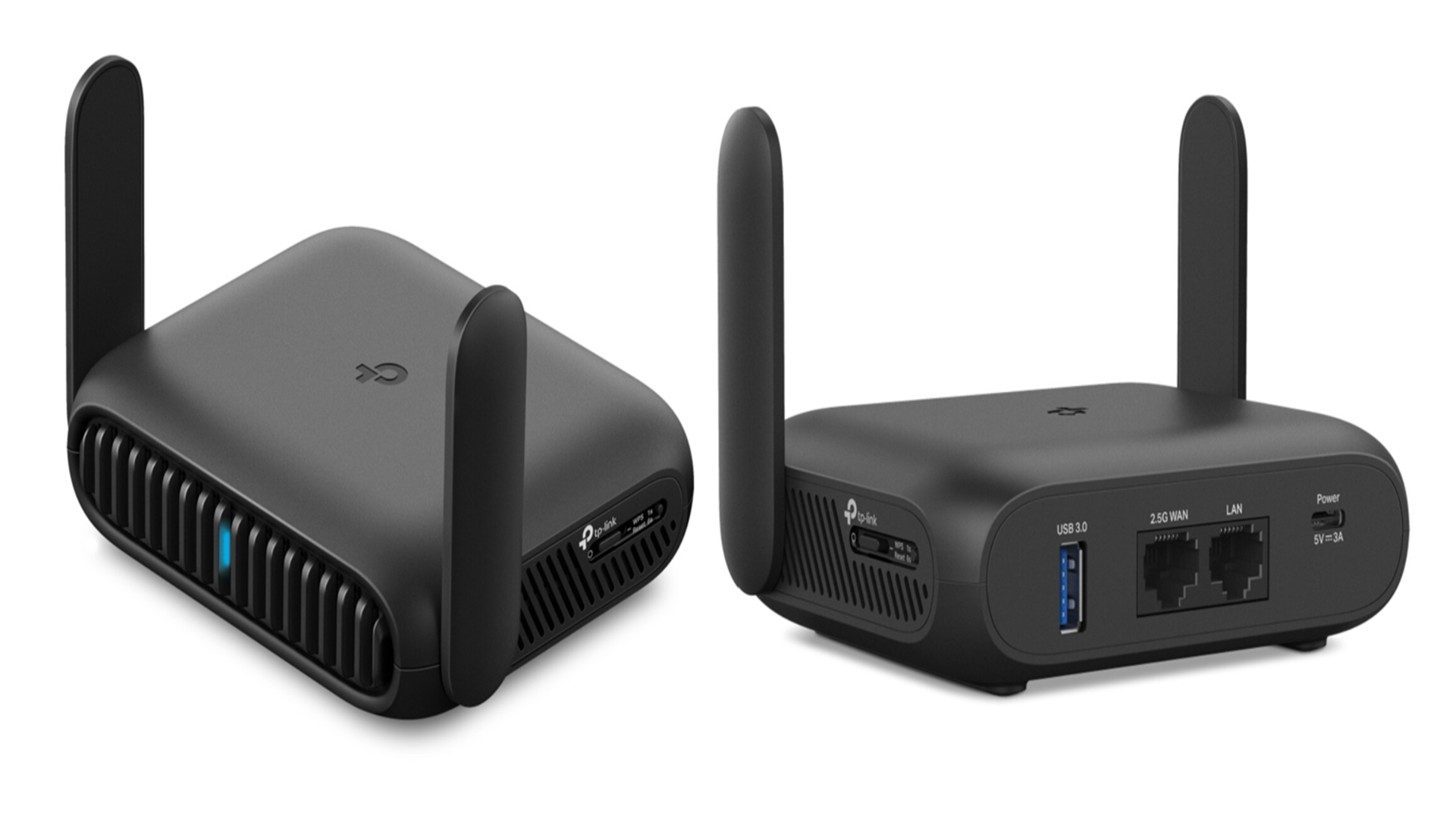
The first step in any troubleshooting process is visual inspection. TP-Link routers use a standardized set of LED indicators to communicate their internal status. By 2026, many models have moved toward a single multi-color LED ring, but the color logic remains consistent across the product line.
A solid Green or Blue light typically indicates that the router is powered on and the internet connection is active. If the light is Orange or Red, the router detects a physical connection to the modem but cannot establish an internet handshake. If the light is Off, the device is either powered down or experiencing a hardware failure.
| Indicator Light | Color/Status | Meaning | Immediate Action |
|---|---|---|---|
| Power | Off | No power reaching the unit | Check the power adapter and wall outlet. |
| Internet | Solid Orange/Red | Physical connection but no IP | Restart both the modem and the TP-Link router. |
| Internet | Off | No physical cable detected | Verify the Ethernet cable is in the WAN/Internet port. |
| Wi-Fi | Off | Wireless radios are disabled | Press the physical Wi-Fi button or check the Tether app. |
| System/Status | Blinking | Firmware update or WPS active | Do not power off the device during this phase. |
Resolving "Connected, No Internet" Errors
One of the most common TP-Link router problems is a device successfully connecting to the Wi-Fi network but failing to access the internet. This usually points to a breakdown in communication between the router and the Internet Service Provider (ISP).
Power Cycling the Network
The "30-30-30" rule has evolved, but a standard power cycle remains the most effective "soft" fix. Turn off the modem and the TP-Link router. Wait at least 60 seconds to allow the capacitors to discharge and for the ISP's headend to clear the previous session. Power on the modem first and wait for its "Online" light to stabilize. Only then should you power on the TP-Link router. This sequence ensures the router requests a fresh IP address from the modem via DHCP.
MAC Address Cloning
Some ISPs lock the internet connection to the MAC address of the first device connected to their modem (usually a PC or an older router). If you have recently replaced your hardware, your TP-Link router might be blocked. To fix this, log into the web management page, navigate to Network > WAN, and select the MAC Clone option. Choose "Clone Current Computer MAC Address" and save the settings. This tricks the ISP into thinking the new router is the authorized device.
Troubleshooting Slow Speeds and Dropped Connections
In 2026, with the prevalence of Wi-Fi 7 and ultra-wide 320MHz channels, interference has become a more complex variable. If your TP-Link router is providing slow speeds compared to a wired connection, the issue is likely environmental or configuration-based.
Channel Congestion and Interference
TP-Link routers often ship with "Auto" channel selection enabled. In high-density areas, such as apartment complexes, multiple routers may compete for the same frequency. Use a Wi-Fi analyzer tool to identify which channels are least crowded. For 2.4GHz, stick to channels 1, 6, or 11. For 5GHz and 6GHz, look for DFS (Dynamic Frequency Selection) channels that are less likely to be occupied by neighbors.
Disabling Smart Connect
Many TP-Link Archer and Deco models use a feature called Smart Connect, which merges the 2.4GHz and 5GHz (and sometimes 6GHz) bands into a single SSID. While convenient, this can cause "sticky client" syndrome, where a device stays on the slower 2.4GHz band even when it is right next to the router. Disabling Smart Connect in the Advanced Wireless settings allows you to manually connect high-bandwidth devices to the faster bands.
Firmware Optimization
TP-Link frequently releases firmware updates to improve compatibility with newer smartphones and IoT devices. An outdated firmware version can lead to memory leaks, causing the router to slow down after several days of uptime. Use the TP-Link Support Portal or the TP-Link Tether App to check for updates. Always perform updates over a wired connection if possible to prevent corruption.
Accessing the Admin Interface (tplinkwifi.net)
To fix deeper configuration issues, you must be able to access the router’s backend. This is a common pain point for users who receive "Site Cannot Be Reached" errors when trying to log in.
Correct Access Methods
TP-Link provides a localized URL: http://tplinkwifi.net. For this to work, your device must be connected directly to the TP-Link network. If you are using a VPN, a cellular hotspot, or a different Wi-Fi network, the URL will not resolve. If the URL fails, try the default IP addresses: 192.168.0.1 or 192.168.1.1.
Resetting Forgotten Credentials
If you can reach the login page but cannot remember the password, and the default "admin/admin" (on older models) or the password you set during the initial run doesn't work, a factory reset is required. Locate the recessed Reset button on the back of the device. Use a paperclip to hold it down for 10 seconds while the router is powered on. Note that this will erase all settings, including your Wi-Fi name and password.
Advanced Fixes for Persistent Stability Issues
If the basic steps fail, the problem might reside in how the router handles data packets or interacts with specific DNS servers.
Changing DNS Settings
The DNS servers provided by your ISP can sometimes be sluggish or unreliable, leading to "DNS Probe Finished" errors in your browser. Navigating to Advanced > Network > DHCP Server and changing the Primary DNS to 8.8.8.8 (Google) or 1.1.1.1 (Cloudflare) often results in snappier web browsing. You can find more information on public DNS benefits via Google Public DNS.
Adjusting MTU Size
The Maximum Transmission Unit (MTU) defines the largest size of a data packet that can be sent over the network. If the MTU is too high, packets may fragment, leading to dropped connections in online gaming or video conferencing. The default for most TP-Link routers is 1500. Lowering this to 1492 (common for PPPoE connections) or 1472 can sometimes stabilize a jittery connection.
When to Consider Hardware Replacement
If your TP-Link router requires a daily reboot to function, or if the Wi-Fi signal disappears entirely while the wired ports continue to work, you may be facing hardware degradation. Heat is the primary enemy of networking equipment. Ensure your router is placed in a well-ventilated area and not tucked inside a closed cabinet.
In 2026, if you are still using a Wi-Fi 5 (802.11ac) router, the hardware may simply be overwhelmed by the sheer volume of IoT devices and high-definition streaming demands of a modern home. Upgrading to a Wi-Fi 6E or Wi-Fi 7 system can resolve "problems" that are actually just hardware limitations. Information on the latest standards can be found at the Wi-Fi Alliance.
Frequently Asked Questions
Why is my TP-Link router light orange?
An orange light signifies that the router is physically connected to the modem but cannot establish an internet connection. This is often caused by the ISP requiring a specific login (PPPoE) or the modem needing a restart to assign a new IP address to the router.
How do I update the firmware on my TP-Link router?
The most reliable method is through the TP-Link Tether app, available on iOS and Android. Alternatively, log into the web interface at tplinkwifi.net, go to Advanced > System Tools > Firmware Upgrade, and check for online updates.
Why does my TP-Link Wi-Fi keep dropping?
Frequent drops are usually due to wireless interference or an overloaded processor. Try changing the wireless channel, moving the router away from other electronics (like microwaves or cordless phones), or disabling "Smart Connect" to separate the bands.
How do I factory reset a TP-Link router?
With the router powered on, press and hold the Reset button on the back panel for about 10 seconds. The LEDs will flash or turn off momentarily, indicating the process has begun. This will revert all settings to their original factory state.
Can I use a TP-Link router with any ISP?
Yes, TP-Link routers are compatible with almost all ISPs, including cable, fiber, and DSL providers. However, if you have a modem/router combo from your ISP, you may need to put the ISP's device into "Bridge Mode" to avoid a Double NAT conflict.
Final Recommendation
If you have performed a factory reset and updated to the latest firmware but still experience "tp link router problem" symptoms like spontaneous reboots or no signal, the issue is likely a failing power supply or internal component. Before purchasing a new unit, try replacing the power adapter with one of identical voltage and amperage, as power fluctuations are a common hidden cause of router instability. If the problem persists, it is time to upgrade to a modern mesh system to ensure long-term network health.
Image Gallery