How to Stop Ads on Samsung Phone Lock Screen
To stop ads on your Samsung lock screen, you must identify and remove third-party apps with "Appear on top" permissions, disable "Samsung Global Goals" or "Glance" in Wallpaper Services, and opt out of "Customization Service" marketing...
To stop ads on your Samsung lock screen, you must identify and remove third-party apps with "Appear on top" permissions, disable "Samsung Global Goals" or "Glance" in Wallpaper Services, and opt out of "Customization Service" marketing in your device settings. Most lock screen ads originate from recently installed utility apps.
Contents
Samsung Galaxy devices are renowned for their high-quality displays and the robust One UI interface. However, users often encounter a frustrating issue: the sudden appearance of intrusive advertisements on the lock screen. While Samsung does include some promotional content in its ecosystem, full-screen advertisements or interactive "glance" cards are typically the result of specific settings or third-party applications. By the year 2026, as mobile software has become more complex, identifying the exact source of these ads requires a systematic approach to software permissions and system-level services.
Identifying the Source of Lock Screen Ads
The first step in reclaiming your lock screen is determining whether the ads are being generated by a third-party application you installed or by a built-in Samsung service. Samsung's factory settings do not include third-party commercial advertisements on the lock screen by default; therefore, if you are seeing ads for games, products, or external services, an app is likely the culprit.
Using the "Last Used" Method in Google Play Store
One of the most effective ways to find an offending app is to check which applications have been active recently. Adware often runs in the background or triggers the moment you unlock your device.
- Open the Google Play Store.
- Tap your profile icon in the top right corner.
- Select Manage apps & device.
- Tap the Manage tab.
- Filter the list by Recently used. Look for apps that you do not recognize or apps that shouldn't have been active. Common offenders include flashlight apps, third-party launchers, battery "boosters," and file managers. If an app appears at the top of the list but you haven't opened it recently, it is likely the source of the ads.
Checking "Appear on Top" Permissions
In Android and Samsung’s One UI, the "Appear on top" (also known as "Draw over other apps") permission is what allows an app to display content over your lock screen or other applications.
- Go to Settings > Apps.
- Tap the three-dot menu (or search) and select Special access.
- Tap Appear on top.
- Review the list for any non-system apps. Utility apps like "Photo Editors" or "Weather" apps often abuse this permission to show ads. Disabling this permission for suspicious apps will immediately stop their ability to hijack your lock screen.
Disabling Samsung Wallpaper Services and Global Goals
Samsung includes several native features that can change the look of your lock screen. While intended to be helpful or charitable, they are often perceived as advertisements because they introduce dynamic content, news, and promotional images that the user did not explicitly request.
Turning Off Samsung Global Goals
The Samsung Global Goals app is a partnership with the United Nations Development Programme. While it serves a noble purpose, its "Global Goals Lockscreen" feature displays ads while your phone is charging to raise money for charity.
- Open the Samsung Global Goals app.
- Tap the Settings gear icon.
- Locate the Global Goals Lockscreen option and toggle it to Off. By disabling this, you prevent the app from taking over your charging screen and lock screen with rotating information and advertisements.
Managing Wallpaper Services (Glance and Dynamic Lock Screen)
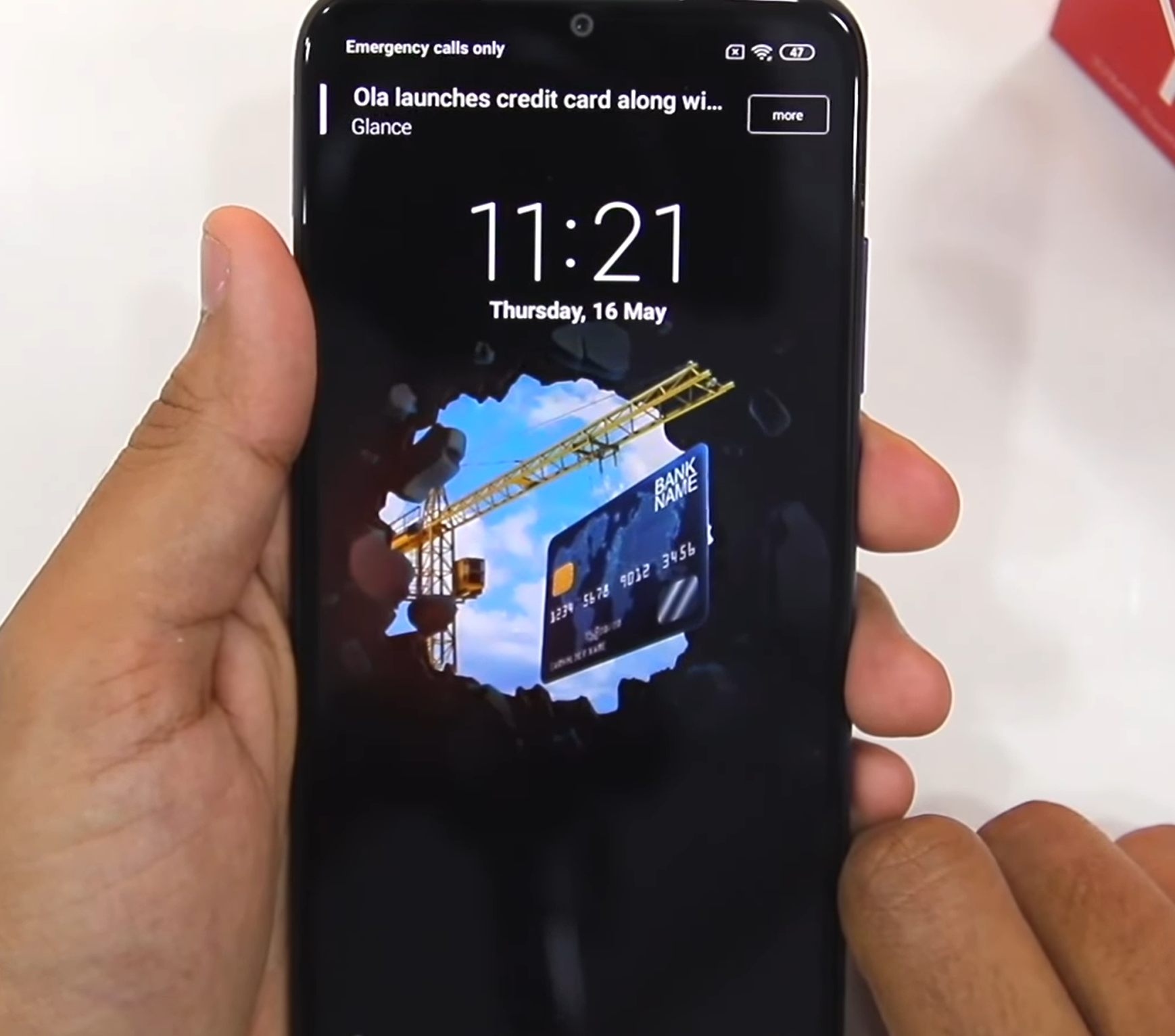
Samsung devices often come with "Glance" or "Dynamic Lock Screen" enabled in certain regions. Glance, in particular, is a third-party service integrated into One UI that serves "stories" which are essentially ads and sponsored news articles.
- Go to Settings > Lock screen.
- Tap on Wallpaper services.
- Select None. If "Glance for Samsung" or "Dynamic Lock Screen" was selected, switching to None will restore your standard wallpaper and remove all dynamic cards and sponsored content from the lock screen.
Opting Out of Samsung Customization Service
Samsung's Customization Service is a system-level feature that tracks your usage patterns, location, and interests to provide "personalized experiences" across all Samsung apps. This includes targeted marketing notifications and suggestions that may appear on your lock screen.
Revoking Marketing Consent
To stop Samsung from using your data to serve ads, you must navigate your account settings:
- Open Settings and tap on your Samsung Account (your name at the top).
- Select Security and privacy.
- Tap on Privacy.
- Select Other privacy settings.
- Tap on Customization Service. From here, you should toggle off Customized ads and direct marketing. Furthermore, you can select "Erase your data" to remove the profile Samsung has built to target you with advertisements.
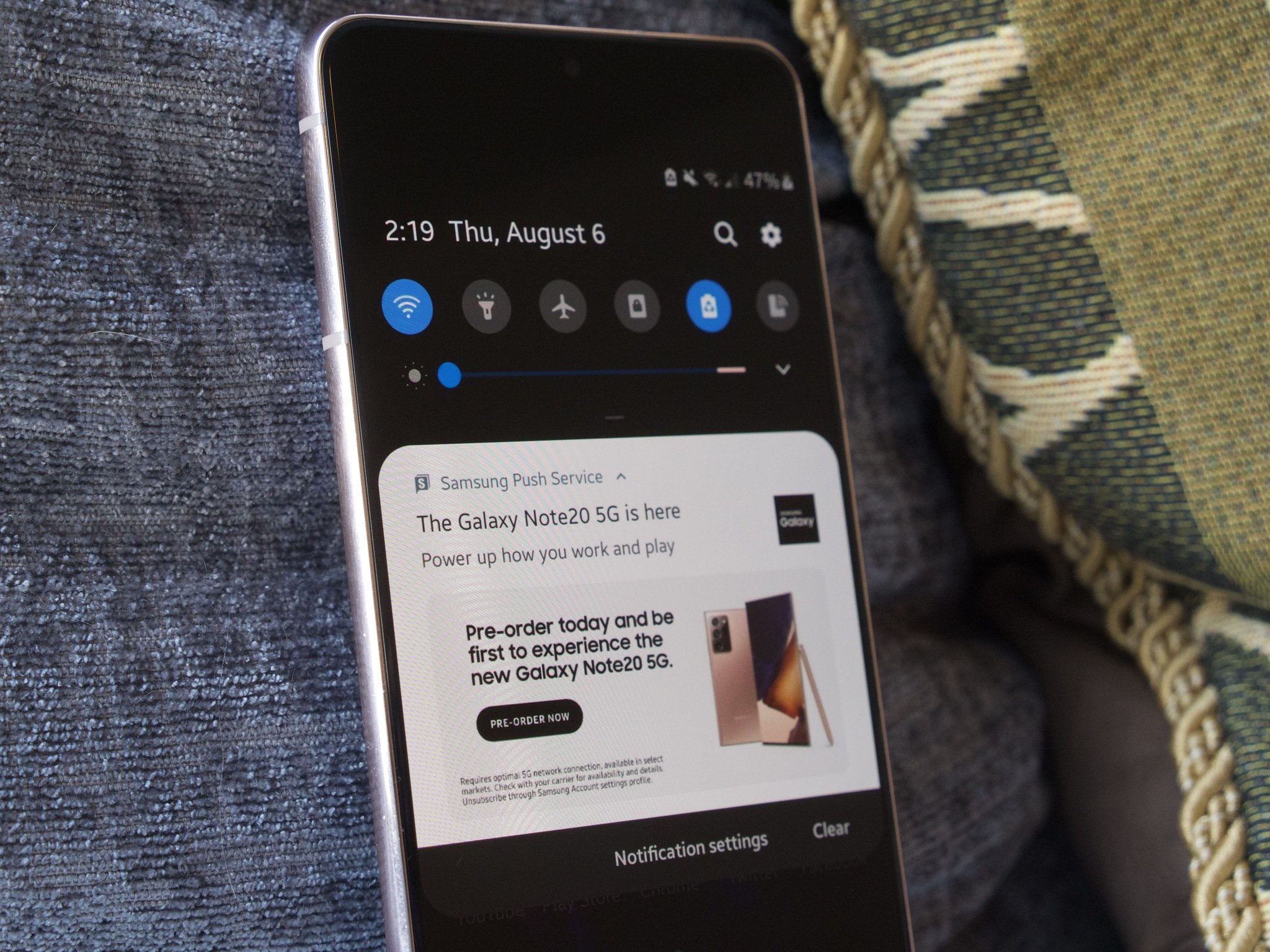
Managing Samsung Push Service
The Samsung Push Service is responsible for delivering notifications regarding Samsung services. While it is a system app, it can be used to send "offers" for the Galaxy Store or new device launches. You cannot uninstall this service, but you can limit its intrusiveness:
- Go to Settings > Apps.
- Search for Samsung Push Service.
- Tap Notifications.
- Set the toggle to Off or set it to Silent to ensure these ads do not alert you or clutter your lock screen.
Technical Comparison of Ad Sources
Understanding the difference between system-level content and third-party adware is crucial for long-term device maintenance. The following table outlines the most common sources of lock screen ads on Samsung devices in 2026.
| Ad Source | Type of Content | Identification Method | Permanent Solution |
|---|---|---|---|
| Third-Party Adware | Full-screen videos, pop-ups, product ads | "Appear on top" permission list | Uninstall offending application |
| Samsung Global Goals | UN Charity info, ads during charging | App logo visible on lock screen | Toggle off "Global Goals Lockscreen" |
| Glance / Wallpaper Services | News "Stories," sponsored content | Settings > Wallpaper Services | Set Wallpaper Services to "None" |
| Galaxy Store | App suggestions, game promos | Notification tray icons | Disable "Get news and special offers" |
| Customization Service | Personalized marketing, suggestions | System Privacy settings | Revoke Customization Service consent |
Advanced Prevention: DNS Filtering
If you have removed suspicious apps and disabled system services but still see remnants of promotional content within apps or on certain system screens, you can implement a network-level ad blocker. This works by filtering out the domains used to serve advertisements before they even reach your device.
Setting Up Private DNS
Android (and Samsung’s One UI) allows you to set a Private DNS provider. This is a highly effective, non-invasive way to block ads system-wide without installing third-party "battery-draining" ad-blocker apps.
- Go to Settings > Connections.
- Tap More connection settings.
- Select Private DNS.
- Choose Private DNS provider hostname.
- Enter
dns.adguard.comorp2.freedns.controld.com. - Tap Save. Once enabled, your phone will attempt to resolve all web addresses through these servers, which are configured to block known ad-serving domains. This can prevent even stubborn third-party apps from being able to download the ad content they intended to show you on your lock screen.
Managing Notification Categories
In recent versions of One UI, Samsung has refined how notifications are categorized. Occasionally, an app might not be "drawing" over your lock screen but is instead sending "High Priority" notifications that look like ads.
- Go to Settings > Notifications > Advanced settings.
- Ensure Manage notification categories for each app is toggled On.
- Go back to Settings > Apps and select a suspected app.
- Tap Notifications > Notification categories. Here, you can see specific types of notifications the app is allowed to send. Many apps have a "Marketing" or "Promotions" category that can be toggled off individually while keeping functional notifications (like delivery updates or messages) active.
Frequently Asked Questions
Why did ads suddenly start appearing on my Samsung phone? Ads usually appear after you install a new app that has "Appear on top" permissions. Common culprits include free utility apps like QR code scanners, calculators, or "cleaner" apps. Additionally, system updates may occasionally reset "Wallpaper Services" or prompt you to opt into Samsung Global Goals during the setup wizard.
Is it possible to uninstall the Glance service? No, Glance is typically integrated into the Samsung experience as part of the lock screen firmware in specific markets. However, it can be completely disabled by selecting "None" in the Wallpaper Services menu under Lock Screen settings.
Can a virus cause lock screen ads? While technically "adware," these are rarely destructive viruses. They are usually legitimate apps that use aggressive monetization tactics. However, if ads persist after following all the steps above, you should run a device scan via Settings > Device care > App protection to check for malicious software.
Does disabling the Customization Service affect phone performance? Disabling the Customization Service generally improves privacy and can slightly reduce background data usage and battery consumption, as the device is no longer constantly uploading usage logs to Samsung's servers to tailor advertisements.
Why does my phone show ads only when it is charging? This is almost exclusively caused by the Samsung Global Goals app. It features a "charging screen" mode that displays ads to generate revenue for charity. You can disable this specifically within the Global Goals app settings without uninstalling the app itself.
Final Recommendation
To maintain a clean, ad-free lock screen on your Samsung device, the most effective action is to audit your installed applications monthly. Prioritize removing any "free" utility apps that provide features already built into One UI (such as flashlights, calculators, or screen recorders). For a permanent solution to system-level promotions, ensure that Wallpaper Services is set to "None" and Private DNS is configured to a filtering provider like AdGuard. These steps provide a multi-layered defense against both third-party adware and first-party marketing.
Image Gallery