How to Reset a Windows Password Using the Command Line
To reset a Windows password from the command line, you must use the net user command. Open the Command Prompt with administrative privileges, type net user [username] [new_password], and press Enter. This immediately replaces the exist...
To reset a Windows password from the command line, you must use the net user command. Open the Command Prompt with administrative privileges, type net user [username] [new_password], and press Enter. This immediately replaces the existing password for the specified local account without requiring the old one.
Contents
Resetting a password via the Command Line Interface (CLI) is one of the most efficient methods for system administrators and power users to regain access to a local account. While graphical interfaces are available, the command line provides a direct path that bypasses many UI-based restrictions. However, the process differs significantly depending on whether you are currently logged into an account with administrative rights or if you are completely locked out of the system.
Understanding Local Accounts vs. Microsoft Accounts
Before attempting a password reset through the command line, it is essential to distinguish between local accounts and Microsoft accounts. In 2026, Windows environments (including Windows 10, 11, and subsequent versions) utilize these two distinct credential systems.
Local Accounts are stored on the physical machine's Security Accounts Manager (SAM) database. The command line tools discussed in this guide interact directly with this local database. If you are using a local account, the net user command is highly effective.
Microsoft Accounts are tied to online services (Outlook, Xbox, Office 365). The credentials for these accounts are managed on Microsoft’s servers, not solely on the local machine. While you can sometimes use the command line to modify how the local machine handles the cached credentials of a Microsoft account, you cannot "reset" the cloud password using local CMD commands. For Microsoft accounts, you generally need to use the official Microsoft Account Recovery portal.
Prerequisites for Command Line Password Resets
To execute password changes via CMD, specific environmental conditions must be met. You cannot simply open a standard command prompt and change another user's password; this would be a massive security flaw.
- Administrative Privileges: The Command Prompt must be running with "Run as Administrator" permissions. This gives the process the necessary tokens to modify the SAM database.
- Physical or Remote Access: You must have physical access to the machine (to boot from external media if locked out) or remote access through a protocol like SSH or PowerShell Remoting with elevated credentials.
- BitLocker Awareness: If the system drive is encrypted with BitLocker, you must have the recovery key. Without it, you cannot access the Windows file system from outside the OS to perform a manual bypass.
- Username Identification: You must know the exact username. Note that the "Display Name" shown on the login screen is often different from the actual directory username used by the system.
Method 1: Resetting a Password from Within an Active Session
If you are already logged into an administrator account and need to reset the password for a different local user on the same machine, the process is straightforward.
Step 1: Open Elevated Command Prompt
Search for "CMD" or "Command Prompt" in the Start menu, right-click the result, and select Run as Administrator. If prompted by User Account Control (UAC), click Yes.
Step 2: List All User Accounts
If you are unsure of the exact username, type the following command and press Enter:
net user
This will display a list of all local accounts created on the device, including hidden ones like the default Administrator or Guest accounts.
Step 3: Execute the Reset Command
Use the following syntax to change the password:
net user [username] [newpassword]
For example, if the username is "JohnDoe" and you want the new password to be "SecurePass2026!", you would type:
net user JohnDoe SecurePass2026!
Step 4: Using the Masked Input Method
If you do not want the new password to appear in plain text on your screen (which is a security best practice to avoid "shoulder surfing"), use an asterisk instead of a password:
net user JohnDoe *
After pressing Enter, the system will prompt you to "Type a password for the user." As you type, no characters will appear. You will then be asked to retype it to confirm.
Method 2: Resetting a Password When Locked Out (The "Utilman" Trick)
If you are locked out of the only administrator account on the machine, you cannot simply open CMD. You must use a workaround that involves the Windows Recovery Environment (WinRE) or Windows Installation Media to replace a secondary system utility with the Command Prompt.
Step 1: Create and Boot from Installation Media
You will need a USB drive with the Windows installation files. Insert the drive, restart your computer, and enter the Boot Menu (usually F12, F11, or Esc) to boot from the USB.
Step 2: Access the Command Prompt
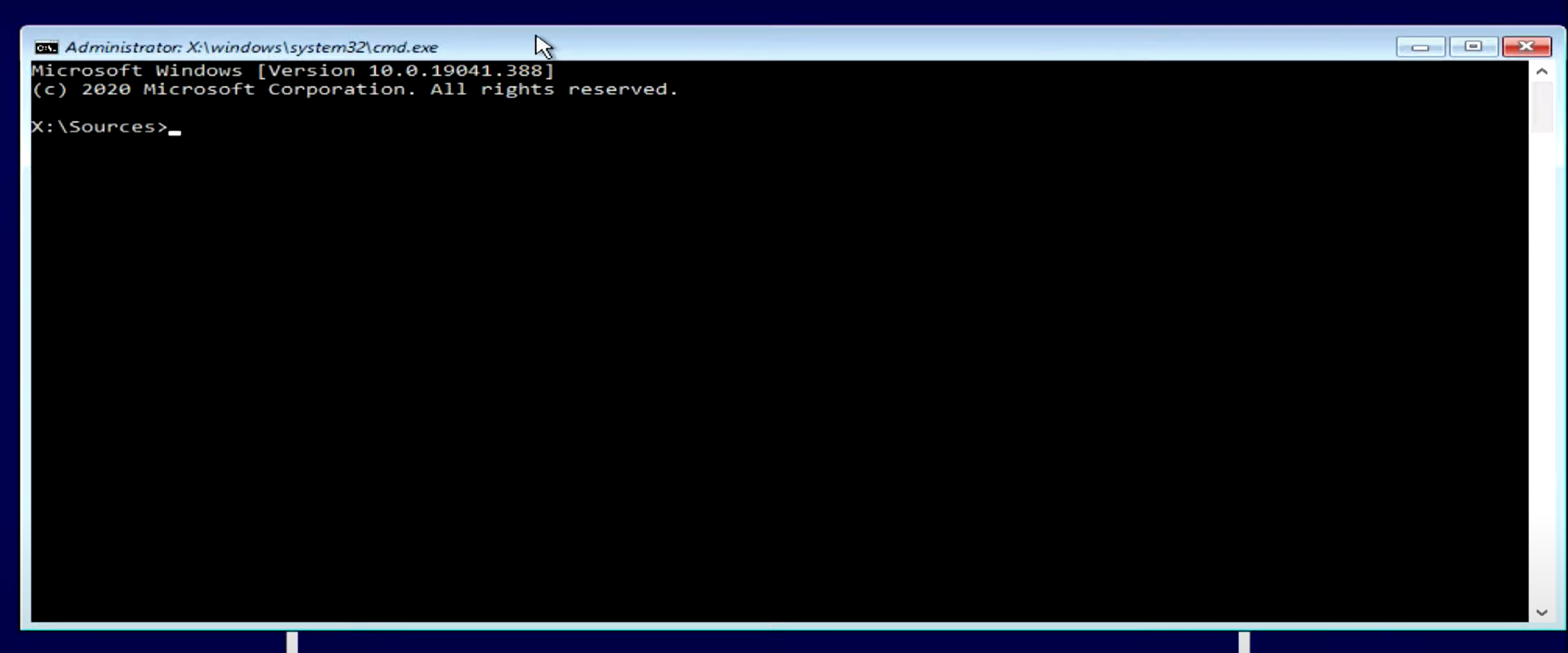
On the initial Windows Setup screen, do not click "Install Now." Instead, press Shift + F10. This opens a high-level Command Prompt window that operates under the "SYSTEM" authority.
Step 3: Locate the Windows Installation
In the recovery environment, drive letters are often shifted. You need to find which drive contains the Windows folder. Test common letters by typing:
C: then dir
D: then dir
Continue until you see the Windows and Users directories. Let's assume it is drive D:.
Step 4: Replace Utility Manager with CMD
Navigate to the System32 folder:
cd /d D:\Windows\System32
Backup the Utility Manager (Ease of Access tool) and replace it with the Command Prompt executable:
copy utilman.exe utilman.exe.bak
copy cmd.exe utilman.exe
When asked to overwrite, type Yes.
Step 5: Reboot and Reset
Remove the USB drive and restart the computer. At the login screen, click the Ease of Access icon (usually located in the bottom-right corner). Because you replaced the utility with cmd.exe, a Command Prompt window will open with System privileges.
Now, use the net user command as described in Method 1:
net user YourUsername NewPassword123
Step 6: Reverting Changes
Once you have regained access, it is vital to restore the original utilman.exe for security reasons. Repeat the boot process or use the active session to move utilman.exe.bak back to utilman.exe.
Comparison of Password Reset Methods
The following table summarizes the different approaches to resetting a Windows password via the command line, including their requirements and typical use cases.
| Method | Access Requirement | Difficulty | Risk Level | Best For |
|---|---|---|---|---|
| Standard Net User | Active Admin Login | Low | Very Low | Resetting a standard user's password. |
| Utilman Bypass | Physical Access + USB | High | Moderate | Recovering a locked Admin account. |
| PowerShell Set-LocalUser | Active Admin Login | Medium | Low | Scripted or remote administration. |
| Safe Mode with CMD | Physical Access | Medium | Low | Bypassing certain software-based blocks. |
Advanced Commands and Troubleshooting
Sometimes, the standard net user command may return an error, such as "Access is denied" or "The user was not found."
Handling Usernames with Spaces
If the account name is "John Smith," the command line will interpret "Smith" as a separate argument. You must wrap the name in quotation marks:
net user "John Smith" NewPassword123
Unlocking a Disabled Account
If the account is not just password-protected but also disabled (perhaps due to too many failed attempts), you can re-enable it while resetting the password:
net user JohnDoe NewPassword123 /active:yes
Using PowerShell as an Alternative
In modern Windows environments, PowerShell offers the Set-LocalUser cmdlet. While net user is simpler, PowerShell provides more granular control over password complexity requirements and account flags.
$Password = Read-Host -AsSecureString
Set-LocalUser -Name "JohnDoe" -Password $Password
Safety and Security Considerations
Performing a password reset via the command line is a powerful action that should be handled with caution.
- Data Loss for Encrypted Files: If a user has used the built-in Windows Encrypting File System (EFS) to protect specific folders, changing their password via CMD from another account will cause those files to become inaccessible. The encryption key is tied to the original password.
- BitLocker Protections: As mentioned previously, if BitLocker is enabled, you cannot modify the System32 files from outside the OS without the 48-digit recovery key. This is by design to prevent unauthorized password resets via the "Utilman" method.
- Security Audits: Password changes via the command line are logged in the Windows Event Viewer (Security Log). In corporate environments, this may trigger an alert for IT security teams.
FAQ
Can I reset a Microsoft Account password using CMD?
No. Command line tools like net user only interact with the local SAM database. For accounts linked to an @outlook.com, @hotmail.com, or @live.com email, you must use the Microsoft online password recovery tools.
Does "net user" work on Windows 11?
Yes, the net user command remains a core component of the Windows console subsystem in 2026 and works on Windows 11 and its successors exactly as it did on previous versions.
What if I get "System error 5 has occurred"?
This error means "Access Denied." It occurs when you attempt to run the command without administrative privileges. You must right-click Command Prompt and select "Run as Administrator."
Can I use this to find out what the current password is?
No. Windows stores passwords as cryptographic hashes. The command line allows you to overwrite the hash with a new one, but it provides no way to reverse the hash to see the original plain-text password.
Will resetting the password delete my files?
No, resetting a local account password via CMD does not delete your documents, photos, or desktop files. However, it will result in the loss of access to stored passwords in the "Credential Manager" and any files encrypted with EFS.
Practical Recommendation
If you are a home user locked out of your computer, your first step should always be to try the "Forgot Password" link on the login screen, especially if you have a Microsoft account or have set up security questions. The command line bypass should be treated as a technical recovery option when official recovery methods are unavailable. For system administrators, ensuring that a secondary "break-glass" admin account exists can prevent the need for the complex installation media bypass entirely. For more information on securing your accounts, refer to the official Windows Security documentation.
Image Gallery