Signing Documents on iPad: A Comprehensive Guide to Digital Execution
Signing documents on an iPad has evolved into a standard professional practice, enabling individuals and businesses to execute contracts, agreements, and forms without the need for printing, scanning, or physical transit. Whether you a...
Signing documents on an iPad has evolved into a standard professional practice, enabling individuals and businesses to execute contracts, agreements, and forms without the need for printing, scanning, or physical transit. Whether you are using built-in features integrated into the iPadOS ecosystem or dedicated third-party platforms designed for high-security workflows, the ability to finalize paperwork digitally relies on a combination of hardware precision, software authentication, and awareness of electronic signature legalities.
Contents
Understanding the Landscape of Digital Signatures
Before initiating a signature process, it is critical to distinguish between a simple electronic signature and a digital signature. An electronic signature (e-signature) is a broad term referring to any electronic sound, symbol, or process attached to a record and executed by a person with the intent to sign the record. A digital signature, by contrast, is a specific type of electronic signature that uses cryptographic algorithms to verify the authenticity and integrity of the document, ensuring that it has not been tampered with since the signing occurred.
On an iPad, both types are common. Casual users often utilize Markup tools to draw a signature onto a PDF, while enterprise environments rely on specialized applications that provide a secure audit trail, timestamping, and identity verification.
Prerequisites for iPad Document Signing
To effectively sign documents on your device, ensure you have the appropriate environment:
- Hardware: While any iPad running a modern version of iPadOS (16.0 or later as of 2026) supports basic annotation, the use of an Apple Pencil significantly improves precision and the natural feel of handwriting a signature.
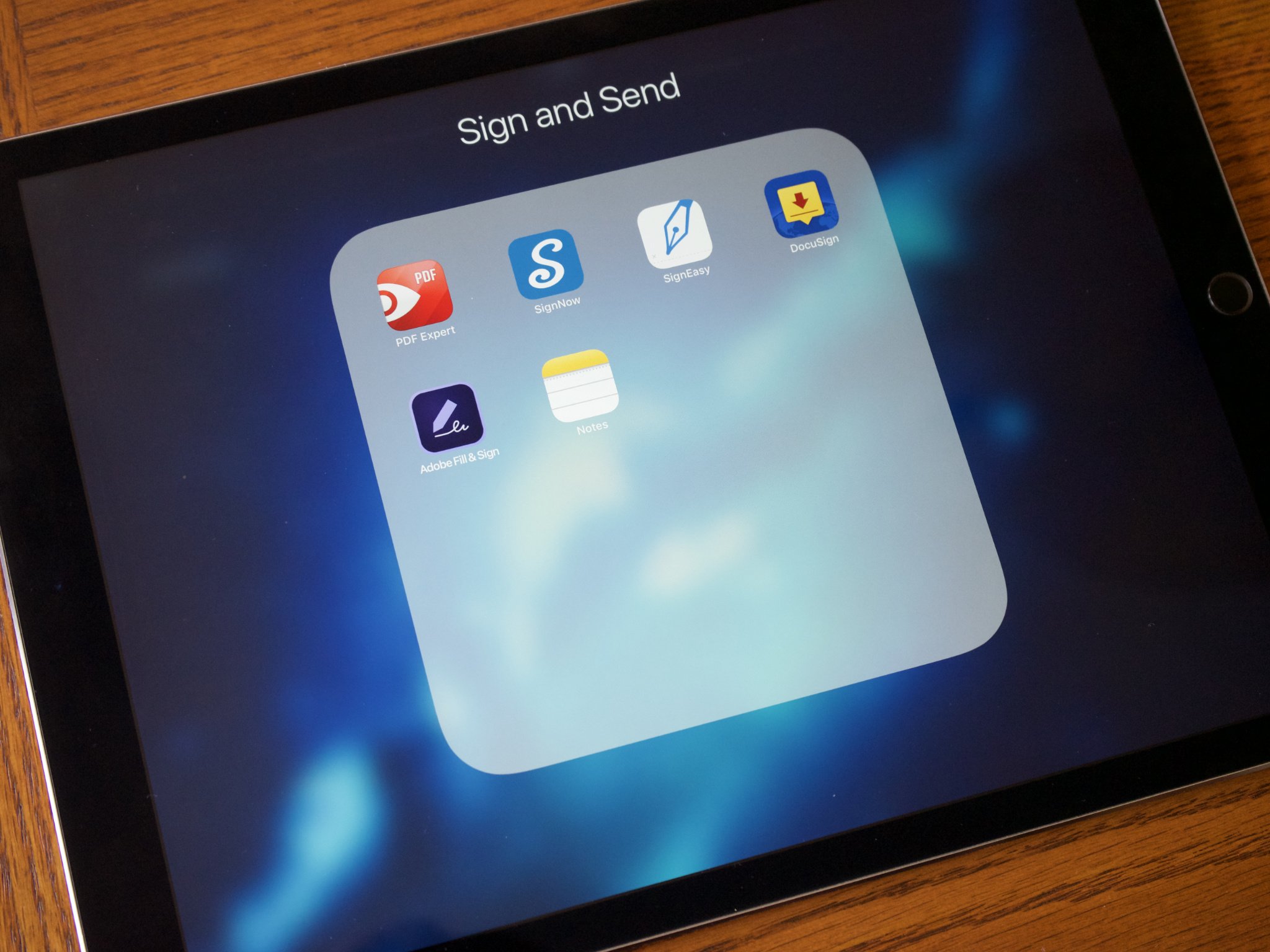
- Software: For basic needs, the built-in Files and Mail apps are sufficient. For legally binding or complex workflows, enterprise-grade applications such as Adobe Acrobat Sign or DocuSign provide additional layers of security.
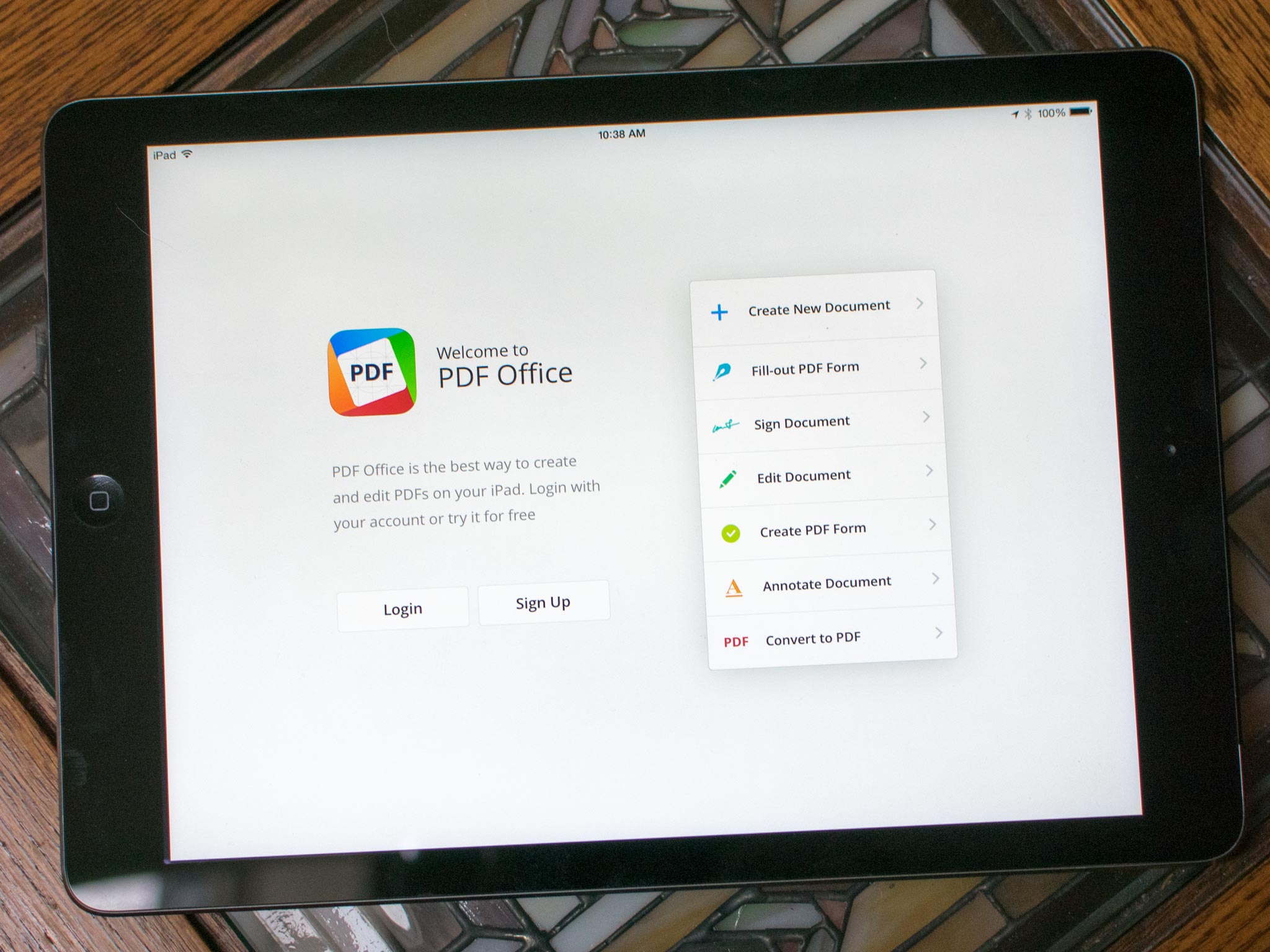
- File Format: PDF (Portable Document Format) is the universal standard for signed documents. Ensure your documents are converted to this format to prevent unauthorized edits after the signature is applied.
Executing Signatures Using Native iPadOS Tools
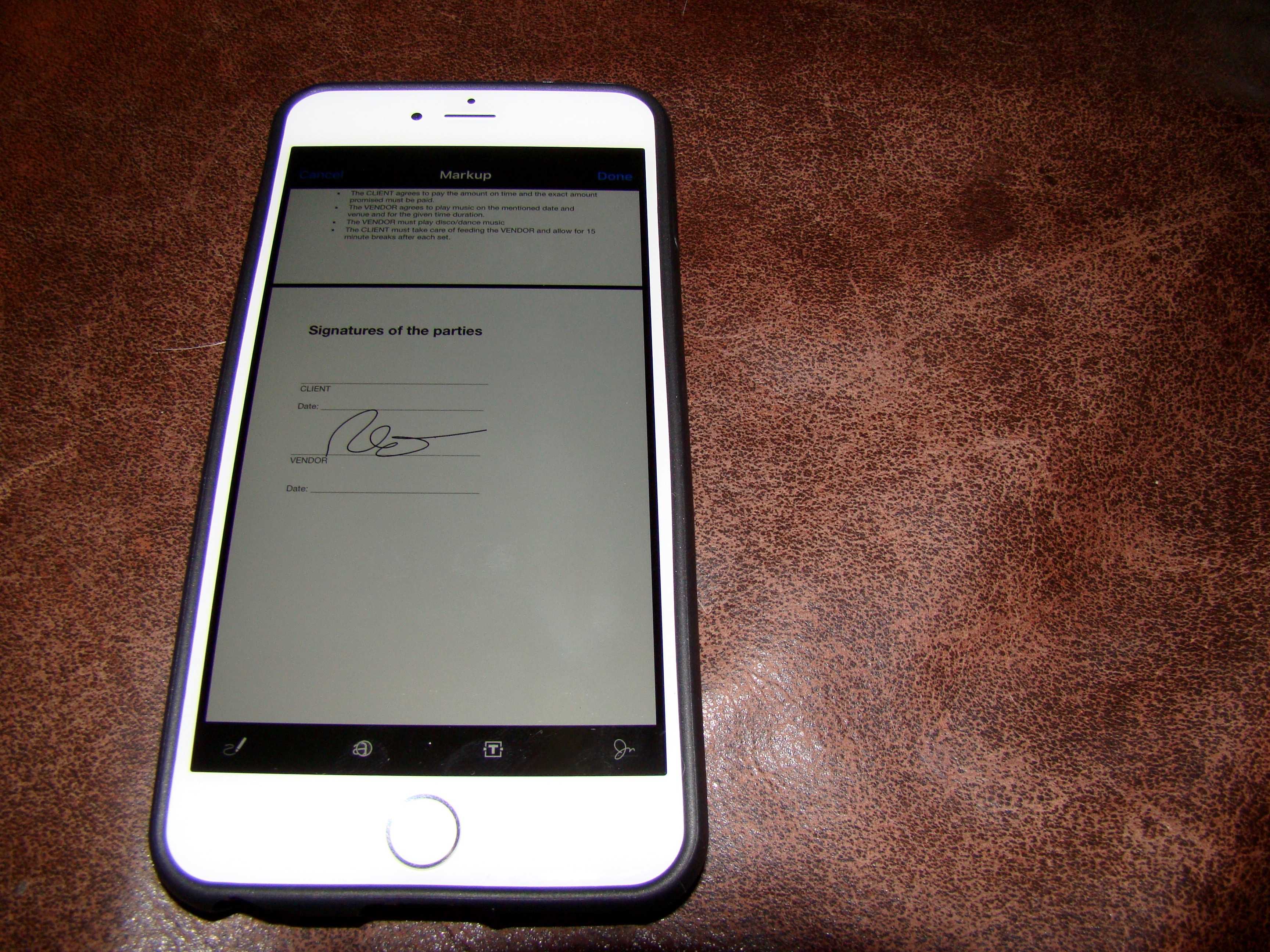
For quick, non-critical documents, the built-in Markup feature is the most efficient method. This functionality is accessible directly through the Files app or when viewing email attachments.
Step-by-Step Guide:
- Open the Document: Navigate to your PDF in the Files app or open the attachment in the Mail app.
- Enter Markup Mode: Tap the "Markup" icon (represented by a pen tip) in the upper right corner of the screen.
- Add a Signature: Tap the plus (+) icon in the Markup toolbar and select "Signature."
- Create or Select: If this is your first time, you will be prompted to draw your signature on the screen using your finger or an Apple Pencil. Once saved, you can select this signature for future use.
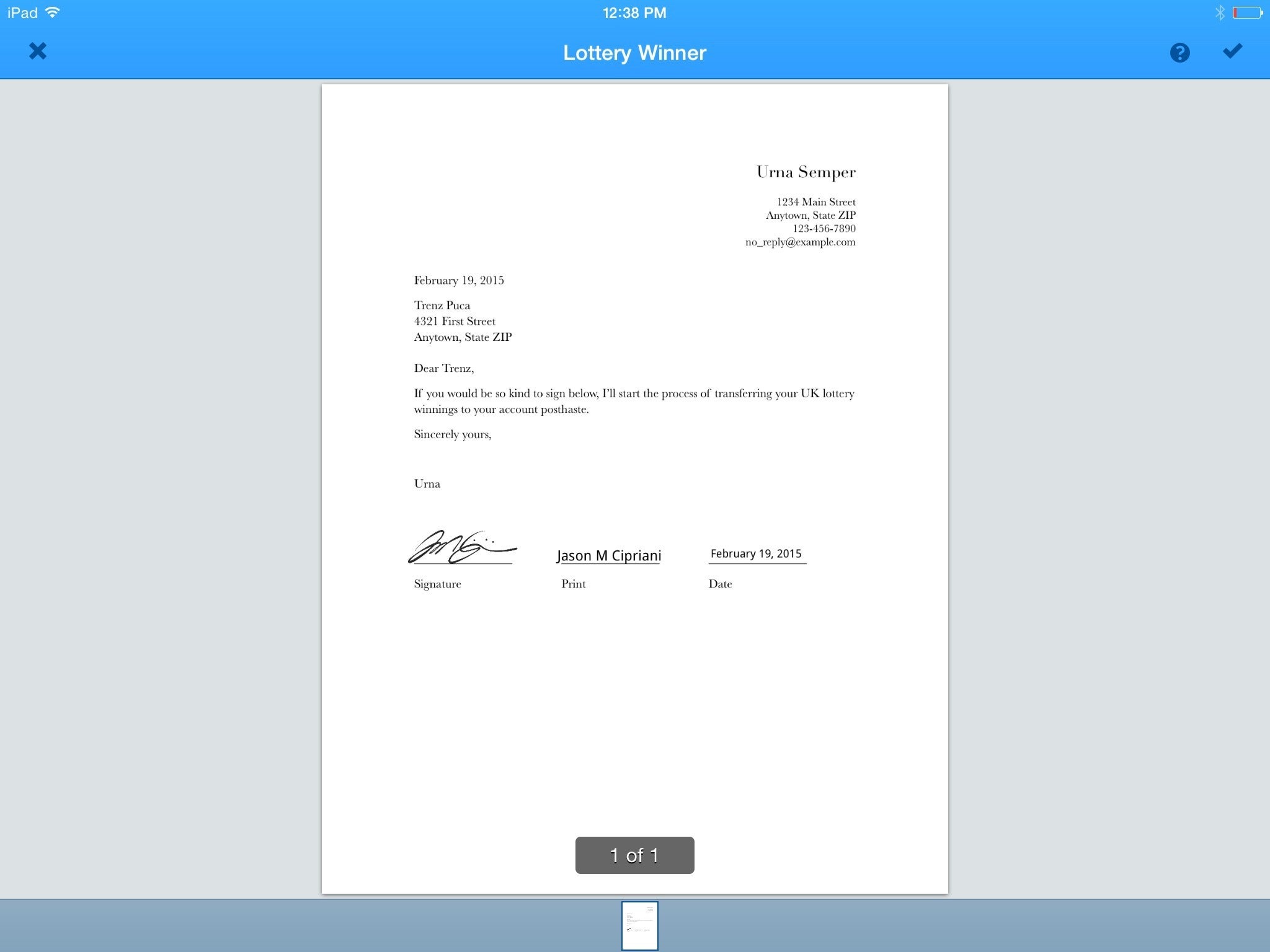
- Placement and Scaling: Position the signature box over the appropriate line. Use the corner handles to resize the signature to fit the document's scale accurately.
- Finalize: Tap "Done" to save your changes. The document is now updated with your signature embedded into the PDF layer.
Selecting Professional Digital Signature Platforms
If you are dealing with legal contracts, financial agreements, or regulatory forms, standard annotation tools may lack the "intent to sign" evidence required for court admissibility. Professional services offer features that satisfy requirements like the U.S. ESIGN Act and international equivalents (such as eIDAS in the European Union).
Comparison of Signing Methods
| Feature | Built-in Markup (iPadOS) | Professional E-Sign Services |
|---|---|---|
| Audit Trail | None | Comprehensive (IP, time, location) |
| Tamper Evidence | Limited | High (Encryption/Hashing) |
| Identity Verification | Manual/Implicit | Multi-factor (Email, SMS, ID) |
| Workflow Management | Single user | Multi-party collaboration |
| Cost | Free | Monthly subscription |
Best Practices for Secure Execution
When signing documents on an iPad, your security depends on both the software and your operational habits.
- Avoid Public Wi-Fi: Do not sign sensitive documents—such as tax returns or bank loan applications—while connected to unsecured public Wi-Fi networks. Use a Virtual Private Network (VPN) or your iPad’s cellular data connection if necessary.
- Audit Trails: If the document has high legal value, ensure the chosen software provides a "Certificate of Completion" or an audit log that records who signed, when, and from what device.
- Cloud Storage Security: Use Apple’s iCloud with Advanced Data Protection enabled, or secure enterprise-grade cloud storage (such as Box or OneDrive), to ensure your signed documents remain encrypted during transit and storage.
- Permissions: Always check the permissions of the apps you use for signing. Avoid free, ad-supported signing apps that may harvest metadata from your documents.
Common Troubleshooting and Limitations
Users often encounter minor hurdles when signing on tablets. Addressing these quickly ensures your workflow remains productive.
- Incompatibility with Forms: Some PDFs are "flattened" or locked by the creator, preventing modification. If you cannot place a signature, the document may need to be "unlocked" by the sender or converted to an editable format using a PDF editor.
- Apple Pencil Latency: If you experience lag, ensure your iPad is not overheating and that you are not running too many background processes. A quick restart often resolves transient software conflicts.
- Legal Admissibility: If a counterparty rejects a signature, it is often because they require a "Certified" digital signature. In this case, you must use a platform that ties your signature to a digital certificate, which requires additional setup beyond simply "drawing" on the screen.
Frequently Asked Questions
Can I use a scanned image of my signature to sign documents?
While you can insert an image of your signature using the "Plus" button in the Markup menu, this is generally less secure than using a unique signature generated within a signing app. Some legal jurisdictions prefer evidence of the signing process over a static image.
Is a signature made on an iPad legally binding?
Yes, in most jurisdictions, electronic signatures are legally equivalent to wet-ink signatures provided that the signer intended to sign the document and the process captures that intent. However, ensure the specific document does not legally require notarization or a physical witness.
How do I send a document back after signing it on my iPad?
Once you tap "Done" in the Files app, the document is saved. You can then tap the "Share" icon (the square with an upward arrow) to send it via Mail, AirDrop, or secure messaging services directly from the document view.
What should I do if the document is too large to email?
Large documents can often be compressed or uploaded to a cloud storage link. If you are using a professional service like DocuSign, you typically do not email the document itself; instead, the service sends a secure link to the recipient to download the finalized, authenticated version.
Does signing on an iPad affect the document metadata?
Yes, using professional software will embed metadata, such as the timestamp and the identity of the person who opened the link to sign. Using the native Markup tool does not add this extra layer of metadata, which is why it is best reserved for casual, non-binding documents.
Next Actions
If you are currently preparing for a document-heavy workflow, conduct a test run with a non-critical PDF using both the native Markup tool and a trial version of a professional e-signature platform. Observe the difference in the "Audit Log" generated by each. For daily, high-stakes professional requirements, transition to a dedicated e-signature platform to ensure maximum compliance and security for your digital records.
Image Gallery