Optimizing Zoom Therapy Backgrounds: Professional Standards for Telehealth Practitioners
Zoom therapy backgrounds establish the visual foundation of online mental health sessions, directly influencing client trust, therapeutic boundaries, and session privacy. By selecting clean, professionally rendered virtual backgrounds...
Zoom therapy backgrounds establish the visual foundation of online mental health sessions, directly influencing client trust, therapeutic boundaries, and session privacy. By selecting clean, professionally rendered virtual backgrounds or well-curated physical spaces, clinicians minimize visual distractions, maintain confidentiality, and foster a calm environment essential for telehealth therapy.
Contents
The Psychology and Ethics of Video Backgrounds in Teletherapy
In teletherapy, the practitioner's video feed serves as a digital extension of the physical consulting room. The visual environment displayed behind a therapist subtlely communicates professionalism, security, and therapeutic intent. When conducting video sessions via platforms such as Zoom, Microsoft Teams, or specialized electronic health record (EHR) teletherapy systems, the choice of background plays a crucial role in establishing the therapeutic alliance.
A chaotic, improperly lit, or overly personal background can create cognitive load for clients who are already navigating emotional distress. Visual clutter—such as unmade beds, personal memorabilia, open closets, or high-traffic household areas—can inadvertently breach professional boundaries, shift the focus of the session toward the therapist's personal life, or signal an unprofessional standard of care.
From a clinical governance perspective, background selection also touches on confidentiality and privacy compliance under standards like HIPAA in the United States or GDPR in Europe. Clinicians must ensure that no sensitive client data (such as names on whiteboards, visible files, or reflections in glass) appears on screen. Furthermore, using appropriate visual settings prevents household members or co-located individuals from inadvertently entering the camera frame during clinical hours.
Types of Zoom Backgrounds: Physical, Blurred, and Virtual
Mental health practitioners generally choose between three primary background strategies for video consultations: curated physical spaces, native digital blurring, and uploaded static virtual backgrounds. Each approach carries specific clinical and operational advantages depending on the therapist's physical environment and computing hardware.
| Strategy Option | Description |
|---|---|
| 1. Curated Physical Space | Natural, authentic, requiring space |
| 2. Digital Studio Blur | Quick, dynamic, hardware-dependent |
| 3. Custom Virtual Image | Consistent, portable, professional |
1. Curated Physical Backgrounds
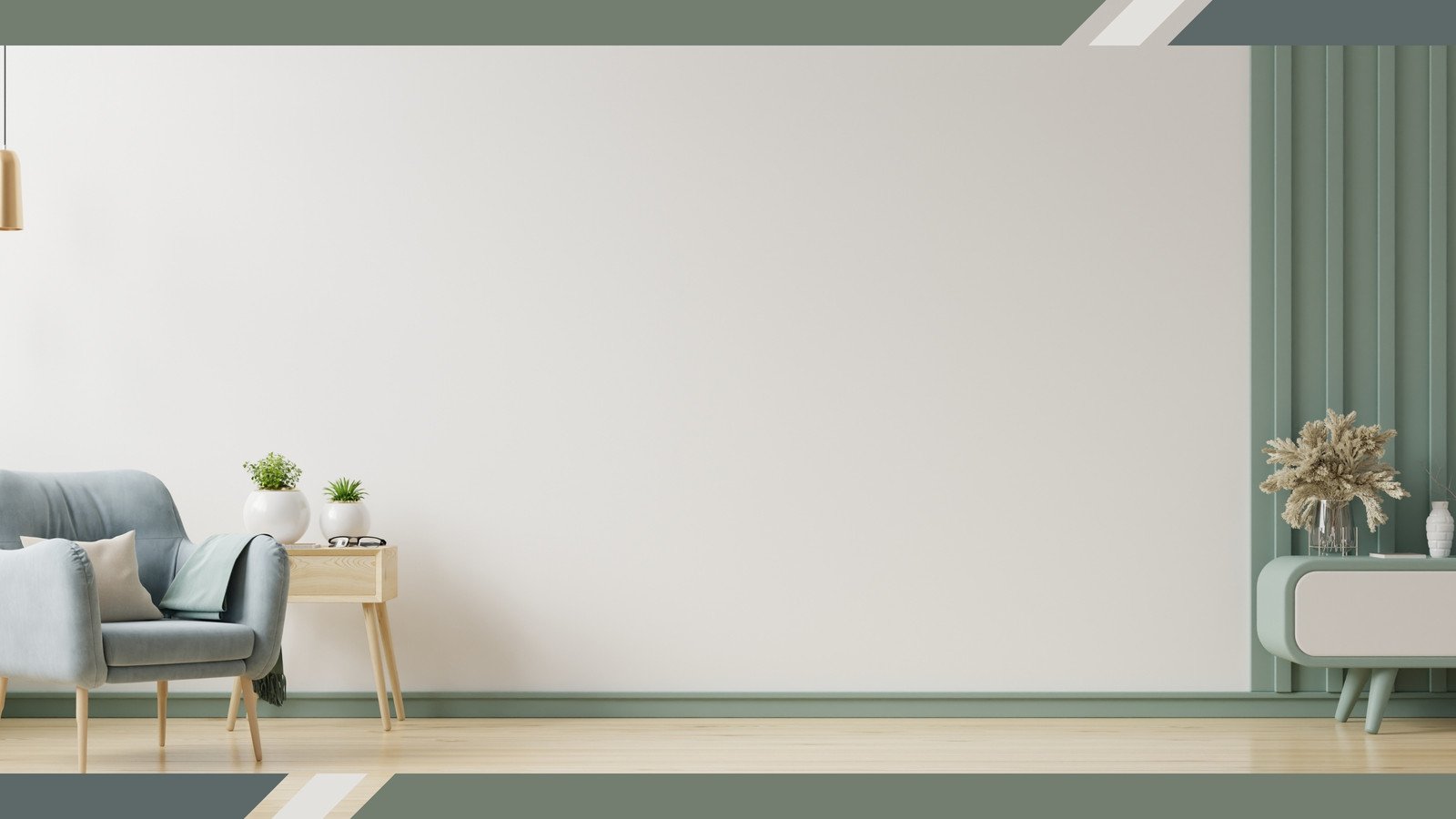
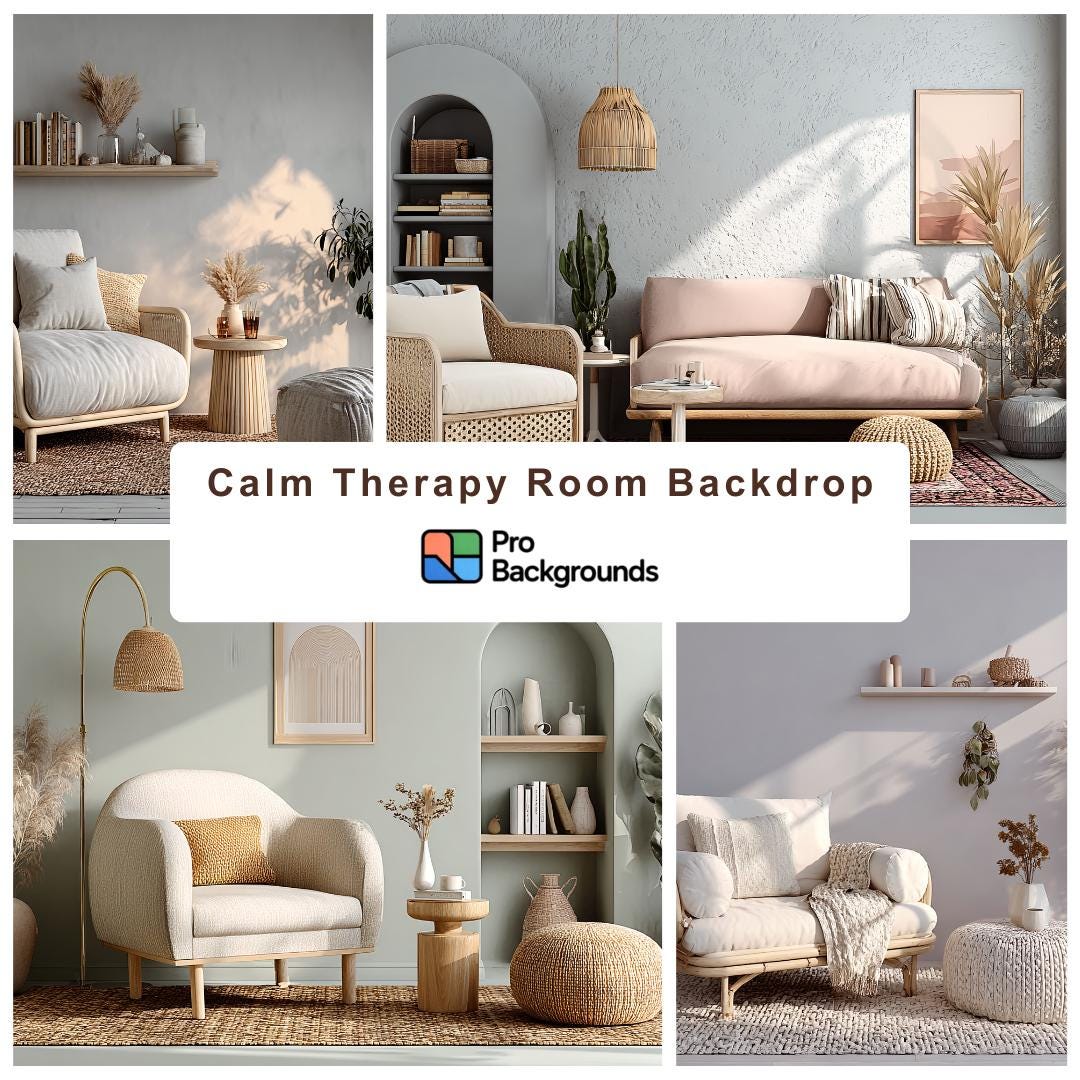
A physical background relies on the actual room behind the practitioner, styled intentionally for clinical work. Warm wooden shelving, neutral paint shades (such as warm beige, soft sage, or muted grey), matte wall art, and non-distracting indoor plants (like snake plants or peace lilies) create a grounding atmosphere. Physical backgrounds feel natural and authentic, eliminating digital artifacts or edge distortion around the therapist's hair and hands. However, they require dedicated office space and consistent physical lighting control.
2. Blurred Backgrounds
Zoom’s native "Blur" feature applies an adjustable depth-of-field filter directly to the camera feed, keeping the clinician in sharp focus while obscuring the surrounding environment. This option provides an immediate layer of privacy when working from flexible or temporary environments. The primary drawback of digital blurring is that sharp background shadows or moving objects behind the therapist can still be partially visible as soft shapes, which may occasionally distract hyper-vigilant clients.
3. High-Resolution Virtual Backgrounds
Static virtual backgrounds replace the physical environment entirely with a pre-rendered high-definition image. For therapists, the most effective virtual backgrounds depict modest, minimalist consultation rooms, soft-focus wood-panel walls, or subtle architectural interiors. When configured correctly with proper lighting and resolution, static virtual backgrounds offer complete privacy, professional consistency across locations, and total control over the visual ambiance.
Background Comparison Matrix
Selecting the right background environment depends on your hardware capabilities, clinical setting, and administrative setup. The table below compares the primary background approaches used in teletherapy.
| Feature / Criteria | Curated Physical Space | Zoom Blurred Background | High-Resolution Virtual Image | Green Screen + Virtual Image |
|---|---|---|---|---|
| Visual Realism | Highest (Natural) | Moderate (Softened edges) | Moderate-High (Static render) | Very High (Seamless edge integration) |
| Privacy Protection | Depends on room setup | Moderate (Shapes visible) | Complete | Complete |
| System CPU Usage | None (0% added load) | Low to Moderate | Moderate | Moderate (Offloaded with hardware acceleration) |
| Lighting Sensitivity | High (Requires even room light) | Moderate | High (Foreground must match background) | High (Requires dedicated background lighting) |
| Professional Boundary | High (If dedicated space) | High | High | Highest |
| Ideal Use Case | Permanent private practice office | Travel or flexible workspaces | Work-from-home without dedicated room | Full-time teletherapy practice with dedicated studio |
Technical Specifications for Zoom Virtual Backgrounds
To prevent visual distortions, artifacting, and "floating head" glitches during clinical sessions, therapists must adhere to standard technical specifications when choosing or designing custom Zoom background images.
Image Dimensions and Format
- Aspect Ratio: 16:9 widescreen format (matching standard webcam outputs).
- Pixel Dimensions: 1920 × 1080 pixels (Full HD) minimum; 3840 × 2160 pixels (4K) for ultra-high-definition setups.
- File Formats: High-quality JPG or PNG files. PNG is preferred for graphics without compression artifacts.
- File Size: Under 5 MB to prevent lag during room load times.
- Orientation: Landscape orientation only.
Color Palette and Visual Balance
Therapeutic backgrounds should use soft, low-contrast palettes. Vibrant primary colors (bright red, intense yellow) and busy geometric patterns can induce visual fatigue or sensory overload.
- Recommended Colors: Warm neutrals, taupe, off-white, muted teal, slate blue, and natural green tones.
- Focal Point: The image should be symmetrical or have a clear center void where the therapist sits naturally without obscuring central visual elements (e.g., a lamp or plant appearing directly behind the therapist's head).
- Lighting Direction: The virtual image's lighting source (e.g., light coming from a virtual window on the left) should match the practitioner’s actual key light direction to maintain visual coherence.
Hardware and Lighting Optimization
Even the highest-quality virtual background will look unnatural if your physical lighting does not match the scene. The digital matting algorithms in video software isolate your silhouette based on contrast and edge clarity.
- Key Light (45° Off-Camera)
- Fill Light (45° Opposite)
- Therapist
- Webcam
- Computer Monitor
Three-Point Lighting Alignment
- Key Light: Position a soft, diffused light source (such as a large ring light or LED softbox) approximately 45 degrees off-camera at eye level. This illuminates your face clearly without harsh shadows.
- Fill Light: Place a secondary, lower-intensity light on the opposite side to soften shadows under the chin and nose.
- Background/Key Separation: Sit at least 3 to 5 feet away from any physical wall or green screen behind you. This physical separation prevents harsh shadows from falling onto your physical background, allowing the software edge-detection algorithm to cleanly isolate your body.
Green Screen Considerations
While Zoom allows virtual background replacement without a physical green screen using software AI segmentation, utilizing a physical backdrop (made of wrinkle-resistant green muslin or collapsible polyester) drastically reduces CPU load and eliminates halo artifacts around hair or glasses. If using a green screen, ensure the backdrop is evenly illuminated with dedicated ambient lights to eliminate creases and shadows.
Step-by-Step Setup Guide in Zoom
Configuring your virtual therapy background within the Zoom desktop client involves a few straightforward steps:
1. Enable Virtual Backgrounds in Account Settings
- Log into your Zoom account via a web browser.
- Navigate to Settings > Meeting > In Meeting (Advanced).
- Toggle the Virtual background switch to the ON position.
- Ensure Allow use of videos for virtual backgrounds is unchecked if you want to enforce static, non-distracting backgrounds across your practice.
2. Upload and Apply the Background in the Desktop Client
- Open the Zoom desktop application on your computer.
- Click your profile picture in the top-right corner and select Settings (gear icon).
- Select Backgrounds & Effects from the left-hand navigation menu.
- Click the + (Plus) icon under the preview window and choose Add Image.
- Select your pre-formatted 1920x1080 therapy background image from your local drive.
- If you have a physical green backdrop set up, check the box labeled I have a green screen.
- Test your background by turning on your webcam in the preview pane to verify lighting and boundary alignment.
Best Practices and Ethical Guidelines for Telehealth Backgrounds
Maintaining clinical professionalism in remote settings requires ongoing attention to sensory details and boundary considerations.
- Avoid Animated or Moving Backgrounds: Dynamic backgrounds featuring moving trees, ocean waves, or flickering candles consume excessive bandwidth and can cause motion sickness or anxiety for clients with sensory sensitivities or ADHD.
- Keep Depth of Field Realistic: Choose virtual interior renders that incorporate a natural, soft blur in the deep background. Ultra-sharp backgrounds where every distant detail is in crisp focus look artificial and strain the client's eyes.
- Verify Clothing Contrast: Wear clothing that contrasts clearly with both your physical skin tone and your virtual background. Avoid wearing green if using a green screen, and avoid wearing colors identical to your virtual backdrop to prevent blending into the background.
- Position the Camera at Eye Level: Place your webcam directly at eye level using a laptop stand or monitor mount. Looking down at a laptop screen creates an authoritarian angle, while looking up can feel disorienting for clients.
- Conduct a Pre-Session Visual Audit: Before admitting a client from the Zoom waiting room, join the meeting early to preview your self-view frame. Confirm that your camera lens is clean, your lighting is balanced, and no unintended personal items or pop-up notifications are visible.
Frequently Asked Questions
Can I use a blurred background instead of a full virtual image for therapy?
Yes. Zoom’s native blur function is a highly effective, professional choice for teletherapy. It hides personal clutter while maintaining the natural lighting and shadows of your actual space, creating a authentic look without exposing room details.
What is the recommended resolution for a Zoom therapy background?
The ideal image resolution is 1920 × 1080 pixels (a 16:9 aspect ratio). This standard HD format matches most webcams and prevents image distortion, stretching, or pixelation during full-screen video calls.
Are static images better than video backgrounds for teletherapy sessions?
Static images are strongly recommended over video backgrounds for clinical sessions. Moving or looping video backgrounds create visual distractions, increase cognitive fatigue, trigger sensory issues for sensitive clients, and consume extra processing power on both practitioner and client devices.
Do I need a green screen to use Zoom virtual backgrounds professionally?
A green screen is not strictly required, as modern Zoom client software uses AI image segmentation to isolate your silhouette. However, using a collapsible green screen produces much cleaner edges, eliminates halo artifacts around your hair or hands, and significantly reduces the processing load on your computer's CPU.
How do I prevent my background from flickering or cutting out during teletherapy?
Flickering typically occurs due to poor front lighting or low contrast between your clothing and the physical background behind you. To resolve this, increase front lighting on your face, sit at least 3 feet away from your physical back wall, wear dark or contrasting clothing, or use a dedicated green screen.
Summary and Next Actions
A properly configured Zoom background ensures your virtual practice maintains the same clinical rigor, confidentiality, and calm atmosphere as a traditional office. To optimize your teletherapy setup:
- Select or Design a Suitable Image: Choose a static 1920x1080 neutral interior or soft-focus background image with a low-contrast color palette.
- Optimize Your Lighting: Install a two- or three-point key lighting setup at eye level to isolate your silhouette from the background cleanly.
- Audit Your Hardware: Ensure your Zoom desktop client is updated to the latest version to utilize hardware acceleration and edge-detection features.
- Test Before Clinical Hours: Conduct a test meeting to verify camera positioning, visual contrast, and edge sharpness prior to seeing clients.
Editorial Category Metadata:
Image Gallery