Lenovo Camera Driver Update Key Details: A Comprehensive Technical Guide
To update your Lenovo camera driver, use the Lenovo Vantage app for automated scanning or visit the official Lenovo Support website to download drivers manually by entering your device's serial number. Ensuring your camera driver is cu...
To update your Lenovo camera driver, use the Lenovo Vantage app for automated scanning or visit the official Lenovo Support website to download drivers manually by entering your device's serial number. Ensuring your camera driver is current resolves "camera not found" errors, improves video clarity, and maintains compatibility with Windows 10 and 11.
Contents
Understanding the Importance of Lenovo Camera Driver Management
In 2026, integrated cameras remain a critical component for professional communication, biometric security, and personal connectivity. A driver acts as the essential software bridge between the Windows operating system and the physical camera hardware. Without a functioning or updated driver, the operating system cannot send commands to the camera sensor, resulting in the dreaded "0xA00F4244" error or a persistent black screen in applications like Microsoft Teams, Zoom, or the Windows Camera app.
Lenovo devices, ranging from the business-centric ThinkPad line to the consumer-focused IdeaPad and Legion gaming laptops, utilize various camera modules from manufacturers like Realtek, Sunplus, and Sonix. Because these modules differ significantly in architecture, installing a generic driver is rarely successful. Specificity is the cornerstone of Lenovo hardware maintenance. Updating these drivers is not merely about functionality; it is also a security measure. Outdated drivers can occasionally harbor vulnerabilities that might be exploited to gain unauthorized access to the camera hardware.
Primary Methods for Updating Lenovo Camera Drivers
There are three primary avenues for ensuring your camera software is up to date. Each method serves a different user need, from automated ease of use to granular manual control.
1. The Lenovo Vantage Ecosystem
For the vast majority of users, Lenovo Vantage is the recommended tool. It is a proprietary dashboard designed to manage hardware health, system updates, and warranty information.
- Process: Open the Lenovo Vantage app (pre-installed on most systems or available via the Microsoft Store). Navigate to the "System Update" section and click "Check for Updates."
- Why it works: Vantage queries Lenovo’s global database using your machine's unique hardware ID. It filters out incompatible drivers and identifies the exact version required for your specific camera sensor.
- Benefit: This method reduces the risk of "bricking" a hardware component with the wrong firmware or driver version.
2. Manual Update via Lenovo Support Website
Power users or IT administrators often prefer manual updates, especially when a system lacks internet access or when deploying drivers across multiple identical machines.
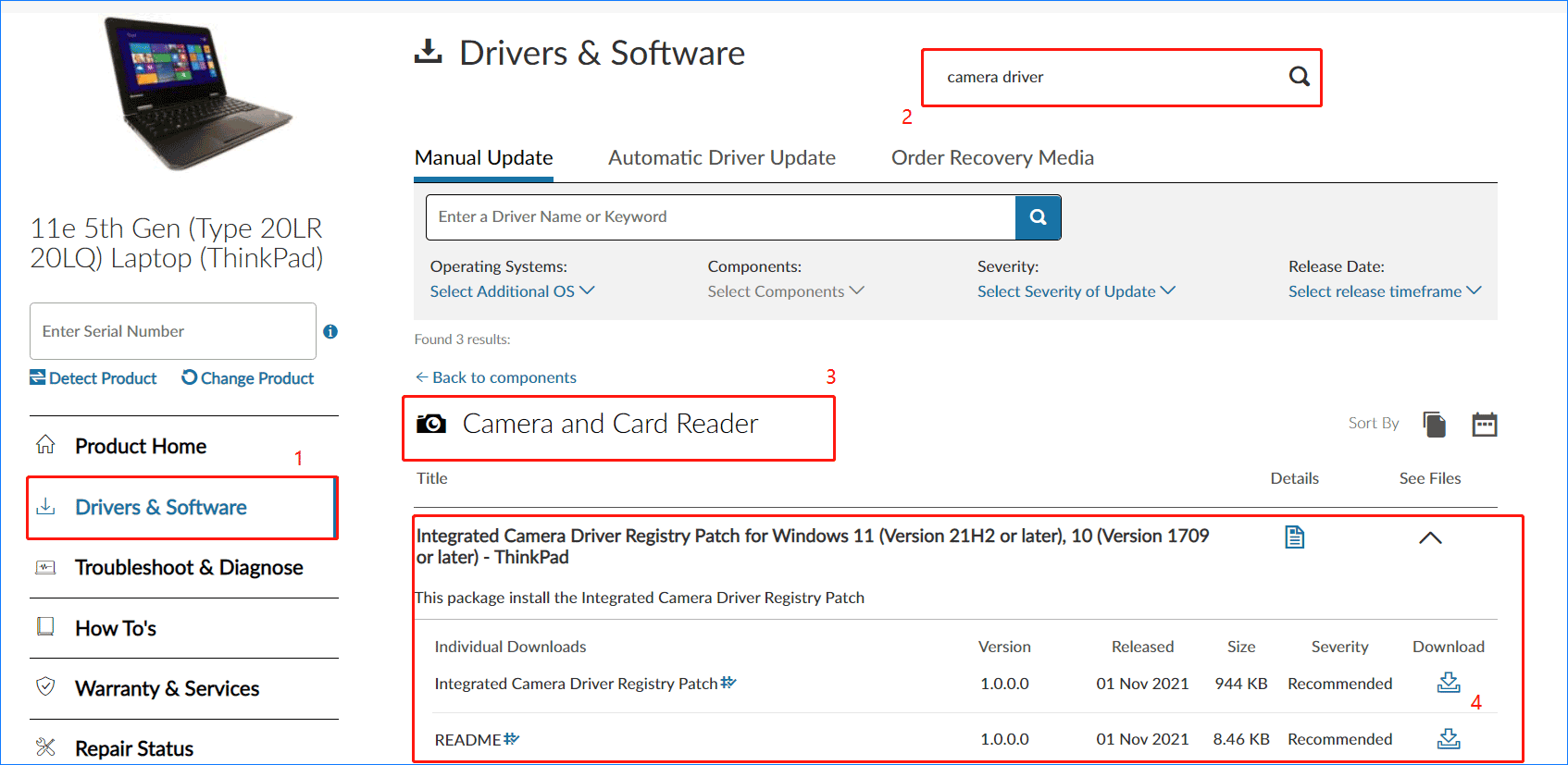
- Step-by-Step:
- Locate your Serial Number (SN) or Machine Type Model (MTM) on the bottom of the laptop or via the
wmic bios get serialnumbercommand in Command Prompt. - Visit the Lenovo Support Website.
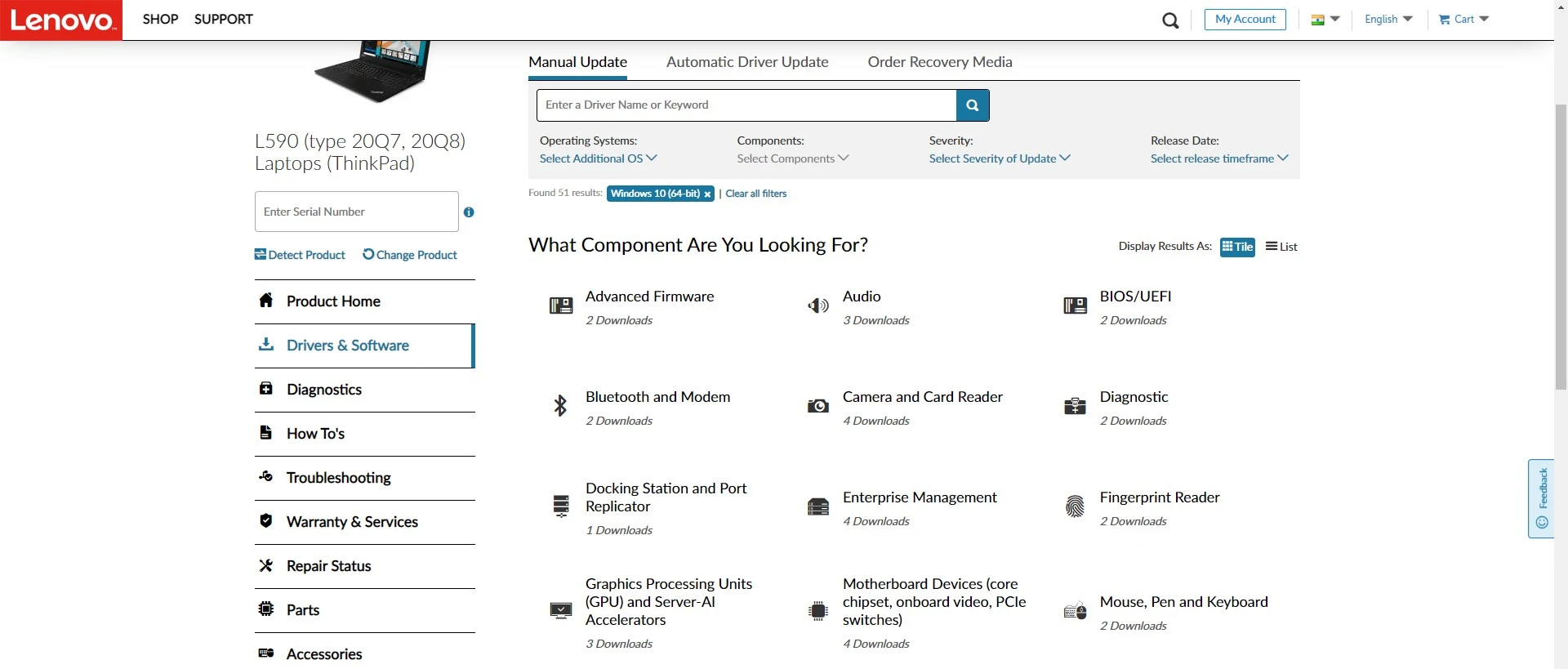
- Enter your SN and navigate to "Drivers & Software."
- Select "Manual Update" and locate the "Camera and Card Reader" category.
- Download the
.exeor.zipfile, run the installer, and restart your computer.
- Locate your Serial Number (SN) or Machine Type Model (MTM) on the bottom of the laptop or via the
- Key Detail: Always check the "Release Date" and "Version" to ensure you aren't downloading an older iteration than what is currently installed.
3. Windows Update and Device Manager
Windows 10 and 11 have improved their driver delivery systems significantly. Microsoft often bundles "Optional Updates" that include manufacturer-verified drivers.
- How to access: Go to Settings > Update & Security > Windows Update > View optional updates.
- Device Manager: Right-click the Start button, select "Device Manager," expand "Cameras" or "Imaging devices," right-click your camera, and select "Update driver." Choose "Search automatically for drivers."
Technical Specifications and Compatibility Table
When searching for "lenovo camera driver update key details," it is helpful to understand the common hardware providers and the typical driver versions associated with Lenovo's 2026 fleet and legacy models.
| Component Type | Common Manufacturers | Typical Driver Path | Best Update Method |
|---|---|---|---|
| Integrated IR Camera | Realtek, Sunplus | Device Manager > Cameras | Lenovo Vantage (for Windows Hello) |
| Standard HD Webcam | Sonix, Chicony | Device Manager > Imaging Devices | Lenovo Support Site (Manual) |
| External Lenovo Webcams | Lenovo (Internal) | Plug & Play / Accessory Hub | Windows Update |
| Privacy Shutter Models | Physical/Mechanical | N/A (Hardware Level) | Manual Verification |
Troubleshooting Persistent Camera Failures
Sometimes, updating the driver is only half the battle. If an update is installed but the camera still fails to function, the issue likely resides in system permissions or hardware-specific privacy toggles.
The Privacy Shutter and Functional Keys
Many Lenovo laptops, particularly ThinkPads, feature a physical ThinkShutter. This is a sliding cover that physically blocks the lens. If your driver is updated but you see a gray image with a camera icon and a slash through it, verify the shutter is open. Furthermore, check the F8 or F10 keys (depending on the model). Lenovo often includes a dedicated hotkey to disable the camera at the firmware level. Pressing Fn + the corresponding camera key can often "wake" the device.
Lenovo Vantage Privacy Settings
Lenovo Vantage includes a software-based "Camera Privacy Mode." Even if Windows has permission to use the camera, if this toggle is turned on within Vantage, the camera will output a black screen or a static placeholder image. Open Vantage, navigate to "Device Settings," then "Display & Camera," and ensure "Camera Privacy Mode" is toggled Off.
Windows Privacy Permissions
Windows 11 requires explicit permission for apps to access the camera.
- Go to Settings > Privacy & Security > Camera.
- Ensure "Camera access" is toggled On.
- Ensure "Let apps access your camera" is toggled On.
- Scroll down to check if the specific app (e.g., Browser, Zoom) is authorized.
Driver Rollback and Reinstallation
If a new driver update causes system instability or the camera stops working immediately after an update, the "Roll Back Driver" feature in Device Manager is your primary recovery tool.
- Open Device Manager.
- Right-click your camera device > Properties > Driver Tab.
- Click Roll Back Driver. If that fails, select "Uninstall device," check the box for "Attempt to remove the driver for this device," and restart. Windows will attempt to reinstall a clean, factory-standard driver upon reboot.
Advanced Considerations: BIOS and Chipset Drivers
In rare cases, the camera hardware may not even appear in the Device Manager. This usually indicates a communication failure at the motherboard level rather than a software issue with the camera itself.
The Role of Chipset Drivers
The camera sensor communicates with the CPU via the USB bus or the Intel/AMD Integrated Sensor Hub. If your Chipset drivers are outdated, the motherboard may fail to recognize the camera module entirely. When performing a camera update, it is best practice to also update the "Intel Management Engine Interface" or "AMD Chipset Drivers" found on the Lenovo Support site.
BIOS/UEFI Configuration
If the camera is missing from Device Manager and chipset updates don't help, check the BIOS settings. During startup, press F1 or F2 to enter the BIOS. Navigate to "Security" or "I/O Port Access" and ensure the "Integrated Camera" is set to Enabled. Occasionally, a BIOS update itself will include fixes for power management issues that prevent the camera from "waking up" after the laptop enters sleep mode.
Common Errors and Their Meanings
- 0xA00F4244 (NoCamerasAreAttached): The OS cannot see the hardware. This is usually a BIOS, privacy switch, or chipset driver issue.
- 0xA00F4243 (CameraReservedByAnotherApp): A driver conflict where one application has "locked" the camera. Restarting the "Windows Camera Frame Server" service in
services.mscoften fixes this. - 0xA00F4292 (PhotoCaptureStartTimeout): Usually indicates a corrupted driver. A full uninstallation and manual reinstall from the Lenovo site is required.
Frequently Asked Questions
Does updating my Lenovo camera driver delete my photos?
No, updating a driver only modifies the software that communicates with the hardware. It does not interact with your personal files, photos, or videos stored on the hard drive. However, it is always a standard IT best practice to have a system backup before performing any hardware-level updates.
Why does my Lenovo camera look blurry after an update?
Blurriness is rarely a driver issue and more often a physical one. However, if the driver update reset your camera settings, you may need to adjust the "Focus" or "Brightness" settings in the Lenovo Vantage app. Some "High Definition" drivers may also default to a lower resolution to save bandwidth; check your specific app settings (like Zoom or Teams) to ensure "HD" is enabled.
Can I use a generic Windows driver instead of a Lenovo-specific one?
While Windows can often provide a "Generic USB Video Device" driver that allows the camera to function, you will lose access to Lenovo-specific features. These features include infrared (IR) capabilities for Windows Hello facial recognition, background blur enhancements, and specialized noise reduction for the integrated microphones that often share the same driver package.
How often should I check for camera driver updates?
For most users, checking once every six months is sufficient. However, if you perform a major Windows version upgrade (e.g., moving from one build of Windows 11 to a newer one in 2026), you should check for updates immediately, as these OS transitions often change how drivers interact with the system kernel.
What should I do if the Lenovo Support site doesn't list a driver for my OS?
If you are running a newer version of Windows than what is officially listed, try downloading the most recent driver available (e.g., a Windows 10 driver often works on Windows 11). Run the installer in "Compatibility Mode" by right-clicking the .exe, selecting Properties, and choosing a previous version of Windows.
Practical Recommendation for 2026
For the most stable experience, always prioritize Lenovo Vantage over manual downloads. Automated tools are better at handling the complex dependencies between the camera driver, the chipset, and the BIOS. If the camera remains unresponsive after an update, perform a "Power Drain": shut down the laptop, unplug all cables, and hold the power button for 60 seconds. This resets the hardware's internal state and often resolves "device not recognized" errors that software updates cannot touch.
Image Gallery