Comprehensive Guide to WhatsApp Message Notification Customization Options
WhatsApp offers a sophisticated suite of message notification customization options that allow users to manage their digital alerts with precision. By accessing the "Notifications" menu within the application settings, users can adjust...
WhatsApp offers a sophisticated suite of message notification customization options that allow users to manage their digital alerts with precision. By accessing the "Notifications" menu within the application settings, users can adjust alert tones, vibration rhythms, and high-priority pop-ups. These settings can be applied globally to all messages or configured individually for specific contacts and groups to ensure that urgent communications are never missed while secondary noise is minimized.
Contents
Navigating Global WhatsApp Notification Settings
The foundation of a personalized messaging experience begins with the global settings. These configurations act as the default behavior for every new message received on the platform. In 2026, WhatsApp continues to refine these options to balance user accessibility with the increasingly complex notification management systems of modern mobile operating systems like Android 14+ and iOS 17+.
To access these settings, navigate to Settings within WhatsApp and select Notifications. This section is typically divided into three primary categories: Message Notifications (for individual chats), Group Notifications, and Call Notifications.
Message and Group Notification Basics
The primary goal of separating message and group settings is to allow users to distinguish between direct outreach and the often-voluminous activity of group chats. For both categories, you can customize the following:
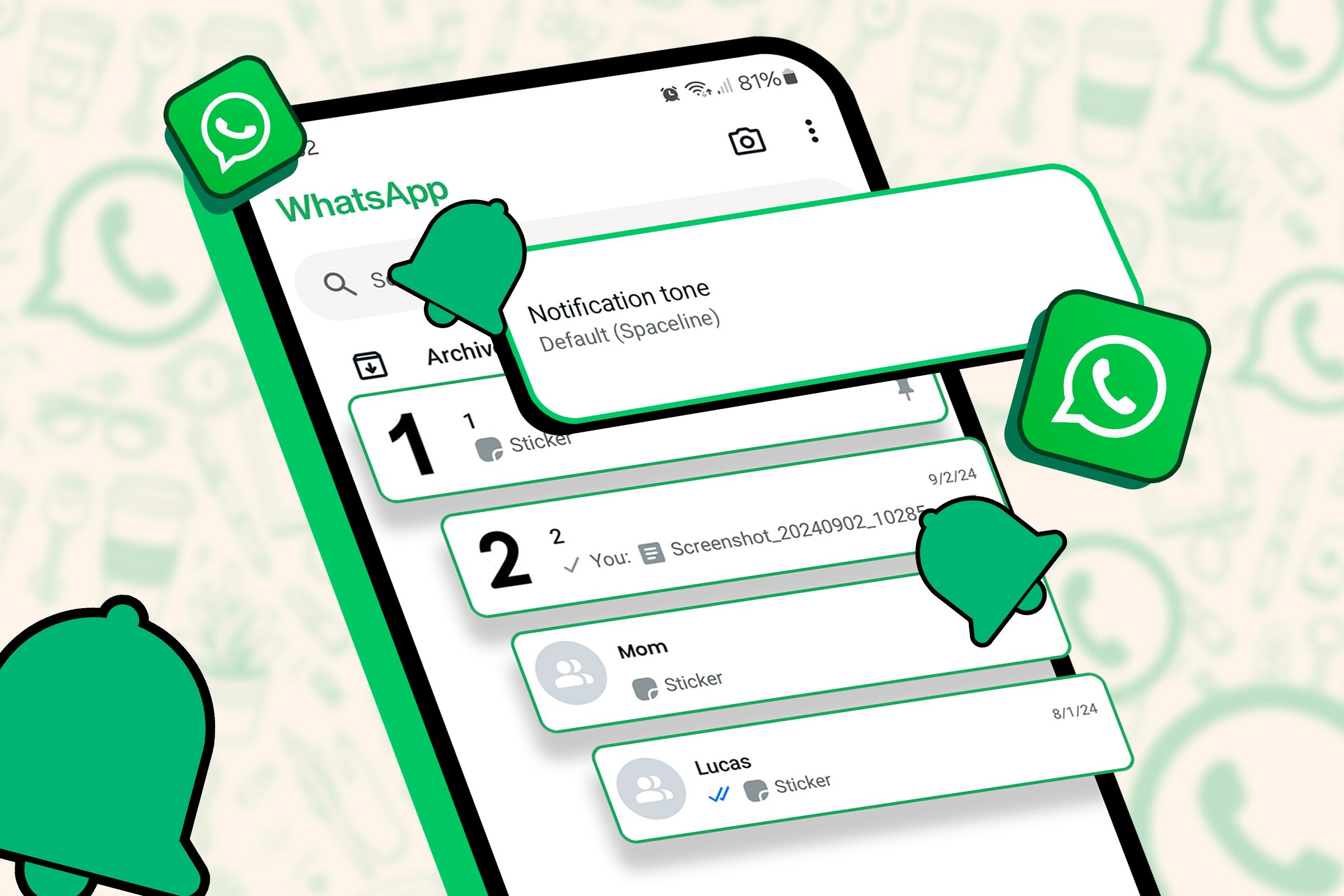
- Notification Tone: This allows you to select a unique sound from your device's library. On Android, this often extends to custom MP3 files, whereas iOS users are generally limited to the pre-installed system tones.
- Vibrate: You can toggle between "Off," "Default," "Short," and "Long." This is particularly useful for users who keep their phones on silent but need tactile feedback to identify the source of an alert.
- Popup Notification: Historically, this feature allowed a window to appear in the center of the screen. In the current 2026 software environment, this has largely been superseded by system-level "Heads-up" notifications, but the setting still controls how the app interacts with those system UI elements.
- Light: For devices equipped with a physical notification LED, this option allows you to choose a color (e.g., Green, Red, Blue). While fewer modern smartphones include these LEDs, the software maintains support for legacy hardware and certain "Edge Lighting" software features.
High Priority Notifications
High priority notifications are designed to manage how alerts appear at the top of the screen. When enabled, WhatsApp will show a preview of the notification at the top of your device’s notification stack, even if other apps are active. This is a critical feature for users who manage time-sensitive information and need to see the sender and a snippet of the message without leaving their current application.
Tailoring Custom Notifications for Individuals and Groups
Global settings provide a baseline, but the true power of WhatsApp message notification customization options lies in individual chat settings. This allows for a "tiered" communication strategy where different contacts trigger different sensory cues.
Why Use Custom Notifications?
Digital fatigue is a significant concern in 2026. By setting custom notifications, you can psychologically "filter" your alerts before even looking at your screen. For instance, you might set a "Long" vibration and a sharp "Staccato" tone for a spouse or parent, while setting a "Short" vibration and a subtle "Chirp" for a work colleague. This immediate identification helps in deciding whether to interrupt your current task or continue working.
Steps to Enable Custom Alerts
To set up a custom notification for a specific person or group:
- Open the desired chat.
- Tap on the name of the contact or group at the top of the screen to open the Chat Info page.
- Select Custom Notifications.
- Check the box for Use custom notifications.
- Modify the Tone, Vibrate, Light, and High Priority settings as desired.
Once these settings are saved, they override the global settings for that specific chat. This is particularly effective for "muting" the noise of a large social group while still receiving audible alerts from a family emergency thread.
Managing Notification Previews and Privacy
Privacy is a major component of notification customization. Users often struggle with the balance between convenience (reading messages on the lock screen) and security (preventing others from seeing private content).
Show Preview Toggle
In the notification settings, the Show Preview toggle controls whether the text of the message is visible in the notification banner.
- Enabled: Shows the sender's name and a portion of the message text.
- Disabled: Shows only the sender's name or a generic "1 New Message" alert.
For professionals working in open offices or individuals in public spaces, disabling previews is a standard security practice. It ensures that sensitive data or personal conversations remain confidential until the device is intentionally unlocked.
Reaction Notifications
With the widespread use of emoji reactions, WhatsApp introduced specific toggles for Reaction Notifications. If you find it distracting to receive a buzz every time someone "likes" a message in a group of 50 people, you can turn these off independently of the standard message alerts. This maintains the alert for actual text replies while silencing the feedback from reactions.
Technical Comparison of Notification Features
The following table summarizes the availability and function of key notification features across the two dominant mobile platforms as of 2026.
| Feature | Android Functionality | iOS (iPhone) Functionality | Purpose |
|---|---|---|---|
| Custom Tones | Supports system sounds and custom MP3/WAV files. | Limited to pre-installed system sounds. | Audible identification of sender. |
| Vibration Patterns | Off, Default, Short, Long options. | Controlled by System Haptics (Global). | Tactile feedback in silent mode. |
| LED Color Control | High (supports legacy and edge lighting). | Not Supported (hardware limitation). | Visual cue without turning on screen. |
| Notification Channels | Highly granular (via System Settings). | Limited (managed via Focus Modes). | OS-level prioritization of alerts. |
| Reaction Toggles | Available in-app. | Available in-app. | Reducing noise from emoji feedback. |
| High Priority | Controls "Heads-up" display. | Managed by "Time Sensitive" alerts. | Ensuring urgent alerts stay on top. |
Advanced Integration with System Focus Modes
In 2026, WhatsApp message notification customization options are no longer viewed in isolation. They must work in tandem with system-level features like Focus Modes (iOS) and Digital Wellbeing (Android).
Android Notification Channels
On Android, WhatsApp utilizes "Notification Channels." This allows users to go into the Android System Settings > Apps > WhatsApp > Notifications and find even more granular controls. You can categorize notifications into "Other," "Group Notifications," and "Message Notifications." Each channel can be set to "Silent" or "Alerting," and you can even choose to bypass "Do Not Disturb" for specific channels. This is an advanced step for users who want total control over how the OS handles WhatsApp’s data.
iOS Focus and Time-Sensitive Alerts
On iOS, WhatsApp supports "Time Sensitive Notifications." When you configure a Focus Mode (like "Work" or "Sleep"), you can whitelist WhatsApp to allow notifications through. Furthermore, by marking specific chats with custom settings, you can ensure that only those "High Priority" messages break through the Focus filter.
Troubleshooting Common Notification Issues
Despite the variety of customization options, users often encounter issues where notifications fail to appear or sound correctly.
- Battery Optimization: On many Android devices, "Aggressive Battery Saving" or "Battery Optimization" can kill WhatsApp’s background process. To fix this, go to system settings and set WhatsApp to "Don't Optimize" or "Allow Background Activity."
- Background Data Restrictions: If notifications only arrive when you open the app, background data may be restricted. Ensure "Background Data" is enabled in your device's data usage settings for WhatsApp.
- Muted Chats: If a specific chat isn't alerting you, check if you accidentally "Muted" it. Muting is different from custom notifications; a muted chat will never provide an audible or vibration alert unless you are mentioned (@).
- System-Wide Muting: Ensure that the physical mute switch (iOS) or the "Do Not Disturb" / "Vibrate Only" mode (Android) isn't overriding your in-app custom settings.
Frequently Asked Questions
Can I set a different notification sound for a specific person?
Yes, you can set a unique sound for any individual contact. Open the chat with that person, tap their name at the top, select Custom Notifications, and then choose a specific Notification Tone. This is one of the most effective ways to prioritize incoming messages without looking at your phone.
How do I stop group notifications from buzzing without muting the group?
You can navigate to Settings > Notifications and set the Vibrate option under the "Groups" section to Off. This allows the message to still appear in your notification tray without the physical vibration, keeping your phone quiet while still receiving the information.
Why aren't my custom notification sounds working on my iPhone?
Apple’s iOS environment is more restrictive than Android regarding third-party app sounds. While you can choose from the list of sounds provided within WhatsApp, you cannot easily upload your own custom audio files (like MP3s) to be used as WhatsApp alerts. You must select from the pre-approved list in the Custom Notifications menu.
What is the difference between "Mute" and "Custom Notifications"?
"Mute" completely silences a chat for a set period (8 hours, 1 week, or Always). The messages still arrive, but you get no alert. "Custom Notifications" allow the chat to remain active and alerting, but with specific sounds or vibration patterns that differ from your global defaults.
How do I turn off the preview of messages on my lock screen?
Go to Settings > Notifications and toggle off Show Preview. This will change the notification to show only the sender's name or a generic alert, protecting the contents of the message from being read by others while your phone is locked.
Practical Recommendation for 2026 Users
To maximize your productivity and reduce digital stress in 2026, we recommend a "Top-Down" notification strategy. Start by setting your global Group Notifications to "Silent" or "None" for sound, as groups are the primary source of notification clutter. Then, identify your top five most important contacts and assign each a distinct Custom Notification Tone. This allows you to ignore the majority of "pings" throughout the day while remaining immediately responsive to the people who matter most. Finally, ensure that High Priority Notifications are enabled only for individual messages to keep your notification shade clean and actionable.
For more technical support regarding specific device compatibility, you may visit the WhatsApp Help Center or your device manufacturer's support page.
Image Gallery