How to Run Dual Monitors with One HDMI Port
Running dual monitors from a computer equipped with only a single HDMI port is a common technical challenge for users looking to expand their workspace. While a single HDMI port is natively designed to output a signal to only one displ...
Running dual monitors from a computer equipped with only a single HDMI port is a common technical challenge for users looking to expand their workspace. While a single HDMI port is natively designed to output a signal to only one display, you can achieve a multi-monitor setup by utilizing hardware adapters, docking stations, or alternative video output ports already present on your machine. The method you choose depends heavily on the available ports on your computer, your operating system's capabilities, and the bandwidth requirements of your displays.
Contents
Identifying Your Hardware Capabilities
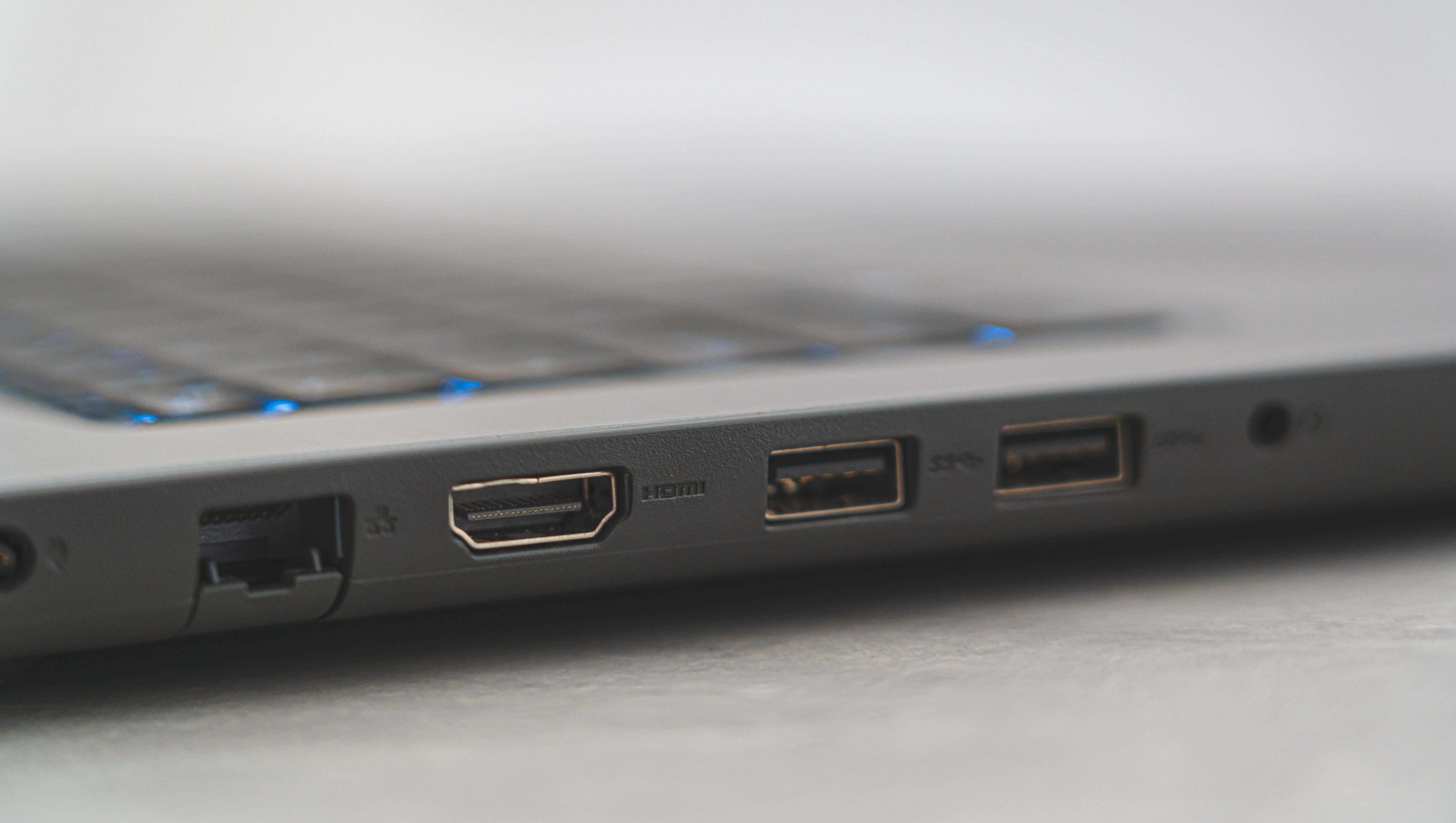
Before attempting to bridge your connection, you must inventory the available ports on your computer. Many laptops and desktop GPUs feature more than one type of video output. While you may be focused on the HDMI port, check for the presence of DisplayPort, USB-C (specifically with DisplayPort Alt Mode), or Thunderbolt ports.
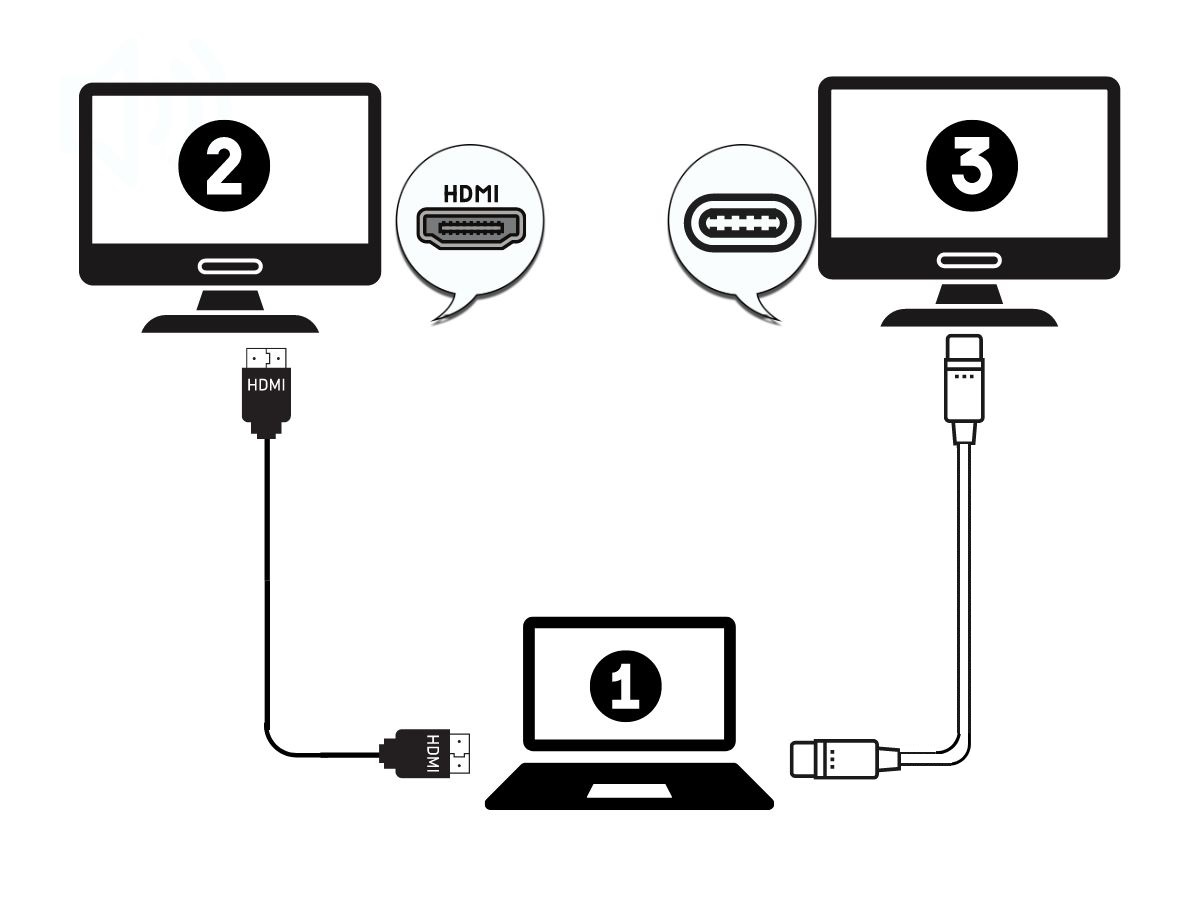
If your computer has a USB-C port that supports DisplayPort Alt Mode or Thunderbolt, you do not need to rely on the HDMI port for both screens. You can connect one monitor to the HDMI port and the second to the USB-C port using a simple USB-C to HDMI adapter. This is the most stable and performant solution, as it offloads the video signal processing to a secondary controller rather than forcing a single port to manage multiple signals.
Understanding Hardware Solutions
If your computer truly only offers one video output port and no secondary options like USB-C or DisplayPort, you must look toward external hardware bridges. These devices fall into three distinct categories: HDMI splitters, USB-to-HDMI adapters, and docking stations.
HDMI Splitters
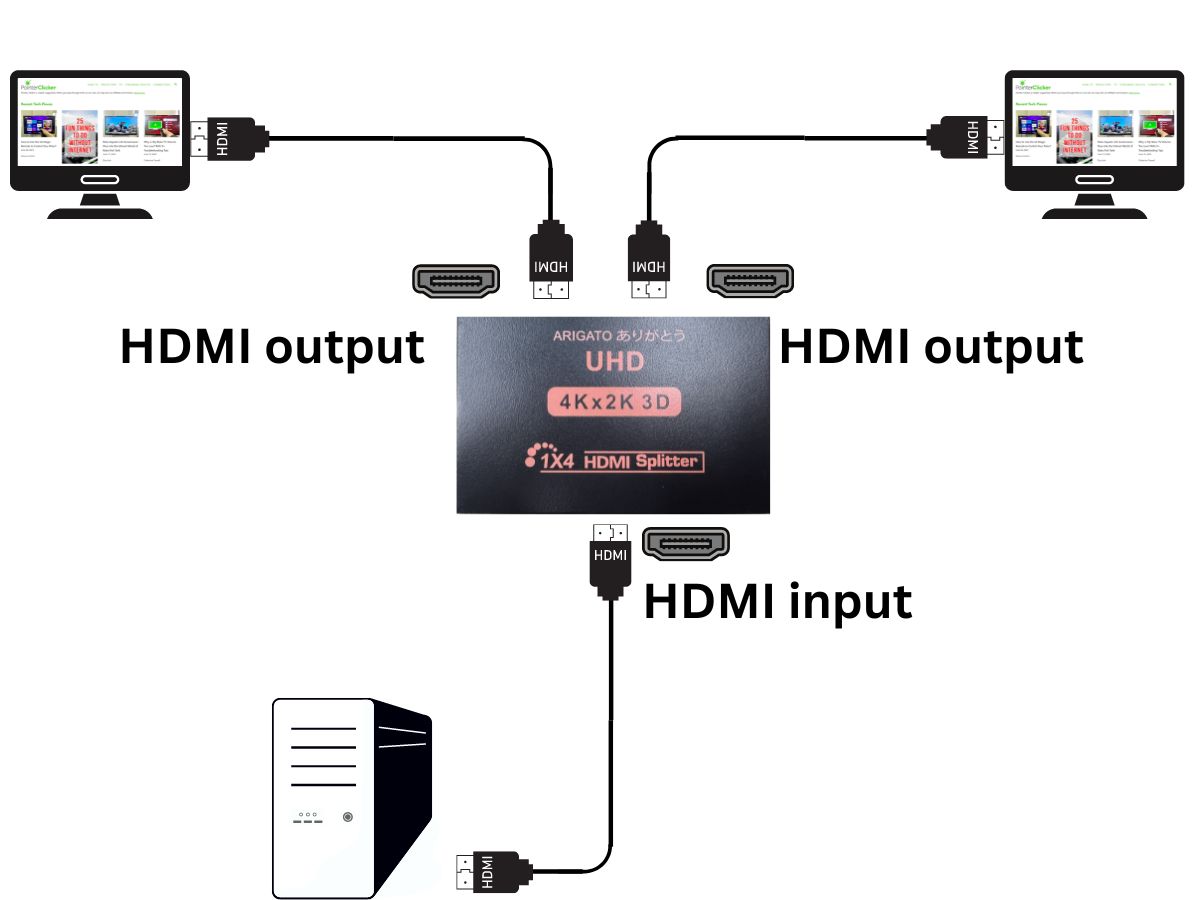
A common misconception is that an HDMI splitter will allow for an "extended" desktop, where you have two unique screens. In reality, a standard HDMI splitter is designed to "mirror" or "duplicate" your display. This means the same image will appear on both monitors simultaneously. For most office or productivity work, this is insufficient. Splitters are primarily intended for broadcasting the same presentation to two separate displays in a conference room or retail setting, not for increasing your screen real estate.
USB-to-HDMI Adapters (DisplayLink)
To achieve an extended desktop experience from a single port, you often need an adapter that utilizes a technology like DisplayLink. These adapters plug into a USB-A or USB-C port on your computer and act as an external graphics card.
- How it works: The adapter compresses the video data and sends it over the USB bus, where it is then decoded by the adapter and output to the HDMI monitor.
- Pros: This is the most effective way to add an additional screen if your computer lacks secondary video ports.
- Cons: Because it relies on CPU processing to compress and send the video data, these adapters may introduce slight latency, making them less ideal for high-speed gaming or professional video editing.
Docking Stations
Docking stations function similarly to high-end USB-to-HDMI adapters but offer a more comprehensive solution. A quality docking station connects to your computer via a single USB-C or Thunderbolt cable and provides multiple video outputs (HDMI, DisplayPort) alongside additional USB data ports and power delivery. This is the preferred method for laptop users who frequently dock and undock their machines at a desk.
Comparison of Methods
| Method | Configuration Type | Latency | Performance | Cost |
|---|---|---|---|---|
| HDMI Splitter | Mirrored | None | Excellent | Low |
| USB-to-HDMI Adapter | Extended | Low/Moderate | Moderate | Moderate |
| Docking Station | Extended | Minimal | High | High |
| Native Multi-Port | Extended | None | Excellent | Varies |
Step-by-Step Implementation Guide
Once you have selected the appropriate hardware, follow these steps to configure your displays:
- Driver Installation: If you are using a USB-to-HDMI adapter or a docking station that relies on software (like DisplayLink), install the necessary drivers before plugging in the device. This ensures your operating system recognizes the external hardware as a valid display controller.
- Hardware Connection: Connect your primary monitor to the HDMI port on your computer. Connect the second monitor to the adapter or docking station, then plug the adapter into your computer’s USB port.
- Display Configuration: Once connected, right-click on your desktop and select "Display Settings" (in Windows) or "System Settings > Displays" (in macOS).
- Arrange Your Monitors: Within the settings menu, you will see two rectangles representing your monitors. Click "Identify" to see which monitor is which, then drag the boxes to match the physical layout on your desk. This ensures your mouse cursor moves naturally from one screen to the other.
- Set Display Mode: Ensure the setting is toggled to "Extend these displays" rather than "Duplicate these displays." This confirms that your operating system recognizes the monitors as individual workspaces.
Common Troubleshooting Tips
If your second monitor is not being detected, verify the following:
- Power Sources: Ensure both monitors are plugged into a wall outlet and powered on.
- Cable Integrity: HDMI cables can degrade over time. If a monitor fails to display, test the cable on a known working device to rule out a hardware failure.
- Resolution Mismatches: Sometimes, an older adapter cannot handle the resolution of a modern 4K monitor. Try lowering the resolution of the second monitor in your system settings to see if it triggers a connection.
- Software Updates: Ensure your graphics drivers are up to date via your manufacturer’s website or your OS update utility.
Frequently Asked Questions
Can I use a simple HDMI Y-cable to run two monitors? No. An HDMI Y-cable is a physical splitter that does not possess the circuitry required to manage two separate video signals. At best, it will result in a black screen, or it will mirror the output, which will not provide an extended workspace.
Does a USB-to-HDMI adapter work for gaming? Generally, no. Because these adapters compress video and send it over the USB bus, there is often a slight lag in the display. While suitable for spreadsheets, web browsing, or word processing, they are not recommended for competitive gaming or frame-sensitive creative work.
Do I need a special docking station for a MacBook? Yes. Mac computers have specific requirements for DisplayPort MST (Multi-Stream Transport). Many cheaper USB-C hubs do not support multiple unique displays on macOS, often defaulting to mirror mode. Ensure the dock you purchase explicitly states support for "Extended Mode" on macOS.
What is the difference between DisplayPort Alt Mode and a regular USB port? DisplayPort Alt Mode allows a USB-C port to send raw video signals directly from the GPU. A regular USB port cannot do this; it requires a specialized chip inside an adapter to convert USB data packets into a video signal.
Is it possible to have three monitors with one HDMI port? While possible via a high-bandwidth Thunderbolt docking station, you will encounter significant system strain. The limitation usually lies in your computer’s integrated graphics card. Check your manufacturer’s documentation to see the maximum number of external displays your specific computer model supports.
Final Recommendation
For the most reliable and efficient experience, first check if your computer supports USB-C with DisplayPort Alt Mode. If it does, purchasing a dedicated USB-C hub or docking station is the superior path. If your machine is older and limited to standard USB-A ports, a DisplayLink-certified USB-to-HDMI adapter is your most functional, albeit performance-limited, solution. Always prioritize dedicated, powered docking stations over passive adapters to ensure signal stability and reduce the likelihood of flickering or connection drops during active work sessions.
Image Gallery