How to View a Zip File on iPhone Step by Step
To view a ZIP file on your iPhone in 2026, open the native Files app and locate the compressed archive. Simply tap the ZIP file to automatically extract its contents into a new folder in the same directory. Alternatively, long-press th...
To view a ZIP file on your iPhone in 2026, open the native Files app and locate the compressed archive. Simply tap the ZIP file to automatically extract its contents into a new folder in the same directory. Alternatively, long-press the file and select Quick Look to preview the contents without unzipping.
Contents
The ability to manage compressed archives has become a fundamental aspect of mobile productivity. Whether you are receiving a bundle of legal documents via email, downloading a set of high-resolution images for a design project, or receiving technical logs for troubleshooting, knowing how to handle ZIP files efficiently is essential. Since the introduction of the Files app, Apple has streamlined this process, eliminating the mandatory requirement for third-party software that once cluttered the App Store.
Understanding ZIP Files on iOS
A ZIP file is a common archive format that compresses one or more files or folders to reduce their overall size, making them easier to transmit over the internet. On iOS, the system treats these archives as "containers." While older versions of iOS required complex workarounds or external applications to peek inside these containers, modern iterations (including the software standard in 2026) treat them with the same native fluidity as standard folders.
Before attempting to open a ZIP file, ensure your device has sufficient storage space. While a ZIP file might only take up 50MB, the uncompressed contents could be significantly larger. The Files app handles the decompression (unzipping) process using the Apple File System (APFS), which is optimized for speed and data integrity on flash storage.
Method 1: Using the Native Files App (Recommended)
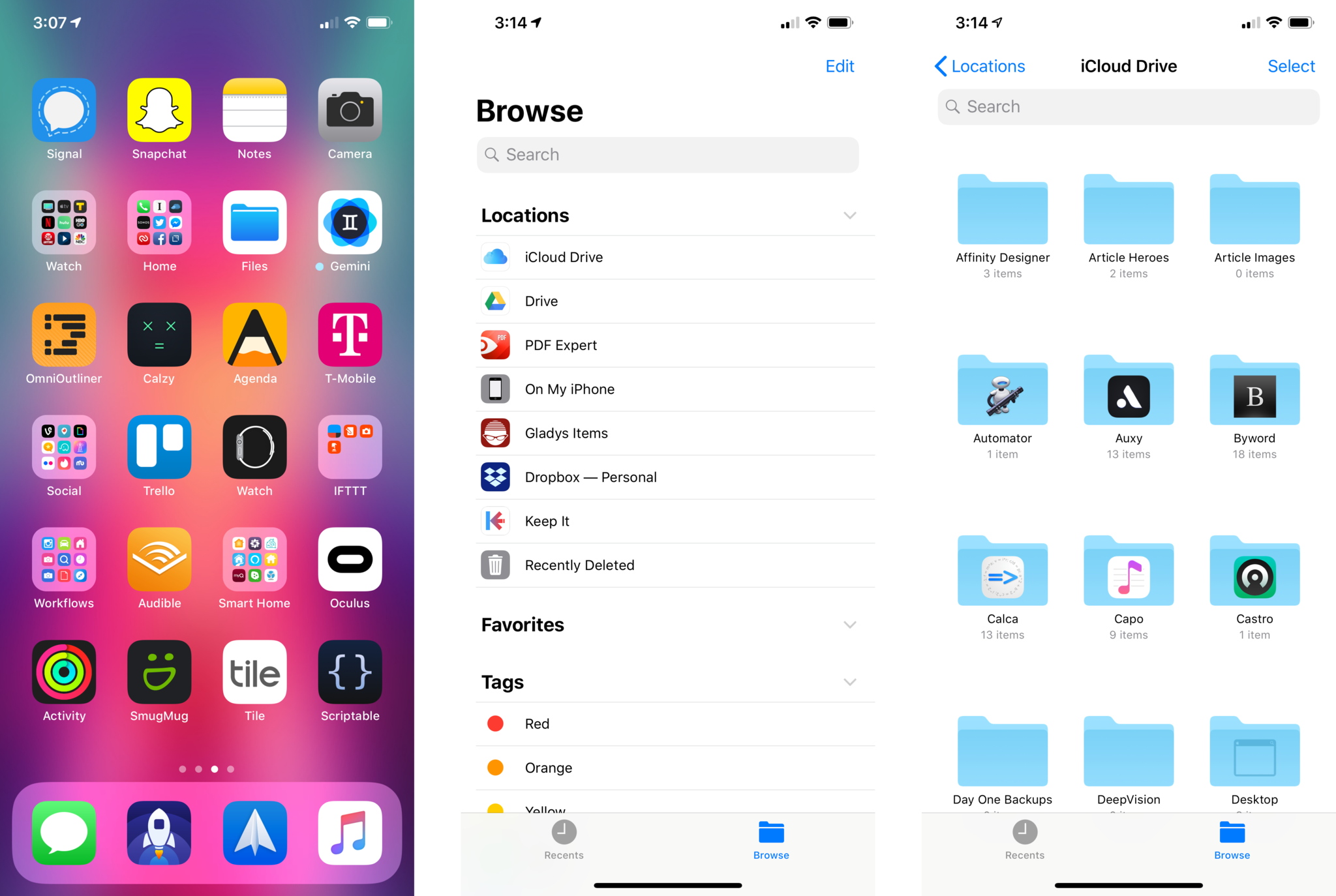
The Files app is the central hub for all document management on your iPhone. It integrates local storage, iCloud Drive, and third-party services like Google Drive or Dropbox. This is the most reliable method for viewing ZIP files.
Step 1: Locate the ZIP File
Open the Files app. You can find it by swiping down on your Home Screen and searching for "Files." Once inside, navigate to the location where the ZIP file is stored. This is typically the Downloads folder within "On My iPhone" or "iCloud Drive."
Step 2: Uncompressing the Archive
If you need to work with the files inside the archive (edit them, move them, or view them individually), the easiest way is to uncompress the file:
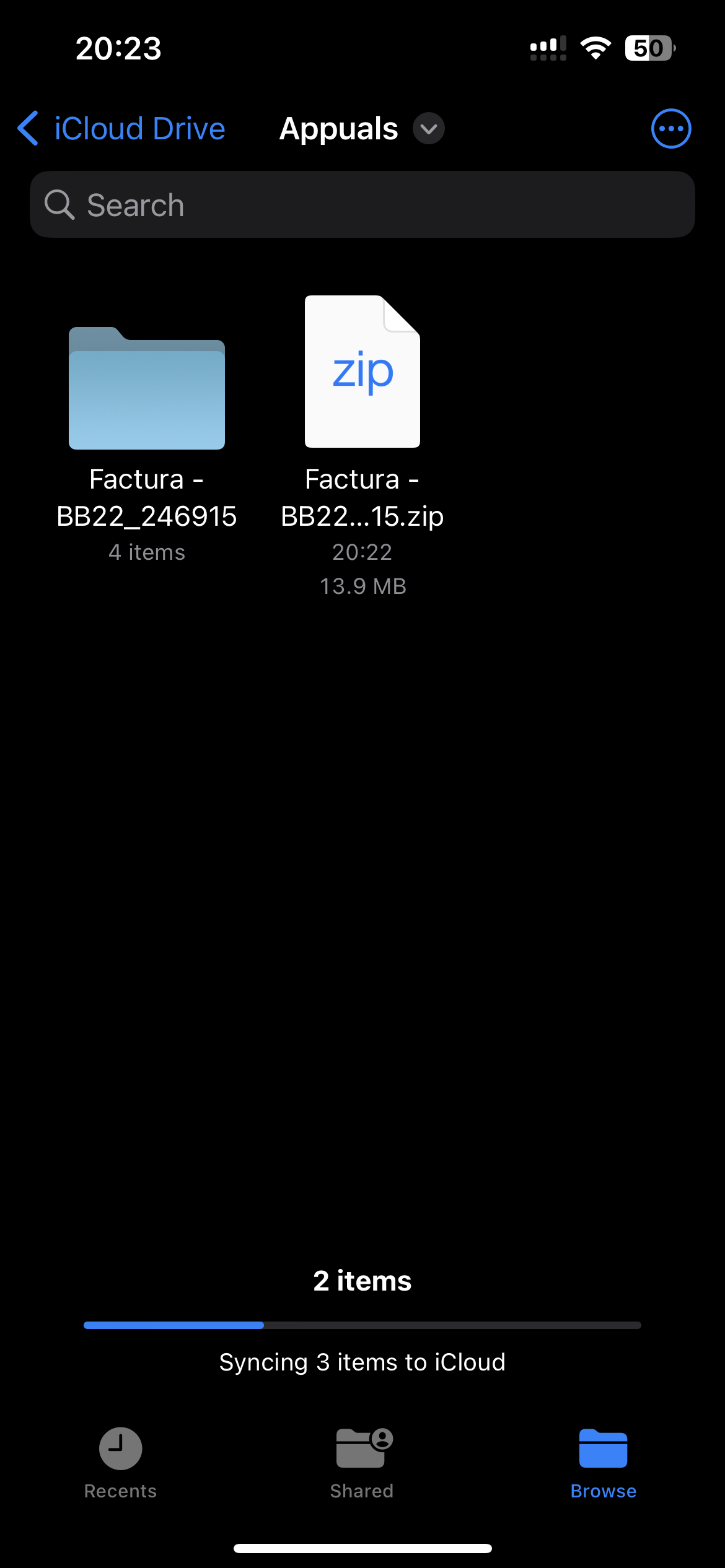
- Tap the ZIP file. The iPhone will immediately begin extracting the data.
- A new folder will appear next to the ZIP file, bearing the same name.
- Tap the new folder to access all the individual documents, images, or media files.
Step 3: Using the Contextual Menu
If you prefer more control over the extraction, you can use the contextual menu:
- Long-press (touch and hold) the ZIP file icon.
- From the pop-up menu, select Uncompress.
- This performs the same action as a tap but is useful if you have "Tap to Open" settings customized or if the file is stored on a slow cloud server.
Step 4: Previewing Content with Quick Look
Sometimes you don't want to unzip an entire 1GB archive just to see one photo. In this case, use Quick Look:
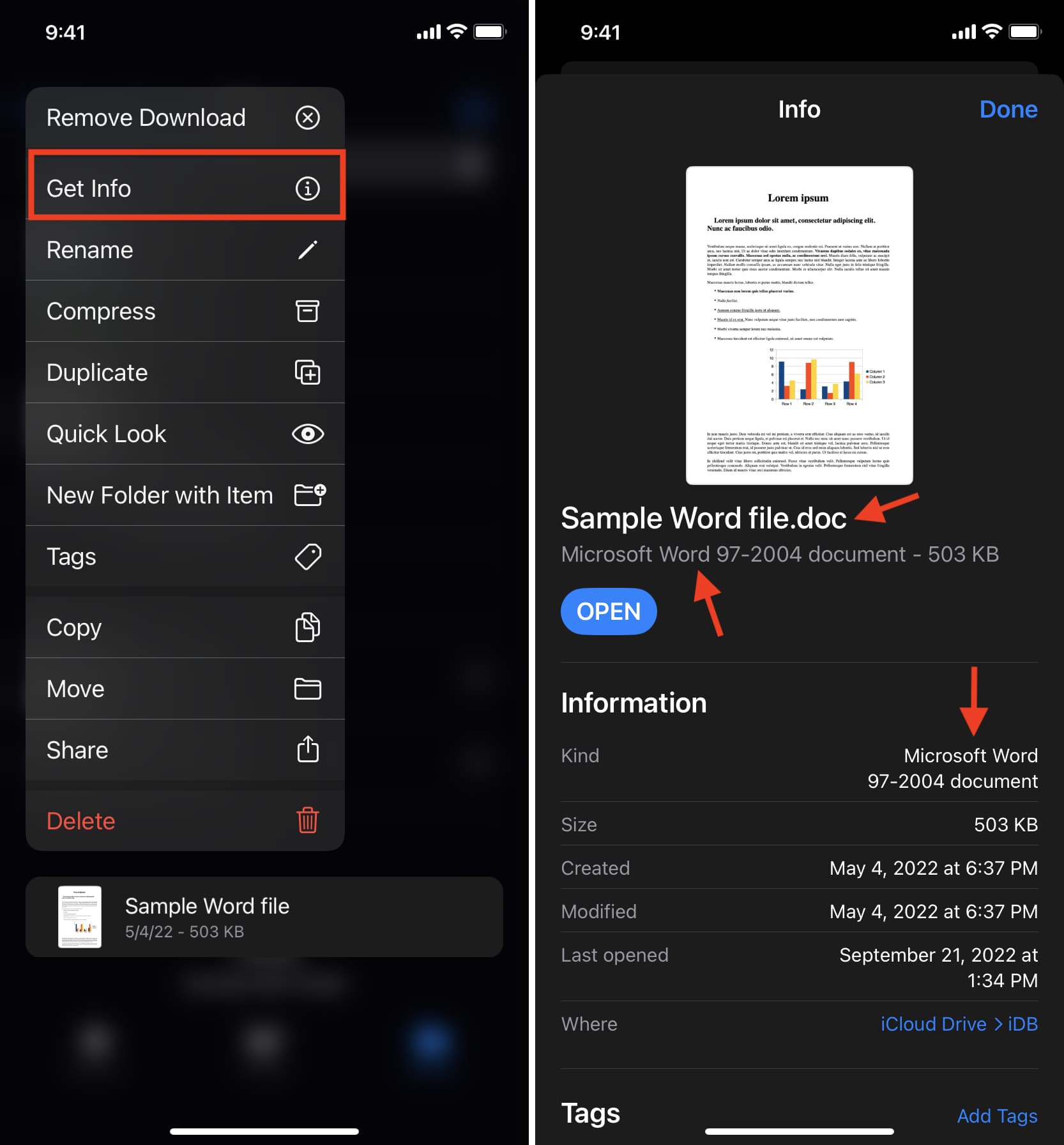
- Long-press the ZIP file.
- Select Quick Look from the menu.
- iOS will show you a preview of the items inside. You can swipe through the contents.
- If you find a specific file you need, you can use the Share button (the square with an up arrow) to export just that single item to another app or save it to your device.
Method 2: Opening ZIP Attachments from Email or Messages
Many users encounter ZIP files as attachments in the Mail app or via iMessage. You do not necessarily need to save them to the Files app first, though it is often better for organization.
From the Mail App
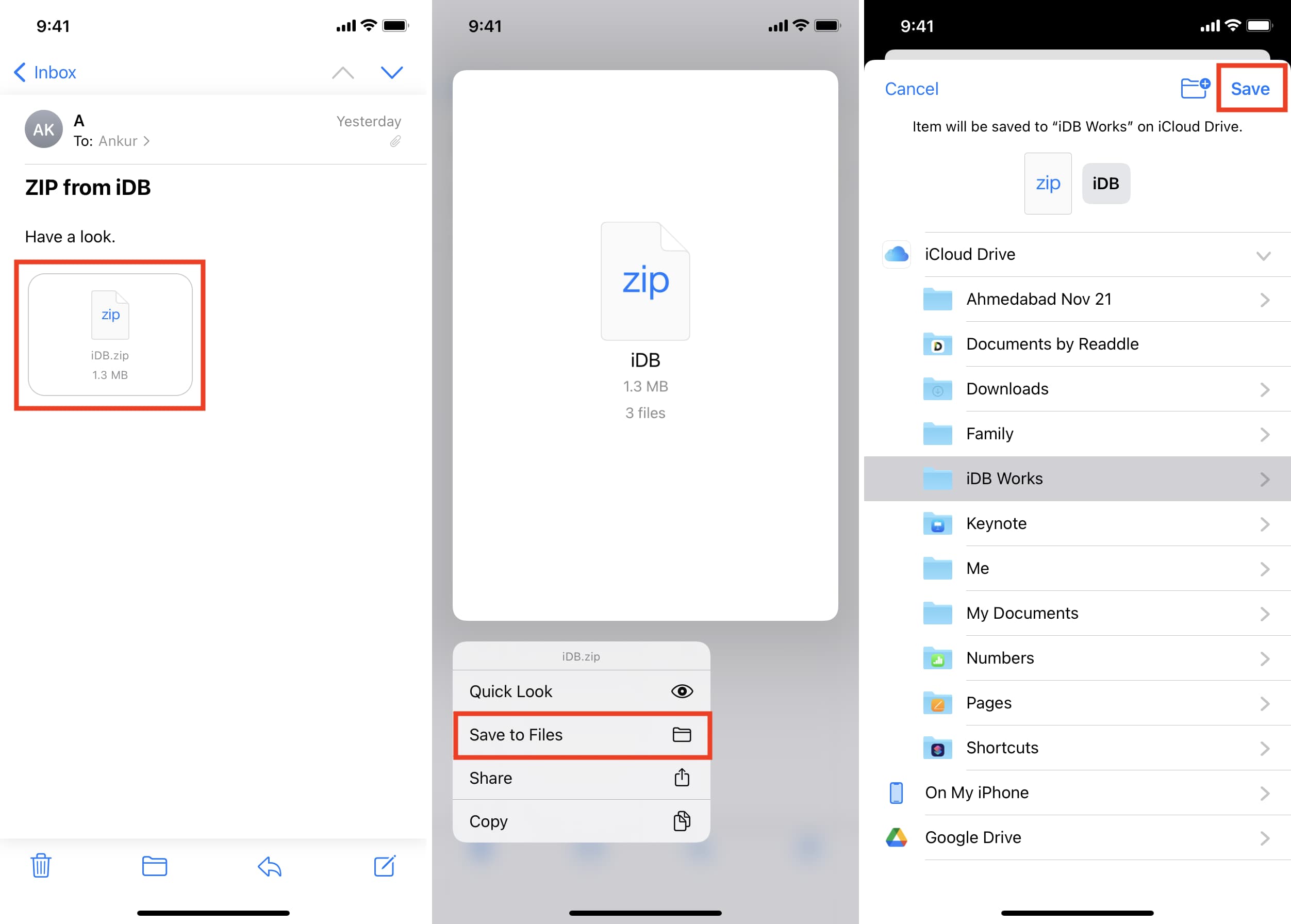
- Open the email containing the ZIP attachment.
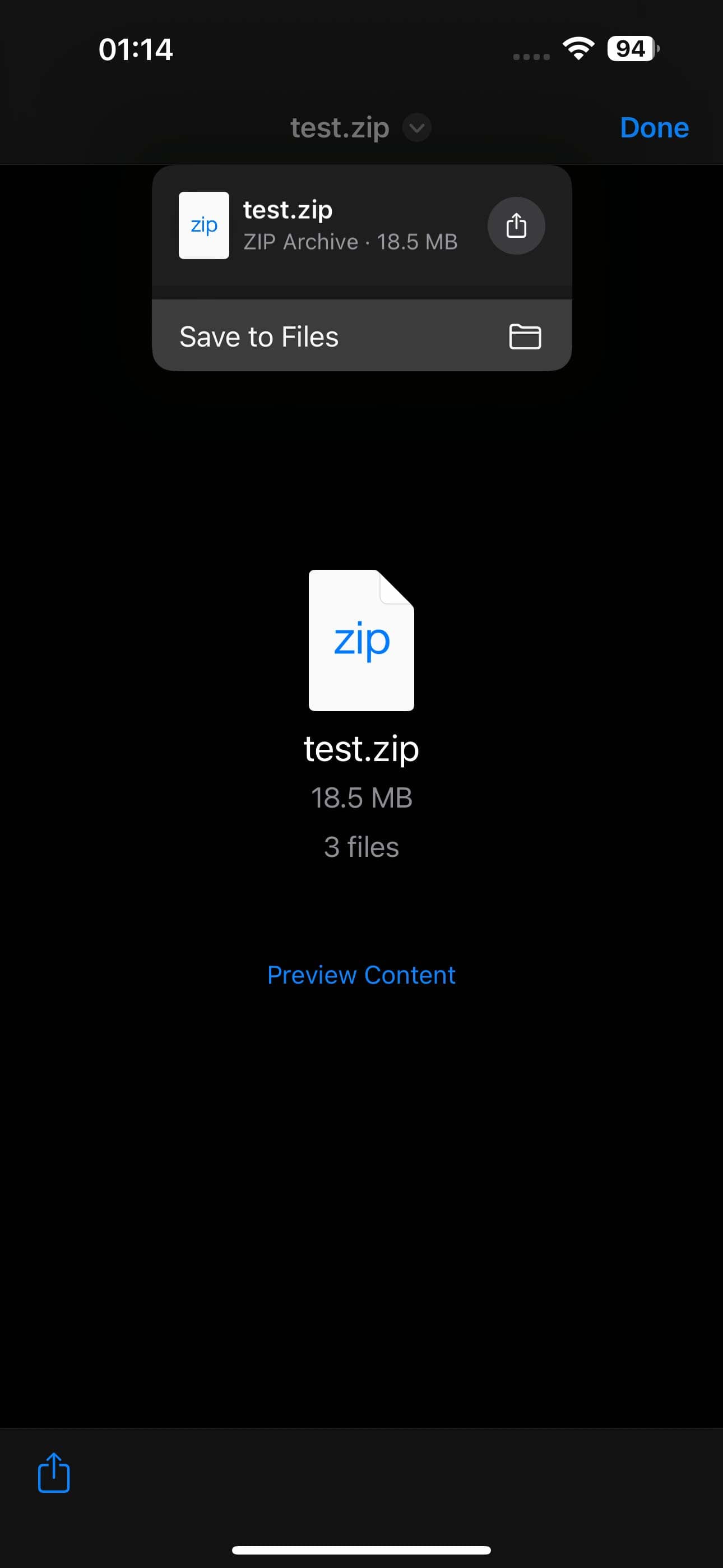
- Tap the attachment icon. A preview screen will open.
- Tap Preview Content to see what is inside the archive.
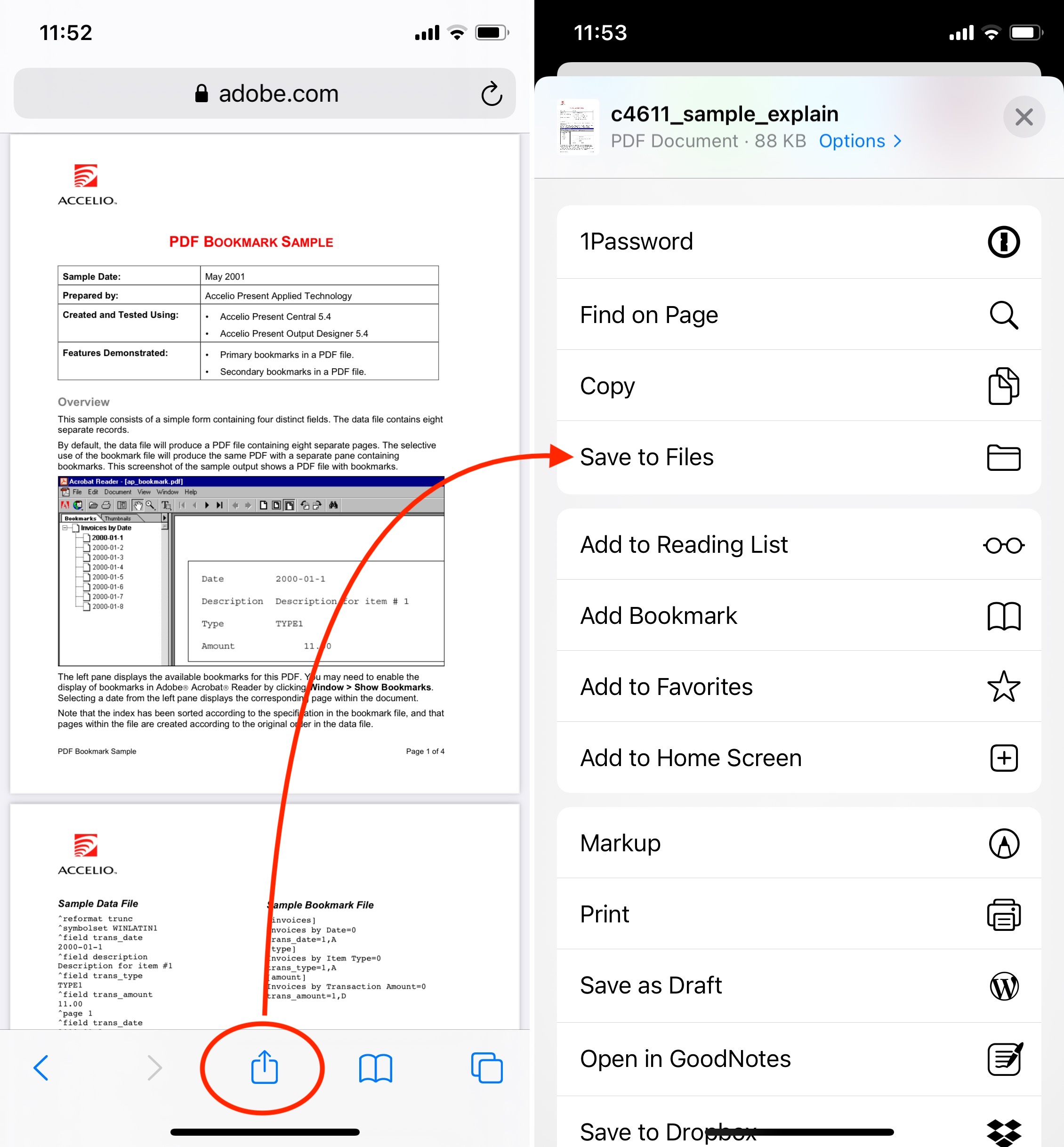
- To extract the files, tap the Share icon and select Save to Files. Choose a destination folder and tap Save. Once saved, follow the steps in Method 1 to uncompress.
From Messages (iMessage)
- Tap the ZIP file sent in the conversation.
- The iPhone will open a preview window showing the file size and name.
- Tap the Share button.
- Select Save to Files. This moves the archive from the ephemeral storage of the Messages app into your permanent file system, where it can be properly managed.
Method 3: Using Third-Party Apps for Advanced Features
While the native Files app is sufficient for 95% of users, third-party apps like iZip or WinZip remain relevant in 2026 for specific professional needs.
Why Use Third-Party Apps?
- Password Protection: While the Files app can open many password-protected ZIPs, some proprietary encryption methods used by desktop versions of WinZip or 7-Zip may require a dedicated mobile app.
- Alternative Formats: If you encounter .7z, .RAR, or .TAR files, the native Files app support can be inconsistent. Specialized apps handle these formats with higher compatibility.
- Multi-part Archives: Some large files are split into multiple parts (e.g., file.zip.001, file.zip.002). Third-party apps are generally better at "joining" these parts back together.
How to Use iZip/WinZip
- Download the app from the App Store.
- Open the Files app, long-press your ZIP file, and select Share.
- Select the third-party app (e.g., iZip) from the list of applications.
- The app will open and prompt you to extract the files. Follow the on-screen instructions, which usually involve a "Yellow Folder" icon or an "Extract" button.
Comparison of Methods
| Feature | Files App (Native) | Third-Party Apps (iZip/WinZip) | Quick Look Preview |
|---|---|---|---|
| Speed | Excellent (Native) | Moderate | Fastest |
| Cost | Free (Included) | Often Freemium/Ads | Free |
| Encryption Support | Basic | Advanced/AES-256 | None |
| Format Support | ZIP, limited others | ZIP, RAR, 7z, TAR, GZ | ZIP only |
| Ease of Use | High | Moderate | High |
| Storage Impact | Creates new folder | May create duplicates | Temporary only |
Advanced Actions: Managing and Creating ZIPs
Viewing is only half the battle. In a professional 2026 workflow, you may need to go in reverse: creating a ZIP file to send to others.
How to Create a ZIP File on iPhone
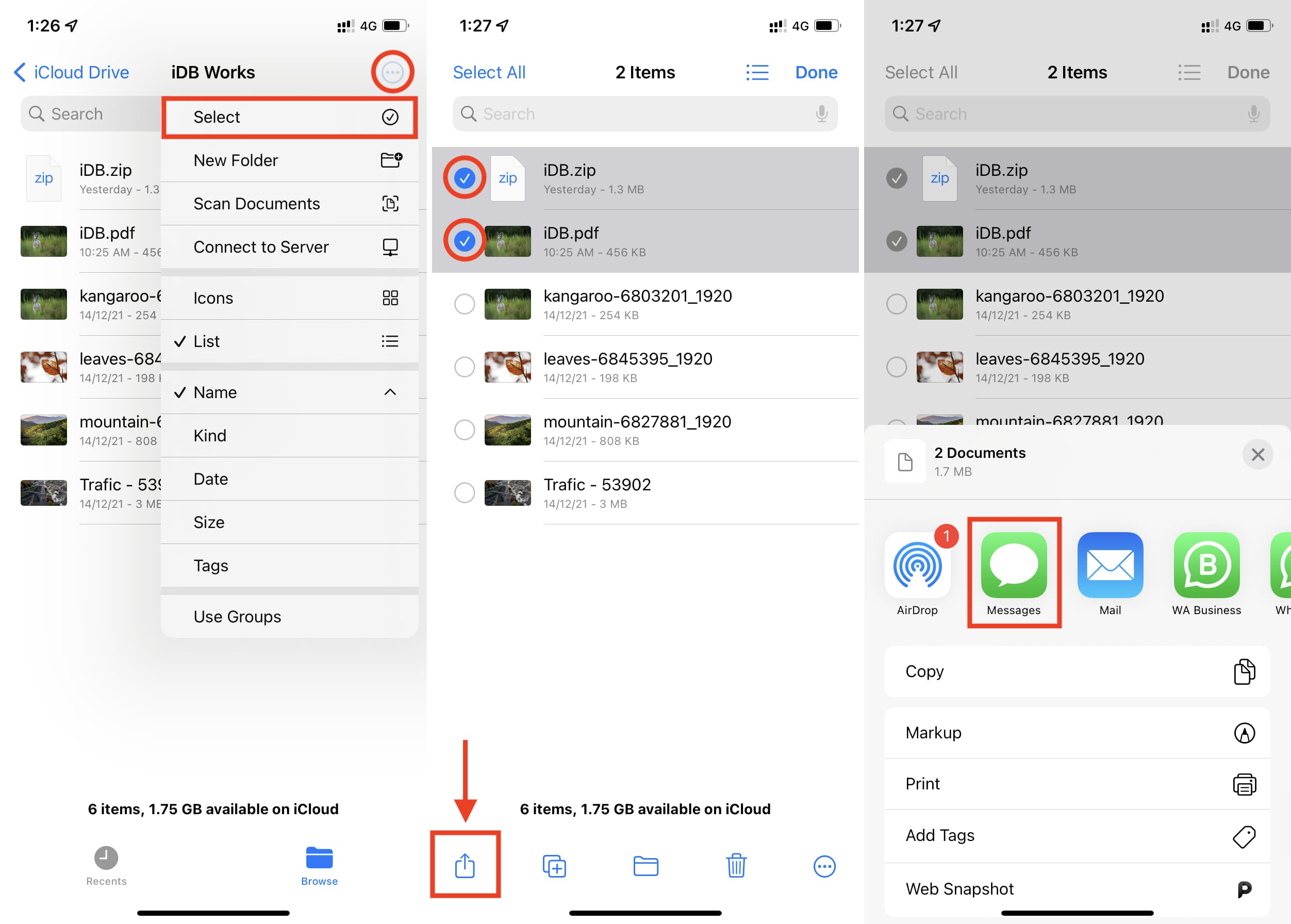
- Open the Files app.
- Navigate to the folder containing the items you want to compress.
- Tap the More (...) icon in the top right and select Select.
- Tap all the files you want to include in your archive.
- Tap the More (...) icon in the bottom right corner of the screen.
- Select Compress.
- A new file named "Archive.zip" (or named after the single file selected) will appear. You can long-press it and select Rename to give it a descriptive title.
Troubleshooting Common Issues
The "Uncompress" option is missing: This usually happens if the file extension is incorrect or if the file is not fully downloaded. Ensure you have a stable internet connection and that the file doesn't have a double extension (like .zip.download).
The ZIP file won't open (Corrupt Archive): If you receive an error stating the file cannot be opened, it may be a partial download. Try deleting the file and downloading it again. If it was sent via email, ask the sender to verify the integrity of the original file.
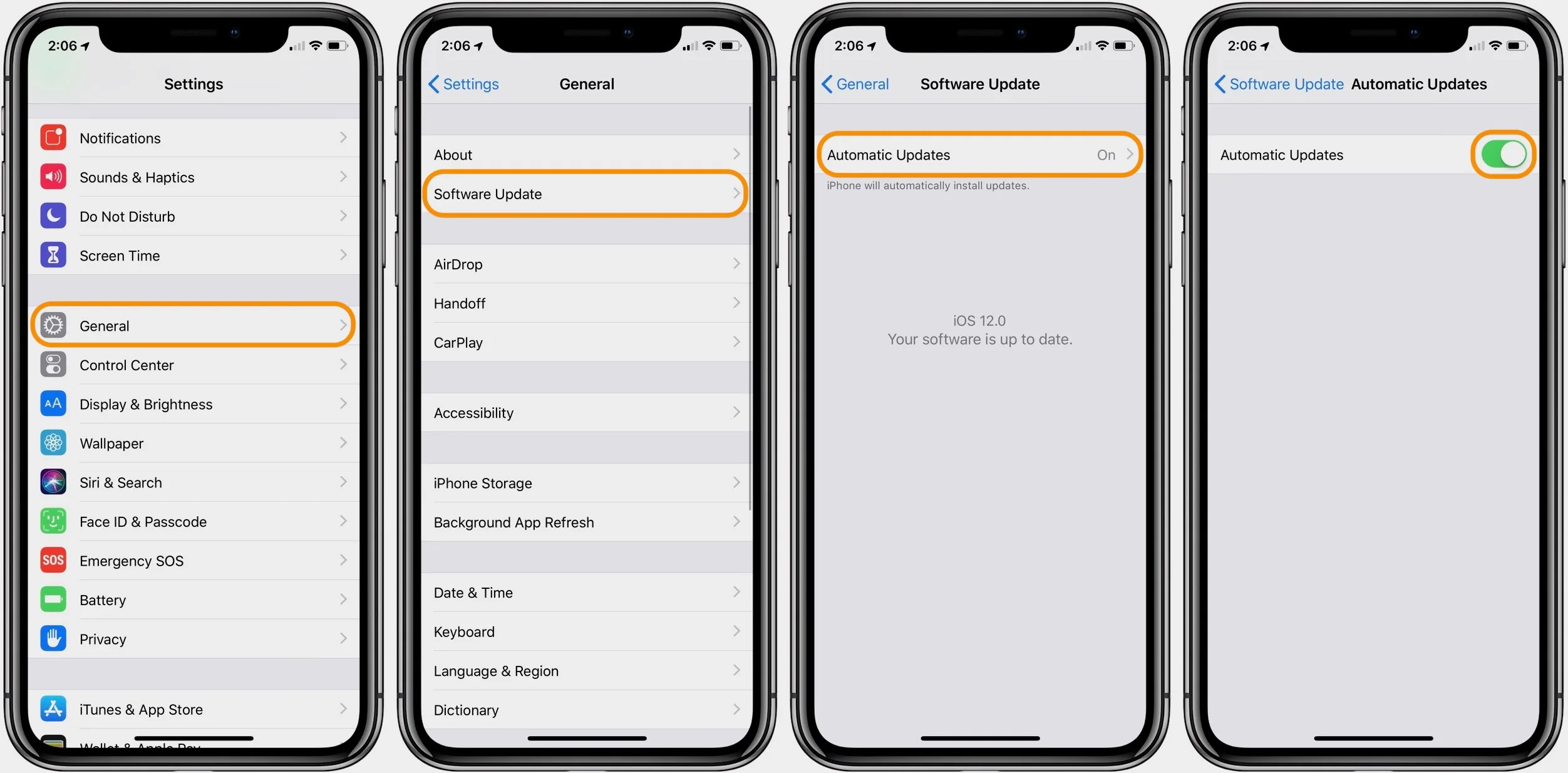
Insufficient Storage Error: As mentioned earlier, unzipping requires free space. If your iPhone storage is nearly full, the Files app may refuse to extract the archive. You can check your available space in Settings > General > iPhone Storage.
FAQ
Can I open a password-protected ZIP file on my iPhone?
Yes, the native Files app supports standard ZIP encryption. When you tap to uncompress the file, a password prompt will appear. Enter the credentials provided by the sender. However, for highly specialized encryption (like 7z-specific AES-256), you may need a third-party app like iZip.
Does unzipping a file delete the original ZIP archive?
No. When you uncompress a file in the Files app, the original .zip archive remains exactly where it was. This allows you to keep the compressed version for backup or sharing, while the extracted folder provides access to the contents. You should manually delete the ZIP file if you are concerned about saving storage space.
Where do unzipped files go on an iPhone?
By default, the unzipped files appear in the exact same directory as the original ZIP file. If the ZIP is in your "Downloads" folder, the new folder containing the extracted data will also appear in "Downloads."
Can I view the contents of a ZIP file without unzipping it?
Yes, by using the Quick Look feature. Long-press the ZIP file and select "Quick Look." This allows you to scroll through the files inside the archive without taking up the extra storage space required for extraction.
Is it safe to open ZIP files from unknown senders?
Exercise caution. While iOS is generally more secure against traditional desktop viruses, ZIP files can contain malicious scripts or "zip bombs" designed to crash your device by expanding into petabytes of data. Only open archives from trusted sources.
Practical Recommendation
For the vast majority of tasks in 2026, stick to the native Files app. It is integrated into the operating system's security architecture and offers the fastest performance. If you are a power user dealing with encrypted archives or rare formats like .RAR regularly, keep a reputable app like iZip installed as a fallback. For quick checks, always use Quick Look first to verify the contents before committing storage space to a full extraction.
For more information on managing your storage and files, visit the official Apple Support page for iPhone file management.
Image Gallery