How to Delete Photos That Are Backed Up on iCloud Without Losing Them
Deleting photos backed up on iCloud while keeping them safe on your devices requires a clear understanding of how Apple's ecosystem synchronizes data. Because iCloud Photos acts as a synchronization service rather than a traditional st...
Deleting photos backed up on iCloud while keeping them safe on your devices requires a clear understanding of how Apple's ecosystem synchronizes data. Because iCloud Photos acts as a synchronization service rather than a traditional static backup drive, removing an image from one connected device or from the cloud itself automatically triggers its deletion across all devices sharing that Apple ID.
Contents
Mastering this process prevents accidental data loss while allowing you to reclaim valuable storage space on your iPhone, iPad, Mac, or iCloud storage tier. This guide explores the foundational mechanics of iCloud Photos, step-by-step deletion strategies, and alternative storage workflows to manage your visual media securely.
Understanding How iCloud Photos Synchronization Works
Before initiating any deletion process, you must understand the distinction between a traditional backup and Apple's iCloud Photos service. Traditional cloud storage solutions like Google Drive or Dropbox operate on a manual or semi-automated upload model: you send a file to the cloud, and you can subsequently delete it from your local storage without affecting the cloud copy.
iCloud Photos operates entirely differently. It utilizes a unified library model. When you enable iCloud Photos on an Apple device, your local library merges with the cloud library. Every change—whether it is an edit, a favorite designation, or a deletion—mirrors instantly across every device signed into that account.
The Illusion of Freeing Local Space
Many users enable iCloud Photos expecting it to act as offsite storage where they can offload files. By default, iOS manages this through a setting called Optimize iPhone Storage.
When this feature is active, full-resolution originals upload to iCloud, while space-saving, low-resolution thumbnails remain on the device. However, if you manually delete a thumbnail from the Photos app, you are instructing the system to delete the master file from iCloud and all associated devices.
To successfully remove photos from iCloud without losing your original files, you must sever the synchronization loop, export your master files to an independent storage medium, or disable iCloud Photos selectively while preserving local copies.
Prerequisites and Safety Preparations Before Deleting
Deletions in iCloud Photos are permanent after a 30-day grace period. Taking shortcut actions without verifying your backup status can lead to permanent data loss. Execute these preliminary steps before altering your photo library.
- Verify Local Storage Capacity: Ensure your target device has enough physical storage to hold the full-resolution versions of the photos you wish to keep locally before disabling cloud sync.
- Perform an Independent Local Backup: Do not rely solely on iCloud as your only copy. Connect your iPhone or Mac to a computer and create an encrypted local backup using Finder or iTunes, or manually export your library to an external solid-state drive (SSD).
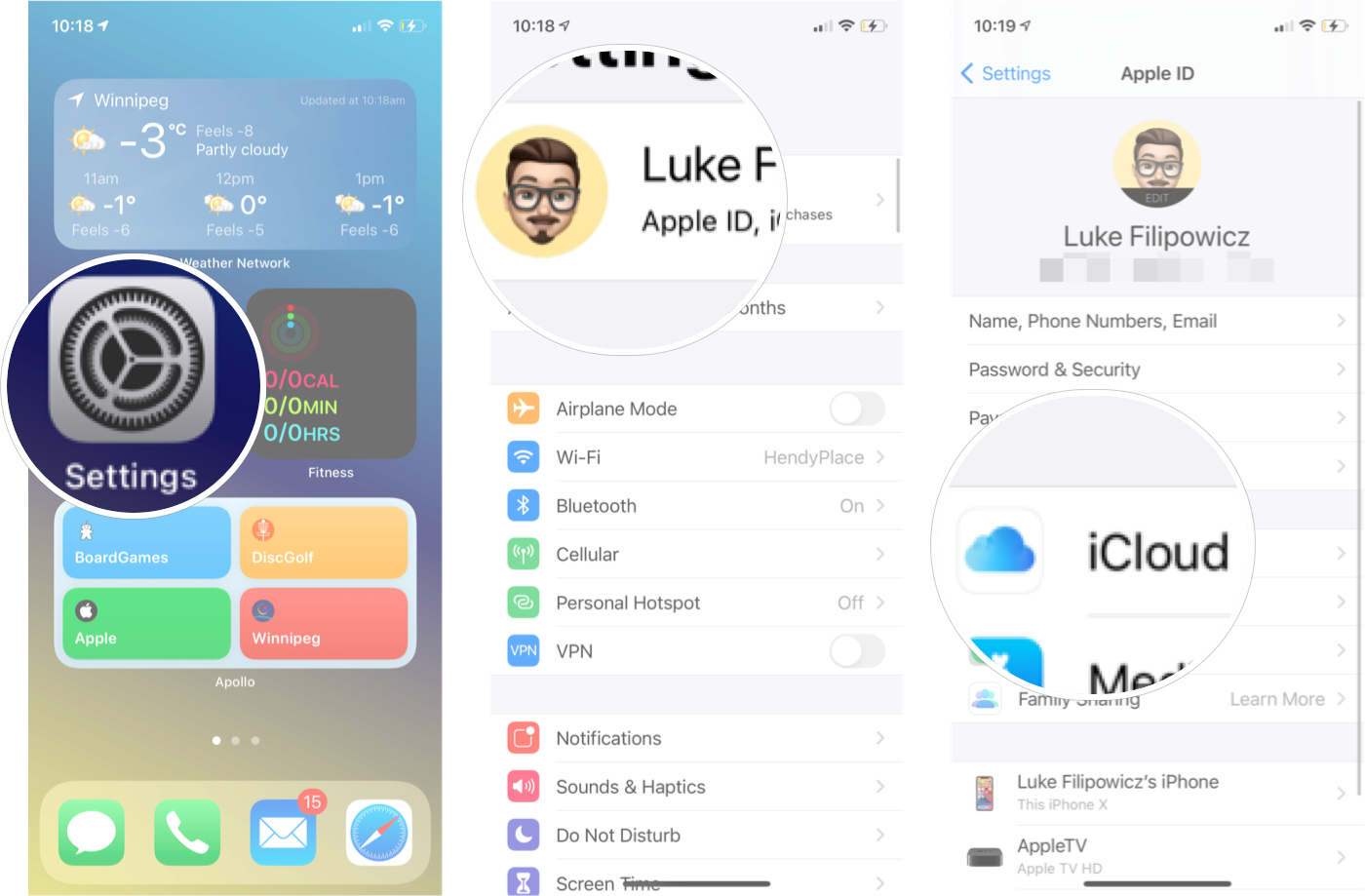
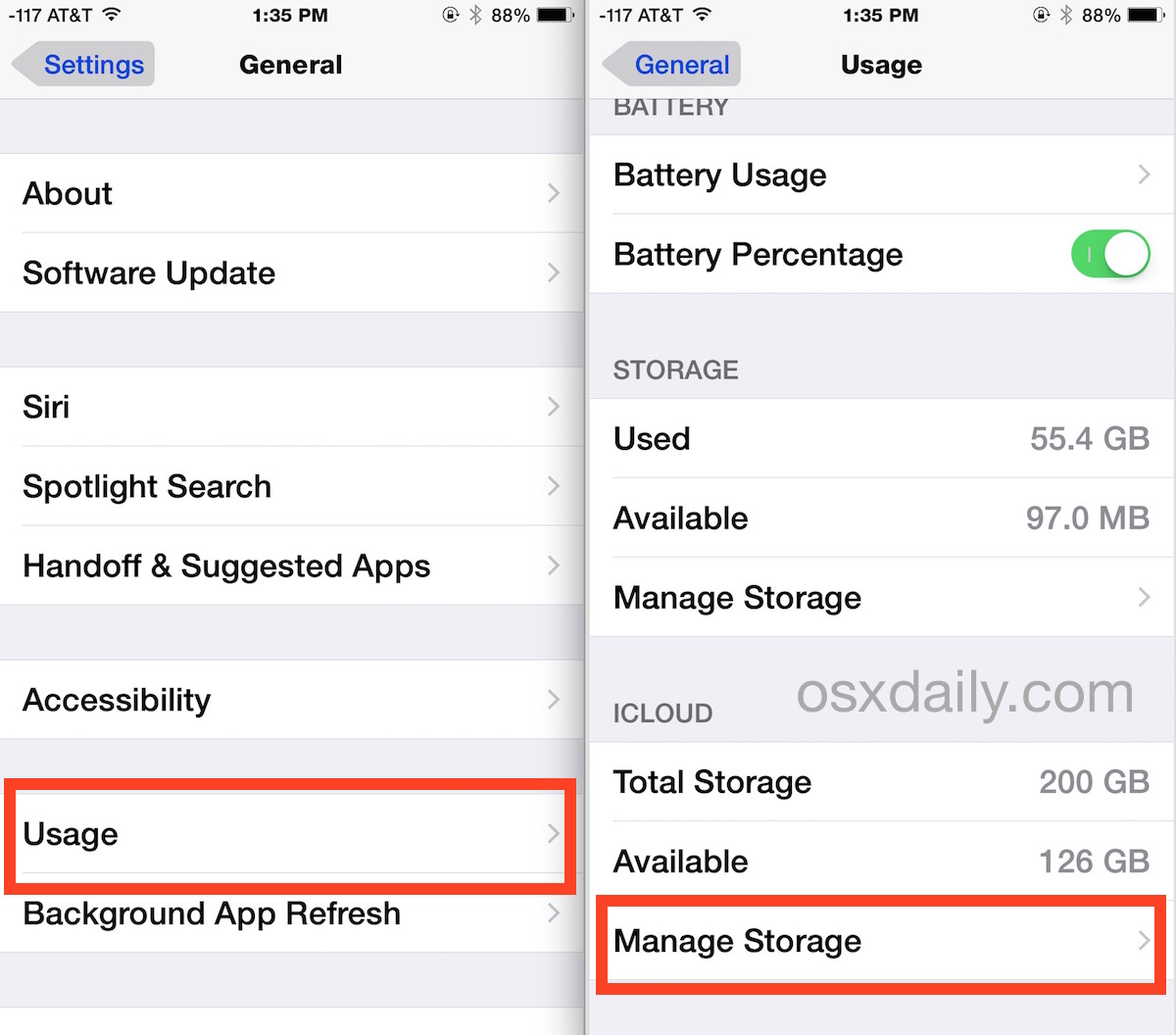
- Check Apple Account Storage Status: Navigate to Settings > [Your Name] > iCloud to review your current storage breakdown. This confirms whether you are attempting to clear space due to a full tier limit (e.g., hitting the free 5 GB limit or a paid 200 GB tier).
Step-by-Step Methods to Delete Photos from iCloud
Depending on your ultimate goal—whether you want to clear space on a specific device, delete files from the cloud entirely, or migrate your library elsewhere—different procedures apply. Select the method that aligns with your operational objective.
Method 1: Using "Optimize iPhone Storage" to Save Device Space
If your primary objective is to keep your photos safely backed up in iCloud while freeing up local storage on your iPhone or iPad without deleting anything permanently, utilize Apple's native optimization utility.
- Open the Settings app on your iOS or iPadOS device.
- Tap on your Apple ID profile name at the top of the screen.
- Select iCloud, then tap Photos.
- Ensure that Sync this iPhone (or iPad) is toggled On.
- Select Optimize iPhone Storage instead of Download and Keep Originals.
| Setting Name | Functional Behavior |
|---|---|
| Download & Keep Originals | Stores full-resolution files locally; consumes high space. |
| Optimize iPhone Storage | Keeps lightweight thumbnails locally; stores full files in iCloud. |
When this setting is active, iOS automatically replaces older, infrequently viewed full-resolution photos with space-saving thumbnails whenever device storage runs low, while leaving the master backups untouched in iCloud.
Method 2: Disabling iCloud Photos While Keeping Local Copies
If you want to stop using iCloud Photos altogether and delete your cloud library while retaining your photos on a specific device, you must carefully break the sync link.
- On your device, navigate to Settings > [Your Name] > iCloud > Photos.
- Toggle Sync this iPhone to the Off position.
- A prompt will appear asking what you want to do with your photos. Tap Download Photos & Videos (provided you have sufficient local storage). This downloads the full-resolution master files from iCloud to your device.
- Wait for the download progress bar to complete. Check the bottom of the Photos app to confirm that all items are up to date locally.
- Once downloading is finished, you can safely log into iCloud.com, navigate to Photos, and delete items from the cloud interface. Because synchronization is now disabled on your device, those deletions will not affect the local copies on your phone.
Method 3: Deleting Photos via iCloud.com (Cloud-Only Removal)
If you want to clear space in your iCloud storage pool without deleting photos from a computer that is not actively syncing via iCloud Photos, use the web portal.
- Open a web browser on a computer and go to iCloud.com.
- Sign in using your Apple ID and password, completing any required two-factor authentication prompts.
- Click on the Photos application icon.
- Select the individual photos or albums you wish to remove. You can hold down the
Shiftkey to select a range of images. - Click the Trash Can icon in the top toolbar to delete the selected items.
- Open the Recently Deleted album in the left-hand sidebar of iCloud.com and permanently delete them to immediately reclaim your cloud storage quota.
Note: If you perform this action while iCloud Photos is enabled on a device that actively syncs with that account, those photos will also be deleted from that device.
Managing the "Recently Deleted" Safety Net
Apple retains deleted photos in a Recently Deleted album for 30 days across all platforms. This safety feature allows you to recover accidental deletions, but it also means that deleting photos does not immediately free up your iCloud storage space.
- To Recover Photos: Open the Photos app, tap Albums, scroll to Recently Deleted, authenticate with Face ID, Touch ID, or your passcode, select the images, and tap Recover.
- To Purge Immediately for Space: Navigate to the same Recently Deleted album, tap Select, choose Delete All (or select individual items), and confirm Delete from All Devices. This action instantly removes the files from iCloud storage servers.
Alternative Storage and Migration Strategies
Relying solely on manual deletion can become tedious for large media libraries. If you have outgrown your iCloud storage tier or wish to transition away from Apple's ecosystem, consider these established alternatives.
- Local External Storage Migration: Connect a high-speed external SSD to a Mac or PC. Open the Photos app on a Mac, go to Settings > General, and click Export Unmodified Originals to save your entire library to the external drive. Once verified, you can purge both your device and iCloud libraries.
- Third-Party Cloud Services: Services such as Google Photos, Microsoft OneDrive, or Amazon Photos offer alternative backup ecosystems. You can install these apps on iOS to back up your camera roll independently of Apple's iCloud infrastructure. Always verify privacy policies and encryption standards before transferring personal media libraries to third-party providers.
Common Mistakes to Avoid
Managing cloud synchronization requires precision. Avoid these frequent missteps to protect your digital assets:
- Deleting from the Device Without Disabling Sync: Simply tapping the trash icon in the Photos app on a synced iPhone deletes the photo everywhere, including iCloud. Always verify your sync status first.
- Ignoring the Recently Deleted Folder: Users often wonder why their iCloud storage space has not decreased after deleting thousands of photos. Failing to empty the Recently Deleted album leaves files occupying space for up to 30 days.
- Assuming Backups Are Archives: iCloud Photos is a live mirror, not an archive. If a file is corrupted, edited destructively, or deleted, the change propagates across the board. Maintain separate cold-storage archives for valuable historical photos.
Frequently Asked Questions
Will deleting photos from my iPhone delete them from iCloud?
Yes, if iCloud Photos is enabled on your device. Because the service synchronizes libraries in real time, removing a photo from the local Photos app deletes it from iCloud and all other connected devices after the 30-day Recently Deleted window expires.
How do I free up iCloud storage without deleting my photos?
To reduce iCloud storage usage without losing your photos, you must download your full-resolution library to a computer or an external hard drive, verify the backup, and then delete the files from iCloud. Alternatively, you can upgrade your iCloud+ storage subscription plan to a higher tier.
What happens to my photos if I cancel my iCloud+ subscription?
If you downgrade or cancel your iCloud+ subscription and your photo library exceeds the free 5 GB limit, new photos and videos will stop uploading to iCloud. Your existing photos will remain in iCloud for a limited time (typically 30 days), giving you an opportunity to download them to a local device before Apple begins removing them.
Can I use Google Photos instead of iCloud for backups?
Yes. You can download the Google Photos app on your iOS device, sign in with a Google account, and enable backup. Google Photos operates independently of Apple's iCloud ecosystem, allowing you to back up your camera roll to Google's servers. However, managing two concurrent cloud sync services requires careful attention to avoid duplicate storage consumption.
Conclusion and Next Actions
Effectively managing photos backed up on iCloud requires understanding that Apple's ecosystem prioritizes seamless synchronization over static archiving. To safely delete photos without losing your memories, first confirm whether you need to retain local or external copies. Use Optimize iPhone Storage to manage device constraints, or intentionally break the synchronization link before purging your cloud library.
Take a moment to audit your current storage usage by checking Settings > [Your Name] > iCloud on your device. If your cloud storage is nearing capacity, execute a local export to an external drive or computer before performing any deletions, and remember to clear your Recently Deleted folder to immediately reclaim your storage quota.
Image Gallery