How to Connect Your Phone to a Projector: A Comprehensive Guide
Connecting your smartphone to a projector allows you to display presentations, stream media, or share photos on a large screen with ease. Whether you are using an iPhone or an Android device, the connection process depends on the hardw...
Connecting your smartphone to a projector allows you to display presentations, stream media, or share photos on a large screen with ease. Whether you are using an iPhone or an Android device, the connection process depends on the hardware ports available on your projector and the specific capabilities of your mobile device, such as its support for wired video output or wireless mirroring protocols.
Contents
Determining Your Hardware Compatibility
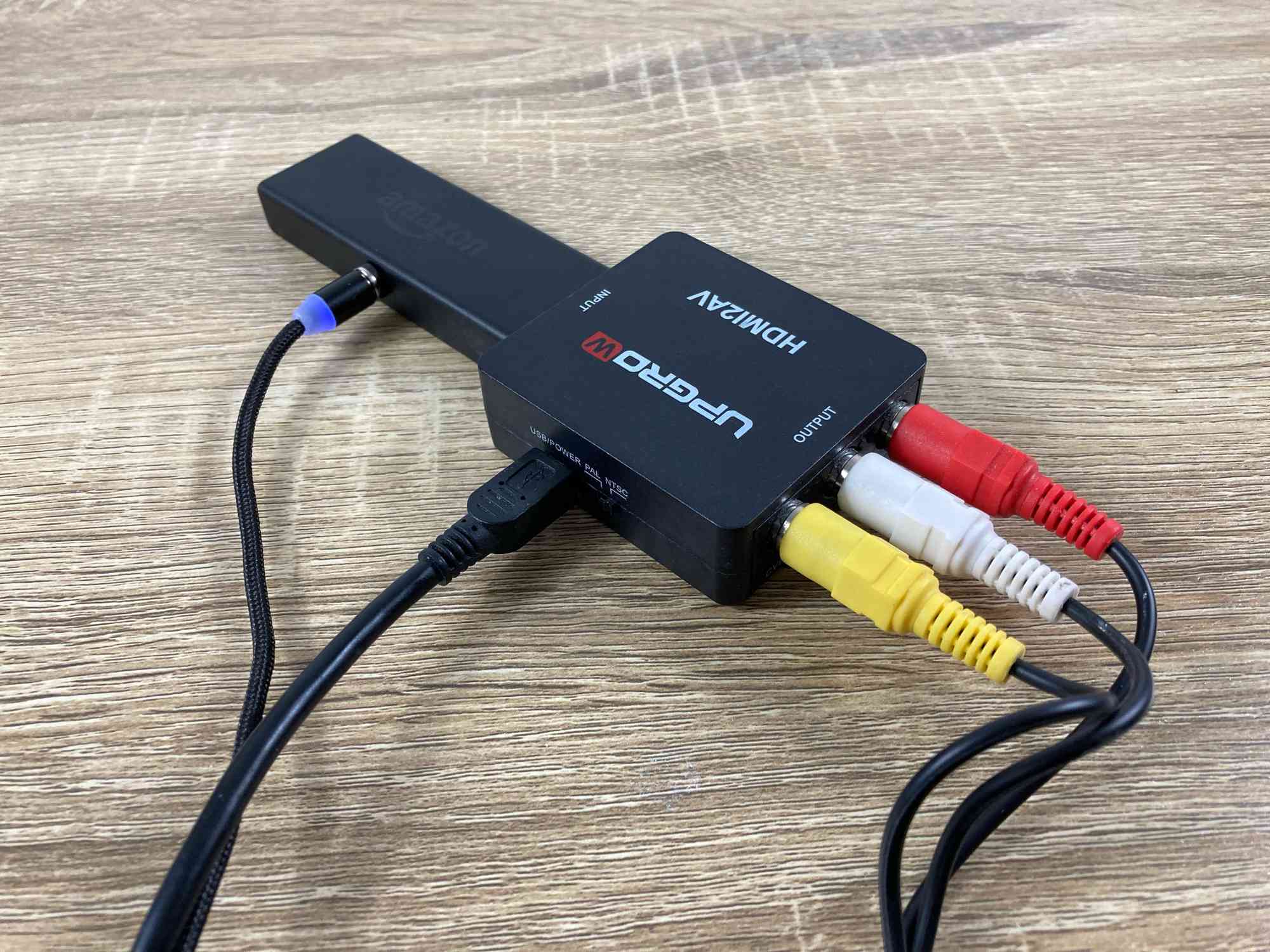
Before attempting to connect, you must identify the inputs available on your projector. Most modern projectors are equipped with HDMI ports, but older models may use VGA, composite RCA (yellow, white, and red cables), or specialized proprietary connectors. You also need to confirm if your smartphone supports video output.
Most modern smartphones, including iPhones with USB-C ports (iPhone 15 series and later) and many Android flagship devices, support DisplayPort Alt Mode over USB-C. This protocol allows the phone to send a high-definition video signal directly to an external display. If you are using an older smartphone, you may be restricted to wireless streaming methods or specific hardware adapters that interface with the phone’s proprietary charging port.
Wired Connections: The Most Reliable Method
Wired connections typically provide the lowest latency and the most stable video quality, making them ideal for high-resolution video playback or professional presentations where connectivity interruptions must be avoided.
Connecting via USB-C to HDMI
If your smartphone has a USB-C port, you can use a USB-C to HDMI adapter or a USB-C to HDMI cable. This is the most common and straightforward method for modern devices.
- Plug the USB-C end of the adapter into your smartphone.
- Insert an HDMI cable into the adapter and connect the other end to the projector’s HDMI input port.
- Turn on the projector and use the remote or the projector's menu buttons to select the correct "Source" or "Input" corresponding to the HDMI port you used.
- Your phone screen should mirror automatically. If not, check your phone’s display settings to ensure an external display is detected.
Connecting via Lightning (Older iPhones)
For iPhones equipped with a Lightning port, you will need a Lightning Digital AV Adapter. Because the Lightning port does not natively support standard DisplayPort video output, this adapter acts as a converter to translate the signal.
- Connect the Lightning Digital AV Adapter to your iPhone.
- Connect an HDMI cable from the adapter to the projector.
- Many of these adapters feature a secondary Lightning port; you should connect a power cable here to ensure your iPhone stays charged during the projection, as video output is power-intensive.
Wireless Connections: Convenience and Mobility
Wireless connections are useful when you do not have cables available or when you need to move around the room while presenting. These methods rely on the projector being "Smart" or connected to a streaming dongle.
Screen Mirroring and Casting
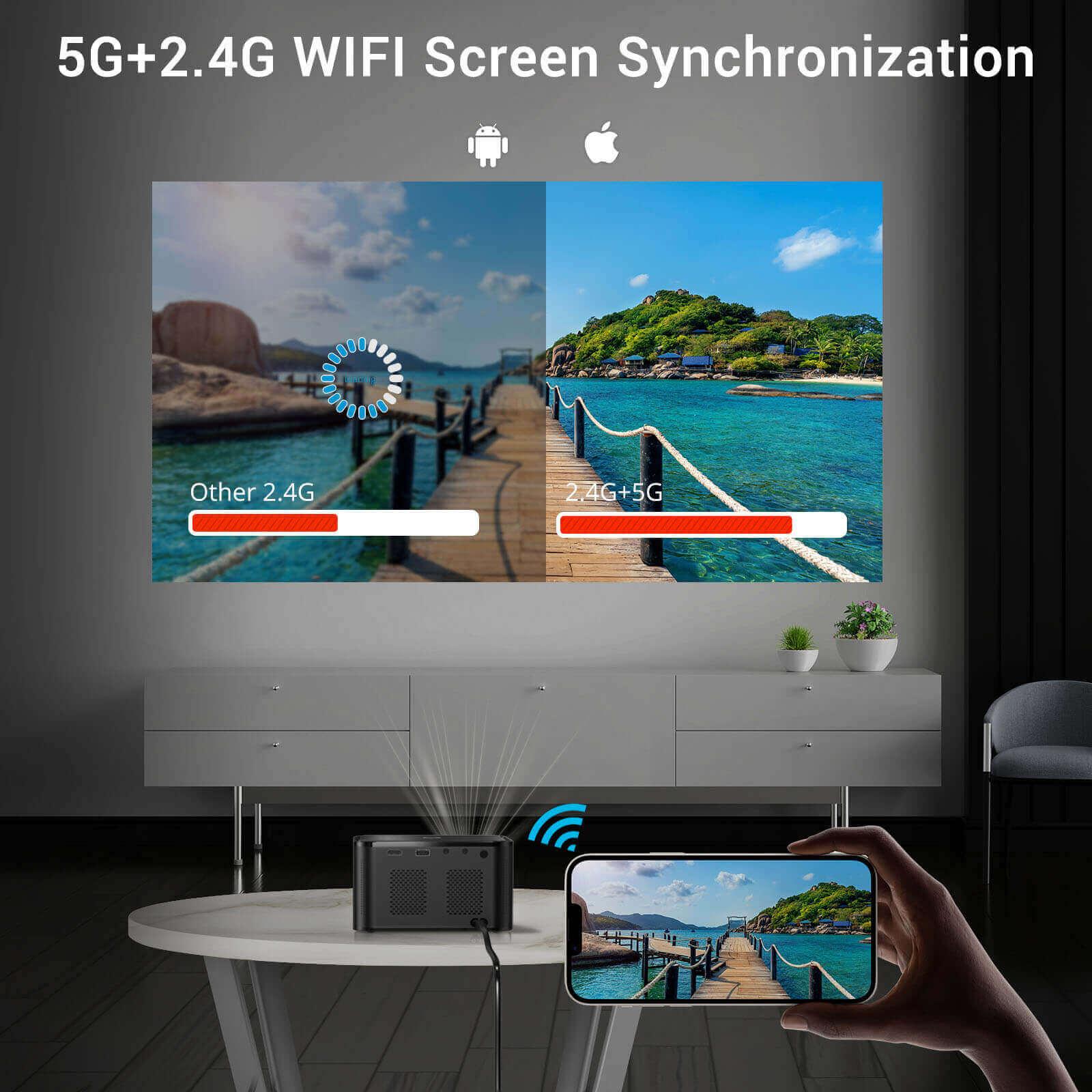
If your projector supports built-in Wi-Fi or acts as a receiver, you can use built-in system tools:
- For Android: Use "Screen Cast," "Smart View," or "Miracast." Ensure both your phone and the projector are on the same Wi-Fi network. Open the quick settings panel on your phone, tap the "Cast" or "Screen Mirroring" icon, and select your projector from the list of available devices.
- For iPhone (AirPlay): If your projector is AirPlay-compatible, open the Control Center on your iPhone, tap the "Screen Mirroring" icon (two overlapping rectangles), and select the projector from the list.
Using Streaming Dongles
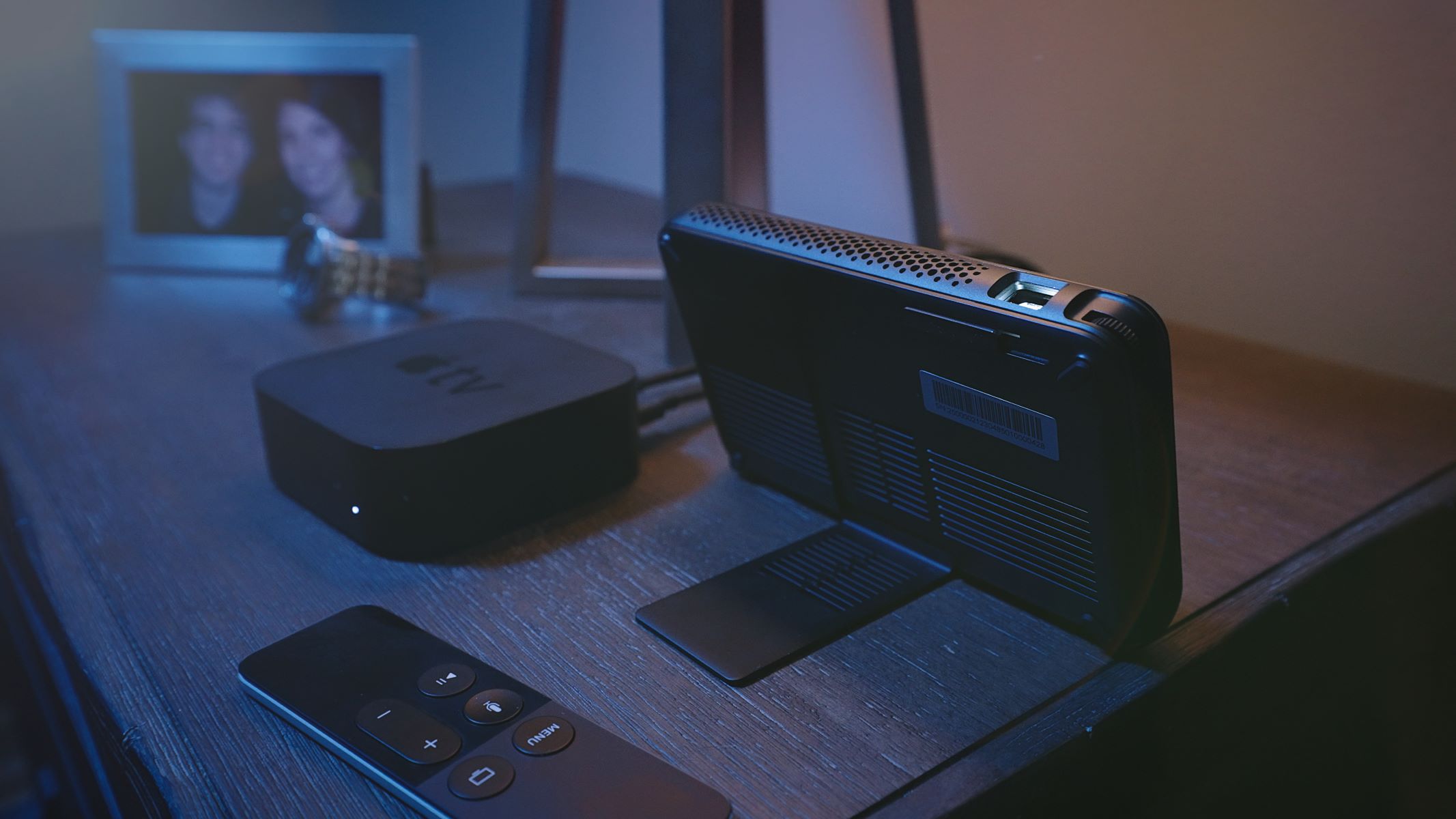
If your projector is not "smart" (i.e., it lacks built-in Wi-Fi or casting software), you can bridge the gap by plugging a streaming device—such as a Roku Stick, Amazon Fire TV Stick, or Google Chromecast—into the projector's HDMI port. Once connected, your phone can "cast" content to the dongle, effectively using the projector as a display.
Comparison of Connection Methods
| Method | Reliability | Hardware Requirements | Best Use Case |
|---|---|---|---|
| USB-C to HDMI | High | USB-C adapter/cable | Presentations, gaming |
| Lightning to HDMI | High | Apple Digital AV Adapter | Older iPhones, stable video |
| Miracast/Cast | Medium | Wi-Fi network, Smart Projector | Casual media, quick sharing |
| AirPlay | Medium | AirPlay-enabled hardware | iOS ecosystems |
Troubleshooting Common Connectivity Issues
If you cannot get an image to appear on the screen, follow these logical steps to isolate the issue:
- Input Source Mismatch: This is the most common error. Verify the projector is set to the correct HDMI or VGA input channel. Projectors often have multiple HDMI ports (HDMI 1, HDMI 2); ensure you match the port on the back of the device.
- Resolution Conflicts: If the projector displays a "Signal Out of Range" message, the resolution being sent by your phone may exceed the projector's native capabilities. Some phones allow you to adjust external display resolution in their settings menu.
- HDCP Handshake Issues: High-bandwidth Digital Content Protection (HDCP) is a security protocol that prevents the copying of digital audio/video content. If you are trying to stream protected content (like Netflix or Disney+) and get a black screen, it may be a protocol handshake failure. Ensure all firmware on your projector and phone is updated to the latest available version.
- Cable Integrity: Always test with a different HDMI cable. HDMI cables are prone to internal wire breakage, especially if they are frequently coiled or bent tightly.
Frequently Asked Questions
Can I connect my phone to a projector via Bluetooth? No. Bluetooth is designed for audio data, not the high-bandwidth video data required to project a screen. You must use a wired video cable or a Wi-Fi-based protocol like Miracast, AirPlay, or Google Cast.
Why is there a delay when I use wireless mirroring? Wireless mirroring involves compressing and sending video frames over a network. This latency (lag) is inherent to the technology. While it is acceptable for showing photos or slideshows, it is rarely suitable for high-action gaming or real-time professional demonstrations.
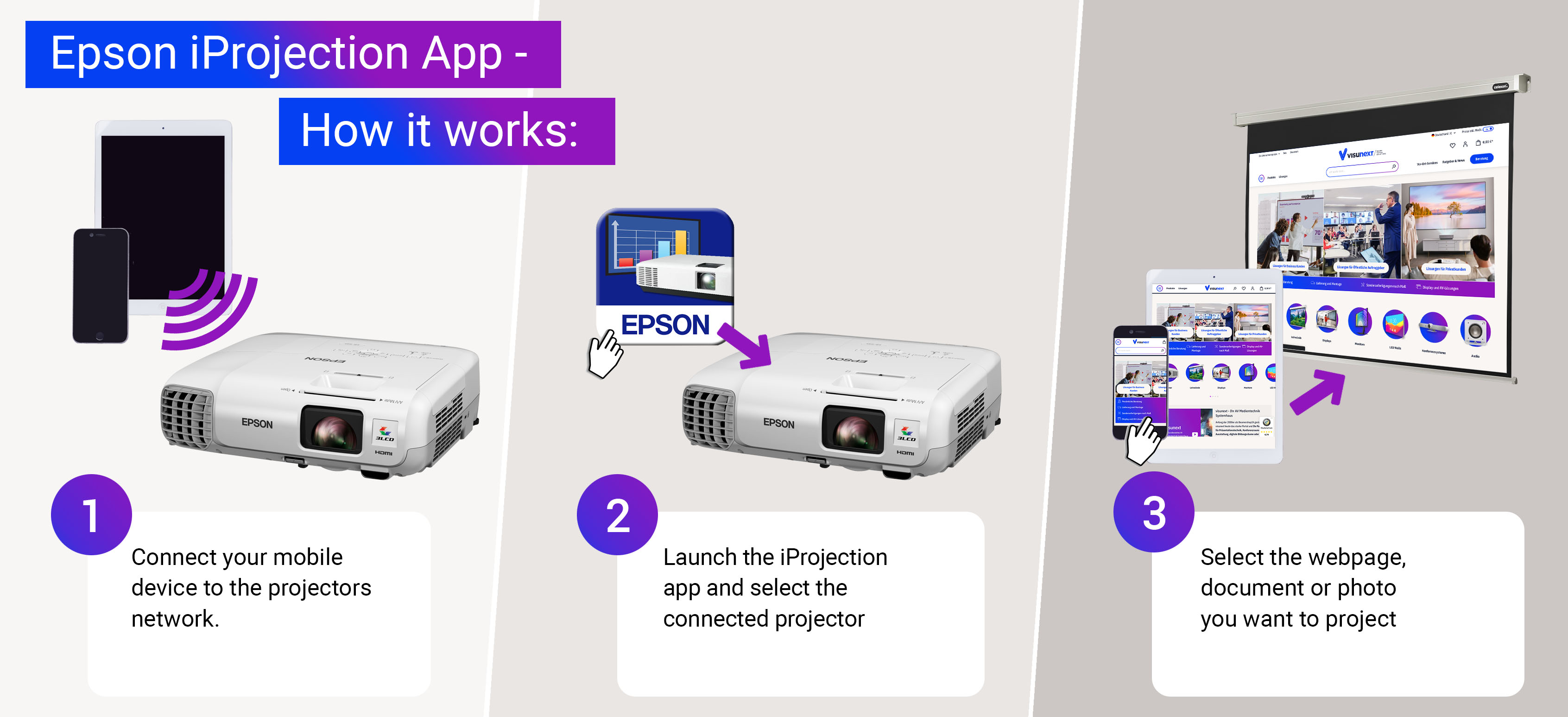
Do I need an app to connect my phone to a projector? Sometimes. While many modern projectors use standard protocols, some budget projectors require you to download a proprietary app to enable "Wi-Fi Display" or to bridge the connection between your phone and the projector’s specific wireless access point.
Can I charge my phone while it is connected to the projector? Yes, but you will typically need a multi-port adapter. Using a "USB-C Digital AV Multiport Adapter" allows you to connect the projector via HDMI while simultaneously connecting a power charger to the adapter's pass-through port.
What should I do if the image looks cropped? This is usually an aspect ratio issue. Check the projector's menu for "Aspect Ratio" settings (e.g., 16:9, 4:3, Auto). Adjusting your phone's display orientation—from portrait to landscape—can also resolve aspect ratio conflicts.
Final Recommendation
For the highest reliability and image quality, use a high-quality USB-C to HDMI adapter. This minimizes the risk of wireless network interference and ensures your device remains charged during longer sessions. If you choose a wireless method, ensure your local Wi-Fi signal is strong and clear to prevent dropped connections.
Image Gallery