A Comprehensive Guide on How to Set Up a VPN Configuration
Setting up a Virtual Private Network (VPN) configuration allows you to establish a secure, encrypted tunnel between your device and a remote server, masking your IP address and protecting your data from unauthorized interception. Wheth...
Setting up a Virtual Private Network (VPN) configuration allows you to establish a secure, encrypted tunnel between your device and a remote server, masking your IP address and protecting your data from unauthorized interception. Whether you are using a commercial VPN service or a private gateway, the process involves selecting a protocol, installing client software or configuring native system settings, and authenticating with your credentials.
Contents
Understanding VPN Fundamentals and Protocols
Before diving into the configuration steps, it is essential to understand that a VPN is not a single technology but a framework of security protocols. Choosing the right protocol significantly impacts your connection’s speed, reliability, and security level. In 2026, the industry standard relies heavily on a few key protocols that balance performance with robust encryption.
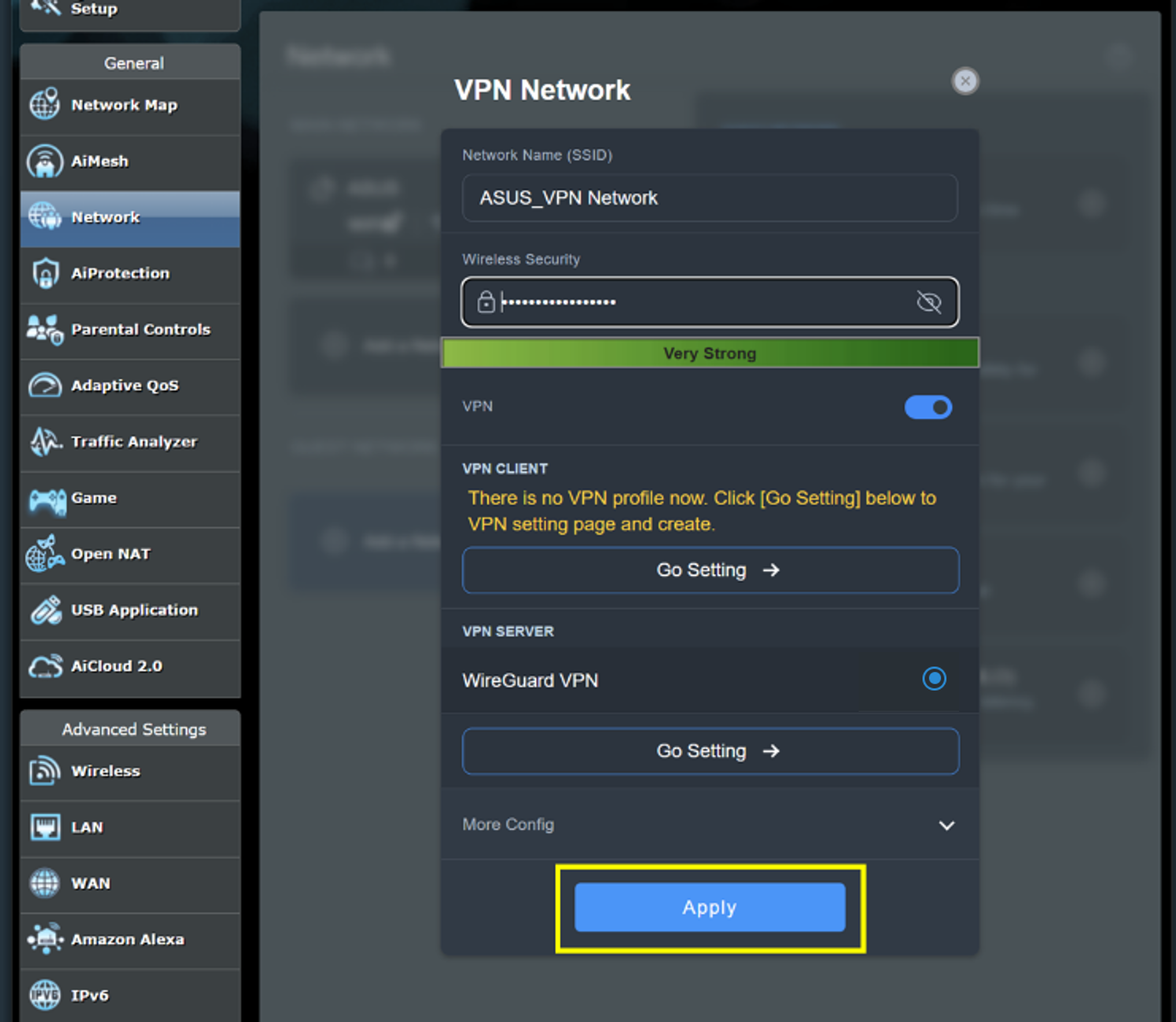
- WireGuard: Known for its high speed and modern, streamlined codebase. It is increasingly the default for both commercial services and self-hosted VPN configurations because it uses state-of-the-art cryptography and consumes less battery power on mobile devices.
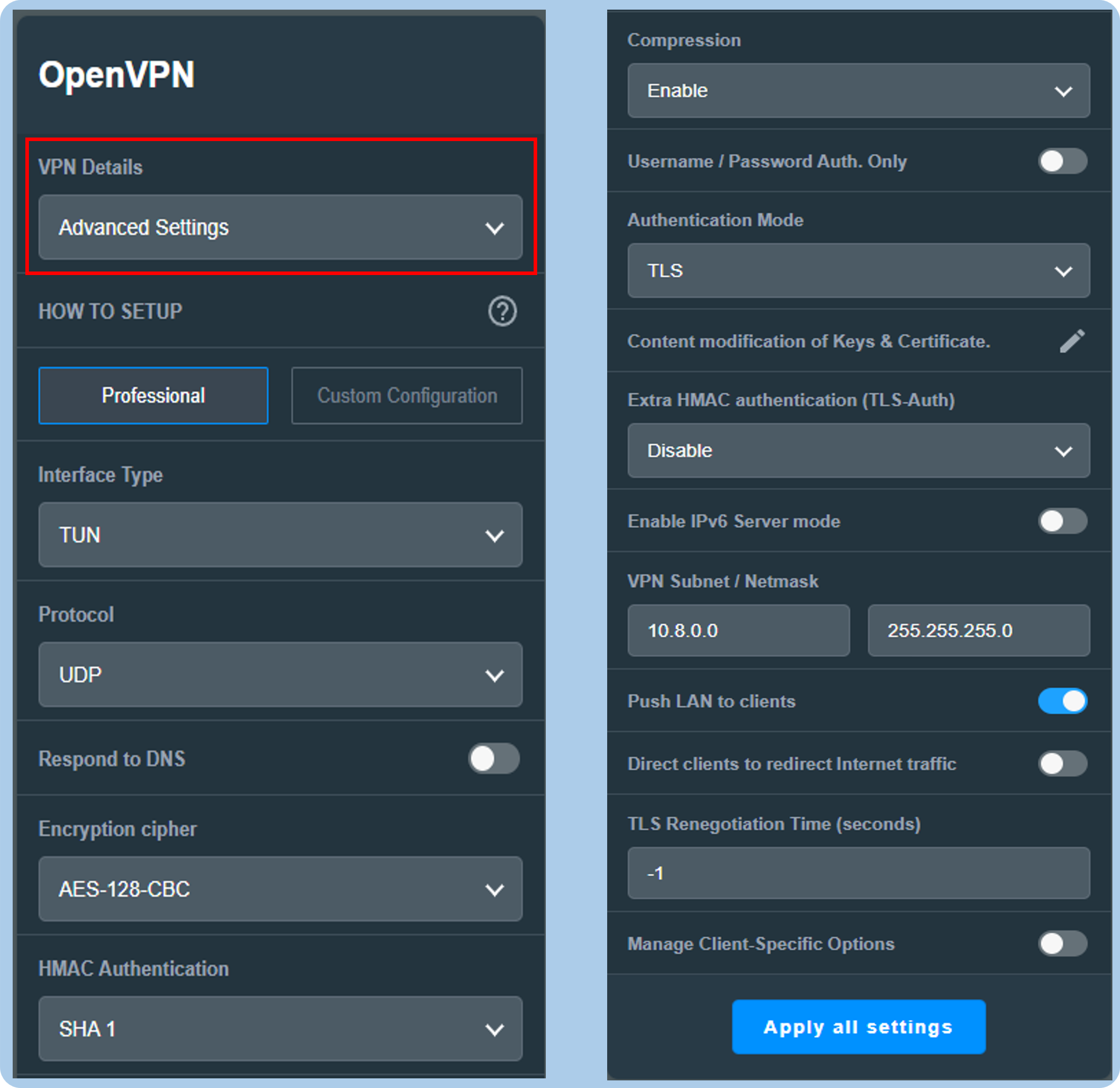
- OpenVPN: A long-standing, highly versatile open-source protocol. It is known for its ability to bypass restrictive firewalls by running on almost any port, including TCP port 443, which mimics standard HTTPS web traffic.
- IPsec/IKEv2: Frequently used on mobile devices because of its ability to reconnect quickly when a device switches between Wi-Fi and cellular networks. It provides strong security and is natively supported by most operating systems.
Prerequisites for Your VPN Setup
To successfully set up your configuration, you must have specific requirements met before starting the technical installation. If you are using a commercial provider, ensure you have an active account and access to the user dashboard where configuration files or credentials are stored.
- Administrative Access: You must have administrator privileges on the machine or device where the VPN is being configured. Modifying network adapters or installing system-level drivers typically requires these permissions.
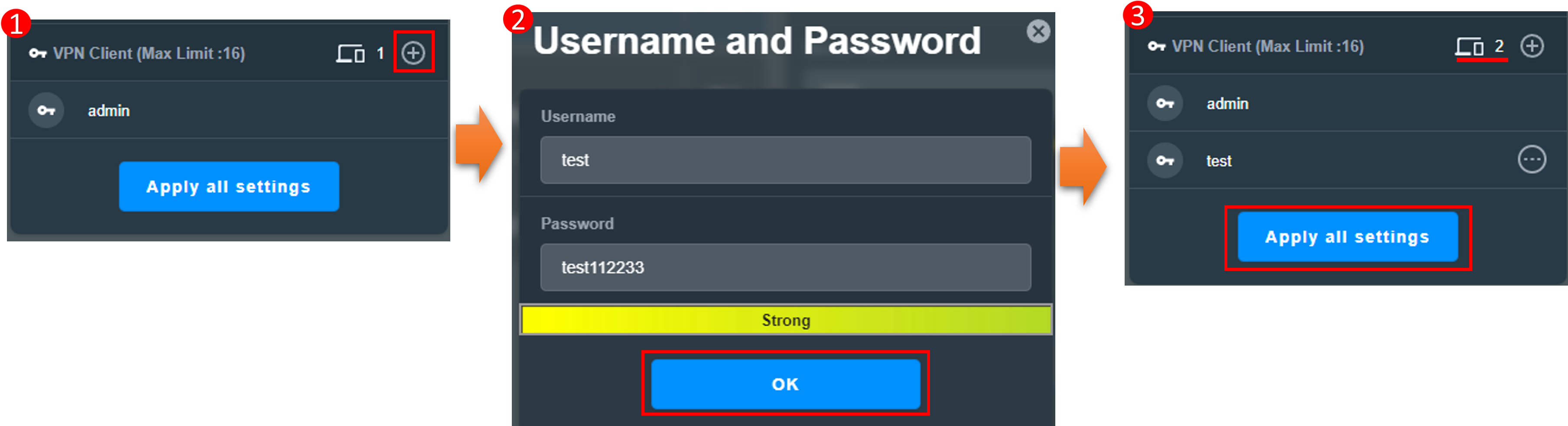
- Configuration Data: You will need your server address, authentication type (username/password or cryptographic certificates), and the specific port and protocol requirements provided by your VPN administrator or service provider.
- Network Compatibility: Confirm that your router or local network firewall does not block VPN traffic. While most home networks support VPNs out of the box, some corporate or restricted environments may require specific port forwarding or stateful packet inspection adjustments.
How to Configure a VPN Manually
If you choose not to use the automated client software provided by a service, you can configure the VPN directly through your operating system’s network settings. This is common for users who prefer a "lightweight" setup without extra software bloat.
Configuring on Windows 11/12
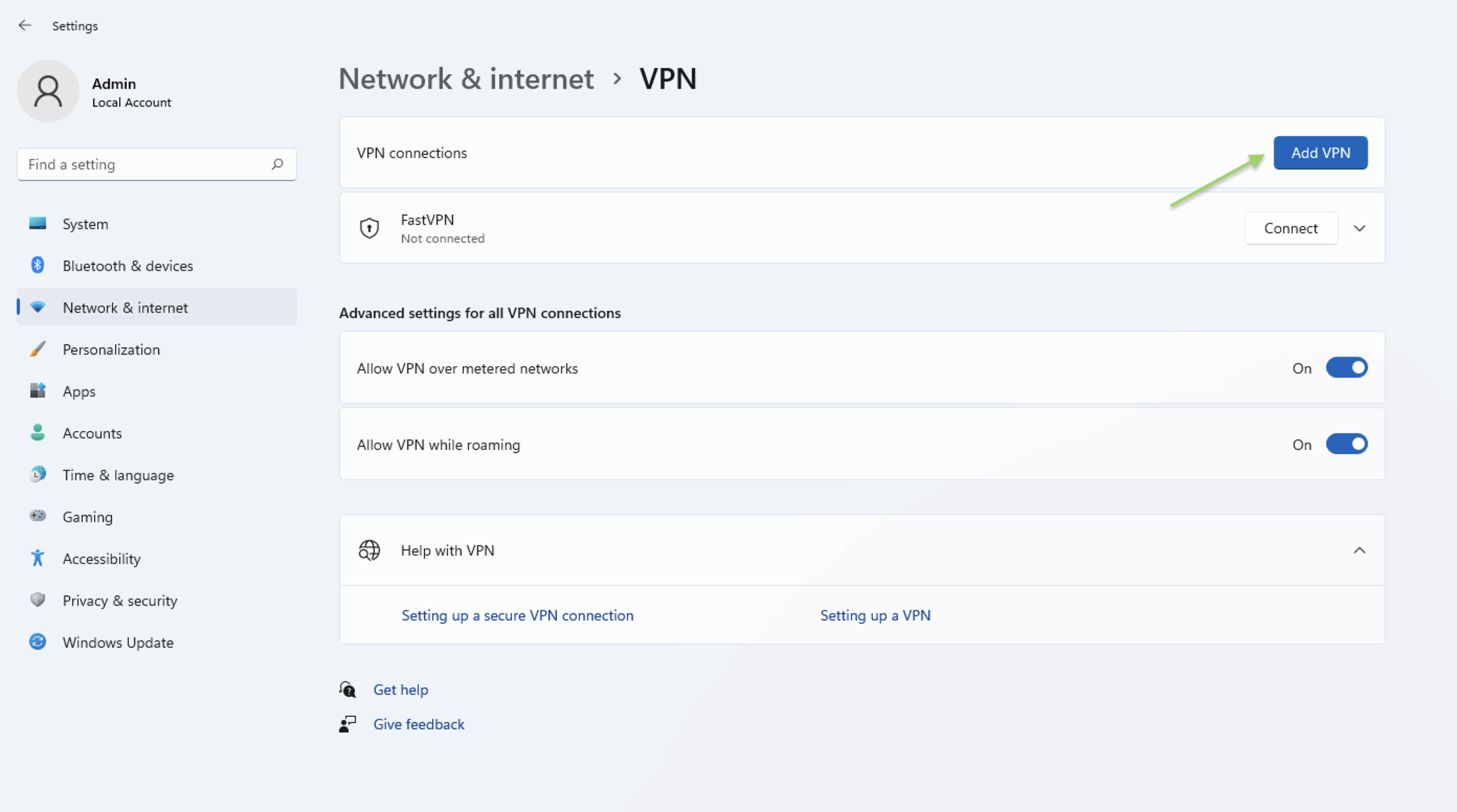
- Navigate to Settings > Network & internet > VPN.
- Select Add VPN.
- Choose Windows (built-in) for the VPN provider.
- Enter a connection name and the server name or address provided by your service.
- Select the VPN type (e.g., L2TP/IPsec or IKEv2). Note that Windows native settings may require specific manual configuration files if you intend to use OpenVPN or WireGuard.
- Input your login credentials and select Save.
Configuring on macOS
- Open System Settings and go to Network.
- Click the ... (ellipsis) button or the Add Configuration button.
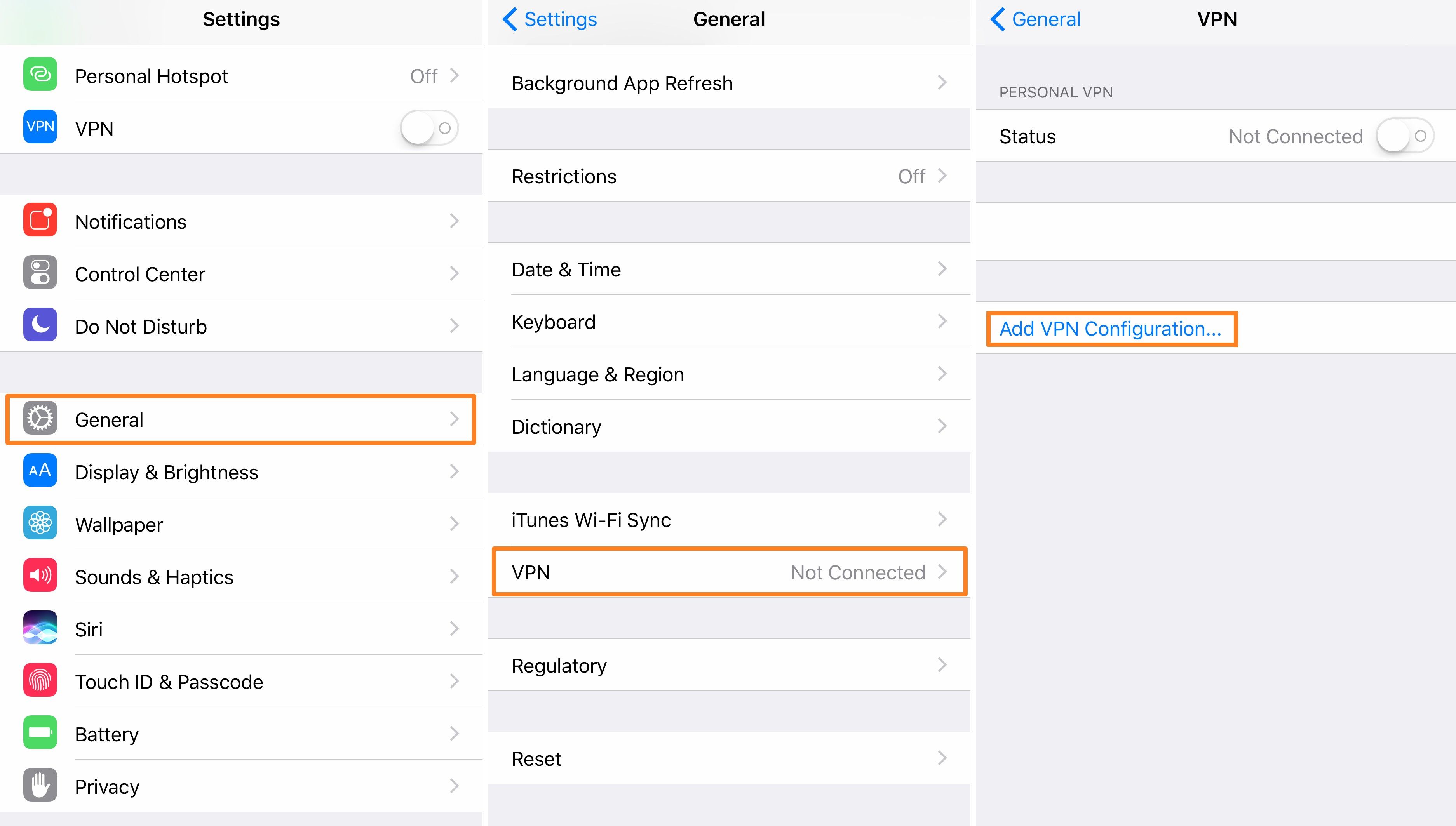
- Select Add VPN Configuration and choose the protocol (IKEv2 is often preferred here).
- Fill in the server address, remote ID, and authentication settings.
- Click Create to finalize the setup, then toggle the switch to connect.
Comparing VPN Implementation Methods
Choosing between an automated client and a manual configuration depends on your technical comfort and requirements for performance.
| Method | Ease of Use | Customization | Performance |
|---|---|---|---|
| Automated Client | High | Low | Moderate |
| Manual Configuration | Low | High | Optimal |
| Router-Level VPN | Medium | Medium | Hardware-Dependent |
Troubleshooting Common Connection Issues
Even with a perfect setup, you may encounter issues during the initial connection phase. Most errors stem from authentication mismatches or firewall restrictions.
- Authentication Failure: Double-check your username and password. Some VPN providers use a separate set of "Service Credentials" rather than your standard account login. If you are using certificates, ensure they have been properly imported into the system’s certificate store.
- "No Route to Host" Errors: This usually indicates that the server address is incorrect or that a firewall is blocking the connection. Attempt to ping the server address via the command line or terminal to verify if the host is reachable.
- DNS Leaks: If your connection is active but your location appears incorrect, you may be experiencing a DNS leak. Ensure that your system is configured to use the DNS servers provided by your VPN service rather than the default servers assigned by your ISP.
Security Best Practices
Once your configuration is complete, treat your VPN credentials with the same sensitivity as your banking information. Always utilize Multi-Factor Authentication (MFA) if your provider supports it. If you are configuring a VPN for a business or organization, mandate the use of unique private keys for each user rather than sharing a single credential across a team.
Regularly audit your connection. Many modern VPN clients offer a "Kill Switch" feature. Ensure this is enabled; if it is not, a manual configuration will not automatically stop your internet traffic if the VPN connection drops, potentially exposing your real IP address.
Frequently Asked Questions
Does a VPN configuration slow down my internet speed? Yes, it can. Because your traffic must travel through an encrypted tunnel to a remote server and undergo decryption, you may experience a slight drop in throughput. Choosing a protocol like WireGuard or selecting a server physically closer to your location can mitigate this latency.
Can I set up a VPN on my router? Yes. Configuring a VPN at the router level ensures that every device connected to your home network, including IoT devices that cannot run native VPN apps, is protected. Ensure your router has a processor strong enough to handle encryption, or speeds may drop significantly.
Is manual configuration more secure than an app? Not necessarily. While manual configuration allows you to control the protocol and settings, official applications often include automatic security updates, leak protection, and load balancing that are difficult to replicate manually.
Why does my VPN connection drop periodically? This is often caused by aggressive router firewalls or "Keep-Alive" settings. In your VPN configuration, ensure that the connection is set to allow persistent packets so the tunnel remains active even during periods of inactivity.
Do I need a separate VPN configuration for every device? In most cases, yes. Each device requires its own set of credentials or a unique profile file to prevent authentication conflicts on the server side. Most providers allow 5–10 simultaneous connections per account.
Final Next Steps
After completing your configuration, perform a "leak test" by visiting a site like browserleaks.com or dnsleaktest.com while connected. If the test confirms that your IP and DNS requests originate from the VPN server’s location, your setup is successful. If you remain unsure of your configuration's security, contact your VPN provider’s support documentation, which often contains device-specific guides tailored to your exact version of firmware or operating system.
Image Gallery