Troubleshooting Guide: When an iPhone Cannot Send Messages to Android
If your iPhone is unable to send text messages to an Android device, the issue typically stems from a failure in the SMS/MMS gateway configuration, a lack of cellular connectivity, or a misconfigured iMessage setting. Because iPhones p...
If your iPhone is unable to send text messages to an Android device, the issue typically stems from a failure in the SMS/MMS gateway configuration, a lack of cellular connectivity, or a misconfigured iMessage setting. Because iPhones prioritize iMessage for Apple-to-Apple communication, problems often arise when the device fails to fall back to the universal SMS/MMS protocol required for Android messaging.
Contents
Understanding the Messaging Architecture
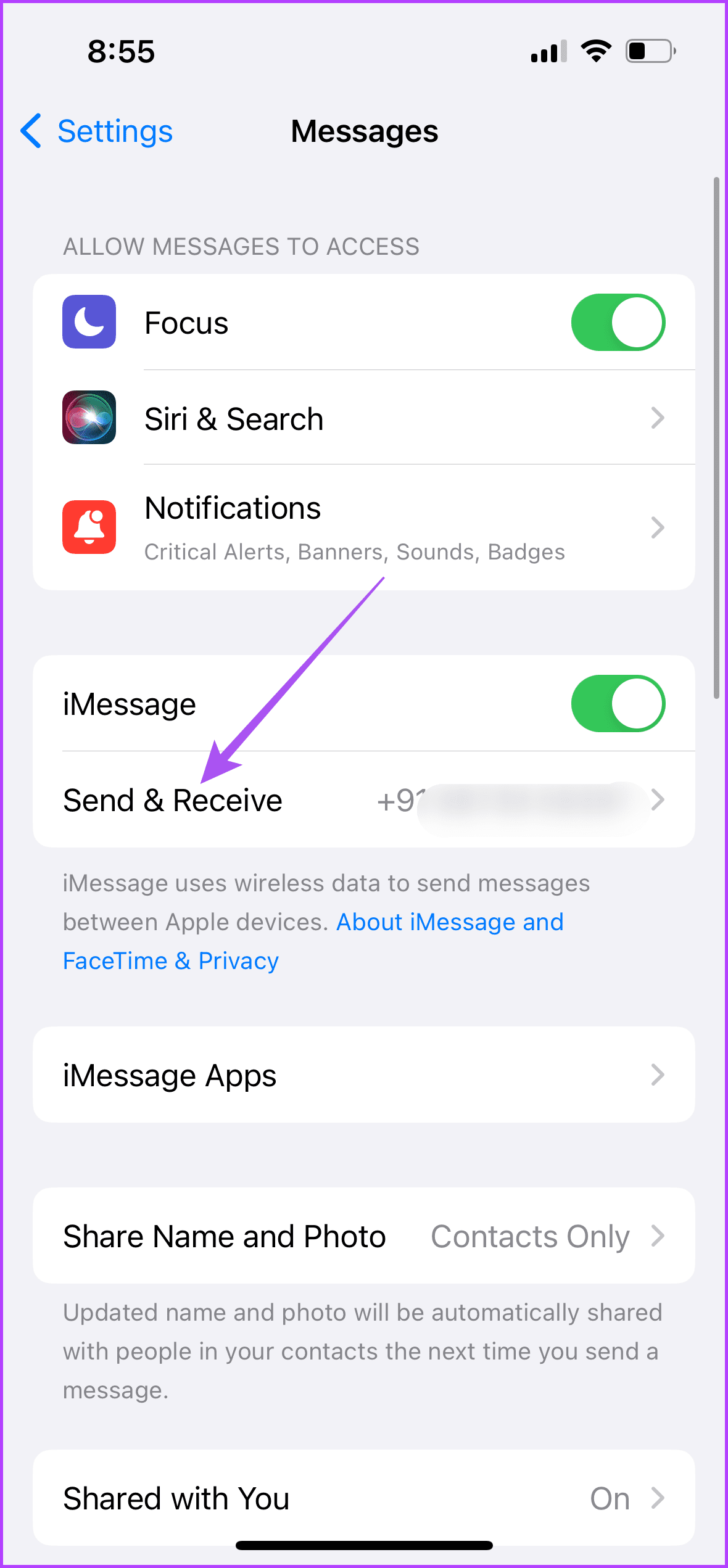
To resolve the issue of an iPhone failing to send messages to an Android phone, you must first understand the fundamental difference between iMessage and SMS/MMS. iMessage is a proprietary Apple service that uses data (Wi-Fi or cellular) to transmit messages between Apple devices, represented by blue bubbles. Android devices do not support iMessage; therefore, communication must rely on the Short Message Service (SMS) or Multimedia Messaging Service (MMS), which are cellular-based protocols represented by green bubbles.
When you send a message to an Android contact, your iPhone is designed to automatically detect that the recipient is not using an Apple device and route the message through the carrier's cellular network. If this transition fails, the message will show a "Not Delivered" error, or the "Send" button will remain greyed out.
Preliminary Prerequisites and Connectivity Checks
Before adjusting software settings, ensure your environment supports standard cellular messaging. Unlike iMessage, which can function solely on a stable Wi-Fi connection, SMS and MMS protocols require a direct link to your mobile carrier’s network.
- Check Signal Strength: Look at the status bar on your iPhone. If you see "No Service" or "Searching," your phone cannot communicate with the carrier's towers. Move to an area with better reception.
- Toggle Airplane Mode: Access the Control Center by swiping down from the top-right corner. Enable Airplane Mode, wait ten seconds, and disable it. This forces the modem to re-establish a handshake with local cell towers.
- Confirm Cellular Data Plan: SMS messages are included in virtually all modern service plans, but if your account has been suspended for non-payment or if you are roaming without an active travel pass, outgoing cellular services may be restricted.
- Device Restart: A standard reboot of the iPhone clears temporary cache files related to the communication radio. Perform a force restart by pressing and quickly releasing the volume up button, then the volume down button, and holding the side power button until the Apple logo appears.
Configuration of Messages Settings
The most common cause for "iPhone cant send messages to android" is a setting that prevents the device from using SMS when iMessage is unavailable.
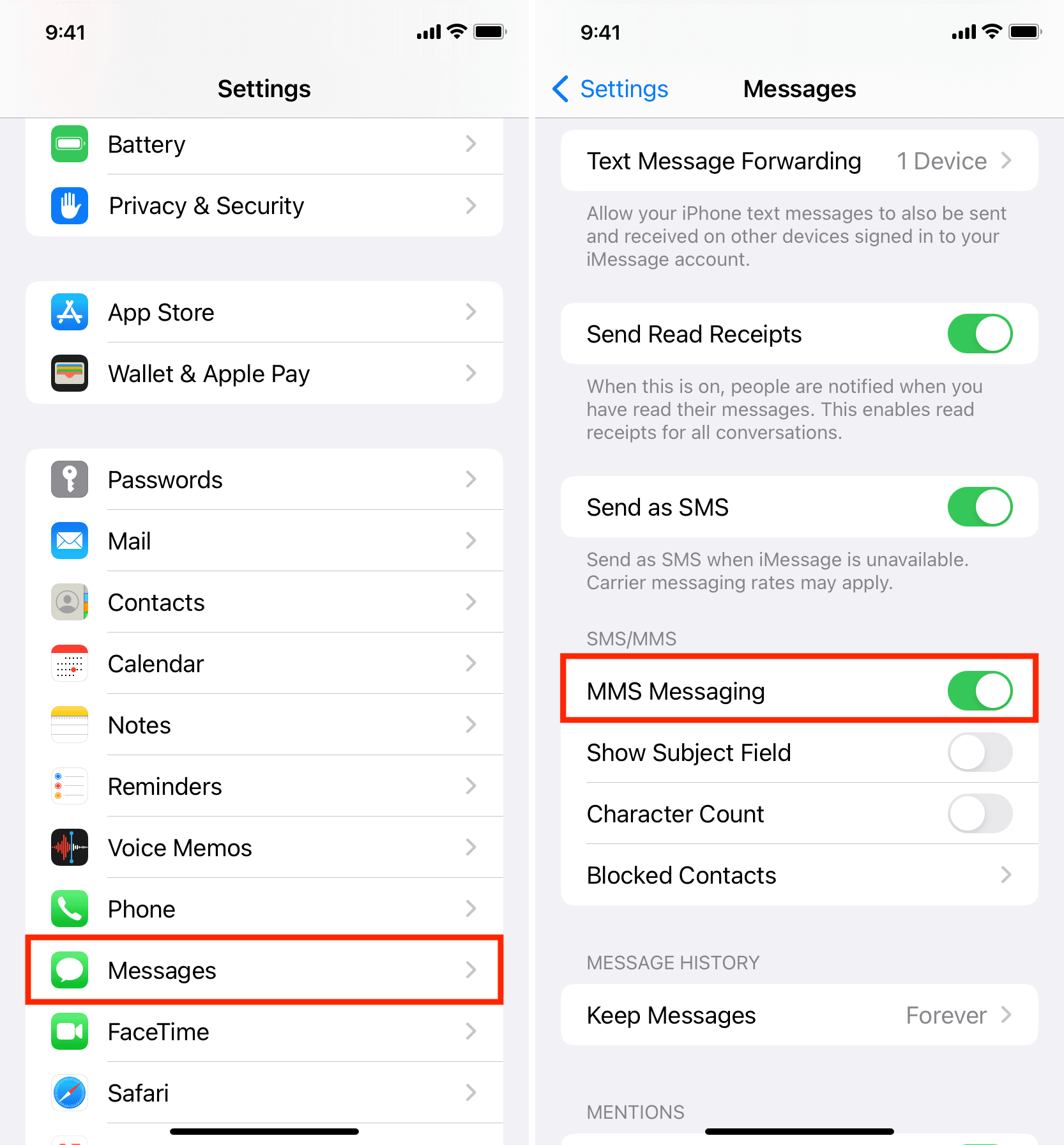
- Enable SMS/MMS: Navigate to Settings > Messages. Scroll down to the SMS/MMS section and ensure "Send as SMS" is toggled to the On position. If this is off, your iPhone will only attempt to send messages to Apple servers, which will naturally fail for Android recipients.
- Enable MMS Messaging: If you are trying to send photos, videos, or group texts to Android users, toggle the "MMS Messaging" switch to On. Without this enabled, your device will block the transmission of any media-heavy message to a non-Apple device.
- Check Group Messaging: Ensure the "Group Messaging" toggle is also enabled. Android devices handle group chats differently than iPhones; if this is disabled, the iPhone may refuse to initiate a group thread involving non-Apple users.
Carrier-Level Troubleshooting
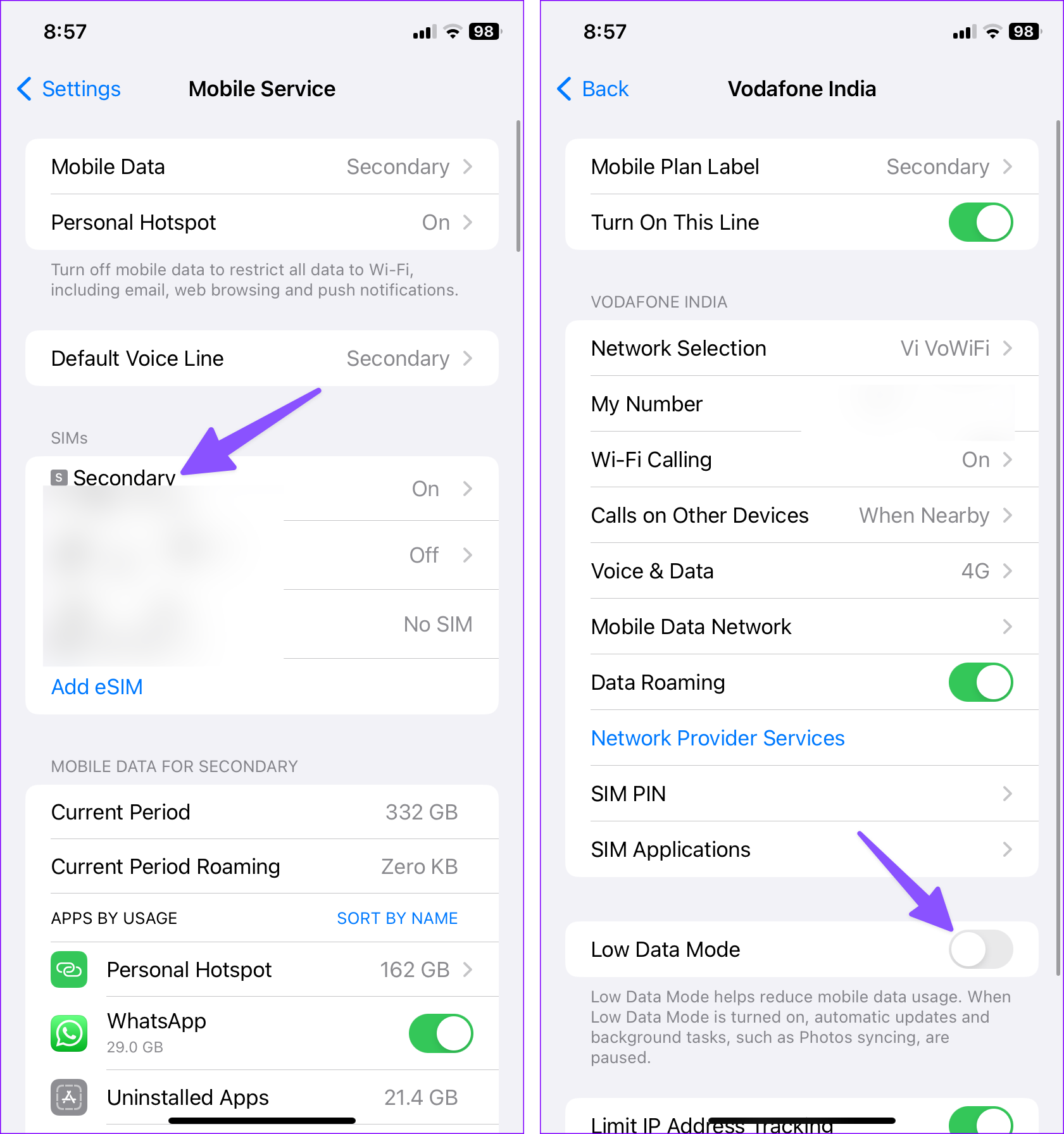
If the iPhone settings are correct, the restriction may reside at the carrier level. Carriers manage the SMS gateway, and sometimes, the provisioning of a SIM card or eSIM can become corrupted.
- Carrier Settings Update: Apple periodically pushes updates to your carrier settings to ensure compatibility with network standards. Go to Settings > General > About. If an update is pending, a pop-up will appear automatically. If it does not appear, your settings are current.
- Network Settings Reset: If communication persists in failing, you may need to reset your network configuration. This action will erase saved Wi-Fi passwords and Bluetooth pairings, but it often resolves deep-seated cellular protocol conflicts. Go to Settings > General > Transfer or Reset iPhone > Reset > Reset Network Settings.
- SIM Re-seating: If you are using a physical SIM card, turn off your iPhone, remove the SIM tray using a paperclip or specialized tool, inspect the card for damage, and reinsert it securely. For eSIM users, you may need to reach out to your carrier to re-provision the profile.
Comparison of Messaging Failure Points
The table below outlines common triggers for message delivery failures and their primary technical solutions.
| Issue Type | Symptom | Primary Solution |
|---|---|---|
| Gateway Error | Red exclamation point | Enable "Send as SMS" in Settings |
| Media Failure | Photo/Video won't send | Enable "MMS Messaging" in Settings |
| Network Conflict | No service or "Searching" | Reset Network Settings |
| Hardware Failure | SIM/eSIM error | Re-seat SIM or contact carrier support |
| Plan Restriction | Sending fails entirely | Verify account status with carrier |
Frequently Asked Questions
Why are my text bubbles green instead of blue? Green bubbles indicate that the message was sent using standard SMS/MMS protocols rather than Apple’s iMessage service. This occurs when messaging non-Apple devices or when your internet connection is insufficient for iMessage.
Can I send messages to Android via Wi-Fi? Standard SMS/MMS requires a cellular connection. While some carriers offer "Wi-Fi Calling" features that allow SMS over Wi-Fi, this is a carrier-specific feature and not a native function of the iMessage protocol.
Why does my iPhone refuse to send photos to Android? This is almost always due to the "MMS Messaging" setting being disabled. Without MMS enabled, the iPhone prevents the transmission of image data to non-Apple devices to avoid potential billing issues or delivery errors.
Should I update iOS if my messages are failing? Yes. While rare, bugs within the iOS Message app framework can prevent proper communication with cellular protocols. Check Settings > General > Software Update to ensure your OS is current.
Will resetting network settings delete my messages? No. Resetting network settings only affects cellular configurations, Wi-Fi networks, and Bluetooth pairings. It does not delete personal data such as photos, contacts, or your existing iMessage and SMS threads.
Next Steps and Professional Support
If you have verified that "Send as SMS" and "MMS Messaging" are active, performed a network settings reset, and ensured that your carrier plan is active, the issue likely resides in the carrier's provisioning of your line. At this stage, contact your wireless provider’s technical support department. Request that they "refresh" or "reset" the network signal sent to your device. Ensure you mention that you are specifically having trouble with SMS/MMS to Android devices, as this helps the representative narrow the scope to the cellular gateway rather than the iMessage server.
Image Gallery