How to Make a YouTube Channel Private: A Step-by-Step Guide for 2026
To make your YouTube channel private, you must "hide" your channel through the YouTube Studio settings. This process makes your channel name, videos, likes, subscriptions, and playlists invisible to the public. Unlike permanent deletio...
To make your YouTube channel private, you must "hide" your channel through the YouTube Studio settings. This process makes your channel name, videos, likes, subscriptions, and playlists invisible to the public. Unlike permanent deletion, hiding a channel is a reversible action that preserves your content and data for future restoration.
Contents
Making a YouTube channel private is a common requirement for creators who need a temporary break, individuals who wish to rebrand their content, or users who want to transition their public presence into a personal archive. In 2026, the process remains integrated within the Google Account infrastructure, requiring specific navigation through the YouTube Studio interface to ensure all metadata and video assets are properly shielded from public discovery.
Understanding the Difference Between Hiding and Deleting
Before proceeding with the technical steps, it is vital to distinguish between hiding a channel and deleting it. Many users mistakenly use these terms interchangeably, leading to the accidental loss of years of content.
Hiding your channel is the equivalent of setting it to "private." When you hide a channel, your content (videos, playlists, and channel name) is no longer searchable or viewable by others. However, the data remains on YouTube's servers. You can re-enable the channel at any time, and your videos will return to their previous states—provided you manually set individual videos back to public or unlisted.
Deleting your channel, conversely, is a permanent action. This removes your videos, comments, messages, playlists, and history forever. In 2026, Google provides a grace period for account recovery in some jurisdictions, but generally, a deleted channel cannot be restored. If your goal is simply to "go private," you should always choose the hiding option.
Prerequisites for Changing Channel Privacy
To successfully hide your YouTube channel, you must meet certain technical and administrative prerequisites. Ensuring these are in order before you start will prevent errors during the process.
- Direct Account Access: You must have the primary login credentials (email and password) for the Google Account associated with the YouTube channel. If the channel is a "Brand Account," you must have "Owner" or "Manager" permissions.
- Desktop Browser Access (Recommended): While some settings are available on mobile, the full suite of channel privacy management tools is most reliably accessed via a desktop browser (Chrome, Safari, or Firefox).
- Two-Factor Authentication (2FA): Because hiding a channel involves sensitive account changes, YouTube frequently triggers a security prompt. Ensure your recovery phone or 2FA app is nearby to verify your identity.
- Content Review: Before hiding, note that your comments and replies will be permanently deleted once the channel is hidden. If you have significant engagement you wish to preserve, consider taking screenshots or exporting data via Google Takeout.
How to Hide Your YouTube Channel (Desktop Instructions)
Following these steps will effectively make your YouTube channel private by removing it from public view.
Step 1: Access YouTube Studio
Navigate to YouTube and ensure you are signed in to the correct account. Click on your profile icon in the top right corner and select YouTube Studio from the dropdown menu. This is the central hub for all creator-related administrative tasks.
Step 2: Navigate to Settings
Once inside the Studio dashboard, look at the left-hand sidebar. Scroll down to the bottom of the list and click on the Settings gear icon. A pop-up window will appear in the center of your screen.
Step 3: Open Channel Advanced Settings
Within the Settings window, select the Channel tab from the left menu, then click on the Advanced settings tab at the top. This section contains configurations for audience settings, Google Ads linking, and automatic captions.
Step 4: Manage YouTube Content
Scroll to the bottom of the Advanced settings page until you see the section titled "Other settings." Click on the link labeled Remove YouTube content. Note that despite the phrasing, this link provides the option to both hide and delete content. Clicking this will open a new browser tab and may require you to re-enter your Google password for security verification.
Step 5: Select the "Hide" Option
You will be presented with two choices: "I want to hide my channel" and "I want to permanently delete my content." Click the downward arrow next to I want to hide my channel.
Step 6: Confirm Privacy Impact
YouTube will display a checklist of what will happen when you hide the channel. You must check all the boxes to confirm your understanding that:
- Your channel name and videos will become private.
- Your likes and subscriptions will be made private.
- Your comments and replies on other videos will be permanently deleted.
- Your data on other Google properties will not be affected.
After checking the boxes, click the Hide my channel button. Your channel is now private.
Making Individual Videos Private Instead of the Entire Channel
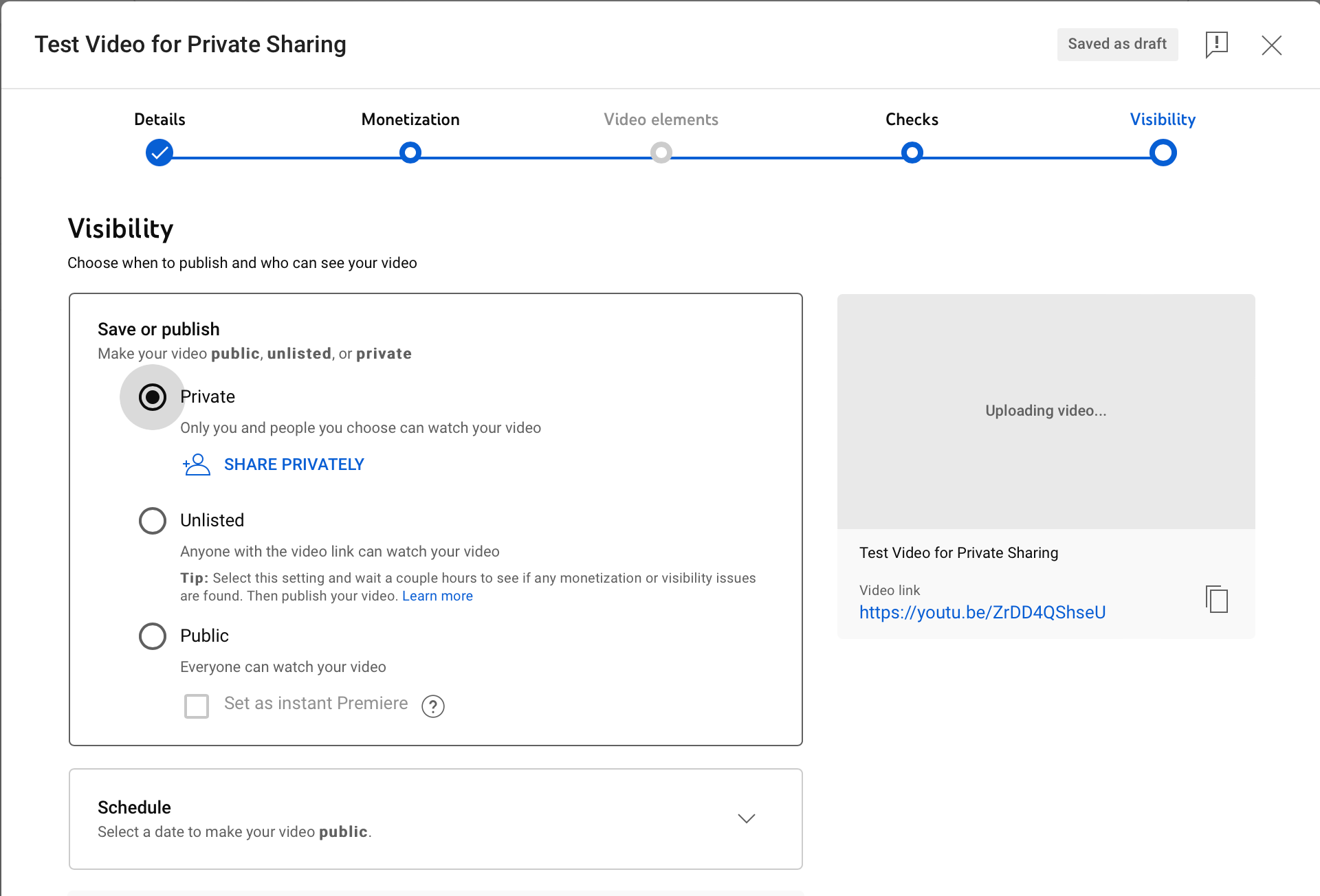
If you do not want to hide your entire channel identity but want to ensure no one can watch your videos, you can change the visibility of your videos in bulk. This is often a better solution for creators who want to keep their subscribers and channel name visible while auditing their content library.
- In YouTube Studio, click on Content in the left sidebar.
- Check the box at the top of the list to "Select all" videos.
- Click Edit in the black bar that appears, then select Visibility.
- Change the value to Private.
- Click Update videos and confirm the change.
Private videos can only be seen by you and the people you specifically invite via email. They will not appear on your channel homepage or in search results.
Impact of Hiding a Channel: A Comparison
The following table outlines how different elements of your YouTube presence are affected when you choose to hide your channel compared to other privacy levels.
| Feature | Public Channel | Hidden (Private) Channel | Deleted Channel |
|---|---|---|---|
| Channel Name | Visible to everyone | Hidden from search/view | Erased |
| Videos | Watchable by all | Only viewable by owner | Permanently removed |
| Comments | Visible to all | Permanently Deleted | Permanently Deleted |
| Subscribers | Publicly displayed | Hidden | Lost |
| Playlists | Searchable | Hidden | Erased |
| Reversibility | N/A | Fully Reversible | Generally Permanent |
How to Re-enable a Hidden YouTube Channel
If you decide to return to the platform or have finished your rebranding process, you can unhide your channel. However, the process is not as simple as clicking a "Public" button; it requires "re-creating" the channel link.
- Sign in to YouTube.
- Go to Create a Channel.
- Fill out the form to restore your YouTube channel. Do not click "To use a business or other name, click here," as this will create a new Brand Account rather than restoring your old hidden one.
- Once the channel is restored, your videos and playlists will still be hidden. You must go to the Content section of YouTube Studio and manually change the visibility of your videos back to "Public" or "Unlisted."
Troubleshooting Common Privacy Issues
"I can't find the Remove YouTube Content button"
This usually happens if you are using a managed account (such as a school or work account) or if you are signed in to a Google account that does not have a YouTube channel attached. Verify that you have actually created a channel before trying to hide it.
"My comments are gone after I unhid my channel"
This is expected behavior. YouTube explicitly warns that hiding a channel results in the permanent deletion of all comments and replies you have ever made. There is no way to recover these through standard YouTube settings.
"I want to hide my channel but keep my comments"
Unfortunately, YouTube’s architecture does not currently allow this. If preserving your comments is a priority, your only alternative is to set all your videos to "Private" individually while keeping the channel itself "Public." This keeps your profile and comments active but ensures your video content remains inaccessible.
FAQs
Can I make my YouTube channel private on the mobile app?
As of 2026, the YouTube mobile app and the YouTube Studio app have limited functionality for hiding a channel. While you can change individual video visibility to private on mobile, to hide the entire channel, you must use a mobile browser in "Desktop Site" mode to access the advanced settings described above.
Will I lose my subscribers if I make my channel private?
No, you will not lose your subscribers. When you hide your channel, your subscriber count is hidden from the public, but the users remain subscribed. When you re-enable your channel, your subscriber list will be intact and visible again.
Does making a channel private stop monthly membership charges?
If you have "Channel Memberships" enabled and you hide your channel, your memberships will be paused or cancelled depending on the duration of the hidden status. It is highly recommended to communicate with your members before hiding a channel to avoid billing disputes or loss of community trust.
Is there a limit to how many times I can hide and unhide my channel?
There is no official limit documented by Google; however, frequent changes to channel visibility can trigger security flags or temporary "cooldown" periods where YouTube may prevent further changes for 24–48 hours to ensure account security.
Summary and Next Actions
Making a YouTube channel private is a powerful tool for managing your digital footprint. By "hiding" the channel, you secure your content without the risks associated with permanent deletion. If you are preparing to hide your channel today, your first action should be to back up any data—specifically comments or messages—that you wish to keep, as these will be lost during the process. Once your backup is secure, follow the YouTube Studio settings path to "Remove YouTube Content" and select the "Hide" option to finalize your privacy settings.
Image Gallery