How to Find Your Windows Version: A Comprehensive Guide
Identifying your exact Windows version and build number is essential for troubleshooting system errors, verifying compatibility with new software, and ensuring your computer receives critical security updates. Whether you are using a m...
Identifying your exact Windows version and build number is essential for troubleshooting system errors, verifying compatibility with new software, and ensuring your computer receives critical security updates. Whether you are using a modern iteration of the operating system or a legacy setup, finding this information is a straightforward process that can be completed in seconds using built-in system tools.
Contents
Understanding Windows Versions and Build Numbers
Before locating your version, it is helpful to understand the distinction between a "Version" and a "Build." A Windows version typically refers to the marketing name and major release (such as Windows 10 or Windows 11), often accompanied by a version number based on the year and month of its release (for example, 22H2). The OS build, however, is a specific internal identifier that reflects the exact state of the system files and installed updates.
Knowing both is vital when contacting technical support. A technician may not simply need to know you are running Windows 11; they will require the specific build number to determine if a known bug has been patched in your current installation.
Method 1: Using the "About Your PC" Settings Menu
The most accessible way to find your Windows information in modern versions of the operating system is through the Settings application. This method provides a clear, graphical overview of your system specifications.
- Open the Start menu and select the Settings gear icon. Alternatively, press the
Windows Key + Ion your keyboard to open Settings directly. - In the left-hand sidebar, ensure the System tab is selected.
- Scroll down the right-hand panel and click on About.
- Navigate to the section labeled Windows specifications.
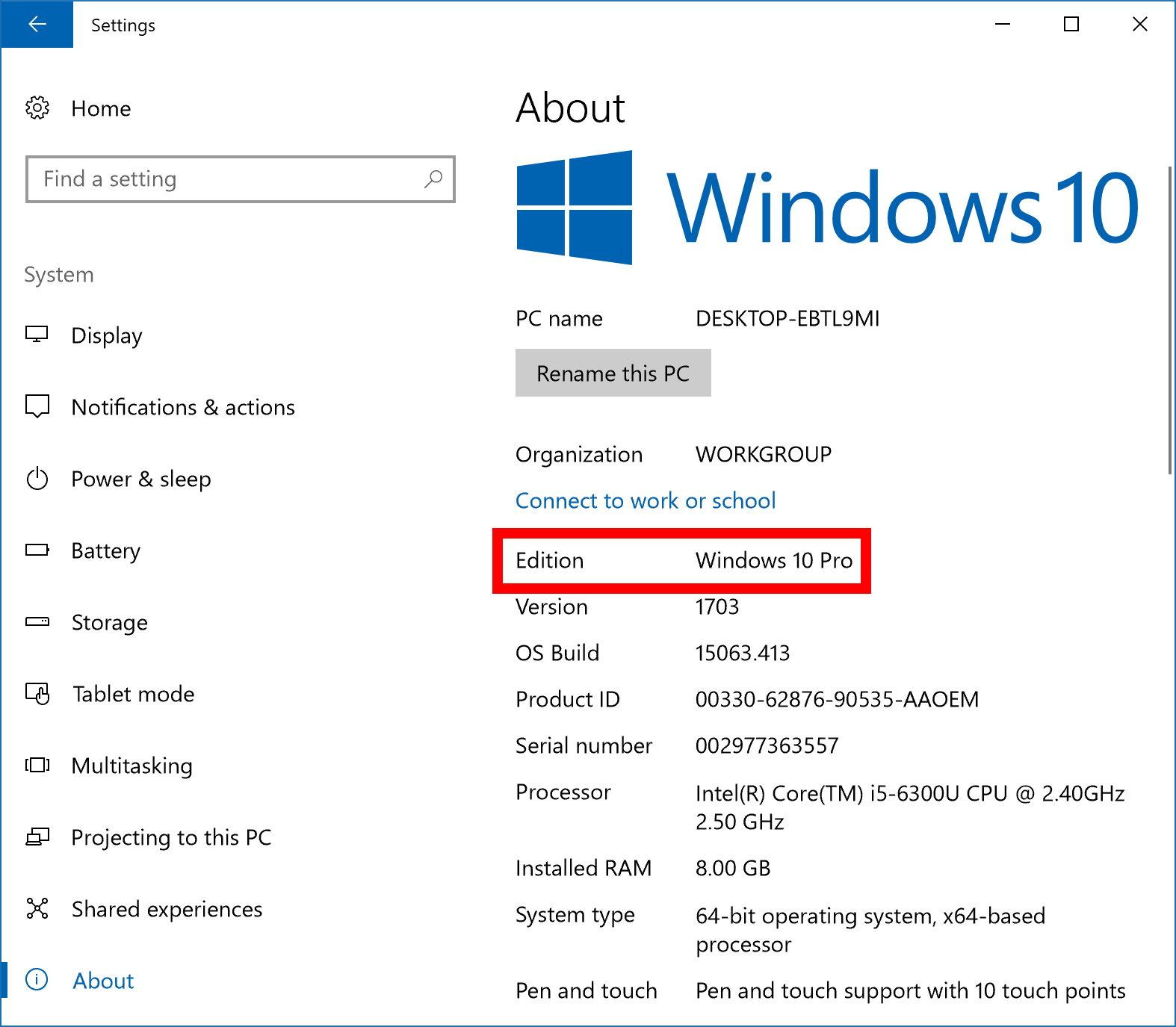
- Here, you will see your Edition (e.g., Windows 11 Pro), Version (e.g., 23H2), and OS build (e.g., 22631.xxxx).
This interface is designed for standard users who need to verify their software environment without using command-line tools. It also provides information regarding your device name and hardware specifications, such as installed RAM and processor type, all on a single screen.
Method 2: Utilizing the Winver Utility
For a quicker, more focused approach, the "Windows Version" (Winver) utility has been a reliable staple of the operating system for decades. It is a lightweight, dedicated tool designed solely to display current licensing and versioning data.
- Press the
Windows Key + Ron your keyboard to open the Run dialog box. - Type
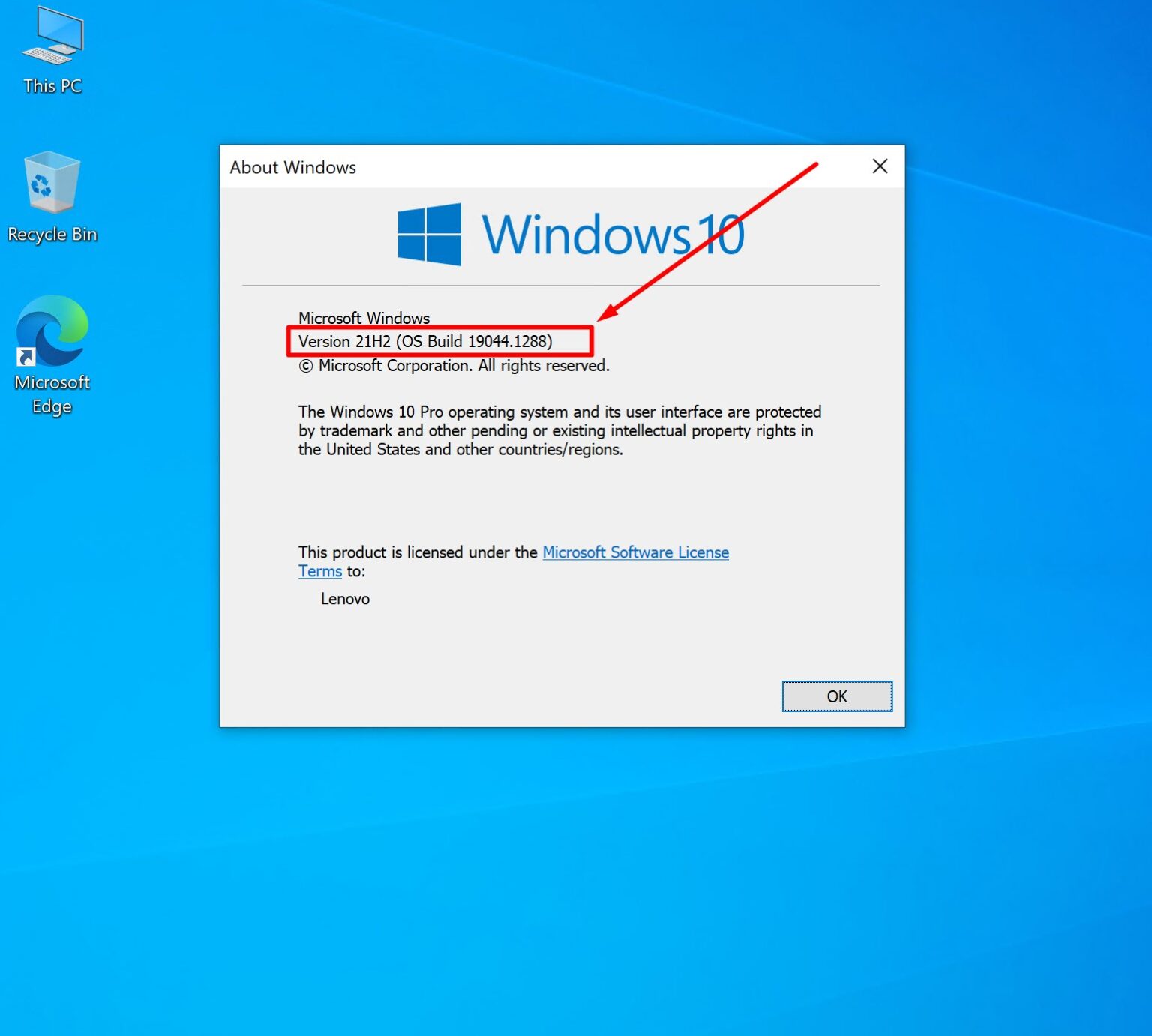
winverinto the text field and press Enter or click OK. - A small window titled About Windows will appear on your screen.
This window displays the edition, the version number, and the specific OS build. Additionally, it shows the copyright information and the end-user licensing details associated with your specific installation. This remains the fastest way to confirm your OS details without navigating through multiple menus.
Method 3: Using Command Prompt or PowerShell
Advanced users, system administrators, and those troubleshooting via a remote connection often prefer using the Command Prompt or PowerShell. These tools provide raw data that can be copied and pasted into text files or support tickets.
Via Command Prompt
- Type
cmdinto the Windows search bar and press Enter. - In the black terminal window, type
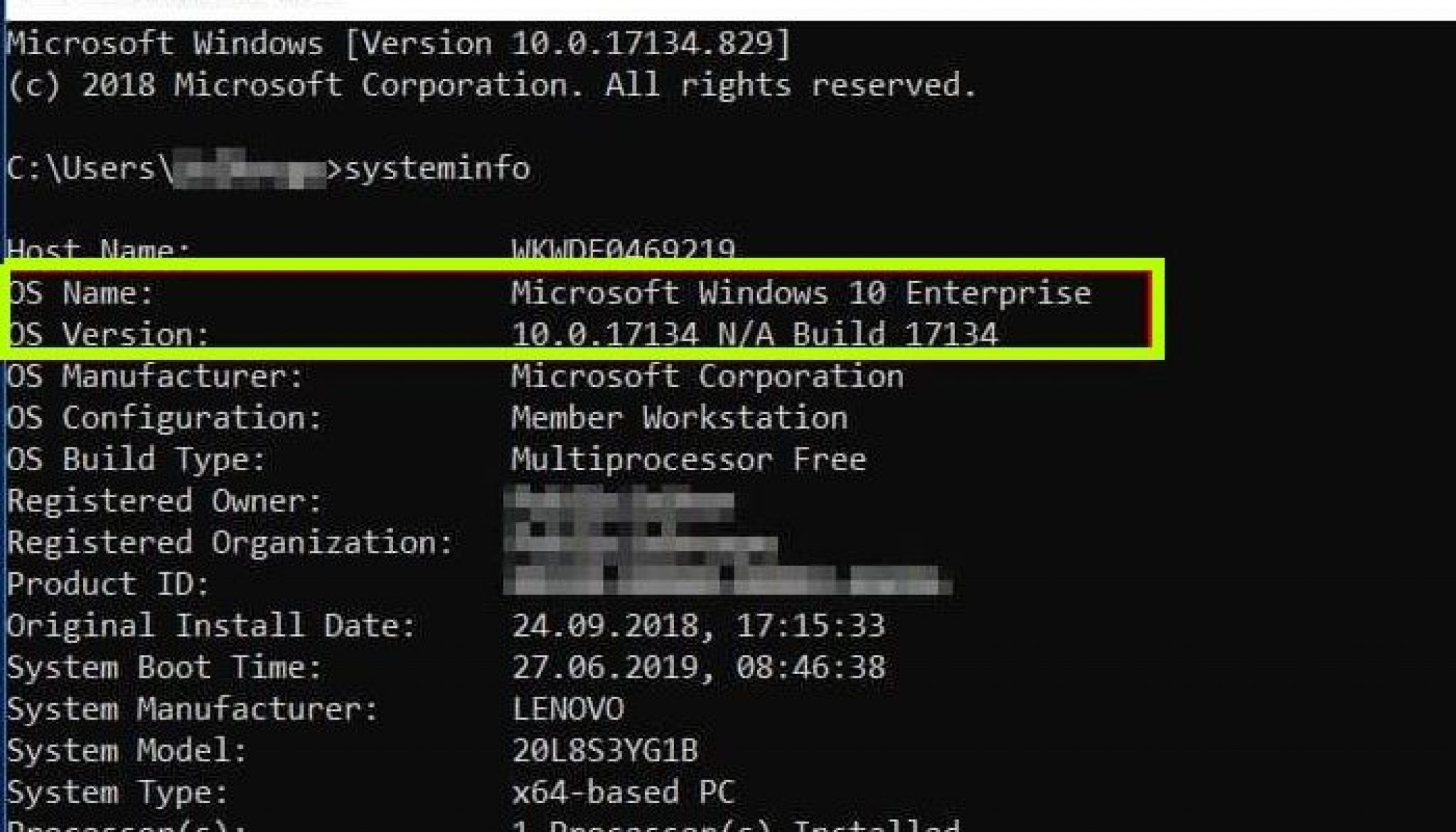
systeminfoand press Enter. - A large amount of data will populate. Scroll upward to the OS Name and OS Version fields.
Via PowerShell
- Right-click the Start button and select Terminal or PowerShell.
- Type
Get-ComputerInfo | Select-Object OsName, OsVersion, OsBuildNumberand press Enter. - The system will return a clean, formatted list of the specific values you requested.
The PowerShell method is particularly useful for scripting or for users who need to extract this information programmatically to confirm requirements across multiple machines on a network.
Comparison of Methods
| Method | Best For | Technical Depth | Speed |
|---|---|---|---|
| Settings App | Casual users, GUI preference | Low | Moderate |
| Winver Utility | Rapid checks, basic info | Low | High |
| Command Prompt | Quick diagnostics, local machines | Moderate | High |
| PowerShell | Scripting, remote admin, automation | High | High |
Troubleshooting and Common Issues
If you cannot find your Windows version using the methods above, there may be an underlying issue with your Windows installation or user permissions.
Corrupted System Files
If the winver command returns an error, or if the Settings app crashes when you try to open the "About" page, your system files may be corrupted. You can attempt to repair these by running the System File Checker. Open a Command Prompt as an administrator and run sfc /scannow. This process will scan your system for missing or damaged files and attempt to replace them automatically.
Incomplete Windows Updates
Sometimes, if a feature update is "stuck" in a pending state, your version information may appear inconsistent or outdated. Navigate to Settings > Windows Update to ensure that your device has fully completed all required downloads and restarts. If updates are failing to install, clear the software distribution cache or use the official Windows Update Troubleshooter provided by the manufacturer.
Registry Verification
If you are an experienced user or a system administrator, you can verify your build directly through the Windows Registry. Open the Registry Editor by typing regedit in the Run dialog, and navigate to:
HKEY_LOCAL_MACHINE\SOFTWARE\Microsoft\Windows NT\CurrentVersion
The keys CurrentBuild and DisplayVersion will reflect the data stored by the OS. Exercise caution when navigating the Registry, as modifying values here can impact system stability.
Frequently Asked Questions
Does the Windows version affect my ability to install new hardware?
Yes. Modern hardware often requires specific versions of Windows 10 or 11 to support the necessary drivers. If you are attempting to install modern peripherals, such as high-end graphics cards or advanced storage controllers, verify that your OS build is up to date to ensure compatibility.
Why does my version show "22H2" while others show "23H2"?
The versioning (such as 22H2 or 23H2) refers to the release cycle. Microsoft releases these as "Half" year updates. If your system shows an older version, it means you have not yet installed the latest annual feature update. You can usually trigger this by checking for updates in your Settings menu.
Is the OS build the same as the "Product ID"?
No. Your Product ID is a unique alphanumeric string used for licensing and activation, usually found on the same "About" page. The OS build is a technical descriptor of the code state. Never share your Product ID publicly, as it is tied to your specific license.
Can I change my Windows version without a full reinstall?
In most cases, you can move from a "Home" edition to a "Pro" edition via the Microsoft Store or by entering a new product key in the Activation settings. However, downgrading (e.g., from Windows 11 to Windows 10) typically requires a clean installation, which involves wiping your system drive.
Final Recommendation
For the average user, the Winver utility is the most efficient way to access your Windows version information. It avoids the clutter of the Settings app and provides the exact data required for support interactions or compatibility checks. If you find your OS is significantly behind in version numbers, prioritize running Windows Update to ensure your system remains secure and compatible with the software and hardware ecosystems of 2026.
Image Gallery