Understanding the FTP Host: A Technical Guide to File Transfer Infrastructure
An FTP host is the destination server address—typically an IP address or a domain name—that allows a client application to connect, authenticate, and transfer files over the File Transfer Protocol. It functions as the virtual endpoint...
An FTP host is the destination server address—typically an IP address or a domain name—that allows a client application to connect, authenticate, and transfer files over the File Transfer Protocol. It functions as the virtual endpoint for remote data management, enabling users to upload, download, and organize files on a web server or private storage system.
Contents
The Role of an FTP Host in Network Communication
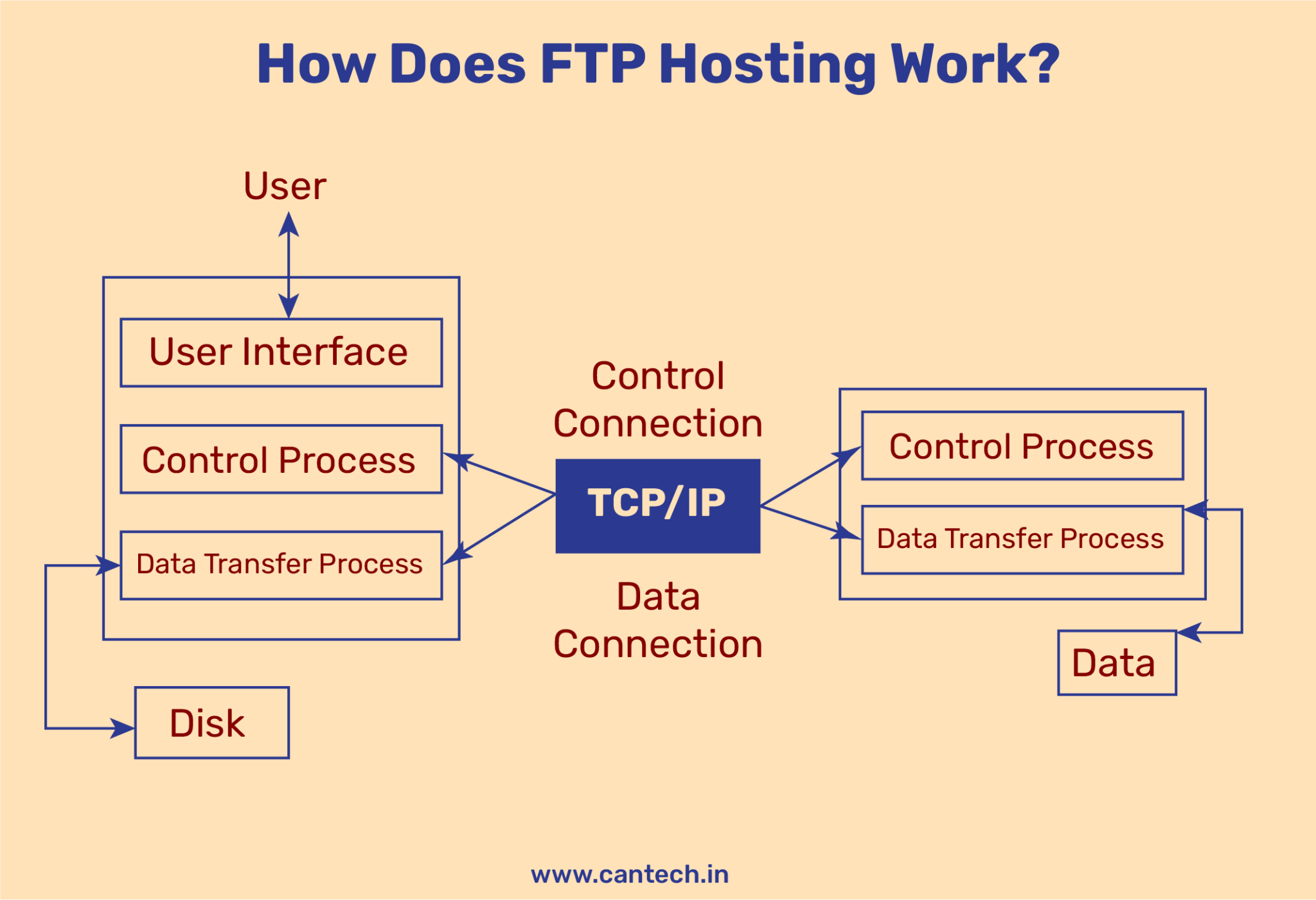
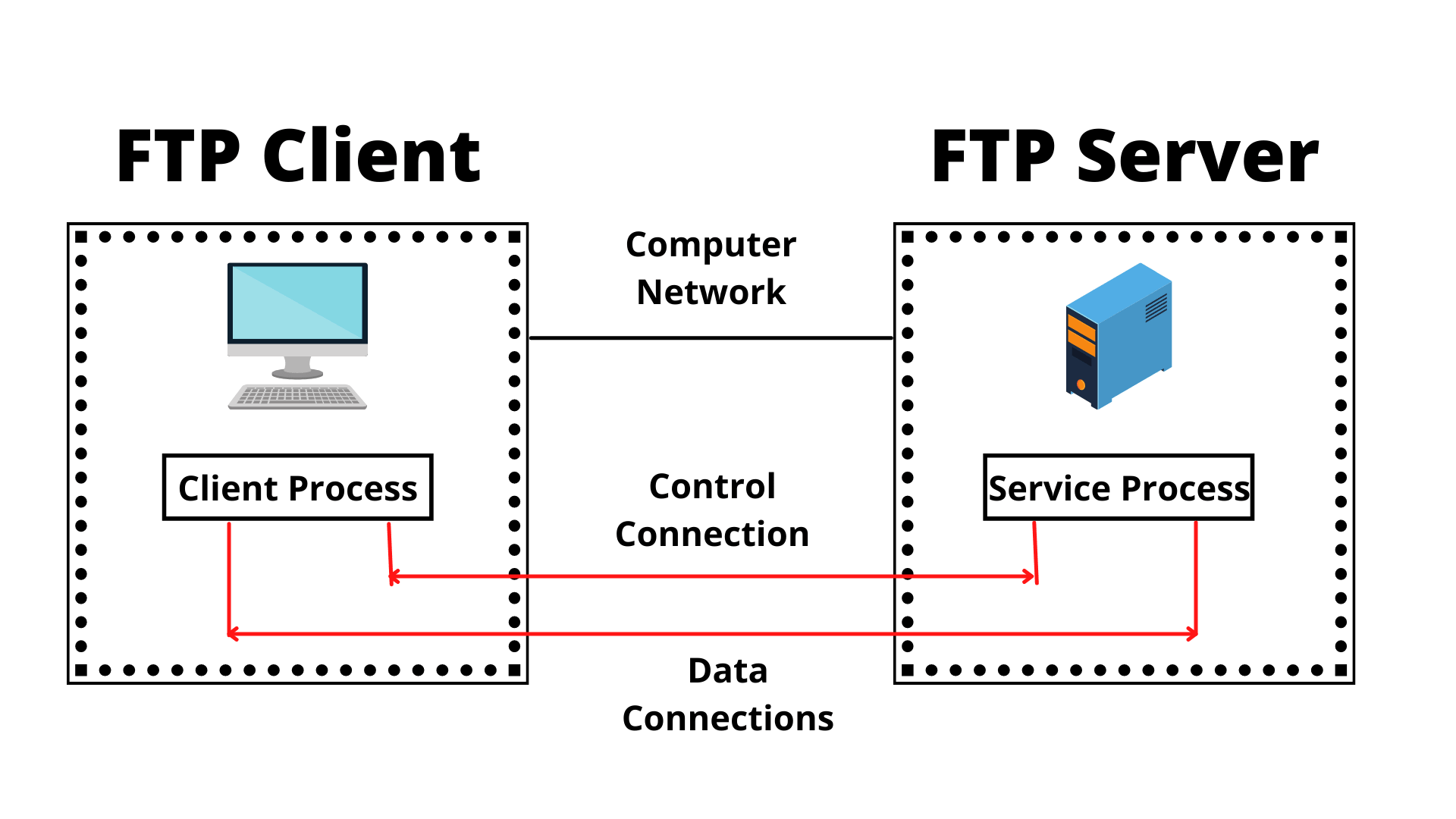
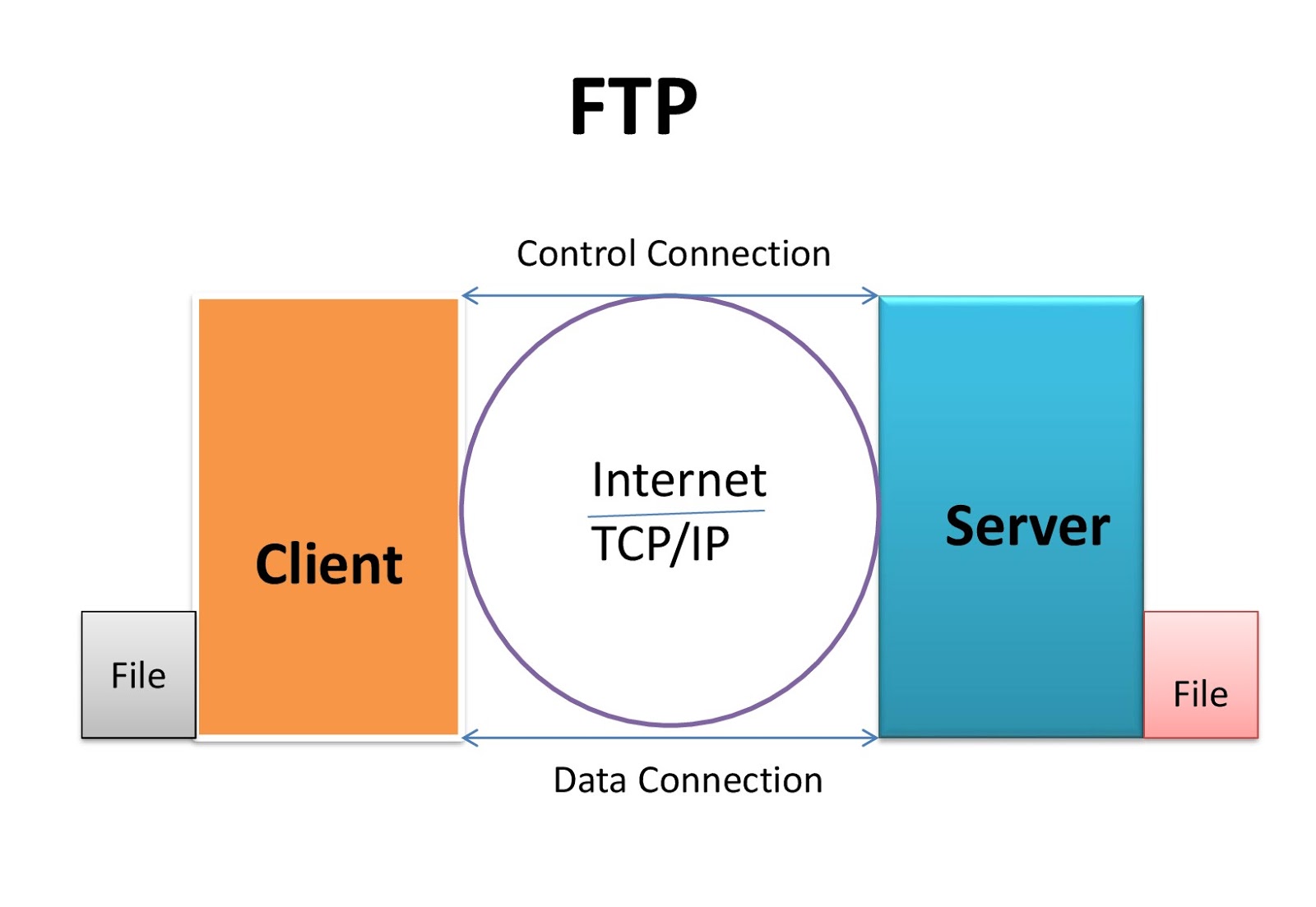
At its core, the File Transfer Protocol (FTP) is a set of rules that governs how data is moved between a client—your local computer—and a server. The "FTP host" is the specific identifier for that server. Without this address, your FTP client (such as FileZilla, WinSCP, or Cyberduck) would not know which machine on the internet or your local network to contact to initiate the transfer process.
When you enter an FTP host into your client, you are defining the destination for your session. This is analogous to entering a street address into a navigation system; it provides the coordinate necessary to establish a handshake between two points. Once the connection is established, the FTP host serves as the gatekeeper, verifying your credentials before allowing access to the file directory structure.
Anatomy of an FTP Connection
Understanding the FTP host requires a brief look at the components that make up a successful connection. To gain access to a server, you typically need four distinct pieces of information, often provided by your web hosting provider or system administrator:
- FTP Host (or Server Address): The address, often formatted as
ftp.yourdomain.comor an IP address like192.0.2.1. - Username: The unique identifier assigned to your user account on that server.
- Password: The corresponding authentication string linked to your username.
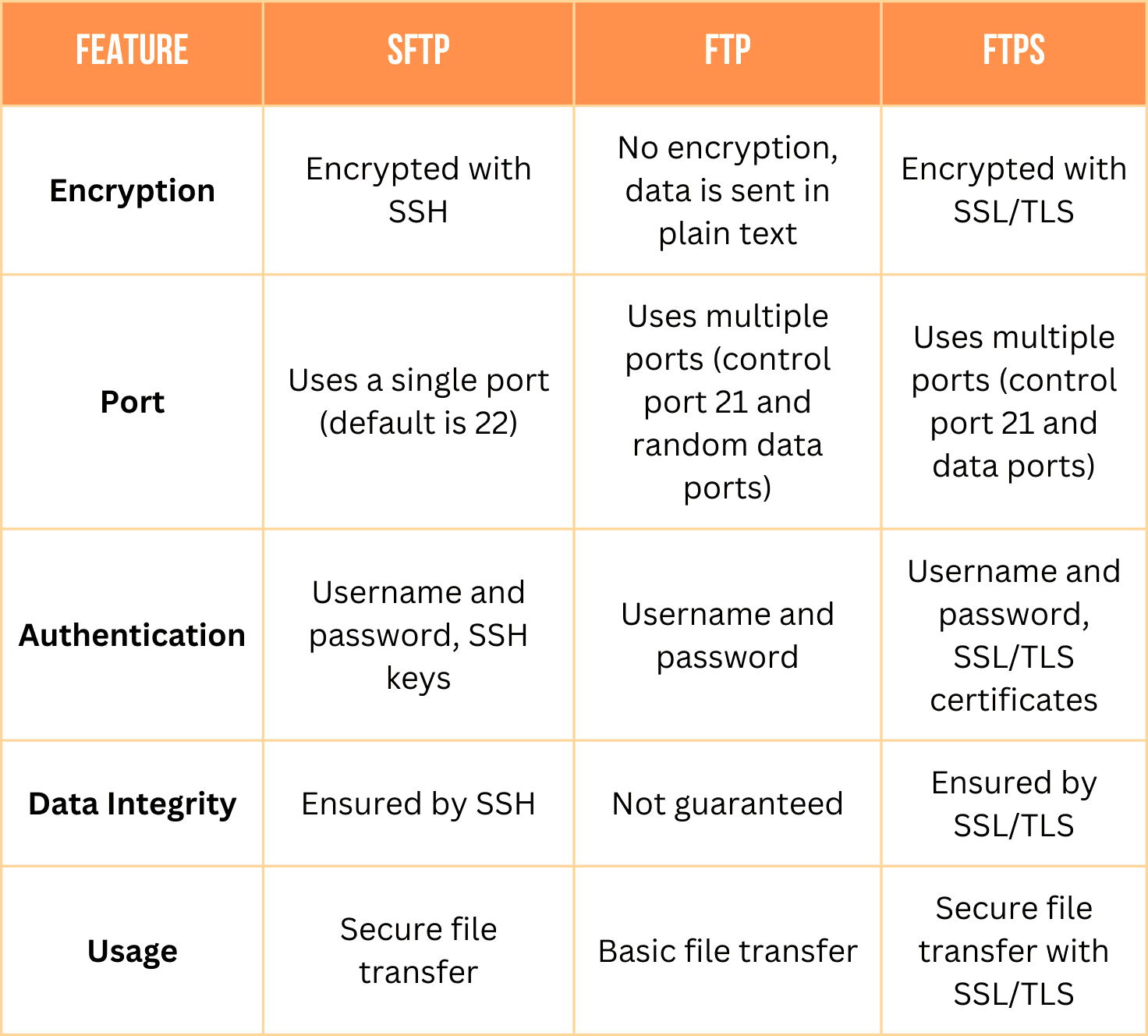
- Port: The gateway number through which the traffic flows. The standard FTP port is 21, though secure implementations (SFTP) typically use port 22.
FTP vs. SFTP: Why the Distinction Matters in 2026
In modern web development and server management, the term "FTP host" is frequently used colloquially to refer to secure connections as well. However, from a technical standpoint, the protocol used is critical.
Standard FTP transmits data—including your username and password—in plain text. This exposes your credentials to interception by anyone monitoring the network traffic. In contrast, SFTP (SSH File Transfer Protocol) and FTPS (FTP over SSL/TLS) encrypt both the command and data channels. When configuring your client, ensure you are aware of whether your host supports secure protocols. If your provider supports SFTP, you should prioritize that connection, even if they refer to it as an "FTP host" in their documentation.
Identifying Your FTP Host
If you are setting up a website or managing a remote server, finding your FTP host information is usually straightforward. If you use a managed web hosting service, this information is typically located within your hosting dashboard, often under sections labeled "FTP Accounts," "File Manager," or "Server Details."
- For Shared Hosting: Providers often create a default FTP account associated with your primary domain. The host is commonly
ftp.yourdomain.com. - For VPS or Dedicated Servers: You may be required to use the direct IP address of the server. This address remains constant unless your server is migrated to a new machine or you change your hosting plan.
- For Local Development: If you are running a server on your own hardware, your FTP host might be
127.0.0.1(the loopback address) or your local network IP address, such as192.168.1.x.
Comparison of Connection Methods
The following table summarizes the common ways to identify and use an FTP host based on the environment and security requirements.
| Connection Type | Standard Host Format | Typical Port | Security Level | Best Use Case |
|---|---|---|---|---|
| Standard FTP | ftp.domain.com | 21 | Low (Unencrypted) | Legacy systems/Internal networks |
| SFTP | sftp.domain.com | 22 | High (Encrypted) | Standard remote file management |
| FTPS (Explicit) | ftp.domain.com | 21 | High (Encrypted) | Servers supporting TLS explicit |
| Localhost | 127.0.0.1 | 21 | Medium | Local environment testing |
Common Troubleshooting and Configuration Issues
Even with the correct FTP host address, connection attempts may fail. Here are the most frequent obstacles encountered when establishing a connection:
- Firewall Interference: Your local router or software firewall may block outgoing connections on port 21. Ensure your firewall is configured to allow traffic from your FTP client.
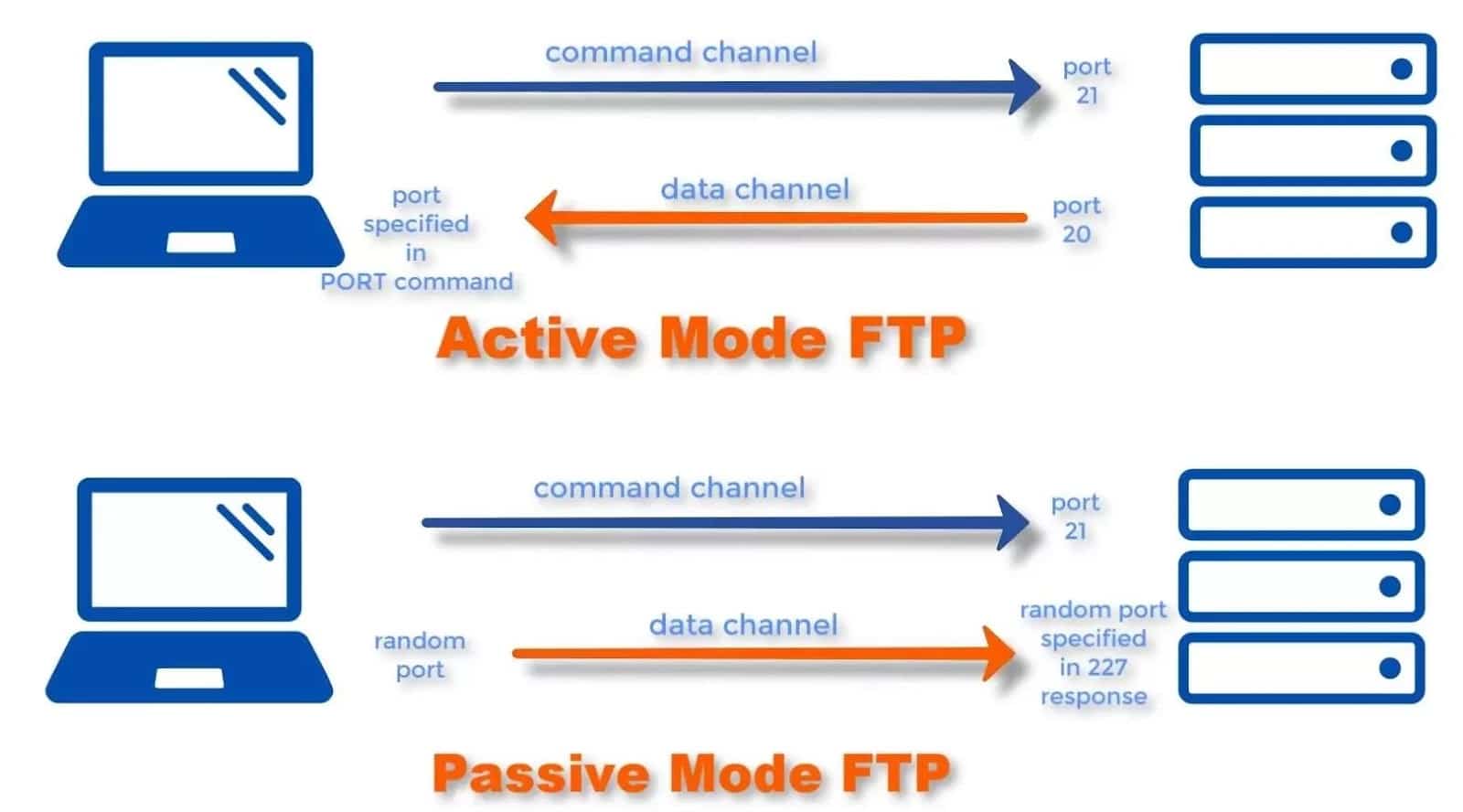
- Passive vs. Active Mode: FTP operates in two modes. Active mode requires the server to connect back to the client, which is often blocked by firewalls. Passive mode—which is the industry standard for 2026—allows the client to initiate both the command and data connections, making it much more reliable in modern network environments.
- Authentication Errors: Double-check that your username is entered exactly as provided. In many hosting panels, usernames for FTP are formatted as email addresses (e.g.,
user@yourdomain.com) rather than simple strings. - IP Whitelisting: Some high-security servers require you to whitelist your local public IP address in the hosting control panel before the FTP host will accept your connection.
Security Best Practices
Since the FTP host acts as the entry point to your server’s file system, it is a primary target for brute-force attacks. Protecting this access point is essential:
- Use SFTP Whenever Possible: By tunneling through SSH, you protect your data from eavesdropping.
- Limit Access: If your hosting panel allows, restrict FTP access to specific IP addresses.
- Strong Credentials: Do not use the same password for your hosting account and your FTP account. Rotate these passwords every 90 days.
- Use SSH Keys: If using SFTP, consider disabling password-based authentication in favor of SSH key pairs. Keys are significantly more secure than passwords and cannot be guessed through brute force.
Frequently Asked Questions
Does the FTP host address ever change?
Generally, no. If you are using a domain-based host (e.g., ftp.yourdomain.com), it will remain the same as long as your DNS settings are unchanged. If you are using an IP address, the host will only change if your hosting provider migrates your site to a different server or assigns you a new static IP.
Can I use an FTP host to connect to a cloud storage service? While some cloud storage services support FTP/SFTP gateways, most modern cloud providers use proprietary APIs or dedicated sync clients. You should check your provider’s documentation to see if they offer a native FTP interface.
Why does my FTP client ask for "Encryption" settings? Modern clients distinguish between "Plain FTP" and "Require Explicit FTP over TLS." You should always select the highest encryption level supported by your server to ensure that your credentials and files are encrypted during transit.
What should I do if I forget my FTP host address? Log in to your web hosting provider’s dashboard. Look for "FTP Accounts" or "Server Information." If you cannot find it, contact your provider’s support desk; they have the address on file as part of your hosting configuration.
Is the FTP host the same as the nameserver? No. The nameserver (DNS) is responsible for routing website traffic (HTTP/HTTPS) to your server, while the FTP host is a specific address used for file management. They are often the same machine, but they serve entirely different network functions.
Next Steps for Implementation
To successfully manage your files, locate your FTP credentials in your hosting dashboard today. Once retrieved, download a reputable, open-source FTP client like FileZilla or an integrated editor like VS Code with an SFTP extension. Test your connection using SFTP on port 22. If the connection times out, verify your credentials and check your hosting provider’s firewall settings to ensure your local IP address is not being blocked. By keeping your credentials secure and prioritizing encrypted protocols, you ensure your server remains protected while maintaining full control over your digital assets.
Image Gallery