How to List MySQL Databases with Commands
To list MySQL databases, log in to your MySQL server through the command-line interface and execute the SQL command SHOW DATABASES;. This command retrieves a complete list of all databases that the currently authenticated user has perm...
To list MySQL databases, log in to your MySQL server through the command-line interface and execute the SQL command SHOW DATABASES;. This command retrieves a complete list of all databases that the currently authenticated user has permission to view. This operation is essential for verifying database creation, checking availability, and managing server resources.
Contents
Understanding the MySQL Command-Line Interface
The MySQL command-line interface (CLI) is the primary tool for interacting with the MySQL database server. Whether you are managing a small personal project or an enterprise-grade database cluster, the ability to navigate your environment via terminal commands is a fundamental skill for developers and system administrators.
Before listing databases, ensure you have established a connection to the server. Typically, you access the MySQL shell by executing the following command in your terminal:
mysql -u username -p
Upon entering this command, you will be prompted for your password. Once authenticated, your command prompt will change to mysql>, indicating that the shell is ready to accept SQL statements. It is important to note that the databases visible to you depend entirely on your user privileges. If you are logged in as a standard user with restricted access, the list provided by the command will not include system-level databases or databases owned by other users.
The Syntax of the SHOW DATABASES Command
The standard syntax for viewing your databases is straightforward. The command is SHOW DATABASES;. The inclusion of the semicolon at the end is mandatory, as it serves as the delimiter for the MySQL engine to execute the statement.
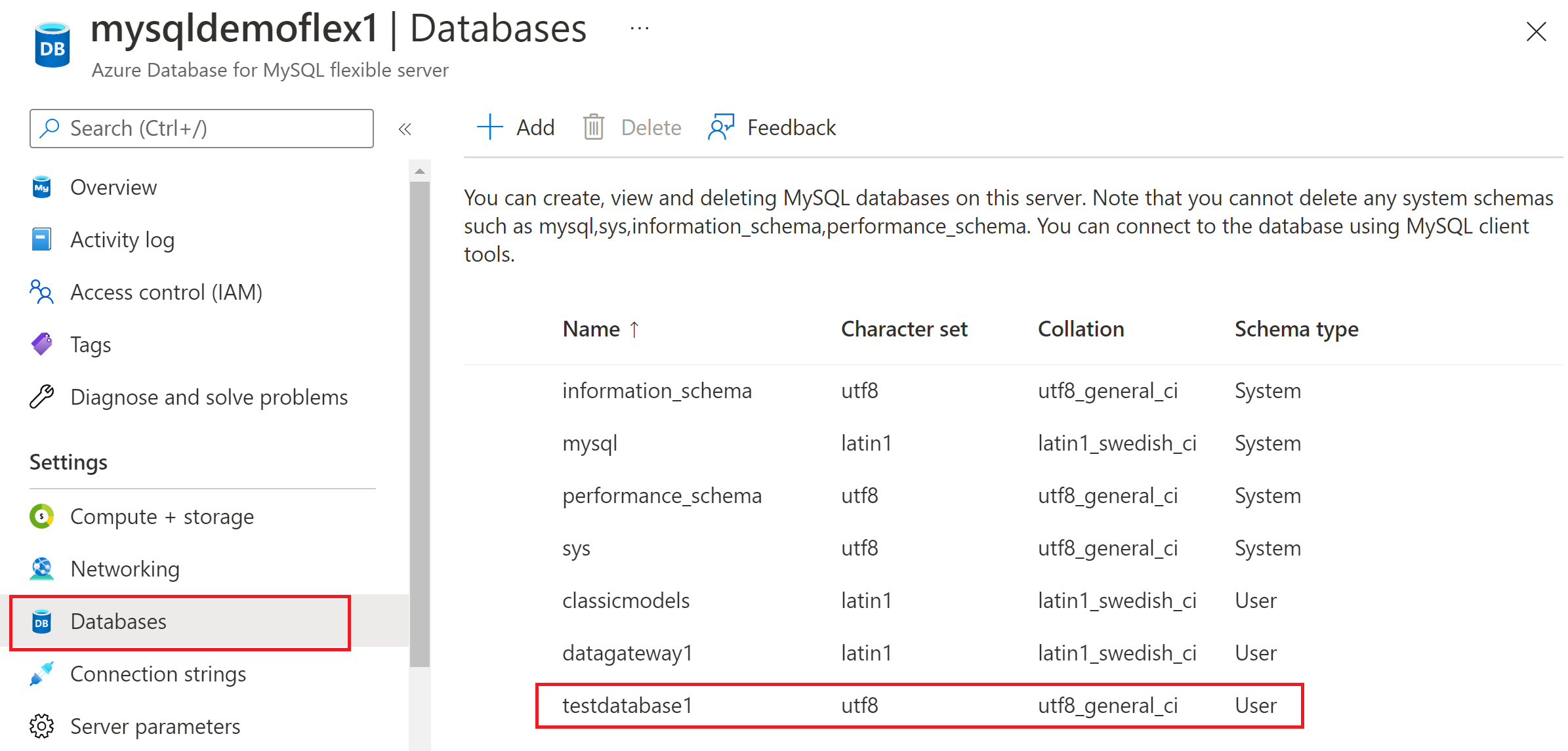
When you execute this command, the database server returns a tabular representation of all database names currently stored within the server instance. If you have a large number of databases, you may find that the output is long, requiring you to scroll through your terminal emulator.
Filtering Results with the LIKE Clause
In scenarios where you manage a high volume of databases, scrolling through a long list can be inefficient. MySQL provides a built-in filtering mechanism using the LIKE clause, which allows you to list only those databases that match a specific pattern.
For instance, if you want to find all databases that begin with the prefix "prod_", you would execute:
SHOW DATABASES LIKE 'prod_%';
The % symbol acts as a wildcard, representing zero or more characters. This approach is highly effective for maintaining organizational discipline in environments where naming conventions are used to distinguish between development, staging, and production environments.
Comparing Methods to View Databases
Beyond the standard SHOW command, administrators often utilize alternative methods depending on their specific requirements and the tools available in their environment.
| Method | Best For | Requirement |
|---|---|---|
SHOW DATABASES; |
Quick verification | Active MySQL shell session |
mysqlshow |
Scripting and shell automation | OS terminal access |
information_schema |
Complex filtering and reports | SQL query knowledge |
| GUI Clients | Visual management | Remote connection capabilities |
Using the mysqlshow Utility
The mysqlshow command is a client-side utility that operates outside of the MySQL shell. It is particularly useful for shell scripts or cron jobs where you need to check for the existence of a database without entering the interactive shell. For example, running mysqlshow -u root -p from your system terminal will output a list of databases directly to your standard output.
Querying the information_schema
For advanced users who require programmatic access to database metadata, the information_schema is the preferred approach. This is a special database that stores information about all other databases, tables, and columns on the server. You can write a standard SELECT query to retrieve the database names:
SELECT schema_name FROM information_schema.schemata;
This method provides significantly more power than the simple SHOW command, as it allows you to sort results, join tables, or filter based on specific criteria like character sets or collation settings.
Prerequisites and Permissions
Accessing the list of databases is subject to the MySQL grant system. The MySQL server uses a security model that governs what users can see and do. To view a database, a user must have at least the SELECT privilege on the database, or the SHOW DATABASES global privilege.
If you are encountering an "Access Denied" error or simply do not see expected databases in your list, follow these troubleshooting steps:
- Verify your credentials: Confirm you are logged in with the correct username.
- Check global privileges: Use the
SHOW GRANTS FOR 'your_user'@'localhost';command to review what permissions have been assigned to your account. - Contact the Administrator: If you require access to specific databases, you may need a root user to grant the necessary permissions using the
GRANTstatement.
Security Implications and Best Practices
While listing databases is a routine administrative task, it should be performed with security in mind. Avoid running these commands in shared terminal environments where logs might be captured. Additionally, ensure that your MySQL shell history—typically saved in .mysql_history—is protected or cleared if you have entered sensitive queries or credentials during your session.
When managing production systems, adhere to the principle of least privilege. Do not grant users broad permissions to view all databases if they only require access to a specific schema. By restricting user visibility, you reduce the potential surface area for reconnaissance during a security breach.
Frequently Asked Questions
Can I list databases without being in the MySQL shell?
Yes, you can use the mysqlshow utility from your command line. Alternatively, you can use the mysql -e flag to execute a command directly from the shell, such as: mysql -u root -p -e "SHOW DATABASES;".
Why are some databases hidden from my list? If a database is hidden, your user account lacks the necessary privileges to see it. MySQL automatically filters the list to show only those schemas for which your user has explicit access rights.
Is there a way to list tables within a database after I list the databases?
Yes. First, select the database using USE database_name; and then run SHOW TABLES;. This will display all tables contained within that specific database.
Can I export the list of databases to a text file?
Yes. You can redirect the output of your command to a file using standard shell operators. For example: mysql -u root -p -e "SHOW DATABASES;" > my_databases.txt.
Does listing databases impact server performance?
Generally, no. The SHOW DATABASES command is extremely lightweight and has a negligible impact on server performance, even on systems with thousands of databases.
Recommendations for Ongoing Management
As your server grows to host dozens or hundreds of databases, manual listing becomes less practical. It is recommended to adopt a strict naming convention, such as using prefixes to indicate the application or environment associated with each database. Regularly audit your database list to identify and remove unused or deprecated schemas, which helps reduce disk usage and simplifies administrative backups. If you find yourself frequently switching between databases, use the USE command coupled with clear documentation of your schema structure to maintain high operational efficiency.
Image Gallery