Mastering the Post-Send Email Workflow: Verification, Recall, and Follow-Up Strategies
When you press the send button on an email, the message transitions from your draft environment through outbound mail servers to the recipient's inbox. Verifying that the email departed successfully, knowing how to recall an accidental...
When you press the send button on an email, the message transitions from your draft environment through outbound mail servers to the recipient's inbox. Verifying that the email departed successfully, knowing how to recall an accidental message, and executing appropriate follow-up etiquette ensure your professional communication remains clear, effective, and secure.
Contents
Step-by-step: How to Verify an Email Was Successfully Sent
Confirming email delivery requires checking specific technical indicators within your email client and server logs. A message disappearing from your screen does not automatically guarantee delivery to the recipient's inbox.
1. Check the Sent Folder vs. the Outbox
In desktop and mobile clients like Microsoft Outlook, Apple Mail, and Mozilla Thunderbird, there is a fundamental difference between the Outbox and the Sent folder:
- The Outbox: Acts as a temporary queue for outgoing messages. If an email remains in the Outbox, the Simple Mail Transfer Protocol (SMTP) connection failed, or the message is stuck due to large attachments or network disruption.
- The Sent Folder: Once the local client handshakes with the outbound SMTP server and successfully transfers the payload, the message moves automatically to the Sent folder (or "Sent Items").
If your message resides in the Sent folder, your mail client successfully transferred it to your outbound mail server.
2. Monitor for Non-Delivery Reports (NDRs) or Bounce Messages
If the recipient's mail server rejects your email after your server attempts delivery, you will receive an automated System Administrator email containing a Non-Delivery Report (NDR). These messages include standardized three-digit SMTP error codes:
- 550 5.1.1 (User Unknown): The email address does not exist or was misspelled.
- 552 5.2.2 (Mailbox Full): The recipient's storage quota has been exceeded.
- 554 5.7.1 (Relay Access Denied / Rejected by Policy): Your domain or IP address was flagged by spam filters, or SPF/DKIM authentication checks failed.
3. Inspect Email Headers for Transmission Tracing
For critical business communications, checking raw message headers provides proof of transmission. Headers document every server hop the email made, complete with timestamps and transport security protocols (TLS). In webmail clients like Gmail, click the three-dot menu on a sent message and select Show original to view the SMTP relay timestamps and confirmation that SPF (Sender Policy Framework) and DKIM (DomainKeys Identified Mail) passed.
How to Unsend or Recall an Email across Major Platforms
Accidentally sending an incomplete email, omitting an attachment, or addressing the wrong recipient requires rapid corrective action. Email recall mechanisms operate differently depending on whether your email provider delays message sending locally or executes a server-side retrieval.
- User Hits Send
- Local Client Delay Buffer (0–30s)
- Click Undo: Message Returns to Draft
- Buffer expires: Proceed to Server Transmission
- Server Transmission (SMTP Relay)
- Microsoft Exchange Server-Side Recall
- Unopened inside same organization: Message Deleted
Google Gmail (Web, iOS, Android)
Gmail does not pull back a message that has already reached an external server. Instead, it utilizes an "Undo Send" buffer that pauses outgoing delivery for a customizable duration.
- Navigate to Settings (gear icon) > See all settings.
- Under the General tab, locate Undo Send.
- Change the cancellation period from the default 5 seconds to 10, 20, or 30 seconds.
- Save changes. When you send an email, a pop-up banner will appear at the bottom of the screen allowing you to click Undo before the timer expires.
Microsoft Outlook for Web and New Outlook for Windows
Modern Outlook clients operate similarly to Gmail by introducing a local transmission delay:
- Open Settings > Mail > Compose and reply.
- Scroll down to Undo send.
- Adjust the slider to delay messages for up to 10 seconds.
- Click Save. An Undo button will display at the bottom of the screen immediately after sending.
Classic Microsoft Outlook (Desktop with Exchange Server)
If you use the classic Outlook application connected to a Microsoft Exchange or Microsoft 365 business account, true server-side recall is possible under strict conditions:
- Both you and the recipient must belong to the same organization (same Microsoft 365 tenant).
- The recipient must not have opened or read the message yet.
- The message must not be filtered by rules into custom folders.
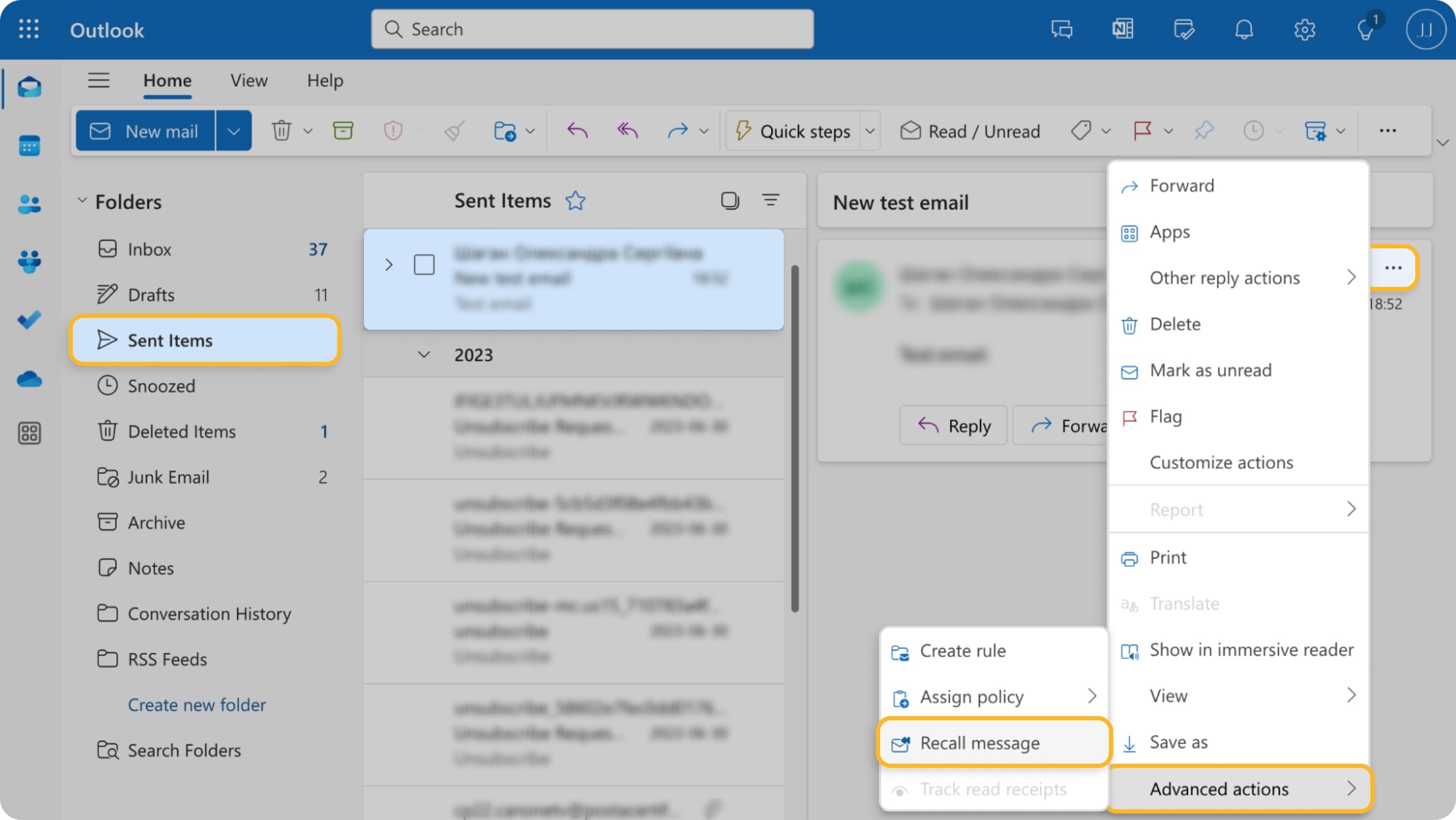
To execute a recall in Classic Outlook:
- Open the Sent Items folder and double-click the message to open it in its own window.
- Select the Message tab > Actions > Recall This Message.
- Choose Delete unread copies of this message or Delete unread copies and replace with a new message.
- Check Tell me if recall succeeds or fails for each recipient and click OK.
Apple Mail (iOS 16+, iPadOS 16+, macOS Ventura+)
Apple Mail includes an Undo Send feature across iPhone, iPad, and Mac platforms:
- Immediately after sending an email, an Undo Send option appears at the bottom of the sidebar (macOS) or bottom of the screen (iOS).
- The default window is 10 seconds, but you can extend it to 20 or 30 seconds in Settings > Mail > Undo Send Delay.
Email Recall & Delay Settings by Platform
| Platform / Client | Mechanism Type | Maximum Cancellation Window | Cross-Organization Support? | Requirements for Success |
|---|---|---|---|---|
| Gmail | Send Delay Buffer | Up to 30 seconds | Yes (holds outbound queue) | User must click "Undo" before timer expires |
| Outlook (Web / New) | Send Delay Buffer | Up to 10 seconds | Yes (holds outbound queue) | User must click "Undo" before timer expires |
| Outlook Classic (Desktop) | Server-Side Recall | Unlimited (until recipient opens email) | No (Internal Exchange tenant only) | Message must be unread; recipient must be in same Exchange environment |
| Apple Mail | Send Delay Buffer | Up to 30 seconds | Yes (holds outbound queue) | User must click "Undo Send" before timer expires |
| ProtonMail | Send Delay Buffer | Up to 20 seconds | Yes (holds outbound queue) | User must select "Undo" in the app interface |
Professional Communication Etiquette: Notifying Recipients
Saying or messaging "I have sent an email" over secondary channels (such as Slack, Microsoft Teams, SMS, or phone) requires discretion. Over-notifying colleagues creates communication redundancy, whereas under-notifying can stall critical project dependencies.
When to Send a Multi-Channel Notification
Notify a recipient via chat or messaging tools that an email has been sent under these specific conditions:
- Time-Sensitive Approvals: The document or authorization requires action within 1 to 2 hours.
- Security or Data Sensitivity: You sent encrypted files, password resets, or sensitive legal agreements requiring verification.
- Large File Deliveries: You sent an external file transfer link (e.g., SharePoint, Google Drive, Box) that might bypass standard inbox rules or enter spam filtering.
- Executive Escalations: You are alerting leadership regarding an urgent client issue or system outage.
How to Draft Effective Notification Messages
Example 1: Instant Messaging (Slack / Teams)
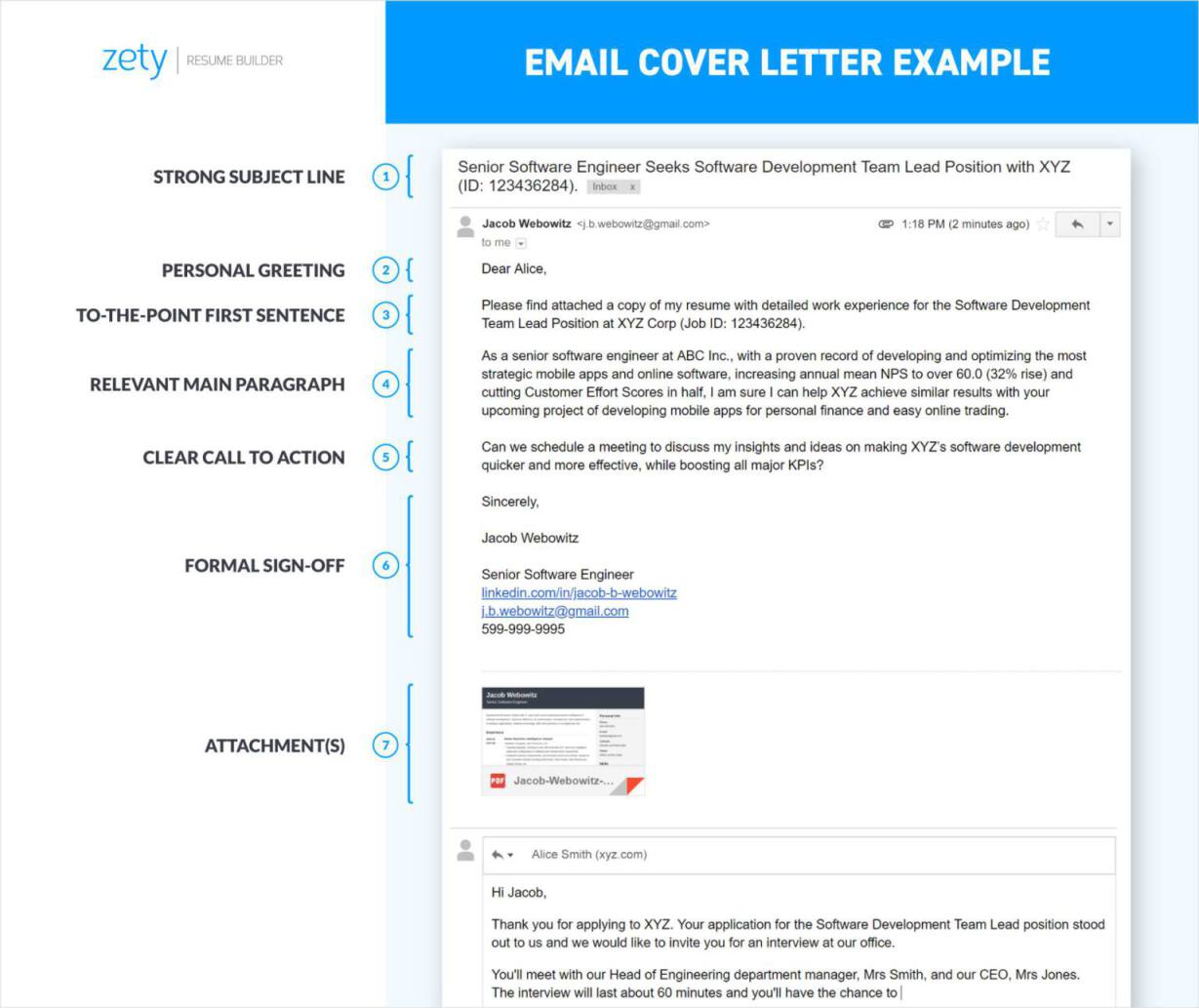
"Hi Sarah, I've sent an email regarding the Q3 budget approvals containing the final spreadsheet revision. Please review section 3 when you get a chance today so we can finalize the presentation."
Example 2: Client Notification after Missing Attachments
"Hello Mark, I am resending the contract proposal with the correct PDF schedule attached. Please disregard the previous incomplete thread. Thank you for your patience!"
Example 3: Cold Sales or Candidate Follow-Up
"Hi David, following up on the executive recruiter role we discussed—I've sent an email with my updated CV and portfolio over to your primary inbox. Looking forward to connecting."
Troubleshooting Delivery Failures and Deliverability Issues
When an email fails to arrive, the issue typically stems from server-level security filters, DNS records, or sender reputation problems.
- Sender Mail Server
- Domain Authentication Checks:
- SPF (Authorized Sender IP?)
- DKIM (Cryptographic Signature Valid?)
- DMARC (Policy Compliance Rules)
- Delivery Outcome:
- Pass: Recipient Inbox
- Fail / Reject: Quarantine / Bounce
1. Verify SPF, DKIM, and DMARC Records
Major email service providers enforce strict domain authentication requirements. If you send business emails from a custom domain, you must publish valid DNS records:
- SPF (Sender Policy Framework): Specifies which IP addresses and mail servers are authorized to send mail on behalf of your domain.
- DKIM (DomainKeys Identified Mail): Adds an encrypted cryptographic signature to outgoing messages, proving the email was not modified in transit.
- DMARC (Domain-based Message Authentication, Reporting, and Conformance): Instructs receiving servers how to handle emails that fail SPF or DKIM checks (
p=none,p=quarantine, orp=reject).
If these records are missing or misconfigured, receiving servers (like Gmail or Yahoo) will silently drop your message or place it in the recipient's Spam/Junk folder.
2. Check File Attachment Restrictions
Outbound emails frequently bounce or freeze due to attachment restrictions:
- Size Limits: Most commercial email servers cap total message size (body plus attachment) at 25 MB.
- Blocked File Extensions: Executable files (
.exe,.bat), script files (.js,.vbs), or macro-enabled documents (.docm) are routinely blocked by enterprise gateways to prevent malware execution. - Solution: Upload files exceeding 15 MB to secure cloud storage platforms (Google Drive, Microsoft OneDrive, Dropbox) and share an authenticated view/download link instead of attaching raw files.
3. Diagnose IP and Domain Blacklists
If recipients report that your emails consistently land in Spam, check if your domain or outbound server IP address has been listed on global DNS Blacklists (DNSBL). You can check your domain reputation on platforms like MXToolbox or Spamhaus.
Best Practices for Email Tracking and Follow-Up Timelines
Managing post-send workflows effectively means knowing when and how to follow up without burdening the recipient.
Implementing Ethical Email Tracking
While read receipts (MDNs) request confirmation from the recipient, many users disable automatic replies. Web beacons (1x1 transparent tracking pixels) track when an email is opened. When utilizing tracking tools for sales or client management:
- Focus on operational insights (e.g., confirming a client received an invoice) rather than aggressive monitoring.
- Avoid using invasive tracking pixels on personal or internal employee communications, as modern security software and Apple's Mail Privacy Protection (MPP) pre-fetch images, generating false-positive open alerts.
Recommended Follow-Up Timelines
Day 0: Email Sent
- Urgent Request? Follow up in 24 Hours (Chat/Call)
- Standard Business? Follow up in 3 to 5 Business Days
- Cold Outreach? Follow up in 5 to 7 Business Days
Urgent Internal Requests: 24 hours. (Precede with a quick chat notification if blocked).
Standard Business Inquiries: 3 to 5 business days. Allow sufficient time for the recipient to process their inbox queue.
Job Applications / Interviews: 5 to 7 business days following an interview or application closing date.
Cold Sales Outreach: 5 to 7 business days between touchpoints, capping total outreach attempts at 3 to 4 touchpoints before resting the prospect.
Frequently Asked Questions
Why does my email show as sent, but the recipient hasn't received it?
An email in your Sent folder confirms your outbound mail server accepted the message. However, the receiving server may have routed the message to Spam/Junk, quarantined it due to attachment policies, or rejected it based on SPF/DKIM verification failures. Ask the recipient to check their Spam folder and quarantine logs.
Can I recall an email sent from Gmail to an Outlook address?
No. Gmail's "Undo Send" feature is a local transmission delay, not a server-side recall. Once Gmail's undo timer (up to 30 seconds) expires, the message is permanently transmitted to the Outlook server and cannot be revoked.
What should I do if I forgot to attach a file to a sent email?
Immediately reply to the original thread (or send a new message on the same subject line) with a concise apology. State: "Please find the referenced file attached to this message; I apologize for the oversight." Attach the correct file before clicking send.
How do I know if an email address bounced permanently or temporarily?
Check the Non-Delivery Report (NDR) in your inbox. A Hard Bounce (5xx SMTP code) indicates a permanent failure, such as an invalid or deleted email address. A Soft Bounce (4xx SMTP code) indicates a temporary condition, such as a full mailbox or transient server outage, which your server will retry automatically.
Is it necessary to text someone after sending an email?
Only if the matter is urgent, time-sensitive, or involves critical security procedures. Routine business emails do not require cross-platform text notifications, as redundant messaging can overwhelm recipients and reduce overall productivity.
Next Actions for Seamless Email Management
To prevent communication errors and optimize your email dispatch workflow, implement these practical adjustments today:
- Extend Undo Send Duration: Access your Gmail, Apple Mail, or Outlook settings immediately and set your Undo Send delay to the maximum limit (30 seconds for Gmail/Apple Mail; 10 seconds for Outlook Web).
- Audit Outbound Domain Records: If using a custom business domain, verify your SPF, DKIM, and DMARC configurations using domain health diagnostic tools to maximize inbox deliverability.
- Establish a Pre-Send Checklist: Verify recipient addresses, confirm attachment presence, check tone, and review links before hitting send to eliminate the need for recalls.
Image Gallery