How to Use Bluetooth Settings on Roku TV: A Complete Pairing and Troubleshooting Guide
To use Bluetooth settings on a Roku TV, navigate to Settings, select Remotes & devices, and choose Pair new device followed by Wireless headphones. If your specific Roku model lacks native Bluetooth, you can use the Roku Mobile App on...
To use Bluetooth settings on a Roku TV, navigate to Settings, select Remotes & devices, and choose Pair new device followed by Wireless headphones. If your specific Roku model lacks native Bluetooth, you can use the Roku Mobile App on a smartphone to enable Private Listening and bridge audio to your Bluetooth devices.
Contents
Navigating the wireless audio landscape on a Roku TV can be confusing because the platform utilizes two distinct methods for wireless connectivity: native Bluetooth support for direct pairing and the Roku Mobile App for "Private Listening." While most modern Roku TVs manufactured by 2026 include built-in Bluetooth hardware, older or entry-level models often rely on software-based workarounds. Understanding how to access these settings and which method applies to your hardware is essential for a seamless home theater experience.
Identifying Your Roku TV’s Bluetooth Capabilities
Before attempting to pair your favorite headphones or speakers, you must determine if your Roku TV supports native Bluetooth. Historically, Roku relied heavily on Wi-Fi-based audio transmission, but as of 2026, the hardware landscape has shifted significantly. Most Roku Plus Series and Roku Pro Series televisions, along with high-end models from partners like TCL and Hisense, now feature integrated Bluetooth modules.
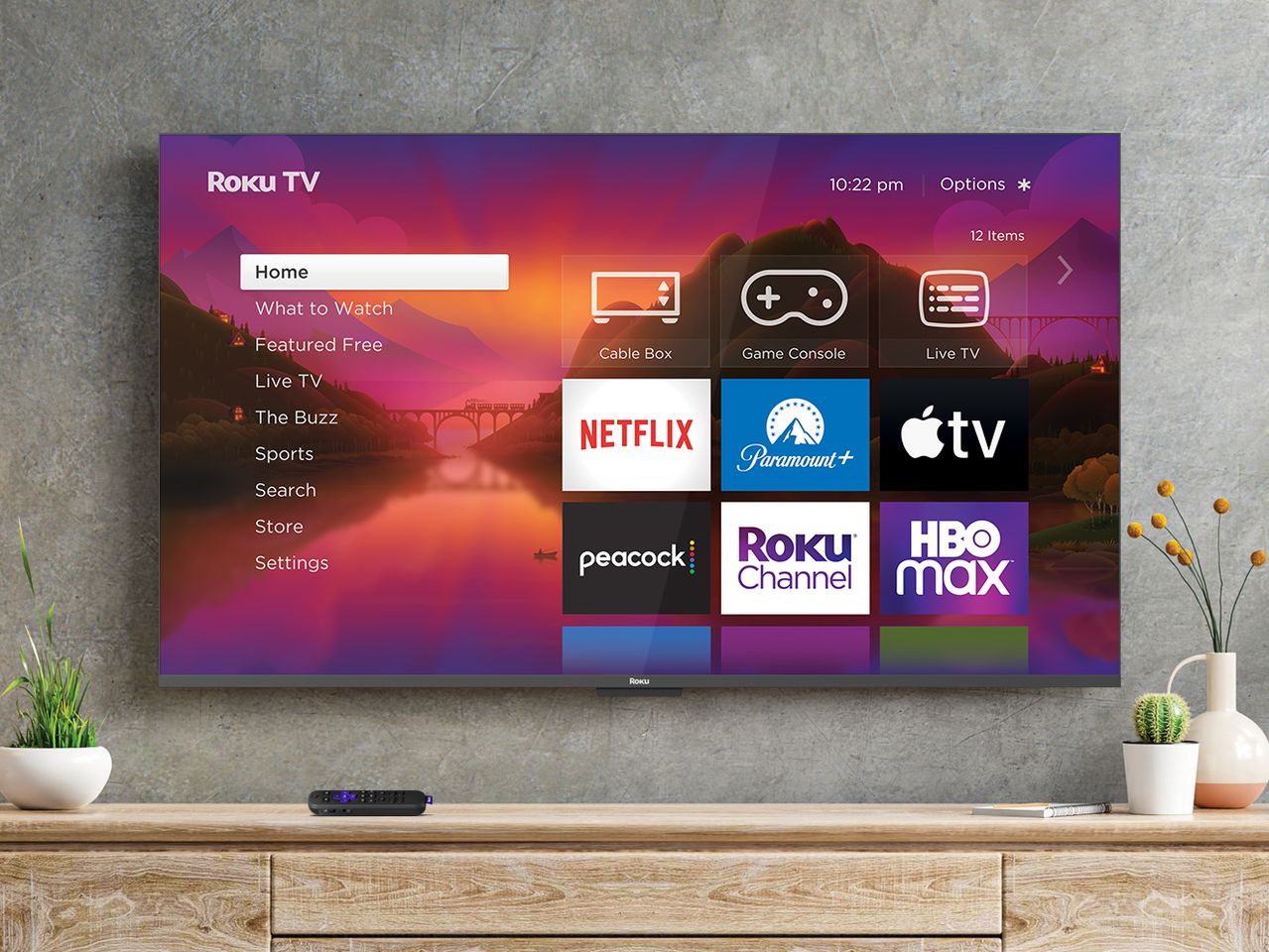
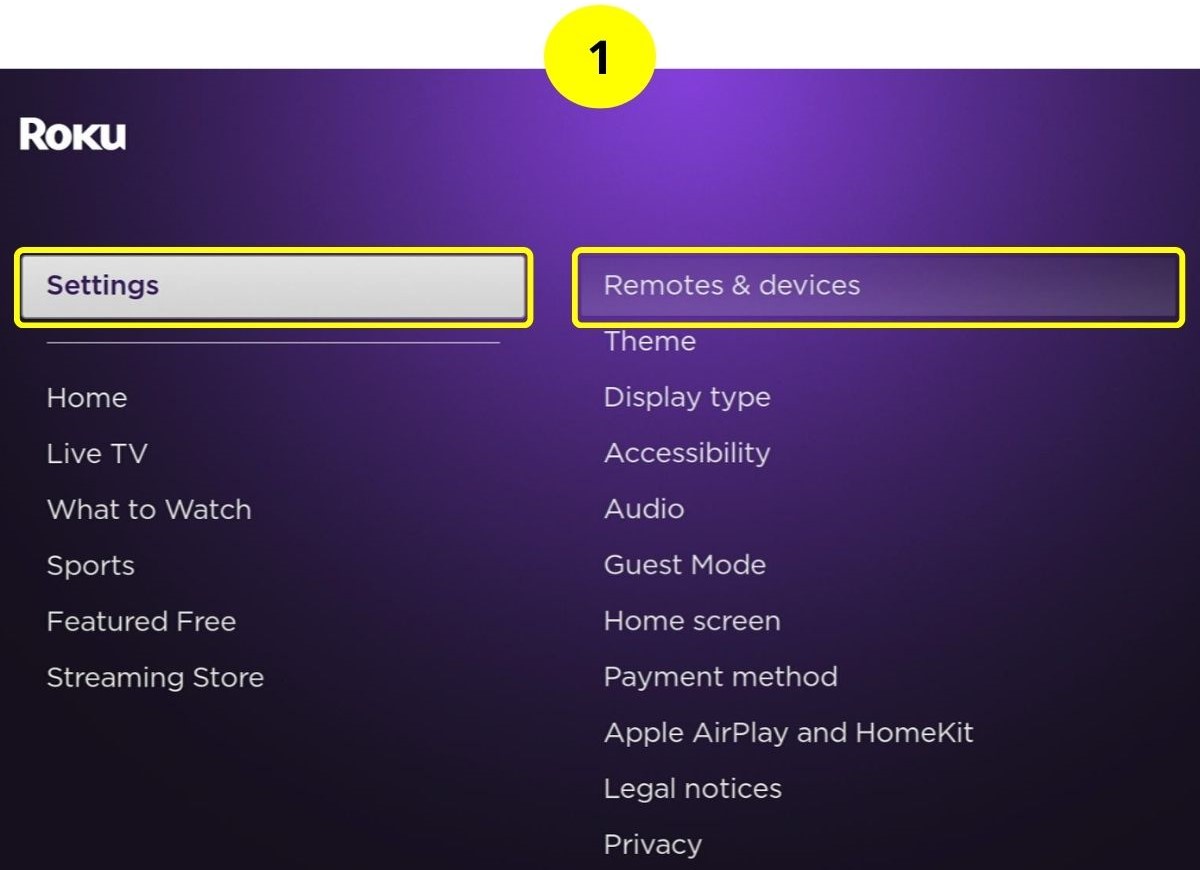
To verify your TV's capabilities, turn on your device and use the directional pad on your remote to navigate to the Settings menu on the left-hand sidebar. From there, select Remotes & devices. If you see an option labeled Wireless headphones, your TV supports native Bluetooth. If this option is missing, your hardware likely lacks the necessary internal transmitter, and you will need to utilize the Roku Mobile App or a dedicated Roku Wireless Soundbar to achieve a wireless connection.
It is a common mistake to confuse "Bluetooth" with "Wi-Fi Direct," the technology Roku remotes use to communicate with the TV. Just because your remote works without line-of-sight does not automatically mean the TV can transmit audio to standard Bluetooth headphones. Native Bluetooth settings are specifically designed for A2DP (Advanced Audio Distribution Profile) streaming, allowing the TV to send high-quality stereo sound to external receivers.
How to Access and Configure Native Bluetooth Settings
If your Roku TV supports native Bluetooth, the pairing process is straightforward but requires the external device to be in the correct state. Native support is the preferred method because it minimizes latency (audio lag) and eliminates the need for an intermediary device like a smartphone.
Step 1: Prepare Your Bluetooth Device
Before touching the Roku settings, ensure your headphones or speakers are in pairing mode. This usually involves holding down a power or Bluetooth button until a light flashes. If the device is currently connected to your phone or laptop, disconnect it first, as many Bluetooth devices cannot "handshake" with a new source while an active stream is maintained elsewhere.
Step 2: Navigate the Roku Menu
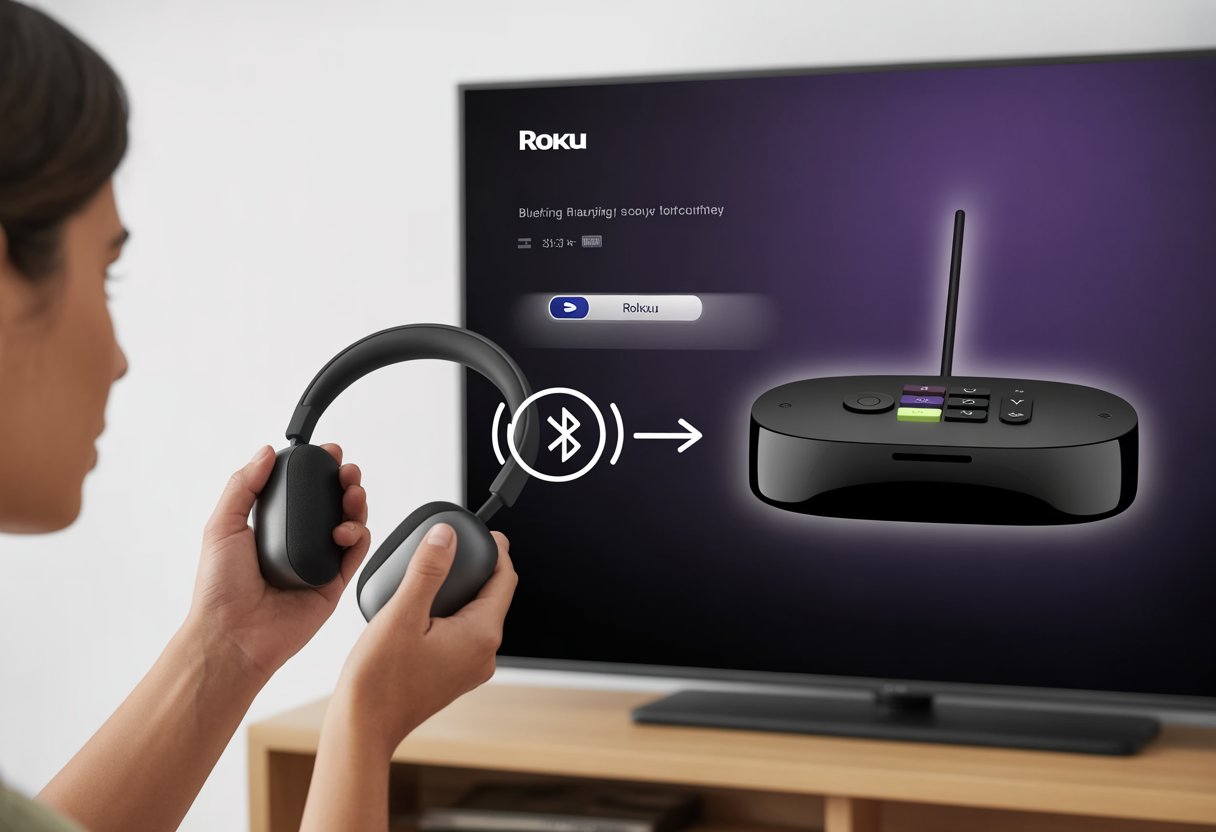
Using your Roku remote, go to Settings > Remotes & devices > Pair new device. Within this submenu, select Wireless headphones. Your Roku TV will immediately begin scanning for nearby discoverable signals.
Step 3: Finalize the Connection
Once your device appears in the list on the right side of the screen, select it. The TV will attempt to establish a secure handshake. Upon success, a notification will appear in the corner of the screen confirming that audio is now being routed to your Bluetooth device. The TV’s internal speakers will automatically mute.
Managing Paired Devices
Once a device is paired, you do not need to repeat the full setup. You can manage these connections under Settings > Remotes & devices > Disconnect/Forget device. In the 2026 Roku OS, you can also toggle between different paired headsets quickly, which is particularly useful for households where multiple users share the same television at different times.
Using the Roku Mobile App for Bluetooth (Private Listening)
For users with older Roku TV models or budget-tier hardware that lacks native Bluetooth chips, the Roku Mobile App is the primary solution. This feature, known as Private Listening, allows the TV to stream audio over your home Wi-Fi network to your smartphone. Your smartphone then acts as a Bluetooth bridge, sending that audio to your connected headphones.
Prerequisites for Mobile Pairing
- Download the latest version of the Roku App (available on iOS and Android).
- Ensure both your smartphone and your Roku TV are connected to the same Wi-Fi network.
- Pair your Bluetooth headphones directly to your smartphone, not the TV.
Enabling Private Listening
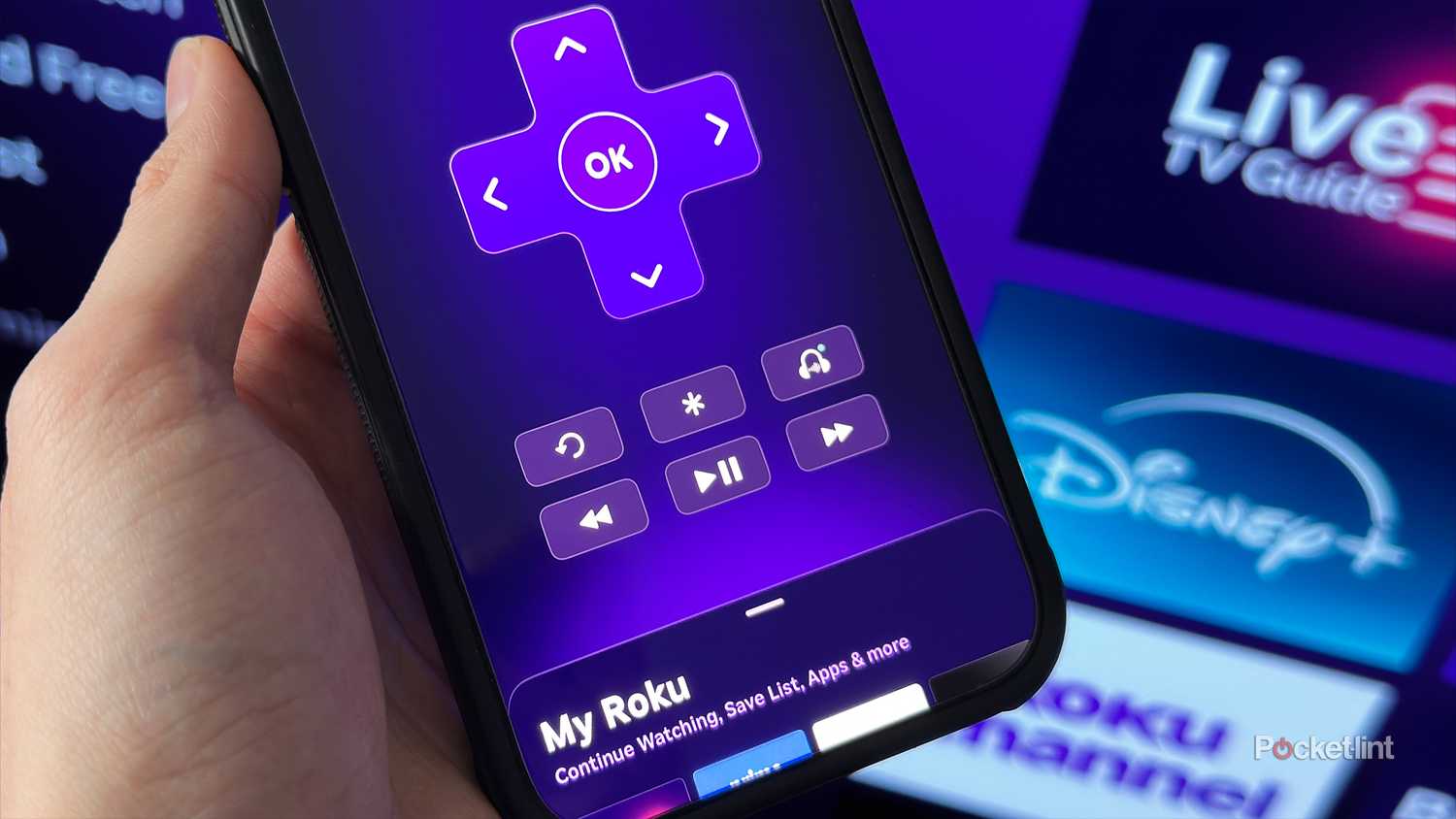
Open the app and tap on the Remote icon at the bottom of the screen. Look for the Headphone icon (usually located near the bottom right or center of the virtual remote). Tapping this icon activates Private Listening. You should notice the TV speakers mute instantly, and audio begins playing through your phone. Since your phone is already paired with your Bluetooth headphones, the sound will route to your ears wirelessly.
Performance Considerations
While the mobile app method is highly compatible, it is sensitive to Wi-Fi congestion. If you experience "stuttering" or audio that drifts out of sync with the video, ensure you are using a 5GHz Wi-Fi band rather than the more crowded 2.4GHz band. In the app settings, you can also find a "Sync Audio" tool that allows you to manually adjust the millisecond delay to perfectly align the sound with the actors' lip movements on screen.
Technical Comparison of Roku Wireless Audio Methods
To help you decide which configuration is best for your setup, the following table compares the three primary ways to manage wireless audio on a Roku TV as of 2026.
| Feature | Native Bluetooth (TV) | Roku Mobile App | Roku Wireless Speakers/Soundbar |
|---|---|---|---|
| Hardware Required | Supported Roku TV | Smartphone + Roku App | Roku-branded Audio Hardware |
| Setup Difficulty | Low | Medium | Low |
| Audio Latency | Minimal (varies by device) | Variable (Wi-Fi dependent) | Zero (Proprietary protocol) |
| Range | ~30 Feet (Bluetooth) | Anywhere on Wi-Fi | Room-limited |
| Multi-user Support | Usually 1 pair of headphones | Up to 4 users (on some models) | Full room audio |
| Battery Impact | None on external devices | Significant phone battery drain | None |
Connecting Roku Wireless Speakers and Soundbars
It is important to distinguish between standard Bluetooth settings and the Roku Wireless ecosystem. Roku produces its own line of wireless speakers and subwoofers that do not use standard Bluetooth to connect to the TV. Instead, they use a proprietary, low-latency Wi-Fi protocol.
If you are trying to use the "Bluetooth settings" to connect a Roku Wireless Soundbar, you are using the wrong menu. To connect Roku-branded audio gear:
- Navigate to Settings > Remotes & devices > Pair new device.
- Select Soundbar or Speakers.
- Follow the on-screen prompts to "check-in" the hardware.
The advantage of this system over standard Bluetooth is the synchronized multichannel audio. While standard Bluetooth is generally limited to two-channel stereo, the Roku Wireless protocol supports surround sound configurations (up to 5.1) without the need for HDMI or optical cables. If your goal is a permanent home theater upgrade rather than occasional headphone use, this is the superior technical path.
Troubleshooting Common Bluetooth Pairing Issues
Bluetooth is notoriously finicky due to signal interference and software handshaking errors. If your Roku TV is not finding your devices or the connection is unstable, follow these technical troubleshooting steps.
1. Clear Local Interference
Bluetooth operates on the 2.4GHz frequency, which is shared by microwave ovens, old cordless phones, and many Wi-Fi routers. If your audio is cutting out, try moving your Wi-Fi router further away from the TV or switching your home network to the 5GHz band. Additionally, ensure there are no large metal objects or mirrors directly between your head and the TV, as these can reflect and weaken the signal.
2. Perform a "System Restart"
Smart TVs are essentially computers that can suffer from memory leaks. If the Bluetooth settings menu becomes unresponsive or fails to "Scan," go to Settings > System > Power > System restart. A full reboot often clears the cache of the Bluetooth stack, allowing for a fresh discovery cycle.
3. Check for Firmware Updates
Roku frequently releases OS updates that include patches for Bluetooth driver stability. Ensure your TV is running the latest software by navigating to Settings > System > System update > Check now. If an update is available, install it and restart the TV before attempting to pair again.
4. Reset the Bluetooth Device
If the Roku TV "sees" the device but fails to connect, the issue often lies with the peripheral’s internal pairing list. Most Bluetooth headphones have a "Factory Reset" command (such as holding the power and volume buttons simultaneously). Clearing the device's memory of previous connections can resolve handshake failures.
Frequently Asked Questions
Can I connect two pairs of Bluetooth headphones to my Roku TV simultaneously?
Native Bluetooth on most Roku TVs is currently limited to one active audio output at a time. However, if you use the Roku Mobile App (Private Listening), some newer versions of the app and specific Roku TV models allow up to four mobile devices to connect to the same TV stream simultaneously. This allows four people to listen via their own individual Bluetooth headphones connected to their respective phones.
Why is there an audio delay (latency) when using Bluetooth?
Bluetooth audio involves a process of encoding the signal at the TV and decoding it at the headphones. This process takes time. Native Roku Bluetooth settings attempt to compensate for this automatically, but entry-level headphones with older Bluetooth versions (4.2 or earlier) may still exhibit lag. For the best results, use devices that support Bluetooth 5.0 or higher and the aptX Low Latency codec if supported.
Can I use Bluetooth speakers for a surround sound setup on Roku?
No. Standard Bluetooth settings on Roku TV only support stereo (2.0) audio. You cannot pair multiple individual Bluetooth speakers and assign them as "Rear Left" or "Rear Right." To achieve wireless surround sound on a Roku TV, you must use the proprietary Roku Wireless Speakers or a Roku Wireless Soundbar system.
Does the Roku remote with a headphone jack still use Bluetooth?
Technically, no. Remotes like the Roku Voice Remote Pro use a specialized Wi-Fi Direct connection to transmit audio from the TV to the remote's 3.5mm jack. While this is a form of "wireless" listening, it does not involve the Bluetooth settings menu. If your remote has this jack, it is often the most stable way to listen privately without any configuration menus.
My Roku TV doesn't have Bluetooth. Can I add it with a USB dongle?
Roku TVs do not support generic USB Bluetooth adapters. The USB port on a Roku TV is designed for media playback (photos/videos) or powering small devices. If you need to add Bluetooth to a TV that lacks it, you should use a Bluetooth Transmitter that plugs into the TV’s 3.5mm Headphone Jack or Optical (Toslink) Audio Out port.
Practical Recommendation for 2026
For the best experience in 2026, always prioritize Native Bluetooth if your TV supports it, as it offers the most stable connection with the least amount of "device hopping." If you own a budget-friendly Roku model that lacks this feature, the Roku Mobile App remains a powerful and free alternative that bypasses hardware limitations. For those building a dedicated media room, investing in the Roku Wireless Audio ecosystem (Speakers/Soundbars) provides a level of integration and sound quality that standard Bluetooth cannot match.
Image Gallery