Understanding the Windows Event Log Types and Their Administrative Roles
The Windows Event Log is a centralized, standardized logging subsystem that records system, security, and application notifications. It uses predefined log types—Application, Security, System, Setup, and Forwarded Events—to capture cri...
The Windows Event Log is a centralized, standardized logging subsystem that records system, security, and application notifications. It uses predefined log types—Application, Security, System, Setup, and Forwarded Events—to capture critical administrative diagnostic data, track user authentication events, and document system hardware or software faults for troubleshooting and security auditing.
Contents
Mastering the Windows Event Log architecture is essential for system administrators, security analysts, and IT professionals responsible for maintaining enterprise environments. Windows operating systems maintain an exhaustive record of operating system behavior, hardware status, application errors, and security audits.
Far from being an unstructured dumping ground for error messages, the Windows Event Viewer organizes telemetry into distinct channels and logs. Understanding how these types operate, what data they capture, and how to interpret their underlying structures enables practitioners to diagnose complex system failures, hunt for threats, and maintain regulatory compliance.
The Architecture of Windows Event Logging
The Windows Event Log architecture evolved significantly from the legacy text-based logging mechanisms of early Windows NT systems. Modern Windows operating systems rely on a robust, high-performance structured logging engine known as the Windows Event Log service (wevtutil and the Windows Event Log API). This architecture separates the producers of events (applications, drivers, operating system components) from the consumers (Event Viewer, PowerShell, Windows Management Instrumentation, and Security Information and Event Management systems).
Events are defined using XML-based manifests that describe the event provider, event ID, task, opcode, level, and keywords. When an application or driver generates a notification, it passes this structured data to the Windows Event Log service, which writes the entry into specific log files stored locally on the disk.
These log files typically reside in %SystemRoot%\System32\Winevt\Logs\ and use the .evtx file format. The .evtx format supports circular logging (overwriting older events when a maximum size limit is reached), cryptographic hashing for log integrity verification, and compression to optimize storage utilization.
Core Standard Windows Event Log Types
Windows categorizes its native logging telemetry into five primary standard logs. Each log serves a distinct administrative domain, governed by specific access controls, logging policies, and retention rules.
| Log Type | Primary Purpose | Default Access Restrictions | Typical Event Sources |
|---|---|---|---|
| Application | Tracks events related to installed programs, databases, and third-party software. | Standard Users / Administrators | Application software, SQL Server, IIS, custom scripts |
| Security | Audits security-relevant actions, logon attempts, and access to resources. | Local System / Administrators Only | Local Security Authority (LSA), Active Directory, Audit Subsystem |
| System | Records operating system component failures, driver issues, and boot processes. | Administrators / Local System | Kernel, device drivers, Windows Update, hardware services |
| Setup | Documents operating system installation, updates, and domain joins. | Administrators / Local System | Setup.exe, DISM, MSI Installer, Feature On Demand |
| Forwarded Events | Aggregates logs collected from remote computers via Windows Event Forwarding (WEF). | Administrators / Network Service | Windows Event Collector (WEC) subscriptions |
The Application Log
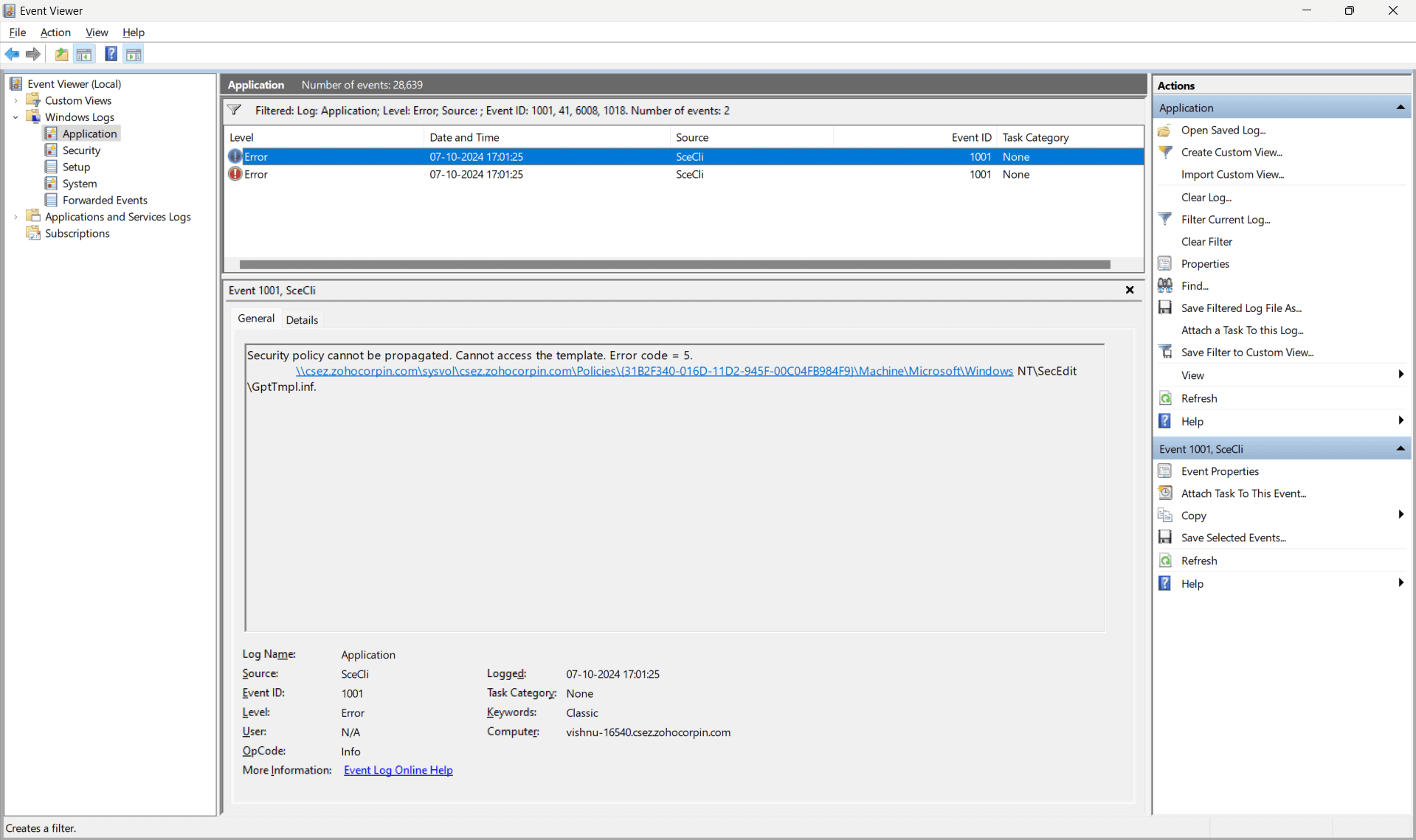
The Application log contains events logged by software programs rather than core operating system components. Software developers write instrumentation into their applications using the Event Logging API to record when a program encounters a fatal exception, experiences a database connection timeout, or successfully completes a batch process.
Administrators frequently monitor the Application log to troubleshoot software malfunctions. For example, if a web application built on the .NET Framework crashes unexpectedly, the Application log will often capture a .NET Runtime or Application Error event containing the faulting module name, exception code, and offset address.
Third-party enterprise software—such as database management systems, mail servers, and backup utilities—also writes operational metrics and warnings into this channel.
The Security Log
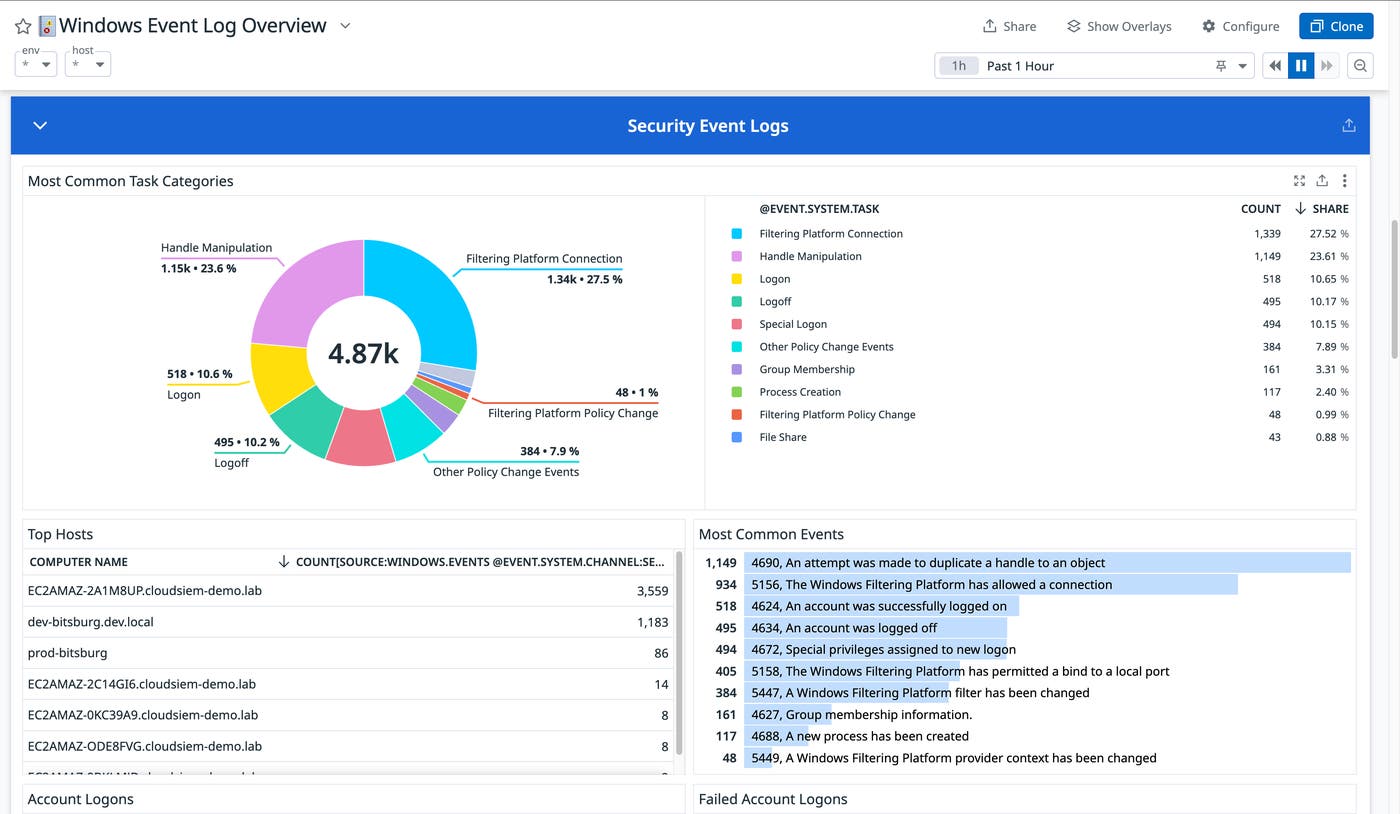
The Security log is the most scrutinized log type in enterprise networks due to its role in compliance, auditing, and digital forensics. It records events such as valid and invalid logon attempts, object access (file reading, writing, or deletion), privilege use, and policy changes.
Unlike other logs, the Security log is heavily protected. Access is strictly limited to the Local System and elevated administrators to prevent tampering. In environments configured with advanced auditing policies, the Security log captures granular activities, including:
- Logon/Logoff (Event IDs 4624, 4634): Detailing successful logons, specifying the logon type (e.g., interactive, network, remote interactive via RDP), and the account used.
- Account Management (Event IDs 4720, 4726): Recording when user accounts or security groups are created, modified, or deleted.
- Privilege Use (Event IDs 4672, 4673): Tracking when special privileges assigned to administrative accounts are exercised.
Because unauthorized modification of the Security log compromises forensic integrity, administrators often configure Group Policy settings to secure the log size, enforce retention policies, or immediately forward security events to a centralized SIEM platform.
The System Log
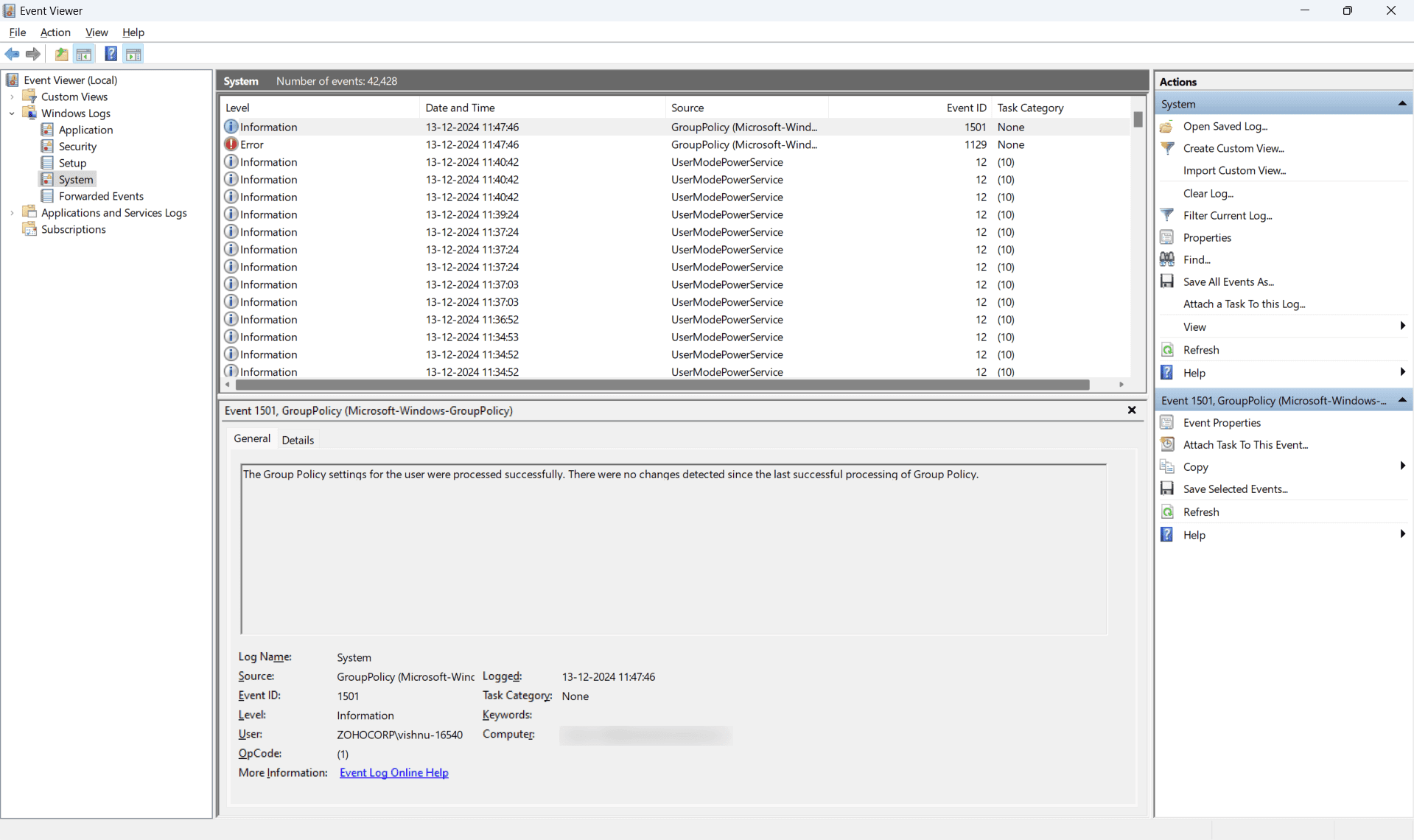
The System log captures events generated by Windows operating system components, kernel drivers, and boot-time services. If a hardware component fails, a critical driver crashes (causing a Blue Screen of Death, or BSOD), or a vital Windows service fails to start, the System log is the primary repository for diagnostic evidence.
Common entries in the System log include:
- Service Control Manager (SCM) Events: Tracking when services start, stop, or unexpectedly terminate. For instance, Event ID 7034 indicates that a service crashed unexpectedly.
- Disk and Storage Warnings: Warnings from the Volume Shadow Copy Service (VSS) or NTFS file system regarding disk corruption, bad blocks, or impending hardware failure.
- Power and Kernel Events: Tracking system sleep states, unexpected shutdowns (Event ID 41), and kernel-power management transitions.
The Setup Log
The Setup log records operational events associated with software setup and operating system installation. While everyday application installations are logged in the Application log, major OS upgrades, feature updates, Service Pack applications, and Active Directory domain controller promotions write their primary diagnostic trail to the Setup log.
During an operating system deployment or feature upgrade cycle, administrators inspect the Setup log to diagnose why an installation failed midway through the migration phase, identifying missing prerequisite packages, incompatible registry keys, or locked driver files.
The Forwarded Events Log
In large enterprise environments, examining logs on individual endpoints is impractical. The Forwarded Events log acts as an aggregation point for computers configured as collectors under a Windows Event Forwarding (WEF) subscription model.
Source computers push specific events across the network to a centralized Windows Event Collector (WEC) server. This log allows security operations centers (SOCs) to centralize telemetry from thousands of workstations and servers into a single console without requiring heavy third-party agent software on every endpoint.
Understanding Event Levels and Severity
Every event written to a Windows Event Log carries a severity classification known as an "Event Level." These levels allow administrators to filter out noise and prioritize urgent alerts. The primary event levels defined by the Windows Eventing subsystem include:
- Critical (Level 1): Indicates a catastrophic failure of an application or system component from which the application cannot automatically recover. Immediate intervention is required.
- Error (Level 2): Represents a significant problem, such as a failed operation, data loss, or a hardware malfunction. While not immediately fatal to the entire operating system, an error indicates that functionality is impaired.
- Warning (Level 3): Does not indicate immediate failure, but points to a condition that could lead to future problems if left unaddressed. Examples include low disk space warnings or deprecated API calls.
- Information (Level 4): A routine operational event indicating successful execution of an application, service, or driver. Examples include a service starting successfully or a user successfully logging in.
- Verbose (Level 5): High-frequency diagnostic data containing detailed debugging information. Verbose logging is typically disabled by default because it generates large volumes of data that can rapidly consume disk space.
Advanced Log Management and Custom Logs
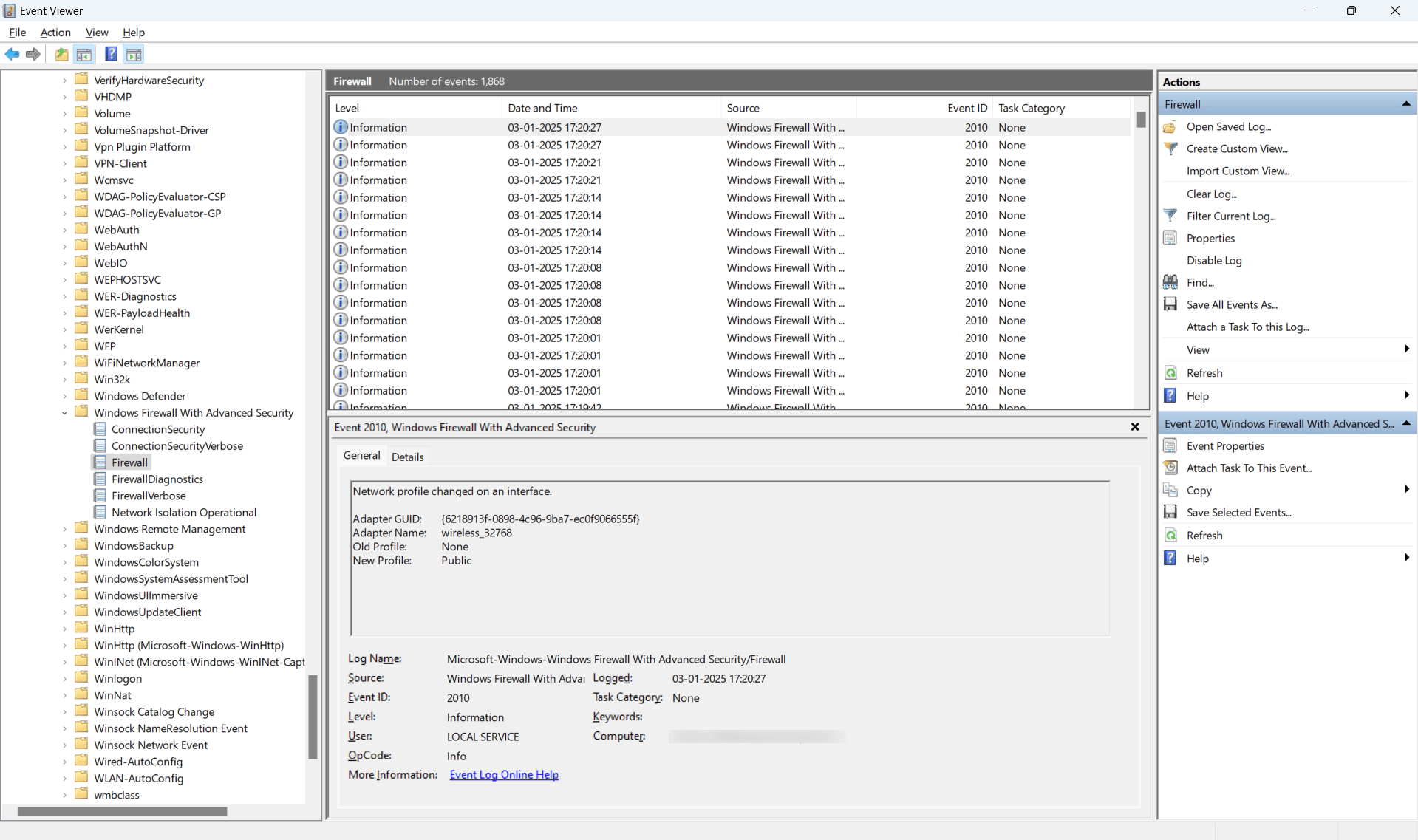
Beyond the default system logs, modern Windows environments utilize analytical and operational custom logs. Applications and administrative scripts can create customized event channels under Applications and Services Logs.
For example, Windows PowerShell maintains dedicated operational and analytical logs (such as Microsoft-Windows-PowerShell/Operational, Event ID 4104) that capture full script block text, enabling security analysts to detect malicious PowerShell execution even when obfuscated.
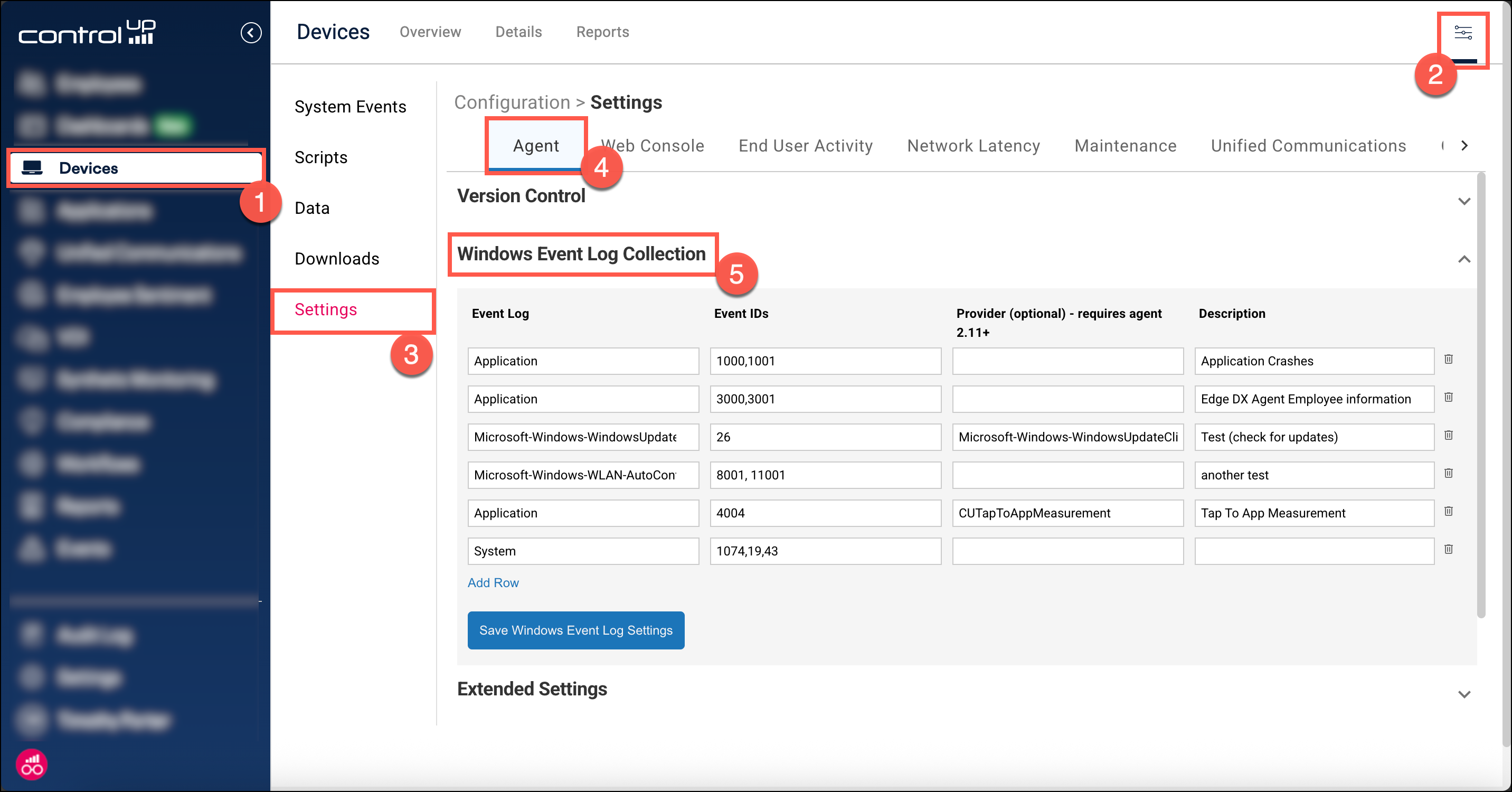
Administrators manage these logs using native command-line utilities such as wevtutil, PowerShell cmdlets (Get-WinEvent, Get-EventLog), or the graphical Event Viewer interface (eventvwr.msc). PowerShell offers immense flexibility for querying logs across the enterprise, allowing administrators to filter by Event ID, provider name, and time range programmatically.
Common Administrative Pitfalls and Best Practices
Mismanaging Windows Event Logs can lead to blind spots during security incidents or disk exhaustion on critical servers. Adhering to established operational best practices ensures log reliability:
- Inadequate Log Sizing: The default maximum size for many logs is often too small for high-traffic servers, leading to rapid circular overwriting where critical historical logs are lost within hours. Increase log sizes (e.g., setting the Security log to 1 GB or higher) based on event generation rates.
- Neglecting Audit Policy Tuning: Enabling all advanced security auditing settings without filtering generates massive log volumes that overwhelm storage and analysis tools. Implement targeted auditing policies aligned with frameworks like CIS Benchmarks.
- Failing to Centralize Logs: Relying solely on local event storage leaves systems vulnerable to log tampering by malicious actors who gain administrative access. Always forward critical Security and System logs to a centralized, write-once storage repository or SIEM.
Frequently Asked Questions
How do I open the Windows Event Viewer?
Press the Windows Key + R to open the Run dialog box, type eventvwr.msc, and press Enter. Alternatively, right-click the Start menu and select "Event Viewer" from the administrative quick-link menu.
What is the difference between the System log and the Application log?
The System log records events generated by core Windows operating system components, device drivers, and system services (such as kernel failures or service crashes). The Application log tracks events generated by user-installed software programs, databases, and third-party applications.
Why can't standard users view the Security log?
The Security log contains sensitive auditing data, including authentication attempts, password changes, and object access records. To prevent unauthorized user profiling, privilege escalation, or tampering, access to the Security log is strictly restricted to the Local System and elevated administrative accounts.
What is an Event ID and why is it important?
An Event ID is a unique numerical identifier assigned to a specific type of event generated by a provider. Instead of reading through lengthy descriptive text strings, administrators and automated monitoring tools use Event IDs to quickly categorize, filter, and script responses to specific system occurrences.
How can I forward Windows logs to a central server?
You can configure Windows Event Forwarding (WEF) using Group Policy. WEF relies on the Windows Remote Management (WinRM) service, allowing source computers to push selected event subscriptions to a designated Windows Event Collector (WEC) server.
What happens when a Windows Event Log reaches its maximum size?
By default, Windows Event Logs use circular logging. When a log reaches its configured maximum size, the system automatically overwrites the oldest events in the file to record new incoming data, unless manual archiving policies are enforced.
Conclusion and Next Actions
Understanding the Windows Event Log types transforms routine troubleshooting from guesswork into a systematic, evidence-driven discipline. By mastering the distinct roles of the Application, Security, System, Setup, and Forwarded Events logs, administrators can rapidly isolate faults, verify system integrity, and maintain robust security postures.
To take your administrative workflow to the next level, audit your current environment's log retention sizes, implement advanced PowerShell script block logging, and establish a centralized event forwarding pipeline for your critical infrastructure servers.
Image Gallery