How to Change a Forgotten Gmail Password: A Comprehensive Recovery Guide
Changing a forgotten Gmail password requires navigating Google’s account recovery protocols, which prioritize identity verification to protect your data. You must utilize the official Google Account Recovery page, provide evidence of o...
Changing a forgotten Gmail password requires navigating Google’s account recovery protocols, which prioritize identity verification to protect your data. You must utilize the official Google Account Recovery page, provide evidence of ownership through connected recovery methods—such as a secondary email address or a verified phone number—and verify your identity on a known device to reset your credentials securely.
Contents
Understanding the Google Account Recovery Framework
When you lose access to your Gmail account, you are effectively locked out of the broader Google ecosystem, including Drive, Photos, and YouTube. Google’s security infrastructure is designed to prevent unauthorized access, which means the "forgotten password" process is not a simple automated reset. Instead, it is an evidence-based verification flow.
The process relies on "Account Recovery" (AR) signals. Google evaluates factors such as the device you are using, your IP address, the browser history, and the recovery information you previously linked to the account. If you cannot provide these signals, the system may be unable to verify your identity, leading to a permanent loss of access. Therefore, preparation and knowing which verification methods are active are the most critical components of the recovery process.
Prerequisites for Password Recovery
Before you initiate the recovery flow, ensure you have the necessary prerequisites to maximize your chances of success. Attempting the process from an unrecognized location or a device you have never used before often results in a "Google couldn't verify this account belongs to you" error.
- Use a Familiar Device: Perform the recovery on a computer, tablet, or smartphone that you have previously used to sign in to that specific Gmail account.
- Use a Known Network: If possible, use the Wi-Fi network at your home or workplace where the account was commonly accessed.
- Identify Recovery Methods: Have access to your recovery email address or the mobile phone number associated with the account. You will need these to receive a Google-issued security code.
- Stay Updated: Ensure your browser is up to date and that you have cleared any conflicting cache files if you have multiple Google accounts logged into the same browser.
Step-by-Step Execution: The Recovery Flow
To begin the process, navigate to the official Google Account Recovery page. Follow these steps systematically:
- Enter Email: Input your Gmail address and click "Next."
- Select Password Prompt: When asked for your password, click on the "Forgot password?" link located at the bottom of the prompt.
- Use Last Known Password: Google will often ask for the last password you remember using. If you recall an old password, enter it. Even if it is incorrect, it serves as a data point for the system.
- Verification via Recovery Methods: If you have 2-Step Verification enabled, Google will send a prompt to your registered mobile device. If you do not have access to that device, click "Try another way."
- Code Verification: You may be prompted to receive a six-digit code via your recovery email address. Keep this browser window open, access your recovery email in a separate tab, retrieve the code, and enter it into the recovery flow.
- Identity Confirmation: Google may ask for additional questions, such as when the account was created or which security questions you may have set up in the past. Answer as accurately as possible.
- Reset Credentials: Once the system confirms your identity, you will be prompted to create a new, strong password. Ensure you save this in a secure password manager.
Troubleshooting Common Recovery Barriers
Many users encounter obstacles during the recovery process. Recognizing these hurdles can help you adjust your approach.
- "Google Couldn't Verify It's You": This is the most common error. It occurs when the security signals do not match your historical data. If you see this, do not repeatedly submit the form, as this can trigger a temporary "cooldown" period. Instead, try a different device or network that you have used in the past.
- Lost Access to Recovery Phone/Email: If you no longer have access to the recovery options, the path to recovery becomes significantly harder. Google does not have a manual "support desk" to reset passwords for security reasons. In such cases, the system relies entirely on your ability to answer security questions correctly.
- Wait Times: If you have provided enough information to trigger a manual review, Google may inform you that it will take 3-5 business days to process your request. Be patient; attempting to re-submit requests during this window can reset the timer.
Comparison of Recovery Methods
The following table summarizes the reliability and speed of various account recovery signals.
| Recovery Method | Reliability | Timeframe | Requirement |
|---|---|---|---|
| Recovery Phone | High | Instant | Access to the SIM card/Phone |
| Recovery Email | High | Instant | Access to the secondary inbox |
| Known Device/IP | Medium | Instant | Previously used hardware/network |
| Security Questions | Low | N/A | Must remember historical setup data |
| Manual Review | Variable | 3–5 Days | Requires sufficient account metadata |
Best Practices for Future Prevention
Once you have regained access, it is imperative to update your security settings to avoid a future lockout.
- Keep Recovery Info Current: Update your recovery email and phone number immediately if you change carriers or switch email providers.
- Use a Password Manager: Store your passwords in a reputable, encrypted password manager. This eliminates the need to rely on memory.
- Enable 2-Step Verification (2SV): Use a physical security key or an authenticator app. These methods are more secure than SMS-based recovery and provide a more reliable way to verify your identity.
- Backup Codes: Download and print your Google backup codes. These are one-time use codes that allow you to sign in if you lose your primary device or recovery method.
Frequently Asked Questions (FAQ)
Can I call Google support to reset my forgotten Gmail password? No. Google does not offer phone or email support for account recovery. The process is entirely automated to ensure that Google employees cannot access or reset accounts on behalf of users, which protects against social engineering attacks.
What should I do if I keep getting the "Too many failed attempts" error? Stop all attempts for 24 to 48 hours. Excessive failed attempts indicate suspicious activity to the system and will trigger a temporary lock. Waiting allows the system’s "risk score" for your attempt to reset, providing a cleaner slate for your next try.
Is it possible to recover a Gmail account without a phone number or email? It is difficult but not impossible. If you do not have these, the system will rely on other signals, such as the date you created the account, the location from which you logged in, and your knowledge of specific account details. If these are also unavailable, recovering the account may not be possible.
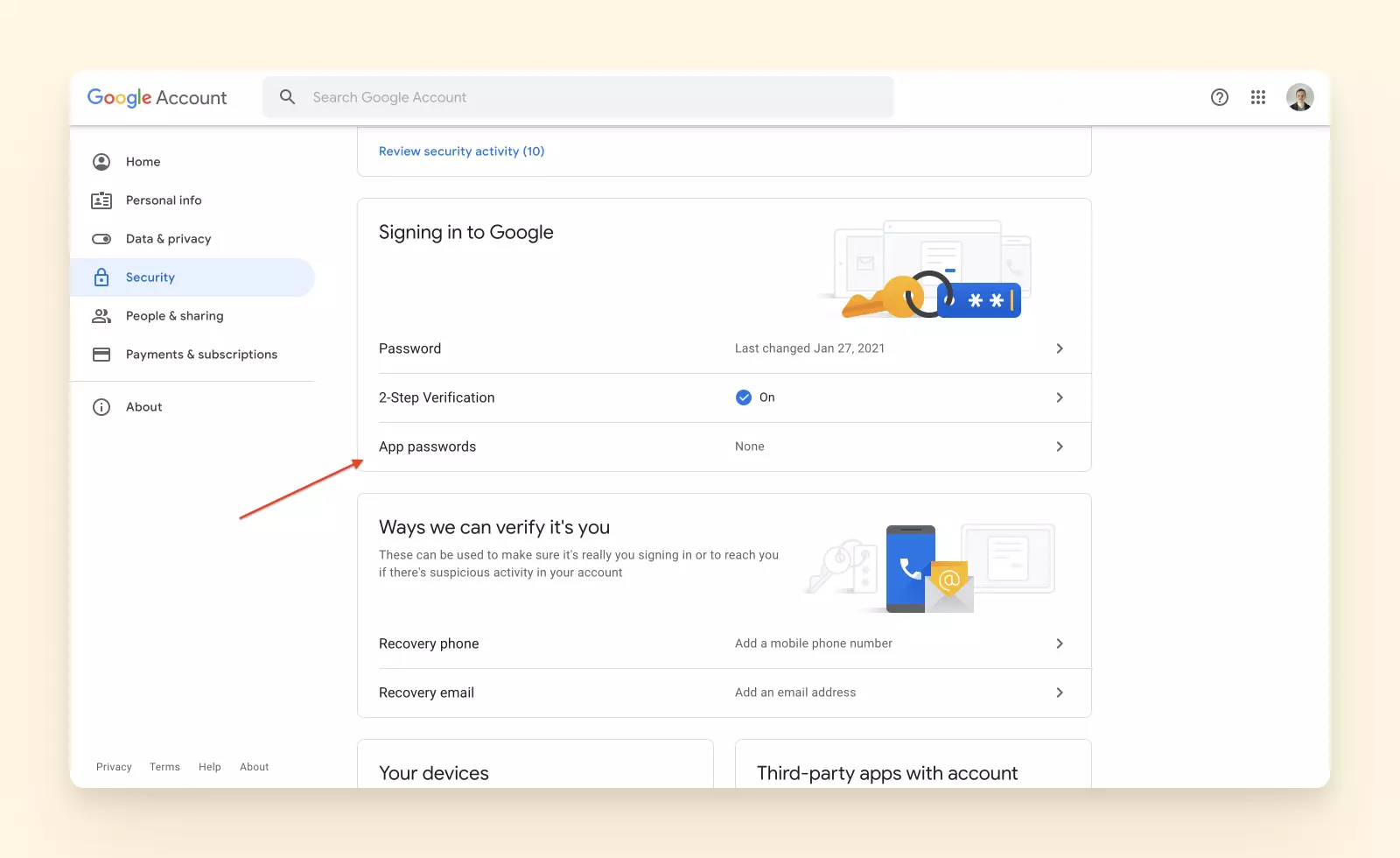
How do I check if my recovery info is up to date? Sign in to your Google Account and navigate to the "Security" tab. Under "Ways we can verify it’s you," you will see your linked recovery email and phone number. Ensure these are current and active.
Does using a VPN help in the recovery process? Generally, no. Using a VPN can actually hinder the recovery process because it masks your IP address, making it appear that you are connecting from a location or network the system does not recognize as "yours." Use your standard, local connection when attempting recovery.
Final Recommendation
The most effective way to regain access to your Gmail account is to use a device and network you have historically used for that account. If you encounter errors, prioritize accuracy over speed. Once you restore access, immediately implement a 2-Step Verification method and store your recovery codes in a secure, physical location.
Image Gallery