Choosing the Optimal Recording Application for iPhone in 2026
Selecting a high-quality recording application for your iPhone in 2026 requires balancing native hardware capabilities with specific professional or casual needs. Whether you require studio-grade audio for podcasting, automated transcr...
Selecting a high-quality recording application for your iPhone in 2026 requires balancing native hardware capabilities with specific professional or casual needs. Whether you require studio-grade audio for podcasting, automated transcription for meetings, or high-fidelity field recording, the Apple App Store offers specialized tools that leverage the advanced microphone arrays and processing power of the latest iPhone models.
Contents
Understanding iPhone Audio Hardware Capabilities
To maximize the potential of any recording application, users must first understand the technical constraints and features of the iPhone hardware. Since the release of the iPhone 15 and 16 series, Apple has refined its microphone array, providing improved signal-to-noise ratios and spatial audio capture.
- Sample Rates: Most professional applications support 44.1kHz or 48kHz, which are the industry standards for digital audio.
- Bit Depth: 24-bit recording is the current baseline for high-fidelity mobile production, allowing for greater dynamic range during post-processing.
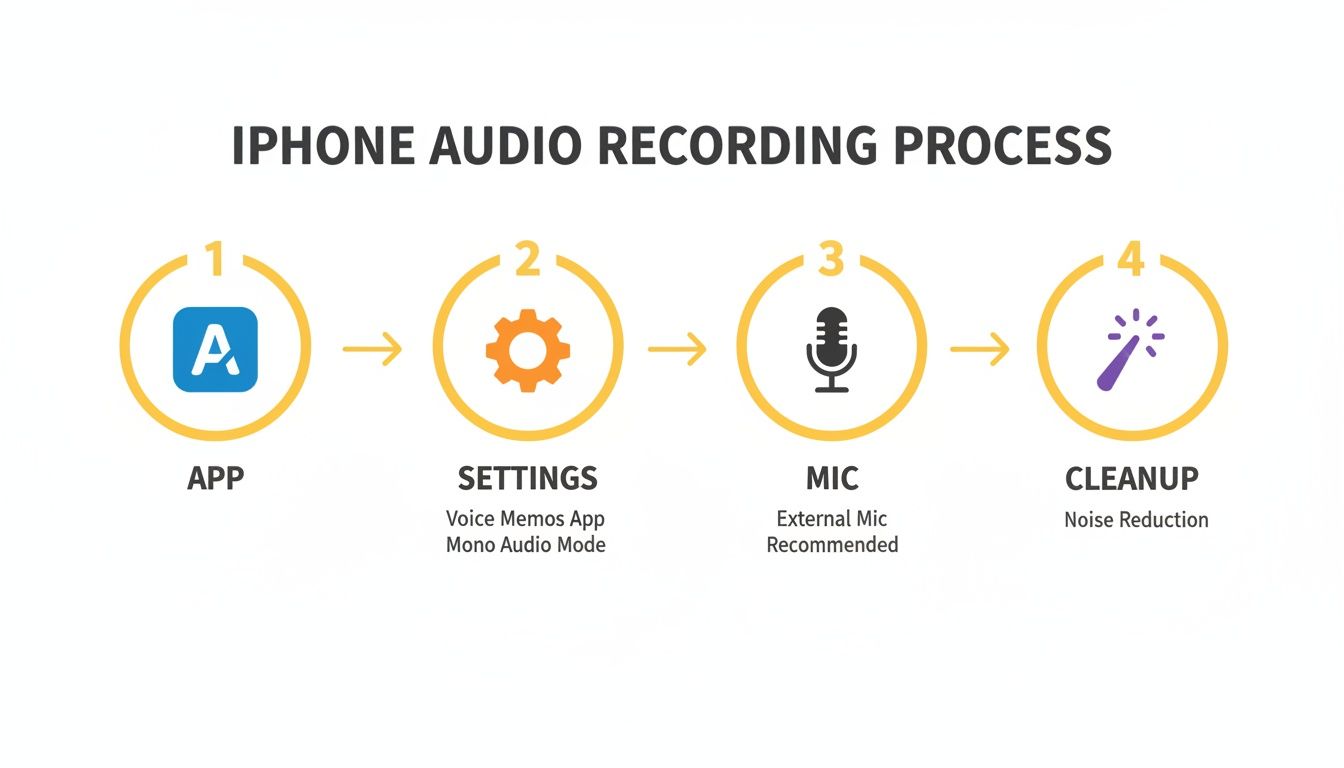
- Hardware Limitations: While the built-in microphones are highly optimized for voice, they are omnidirectional. For critical professional work, connecting an external XLR or USB-C digital interface is recommended.
Key Categories of Recording Applications
Not all recording applications serve the same purpose. Identifying your primary use case is the most critical step in software selection.
Professional Digital Audio Workstations (DAWs)
These applications are designed for multi-track recording, mixing, and arrangement. They are intended for musicians, podcasters, and sound designers who require granular control over gain staging, compression, and equalization.
Transcription and Productivity Tools
These applications focus on the "record-to-text" pipeline. In 2026, the integration of on-device Neural Engine processing allows these apps to generate highly accurate transcripts without needing an active internet connection, significantly improving data privacy and security.
Field and Voice Memo Utilities
These are lightweight, rapid-deployment applications designed for capturing interviews, lectures, or personal reminders with minimal latency.
Comparative Analysis of Top-Tier Recording Apps
The following table summarizes the most reliable applications available in 2026, categorized by their primary technical strengths.
| Application | Primary Use Case | Format Support | Key Feature |
|---|---|---|---|
| Ferrite Recording Studio | Multi-track Podcast | MP3, AAC, WAV | Advanced multi-track editing |
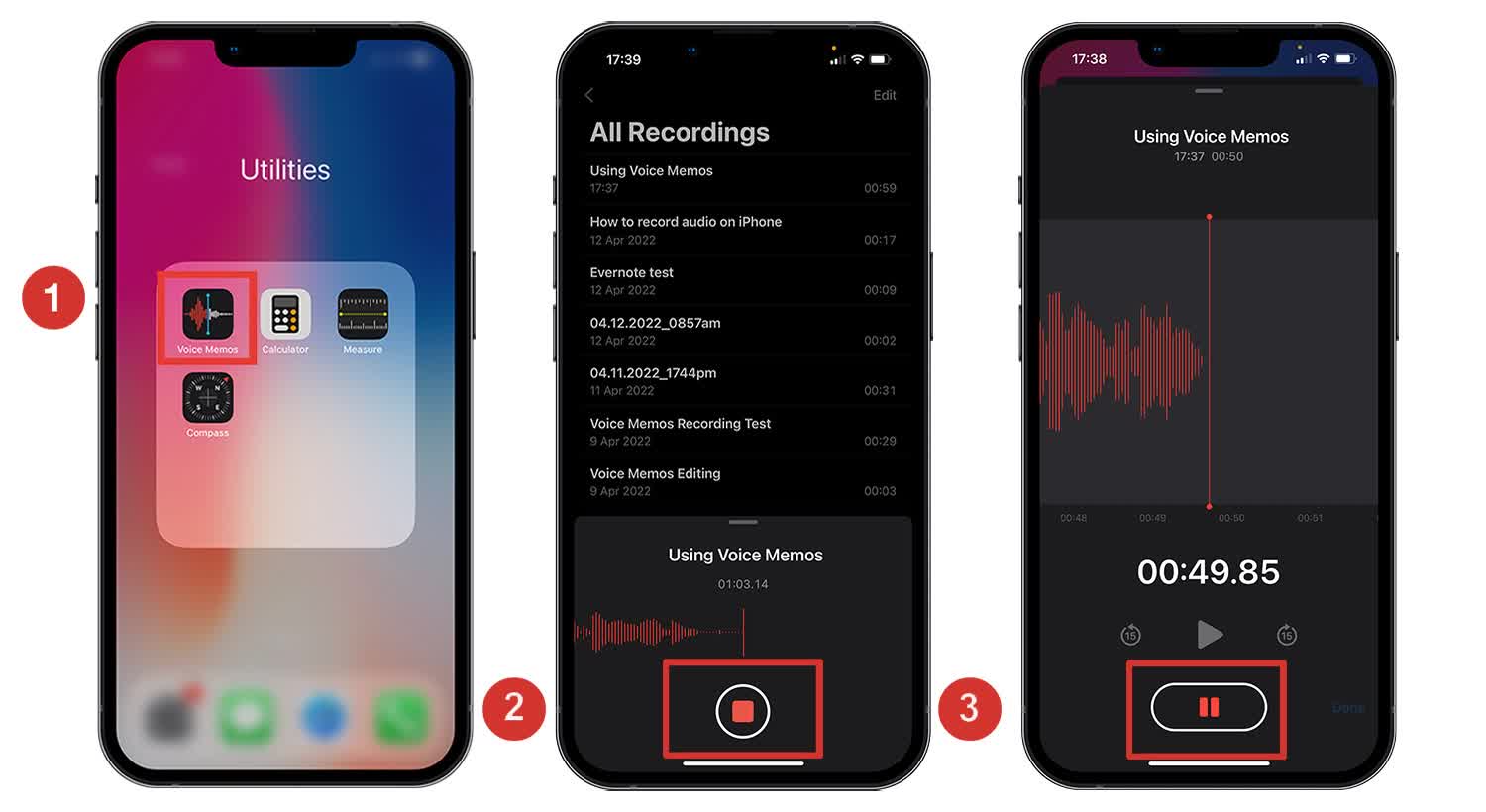
| Voice Memos (Native) | General Purpose | M4A | System-level integration |
| Otter.ai | Transcription/Meetings | AI-Text | Real-time speaker identification |
| TwistedWave | Precision Audio | WAV, FLAC, OGG | High-end batch processing |
| Hindenburg Field | Journalism | WAV, 24-bit | Auto-leveling/Optimization |
Workflow Best Practices for High-Fidelity Capture
Achieving professional results is not just about the software; it is about the acquisition chain. Follow these technical guidelines to ensure the highest fidelity audio:
- Gain Staging: Always aim for peaks between -6dB and -12dB. Avoid pushing levels into the red (clipping), as digital distortion is irreparable.
- Environment Selection: Even the best software cannot remove architectural reverberation. Record in small, carpeted rooms with soft furnishings to minimize slap-back echo.
- File Management: If using professional-grade apps like Ferrite or TwistedWave, export files in uncompressed formats (WAV or AIFF) to prevent generation loss during subsequent editing.
- Hardware Shielding: If recording in a windy environment, use a physical wind-muff accessory over the iPhone's microphone intake.
Navigating Privacy and Security Requirements
As of 2026, Apple maintains strict privacy requirements via the App Tracking Transparency framework. When choosing a recording application, prioritize those that offer "on-device" processing, especially for sensitive business meetings or interviews.
Data Sovereignty Protocols When selecting an application that requires cloud synchronization, verify the developer's stance on end-to-end encryption. Enterprise users should prioritize apps that allow for local-only storage or private cloud instances, ensuring that proprietary data does not reside on third-party servers in plain text.
Troubleshooting Common Audio Issues
Users often face technical hurdles when recording high-fidelity audio on iOS. Below are the most common solutions for typical failure points.
- Background Noise: If your app features a "Noise Gate" or "Noise Reduction" setting, ensure it is set to a conservative level. Aggressive noise reduction often results in "underwater" sounding artifacts.
- Latency during Monitoring: When using headphones, you may experience a slight delay. Use applications that support "Low Latency Monitoring" and ensure you are using wired connections, as Bluetooth introduces significant signal delay.
- Intermittent Recording Stops: This is often caused by low storage space or system battery optimization. Ensure at least 10GB of free storage and disable "Low Power Mode" to prevent the iOS kernel from throttling the recording process.
Frequently Asked Questions
Which recording app provides the best transcription accuracy in 2026? Applications utilizing the latest Large Language Model (LLM) APIs integrated into iOS 19/20 environments currently lead the market in accuracy. Otter.ai remains the industry standard for meeting context and speaker diarization.
Is it necessary to buy an external microphone for iPhone recording? If you are recording podcasts or interviews for professional distribution, an external microphone is mandatory. The internal microphones are engineered for voice communication and lack the diaphragm size required for high-frequency detail.
How do I transfer large audio files from my iPhone to a desktop? Use the Files app to store recordings locally, then utilize AirDrop for seamless, lossless transfer to a Mac. For Windows users, cloud sync services like iCloud Drive or direct USB-C connection to a PC file explorer are the most stable methods.
Do recording apps consume significant battery life? Yes, high-sample-rate recording with active waveform visualization is resource-intensive. Always ensure your device is charged above 50% or connected to an external battery pack for long-form recording sessions.
Can I record internal system audio using these applications? Due to Apple's strict sandboxing and security guidelines, applications cannot record internal system audio directly from other apps for privacy reasons. You must rely on screen recording with audio enabled or external capture methods.
Optimizing Your Audio Infrastructure
For those scaling their content creation, consider shifting from standalone app usage to a hardware-software ecosystem. Investing in a digital interface that is MFi (Made for iPhone/iPad) certified ensures that your recording application will recognize the external hardware without requiring cumbersome power adapters or third-party drivers. By standardizing your input chain and selecting the software that best aligns with your output goals, you ensure that your 2026 content meets modern professional standards for clarity, durability, and accessibility.
Image Gallery