Complete Guide to Developing and Using an Augmented Reality App iPhone in 2026
Developing or experiencing an augmented reality app iPhone requires understanding Apple's robust hardware-software ecosystem, primarily driven by ARKit and the powerful LiDAR scanners found in Pro models. Whether you are an end-user ex...
Developing or experiencing an augmented reality app iPhone requires understanding Apple's robust hardware-software ecosystem, primarily driven by ARKit and the powerful LiDAR scanners found in Pro models. Whether you are an end-user exploring immersive digital overlays or a developer designing spatial computing experiences, leveraging Apple's native frameworks ensures high performance, accurate motion tracking, and seamless real-world integration.
Contents
Understanding the Core Architecture of iPhone Augmented Reality
Apple has consistently pushed the boundaries of mobile spatial computing, making the iPhone one of the most capable hardware platforms for augmented reality. At the heart of this capability is ARKit, Apple's proprietary augmented reality framework. ARKit blends device motion tracking, camera capture, and advanced scene processing to bridge the digital and physical worlds.
When running an augmented reality app iPhone users benefit from hardware-level integration. Modern iPhone models feature sophisticated Neural Engines and, in Pro configurations, dedicated LiDAR (Light Detection and Ranging) scanners. The LiDAR scanner measures distance by illuminating targets with pulsed laser light, generating precise depth maps in real time. This allows digital objects to realistically occlude behind physical obstacles, such as furniture or people, rather than simply floating on top of the camera feed.
Developers working within this ecosystem rely on RealityKit for rendering, animation, and physics, alongside Xcode and Reality Composer Pro. These tools streamline the creation of 3D assets, material shaders, and spatial audio interactions. By optimizing code for Apple's A-series silicon, developers ensure that applications maintain high frame rates, minimizing latency and preventing motion sickness during extended user sessions.
Essential Prerequisites and Hardware Compatibility
Before deploying or utilizing an augmented reality app iPhone hardware specifications dictate the scope of available features. While basic ARKit tracking functions work across a wide range of iOS devices, advanced spatial mapping and occlusion features demand specific hardware generations.
The following hardware tier breakdown illustrates how different iPhone capabilities affect augmented reality performance:
| iPhone Generation / Model | LiDAR Scanner Support | Advanced Occlusion & Meshing | Recommended Use Case |
|---|---|---|---|
| iPhone 15 Pro / 16 Pro Series | Yes (Dedicated Sensor) | Full Scene Reconstruction | High-end gaming, interior design, 3D scanning, professional CAD visualization. |
| iPhone 15 / 16 Base Models | No (Software Estimation) | Basic Plane Detection | Standard AR games, face-tracking filters, basic product visualization. |
| Older Legacy Models (e.g., iPhone 11/12) | No | Limited Feature Set | Lightweight educational tools, simple marker-based AR experiences. |
To build or run these applications efficiently, development and testing environments must meet strict standards:
- Operating System: iOS development requires the latest stable version of macOS running Xcode, with deployment targets matching current iOS versions.
- Developer Accounts: An active Apple Developer Program membership is necessary for provisioning devices, testing proprietary ARKit features, and publishing to the App Store.
- Physical Testing Devices: Emulators cannot accurately simulate spatial tracking, lighting conditions, or LiDAR depth mapping, making physical iPhone test units mandatory.
Step-by-Step Guide to Deploying and Testing Your First AR Application
Building and launching an augmented reality app iPhone workflow requires a structured approach from initial project setup to final App Store submission. Follow this technical roadmap to build a stable and performant AR experience.
- Initialize the Project in Xcode: Open Xcode, select a new iOS project, choose the Augmented Reality App template, and set RealityKit as the default content technology. Ensure your bundle identifier and team credentials are correctly configured.
- Configure Scene Understanding: Implement session configurations in Swift. Enable plane detection (horizontal and vertical) and person occlusion to ensure digital content interacts naturally with the physical environment.
- Import and Optimize 3D Assets: Convert raw 3D models into USDZ format, Apple's universal spatial file format. Compress textures and polygon counts to maintain a consistent 60 frames per second rendering rate on target mobile hardware.
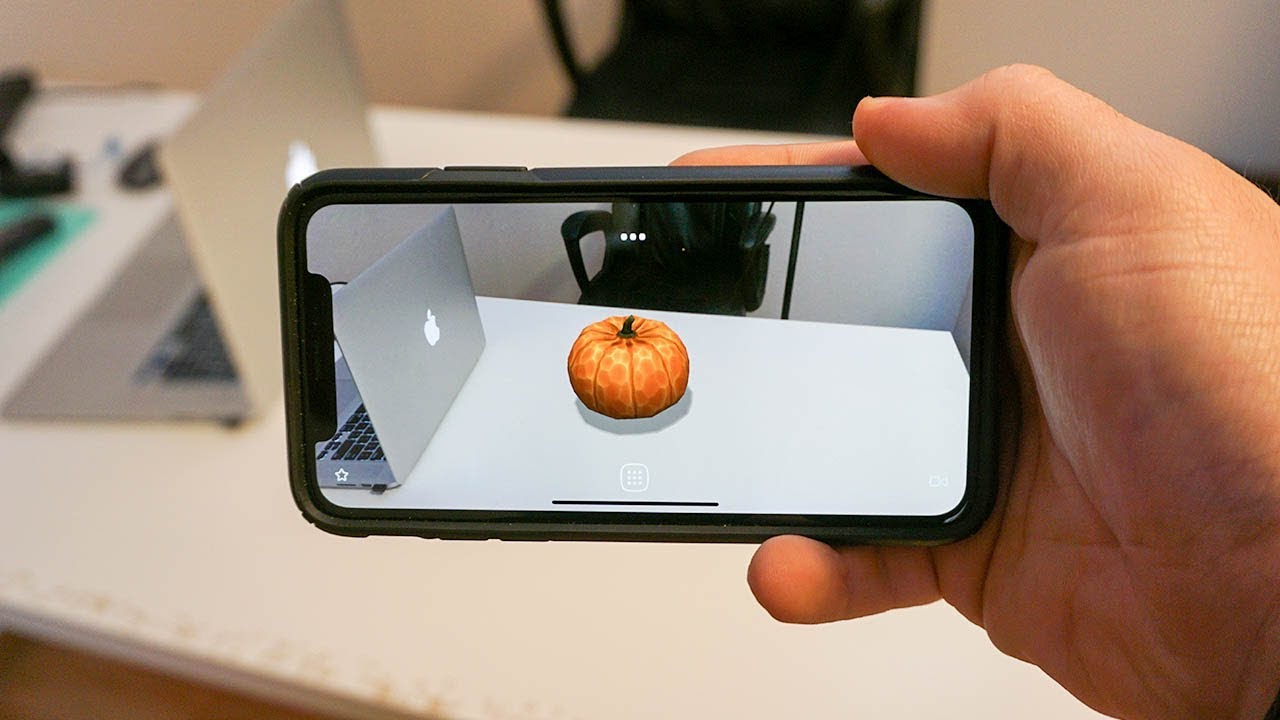
- Implement Anchor Placement and Gestures: Write interaction logic allowing users to tap the screen to place virtual objects onto detected real-world surfaces. Incorporate pinch-to-zoom and rotation gestures for user manipulation.
- Handle Tracking Loss and Edge Cases: Program fallback UI elements to notify users when lighting is too dim or when rapid device movement causes ARKit tracking to temporarily fail.
- Deploy and Profile Performance: Connect your iPhone via USB or wireless debugging, build the project, and use Xcode Instruments to monitor CPU, GPU, and thermal metrics during active AR sessions.
Expert Development Tip: Always test your augmented reality app iPhone builds in varied lighting environments. Bright outdoor sunlight can saturate camera sensors and disrupt feature point extraction, while dark rooms impair plane detection accuracy.
Evaluating Pros and Cons of iPhone-Based Augmented Reality
Developing for the iOS ecosystem offers distinct advantages, but it also presents unique technical hurdles. Understanding these trade-offs helps teams allocate resources effectively.
Advantages
- Optimized Hardware-Software Integration: Apple controls both the hardware design and the AR frameworks, resulting in exceptionally low latency and high tracking fidelity.
- Monetization Potential: The iOS App Store traditionally yields higher user monetization rates compared to alternative mobile platforms.
- Security and Privacy: Built-in frameworks handle camera permissions securely, ensuring user trust regarding spatial data collection.
Limitations
- Hardware Fragmentation: Advanced features like instant LiDAR meshing are exclusive to Pro tier models, requiring developers to write fallback code for standard devices.
- Thermal Throttling: Continuous camera use, heavy 3D rendering, and neural processing can quickly generate heat, leading to CPU throttling and reduced frame rates over prolonged sessions.
- Battery Consumption: AR applications demand significant power, draining device batteries much faster than standard mobile apps.
Troubleshooting Common Augmented Reality App Performance Issues
Even with optimized code, developers often encounter specific roadblocks during the lifecycle of an augmented reality app iPhone deployment. Addressing these errors promptly prevents negative user reviews and app abandonment.
- Tracking Drift and Object Jitter: If virtual objects appear to slide across physical surfaces or vibrate erratically, verify that feature point extraction is stable. Adding ambient lighting estimation helps ARKit adapt to changing environmental conditions.
- Excessive Memory Warnings: Loading high-resolution textures into a mobile AR scene can trigger out-of-memory crashes. Use texture atlases, implement aggressive level-of-detail (LOD) management, and unload unused USDZ assets dynamically.
- Permission Denial Failures: If the app crashes upon launch, ensure your Info.plist file includes explicit privacy descriptions for NSCameraUsageDescription and NSWorldSensingUsageDescription, detailing why spatial tracking data is required.
Frequently Asked Questions
What makes an augmented reality app iPhone experience different from other platforms?
Apple's unified ecosystem allows tightly integrated hardware sensors like LiDAR to work seamlessly with native software frameworks like ARKit and RealityKit, delivering superior tracking accuracy and realistic object occlusion. This tight coupling results in smoother, more convincing augmented reality experiences than typically achieved on fragmented operating systems.
Do I need a LiDAR scanner to run every augmented reality app iPhone users download?
No, the vast majority of AR applications rely primarily on standard camera feeds and computer vision algorithms, making them compatible with older or standard iPhone models. However, applications requiring precise indoor mapping, room scanning, or advanced real-world physics occlusion explicitly require an iPhone Pro model equipped with a LiDAR sensor.
How can I optimize battery life when running heavy augmented reality workflows?
To optimize battery consumption, developers should lower rendering resolution dynamically when fast motion is detected, limit the use of high-polygon assets, and pause AR tracking sessions whenever the application transitions to the background. Efficient memory management directly correlates with reduced power draw and lower thermal output.
What is the best file format for 3D assets in iOS augmented reality development?
Apple strongly recommends the USDZ (Universal Scene Description Zip) format for all 3D content within ARKit and RealityKit. USDZ files bundle geometry, animations, and high-fidelity textures into a single compact file optimized for rapid mobile loading and rendering.
Can augmented reality apps on the iPhone operate without an internet connection?
Yes, most core ARKit tracking, plane detection, and local rendering functions operate entirely on-device without requiring an active internet connection. Network connectivity is only required if the application streams remote assets, syncs multiplayer state, or communicates with cloud databases.
How do I handle tracking loss gracefully within my application code?
You should implement delegate methods from ARSessionDelegate to monitor tracking state changes. When tracking is limited or lost, display clear, non-intrusive user interface prompts advising the user to pan the camera slowly or improve room lighting to re-initialize feature points.
Image Gallery