Why Command-Shift-V Is Not Working on Mac and How to Fix It
The "Command-Shift-V" shortcut on macOS, known as "Paste and Match Style," often stops functioning due to software conflicts, outdated application-specific settings, keyboard mapping modifications, or clipboard management errors. Resol...
The "Command-Shift-V" shortcut on macOS, known as "Paste and Match Style," often stops functioning due to software conflicts, outdated application-specific settings, keyboard mapping modifications, or clipboard management errors. Resolving this issue typically involves verifying system keyboard shortcuts, restarting background processes like the Clipboard Manager, or updating the application in which the command is failing to execute.
Contents
Understanding the Role of Paste and Match Style
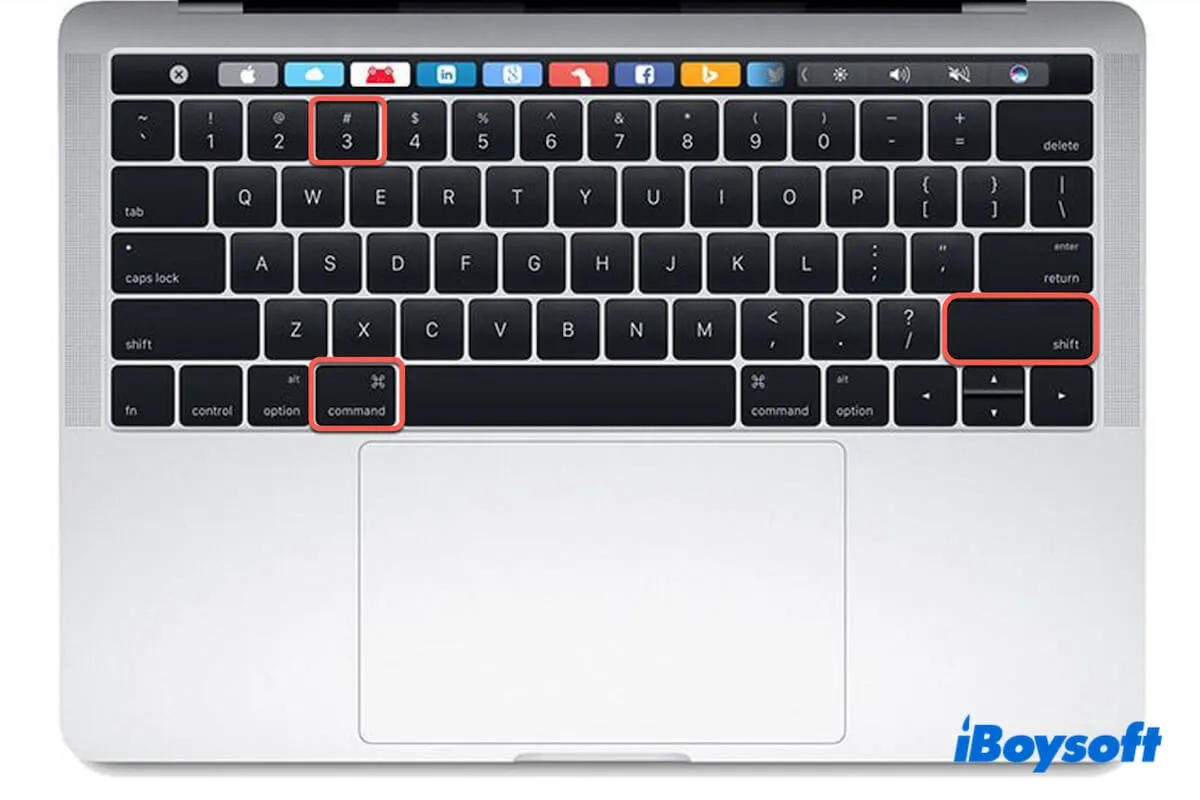
The "Paste and Match Style" command is an essential feature for power users, students, and professionals who frequently move text between disparate sources. Unlike a standard "Paste" (Command-V), which preserves the font, size, color, and formatting of the source material, "Paste and Match Style" (Command-Shift-V) forces the pasted text to adopt the style of the destination document.
When this shortcut becomes unresponsive, it interrupts a workflow designed to save time. This failure is rarely due to a hardware defect; rather, it is almost exclusively a software-level disagreement between the operating system’s global keybindings and the specific requirements of the application you are using.
Common Causes for Shortcut Failure
Before attempting complex system repairs, it is important to identify why the shortcut is failing. The most frequent triggers include:
- Application-Specific Overrides: Many professional suites (such as Adobe Creative Cloud or Microsoft 365) designate their own internal shortcuts. If an application uses Command-Shift-V for a proprietary function, that internal command will override the macOS global shortcut.
- Keyboard Shortcut Conflicts: If you or a third-party application have customized your keyboard shortcuts in System Settings, you may have accidentally assigned a different command to the same key combination.
- The pboard Process: macOS manages copy-paste functions through a background process called
pboard. If this process becomes hung or experiences a memory leak, clipboard operations—including specialized pasting functions—may become erratic. - Input Method Issues: Users who switch between multiple keyboard languages or use custom input source layouts sometimes encounter scenarios where the modifier keys are not registered correctly by the system’s interface framework.
Step-by-Step Troubleshooting Guide
If you find that Command-Shift-V is unresponsive, follow these diagnostic steps in order of increasing complexity.
1. Verify the Application Menu
The fastest way to determine if the issue is global or application-specific is to check the "Edit" menu in the top status bar. Click Edit while your target application is active. Look for "Paste and Match Style." If the shortcut is listed there, the application supports the command. If the shortcut key is displayed differently or is missing, the application has likely overridden it.
2. Restart the Clipboard Process
If the command fails across all applications, the system clipboard service may need a reset. You can restart the pboard process using the Activity Monitor:
- Open Activity Monitor (via Spotlight search).
- Search for "pboard" in the search bar.
- Select the process and click the X icon at the top of the window.
- Select Force Quit. macOS will automatically restart the process.
3. Check System Settings for Conflicts
Sometimes, a conflict occurs within the macOS system shortcuts settings.
- Open System Settings (or System Preferences on older versions of macOS).
- Navigate to Keyboard > Keyboard Shortcuts.
- Select App Shortcuts in the left sidebar.
- Check for any entries that might be using Command-Shift-V. If you see one, remove it or change the shortcut to restore default behavior.
4. Testing in Safe Mode
To rule out third-party software interference (such as clipboard managers like Alfred, Paste, or CopyClip), boot your Mac into Safe Mode. If the shortcut works perfectly in Safe Mode, you know a background application is hijacking your key inputs. Disable your third-party clipboard utilities one by one to find the culprit.
Comparison of Clipboard Functions
| Feature | Shortcut | Resulting Formatting | Best Used For |
|---|---|---|---|
| Standard Paste | Command-V | Preserves original source formatting | Pasting images, tables, or formatted layouts |
| Paste and Match Style | Command-Shift-V | Adopts destination formatting | Integrating web text into documents |
| Paste as Plain Text | Varies | Strips all styling | Cleaning up code snippets or raw data |
Addressing Application-Specific Limitations
Some applications, particularly web-based editors or older legacy software, do not support "Paste and Match Style." For example, some browser-based text editors might intercept the shortcut to trigger an "Insert Link" or "View Source" menu.
If you are working in a web browser, check the browser's own extensions. Browser extensions—specifically those for password management or text expansion—are notorious for grabbing key combinations that conflict with standard system-level commands. Try disabling extensions one by one to see if the shortcut resumes function within your browser tabs.
Advanced Fixes: Rebuilding Keyboard Layouts
In rare cases, the macOS keyboard mapping database may become corrupted. If you have confirmed that the shortcut is enabled in settings and that no background apps are interfering, you may need to reset the keyboard dictionary or input sources.
- Navigate to System Settings > Keyboard > Input Sources.
- If you have multiple languages enabled, remove the secondary ones temporarily to see if the mapping clears.
- Ensure your primary language input is set to the correct region (e.g., U.S. English).
Frequently Asked Questions
Why does my Mac beep when I press Command-Shift-V? A beep usually indicates that the shortcut is disabled for the current context or that the application does not have a "Paste" command available (e.g., the clipboard is empty or the focus is on a non-editable field). Ensure there is actually content in your clipboard by using the "Show Clipboard" command in the Finder’s "Edit" menu.
Can I create a custom shortcut if Command-Shift-V won't work? Yes. You can override or create a custom shortcut in System Settings > Keyboard > Keyboard Shortcuts > App Shortcuts. Create a new entry for "All Applications," name it exactly "Paste and Match Style," and assign a new, unique key combination to it.
Does this shortcut work on third-party keyboards? Generally, yes. macOS handles the software mapping regardless of whether you use a Magic Keyboard or a mechanical third-party keyboard. However, if your keyboard uses custom software (like Logitech Options or Razer Synapse), ensure that the keyboard software is not mapping "Command-Shift-V" to a macro.
Will updating macOS fix this issue? If the issue is a bug within a specific version of macOS, Apple often includes patches in system updates. Check the "General" > "Software Update" pane to ensure you are running the most recent version available for your hardware.
Does "Paste and Match Style" work for images? No. This command is designed specifically for text objects. If you attempt to paste an image, the system will either perform a standard paste or do nothing, as "matching style" is not applicable to binary image data.
Next Actions for Users
If you have performed the steps above and Command-Shift-V remains unresponsive, start by isolating the issue. Document which specific application causes the failure. If the shortcut works in Notes but fails in Microsoft Word, the issue is strictly contained within Microsoft’s internal settings.
For persistent issues, consider reaching out to the developer of the specific software you are using, or perform a "Clean Boot" by logging into a new Test User account on your Mac. If the shortcut works in a new user account, your original user profile’s configuration files (plist files) likely contain the error and may require a technical reset by an authorized professional.
Image Gallery