Mastering the SSH2 SFTP Client: Secure File Transfer and Protocol Architecture
An SSH2 SFTP client is a specialized software application that utilizes the Secure Shell version 2 protocol to securely transfer, manage, and manipulate files over a network connection. By routing all data exchanges and authentication...
An SSH2 SFTP client is a specialized software application that utilizes the Secure Shell version 2 protocol to securely transfer, manage, and manipulate files over a network connection. By routing all data exchanges and authentication commands through an encrypted cryptographic tunnel, it ensures that sensitive data, credentials, and file metadata remain protected from interception, eavesdropping, and tampering by malicious actors.
Contents
Navigating file transfers in enterprise infrastructure, cloud environments, and secure web hosting relies heavily on encrypted communication channels. While older protocols like FTP and TFTP transmit data and passwords in plain text, modern security requirements demand robust encryption standards. Understanding how an SSH2 SFTP client operates, how it differs from related protocols, and how to configure it effectively is essential for system administrators, developers, and security professionals managing remote servers.
Understanding the Foundation: What is SSH2 SFTP?
The SSH File Transfer Protocol (often abbreviated as SFTP, but distinct from Simple File Transfer Protocol) is a network protocol that provides file access, file transfer, and file management functionalities over any reliable data stream. It was designed by the Internet Engineering Task Force (IETF) as an extension of the Secure Shell (SSH) protocol version 2.0 to provide a secure alternative to legacy file transfer methods.
Unlike traditional File Transfer Protocol (FTP), which opens separate control and data channels (frequently complicating firewall configurations and Network Address Translation setups), SSH2 SFTP runs entirely over a single, secure SSH connection—typically operating over TCP port 22 by default. This design significantly reduces the attack surface of the remote host. Every command, file listing, binary stream, and administrative action is packetized and encrypted using advanced cryptographic ciphers such as AES (Advanced Encryption Standard), ChaCha20, or legacy algorithms like Triple-DES, depending on the server and client configuration.
Furthermore, SSH2 SFTP incorporates robust authentication mechanisms. Administrators can choose between traditional username and password credentials or, preferably, cryptographic public-key authentication. Public-key authentication utilizes asymmetric cryptography, eliminating the vulnerabilities associated with transmitted or guessed passwords and enabling secure, passwordless automated scripting for backups and deployment pipelines.
SFTP vs. FTPS vs. FTP: Core Technical Differences
When selecting a file transfer solution, users often encounter acronyms that sound similar but operate on fundamentally different underlying architectures. Confusing SFTP with FTPS or standard FTP can lead to misconfigured firewalls, unexpected security vulnerabilities, and compatibility issues.
Standard FTP transmits all commands, directory listings, and data payloads in clear text. Anyone with a network packet analyzer (sniffer) running on intermediate network segments can capture login credentials and file contents. FTPS (FTP over SSL/TLS) attempts to solve this by wrapping standard FTP sessions within a Transport Layer Security (TLS) or Secure Sockets Layer (SSL) wrapper. While secure, FTPS inherits the architectural quirks of FTP, requiring a dynamic range of ports for data transfers, which creates severe operational hurdles when traversing strict corporate firewalls or cloud security groups.
SSH2 SFTP, conversely, is not FTP running over SSH; it is an entirely separate protocol engineered from the ground up for the SSH-2 suite. It utilizes a single port, handles packet multiplexing seamlessly, and provides a comprehensive file system management API that allows clients to resume interrupted transfers, modify file permissions, read symbolic links, and delete remote files programmatically.
| Feature / Protocol | Standard FTP | FTPS (FTP over SSL/TLS) | SSH2 SFTP |
|---|---|---|---|
| Primary Network Port | 21 (Control), Dynamic (Data) | 990/21 (Control), Dynamic (Data) | 22 (Single port for all traffic) |
| Underlying Protocol | RFC 959 | FTP wrapped in TLS/SSL | Subsystem of SSH-2 (RFC 4253) |
| Firewall Friendliness | Low (Requires complex port ranges) | Low (Requires passive port ranges) | High (Single port, easy to tunnel) |
| Authentication Methods | Username and Password | Username, Password, X.509 Certs | Username, Password, SSH Keys |
| File Management Capabilities | Basic file read/write | Basic file read/write | Comprehensive filesystem API |
Essential Prerequisites for Establishing an SFTP Connection
Before launching an SSH2 SFTP client to connect to a remote server, several technical prerequisites must be satisfied. Ensuring these components are correctly prepared prevents connection timeouts, authentication failures, and permission denied errors.
First, verify that the remote server has an active SSH daemon running and that the SFTP subsystem is enabled in the configuration file (typically /etc/ssh/sshd_config). Look for the directive Subsystem sftp /usr/lib/openssh/sftp-server or its path equivalent. If this subsystem line is commented out or missing, the SSH connection may succeed, but the SFTP client will fail to initialize the file transfer session.
Second, gather the connection parameters:
- Host Address: The fully qualified domain name (FQDN) or IP address of the target server.
- Port Number: Typically port 22, unless the administrator has relocated the SSH daemon to a non-standard port for security through obscurity.
- Authentication Credentials: Either a valid username and password combination or a private SSH key file (e.g., RSA, ECDSA, or Ed25519 format). If using a key file protected by a passphrase, have that passphrase ready.
- Network Access: Confirm that outbound traffic on the designated port is not blocked by local firewalls, corporate proxies, or cloud security group rules.
Step-by-Step Guide: Connecting with a Graphical SFTP Client
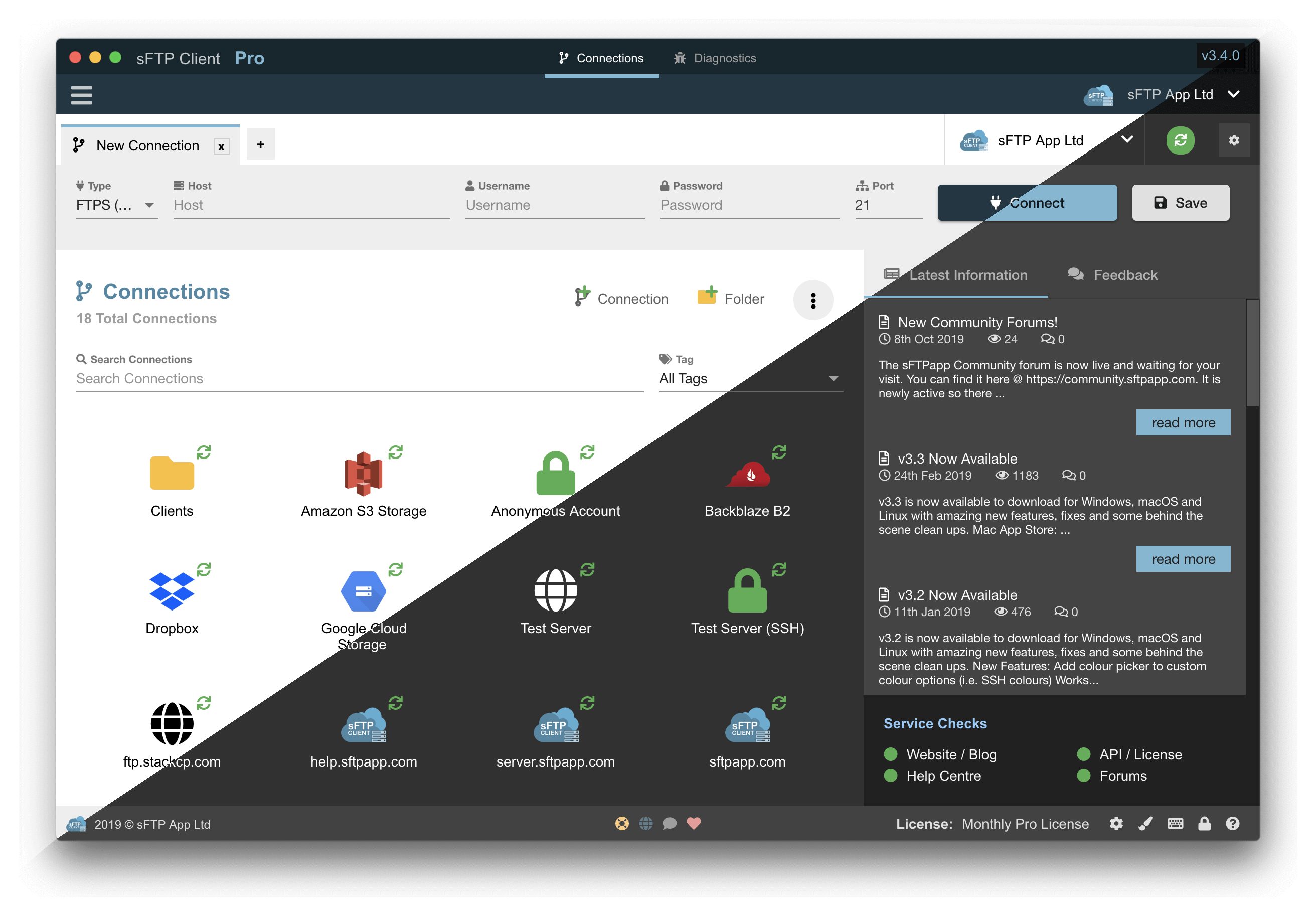
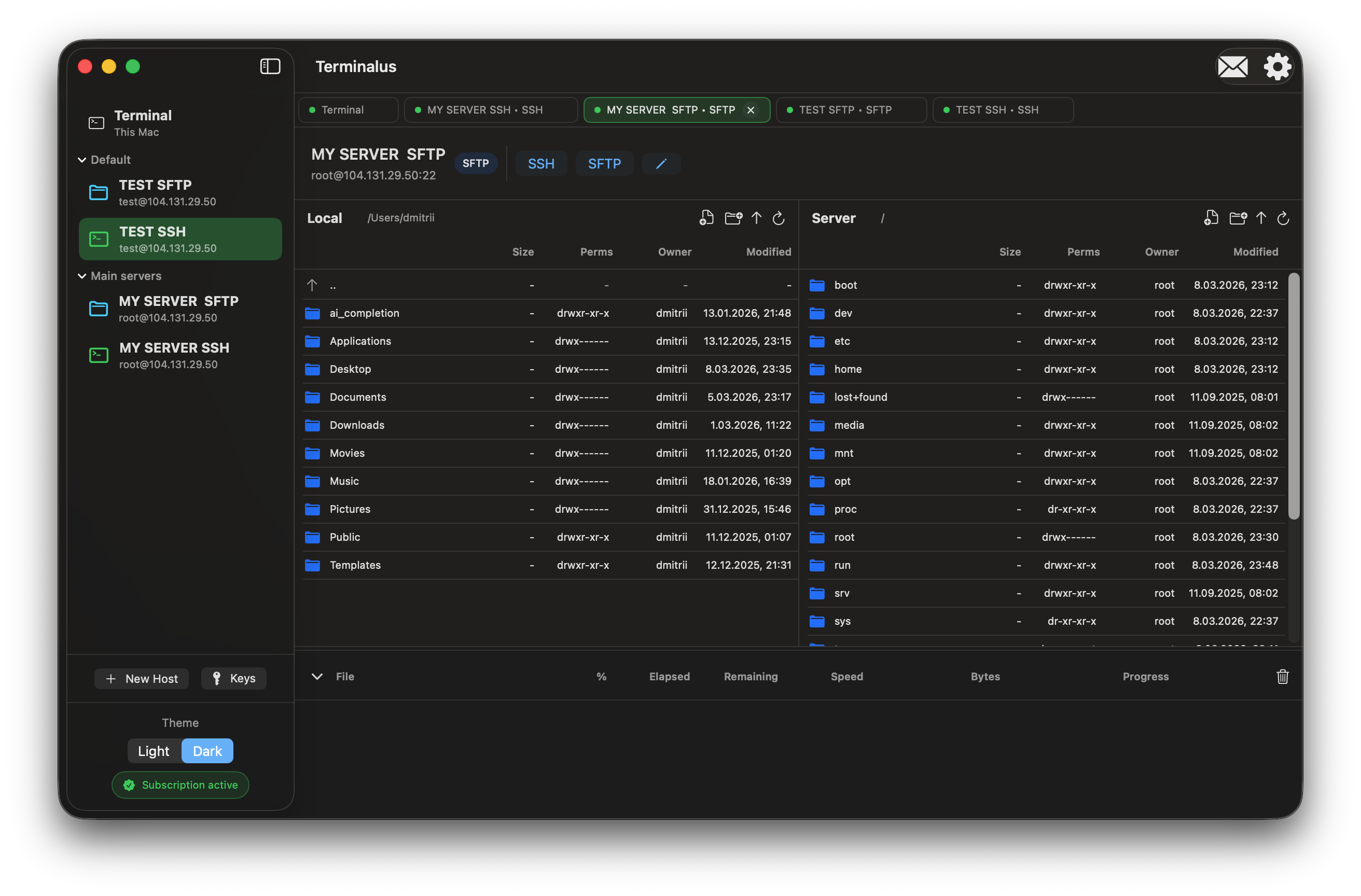
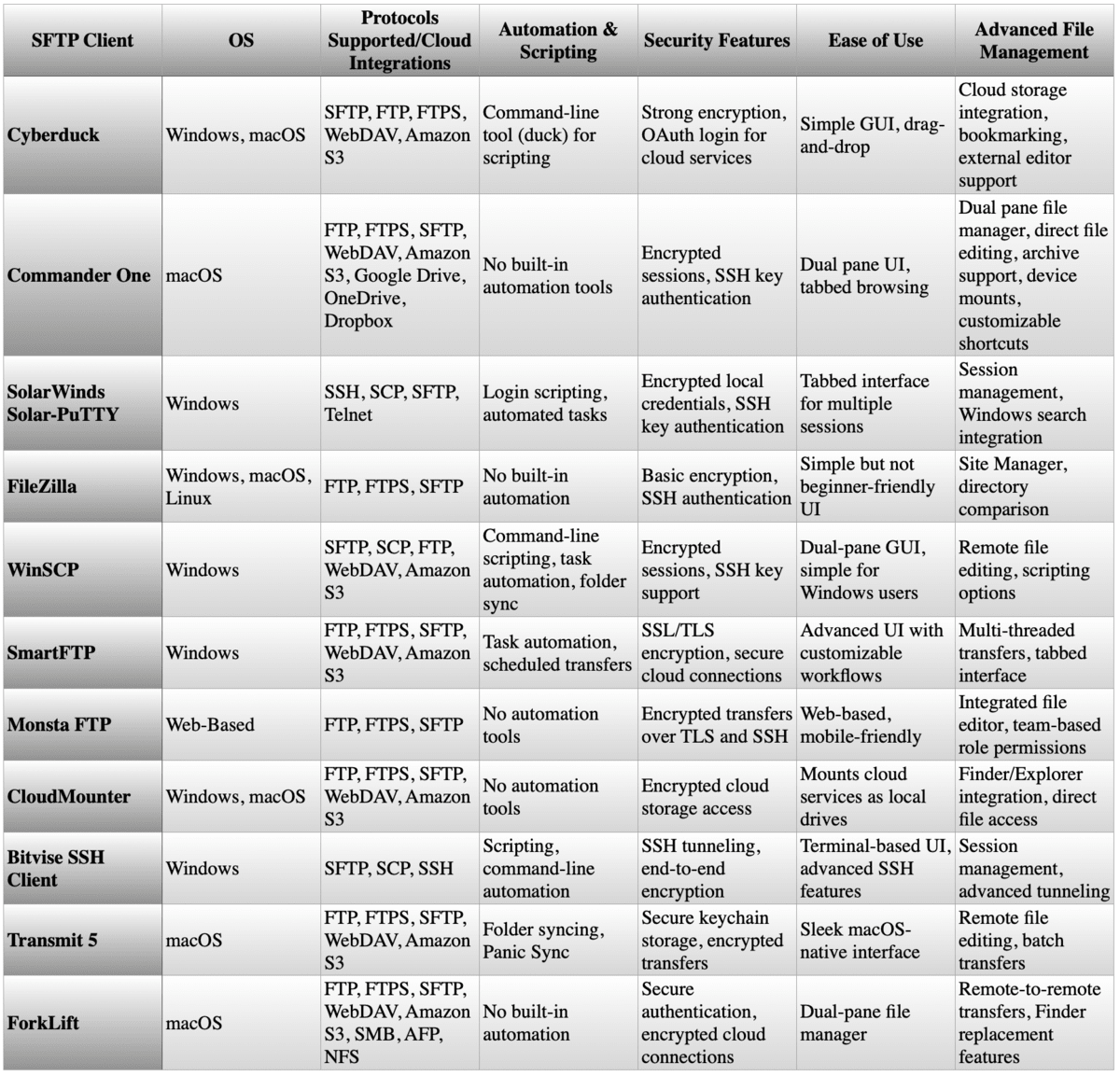
Graphical user interface (GUI) clients offer an intuitive, dual-pane layout that simplifies file navigation between local directories and remote servers. Popular cross-platform examples include FileZilla, Cyberduck, and WinSCP (for Windows environments).
- Launch and Open Site Manager: Open your preferred SSH2 SFTP client. Rather than entering credentials directly into the quick-connect bar every time, open the Site Manager to save connection profiles securely.
- Configure Protocol Settings: Create a new site profile. Set the protocol dropdown explicitly to SFTP - SSH File Transfer Protocol. Do not select FTP or FTPS, as this will result in connection handshake errors.
- Input Host and Port: Enter the remote server's hostname or IP address in the host field and verify the port number is set to
22(or your custom SSH port). - Select Logon Type: Choose Normal if authenticating with a password, or Key file if using public-key cryptography. For key files, browse your local file system to select your private key (
.pem,.ppk, or un-suffixed identity files). - Establish the Connection: Click Connect. Upon the initial connection to a new server, the client will display a host key fingerprint warning. Verify this cryptographic fingerprint against the server's actual host key to protect against Man-in-the-Middle (MitM) attacks, then trust and save the host key.
- Manage Files: Once authenticated, drag and drop files between the local pane (left) and the remote pane (right), or right-click files to change permissions (chmod), rename, or view file properties.
Command-Line SFTP Client Operations
For server-to-server migrations, automated scripting, or headless environments, mastering the built-in command-line sftp client is invaluable. Most POSIX-compliant operating systems include this client natively as part of the OpenSSH package.
To initiate a connection from a terminal, execute the following syntax:
sftp -P 22 username@remote_host_ip
If utilizing a specific private key file rather than default identity paths, invoke the -i flag:
sftp -i ~/.ssh/id_ed25519 -P 22 username@remote_host_ip
Once the interactive prompt (sftp>) appears, a robust set of internal commands becomes available. Unlike standard FTP, commands mirror standard Unix file manipulation utilities:
lsandlls: List remote and local directories respectively.cdandlcd: Change remote and local working directories.get filename: Download a remote file to the current local directory.put filename: Upload a local file to the current remote directory.mkdir pathname/rmdir pathname: Create or remove remote directories.df -h: Display disk space usage on the remote file system.byeorexit: Terminate the SFTP session.
Programmatic SFTP: Integrating SFTP Clients in Code
Developers frequently need to incorporate file transfers directly into software applications—such as uploading user-generated assets to cloud object storage or syncing database backups. Most modern programming languages provide mature, robust libraries for establishing programmatic SSH2 SFTP client sessions.
For instance, in Python, the paramiko library is the industry standard for handling SSHv2 protocol implementations, including SFTP client channels:
import paramiko host = "sftp.example.com" port = 22 username = "your_username" private_key_path = "/path/to/id_ed25519" # Initialize SSH client ssh = paramiko.SSHClient() ssh.set_missing_host_key_policy(paramiko.AutoAddPolicy()) # Load private key and connect private_key = paramiko.Ed25519Key.from_private_key_file(private_key_path) ssh.connect(host, port=port, username=username, pkey=private_key) # Open SFTP client channel sftp = ssh.open_sftp() # Upload a file sftp.put("local_document.txt", "/remote/path/document.txt") # Close connections sftp.close() ssh.close()
Similar robust packages exist across ecosystems, such as ssh2-python, Node.js (ssh2 module), and Go (golang.org/x/crypto/ssh), enabling scalable, automated file transfer solutions.
Common Mistakes and Troubleshooting
Deploying and operating an SSH2 SFTP client can occasionally present roadblocks. Recognizing error patterns and diagnostic indicators saves valuable resolution time.
- Permission Denied (Publickey): This error occurs when the SSH server rejects the supplied cryptographic key. Verify that the public key has been correctly appended to the remote user's
~/.ssh/authorized_keysfile and that file permissions on the remote.sshdirectory (700) andauthorized_keys(600) are strictly enforced by the operating system. Loose permissions are automatically ignored by OpenSSH for security reasons. - Connection Timed Out: If the client hangs before prompting for credentials, check network routing, local firewall rules, and ensure that the remote SSH service is actively running and listening on the designated port.
- Subsystem Request Failed: If authentication succeeds but the session immediately terminates with a subsystem error, the SSH daemon configuration (
sshd_config) on the server lacks the correct SFTP binary path definition or the binary is missing from the system. - Host Key Verification Failed: If a server's operating system has been reinstalled or its SSH keys regenerated, clients will reject the new fingerprint due to known-host caching. Inspect
~/.known_hostsand remove the offending entry to accept the new fingerprint.
Frequently Asked Questions
Can I use an SSH2 SFTP client to connect to a standard FTP server?
No. An SSH2 SFTP client speaks the SSH File Transfer Protocol, which relies entirely on an underlying Secure Shell connection. Standard FTP and FTPS servers operate on completely different protocol specifications and network handlers. Attempting to connect an SFTP client to an FTP port will result in protocol handshake failures.
Is SFTP the same thing as FTPS?
No, they are distinct protocols. SFTP is an extension of SSH-2 operating on a single port (usually port 22) with robust file system management capabilities. FTPS is traditional FTP secured with TLS/SSL certificates, utilizing separate control and dynamic data ports which make firewall and NAT traversal complex.
How do I generate and use an SSH key pair for SFTP authentication?
You can generate a cryptographic key pair using the terminal command ssh-keygen -t ed25519 -C "your_email@example.com". This creates a private key (kept securely on your local machine) and a public key (which you copy to the remote server's ~/.ssh/authorized_keys file). Configure your SFTP client to reference the private key file during connection setup.
Why is my SFTP file transfer performing slowly over a fast network?
Slow transfer speeds are frequently caused by cryptographic overhead on resource-constrained hardware, high network latency (bandwidth-delay product limitations), or unoptimized buffer sizes within the client configuration. Switching to a lighter cipher (such as chacha20-poly1305@openssh.com or aes128-gcm) can significantly improve throughput on modern multi-core processors.
Can automated scripts run SFTP commands without human intervention?
Yes. By utilizing public-key authentication combined with key passphrases left blank (or managed via an SSH agent like ssh-agent), administrators and developers can execute automated batch SFTP scripts safely via cron jobs, CI/CD deployment pipelines, and scheduled backup utilities.
Image Gallery