How to Play 2 Player on Nintendo Switch: A Complete Guide
To play 2-player games on a Nintendo Switch, you must first ensure your game supports multiplayer. From the Home screen, navigate to the Controllers menu and select Change Grip/Order. Press the L and R buttons (or SL and SR for individ...
To play 2-player games on a Nintendo Switch, you must first ensure your game supports multiplayer. From the Home screen, navigate to the Controllers menu and select Change Grip/Order. Press the L and R buttons (or SL and SR for individual Joy-Cons) on both controllers to sync them as Player 1 and Player 2 before launching your game.
Contents
The Nintendo Switch was designed with social gaming at its core, offering a modular approach to multiplayer that sets it apart from other consoles. Whether you are using a standard Nintendo Switch, the vibrant OLED model, or the portable-first Switch Lite, understanding the nuances of controller syncing and game modes is essential. In 2026, with a library spanning thousands of cooperative and competitive titles, the process remains straightforward yet flexible enough to accommodate various hardware setups.
Essential Prerequisites for Multiplayer Gaming
Before attempting to launch a 2-player session, you must verify that your hardware and software are ready for the task. Not every game on the Nintendo eShop supports multiplayer, and hardware limitations vary between console models.
Hardware Requirements
The standard Nintendo Switch and the Nintendo Switch OLED come with a pair of Joy-Con controllers. For many games, a single pair of Joy-Cons can be "split," allowing two people to play—one using the Left Joy-Con and the other using the Right. However, more complex titles may require each player to have a full set of controllers (two Joy-Cons or one Pro Controller).
If you are using a Nintendo Switch Lite, the process is slightly more complex. Because the Lite does not have detachable controllers, you cannot play 2-player games out of the box. You will need to purchase external Joy-Cons or a Pro Controller and sync them wirelessly to the device. You will also likely need a stand to prop up the Switch Lite, as it lacks the built-in kickstand found on the standard and OLED models.
Verifying Game Support
To check if a game supports 2-player mode, look at the back of the physical game case or the "Software Details" section in the Nintendo eShop. Look for the "Number of Players" icon. It will specify how many players can play in:
- TV Mode: 1-4 players (standard console only)
- Tabletop Mode: 1-4 players
- Handheld Mode: Usually 1 player (unless playing online or via local wireless)
Configuring Your Controllers for Two Players
The most common way to play with two people is through "Single Joy-Con Mode." This allows you to turn the two Joy-Cons that come with the system into two separate, miniature controllers.
Step 1: Accessing the Controller Menu
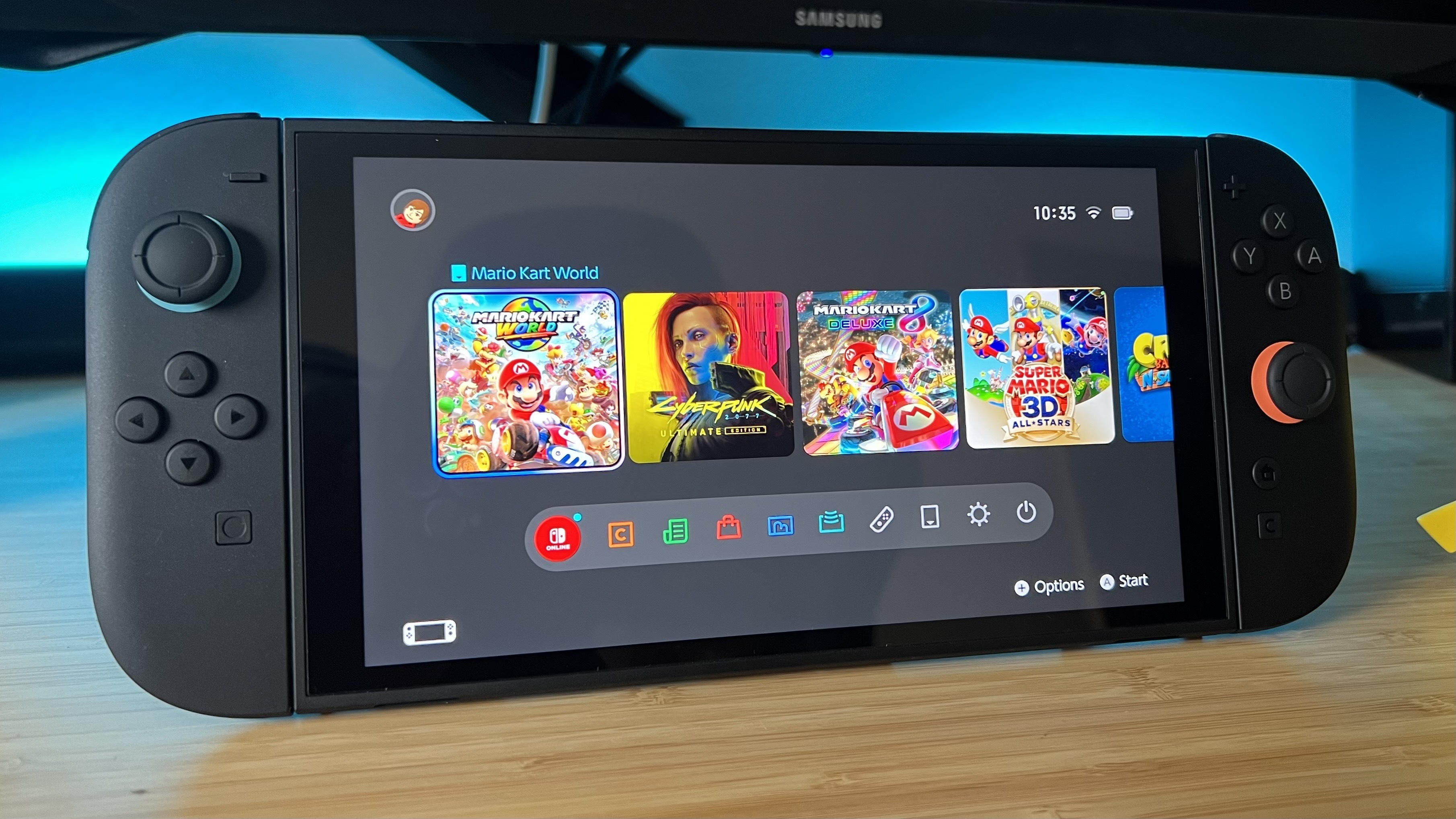
From the main Nintendo Switch Home menu, find the icon that looks like a single Joy-Con, labeled Controllers. Select this, then choose Change Grip/Order. This screen is the command center for all controller assignments. When you enter this mode, the Switch temporarily disconnects all active controllers so you can reassign them.
Step 2: Assigning Player 1 and Player 2
If you are splitting a pair of Joy-Cons:
- Turn the Joy-Cons horizontally.
- Press the two small buttons on the inner rail (the part that usually slides into the console), known as SL and SR.
- Hold them simultaneously until the LED lights on the rail begin to flash.
- Once the console recognizes the controller, a small controller icon will appear on the screen. Press the A button (or the equivalent button on the right side of the Joy-Con) to confirm.
- Repeat this process for the second Joy-Con.
If you are using two Pro Controllers, simply press the L and R shoulder buttons on each controller until they appear in the slots for Player 1 and Player 2.
Step 3: Understanding the LED Indicators
Each controller has small green LED lights. These indicate which player number is assigned to that specific device. One light means Player 1, two lights mean Player 2, and so on. In 2026, most modern controllers also offer haptic feedback (vibration) to signal when the pairing is successful.
Different Ways to Play Together
"2-player" can mean several different things depending on your environment and internet connection. Nintendo categorizes these into three distinct modes.
Local Play (Single Console)
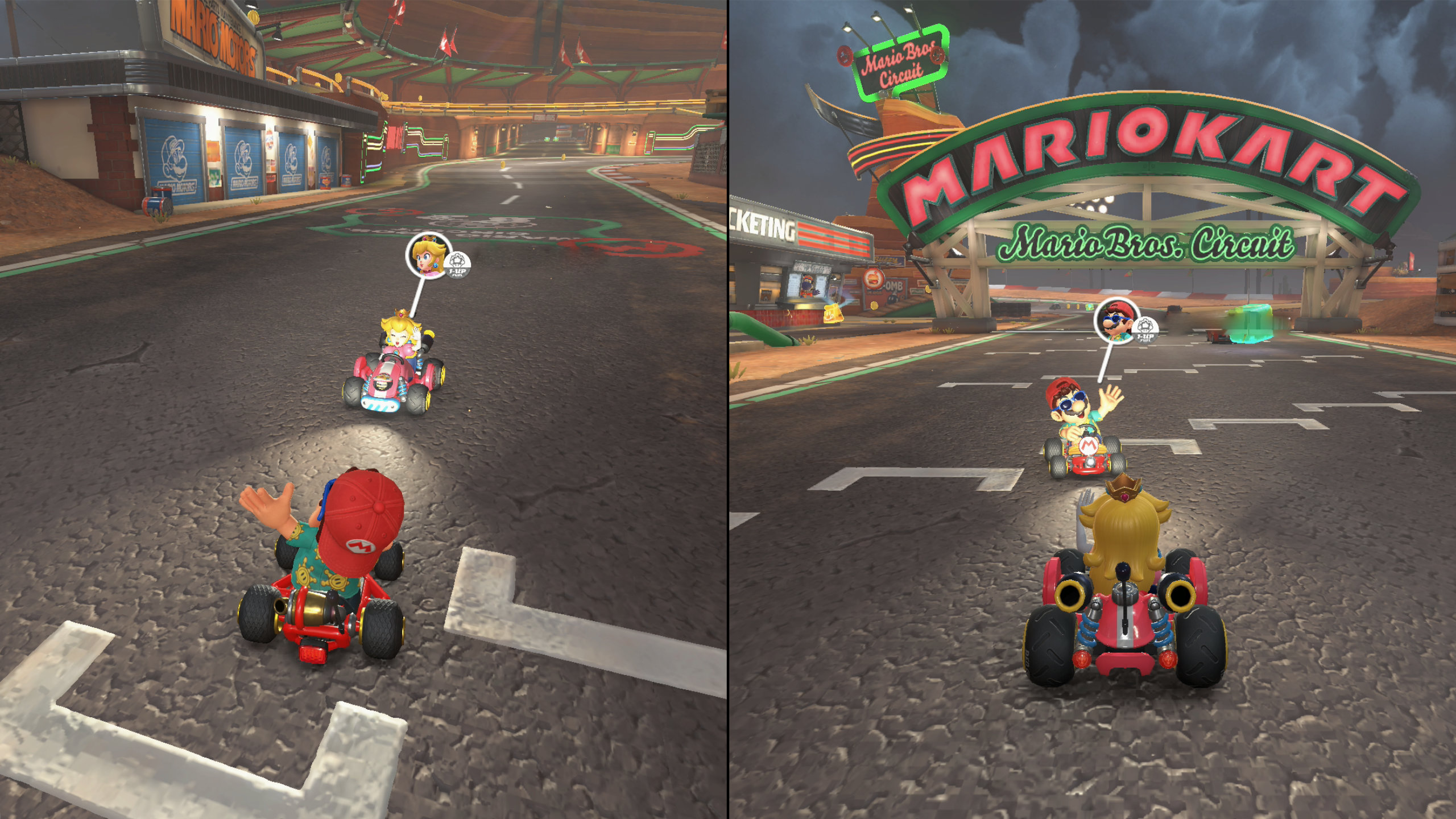
This is the most common form of 2-player gaming, often referred to as "couch co-op" or "split-screen." Both players look at the same television or the same Switch screen. Games like Mario Kart 8 Deluxe or Super Smash Bros. Ultimate are optimized for this. In this mode, the console's processor handles two separate inputs and renders two viewpoints (or one shared viewpoint) simultaneously.
Local Wireless Play (Multiple Consoles)
If you and a friend both have a Nintendo Switch, you can play together without an internet connection using Local Wireless. One player hosts a room within the game menu, and the other joins. The consoles communicate directly with each other using a dedicated Wi-Fi frequency. This is ideal for traveling or environments where the internet is unstable. Most games allow up to 8 consoles to connect this way, provided they are within about 30 feet of each other.
Online Multiplayer
To play with someone who isn't in the same room, you must use Online Multiplayer. In 2026, this almost always requires an active Nintendo Switch Online (NSO) subscription. Once subscribed, you can invite friends from your "Friend List" or join random lobbies. Note that online play is subject to network latency, so a stable 5GHz Wi-Fi connection or a wired LAN adapter is recommended for competitive titles.
Managing User Profiles and Save Data
A common point of confusion for new users is whether the second player needs their own User Profile.
When you launch a 2-player game, the system may ask who is playing. Player 1 will always be the primary account holder. For Player 2, you have two options:
- Guest Mode: Many games allow Player 2 to join as a guest. Their progress, such as character levels or unlocked items, will not be saved once the session ends.
- Secondary User Profile: If you plan on playing together frequently, it is best to create a second User Profile in the System Settings. This allows Player 2 to save their own settings, controller configurations, and in-game progress.
Note that for Online Play, if both players want to play online simultaneously from the same console (in games that support "Combo Co-op"), the second player may also need an NSO subscription or be part of a Family Membership.
Comparison of Multiplayer Modes
| Feature | Local Play (1 Console) | Local Wireless (2 Consoles) | Online Multiplayer |
|---|---|---|---|
| Controllers Needed | 2 (Joy-Cons or Pro) | 1 per console | 1 per console |
| Internet Required | No | No | Yes (High-speed) |
| Subscription Needed | No | No | Yes (NSO Subscription) |
| Screen Setup | Shared or Split-screen | Individual screens | Individual screens |
| Range | Same room | Within ~30 feet | Worldwide |
Troubleshooting Common 2-Player Issues
Even with a streamlined system, technical hurdles can occur. Most 2-player issues stem from synchronization errors or hardware limitations.
Controllers Not Connecting
If a controller refuses to sync in the Change Grip/Order menu, try the physical "Sync" button. On a Joy-Con, this is the small circular button located on the rail between the SL and SR buttons. On a Pro Controller, it is on the top near the USB-C port. Holding this button for three seconds resets the controller’s wireless ID, forcing it to look for the console again.
Joy-Con Drift and Calibration
If Player 2’s character is moving without input, you are likely experiencing "Joy-Con Drift." Before seeking a repair, go to System Settings > Controllers and Sensors > Calibrate Control Sticks. Follow the on-screen prompts to ensure the console is reading the neutral position of the sticks correctly.
Connection Lag in Online Play
If 2-player online sessions are stuttering, check your NAT Type in the Internet Connection Test. A "Type A" or "Type B" is ideal. If you see "Type C" or "D," your router’s firewall may be blocking the peer-to-peer connection required for Nintendo’s servers. In such cases, enabling UPnP (Universal Plug and Play) on your router settings often resolves the issue.
Recommendations for 2-Player Games
To get the most out of your 2-player experience, start with titles that offer native support for the Switch's unique features:
- Mario Kart 8 Deluxe: Supports 2-player split-screen with single Joy-Cons.
- Snipperclips: A puzzle game built specifically for 2-player communication.
- Super Mario Bros. Wonder: Excellent for local co-op with varying difficulty levels.
- Overcooked! All You Can Eat: A high-intensity cooperative cooking game that tests communication.
Frequently Asked Questions
Do I need two sets of Joy-Cons to play 2-player?
No, many games allow you to use a single Joy-Con (held horizontally) for each player. However, some titles, like The Legend of Zelda: Echoes of Wisdom or certain sports simulations, may require a full set of two Joy-Cons or a Pro Controller for each person because they utilize more buttons and both analog sticks.
Can I play 2-player on a Nintendo Switch Lite?
Yes, but you cannot use the controls attached to the system for a second player. You must wirelessly sync external controllers (like Joy-Cons or a Pro Controller) to the Switch Lite. Because the screen is smaller and there is no TV output, this is best done with the console propped up on a table.
Why won't my second controller work in a specific game?
Ensure you have synced the controllers before launching the game. Some games do not allow you to change controller configurations once the software is running. Close the game, go to the "Controllers" menu on the Home screen, set your Grip/Order, and then restart the game.
Does the second player need a Nintendo Switch Online account?
For local (offline) play, no account is needed for the second player. For online play, it depends on the game. Some games allow a "Guest" to join the primary subscriber, while others require every player to have an active NSO profile or be part of an NSO Family Plan.
How do I charge the second set of Joy-Cons?
The most common way is to slide them onto the main Switch console while it is docked or plugged into AC power. If you play 2-player frequently, you may want to invest in a Joy-Con Charging Dock, which can charge up to four Joy-Cons simultaneously using a USB connection.
Final Recommendation for New Users
For the best 2-player experience, always keep your controllers updated. You can do this by going to System Settings > Controllers and Sensors > Update Controllers. This ensures that the wireless communication protocols and haptic feedback profiles are optimized for the latest games available in 2026. If you frequently host game nights, purchasing a Nintendo Switch Pro Controller for Player 1 and using the Joy-Cons for Player 2 is generally considered the most comfortable and reliable setup.
Image Gallery