A Comprehensive Guide to Changing Disney Plus Language Settings
Adjusting your language preferences on Disney Plus is a straightforward process that can be completed across various devices, including smart TVs, mobile phones, streaming boxes, and web browsers. By updating your profile settings or a...
Adjusting your language preferences on Disney Plus is a straightforward process that can be completed across various devices, including smart TVs, mobile phones, streaming boxes, and web browsers. By updating your profile settings or altering options directly within the video player, you can customize audio tracks and subtitles to match your regional requirements or learning preferences.
Contents
Understanding Disney Plus Language Architecture
Disney Plus manages language preferences through a dual-layered system: profile-level defaults and player-level adjustments. Understanding how these layers interact helps streamline your streaming experience and ensures that your preferred audio and subtitle tracks load automatically whenever you start a new movie or television series.
Profile-level settings dictate the default language for the user interface, metadata descriptions, and preferred audio or subtitle tracks where available. When you configure your profile preferences, the platform attempts to match subsequent media playback to those choices. However, localization availability varies significantly depending on the title, regional licensing agreements, and the original production country of the content.
Player-level settings, conversely, allow you to modify audio and subtitle selections on a per-video basis. If a particular title features multiple dubs or localized subtitle tracks that differ from your profile default, you can override these defaults dynamically during playback. Both approaches ensure that viewers worldwide can consume content in their native languages or utilize foreign-language tracks paired with target-language subtitles for language acquisition purposes.
System Prerequisites and Regional Availability
Before attempting to modify your language settings, certain system requirements and regional conditions must be met to ensure the changes apply correctly. Disney Plus rolls out audio and subtitle options progressively based on content catalogs, meaning that a newly released original series might feature dozens of localized tracks, whereas older library titles may offer a more restricted selection.
Account permissions also play a critical role in managing these settings. If you are sharing a Disney Plus subscription using profile pins or parental controls, ensure you have the necessary authorization to edit profile configurations. Furthermore, updating the application to its latest software version across your respective operating system or streaming device eliminates bugs that might otherwise prevent language menus from rendering correctly.
Reviewing regional catalog variations is equally important. Content licensing rights mean that audio tracks and subtitle options available in one geographic region may differ entirely from another, even for identical titles. If you are traveling or using a supported virtual private network, verify that your regional subscription tier supports the specific localized track you intend to access.
Step-by-Step Instructions for Changing Language Settings
Modifying your language preferences varies slightly depending on whether you are using a web browser, a mobile device, or a living-room television. Below are the precise workflows for updating both profile defaults and active media playback tracks across major platforms.
Changing Profile Language Defaults via Web Browser
- Navigate to the official Disney Plus website and log in to your account.
- Select your profile icon located in the upper-right corner of the screen to open the account menu.
- Click on the Edit Profiles option.
- Choose the specific profile you wish to modify by clicking the pencil icon overlaid on the profile avatar.
- Locate the App Language dropdown menu and select your desired language from the list.
- Click Save or Done to apply the changes across the user interface.
Adjusting Audio and Subtitles During Video Playback
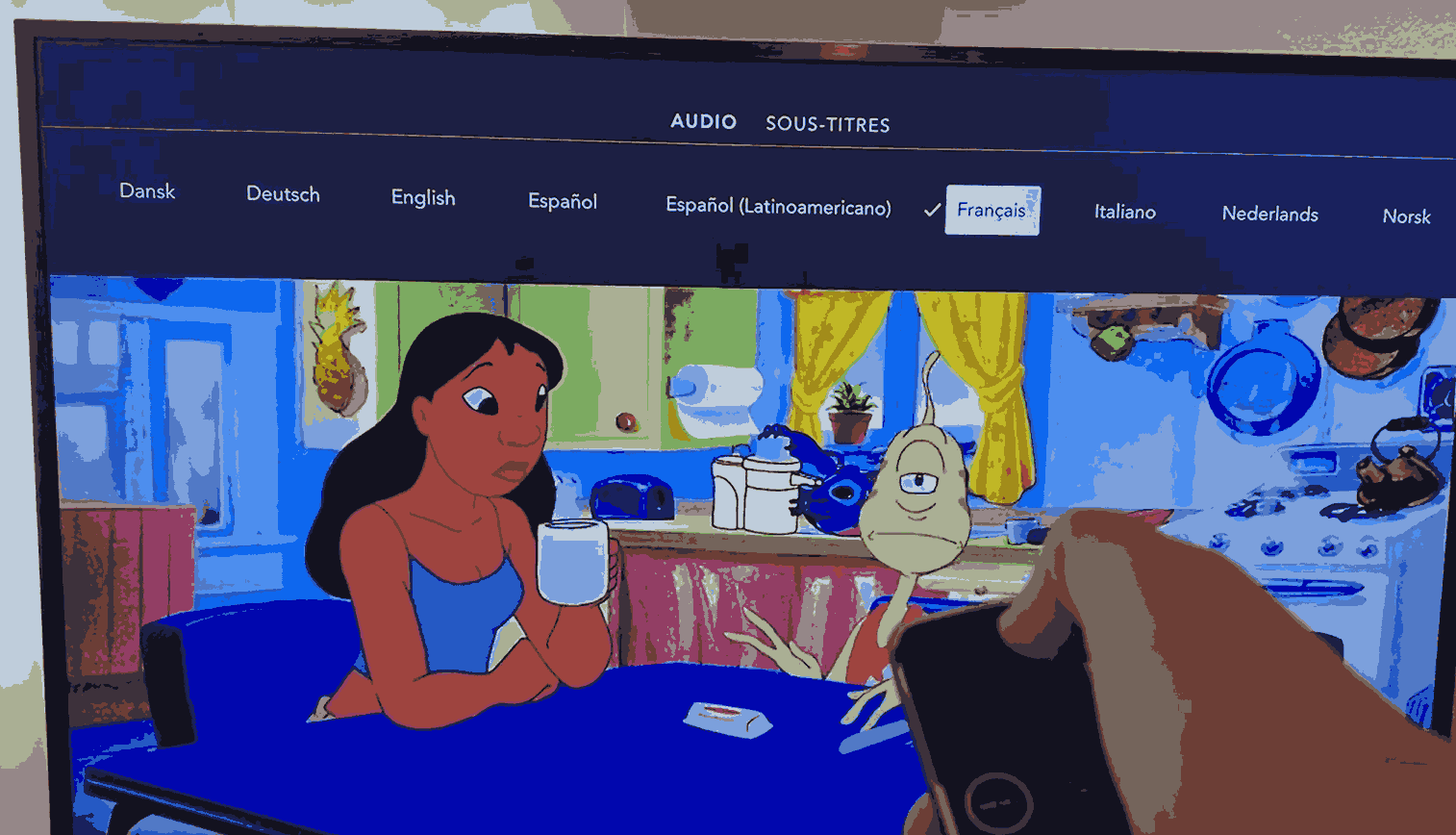
Regardless of the device you are using—be it an Apple TV, Roku, Amazon Fire Stick, Android TV, or smart TV app—you can alter audio and subtitle tracks mid-stream by following these steps:
- Launch any movie or television episode on Disney Plus and begin playback.
- Press up on your remote control or tap your mobile screen to bring up the video player overlay controls.
- Select the Audio and Subtitles icon, typically represented by a keyboard, speech bubble, or gear symbol located in the upper-right corner of the playback screen.
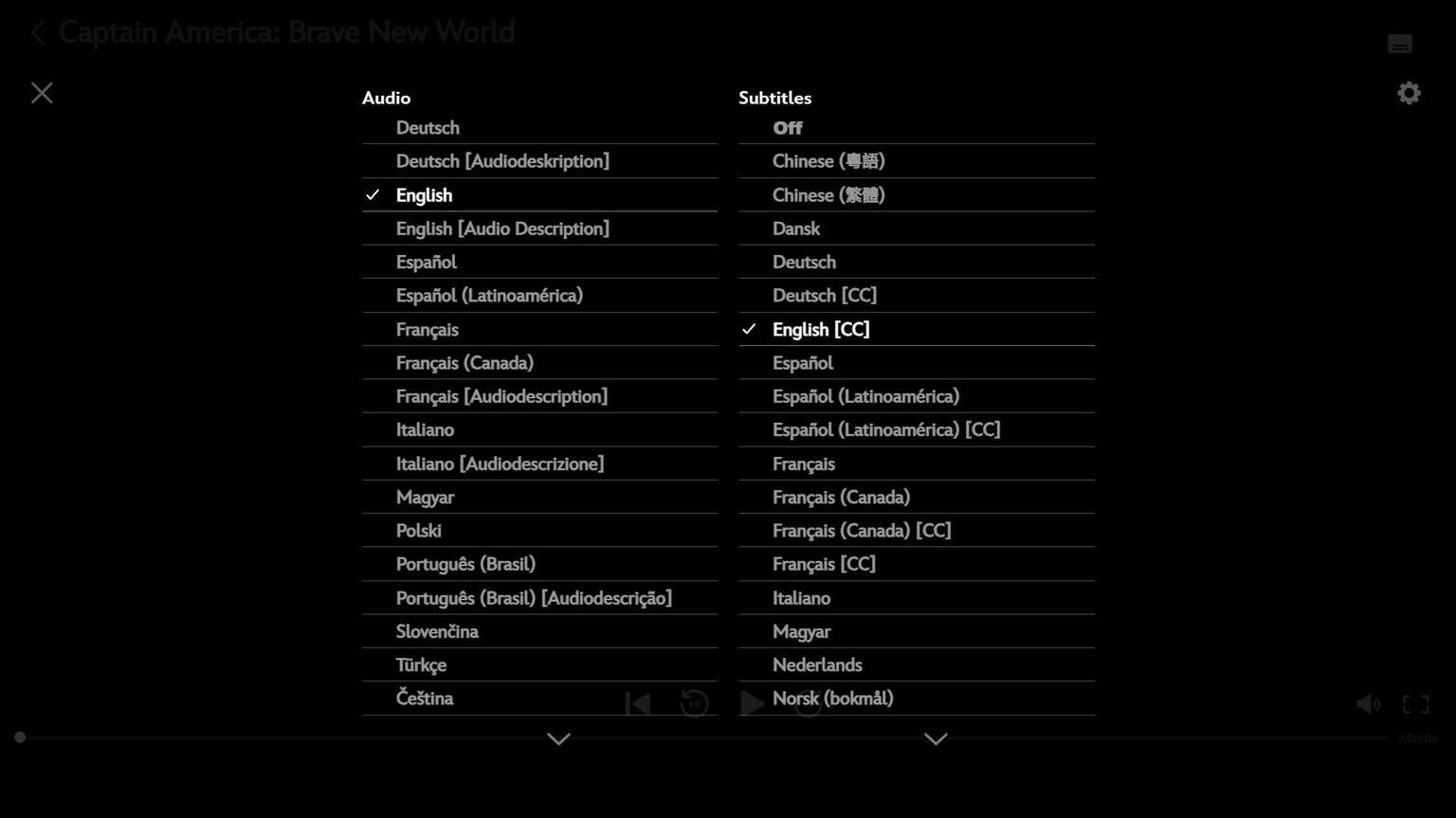
- From the vertical menu that appears, choose your preferred audio track from the left column and your preferred subtitle language from the right column.
- Press the back button or resume playback to immediately apply your selections.
Comparison of Disney Plus Language Control Methods
To help you determine the most efficient way to manage your viewing preferences, the following table compares profile-level adjustments with in-player modifications across various operational criteria.
| Control Method | Primary Function | Persistence | Best Used For |
|---|---|---|---|
| Profile App Language | Changes UI menus, metadata text, and default search terms. | Permanent until manually changed again. | Establishing overall account usability for native speakers. |
| In-Player Audio Track | Overrides default dubbing for a single active stream. | Temporary for the current title (sometimes persists per profile session). | Watching foreign films in original audio with dub swaps. |
| In-Player Subtitles | Enables or disables closed captions and localized text translations. | Session-dependent or title-specific depending on app version. | Accessibility, hearing impairment, or foreign language study. |
Troubleshooting Common Language Glues and Errors
Users occasionally encounter scenarios where language settings fail to update, revert unexpectedly, or display missing tracks. Resolving these technical hiccups requires a methodical approach to cache management and app verification.
If your audio or subtitles keep reverting to the regional default language, check your profile settings to ensure the global preference matches your intent. Sometimes, an outdated application build on streaming hardware like a Roku or Fire TV can cache old configuration files, ignoring recent profile updates made via a web browser. Force-closing the application, clearing the local app cache through your device settings, or completely signing out and logging back into your Disney Plus account forces the client to re-sync with central cloud servers.
Another common issue involves missing audio tracks or subtitles for specific titles. If you notice that a major release lacks your native language option, confirm whether that language is officially supported in your geographic territory. Content availability is managed on a per-country basis, and regional licensing agreements frequently dictate which audio dubs and subtitle translations are licensed for distribution in specific markets.
Frequently Asked Questions
Why does my Disney Plus interface keep changing back to English?
This typically occurs when a primary profile is tied to a default regional IP address or when multiple users share a profile and override settings. Ensure that your individual profile has the correct App Language saved and that your device operating system language matches your streaming preferences.
Can I set different default languages for different profiles on the same account?
Yes, Disney Plus allows you to customize app language, parental controls, and viewing preferences independently for up to seven different profiles under a single subscription plan. Simply access Edit Profiles and configure each profile separately.
What is the difference between Audio Description and standard localized audio tracks?
Audio Description tracks provide an auxiliary narration track that describes visual elements, actions, body language, and scene changes for viewers who are blind or visually impaired. Standard audio tracks focus strictly on character dialogue, sound effects, and musical scores.
Why are certain subtitle languages missing from specific movies?
Subtitle availability is determined by regional licensing agreements and localization efforts carried out by content creators prior to distribution. If a specific translation was not commissioned or licensed for your geographic market, it will not appear in the player menu.
How do I turn off subtitles completely on Disney Plus?
During video playback, open the Audio and Subtitles menu and select the Off option located at the top of the subtitle column. This removes all captions from the screen while preserving your chosen audio track.
Next Actions and Recommendations
To maintain a seamless streaming experience, review your profile settings periodically, especially after major application updates or when traveling internationally. If you encounter persistent bugs that resist standard cache clearing and re-installation procedures, consult the official Disney Plus Help Center or reach out to their customer support team for account-specific diagnostics.
Image Gallery