PC Wallpaper Maker Basics: Creating Custom Desktop Backgrounds
Creating a PC wallpaper involves a combination of understanding display resolution, selecting appropriate aspect ratios, and utilizing design software to produce high-fidelity visuals that maintain clarity across modern desktop environ...
Creating a PC wallpaper involves a combination of understanding display resolution, selecting appropriate aspect ratios, and utilizing design software to produce high-fidelity visuals that maintain clarity across modern desktop environments. A wallpaper maker is essentially a tool—ranging from simple image editors to advanced graphic design suites—that allows you to compose, resize, or generate digital art specifically tailored to fit the native pixel dimensions of your computer monitor.
Contents
Understanding Display Specifications and Resolution
Before initiating any design process, you must identify the technical requirements of your monitor. A desktop wallpaper is a static image file that needs to match or exceed the pixel dimensions of your screen to avoid scaling artifacts, such as blurriness or pixelation.
The most common standard for contemporary monitors is 1920x1080 pixels, known as Full HD (FHD). However, as of 2026, 1440p (QHD) at 2560x1440 pixels and 4K (UHD) at 3840x2160 pixels are widely prevalent. If your wallpaper maker tool produces a file smaller than your display's native resolution, the operating system will stretch the image, leading to a loss of quality. Conversely, images larger than your resolution will be downscaled, which usually preserves visual integrity but may lead to excessive file sizes that consume unnecessary system memory.
Selecting the Right Software for Wallpaper Creation
The term "PC wallpaper maker" refers to a category of tools rather than a single specific product. Your choice depends on your design goals:
- General Graphic Editors: Software like Adobe Photoshop, GIMP, or Affinity Photo provides total control over layers, typography, and blending modes. These are ideal if you are creating complex collages or applying artistic filters to existing photography.
- Vector-Based Designers: Adobe Illustrator or Inkscape are superior if you are creating minimalist, geometric, or abstract wallpapers. Because vector art is math-based, you can scale a design to any size—from a small laptop to a massive ultra-wide monitor—without losing clarity.
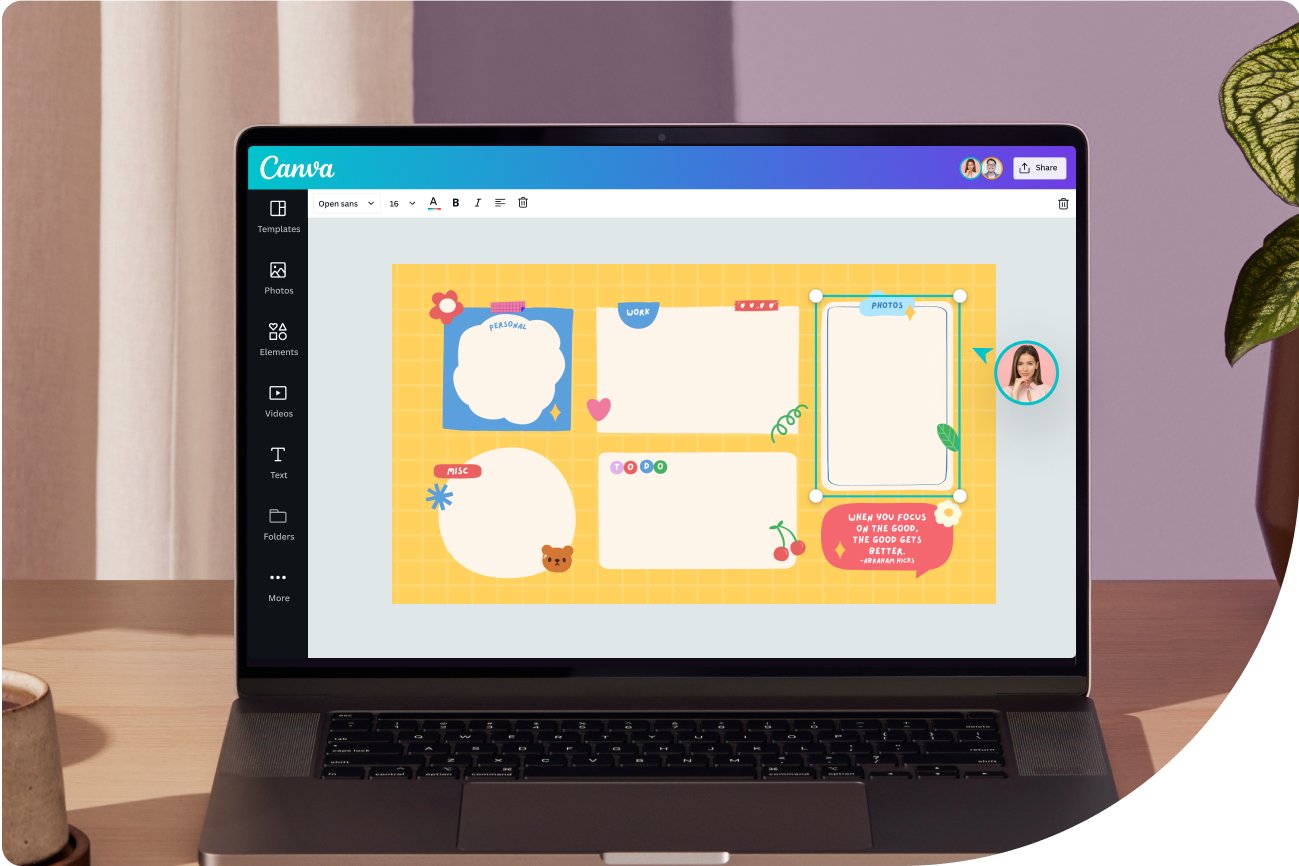
- Browser-Based Design Platforms: Tools like Canva offer templates specifically sized for desktop backgrounds. These platforms are optimal for beginners who need pre-set dimensions and drag-and-drop assets, though they may offer less granular control over rendering settings.
- AI Image Generators: Services that utilize generative models allow you to create backgrounds via text prompts. While these offer rapid iteration, they often require post-processing in an external editor to reach specific professional resolutions or to remove artifacts introduced by the AI.
Comparison of Wallpaper Creation Approaches
| Method | Technical Difficulty | Flexibility | Best For |
|---|---|---|---|
| Vector Graphics | High | Infinite | Geometric, Minimalist designs |
| Raster Editing | Moderate | High | Photo manipulation, Composites |
| Web-based Design | Low | Moderate | Quick layouts, Text-heavy art |
| AI Generation | Very Low | Limited | Concept discovery, Abstract art |
Core Design Principles for Desktop Wallpapers
A wallpaper is functional furniture for your workspace. If the design is too chaotic, it becomes difficult to read icon names or find files on your desktop. To ensure your creation is effective, follow these foundational design rules:
- The Focal Point Rule: Place the most intricate details of your image in the center or along the right side of the screen. Most users place their desktop icons along the left vertical edge or in a grid across the bottom. A design that is "too busy" in these areas will obscure your icons.
- Color Balance: High-contrast images can cause eye strain during prolonged use. If you work in a dark room, consider creating a dark-mode wallpaper with muted colors. If your work environment is brightly lit, a higher-contrast design may remain visible despite ambient glare.
- Aspect Ratio Maintenance: Ensure your canvas is set to the correct aspect ratio (e.g., 16:9 for standard monitors, 21:9 for ultra-wide displays). If you use a 16:9 image on a 21:9 screen, you will face pillar-boxing (black bars on the sides) or excessive cropping.
Step-by-Step Workflow for Custom Wallpaper Creation
If you are new to this process, follow this logical progression to ensure professional results:
- Define Requirements: Right-click your desktop and select "Display Settings" in Windows or "Displays" in macOS to confirm your exact monitor resolution.
- Create the Canvas: Open your chosen software and create a new project. Input your width and height in pixels. Set the color profile to sRGB, which is the standard for web and desktop display.
- Layering and Composition: Begin with your background layer. If using photos, apply a slight blur or darken the image if you intend to place icons over it. Add design elements in separate layers to allow for independent adjustments.
- Exporting: Export the file as a PNG or a high-quality JPEG. PNG is preferred if your design contains sharp text or transparent elements, as it utilizes lossless compression.
- Application: Right-click your desktop background and select the "Personalize" or "Change Wallpaper" option. Navigate to your saved file and select it to apply.
Troubleshooting Common Issues
- Blurriness: This is almost always caused by an image resolution that is lower than your monitor’s native resolution. Always source or create assets that are at least as large as your target display.
- File Size Limits: Some operating systems may struggle with excessively large image files (e.g., 50MB+). Use a compression tool to optimize the file size without sacrificing the visual quality.
- Color Distortion: If the colors look different in your design software compared to your wallpaper, ensure you are exporting in the sRGB color space rather than Adobe RGB or CMYK, as the latter is meant for print and will not display correctly on screens.
Frequently Asked Questions
What is the standard resolution for a PC wallpaper in 2026? While 1920x1080 remains common, the current standard for high-performance displays is 2560x1440 (1440p). For those using 4K monitors, 3840x2160 is the necessary resolution to ensure crisp, sharp edges for text and graphics.
Can I use AI to make wallpapers? Yes, but you must be careful with resolution. Most AI generators output images at a fixed, often lower, resolution. You may need to use an "AI Upscaler" to increase the pixel count of the generated image before setting it as your desktop background to avoid blurriness.
What is the best file format for a desktop background? PNG is the gold standard for quality because it prevents the "blocking" artifacts often found in highly compressed JPEGs. However, if you are concerned about file size, a high-quality JPEG (set to maximum quality) is usually indistinguishable to the human eye.
How do I make a wallpaper for a dual-monitor setup? To span a wallpaper across two monitors, you must create a "super-wide" canvas. If you have two 1920x1080 monitors, create a canvas with a width of 3840 pixels and a height of 1080 pixels. Place your design across this canvas, export it, and set the "Fit" option in your OS settings to "Span."
Do wallpapers consume system memory? A single static wallpaper uses a negligible amount of RAM. However, if you are using a live or animated wallpaper application, those will consume system resources, including CPU and GPU cycles, to render the animation. If your computer performance is sluggish, stick to static image formats.
Next Steps for Desktop Customization
Once you have successfully created your first wallpaper, consider experimenting with "Theme Packs." Windows and macOS allow you to bundle wallpapers with custom accent colors, which updates the color of your taskbar, title bars, and menus to match the primary color palette of your wallpaper. This provides a cohesive, professional aesthetic that elevates the visual experience of your daily workstation. Start by creating a simple design using a consistent color palette, and slowly integrate more complex assets as your comfort with your chosen software increases.
Image Gallery