How to Set Outlook for Mac Out of Office Message
To set an out of office message in Outlook for Mac, open Outlook, select Tools from the top menu bar, and click Automatic Replies (or Out of Office in older versions). Turn on automatic replies, select your date range, type your reply,...
To set an out of office message in Outlook for Mac, open Outlook, select Tools from the top menu bar, and click Automatic Replies (or Out of Office in older versions). Turn on automatic replies, select your date range, type your reply, and click OK.
Contents
Setting up an automated out of office message—also known as an automatic reply or vacation responder—ensures that colleagues, clients, and vendors receive prompt notifications when you are away from your desk. Depending on whether you are using the New Outlook for Mac interface or the Legacy Outlook interface, as well as the type of email account configured (Microsoft 365, Exchange, IMAP, or POP3), the exact steps and options vary.
This guide covers the necessary steps for setting up automatic replies across all versions of Outlook for Mac, configures distinct responses for internal and external senders, provides workarounds for non-Exchange accounts, and troubleshoots common synchronization issues.
Prerequisites and Account Compatibility
Before configuring automatic replies in Outlook for Mac, verify your email account type. The built-in Automatic Replies feature relies on server-side protocols, which are not supported equally by all email architectures.
Account Type Requirements
- Microsoft 365 & Exchange Accounts: Full native support. Out of office messages configured in Outlook for Mac sync directly to the server. Your automated replies will send even if your Mac is powered off or disconnected from the internet.
- IMAP Accounts (e.g., Gmail, Yahoo, iCloud): Partial support depending on interface. Standard IMAP protocols do not natively support server-side out of office messaging through desktop client menus. To set automatic replies for IMAP accounts, you must configure them via your email provider's web portal or set up client-side Outlook rules.
- POP3 Accounts: No server-side automatic reply support. Automated replies require client-side rules, which only execute when Outlook for Mac is open and connected to the internet.
To check your account type in Outlook for Mac:
- Open Outlook.
- Select Outlook in the top Apple menu bar, then click Settings... (or Preferences... on older macOS versions).
- Select Accounts.
- Review the account list on the left pane to confirm whether your account is listed as Microsoft 365, Exchange, IMAP, or POP.
How to Set Out of Office in the New Outlook for Mac
The New Outlook for Mac features a streamlined user interface optimized for macOS. If your toggle switch in the top-right corner of Outlook says "New Outlook" (turned ON), follow these steps to configure your auto-reply.
Step 1: Open Automatic Replies
- Launch Outlook for Mac.
- Click on Tools in the top macOS menu bar.
- Select Automatic Replies... from the drop-down menu. (Alternatively, navigate to Outlook > Settings > Accounts, select your Microsoft 365/Exchange account, and click Automatic Replies).
Step 2: Enable and Schedule Your Out of Office Message
- In the Automatic Replies dialog box, check the box labeled Send automatic replies for account "[Your Account Name]".
- To restrict auto-replies to specific vacation dates, check Send replies only during this time period.
- Select your desired Start time and End time. If left unchecked, automatic replies will begin immediately and remain active until you manually turn them off.
Step 3: Draft Internal and External Responses
- In the main text field under Reply once to each sender inside my organization, enter your primary message for coworkers and internal staff.
- To send replies to external contacts (clients, vendors, or public senders), check Send replies outside my organization.
- Choose one of two external options:
- Send only to my Contacts: Restricts auto-replies to individuals already saved in your Outlook contacts folder.
- Send to all external senders: Sends your out of office response to every incoming external email address.
- Type your external auto-reply message in the designated text box beneath the option.
- Click OK to save your settings.
How to Set Out of Office in Legacy Outlook for Mac
If you have toggled off the New Outlook experience and are using Legacy Outlook for Mac, the process utilizes the legacy dialog interface.
- Launch Outlook for Mac.
- Click Tools in the top macOS menu bar.
- Click Out of Office... (or Automatic Replies... depending on the specific update build).
- Select the Send automatic replies for account... checkbox.
- Set your Start time and End time if you want the message to turn off automatically upon your return.
- Enter your internal response in the Autoreply message box.
- To inform external senders, check Send replies outside my organization.
- Select Send only to my Contacts or Send to all external senders, then draft your external reply in the lower text field.
- Click OK to apply the configuration.
Setting Up Out of Office via Outlook on the Web (OWA)
If you encounter synchronization issues on your Mac, or if you do not have your Mac with you, you can configure your out of office status directly on the server using Outlook on the Web. Because Microsoft 365 and Exchange accounts process automatic replies server-side, setting your status via the web browser immediately updates your account across all devices, including Outlook for Mac.
- Open a web browser and navigate to Outlook on the Web or your company’s custom webmail URL.
- Log in with your corporate or personal Microsoft 365 credentials.
- Click the Gear icon (Settings) in the top-right corner.
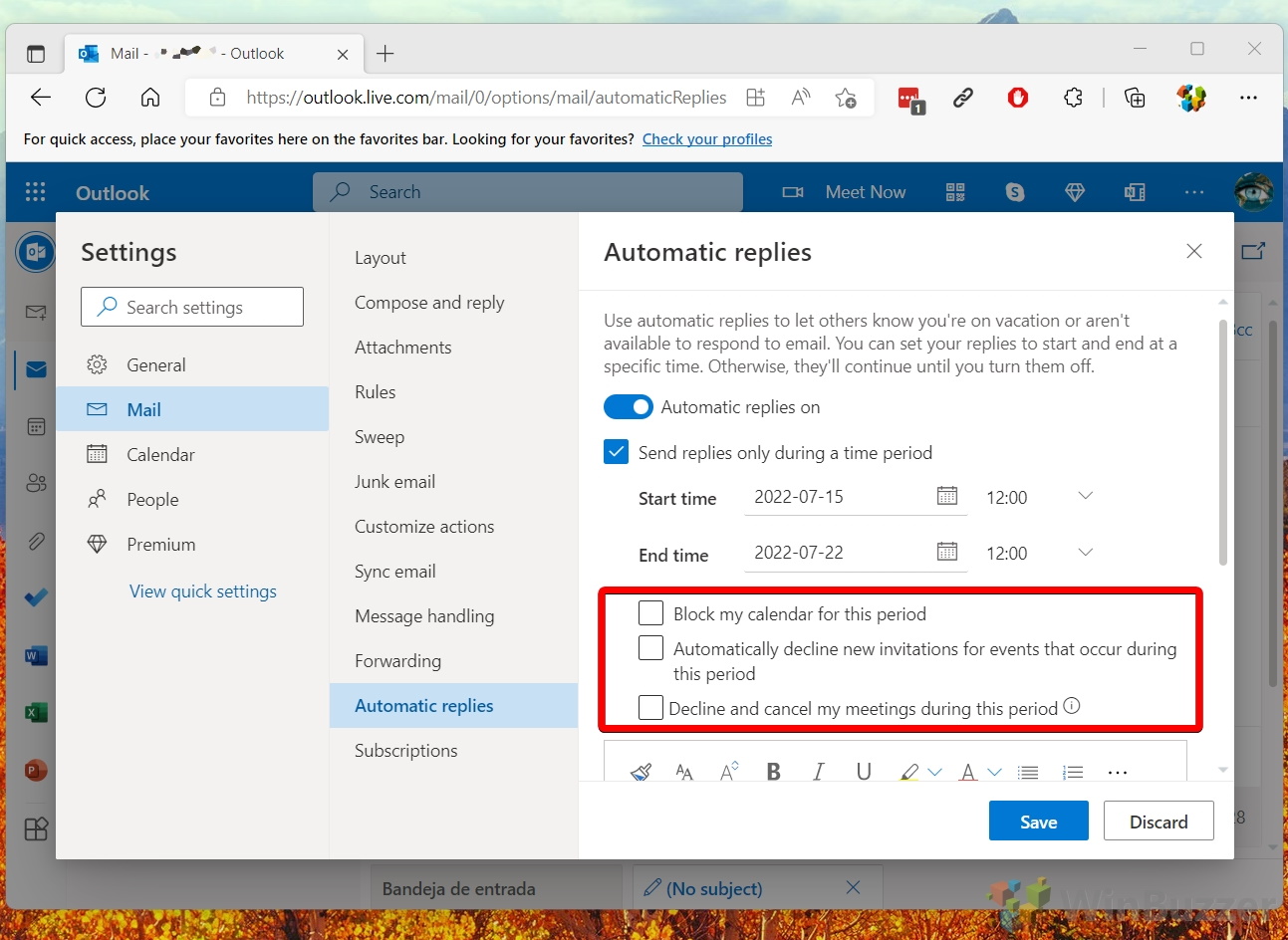
- Select Automatic replies under the Mail tab (or navigate to View all Outlook settings > Mail > Automatic replies).
- Toggle the Turn on automatic replies switch.
- Select Send replies only during a time period and define your dates.
- (Optional) Check additional options such as Block my calendar for this period, Automatically decline new invitations, or Decline and cancel my meetings during this period.
- Enter your internal and external auto-reply messages.
- Click Save.
Setting Up Out of Office for IMAP or POP Accounts via Rules
Because standard IMAP and POP accounts do not support Exchange automatic reply dialogs, the Automatic Replies option under the Tools menu will be grayed out or disabled. You can create a client-side rule in Outlook for Mac to automatically reply to incoming messages.
Important Limitation: Client-side rules require your Mac to remain powered on, awake, connected to the internet, and running Outlook for Mac. If Outlook is closed or your Mac sleeps, the rule will not fire.
Step-by-Step Client-Side Rule Setup
- Open Outlook for Mac.
- Click Tools in the menu bar and select Rules...
- Choose your account type (e.g., IMAP or POP) from the left sidebar.
- Click the + (Plus) icon at the bottom of the window to create a new rule.
- Name your rule (e.g., "Out of Office Reply").
- Under When a new message arrives:, set the condition to Account > Is > [Your IMAP Account], or select All Messages.
- Under Do the following:, select Reply or Reply with Template.
- Enter the text of your automated reply.
- Click OK or Save.
Note: For Gmail, Yahoo, or iCloud IMAP accounts, it is strongly recommended to set up vacation replies directly inside Gmail Settings, Yahoo Mail Settings, or iCloud Web Mail settings rather than using desktop Outlook rules. Webmail auto-responders execute at the server level and do not require your Mac to stay running.
Overview Comparison of Out of Office Setup Methods
The following table compares the capabilities, server behaviors, and requirements for configuring out of office responses across different account types and methods in macOS environments.
| Method / Account Type | Server-Side Processing | Mac Must Stay On? | External vs. Internal Differentiation | Auto-Decline Calendar Meetings? |
|---|---|---|---|---|
| New Outlook for Mac (M365/Exchange) | Yes | No | Yes | Yes (via settings) |
| Legacy Outlook for Mac (M365/Exchange) | Yes | No | Yes | Limited |
| Outlook on the Web (OWA) | Yes | No | Yes | Yes |
| IMAP Account (Outlook Desktop Rule) | No | Yes | No | No |
| IMAP Account (Webmail Provider Portal) | Yes | No | Varies by provider | No |
| POP3 Account (Outlook Desktop Rule) | No | Yes | No | No |
Best Practices and Professional Out of Office Templates
A well-crafted out of office message manages expectations and directs urgent matters to appropriate contacts. Avoid providing excessive personal details that could compromise security while away.
Key Elements to Include
- Exact Dates: Specify the date you leave and the exact date you return to work.
- Reason for Absence (Generic): State that you are out of the office, on annual leave, or attending a conference. Detailed personal location details are unnecessary.
- Response Expectations: Mention whether you will have limited email access, periodic access, or no access at all.
- Alternative Contact Points: Provide the name, email address, and phone number of a colleague or shared inbox for urgent inquiries. Always seek permission from your coverage colleague before listing their contact details.
Professional Template Examples
Template 1: Standard Business Absence (Internal & External)
Subject: Out of Office: [Your Name]
Hello,
Thank you for your email. I am currently out of the office on annual leave, returning on [Date of Return].
During this time, I will have no access to email. If your inquiry is urgent, please contact [Colleague Name] at [Colleague Email/Phone], who can assist you. Otherwise, I will respond to your message as soon as possible after my return.
Best regards,[Your Name][Your Title]
Template 2: Out of Office with Partial Access (Internal)
Subject: Out of Office: [Your Name]
Team,
I am out of the office attending [Conference/Event Name] from [Start Date] through [End Date]. I will be checking email periodically throughout the day, but my response time may be delayed.
For urgent escalations regarding [Project Name], please reach out to [Designated Lead] at [Email Address].
Thanks,[Your Name]
Troubleshooting Common Out of Office Issues on Mac
Issue 1: "Automatic Replies" Option is Grayed Out or Missing
- Cause: You are using a non-Exchange account (IMAP/POP3) or Outlook is operating in Offline Mode.
- Resolution:
- Check Outlook > Work Offline. If checked, uncheck it to restore online connectivity.
- Confirm your account type in Outlook > Settings > Accounts. If it is an IMAP or POP account, configure vacation replies via your webmail provider's administrative portal.
Issue 2: External Senders Are Not Receiving Auto-Replies
- Cause: The "Send replies outside my organization" setting is turned off, or restricted to "Send only to my Contacts."
- Resolution: Re-open Tools > Automatic Replies.... Ensure Send replies outside my organization is checked and Send to all external senders is selected.
Issue 3: Auto-Replies Keep Sending Indefinitely
- Cause: The date range has expired without an end date specified, or a cached server policy failed to toggle off.
- Resolution: Re-open Automatic Replies, uncheck Send automatic replies for account..., click OK, and allow Outlook 60 seconds to sync with the server. If the issue persists, log into Outlook on the Web and manually disable automatic replies from the browser.
Issue 4: Settings Fail to Sync to Microsoft 365 Server
- Cause: Corrupted local cache file or Exchange Web Services (EWS) sync failure in Outlook for Mac.
- Resolution: Clear the account cache in Outlook for Mac:
- In Outlook, right-click (or Control-click) your main Exchange account folder in the left sidebar.
- Select Properties... (or Account Properties).
- Under the General tab, click Empty Cache.
- Allow Outlook to re-download calendar and account configurations from the server.
Frequently Asked Questions
Can I set an out of office message in Outlook for Mac for specific folders or rules?
No. Automatic replies apply to the entire incoming mail flow for a designated account. However, you can create custom client-side rules under Tools > Rules to send automated replies only when emails meet specific criteria, such as containing specific words in the subject line.
Will my Mac auto-reply work if my computer is turned off?
If you use a Microsoft 365 or Exchange account, yes. The out of office reply is stored directly on the Exchange server and sends automatically regardless of whether your Mac is turned on, off, or sleeping. If you use an IMAP or POP3 account with local Outlook rules, your Mac must remain powered on with Outlook running.
How do I disable out of office replies early in Outlook for Mac?
To turn off automatic replies ahead of schedule, select Tools > Automatic Replies... from the top menu, uncheck Send automatic replies for account..., and click OK.
Can I format the text in my Mac out of office message?
Yes. The automatic reply editor in both New Outlook and Legacy Outlook for Mac supports rich text formatting, including bold text, italics, bullet points, hyperlinks, and font size adjustments.
Why do some external contacts receive my out of office message multiple times?
Microsoft 365 and Exchange servers are configured by default to send an automatic reply to each sender only once per out of office activation period to prevent email loops. If senders receive multiple replies, it usually means the auto-reply status was turned off and re-enabled, resetting the sender delivery log.
Final Recommendation
To ensure seamless communications while away, always test your out of office setup after saving your settings. Send a test email from a personal or secondary email address to verify that external responses trigger correctly and that all contact links and coverage details are accurate. If you frequently work across multiple devices, configuring your automatic replies through Outlook on the Web provides the most direct and reliable synchronization across macOS, iOS, Windows, and web interfaces.
Image Gallery