How to Find Your IP Address on Any Device
To find your public IP address, type "what is my IP" into any major search engine or visit a trusted IP detection tool. To find your private local IP address, open your device's network settings or command terminal—such as running ipco...
To find your public IP address, type "what is my IP" into any major search engine or visit a trusted IP detection tool. To find your private local IP address, open your device's network settings or command terminal—such as running ipconfig on Windows or checking Wi-Fi details on mobile devices.
Contents
Understanding Your IP Address: Public vs. Private
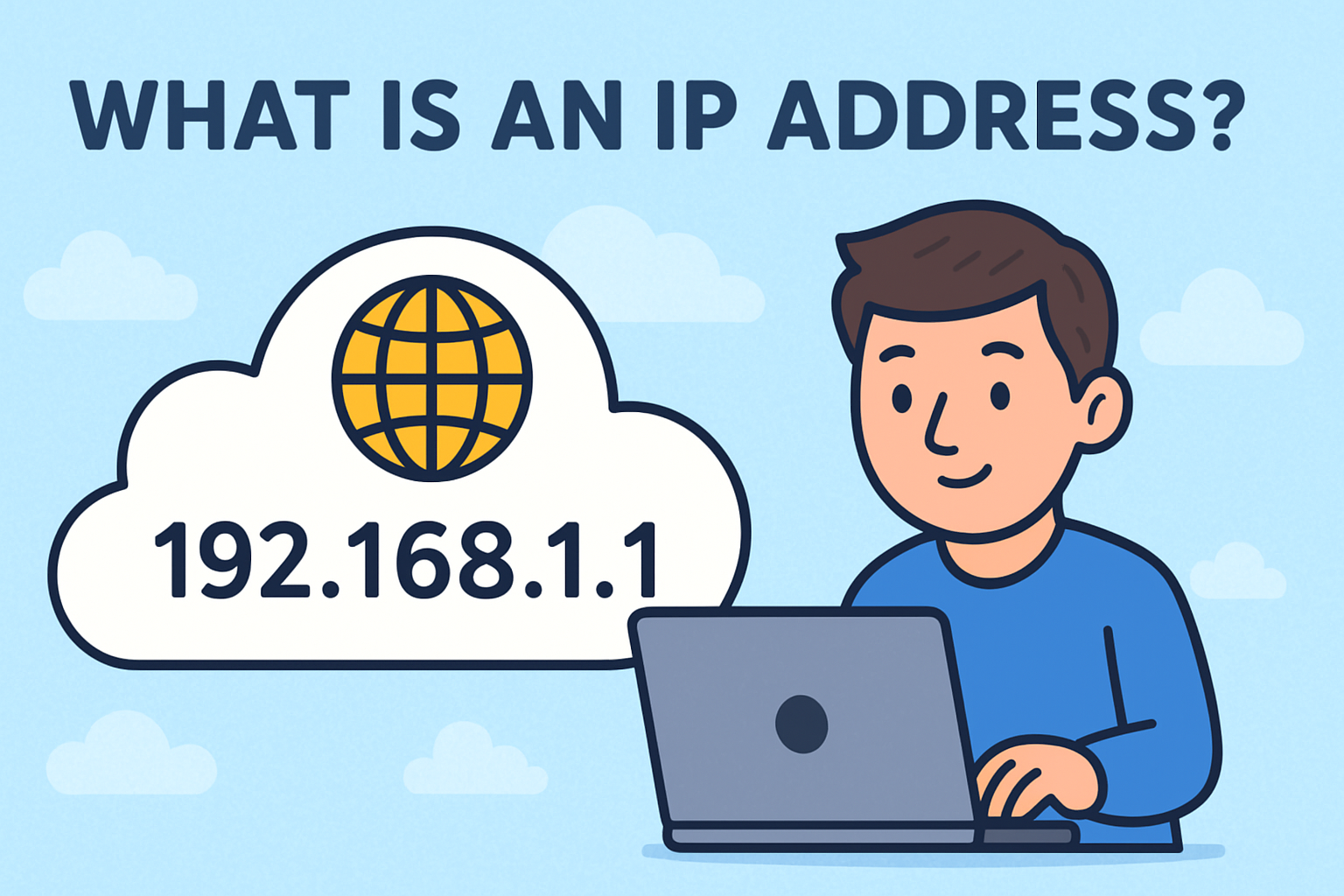
An Internet Protocol (IP) address serves as a unique numerical identifier for devices connected to a computer network. Just as a physical mailing address directs paper mail to a specific home, an IP address ensures that data packets sent over local networks or the internet arrive at the correct destination.
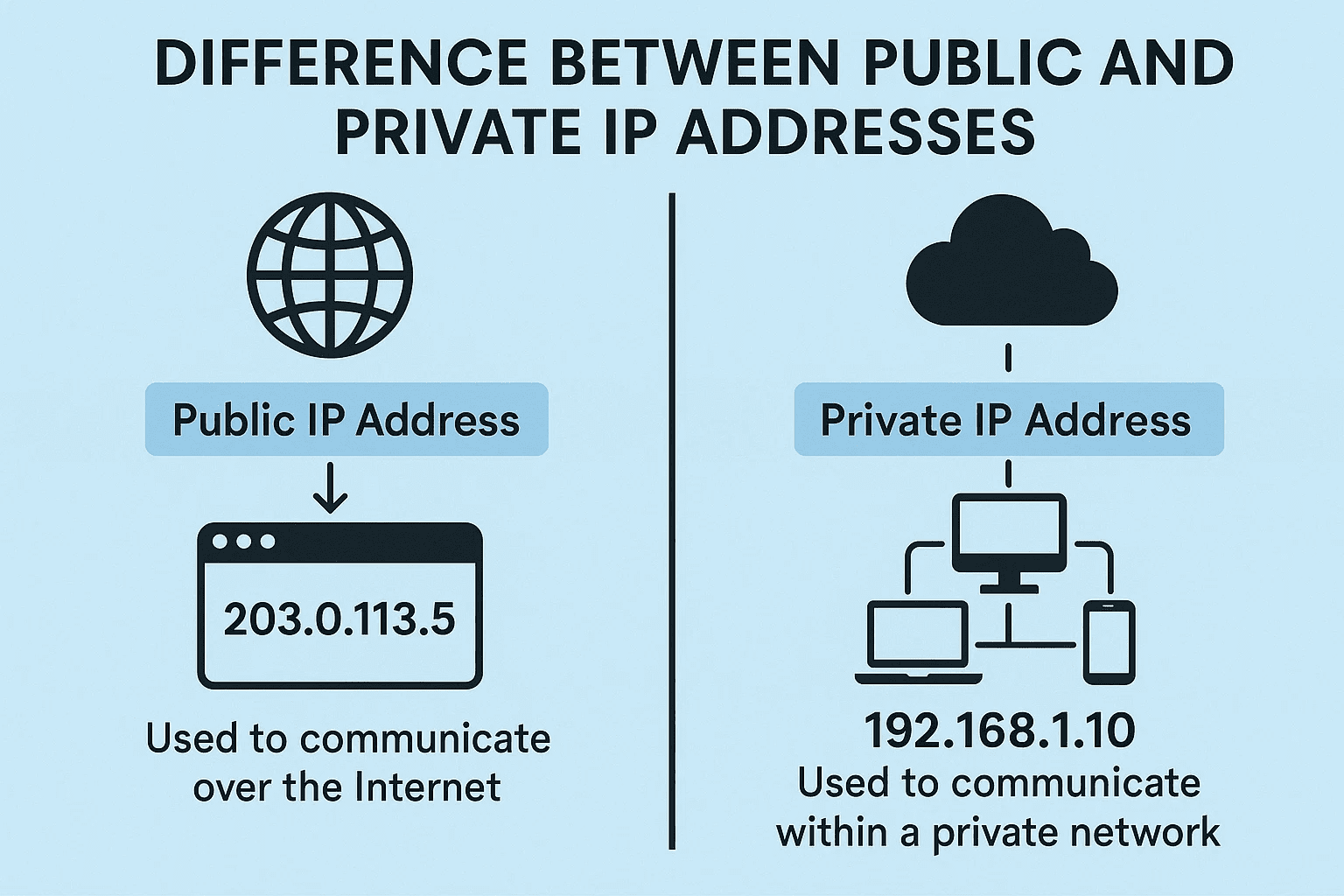
Every device connected to the internet interacts with two distinct types of IP addresses: a public IP address and a private IP address. Understanding the difference between these two identifiers is essential for troubleshooting connectivity issues, setting up home servers, managing network security, and configuring remote access.
Public IP Addresses
A public IP address is assigned to your network gateway or router by your Internet Service Provider (ISP). This address is visible to every website, server, and online service you connect to across the global internet.
- Scope: Global and unique across the entire internet.
- Assignment: Allocated by ISPs from blocks administered by regional internet registries like the American Registry for Internet Numbers (ARIN).
- Function: Identifies your network's entry point to outside servers. All devices connected to your home Wi-Fi share this single outward-facing public address when accessing external internet resources.
Private IP Addresses
A private IP address is assigned to an individual device (such as a laptop, smartphone, smart TV, or network printer) by your local network router.
- Scope: Local to your home or enterprise network (Local Area Network, or LAN).
- Assignment: Managed automatically by your router using the Dynamic Host Configuration Protocol (DHCP).
- Function: Allows local devices to communicate directly with one another without routing data through the public internet.
The Internet Engineering Task Force (IETF) reserved specific numerical blocks for private networks under RFC 1918 standards. These non-routable IP address ranges include:
- 10.0.0.0 to 10.255.255.255 (Class A private range, typical in corporate networks)
- 172.16.0.0 to 172.31.255.255 (Class B private range, used in enterprise environments)
- 192.168.0.0 to 192.168.255.255 (Class C private range, common in home routers)
IPv4 vs. IPv6 Addresses
Network communication uses two primary standards for IP addresses:
- IPv4 (Internet Protocol Version 4): Formatted as four sets of numbers separated by decimal points, such as
192.168.1.1or172.217.14.206. IPv4 uses 32-bit addressing, providing approximately 4.3 billion unique addresses globally. - IPv6 (Internet Protocol Version 6): Developed to solve the global depletion of IPv4 addresses, IPv6 uses a 128-bit structure formatted as eight groups of hexadecimal digits separated by colons, such as
2001:0db8:85a3:0000:0000:8a2e:0370:7334.
How to Find Your Public IP Address
Discovering your outward-facing public IP address requires querying an external server that can read the source IP header attached to your incoming internet request.
Method 1: Web Search or Browser Tools
The fastest way to reveal your public IP address is through any web browser:
- Open your preferred search engine (such as Google, DuckDuckGo, or Bing).
- Type
what is my IPormy IP addressinto the search field and press Enter. - The search engine will display your public IPv4 or IPv6 address directly at the top of the search results page.
Alternatively, visiting dedicated IP detection websites will display your public IP address alongside estimated location details provided by your ISP.
Method 2: Command Line Tools (macOS, Linux, and Windows Terminal)
For administrative scripts or fast command-line retrieval, you can query public web endpoints using terminal applications.
On macOS or Linux Terminal: Execute any of the following commands:
curl ifconfig.mecurl api.ipify.orgcurl icanhazip.com
On Windows PowerShell:
Run the command:
Invoke-RestMethod -Uri https://api.ipify.org
These commands query light external servers that return only your public IP address in plain text.
Method 3: Router Administrative Console
Your home router's management web interface displays your official WAN (Wide Area Network) public IP assigned by your ISP:
- Open a browser and enter your router's gateway address (commonly
192.168.1.1or192.168.0.1). - Log in using your router's administrative credentials.
- Navigate to the Status, WAN, or Internet section to view your current public IP address and connection details.
Step-by-Step Guide: How to Find Your Private Local IP Address
Finding your local IP address depends on the operating system of the device you are currently operating. Below are step-by-step instructions for major platforms.
Windows 11 and Windows 10
Option A: Using Command Prompt
- Press the key combination Windows Key + R to open the Run dialog box.
- Type
cmdand press Enter or click OK. - In the black Command Prompt window, type
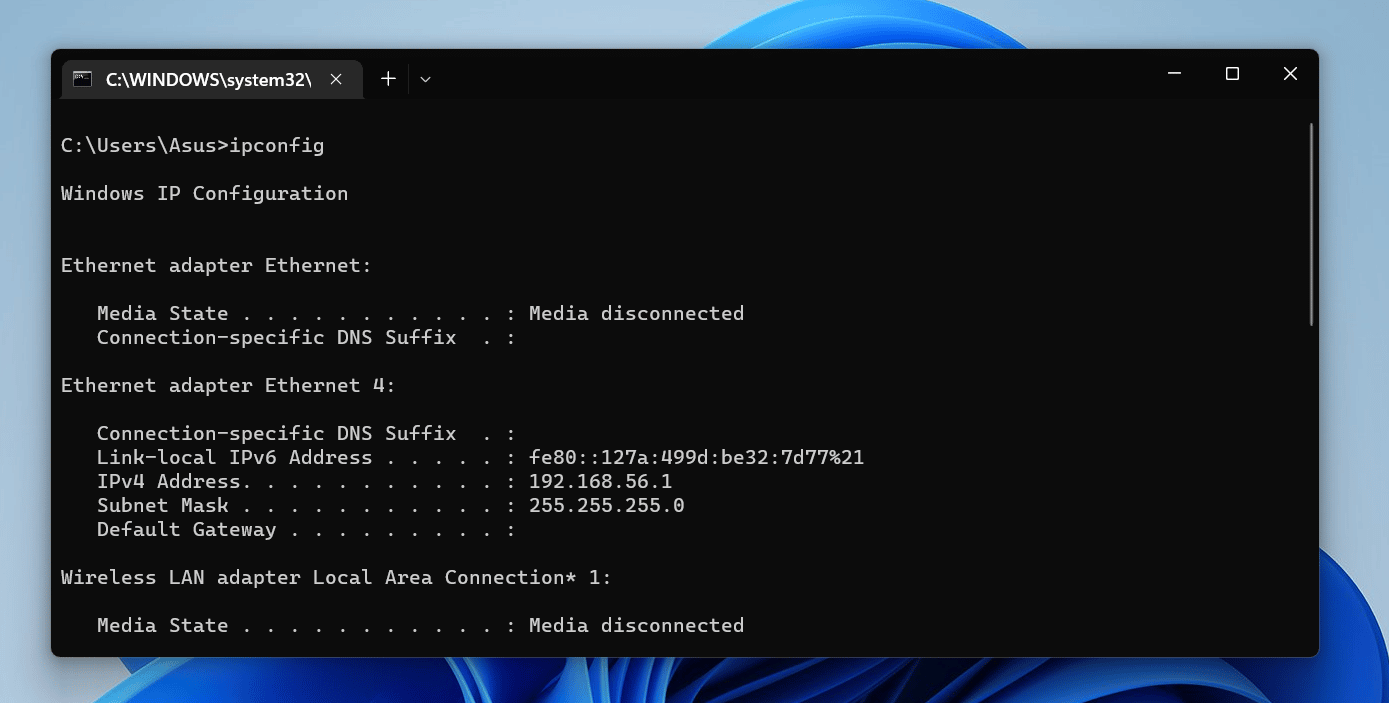
ipconfigand press Enter. - Scroll to your active network connection (e.g., Wireless LAN adapter Wi-Fi or Ethernet adapter).
- Locate the line labeled IPv4 Address. The numerical string listed (e.g.,
192.168.1.45) is your private local IP address.
Option B: Using System Settings
- Click the Start Menu and select Settings (or press Windows Key + I).
- Select Network & internet from the sidebar.
- Click on Wi-Fi or Ethernet, depending on your active network connection.
- Click on Properties for your active network.
- Scroll down to the bottom properties section to locate your IPv4 address and IPv6 address.
macOS
Option A: Using System Settings
- Click the Apple logo in the upper-left corner of the menu bar and select System Settings (or System Preferences on older macOS versions).
- Click Network in the left sidebar.
- Select your active connection (Wi-Fi or Ethernet).
- Click the Details... button next to your connected Wi-Fi network.
- Your local address is listed directly under the network status, labeled as IP Address.
Option B: Using Terminal
- Open Terminal via Spotlight Search (Command + Space, then type
Terminal). - Type the following command for Wi-Fi connections:
ipconfig getifaddr en0 - Press Enter. Terminal will immediately output your device's local IPv4 address. (Note: On desktop Macs using wired Ethernet, the interface designation may be
en1instead ofen0).
iOS and iPadOS (iPhone and iPad)
- Open the Settings app on your device.
- Tap Wi-Fi.
- Locate the Wi-Fi network you are currently connected to (marked with a blue checkmark).
- Tap the Info icon (an "i" inside a circle) next to the network name.
- Scroll down to the section labeled IPv4 Address. Your device's local IP address will be displayed on the IP Address line.
Android Devices
(Note: Interface menu names may vary slightly between device manufacturers like Samsung, Google, and Motorola).
- Open the Settings app on your Android device.
- Tap Network & internet or Connections.
- Tap Wi-Fi or Internet.
- Tap the Gear icon next to your active connected Wi-Fi network.
- Tap View more or scroll to the bottom of the details page to locate your IP address (showing IPv4 and IPv6 entries).
Linux (Ubuntu, Debian, Fedora, Arch)
- Open your system Terminal application (Ctrl + Alt + T on most desktop distros).
- Type the modern IP utility command:
ip addr show(or the shortened form:ip a) - Press Enter. Look for your primary active interface (such as
eth0for Ethernet orwlan0for Wi-Fi). - Find the line starting with
inet; the numerical address following it before the slash (e.g.,192.168.1.102) is your private local IP address. - Alternatively, for a simplified single-line output, execute:
hostname -I
IP Address Lookup Quick Reference Table
The following table summarizes the scope, retrieval commands, typical patterns, and primary applications for managing IP addresses across different operating environments.
| Environment / Operating System | Lookup Method / Command | Typical Address Format | Primary Purpose |
|---|---|---|---|
| Public IP (Any OS) | Visit web IP lookup or run curl ifconfig.me |
203.0.113.195 (IPv4) or 2001:db8::8a2e (IPv6) |
Remote server authentication, WAN routing, external web access |
| Windows 10 / 11 | Command Prompt: ipconfig |
192.168.1.X or 10.0.0.X |
Local device configuration, port forwarding, home file sharing |
| macOS | System Settings or Terminal: ipconfig getifaddr en0 |
192.168.1.X |
AirDrop debugging, internal network services, SSH access |
| Linux Terminal | ip addr show or hostname -I |
192.168.1.X or 10.0.0.X |
Server management, container network binding, system administration |
| iOS / iPadOS | Settings > Wi-Fi > Network Details (i) | 192.168.1.X |
Local streaming setup, smart home connectivity |
| Android | Settings > Connections > Wi-Fi Settings | 192.168.1.X |
Network connection troubleshooting, mobile debugging |
Dynamic vs. Static IP Addresses and Privacy Considerations
Understanding how IP addresses are assigned and managed provides crucial context when configuring network hardware or securing personal data.
Dynamic IP Addresses
By default, most residential network configurations utilize Dynamic IP addresses.
- Local Assignment: Your home router uses DHCP to lease private IP addresses to connected devices dynamically. When a device disconnects or reboots, its private local address may change.
- Public Assignment: ISPs generally assign dynamic public IP addresses to home connections. The ISP periodically changes your public IP address or reassigns it when your modem restarts.
Static IP Addresses
A Static IP address remains fixed permanently and does not change automatically.
- When to use Static Local IPs: Configuring static local IP addresses is recommended for local infrastructure like network-attached storage (NAS) drives, local media servers, or desktop printers, ensuring other devices always know where to reach them.
- When to use Static Public IPs: Businesses operating web servers, remote access portals, or hosted VPN services purchase static public IP addresses directly from their ISP so incoming connections do not lose track of the endpoint.
IP Privacy and Security Risks
Your public IP address reveals metadata about your online session, including your ISP's name, your country, city, and postal code region. While an IP address does not broadcast your legal name or exact street address, third parties can use public IPs to track browsing patterns across websites or run targeted network port scans.
Protecting Your Public IP Address
To obscure your public IP address from external tracking or secure connections over untrusted public Wi-Fi networks:
- Use a Virtual Private Network (VPN): A VPN encrypts your network traffic and routes your data through a remote server. External websites see the public IP address of the VPN server rather than your residential IP.
- Utilize Privacy Proxies: Proxies act as intermediaries for specific applications (such as web browsing), hiding your true address from target servers.
- Check for Network Leaks: Ensure your privacy tools do not leak data through WebRTC or DNS queries. Technical resources like Cloudflare Security Guidance provide detailed testing tools to verify network isolation.
Frequently Asked Questions
Is my IP address considered private confidential information?
No, a public IP address is not inherently secret. Every web server, router, and online host you communicate with must receive your public IP address to send data back to your device. However, you should avoid sharing your public IP address publicly on forums or media channels, as exposed IP addresses can become targets for unauthorized port scanning or Distributed Denial of Service (DDoS) attacks.
Why does my private local IP address keep changing?
Private local IP addresses change because standard network routers use DHCP to assign network configurations dynamically. Routers grant IP addresses on temporary "leases." When a lease expires, or when a device disconnects and reconnects to the network, the router may assign a different available IP address from its pool. You can prevent this by assigning a static local IP or creating a DHCP reservation in your router's administration interface.
What is the difference between IPv4 and IPv6 addresses?
IPv4 uses a 32-bit format capable of generating roughly 4.3 billion unique IP addresses. Due to the rapid global growth of connected smartphones, IoT devices, and computing hardware, the available pool of IPv4 addresses has been largely exhausted. IPv6 was created by the IETF using a 128-bit structure, expanding total address capacity to over 340 undecillion addresses, ensuring every internet-connected device worldwide can receive a unique public address.
Can someone locate my exact home address using my public IP address?
No. Public IP geolocation tools only map your IP address to your Internet Service Provider's local routing hub or regional central office. At best, an external party can identify your city, region, or general geographic market area. Obtaining an exact physical residential address from an IP address requires a formal court order or legal subpoena served directly to your ISP.
How do I release and renew my local IP address on Windows?
If you are experiencing local network connectivity issues on Windows, you can force your computer to drop its current network lease and request a fresh local IP address from your router. Open the Command Prompt as an Administrator and execute the following two commands sequentially:
ipconfig /releaseipconfig /renew
Next Steps for Network Management
Now that you can locate both your public and private IP addresses, you can take practical steps to manage your network effectively:
- Document Critical Hardware: Record the local IP addresses of shared devices—such as network printers, security cameras, or home media servers—to simplify future configuration.
- Configure Router Reservations: Log into your home router's admin portal to set up static DHCP reservations for local servers, ensuring their internal IP addresses remain identical after power outages.
- Verify Connection Security: If privacy is a priority, test your connection with an IP lookup tool both before and after activating a VPN to verify that your real public IP address is masked.
EDITORIAL CATEGORY METADATA:
Image Gallery