How to Program Your Cox Contour Remote: A Complete 2026 Guide
To program a Cox Contour remote, the most efficient method is using the Voice button. Press and hold the microphone icon and say "Program Remote," then follow the on-screen prompts to pair your TV or audio device. Alternatively, hold t...
To program a Cox Contour remote, the most efficient method is using the Voice button. Press and hold the microphone icon and say "Program Remote," then follow the on-screen prompts to pair your TV or audio device. Alternatively, hold the Setup button (XR11) or the A and D buttons (XR15) until the status light turns green, then enter the specific manufacturer code.
Contents
The Cox Contour system remains one of the most popular cable interfaces in 2026, largely due to its intuitive voice-controlled hardware. However, when you upgrade your television, add a high-end soundbar, or need to replace a lost remote, the initial handshake between the remote and your hardware is critical. Without proper programming, your remote is limited to controlling the Contour box itself, leaving you to juggle multiple controllers for volume, power, and input switching. This guide provides the technical steps required to unify your home entertainment system under a single Cox remote.
Identifying Your Cox Contour Remote Model
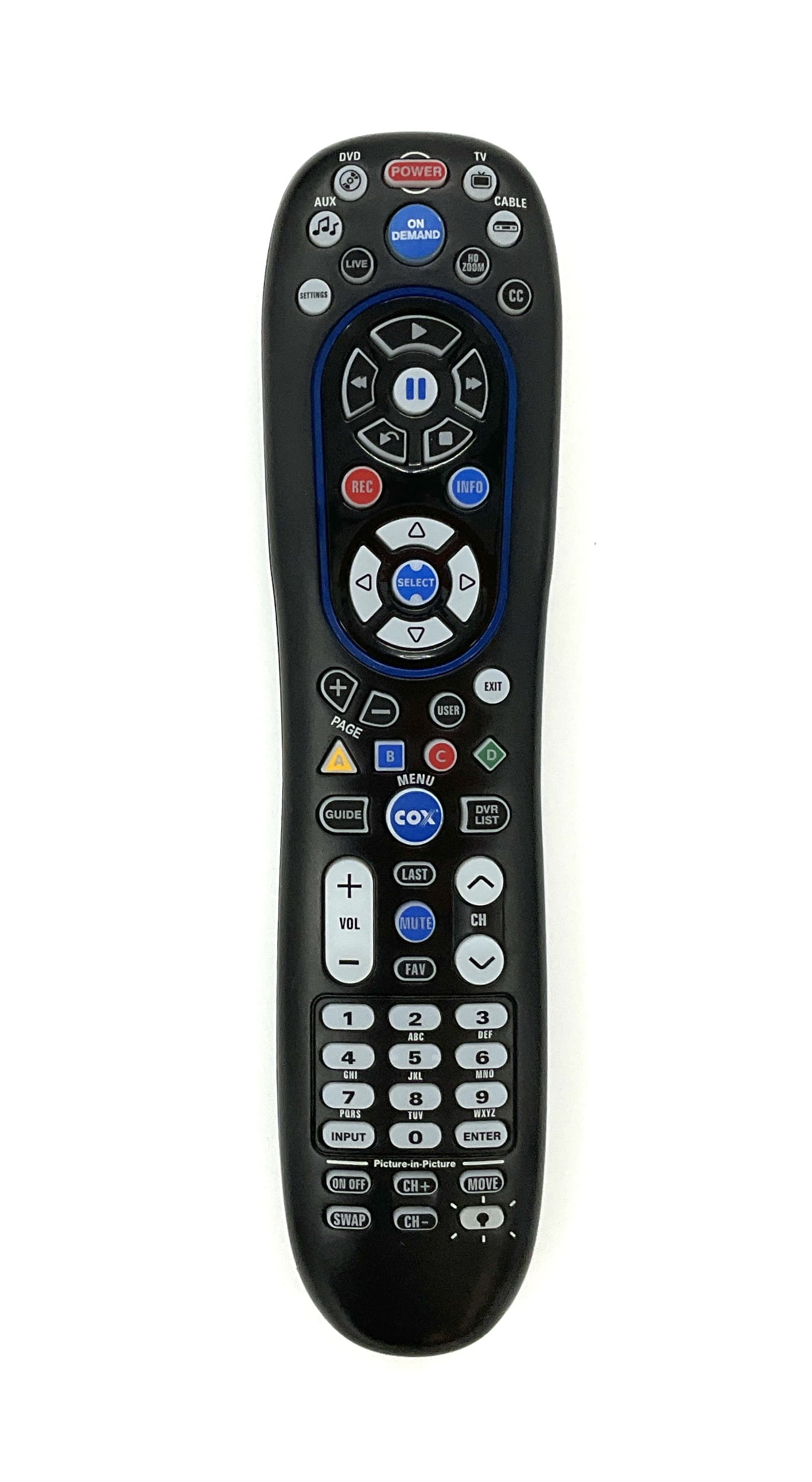
Before attempting any programming sequences, you must identify which remote model you are holding. Cox has released several iterations of the Contour remote, and while they share similar functionality, the button layouts and programming triggers differ significantly.
The XR11 (Voice Remote with Setup Button)
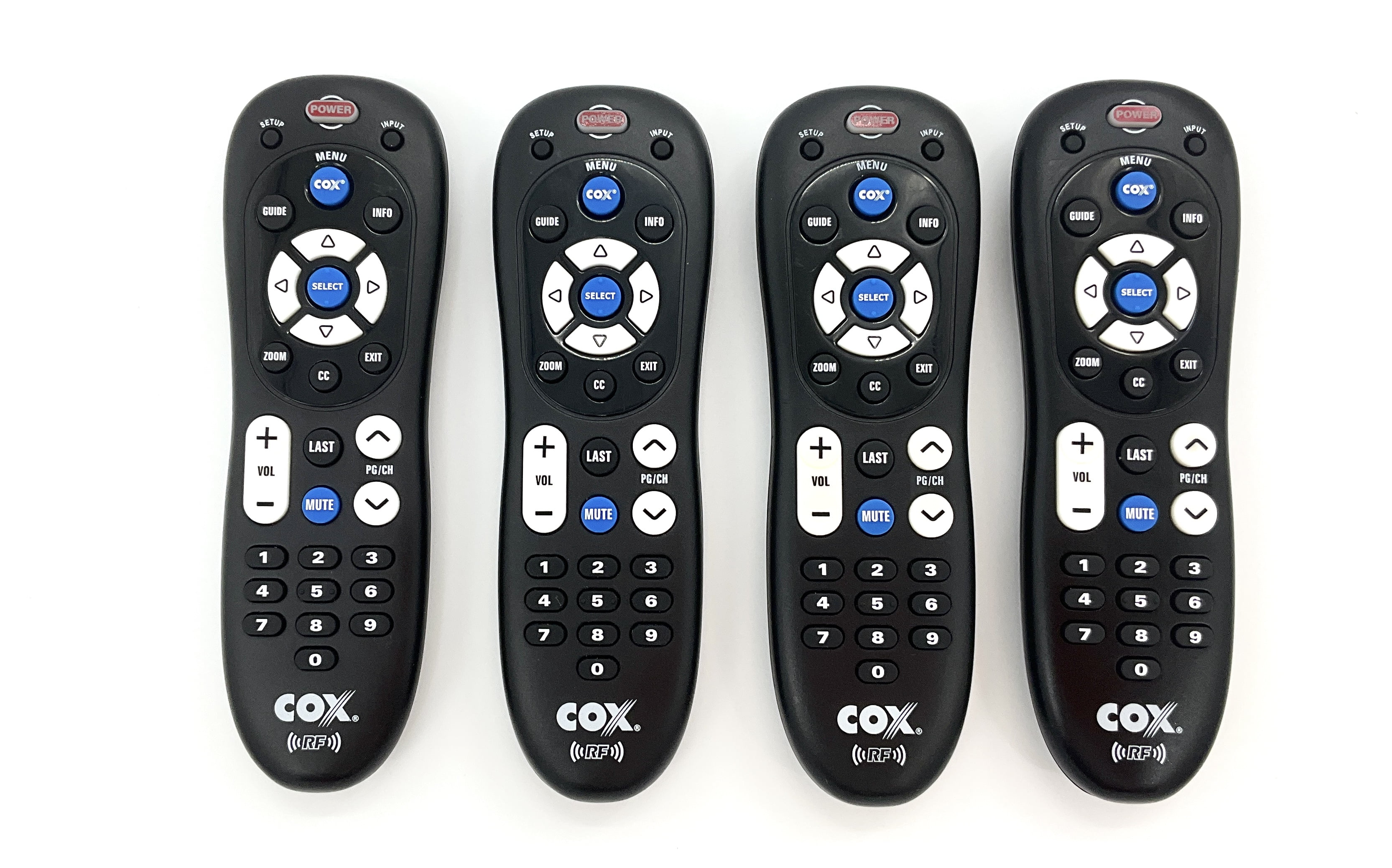
The XR11 is the classic silver or dark gray "Voice Remote." It is easily identifiable by its dedicated Setup button located in the lower-left or middle-left region of the remote. This model uses a physical button to trigger the programming state, making it slightly more straightforward for manual entry than its successors. It utilizes both Infrared (IR) for older televisions and Radio Frequency (RF) for "aim-anywhere" control of the cable box.
The XR15 (Voice Remote without Setup Button)
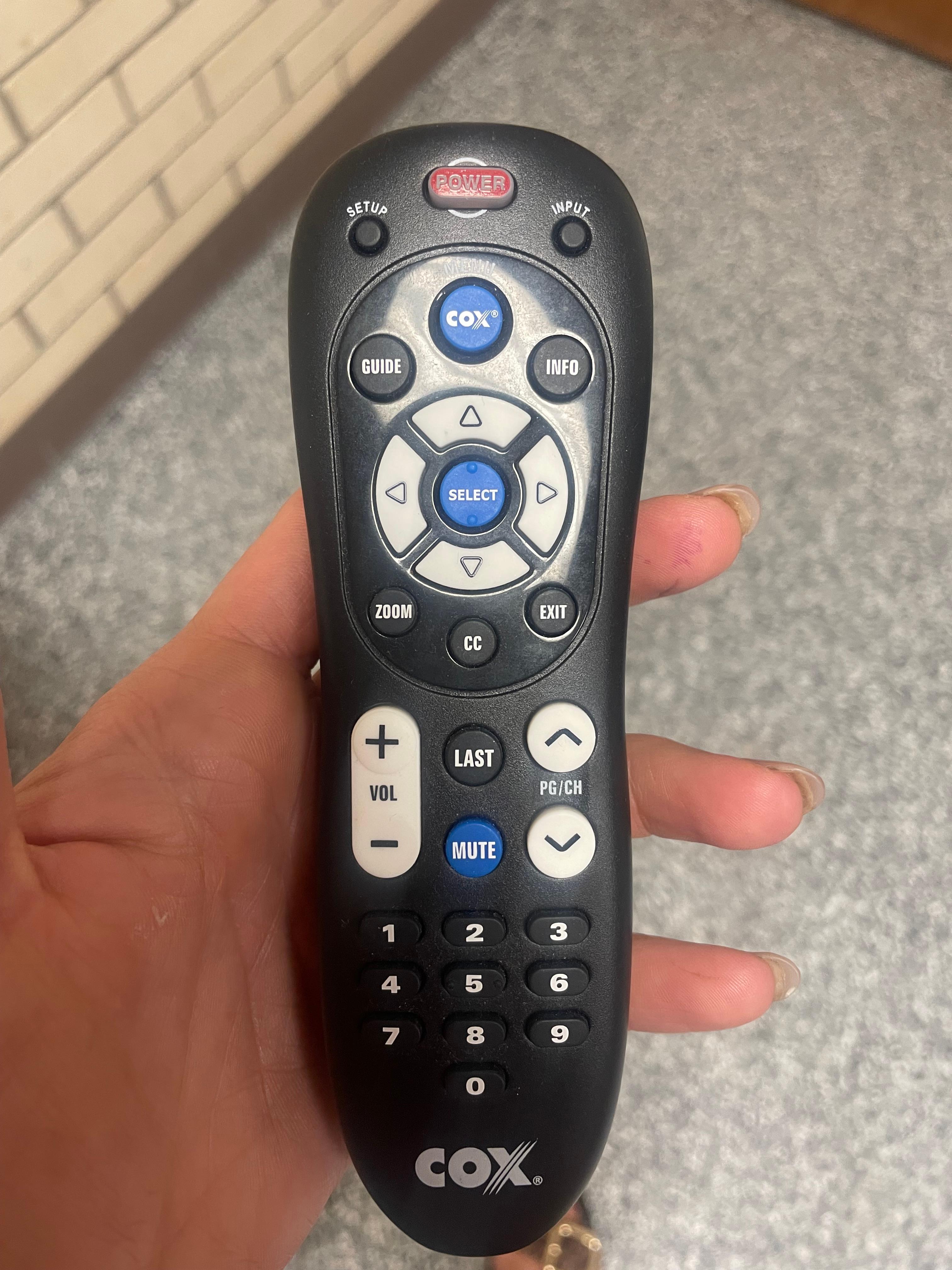
The XR15 is the sleek, black, angular remote that lacks a dedicated Setup button. To enter programming mode on this device, you must use a combination of the A (Triangle) and D (Diamond) buttons. This model is the standard for most Contour 2 installations in 2026 and relies heavily on the on-screen interface for pairing, though manual override codes are still supported for older hardware.
The XR16 (Voice Remote for Contour Stream Player)
Commonly used with the Cox Contour Stream Player (a box designed for streaming rather than traditional cable), the XR16 is smaller and lacks a numerical keypad. Programming this remote is almost entirely automated through the "Pairing Tool" in the settings menu, as it is designed for a simplified user experience.
Method 1: The Voice Command Method (Recommended)
In 2026, the voice-first approach is the most reliable way to program any Cox Contour remote (XR11, XR15, or XR16). This method leverages the internal software of the Contour box to identify your TV's make and model via the HDMI connection (HDMI-CEC), often automating the code-entry process entirely.
- Ensure the Box is Active: Turn on your TV and your Cox Contour receiver. Ensure you can see a picture.
- Activate Voice Control: Press and hold the Voice (Microphone) button on your remote.
- Speak the Command: Clearly say, "Program Remote."
- Follow On-Screen Prompts: A menu will appear on your television asking if you want to control your TV or audio equipment. Select "TV" and then follow the prompts to select your brand (e.g., Samsung, LG, Sony, Vizio).
- Test the Connection: The system will attempt to send a "Mute" or "Volume Up" command to your TV. If it works, select "Yes" on the screen. If not, the system will cycle through alternative codes until it finds the correct match.
This method is preferred because it handles the RF (Radio Frequency) pairing simultaneously. RF pairing allows you to control your cable box even if it is hidden inside a cabinet or behind the TV, as it does not require a direct line of sight.
Method 2: Manual Programming for the XR11 Remote
If the voice command fails or you are trying to program the remote to an older television that does not support HDMI-CEC, you will need to use the manual code entry method.
Steps for XR11 (Setup Button)
- Power On: Ensure the TV you wish to program is turned on.
- Trigger Setup Mode: Press and hold the Setup button until the status light at the top of the remote changes from red to green.
- Enter the Manufacturer Code: Using the number pad, enter the first code listed for your TV brand. You can find common codes on the Cox Remote Support page.
- Verify the Code: If the code is correct, the status light will flash green twice. If it flashes red, the code was invalid, and you should try the next one in the sequence.
- Test Power and Volume: Press the Power button. If the TV turns off, you have successfully programmed the remote.
Method 3: Manual Programming for the XR15 Remote
Since the XR15 lacks a Setup button, the process requires a specific button combination to unlock the programming firmware.
Steps for XR15 (A and D Buttons)
- Power On: Turn on the television.
- Enter Setup Mode: Simultaneously press and hold the A (Triangle) and D (Diamond) buttons for approximately three seconds. Watch the status light; it will transition from red to green.
- Input the Code: Enter the 5-digit manufacturer code for your TV brand.
- Samsung: 10812, 10060
- LG: 11423, 10178
- Sony: 10810, 10000
- Vizio: 11758, 11756
- Confirmation: Similar to the XR11, a double-green flash indicates success.
- Alternative Search: If you do not have a code, enter 9-9-1. Then, repeatedly press the CH+ (Channel Up) button until the TV turns off. Once it turns off, press the Center (Select) button to lock in that code.
Programming Audio Devices (Soundbars and Receivers)
Many users in 2026 utilize external sound systems like Sonos, Bose, or Samsung soundbars. Programming your Cox remote to control the volume and mute functions of these devices is a separate step that occurs after the TV is paired.
- Enter Setup Mode: Use the same method as above (Setup button for XR11, A+D for XR15).
- Enter the Audio Code: Input the manufacturer code for your audio receiver or soundbar. Common codes include 31933 for Bose or 33320 for Sonos.
- Volume Lock: By default, the remote may still try to control the TV volume. To "lock" the volume to your audio device, press the Setup (or A+D) button until the light turns green, then enter code 9-9-3. Press the Cox button, and the light should flash green twice. This ensures that even when the remote is in "TV mode," the volume buttons always communicate with the soundbar.
Comparison of Programming Methods
| Remote Model | Primary Trigger | Best For | Line of Sight Required? |
|---|---|---|---|
| XR11 | Setup Button | Older TVs, IR devices | Only for TV (not Box) |
| XR15 | A + D Buttons | Modern 4K TVs, RF Setup | No (RF Support) |
| XR16 | Menu/Voice | Streaming boxes | No (RF Support) |
| Voice Command | Microphone Button | All Contour users | No |
Troubleshooting Common Programming Issues
Even with the correct codes, programming can occasionally fail due to hardware interference or software glitches.
The Status Light Flashes Red
If the status light flashes red after entering a code, it means the remote does not recognize that specific digit sequence as a valid command. This often happens if you are using a code intended for an older remote model (like the non-voice Cox remotes) on a newer Contour remote. Always ensure you are using 5-digit codes for Contour remotes.
Remote Controls the Box but Not the TV
This is a common issue where the RF pairing to the Cox box is successful, but the IR programming for the TV has failed. Ensure there is nothing blocking the IR sensor on the front of your TV. Some modern "bezel-less" TVs have very small IR receivers located at the bottom edge; ensure the remote is pointed directly at that spot during programming.
Resetting the Remote (Factory Reset)
If a remote becomes unresponsive or "stuck" in a specific mode, a factory reset is the best solution.
- For XR11: Press Setup until green, then enter 9-8-1. The light will flash twice.
- For XR15: Press A and D until green, then enter 9-8-1. Doing this will wipe all TV and audio programming, allowing you to start fresh with the Voice Command method.
Battery Considerations
In 2026, Cox remotes utilize low-energy Bluetooth and RF4CE protocols. While efficient, these protocols require a minimum voltage to transmit programming signals. If your batteries are below 25% capacity, the remote may control the box but fail to enter "Setup" mode. Always install fresh alkaline batteries before troubleshooting programming issues.
Frequently Asked Questions
Can I program one Cox remote to control two different TVs?
No. Cox Contour remotes are designed to pair with one TV and one audio device at a time. If you move the remote to a different room, you must re-program it for the new hardware, which will overwrite the previous settings.
What do I do if my TV brand isn't listed in the Cox menu?
If your brand is obscure (often referred to as a "white-label" brand), try using codes for LG or Samsung, as many smaller manufacturers use their internal components. Alternatively, use the 9-9-1 search method described in the XR15 section to cycle through all stored codes in the remote's database.
Why does the "All Power" button only turn off my box and not my TV?
This typically means the remote is paired to the box via RF but the TV code hasn't been saved correctly. Re-run the "Program Remote" voice command. Additionally, check your TV's settings for HDMI-CEC (often called Anynet+, Bravia Sync, or SimpLink) and ensure it is turned On.
Does the Cox remote work with streaming devices like Roku or Apple TV?
Cox Contour remotes are specifically engineered for the Contour ecosystem. While they can control the power and volume of the TV that the Roku is plugged into, they cannot navigate the Roku or Apple TV interface itself.
How do I find the 5-digit code for a specific soundbar?
You can visit the official Cox Remote Code Finder or consult the manufacturer's manual. Most soundbars released between 2020 and 2026 support standard codes that the Contour remote can auto-detect through the "Audio Device" setup menu on your screen.
Final Recommendation
For the fastest and most reliable setup in 2026, always attempt the Voice Command method first. It eliminates the need for manual code lookups and ensures that your remote is updated with the latest firmware from the Cox servers. If you are integrating a complex home theater setup with a receiver and a TV, remember to use the Volume Lock (9-9-3) feature to ensure consistent audio control across all inputs.
Image Gallery