How to Set a Honeywell Programmable Thermostat: A Comprehensive 2026 Guide
To set a Honeywell programmable thermostat, press the SET or SCHEDULE button to enter the programming mode. Use the UP and DOWN arrows to adjust the time and temperature for each period (Wake, Leave, Return, Sleep), then press NEXT or...
To set a Honeywell programmable thermostat, press the SET or SCHEDULE button to enter the programming mode. Use the UP and DOWN arrows to adjust the time and temperature for each period (Wake, Leave, Return, Sleep), then press NEXT or DONE to save your changes and activate the schedule.
Contents
Programming a thermostat is one of the most effective ways to manage home energy consumption while maintaining a comfortable living environment. Honeywell, a brand managed under the Resideo umbrella since 2018, remains a dominant force in the HVAC control industry. As of 2026, millions of homes continue to rely on Honeywell’s robust lineup of programmable thermostats, ranging from classic push-button models to advanced touchscreen interfaces. Understanding how to navigate these menus ensures that your heating and cooling systems operate only when necessary, potentially reducing utility bills by up to 10% annually.
Identifying Your Honeywell Thermostat Model
Before you begin the programming process, you must identify which type of Honeywell thermostat you own. While the core logic of "Time + Temperature = Period" remains consistent, the user interface varies significantly across different series.
The T-Series (T4, T5, T6)
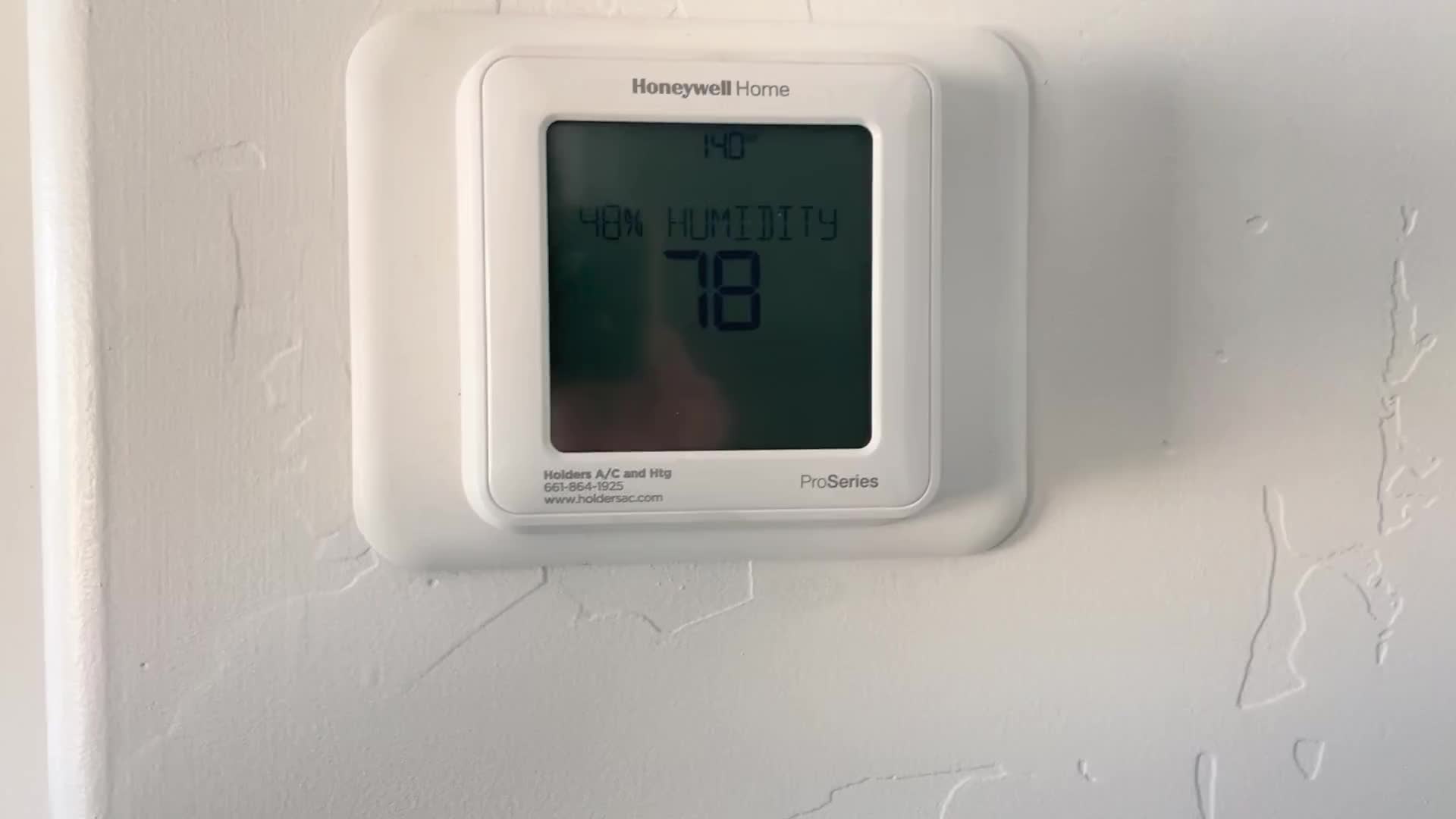
The T-Series represents the modern standard for residential HVAC control. These units often feature a sleek, square design with a digital, non-touch or touchscreen display. They are known for their "UWP" (Universal Wall Plate) mounting system, making them easy for technicians to swap.
FocusPro and Pro Series (5000 and 6000)
These are the workhorses of the industry. They usually feature a horizontal layout with physical buttons and a green backlit screen. The FocusPro 6000 is a classic "5-2" or "5-1-1" programmable model, meaning it allows for one schedule for weekdays and another for weekends.
VisionPro (8000 Series)
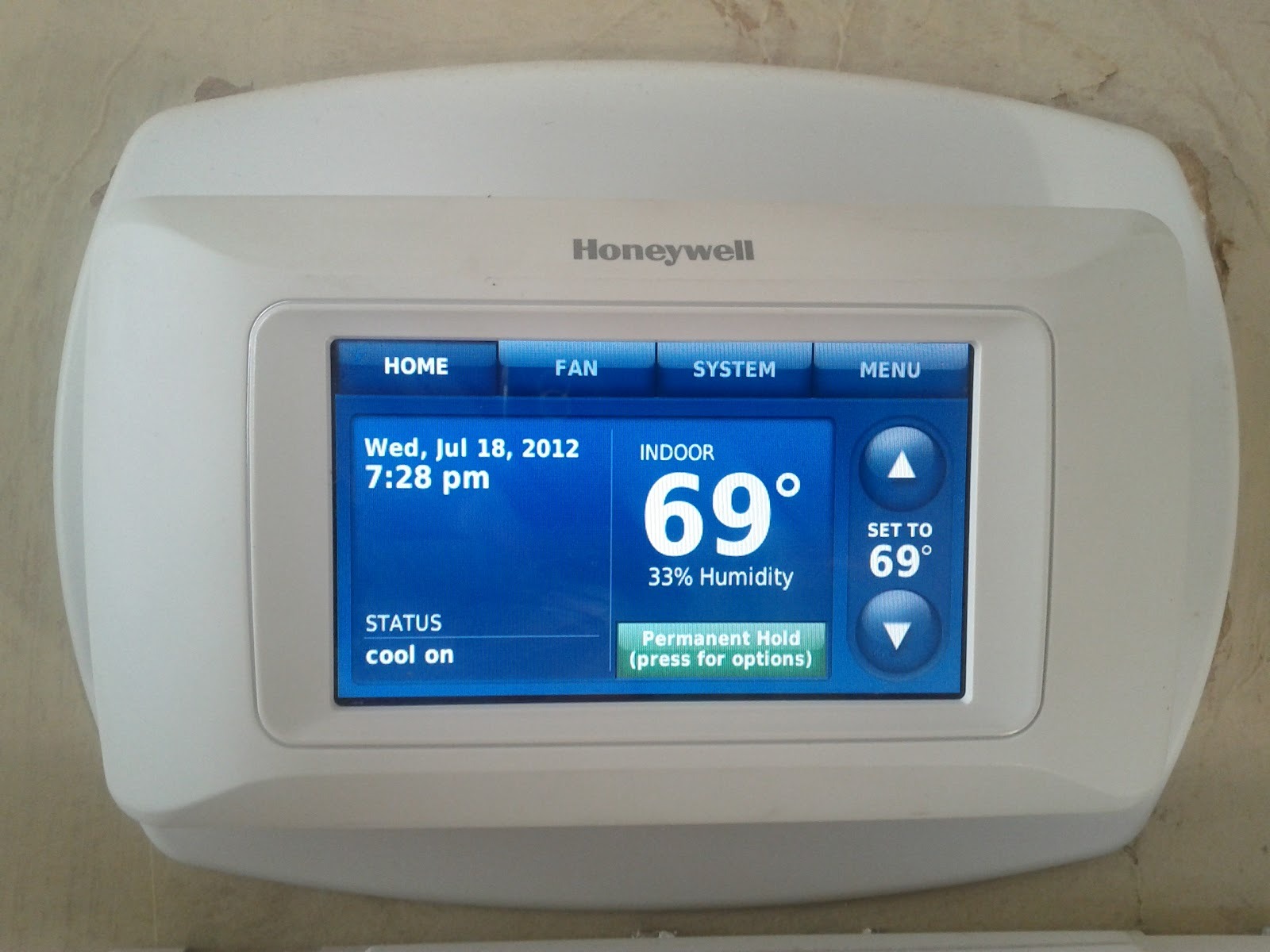
The VisionPro series is a high-end line featuring large touchscreen displays. These units offer 7-day programming flexibility, allowing you to set a unique schedule for every single day of the week. They often include advanced features like humidity control and dual-fuel system management.
RTH Retail Series
The RTH series (e.g., RTH6350, RTH6580WF) are common DIY models found in hardware stores. These often mimic the functionality of the Pro series but are packaged for consumer installation.
Essential Prerequisites and System Preparation
Before diving into the schedule, ensure your thermostat is ready for input. A common mistake is attempting to program a unit with low batteries or an incorrect system clock.
- Check the Batteries: Most non-WiFi Honeywell thermostats rely on two AA or AAA alkaline batteries. If the "Low Bat" indicator is flashing, replace them immediately. A dying battery can cause the thermostat to lose its programming or fail to trigger the HVAC system.
- Set the Current Time and Day: The schedule relies entirely on the internal clock. Press the SET button until the clock flashes. Use the UP/DOWN arrows to set the current time, ensuring the AM/PM designation is correct. Press DONE or NEXT to set the current day of the week.
- Understand the Four Periods: Most Honeywell models use a four-period scheduling system:
- Wake: The time you wake up and the temperature you want until you leave.
- Leave: The time you depart for work/school and an energy-saving temperature.
- Return: The time you arrive home and want the house to reach a comfortable level.
- Sleep: The time you go to bed and a temperature optimized for rest.
Step-by-Step Programming Guide for Common Models
The following instructions cover the most prevalent Honeywell interfaces. Note that your specific model may have slight variations in button labels.
Programming the T-Series (T4/T6 Non-WiFi)
- Enter Menu: Press the Menu button on the screen.
- Select Schedule: Use the arrow buttons to navigate to PROG or SCHED and press Select.
- Choose Days: Select the days you want to edit (e.g., Mon-Fri).
- Set Wake Period: The "Wake" icon will flash. Set the time (e.g., 6:30 AM) and press Select. Then set the temperature (e.g., 70°F) and press Select.
- Set Leave/Return/Sleep: Repeat the process for the remaining three periods.
- Finalize: Once all periods are set, the screen will usually display "Save?" or "Done." Press Select to activate the schedule.
Programming the FocusPro 6000 (Button Interface)
- Initiate: Press the SET SCHEDULE button.
- Edit Weekdays: The screen will show "Mon Tue Wed Thu Fri." Use the UP/DOWN arrows to set the Wake time, then press SET SCHEDULE to move to the Wake temperature.
- Sequence: Continue pressing SET SCHEDULE to cycle through the Leave, Return, and Sleep periods for the weekdays.
- Edit Weekends: After the Friday Sleep period is set, the screen will switch to "Sat Sun." Follow the same steps to set the weekend routine.
- Exit: Press the RUN SCHEDULE button to exit and start the program.
Programming the VisionPro 8000 (Touchscreen)
- Access Menu: Tap the SCHED or SYSTEM tab on the touchscreen, then select Edit Schedule.
- Select Days: You can select individual days or "All Days" to create a uniform schedule.
- Adjust Periods: Tap the period you wish to change (e.g., Wake). Use the on-screen arrows to adjust the time and heat/cool setpoints simultaneously.
- Save: Tap Done to save the settings. The thermostat will return to the main screen, showing "Following Schedule."
Comparison of Honeywell Programmable Series (2026 Standards)
| Feature | T4 Pro Series | VisionPro 8000 | FocusPro 6000 | RTH6580WF |
|---|---|---|---|---|
| Interface | Digital Soft-buttons | Large Touchscreen | Physical Buttons | Digital Buttons |
| Scheduling | 5-2, 5-1-1, or 7-Day | 7-Day Individual | 5-2 or 5-1-1 | 7-Day |
| Power Source | Battery or C-Wire | C-Wire (Required) | Battery or C-Wire | C-Wire (Required) |
| Smart Features | Optional WiFi | WiFi (Standard) | Non-Connected | WiFi (Legacy) |
| Recovery Mode | Adaptive Recovery | Smart Response | Conventional | Smart Response |
Advanced Features: Holds and Recovery Modes
Once your schedule is set, you may need to override it occasionally. Honeywell thermostats provide two primary ways to do this:
Temporary vs. Permanent Hold
- Temporary Hold: If you adjust the temperature using the UP/DOWN arrows while a schedule is running, the thermostat enters "Temporary Hold." It will maintain this new temperature only until the next scheduled period begins.
- Permanent Hold: To maintain a temperature indefinitely (e.g., while you are on vacation), adjust the temperature and then press the HOLD button. The screen will display "Permanent Hold." To resume your schedule, you must manually press RUN SCHEDULE or CANCEL.
Adaptive Intelligent Recovery (Smart Response)
Many Honeywell models feature Adaptive Intelligent Recovery. This feature allows the thermostat to "learn" how long your HVAC system takes to reach a specific temperature. If you program your house to be 72°F at 6:00 AM, the thermostat might actually turn the heat on at 5:30 AM to ensure the goal is met exactly by 6:00 AM. If you prefer the system to start exactly at the programmed time, this feature can usually be disabled in the Installer Setup (ISU) menu.
Troubleshooting Common Issues
Even with a perfectly programmed schedule, you may encounter performance issues.
- "Following Schedule" is Missing: If the screen does not say "Following Schedule," the unit is likely in a Permanent Hold. Press the RUN SCHEDULE or CANCEL button to return to your programmed settings.
- System Not Turning On: Ensure the system switch is set to HEAT or COOL. If it is set to OFF, the schedule will not trigger the HVAC unit. Also, check the "Wait" or "Cool On" flashing icons; these indicate a compressor protection delay (usually 5 minutes) to prevent system damage.
- Clock is Wrong after Power Outage: If your thermostat does not have batteries and relies solely on a C-wire from the furnace, a power outage will reset the clock. You must re-set the current time for the schedule to function correctly.
- Incorrect Temperature Reading: Ensure the thermostat is not located near a drafty window, a heat-producing lamp, or a direct sunlight path. These external factors can trick the sensors into thinking the room is warmer or cooler than it actually is.
Energy Efficiency Best Practices
To maximize the benefits of your Honeywell thermostat, follow these Department of Energy (DOE) recommendations:
- The 8-Hour Rule: Set your thermostat back 7°–10°F from its normal setting for 8 hours a day (typically during "Leave" or "Sleep" periods) to save up to 10% a year on heating and cooling.
- Avoid Extreme Settings: Setting your thermostat to 90°F will not heat the house faster; it only keeps the system running longer, leading to wasted energy.
- Seasonal Adjustments: In the winter, 68°F is the recommended temperature while awake, with a lower setting while asleep. In the summer, 78°F is recommended for cooling when you are at home.
For more information on energy-saving strategies, visit the U.S. Department of Energy's guide on thermostats. For model-specific manuals, the official Resideo/Honeywell Home support portal provides digital PDF copies for every unit manufactured in the last two decades.
Frequently Asked Questions
Why is my Honeywell thermostat screen blank?
A blank screen is usually caused by dead batteries. If replacing the AA or AAA batteries does not fix the issue, check your home’s circuit breaker or the furnace power switch. If the thermostat is powered by a C-wire, a blown fuse on the HVAC control board could also be the culprit.
What is the difference between "Fan On" and "Fan Auto"?
In Fan Auto, the blower fan only runs when the heating or cooling system is actively running. In Fan On, the blower runs continuously, even when the system isn't heating or cooling. Using "Auto" is generally more energy-efficient and helps control humidity better in the summer.
How do I factory reset my Honeywell thermostat?
For most T-Series models, press and hold the Menu button for 5 seconds, navigate to RESET, and select Factory. For older FocusPro models, you usually have to enter the Installer Setup (ISU) and find the reset code in the manual. Be careful: a factory reset will erase all your schedules and system configurations.
Can I program a Honeywell thermostat for a Heat Pump?
Yes, but you must ensure the thermostat is correctly configured in the Installer Setup for a heat pump system. If it is set to "Conventional Heat" but you have a heat pump, the "Cool" mode might blow hot air, or the backup heat (Auxiliary Heat) may not engage during cold snaps.
What does "Recovery" mean on my display?
The "Recovery" message means the thermostat has activated the system early to reach your next scheduled temperature by the time you specified. This is part of the Adaptive Intelligent Recovery feature and is a sign of a properly functioning smart-response system.
Next Action: Verify your current system time. If your thermostat's clock is off by even thirty minutes, your energy savings will be diminished. Once the time is verified, perform a "Test Run" by setting a temporary temperature 2 degrees above or below the current room temperature to ensure the system engages correctly.
Image Gallery