Diagnosing and Resolving an Airtel Network Problem: A Comprehensive Troubleshooting Guide
When facing an Airtel network problem, the fastest resolution usually involves toggling Airplane Mode, restarting your mobile device, or manually selecting your network operator in your smartphone settings. If local tower congestion or...
When facing an Airtel network problem, the fastest resolution usually involves toggling Airplane Mode, restarting your mobile device, or manually selecting your network operator in your smartphone settings. If local tower congestion or a broader service outage is the root cause, verifying your connection status against official channels ensures you take the right troubleshooting steps.
Contents
Encountering connectivity issues with your mobile service provider can disrupt work, communication, and daily digital tasks. Whether you are dealing with sudden call drops, slow cellular data speeds, or a complete absence of signal bars, understanding the underlying causes of an Airtel network problem empowers you to fix it efficiently. Telecommunications networks rely on a complex interplay of hardware, software configurations, local topography, and infrastructure capacity. When any single point in this chain fails, service degradation occurs.
Fixing these issues requires a systematic approach that moves from simple device-level checks to account verifications and technical troubleshooting. By examining the common triggers behind poor reception, data stagnation, and voice connectivity failures, users can bypass frustrating trial-and-error methods and apply targeted solutions.
Understanding the Causes of Airtel Network Issues
Cellular network performance depends heavily on environmental, structural, and technical factors. Before diving into troubleshooting, it helps to understand why an Airtel network problem might occur in the first place.
Environmental and Structural Blockers
Physical barriers are among the most frequent culprits behind signal loss. Radio frequency signals used by mobile carriers—ranging from low-band frequencies that travel long distances to high-band frequencies used for high-speed data—struggle to penetrate dense building materials.
- Concrete and Steel: Modern commercial buildings reinforced with concrete and steel act as Faraday cages, significantly dampening incoming cellular signals.
- Basements and Subterranean Spaces: Being below ground level blocks line-of-sight propagation from nearby cell towers, dropping signal strength to zero.
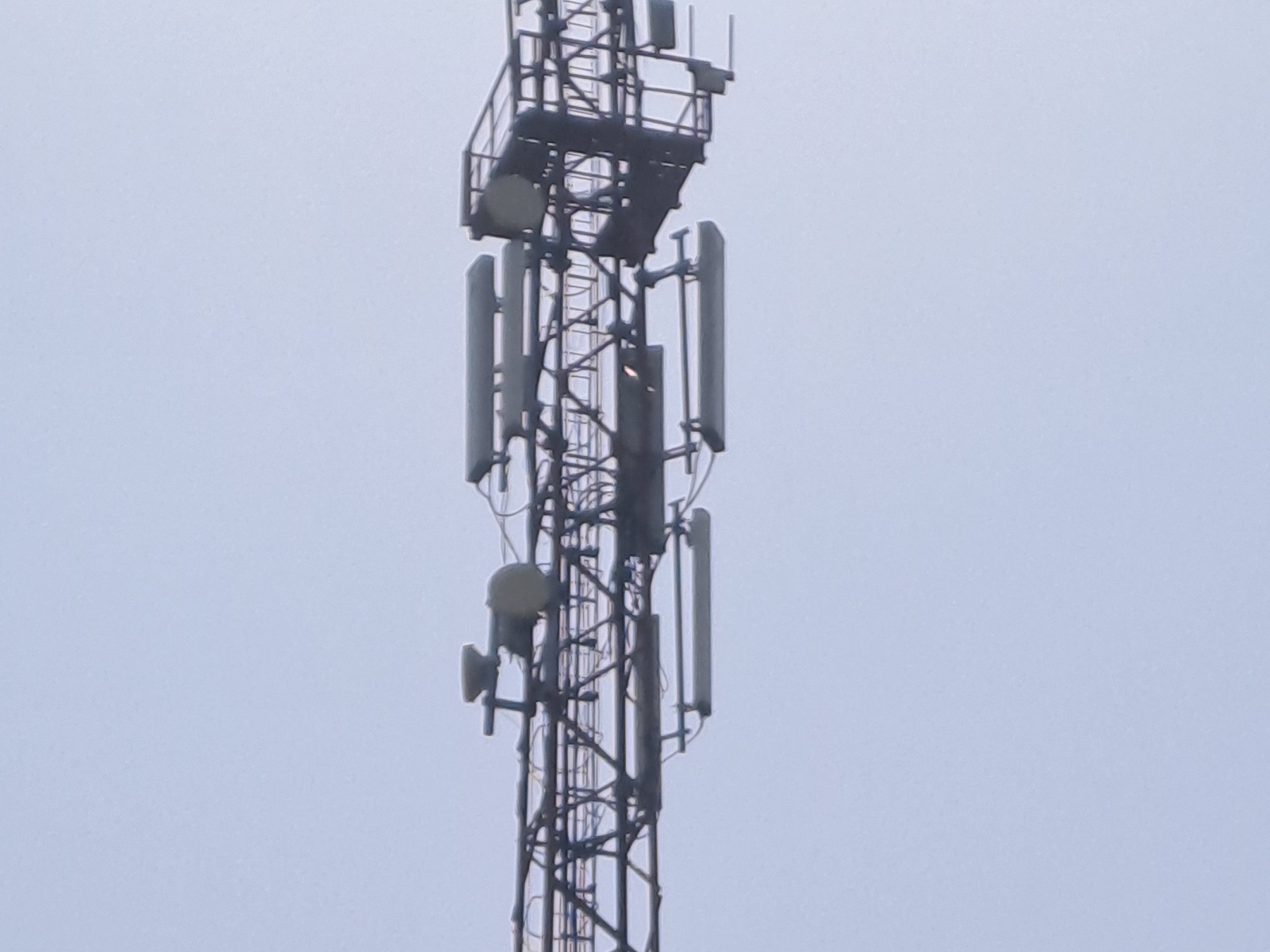
- Topography and Distance: Hills, dense forests, and long distances from the nearest base transceiver station (BTS) weaken signal propagation, resulting in intermittent connectivity.
Tower Congestion and Infrastructure Outages
Cell towers have a finite capacity for concurrent data sessions and voice calls. In densely populated urban areas, major events, or peak commuting hours, towers can experience congestion, leading to slow data speeds or failed call setups. Additionally, scheduled maintenance, fiber-cut incidents caused by construction work, and power outages at cell sites can cause temporary localized outages.
Basic Troubleshooting Steps for Immediate Relief
When you first notice a drop in service, begin with quick, non-invasive device refreshes. These steps clear temporary glitches in your phone's modem and force it to rehandshake with the nearest cell tower.
Toggling Airplane Mode
Turning on Airplane Mode disconnects your phone from all cellular, Wi-Fi, and Bluetooth radios. Leaving it on for 10 to 15 seconds and then turning it off forces your device to search for local network towers afresh. This action often clears out erroneous network caches stored in your phone's memory.
Restarting Your Mobile Device
A simple reboot refreshes your operating system and restarts the baseband processor—the specialized chip responsible for handling cellular communications. Power your device completely off, wait 30 seconds, and turn it back on to establish a clean connection with the carrier infrastructure.
Advanced Device and SIM Card Troubleshooting
If basic resets fail to resolve the Airtel network problem, you must investigate your device settings and SIM card health. Misconfigured mobile networks or damaged physical components can prevent proper signal reception.
Verifying and Resetting APN Settings
Access Point Name (APN) settings dictate how your phone connects to Airtel's data gateway. If these settings become corrupted or altered, your internet connection will fail even if your voice signal bars are full.
- Open your phone's Settings menu.
- Navigate to Network & Internet or Connections, then select Mobile Networks.
- Tap on Access Point Names (APNs).
- Ensure the active APN matches Airtel's official configuration parameters. If unsure, tap the menu icon and select Reset to Default.
Managing Network Operators Manually
By default, phones are set to automatically select a network operator. However, if your phone gets stuck on a weaker signal frequency or an overlapping roaming partner network, manual selection can force it onto the optimal Airtel band.
| Operating System | Navigation Path | Action |
|---|---|---|
| Android | Settings > Network & Internet > Mobile Network | Toggle off "Automatically select network," wait for the scan, and manually select Airtel. |
| iOS (iPhone) | Settings > Cellular > Network Selection | Toggle off "Automatic," wait for the list to load, and select Airtel manually. |
Inspecting and Reseating the SIM Card
Physical wear, dust accumulation, or a slightly displaced SIM card can cause intermittent connectivity or trigger "No SIM" errors. Power down your device, use a SIM ejector tool to remove the card tray, inspect the gold contact pins for debris, and carefully place the SIM card back into the tray, ensuring it sits flush. If you suspect physical damage to the SIM, visit an authorized Airtel store for a SIM swap while retaining your existing mobile number.
Account Status and Billing Verification
Sometimes, a perceived network problem is actually an administrative block on your account. Checking your service validity prevents unnecessary technical troubleshooting.
Checking Prepaid Validity and Active Plans
For prepaid customers, expiration of the main account balance or service validity pack automatically restricts outgoing calls and cellular data usage, though incoming calls may work for a limited grace period. Dial the official USSD codes provided by Airtel or open the Airtel Thanks app to verify your current plan status, active data packs, and account balance.
Clearing Postpaid Dues
Postpaid connections are subject to automated suspension if billing cycles pass without payment. If your bill remains unpaid past the due date, Airtel may temporarily restrict outbound services. Clearing outstanding dues through official digital payment channels usually restores full network access within a short window.
Comparing Troubleshooting Approaches
| Troubleshooting Level | Best Used For | Complexity | Time Required |
|---|---|---|---|
| Device Refreshes | Sudden signal drops, temporary glitches | Low | Under 1 minute |
| Network Settings Reset | Data connectivity failures, slow speeds | Low to Moderate | 2 to 5 minutes |
| SIM Card Inspection | "No SIM" errors, constant signal loss | Moderate | 5 minutes |
| Customer Support / Outage Check | Area-wide outages, persistent faults | Moderate to High | 10+ minutes |
Contacting Support and Reporting Outages
If you have exhausted all device-level fixes and suspect a broader infrastructure issue, contacting customer support or checking public outage monitors is the next logical step.
Utilizing Official Support Channels
Airtel provides multiple customer service touchpoints for addressing persistent network issues:
- Digital App: Use the live chat feature within the Airtel Thanks application to log a network complaint.
- Helpline Numbers: Call customer care directly from your Airtel number or an alternate line.
- Social Media Support: Reach out to official verified handles on platforms like X (formerly Twitter) for rapid response regarding local outages.
When logging a complaint, note specific details such as your exact geographic location, landmark, duration of the problem, and whether the issue affects voice calls, data, or both. This information helps network engineers pinpoint BTS faults faster.
Frequently Asked Questions
Why am I seeing full signal bars on my phone, but my internet is not working?
Full signal bars indicate strong radio frequency communication between your phone and the local cell tower, but they do not measure internet bandwidth or gateway availability. This issue usually points to depleted data quotas, incorrect APN configurations, temporary congestion on the data routing server, or a localized packet-loss issue. Try toggling your data off and on or resetting your APN settings.
How can I check if there is an active Airtel outage in my city?
You can verify widespread service disruptions by checking independent outage tracking websites, monitoring official announcements on Airtel's social media channels, or asking neighbors on the same network if they are experiencing identical symptoms. If multiple users in your immediate vicinity lose connectivity simultaneously, the cause is almost certainly an upstream infrastructure issue rather than your specific device.
Will changing my network mode from 5G to 4G help fix my connection?
Yes, forcing your phone to use LTE/4G instead of 5G can resolve connectivity problems if the local 5G signal is weak or unstable. While 5G offers faster speeds, its higher frequency bands have shorter ranges and struggle with indoor penetration. Switching to 4G often provides a more stable, consistent connection in challenging indoor environments.
What should I do if my phone shows "Emergency Calls Only"?
The "Emergency Calls Only" status means your device can communicate with any available cellular tower to place emergency calls, but your specific carrier's authentication has failed. This is typically caused by a loose SIM card, an expired account, or a temporary network registration failure. Restart your phone, reseat your SIM card, or check your account balance to resolve the block.
Can bad weather interfere with my Airtel mobile network?
Severe weather conditions, such as heavy thunderstorms, torrential rain, or high winds, can occasionally disrupt microwave links used for backhaul transmission between cell towers. Additionally, widespread power grid failures during storms can knock out backup generators at specific cell sites, causing temporary localized service interruptions until power is restored.
Next Actions and Conclusion
Resolving an Airtel network problem requires a methodical approach that starts with simple device resets and moves toward settings verification and account checks. By systematically ruling out environmental blockers, misconfigured APNs, and account restrictions, you can quickly isolate the source of the issue. If basic troubleshooting fails to restore your connection, reach out to Airtel customer support with precise location details to log a formal service ticket and prompt infrastructure inspection.
Image Gallery