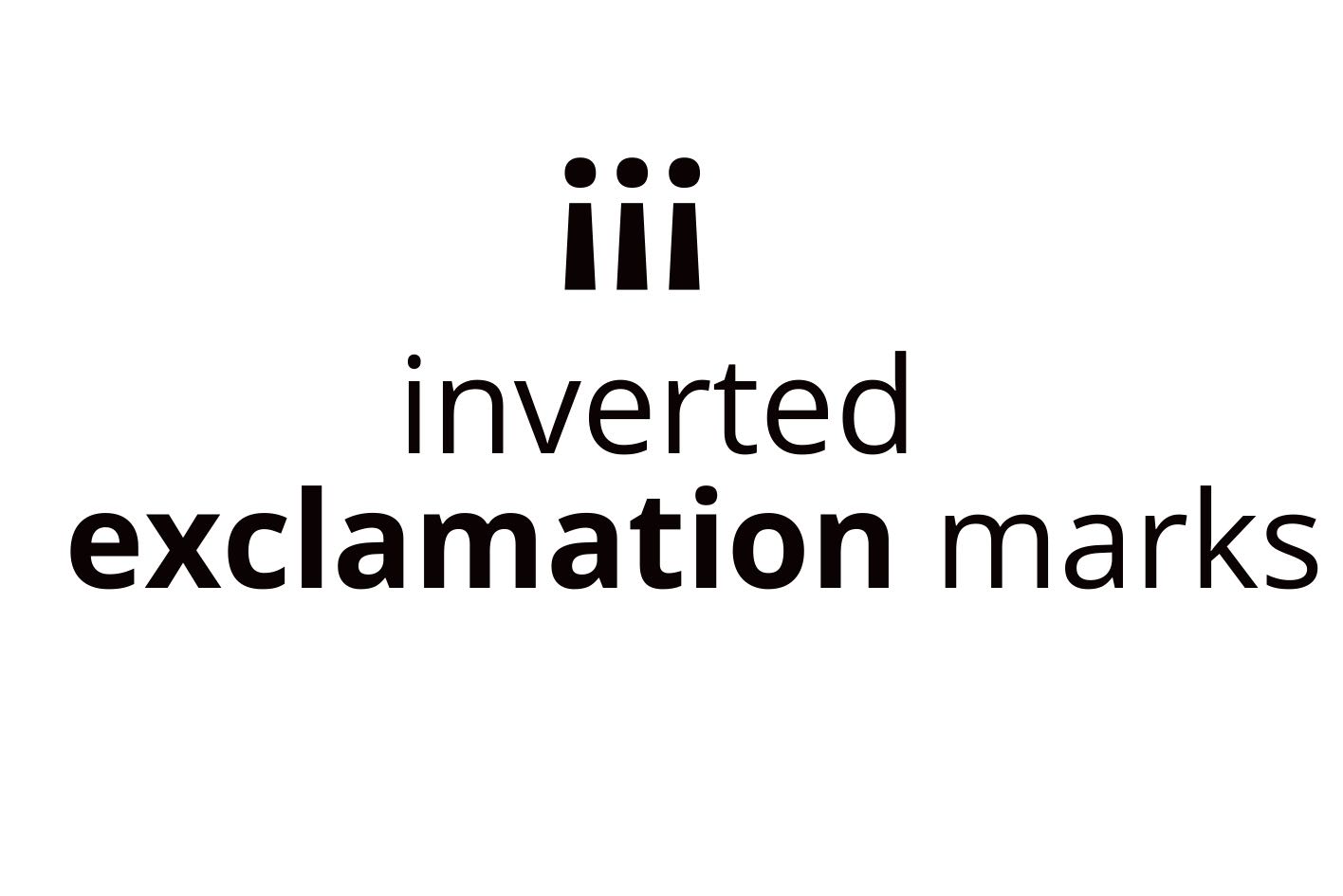
How to Type a Spanish Exclamation Point
To type the Spanish inverted exclamation point (¡) on a Windows computer, hold the Alt key and type 0161 on the numeric keypad. On a Mac, press Option + 1. For mobile devices, long-press the standard exclamation point on the keyboard a...
To type the Spanish inverted exclamation point (¡) on a Windows computer, hold the Alt key and type 0161 on the numeric keypad. On a Mac, press Option + 1. For mobile devices, long-press the standard exclamation point on the keyboard and select the inverted version from the pop-up menu.
Contents
The inverted exclamation point is a hallmark of Spanish orthography, serving as a critical signal to the reader that an exclamatory sentence or clause is beginning. Unlike English, which only uses a terminal exclamation mark, Spanish utilizes a "framed" approach to punctuation. While it might seem like a minor detail, mastering the ability to type this character is essential for students, professional translators, and anyone conducting business in Spanish-speaking markets in 2026.
This guide provides a deep dive into the various methods for producing the inverted exclamation point across every major operating system, keyboard layout, and software environment. We will also explore the linguistic rules governing its use and troubleshoot common technical hurdles that users face when switching between languages.
The Linguistic Importance of the Inverted Exclamation Point
Before diving into the technical "how-to," it is important to understand the functional role of the ¡ character. In Spanish, the inverted exclamation point is placed at the very beginning of a sentence or a specific clause that conveys strong emotion, surprise, or an imperative command.
The primary reason for its existence is to indicate intonation. Spanish sentences can often be long, and the word order doesn't always signal whether a sentence is a statement or an exclamation until the very end. By placing the inverted mark at the start, the writer prepares the reader to adjust their pitch and volume immediately. This is particularly useful in literature and public speaking scripts.
The Real Academia Española (RAE) formalized the use of inverted marks in the second edition of La Ortografía de la Real Academia in 1754. While it took some time to become the standard, it is now a mandatory rule in formal Spanish writing. Using only the terminal mark (!) is considered a grammatical error in professional and academic contexts, although it has become more common in informal digital messaging.
How to Type a Spanish Exclamation Point on Windows
Windows offers several ways to input special characters, ranging from legacy "Alt codes" to modern keyboard layout shifts. The best method for you depends on how frequently you need to type in Spanish.
Method 1: Using Alt Codes (Numeric Keypad)
This is the most universal method for Windows users, regardless of which software you are using. It relies on the Windows ANSI character set.
- Ensure your Num Lock is turned on.
- Hold down the Alt key on your keyboard.
- Type the sequence 0161 on the numeric keypad (usually located on the right side of the keyboard).
- Release the Alt key. The ¡ symbol will appear.
Note for Laptop Users: If your laptop does not have a dedicated numeric keypad, you may need to hold a "Fn" key to activate the hidden number pad superimposed on the letter keys, or use one of the alternative methods below.
Method 2: The US-International Keyboard Layout
For anyone who types in Spanish regularly but prefers an English-style keyboard, the US-International layout is the most efficient solution. It turns the "Right Alt" key (also known as AltGr) into a modifier for international symbols.
- Go to Settings > Time & Language > Language & Region.
- Under "Preferred languages," click the three dots next to English and select Language options.
- Scroll to "Keyboards" and select Add a keyboard. Choose United States-International.
- Once installed, you can toggle between layouts using Windows Key + Space.
- With the US-International layout active, simply press Right Alt + ! (Shift + 1) to produce ¡.
Method 3: The Windows Emoji/Symbol Panel
Windows 11 and its successors in 2026 feature a robust symbol picker that is much easier to navigate than the old "Character Map."
- Press Windows Key + . (period) or Windows Key + ; (semicolon).
- Click on the Symbols icon (it looks like an upper-case Omega: Ω).
- Scroll through the "Latin Symbols" section until you find the inverted exclamation point.
- Click it to insert it into your text.
How to Type a Spanish Exclamation Point on macOS
Apple’s macOS has long been praised for its intuitive handling of international characters. Unlike Windows, which requires memorizing four-digit codes, macOS uses logical modifiers.
The Keyboard Shortcut
The shortcut for the inverted exclamation point on a Mac is incredibly simple:
- Option + 1
This works in virtually every application, from Pages and Notes to Safari and professional creative suites. If you are using a non-US keyboard, such as a British or Australian layout, the shortcut remains the same.
Using the Character Viewer
If you prefer a visual interface:
- Press Control + Command + Space to open the Character Viewer.
- Type "exclamation" in the search bar.
- Select the Inverted Exclamation Mark and double-click it to insert it.
How to Type a Spanish Exclamation Point on Mobile Devices (iOS and Android)
Typing international characters on a touchscreen is generally more intuitive than on a physical keyboard because of the "long-press" feature.
iOS (iPhone and iPad)
- Open the on-screen keyboard.
- Tap the 123 button to access numbers and punctuation.
- Locate the ! key.
- Press and hold the ! key. A small menu will pop up showing the ¡ symbol.
- Slide your finger to the ¡ and release.
Android
The process on Android depends on your keyboard app (such as Gboard or Samsung Keyboard), but the standard behavior is consistent:
- Long-press the standard exclamation point ! (often found by tapping the symbols key).
- Select the inverted version from the resulting options.
- Alternatively, if you have a Spanish language pack installed, the ¡ may have its own dedicated key or be even more accessible via the symbol menu.
Typing in Specific Applications: Word, Google Docs, and More
Sometimes, the operating system's global shortcuts are overridden by specific software, or the software provides its own easier alternatives.
Microsoft Word
In addition to the Alt code method, Word has its own unique shortcut for Spanish punctuation:
- Press Ctrl + Alt + Shift + 1.
This specific combination is designed to be easily remembered by those who already know that Shift + 1 is the standard exclamation point. Additionally, if you have "AutoCorrect" set up for Spanish, Word may occasionally suggest the inverted mark if it detects you are starting an emotional sentence.
Google Docs
Google Docs relies primarily on the operating system's keyboard settings, but it does have a built-in menu for symbols:
- Go to Insert > Special Characters.
- Search for "inverted exclamation" in the search box.
- Click the symbol to insert it.
Web Development and Coding
When writing code for a website, you should use HTML entities to ensure the character displays correctly across all browsers and devices, especially if the file's encoding isn't set to UTF-8.
| Method | Code |
|---|---|
| HTML Entity (Named) | ¡ |
| HTML Entity (Decimal) | ¡ |
| HTML Entity (Hex) | ¡ |
| Unicode | U+00A1 |
| CSS Content | \00A1 |
| JavaScript/JSON | \u00A1 |
Summary of Input Methods by Platform
The following table provides a quick reference for the most common ways to type the Spanish exclamation point as of 2026.
| Platform | Input Method | Shortcut / Code |
|---|---|---|
| Windows | Alt Code | Alt + 0161 |
| Windows | US-International Keyboard | Right Alt + ! |
| macOS | Keyboard Shortcut | Option + 1 |
| iOS / Android | Long Press | Hold "!" key |
| Microsoft Word | Application Shortcut | Ctrl + Alt + Shift + 1 |
| ChromeOS | Unicode Input | Ctrl + Shift + U, then "a1" |
| Linux (GNOME) | Compose Key | Compose, !, ! |
Troubleshooting Common Issues
The Alt Code Isn't Working
The most common reason an Alt code fails is that the user is typing the numbers on the top row of the keyboard instead of the numeric keypad. On most Windows systems, the top row numbers will not trigger the character generation. If you are on a laptop without a keypad, you must use the Emoji Panel (Win + .) or switch to the US-International keyboard layout.
The Character Looks Different (Font Issues)
Occasionally, the inverted exclamation point may look like a simple "i" or a box. This is usually a font-support issue. While almost all modern fonts (Arial, Times New Roman, Calibri) support Spanish characters, some stylized or "display" fonts may not include the extended Latin-1 character set. If the symbol isn't appearing correctly, try switching to a standard system font.
Confusion with the Lowercase "i"
The inverted exclamation point (¡) and the lowercase "i" look very similar in many sans-serif fonts. However, the dot on the ¡ is significantly lower (it sits on the baseline), while the dot on the "i" sits above the x-height. In professional typesetting, it is vital to use the correct character for accessibility and search engine optimization.
Frequently Asked Questions
Do I really need to use the inverted exclamation point?
In formal Spanish, yes. While informal communication (like texting or social media) often omits it to save time, its absence in a professional document, academic essay, or marketing copy is seen as a sign of poor grammar and a lack of attention to detail.
Is the inverted exclamation point used in any other languages?
Yes, it is used in Galician and Asturian, which are also languages spoken in Spain. Historically, it has occasionally appeared in other regional dialects across Latin America and the Caribbean that follow Spanish orthographic standards.
Can I just use an "i" instead of a "¡"?
Technically, you can type it, but it is incorrect. Screen readers for the visually impaired will read the lowercase "i" as a letter, whereas they will recognize the "¡" as a punctuation mark, providing the correct context for the listener. Furthermore, search engines treat the two characters differently.
How do I type the inverted question mark (¿)?
The methods are very similar. On Windows, use Alt + 0191. On a Mac, use Option + Shift + ?. On mobile, long-press the ? key.
Does the inverted exclamation point go before or after the first word?
It goes exactly where the exclamation begins. For example, in the sentence "If you arrive late, ¡run!", the inverted mark is placed right before "run" because that is where the emotional emphasis starts. It does not necessarily have to be at the start of the entire sentence.
Final Recommendations for Daily Use
If you find yourself typing in Spanish more than once a week, the best long-term solution is to enable the US-International keyboard layout on Windows or simply memorize the Option + 1 shortcut on a Mac. The Alt-code method is reliable but slow and prone to errors if Num Lock is accidentally disabled. For those in a professional setting, ensuring your software is set to the correct proofing language (Spanish) will also help, as modern word processors will often auto-insert the inverted mark for you when you type a terminal exclamation point.
Image Gallery