How to Connect Your iPad to the Internet: A Comprehensive 2026 Guide
To connect your iPad to the internet, open the Settings app and select Wi-Fi to join a local network by entering the required password. If you own a Wi-Fi + Cellular model, you can also activate a data plan via an eSIM or physical SIM...
To connect your iPad to the internet, open the Settings app and select Wi-Fi to join a local network by entering the required password. If you own a Wi-Fi + Cellular model, you can also activate a data plan via an eSIM or physical SIM card under the Cellular Data menu to stay online without a router.
Contents
Stable internet connectivity is the foundation of the iPad experience, enabling everything from cloud-based professional workflows to high-definition streaming. Whether you are using a base-model iPad, a high-performance iPad Pro, or the portable iPad mini, understanding the nuances of modern networking protocols is essential for maintaining a secure and fast connection in 2026. This guide explores every method of connectivity, from standard Wi-Fi to advanced cellular configurations.
Connecting via Wi-Fi Networks
Wi-Fi remains the most common and cost-effective way to get your iPad online. In 2026, most residential and enterprise environments utilize Wi-Fi 6E or Wi-Fi 7, which offer lower latency and higher throughput by utilizing the 6GHz spectrum.
Joining a Standard Wi-Fi Network
The process for joining a standard network is straightforward, but ensuring the connection is secure is paramount.
- Open Settings: Tap the gear icon on your Home Screen.
- Select Wi-Fi: Ensure the toggle at the top is green (On).
- Choose a Network: Your iPad will scan for nearby broadcasting SSIDs (Service Set Identifiers). Tap the name of the network you wish to join.
- Enter Credentials: If the network is secured (indicated by a lock icon), a prompt will appear for the password.
- Confirm Connection: Once connected, a blue checkmark appears next to the network name, and the Wi-Fi icon appears in the Status Bar at the top right of your screen.
Understanding Wi-Fi Security Protocols
When connecting, your iPad may display warnings about security. Modern iPads support WPA3, the latest encryption standard. If you are connecting to an older router using WEP or WPA (version 1), your iPad might label the connection as "Weak Security." For professional environments, it is recommended to use networks that support WPA3-Enterprise for robust data protection.
Using Private Wi-Fi Addresses
To enhance privacy, iPadOS utilizes Private Wi-Fi Addresses. This feature uses a different MAC (Media Access Control) address for each Wi-Fi network. While this prevents network operators from tracking your device across different locations, some managed enterprise or school networks may require you to disable this to allow the device to authenticate. You can toggle this by tapping the "i" icon next to a connected network name.
Cellular Data Connections for On-the-Go Access
If you have a "Wi-Fi + Cellular" model, you are not tethered to local hotspots. These models include a GPS chip and the necessary antennas to communicate with mobile towers.
Activating an eSIM
By 2026, the transition from physical SIM cards to eSIM (embedded SIM) is nearly complete for Apple devices. An eSIM allows you to activate a cellular plan digitally without needing a plastic card.
- Go to Settings > Cellular Data.
- Tap Set Up Cellular Data or Add a New Plan.
- Choose a carrier from the provided list or use a QR code provided by your service provider.
- Follow the on-screen prompts to confirm the data plan. Your iPad can store multiple eSIM profiles, which is ideal for international travelers who need to switch between local and home carriers.
Managing 5G and LTE Settings
Modern iPads support various 5G modes. Under Cellular Data Options, you can choose how your iPad uses data:
- 5G On: Uses 5G whenever available, even if it shortens battery life.
- 5G Auto: Uses 5G only when it won't significantly drain the battery (Smart Data Mode).
- Allow More Data on 5G: This is particularly useful for 2026 workflows, enabling high-quality FaceTime, high-definition streaming, and automatic iCloud backups over cellular.
Using a Personal Hotspot
If you have a Wi-Fi-only iPad and no available router, you can "borrow" the internet connection from your iPhone or another smartphone. This is known as a Personal Hotspot.
Instant Hotspot Integration
Because of the Apple ecosystem's "Continuity" features, connecting to your own iPhone is seamless. As long as both devices are signed into the same Apple ID, your iPhone will appear in the Wi-Fi list of your iPad even if the Hotspot toggle on the phone is turned off.
To connect:
- Open Settings > Wi-Fi on your iPad.
- Look for the Personal Hotspots section.
- Tap your iPhone's name. The iPad will automatically signal the iPhone to wake its hotspot and connect.
Connecting to Third-Party Hotspots
If you are using an Android device or a dedicated mobile router:
- Enable the hotspot on the host device and note the password.
- On the iPad, go to Settings > Wi-Fi.
- Select the device name and enter the password manually.
Connection Comparison and Use Cases
Choosing the right connection method depends on your location, budget, and the task at hand.
| Connection Type | Typical Speed (2026) | Cost Level | Best Use Case |
|---|---|---|---|
| Home Wi-Fi (Wi-Fi 7) | 1 Gbps - 5 Gbps | Low (Fixed) | Large downloads, 8K streaming, backups. |
| Public Wi-Fi | 50 Mbps - 200 Mbps | Free / Varies | Casual browsing, light email in cafes. |
| 5G Cellular | 200 Mbps - 2 Gbps | High (Monthly) | Remote work, commuting, navigation. |
| Personal Hotspot | 50 Mbps - 500 Mbps | Indirect | Occasional use when Wi-Fi is unavailable. |
Advanced Network Settings and Troubleshooting
Sometimes, an iPad may show it is "connected" but fail to load pages. This often stems from configuration errors or signal interference.
Troubleshooting Steps
If your internet is not working, follow this hierarchy of solutions:
- Toggle Airplane Mode: Turn Airplane Mode on in the Control Center, wait 10 seconds, and turn it off. This forces the wireless radios to reset.
- Forget the Network: Go to Settings > Wi-Fi, tap the "i", and select Forget This Network. Re-join it as if it were the first time.
- Reset Network Settings: This is a more drastic step. Go to Settings > General > Transfer or Reset iPad > Reset > Reset Network Settings. Note that this will erase all saved Wi-Fi passwords and VPN configurations.
- Check for Captive Portals: Public networks (hotels, airports) often require a login. If the login page doesn't pop up, open Safari and type
captive.apple.comto force the login screen to appear.
DNS and Proxy Configurations
For users requiring specific network paths—such as developers or those using a corporate network—iPadOS allows manual DNS configuration. In the Wi-Fi settings for a specific network, scroll down to Configure DNS. Switching from "Automatic" to "Manual" allows you to add servers like Google DNS (8.8.8.8) or Cloudflare (1.1.1.1), which can sometimes resolve issues where websites refuse to resolve.
Security Considerations for 2026
With the prevalence of cyber threats, simply "connecting" is not enough; you must connect safely.
- VPN (Virtual Private Network): Always use a VPN when on public Wi-Fi. This encrypts the data leaving your iPad, preventing "man-in-the-middle" attacks.
- iCloud Private Relay: If you have an iCloud+ subscription, enable Private Relay in Settings > [Your Name] > iCloud. This masks your IP address and DNS requests from both the network provider and the websites you visit.
- Limit Auto-Join: Disable "Auto-Join" for unknown public networks in your Wi-Fi settings to prevent your iPad from connecting to malicious "honeypot" hotspots.
Frequently Asked Questions
Why does my iPad say "No Internet Connection" while connected to Wi-Fi?
This usually means your iPad is successfully talking to the router, but the router is not talking to the internet. This can be caused by an expired ISP subscription, a modem hardware failure, or a local DNS outage. Try restarting your router and modem.
Can I use my iPad as a hotspot for other devices?
Yes, but only if you have a Wi-Fi + Cellular model with an active data plan that supports tethering. Go to Settings > Personal Hotspot to enable it. Wi-Fi-only models cannot act as hotspots.
Does connecting to the internet drain the iPad battery?
Searching for a signal is a major battery drain. If you are in an area with poor cellular or Wi-Fi coverage, your iPad will increase power to the antennas to maintain the link. If you don't need the internet, turning on Airplane Mode can significantly extend battery life.
What is "Low Data Mode" and should I use it?
Low Data Mode (found under Wi-Fi or Cellular settings) reduces the amount of data your iPad uses in the background. It pauses automatic updates, photo syncing to iCloud, and reduces video streaming quality. Use this if you are on a metered connection or a limited roaming plan.
Can I connect an iPad to the internet via Ethernet?
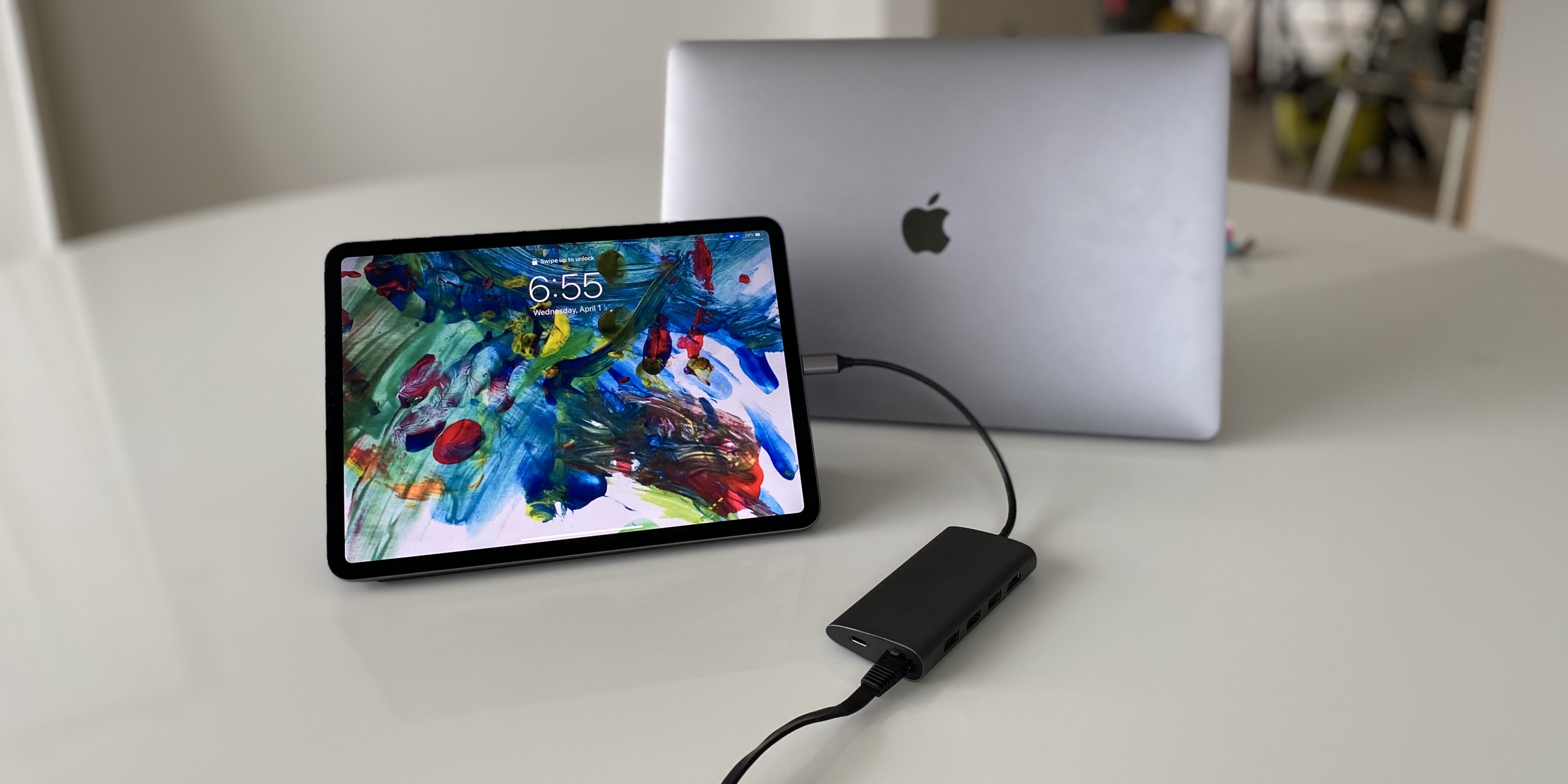
Yes. By using a USB-C to Ethernet adapter (or a Lightning to Ethernet adapter for older models), you can plug a hardwired network cable directly into your iPad. This provides the most stable and lowest-latency connection possible, which is ideal for competitive gaming or large file transfers.
Practical Recommendation
For the best balance of performance and security in 2026, keep your iPadOS updated to the latest version to ensure you have the most recent network driver patches. When at home, utilize the 6GHz band of a Wi-Fi 6E or Wi-Fi 7 router to avoid interference from household appliances. For those who travel frequently, investing in an eSIM-compatible data plan is significantly more secure and often cheaper than relying on unsecured public Wi-Fi hotspots. If you encounter persistent connection drops, your first step should always be the "Forget Network" and re-authentication process before attempting more complex hardware resets.
Image Gallery