How VirtualBox Shared Folders Work: A Deep Dive into Guest-Host Integration
VirtualBox shared folders work by utilizing a specialized file system driver provided by the VirtualBox Guest Additions. This driver creates a communication bridge between the guest operating system and the host’s physical storage. By...
VirtualBox shared folders work by utilizing a specialized file system driver provided by the VirtualBox Guest Additions. This driver creates a communication bridge between the guest operating system and the host’s physical storage. By intercepting file system requests within the guest, VirtualBox redirects them through the hypervisor to the designated directory on the host machine, allowing seamless file access without traditional networking.
Contents
Understanding the Architecture of VirtualBox Shared Folders
To understand how VirtualBox shared folders function, one must look at the relationship between the hypervisor and the virtual machine (VM). In a standard environment, a VM is isolated from the host for security and stability. To bypass this isolation for file sharing, Oracle VM VirtualBox employs a "backdoor" mechanism that does not rely on standard network protocols like SMB (Server Message Block) or NFS (Network File System).
The Role of the Hypervisor and VMM
The Virtual Machine Manager (VMM) is the core component that manages the execution of the guest OS. When you designate a folder on your host machine (the physical computer) to be shared, VirtualBox registers this path in the VM’s configuration file (.vbox). However, the guest OS cannot see this path by default because it operates in a virtualized hardware environment.
The VirtualBox Guest Additions
The "magic" of shared folders resides almost entirely within the VirtualBox Guest Additions. This is a suite of system utilities and kernel drivers that must be installed inside the guest operating system. Without these additions, the guest OS lacks the necessary "translator" to talk to the host's file system.
The Guest Additions install a specific file system driver:
- vboxsf.sys (on Windows guests)
- vboxsf.ko (on Linux guests)
When a user or application in the guest OS attempts to read or write to a shared folder, the guest OS passes that request to this specialized driver. Instead of sending the request to a virtual hard disk controller, the driver forwards the request directly to the VirtualBox hypervisor via a dedicated communication channel.
The Technical Mechanism: How Data Crosses the Boundary
The process of moving data between the guest and host involves several layers of abstraction. Unlike a network share, which requires a network stack, IP addresses, and packet encapsulation, shared folders use memory-mapped I/O and hypercalls.
- Request Initiation: An application in the guest OS requests a file operation (e.g.,
open,read,write) on a path associated with the shared folder. - Driver Interception: The
vboxsfdriver identifies that the path belongs to a VirtualBox Shared Folder. It packages the request into a format the hypervisor understands. - The Hypercall: The driver executes a "hypercall"—a specialized instruction that traps the CPU and hands control back to the host-side VirtualBox process.
- Host Execution: The VirtualBox process on the host OS receives the request and performs the actual file I/O on the host’s hard drive using the permissions of the user running VirtualBox.
- Data Return: The results (the file data or a success/fail code) are passed back through the hypervisor into the guest’s memory space, and the guest driver completes the original request for the application.
This method is significantly faster than virtual networking because it avoids the overhead of the TCP/IP stack. As of 2026, this remains the most efficient way to handle large-scale data transfers between isolated environments in VirtualBox.
Prerequisites for Enabling Shared Folders
Before the mechanism described above can function, several conditions must be met. Failure to satisfy these prerequisites is the leading cause of shared folder malfunctions.
1. Installation of Guest Additions
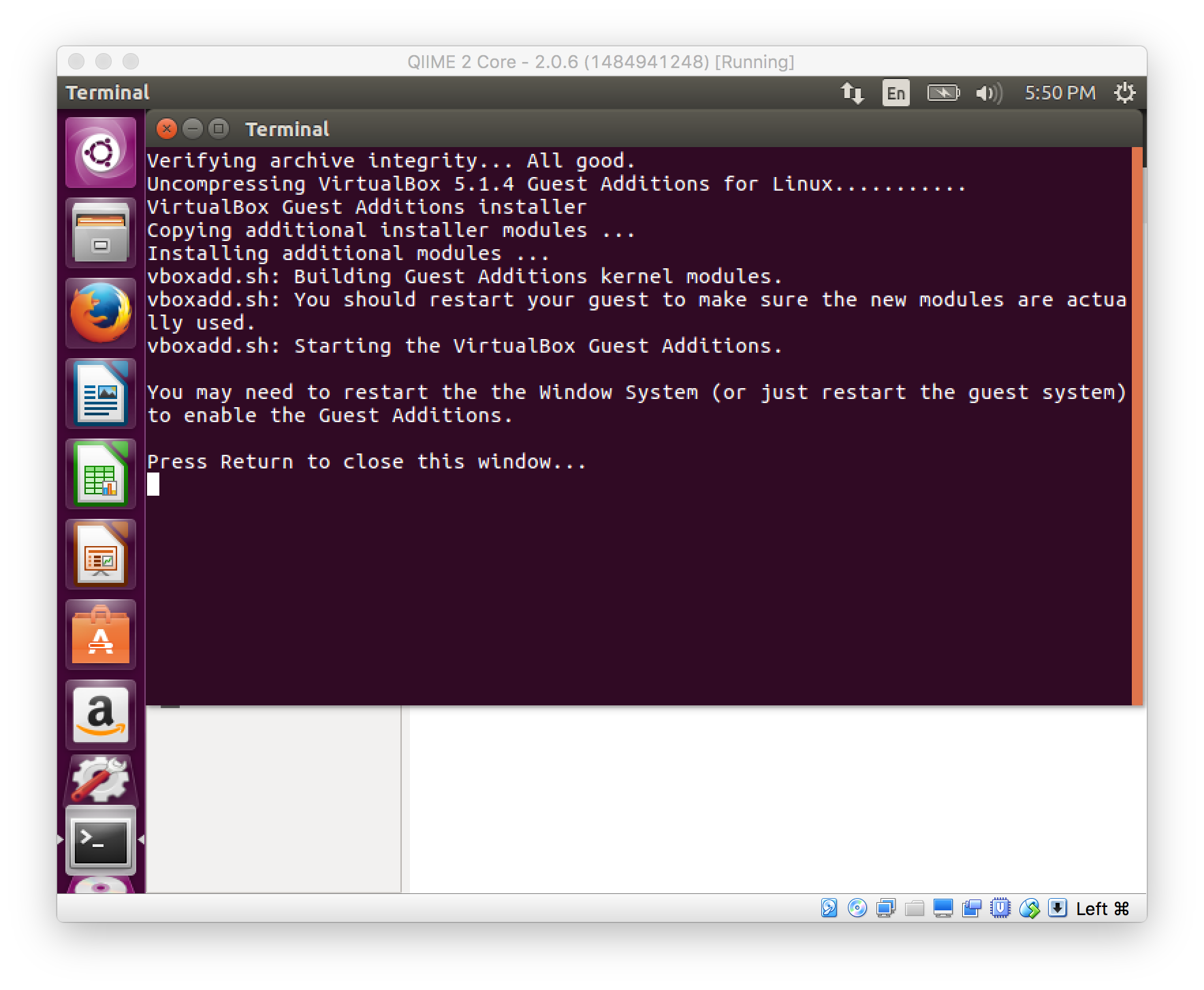
You must mount the VBoxGuestAdditions.iso (found in the VirtualBox installation directory) to the VM's virtual CD/DVD drive and run the installer. On Linux, this often requires building kernel modules, necessitating packages like gcc, make, and kernel-headers.
2. Host Folder Permissions
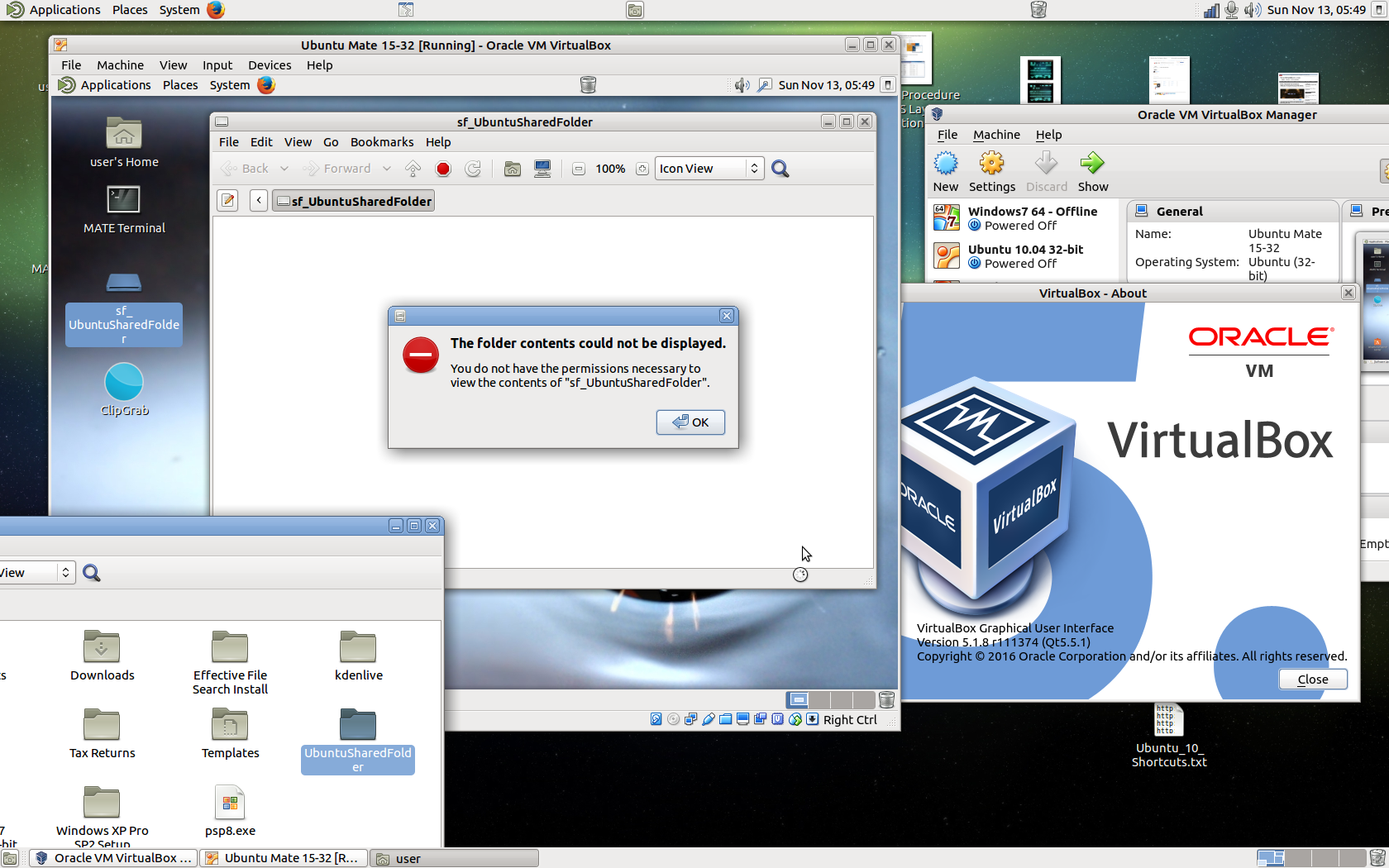
The user account running VirtualBox on the host machine must have read and write permissions for the folder you intend to share. If the host OS denies VirtualBox access to the folder, the guest OS will see the folder but will receive "Permission Denied" errors when trying to access its contents.
3. Guest User Permissions (Linux Specific)
On Linux guests, the vboxsf driver mounts shared folders with ownership typically assigned to the root user and a specific group called vboxsf. For a standard guest user to access these files, they must be a member of that group. This is achieved using the command:
sudo usermod -aG vboxsf [username]
Configuration Options: Permanent vs. Transient
VirtualBox provides two distinct ways to define these shares, which determines how the hypervisor handles them during the VM lifecycle.
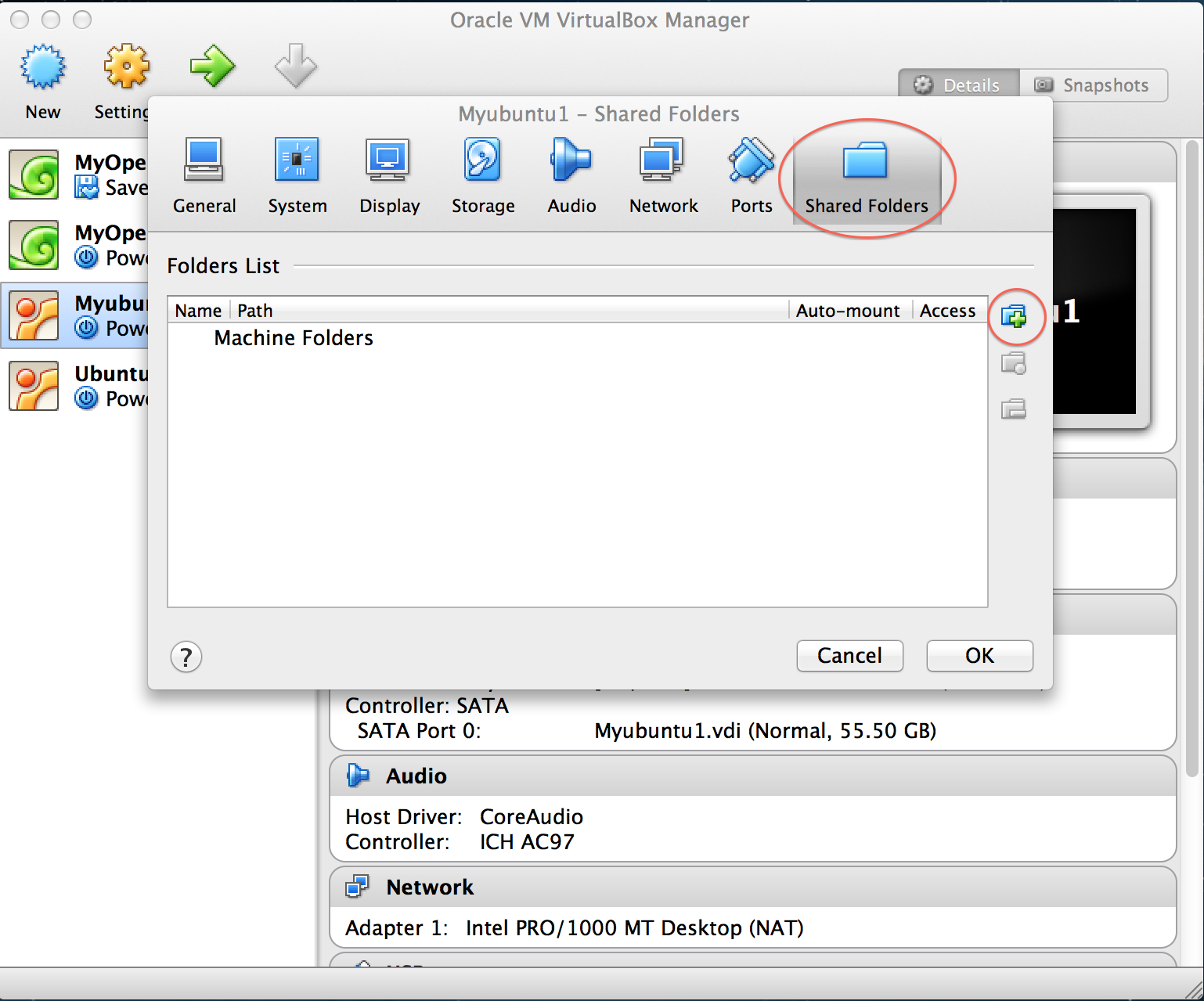
| Feature | Machine Folders (Permanent) | Transient Folders (Temporary) |
|---|---|---|
| Persistence | Survives VM reboots and shutdowns. | Disappears when the VM is powered off. |
| Use Case | Project files, home directories, long-term storage. | One-time file transfers or debugging. |
| Configuration | Saved in the .vbox configuration file. |
Stored only in active memory (RAM). |
| Mounting | Can be set to "Auto-mount" on boot. | Must be manually mounted or scripted. |
Auto-mount and Mount Points
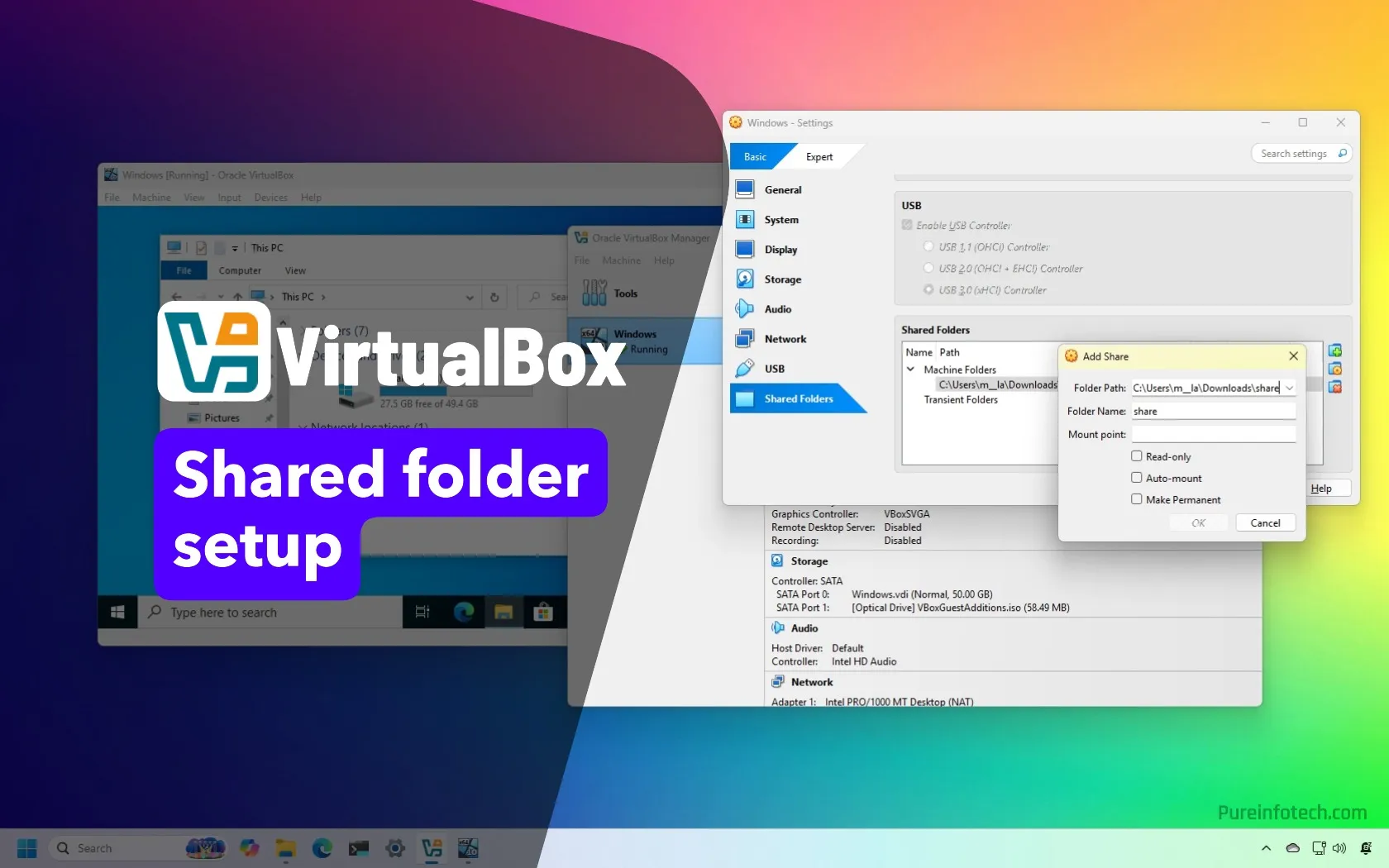
When configuring a shared folder, the Auto-mount option instructs the Guest Additions service to automatically map the share upon login.
- In Windows, it typically appears as a new drive letter (e.g.,
Z:). - In Linux, it is usually mounted under
/media/sf_[Foldername].
Users can also specify a custom Mount point. If you want a specific host folder to appear exactly as /home/user/projects inside a Linux guest, you would enter that path in the Mount Point field during setup.
Differences Between Windows and Linux Guest Implementations
The guest OS's kernel architecture dictates how the shared folder is presented to the user.
Windows Guests: The Network Redirector
In Windows, VirtualBox acts as a Network Provider. If you look at the system services in a Windows guest, you will see the VirtualBox Guest Additions Service. This service implements a network redirector that makes the shared folder look like a UNC path (\\VBOXSVR\sharename). Windows treats this similarly to a mapped network drive, even though no actual network hardware is involved.
Linux Guests: The VFS Module
In Linux, the implementation is a Virtual File System (VFS) kernel module. When you run the mount command with the type -t vboxsf, the Linux kernel hands the responsibility for that directory to the vboxsf.ko module. This allows the shared folder to support Linux-specific features like symbolic links (if enabled) and standard Unix permissions mapping, though there are limitations since the underlying host file system (often NTFS or APFS) may not support the same metadata as ext4.
Troubleshooting Common Issues in 2026
Even with the mature state of virtualization in 2026, users often encounter three primary hurdles when working with shared folders.
1. Mounting Failures After Kernel Updates
On Linux guests, a kernel update often breaks the Guest Additions because the vboxsf module was compiled for the older kernel version. The solution is to reinstall the Guest Additions or use the vboxconfig command to rebuild the modules for the current kernel.
2. Symlink Limitations
By default, VirtualBox disables the creation of symbolic links on shared folders for security reasons (to prevent a guest from "escaping" into the host file system). If your development project requires symlinks, you must manually enable them via the VBoxManage command-line tool on the host:
VBoxManage setextradata "VM Name" VBoxInternal2/SharedFoldersEnableSymlinksCreate/ShareName 1
3. File Locking Issues
Because two different operating systems are accessing the same files, "file locking" can become an issue. For example, if a guest-side IDE locks a file, the host-side text editor might be unable to save changes. This is a fundamental limitation of sharing a file system between two independent kernels.
Performance and Security Considerations
While shared folders are convenient, they are not always the best choice for every scenario.
Performance: Shared folders are highly optimized for latency, making them excellent for source code and small documents. However, for high-performance database storage or massive video editing, a Fixed-size Virtual Disk (VDI) or a Raw Partition Access configuration will outperform shared folders. The overhead of the hypercall transition for every small I/O request can add up during heavy disk stress.
Security: A shared folder is a bridge through the VM's isolation wall. If a guest VM is infected with ransomware, and the shared folder is mounted with "Read/Write" permissions, the ransomware can encrypt the files on your physical host machine.
- Best Practice: Always use the Read-only checkbox for folders that the guest OS does not need to modify.
Comparison of File Transfer Methods in VirtualBox
To decide if shared folders are the right mechanism for your task, compare them against other integration features.
| Method | Best For | Requires Guest Additions? | Speed |
|---|---|---|---|
| Shared Folders | Long-term workflows, dev environments. | Yes | Very High |
| Drag and Drop | Quick, one-off file copies. | Yes | Moderate |
| Shared Clipboard | Snippets of code, URLs. | Yes | N/A |
| Virtual USB | External drives, specialized hardware. | No (requires Extension Pack) | High |
| Network Share (SMB) | Multi-VM clusters, server emulation. | No | Moderate |
Practical Recommendation
For most users in 2026, the most stable and efficient way to use this feature is to always install the latest Guest Additions immediately after OS installation. If you are working in a Linux environment, ensure your user is added to the vboxsf group and use the "Auto-mount" and "Make Permanent" options to ensure a consistent development environment across reboots. For security-sensitive tasks, strictly use the "Read-only" attribute to protect your host data from potential guest-side vulnerabilities.
Image Gallery