How to Manage and Delete Account Data in Apple Mail: Processes and Considerations
Removing an email account from the Apple Mail application involves localized configuration changes rather than the deletion of the email account itself from the provider's servers. Understanding this distinction is critical for users w...
Removing an email account from the Apple Mail application involves localized configuration changes rather than the deletion of the email account itself from the provider's servers. Understanding this distinction is critical for users who wish to stop syncing emails on their devices without permanently losing access to their correspondence or professional contacts. This guide outlines the technical steps to remove an account, explains the necessary data precautions, and addresses common troubleshooting concerns for users across macOS, iOS, and iPadOS environments in 2026.
Contents
Understanding the Mechanism of Removal
When you "delete" an email account from the Apple Mail application, you are essentially instructing the mail client to sever the connection between your device and the mail server (such as Gmail, Outlook, or iCloud). The application removes the local cache of your inbox, sent items, and folders associated with that account from the device's storage.
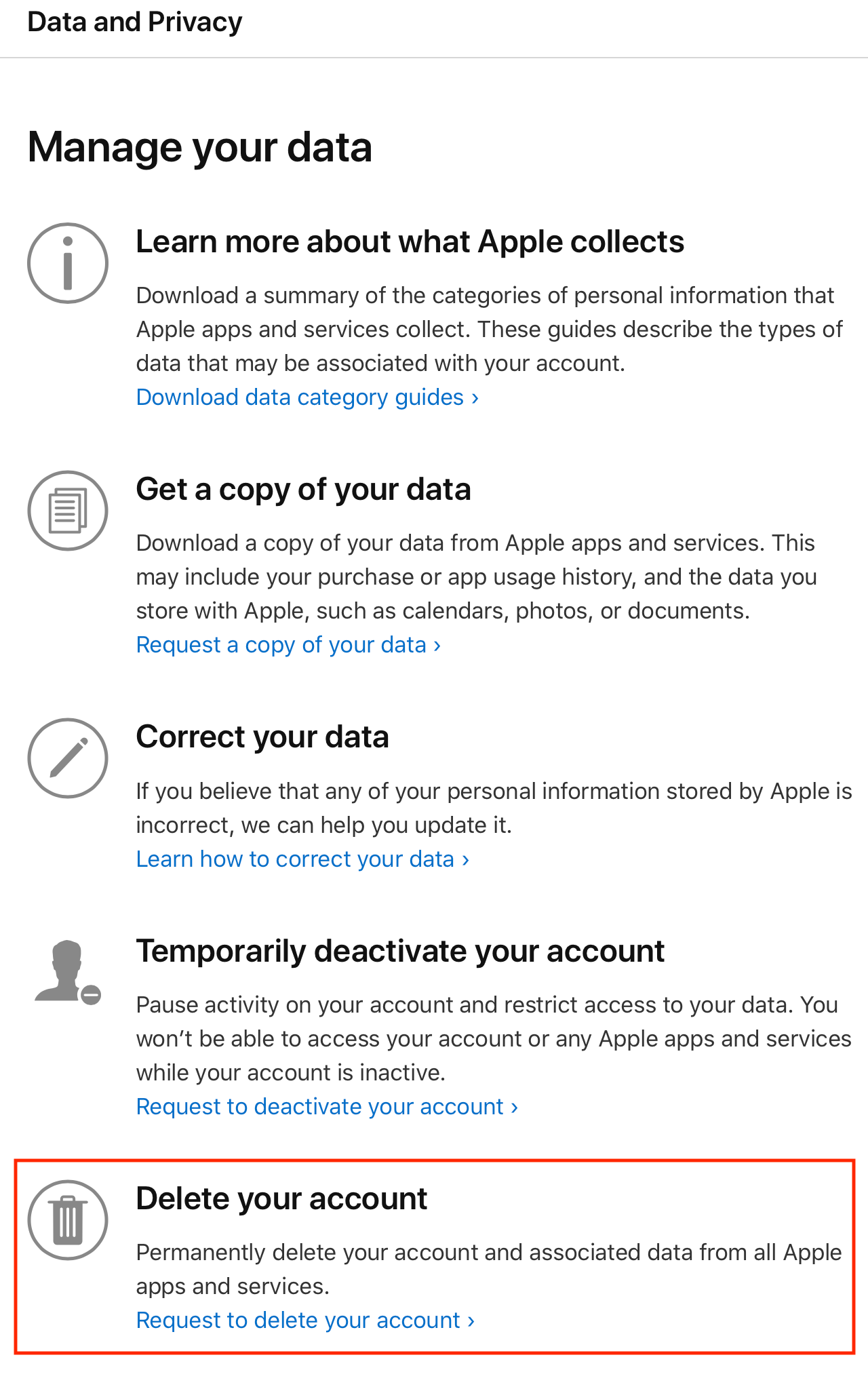
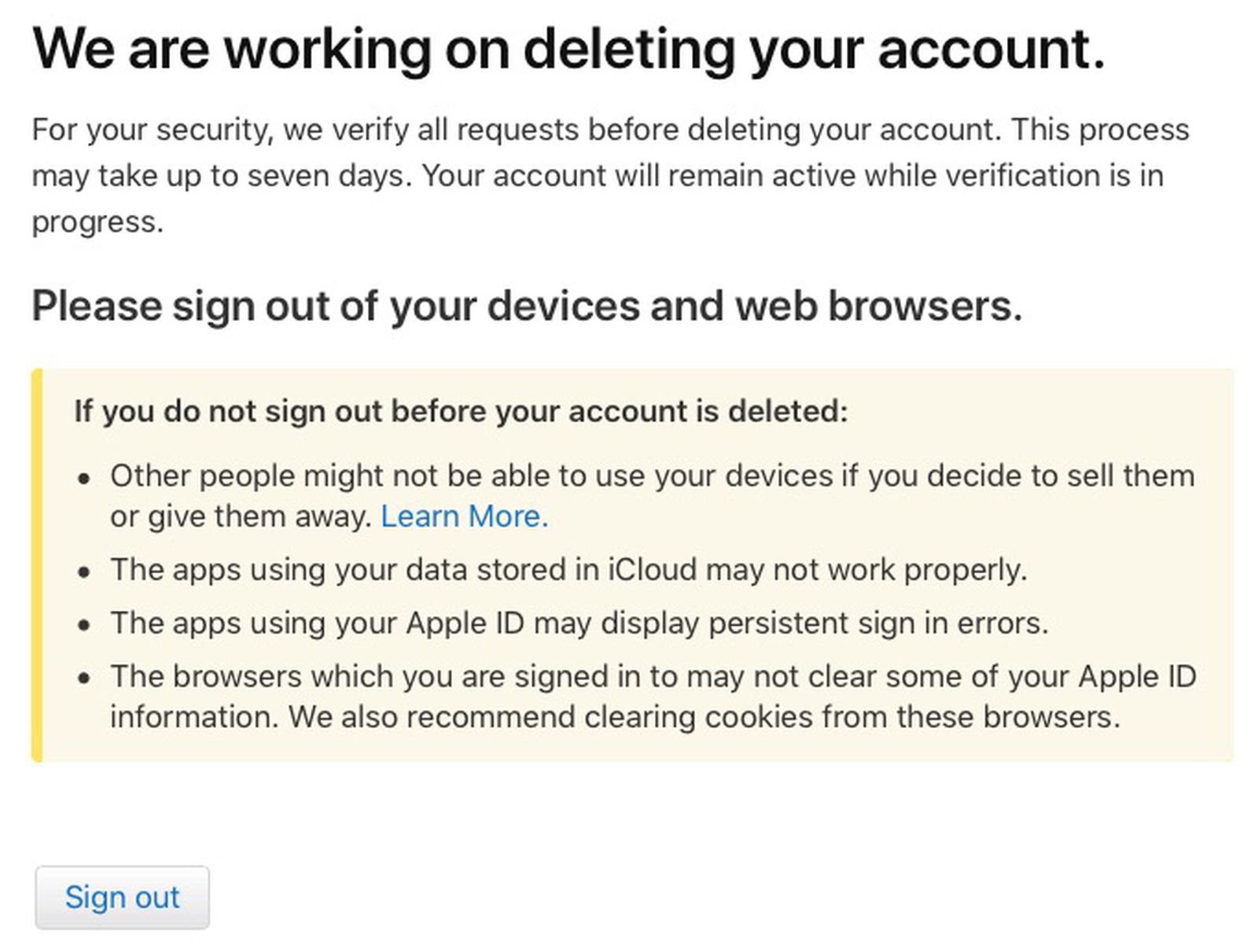
Crucially, this action does not deactivate or delete the account with your service provider. Your emails remain stored on the provider’s remote servers. If you log in to that account via a web browser or add the account to a different mail client, your data will reappear as it existed at the time of disconnection. Before proceeding, it is essential to distinguish between removing an account from the app and closing an account with an email service provider, the latter of which leads to permanent data erasure.
Prerequisites Before Removing an Account
Before initiating the removal process, perform a brief audit to ensure you do not inadvertently lose access to vital information:
- Verify Backup Status: If you have local-only folders (labeled "On My Mac" in macOS), ensure they are backed up or migrated. Removing the account often prompts the deletion of these local mailboxes if they are tied to specific server-side synchronization settings.
- Credentials Availability: Confirm that you possess the correct username and password. If you ever decide to re-add the account, you will need these credentials to re-authenticate with the server.
- Synchronization Awareness: If you are using an IMAP or Exchange account, remember that any changes you make (deleting emails or moving folders) while the account is active on the device are reflected server-side. Conversely, removing the account leaves the server state untouched.
Step-by-Step: Removing Accounts on macOS
To remove an email account from the Apple Mail app on a Mac, you must access the System Settings (or System Preferences on older versions).
- Open the Apple Menu and select System Settings.
- Navigate to Internet Accounts in the sidebar.
- Locate the email account you wish to remove from the list provided.
- Click the account name to open its specific settings.
- Select Delete Account (or the minus button, depending on your current macOS version).
- Confirm your decision when prompted.
Note that macOS will ask if you want to keep copies of data from this account on your Mac if the account is associated with other features like Contacts, Calendars, or Notes. Review this carefully; choosing to remove this data will permanently delete those specific local items from your device.
Step-by-Step: Removing Accounts on iOS and iPadOS
For iPhone and iPad users, the process is streamlined through the Settings application, which controls account integration across the entire system.
- Open the Settings app on your device.
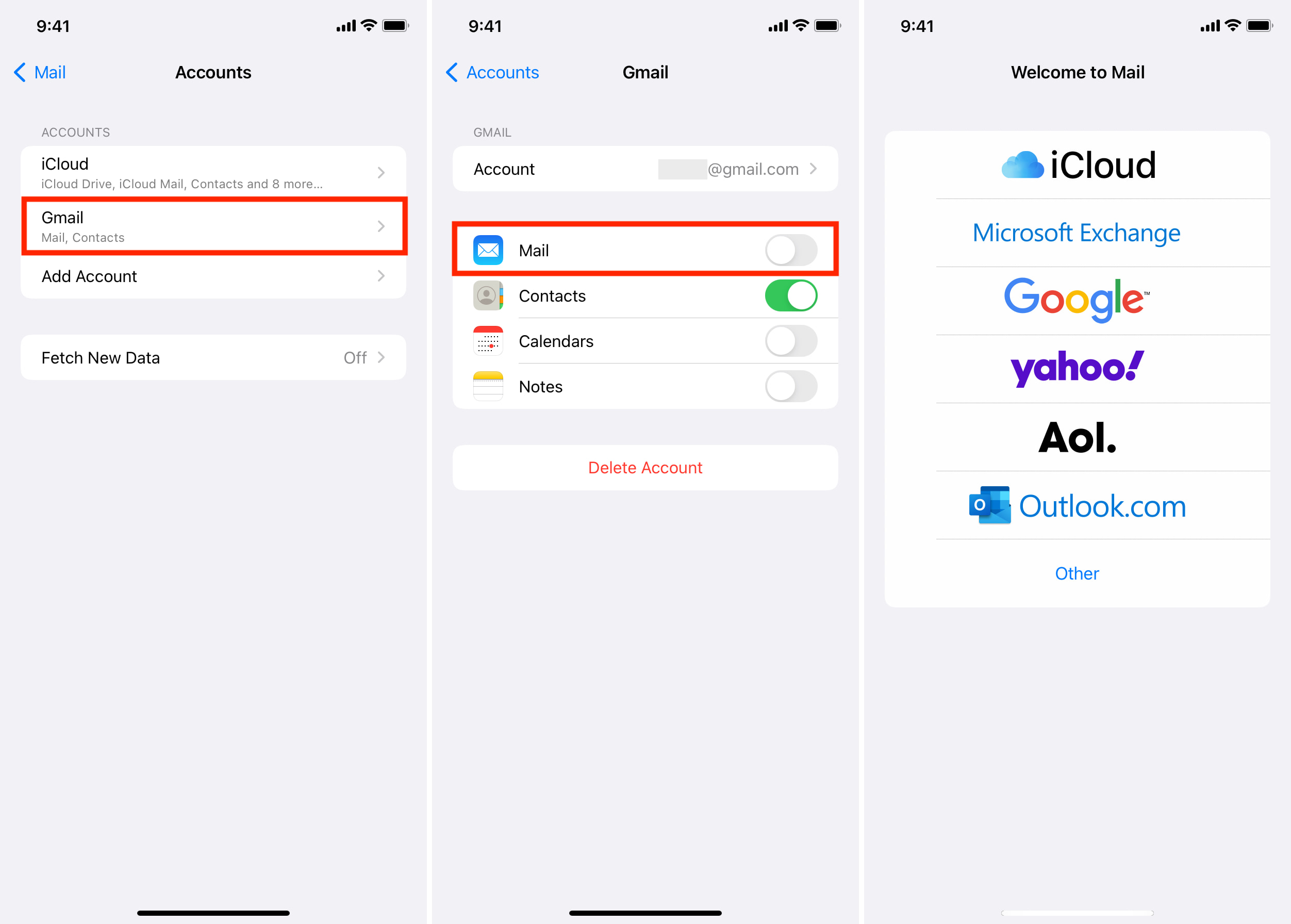
- Scroll down to the Mail section and tap it.
- Tap Accounts.
- Select the email provider account you intend to remove.
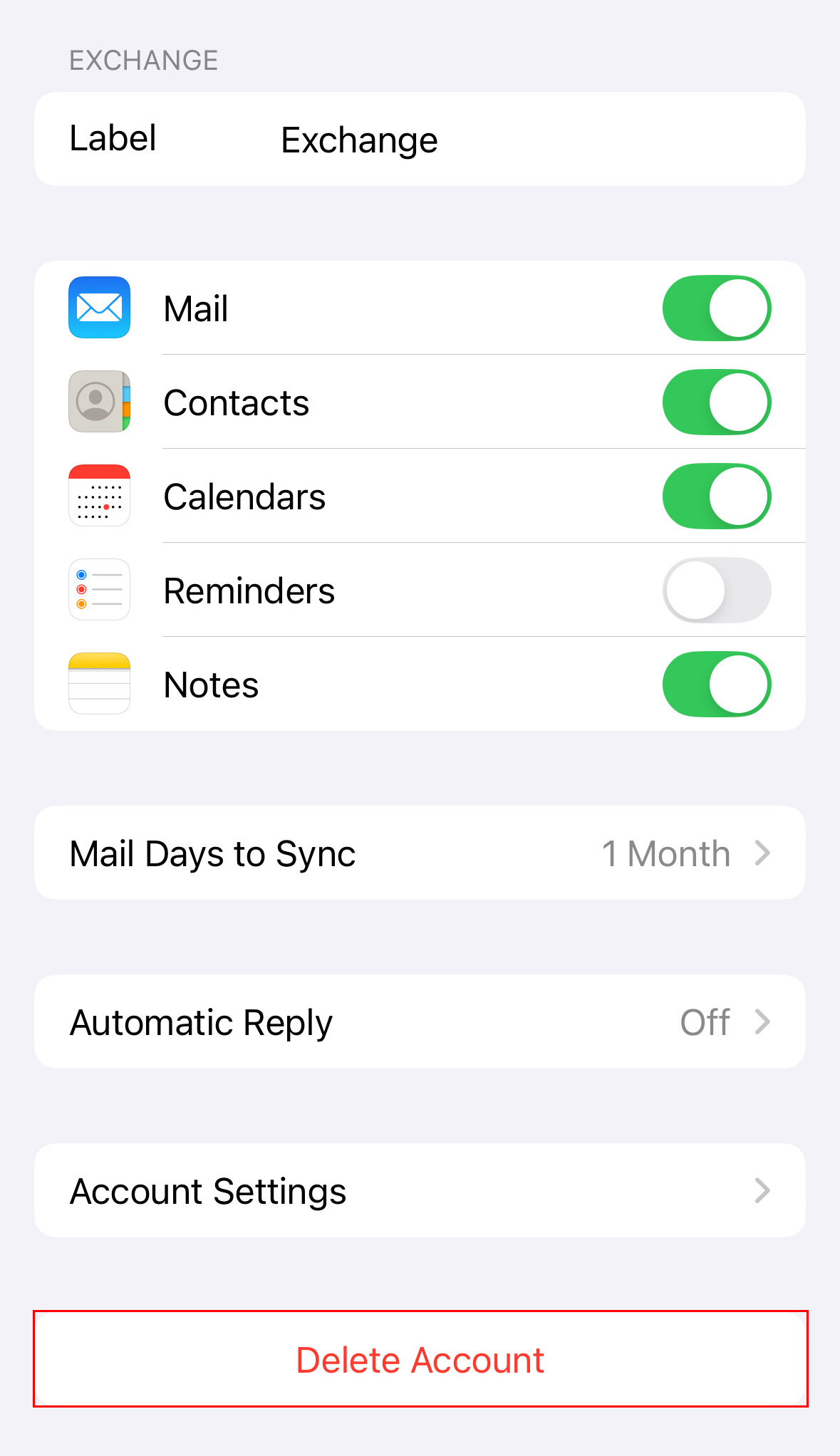
- Tap Delete Account at the bottom of the screen.
- A secondary confirmation prompt will appear, confirming that this action will remove the account’s email, calendar, and contacts from your device. Tap Delete from My iPhone/iPad to finalize.
Comparison Table: Account Removal Impacts
| Feature | Removing Account from Apple Mail | Deleting Account from Provider |
|---|---|---|
| Email Accessibility | Accessible via Web/Other Clients | Permanently inaccessible |
| Local Device Storage | Freed up (Cache/Messages cleared) | Freed up |
| Data Retention | Data remains on server | Data is purged |
| Reversibility | Re-addable at any time | Irreversible |
| Sync Status | Synchronization stops | Synchronization ceases |
Handling Special Considerations
Localized Folders and "On My Mac"
For professional users or long-term archivists, the "On My Mac" folder feature in the macOS Mail client presents a specific risk. These folders exist only on your physical machine. If you remove an account, you must ensure that these folders are exported (via Mailbox > Export Mailbox) before you delete the account, or they may be removed if the mail client considers them linked to the parent account's directory.
Multi-Service Accounts
Some accounts, particularly those associated with iCloud or Google Workspace, manage more than just email. When you remove these accounts, you may lose access to linked Calendars, Reminders, Notes, and Contacts. Before hitting delete, check the toggles in the account settings page. If you want to keep your Calendar synced but remove the email service, simply toggle the "Mail" switch to the "Off" position rather than deleting the entire account profile.
Common Troubleshooting and FAQs
Why is the "Delete Account" button greyed out? This usually occurs if the account is managed by an MDM (Mobile Device Management) profile installed by an employer or educational institution. In this case, you cannot manually remove the account; you must contact your organization’s IT department to have the profile removed.
Does deleting the account delete my sent emails? It removes the local copies from your Apple device. Your sent emails remain on the mail server. You can view them again once you add the account back or log in via a web portal.
What happens to my drafts? Drafts stored locally on your device that have not been synced to the server will be lost. Ensure all important drafts are moved to a synced folder or sent before removing the account.
Will I still receive notifications for this email address? No. Once the account is removed from the system, the device no longer communicates with the mail server, and you will cease receiving push notifications or fetch updates.
Can I temporary disable an account without deleting it? Yes. In the account settings for both macOS and iOS, you can toggle the "Mail" switch to "Off." This keeps the account credentials stored on your device but prevents the Mail application from fetching new messages, effectively putting the account into a dormant state without requiring a full re-login later.
Final Recommendations
Before removing an account, always perform a final review of your local data. If you are simply trying to reduce inbox clutter or avoid distractions, toggling the account off is the superior choice, as it maintains your authentication tokens and preferences. If the goal is to fully migrate to a new device or remove sensitive data, ensure you have exported any essential local folders. Always confirm that you have access to your recovery email or phone number for the service provider, as re-adding an account often triggers two-factor authentication protocols.
Image Gallery