One.com IMAP Settings Simplified: A Complete Configuration Guide
Configuring your email client to access a One.com mailbox requires specific IMAP settings to ensure reliable synchronization across multiple devices. The essential parameters involve setting your incoming server to imap.one.com on port...
Configuring your email client to access a One.com mailbox requires specific IMAP settings to ensure reliable synchronization across multiple devices. The essential parameters involve setting your incoming server to imap.one.com on port 993 with SSL/TLS encryption, and your outgoing SMTP server to send.one.com on port 465 or 587 with matching authentication.
Contents
Understanding the Role of IMAP in Your Workflow
Internet Message Access Protocol (IMAP) is the industry-standard protocol for email synchronization. Unlike older methods like POP3 (Post Office Protocol), which typically downloads emails to a single device and often deletes them from the server, IMAP maintains a constant connection between your email client—such as Outlook, Apple Mail, or Thunderbird—and the One.com mail servers.
When you configure your One.com account via IMAP, the email headers, bodies, and folder structures reside on the cloud. Any action you take—such as marking an email as read, moving it into a folder, or deleting it—is mirrored across every device synced to that account. This makes IMAP the optimal choice for users who switch between smartphones, tablets, and desktop workstations throughout the day.
Prerequisites Before You Begin
Before attempting to enter your manual settings, ensure you have gathered the correct credentials. You cannot configure your email successfully without these specific details:
- Full Email Address: Your complete address (e.g., name@yourdomain.com).
- Email Password: The specific password created for this mailbox in your One.com control panel. Note that this may differ from your main One.com client login password.
- Stable Internet Connection: Ensure your network does not block non-standard ports, though ports 993, 465, and 587 are standard for modern email traffic.
If you have forgotten your password, navigate to the One.com control panel, select "Mail Administration," and reset the password for the specific account. Changes to passwords usually take effect within a few minutes.
Standard Configuration Parameters
When your mail client asks for manual server settings, use the following technical specifications. These values are consistent for all standard One.com hosting packages as of 2026.
| Setting Type | Configuration Detail |
|---|---|
| Incoming Server (IMAP) | imap.one.com |
| Incoming Port (SSL/TLS) | 993 |
| Outgoing Server (SMTP) | send.one.com |
| Outgoing Port (SSL/TLS) | 465 (or 587) |
| Username | Your full email address |
| Authentication | Required for both Incoming and Outgoing |
Step-by-Step Implementation Guide
While every email application has a unique interface, the logical flow remains consistent across most platforms. Follow these steps to complete the setup:
- Initiate New Account Setup: Open your preferred email client and select "Add Account" or "New Mailbox." Choose "Manual Setup" or "IMAP" if prompted to select a protocol.
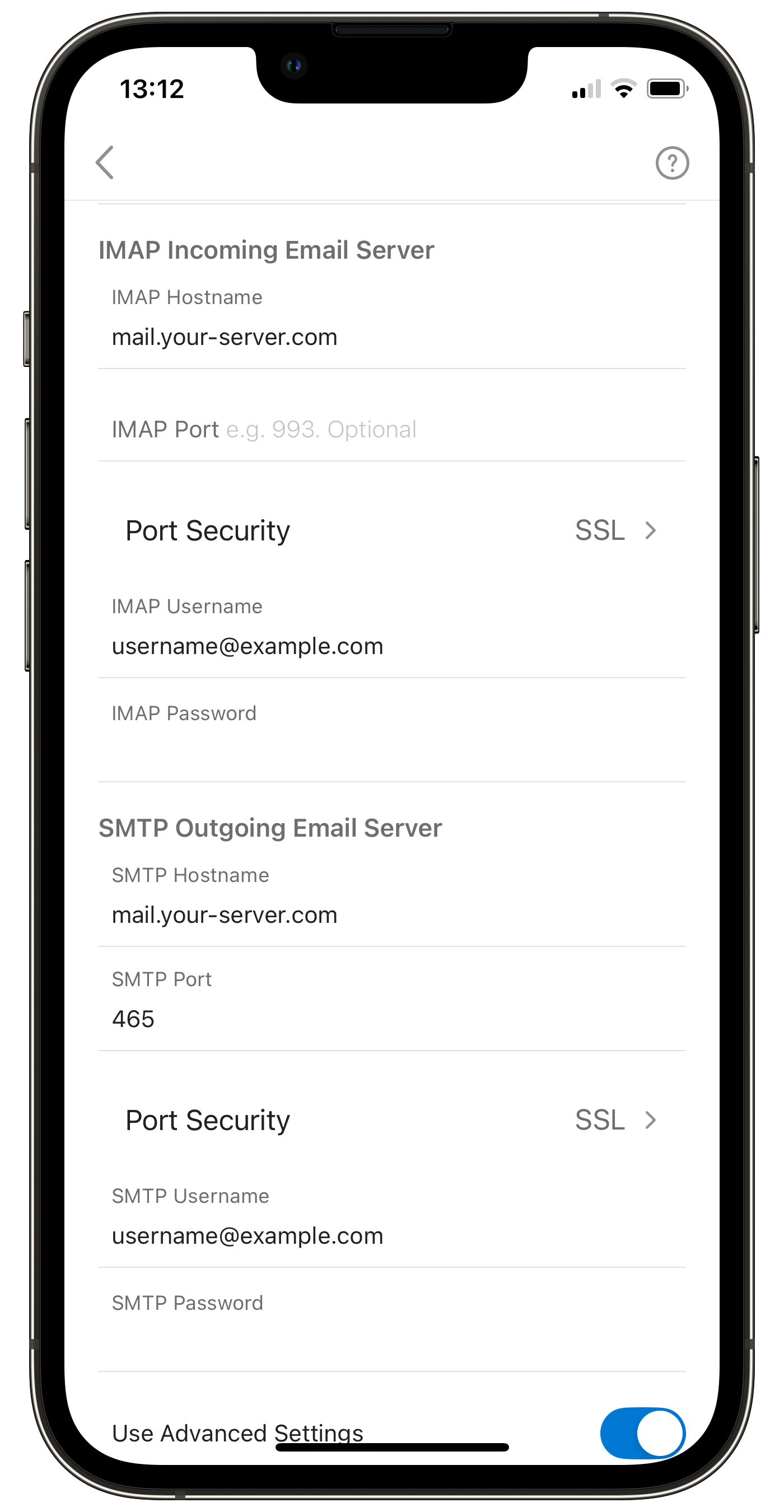
- Enter Incoming Server Details: Input
imap.one.comin the incoming server field. Set the port to 993. Crucially, select SSL/TLS as the encryption method. If the client asks for an authentication method, "Normal Password" is the industry standard for One.com. - Enter Outgoing Server Details: Input
send.one.comas the outgoing server. Set the port to 465. Enable "My outgoing server requires authentication" and ensure that the setting "Use same settings as incoming mail server" is checked. - Finalize and Synchronize: Save the settings and allow the client to authenticate. The client will attempt to reach the One.com server. If the credentials are correct, the application will begin downloading your folder structure and synchronizing your existing emails.
Common Troubleshooting Scenarios
Even with the correct settings, connectivity issues can occur. If your setup fails, troubleshoot in this order:
1. Authentication Failure
Most "Login Incorrect" errors are caused by using the wrong password. Remember that if you have an email hosting plan, your email password is managed separately from your web hosting account password. Verify by logging into the One.com webmail portal at mail.one.com. If you cannot log into the webmail portal, your credentials are the issue.
2. Port Blockage In some restrictive corporate or public Wi-Fi networks, specific ports may be blocked for security reasons. If port 465 fails, try port 587 for the outgoing SMTP server. Ensure that the "Use SSL/TLS" box is checked for both incoming and outgoing connections, as One.com enforces encrypted communication.
3. Certificate Warnings
If you receive a prompt stating that the "Server certificate is not trusted," ensure that you have typed imap.one.com and send.one.com exactly as written. Typos in the server address prevent the client from validating the security certificate, which will trigger a warning.
Why Choosing IMAP Over POP3 Matters
For the modern professional, POP3 is largely considered an obsolete protocol. Because POP3 downloads messages locally, it fragments your data. If you read an email on your phone, it will remain unread on your laptop. If you delete an email on your computer, that deletion will not reflect on your smartphone. By using the IMAP settings provided above, you ensure a unified environment where your mailbox state is consistent, regardless of which physical device you use to view your correspondence.
Frequently Asked Questions
Does One.com support Exchange or ActiveSync? One.com primarily utilizes standard IMAP and SMTP protocols for third-party email clients. While Microsoft Exchange is a proprietary protocol, you can achieve similar functionality using IMAP for mail, provided you manage your contacts and calendars through the appropriate sync protocols or the One.com webmail interface.
What happens if I change my email password? If you update your email password via the One.com control panel, your email client will immediately stop receiving and sending mail. You must manually update the password in your account settings within your email application on every device you use.
Are these settings the same for mobile devices? Yes. The settings provided (imap.one.com on 993 and send.one.com on 465) are identical for iPhone (iOS), Android, and desktop clients. Mobile email applications often use "Auto-Discovery" to find these settings automatically, but manual configuration remains the most reliable method for avoiding connection errors.
Is there a limit on how many devices I can sync? There is no hard limit on the number of devices you can connect to your One.com mailbox via IMAP. However, keep in mind that excessive, simultaneous connections from dozens of devices can occasionally trigger rate-limiting on the server side, though this is rare for standard individual usage.
Next Steps for Optimal Email Performance
Once your IMAP settings are verified and your email is flowing correctly, take a moment to ensure your "Sent" and "Deleted" folders are mapped correctly. Some email clients may place sent items in a local folder rather than on the server. In your account settings, ensure that your client is configured to save sent messages in the Sent folder on the imap.one.com server. This ensures that sent messages are also synchronized across all your devices.
Image Gallery