Understanding the Definition of Vector in Graphic Design
In graphic design, a vector is a digital image created using mathematical equations rather than a grid of colored pixels. By defining shapes, lines, and curves through coordinates—often called paths—vector graphics maintain perfect mat...
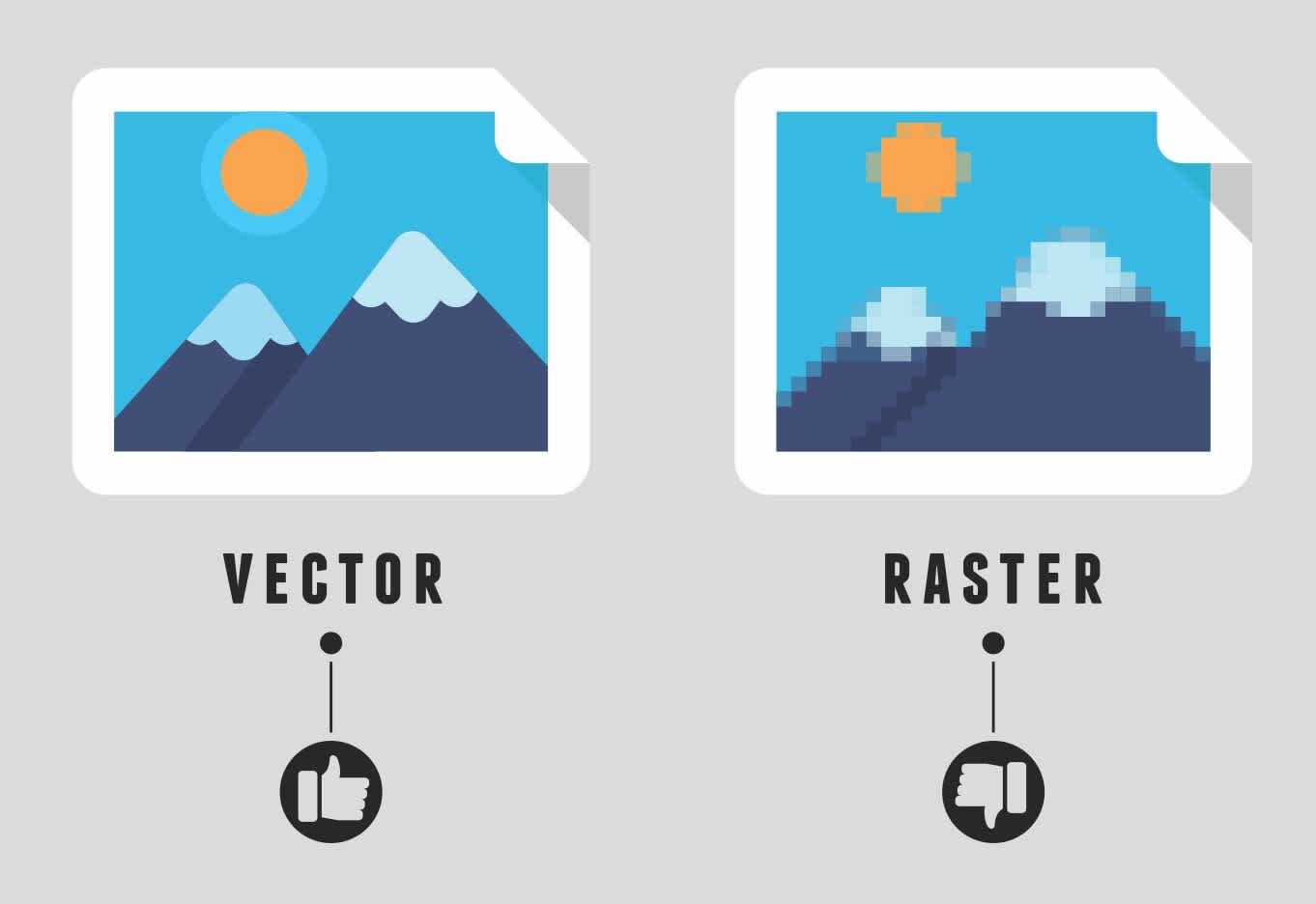
In graphic design, a vector is a digital image created using mathematical equations rather than a grid of colored pixels. By defining shapes, lines, and curves through coordinates—often called paths—vector graphics maintain perfect mathematical clarity, allowing them to be scaled to any size without losing resolution or experiencing pixelation.
Contents
The Mathematical Foundation of Vector Graphics
At the core of every vector image lies geometry. Unlike raster (or bitmap) images, which store information in a fixed matrix of pixels, vector graphics rely on Cartesian coordinate systems. An application, such as Adobe Illustrator or Inkscape, calculates the placement of anchor points, the curvature of lines connecting those points (Bézier curves), and the fill properties of the resulting shapes.
Because these instructions are mathematical, the computer renders the image anew every time it is displayed. If you scale a vector logo from the size of a postage stamp to the size of a billboard, the software simply recalculates the path coordinates to match the new dimensions. This is why vector graphics are considered resolution-independent; the file size and quality remain constant regardless of the output display or printing method.
Vector vs. Raster: A Functional Comparison
Understanding the definition of a vector is incomplete without comparing it to its primary alternative, the raster image. Raster images are composed of a fixed number of pixels. When you enlarge a raster image, the software must "guess" the color of new pixels to fill the gaps, a process known as interpolation. This inevitably leads to blurriness, loss of detail, and the characteristic jagged edges known as pixelation.
| Feature | Vector Graphics | Raster (Bitmap) Graphics |
|---|---|---|
| Composition | Mathematical paths and curves | Grid of colored pixels |
| Scalability | Infinitely scalable without loss | Fixed; loses quality when enlarged |
| File Size | Generally smaller for simple shapes | Increases with resolution and dimensions |
| Editing | Edit individual shapes and nodes | Edit groups of pixels (painting/masking) |
| Common Formats | AI, EPS, SVG, PDF (vector-based) | JPG, PNG, TIFF, GIF, PSD |
| Primary Use | Logos, icons, typography, technical drawings | Photographs, digital paintings, complex textures |
Primary Applications in Professional Design
Vector graphics are the industry standard for any design element that requires versatility. Because they can be resized without degrading, they are the mandatory choice for brand identity assets. A company’s logo, for instance, must appear sharp on a business card, a social media profile, and a large-scale storefront sign. Using a vector file ensures the brand remains consistent and professional across all these touchpoints.
Beyond branding, vector design is essential for:
- Typography: Modern fonts are almost exclusively vector-based. This allows characters to be rendered clearly at any point size on screen or in high-resolution print.
- Signage and Large-Format Printing: Vinyl decals, vehicle wraps, and architectural signage rely on vector paths so that the hardware (plotters and printers) can follow the exact geometry of the design.
- UI/UX Design: Icons, buttons, and interface elements are frequently saved as SVG (Scalable Vector Graphics) files. This allows web browsers to render them crisply on screens of any density, from standard monitors to high-DPI smartphone displays.
- Technical Illustration: Engineering diagrams and architectural blueprints use vector paths to ensure precision in measurements and geometric relationships.
Prerequisites and Software Requirements
To work with vector graphics, designers require specialized software capable of interpreting and manipulating mathematical paths. While standard image editors like Adobe Photoshop are pixel-based, professional vector workflows typically utilize dedicated applications:
- Adobe Illustrator: The industry-standard tool for vector creation, offering robust path management, advanced typography, and professional print-ready exporting.
- Affinity Designer: A popular alternative that offers both vector and raster capabilities in a single workspace.
- Inkscape: A powerful, open-source vector graphics editor that uses the SVG format as its primary file type.
When transitioning from raster to vector, the most significant hurdle is the "learning curve" associated with anchor points and Bézier handles. Unlike drawing with a brush, where the result is immediately visible, vector work involves defining the "skeleton" of the image first and then applying colors, gradients, and strokes.
Common Pitfalls and Troubleshooting
One common misconception among beginners is that "converting" a raster image into a vector automatically results in a high-quality asset. This process, known as Image Tracing or Vectorization, involves software attempting to map pixels to paths. While useful for simple, high-contrast images, it often struggles with complex gradients, shadows, or subtle photography, resulting in overly complex paths that can be difficult to manage.
Another issue involves file compatibility. Not all software handles vector files in the same way. For instance, importing a complex AI file into a non-specialized application might result in the vector paths being "flattened" into a raster image, effectively destroying the scalability that makes vector files valuable. Always verify that your final output—such as an SVG for web or an EPS for print—is exported using the correct settings for your specific platform.
Frequently Asked Questions
Can a photograph be a vector file? No. Photographs are inherently raster-based because they are made up of continuous tones and millions of unique colors. While you can import a photograph into a vector application, it will still exist as a raster object within that file. Only the non-photographic elements (like text or shapes drawn over the photo) can be truly vector.
What is the most common format for web use? SVG (Scalable Vector Graphic) is the standard for web use. It is an XML-based language that allows web browsers to draw the shapes in real-time, resulting in exceptionally fast loading times and perfect clarity on any device.
Is it possible to convert a raster image to vector? Yes, but with limitations. You can manually redraw the image using the "Pen Tool" in software like Illustrator for the highest quality. Alternatively, you can use "Auto-Trace" features, though these often produce imperfect paths that may need manual cleaning.
Why do some vector files look blurry on screen? If a vector file looks blurry, it is likely because the file has been embedded as a raster image rather than a native vector path. Check your workspace settings to ensure you are viewing the original paths rather than a "preview" version that may have been rasterized by an export setting.
Do I need a special printer to print vector files? Not necessarily. Most modern desktop printers are capable of printing vector files, but professional print shops prefer them because they can send the path data directly to a digital press or vinyl cutter, ensuring the highest possible sharpness for the output hardware.
Next Steps for Designers
If you are aiming to master vector graphics, start by practicing with the Pen Tool. This tool is the foundation of all vector creation, allowing you to place anchor points and control curve handles with precision. Once you are comfortable creating simple shapes, explore the use of pathfinders, stroke alignment, and gradient meshes to create more complex, professional-grade illustrations. For immediate professional application, ensure all your brand assets—logos and icons—are saved in native vector formats like AI or EPS to prevent the loss of detail during future scaling requirements.
Image Gallery