How to Reset a Phone Without a Touch Screen
To reset a phone without a touch screen, you must utilize hardware-based shortcuts or remote management tools. You can trigger a factory reset by entering Recovery Mode using physical volume and power buttons, or remotely erase the dev...
To reset a phone without a touch screen, you must utilize hardware-based shortcuts or remote management tools. You can trigger a factory reset by entering Recovery Mode using physical volume and power buttons, or remotely erase the device via Google’s Find My Device or Apple’s iCloud Find My service from another computer or smartphone.
Contents
The smartphone display is the primary gateway to our digital lives, but it is also the most vulnerable component. When a digitizer fails—the layer responsible for sensing your touch—or the screen shatters completely, the device often becomes an expensive paperweight. However, whether you are preparing the device for repair, selling it, or attempting to fix a software-induced touch failure, performing a factory reset is a critical troubleshooting step. In 2026, despite advancements in haptic feedback and foldable glass, hardware-level overrides remain the gold standard for accessing a locked or unresponsive system.
Prerequisites and Data Warning
Before attempting any form of factory reset, it is essential to understand the implications. A factory reset (also known as a hard reset) will permanently delete all local data, including photos, contacts, messages, and downloaded applications.
- Battery Levels: Ensure the device has at least 50% battery or is plugged into a charger. A power failure during a reset can "brick" the device, rendering the firmware unbootable.
- Account Credentials: For Android, you must know your Google Account credentials. For iOS, you need your Apple ID. Modern devices use Factory Reset Protection (FRP) or Activation Lock to prevent thieves from using stolen phones. If you reset without logging out first, you will be prompted for these credentials upon reboot.
- Backups: If the touch screen is broken but the display is still visible, try to back up your data using a computer or a mouse (detailed in the OTG section below) before proceeding with the wipe.
Method 1: Using Hardware Buttons (Recovery Mode)
Recovery Mode is a lightweight environment independent of the main operating system. It allows you to perform low-level maintenance, such as clearing the cache partition or wiping the data entirely. Since this mode does not rely on the touch digitizer, it is the most reliable method for a broken screen.
For Android Devices
The exact button combination varies by manufacturer, but the general logic remains consistent across most brands like Samsung, Pixel, and Motorola.
- Step 1: Power Down: Turn the device off completely. If the screen is unresponsive, hold the Power Button and Volume Down simultaneously for about 10–15 seconds until the screen goes black.
- Step 2: Enter Recovery Mode:
- Samsung: Hold Volume Up + Power Button. If your device has a Bixby button, you may need to hold Volume Up + Bixby + Power.
- Pixel/Motorola: Hold Volume Down + Power Button until the Fastboot menu (an image of an Android robot) appears. Use the volume buttons to scroll to "Recovery Mode" and press Power to select.
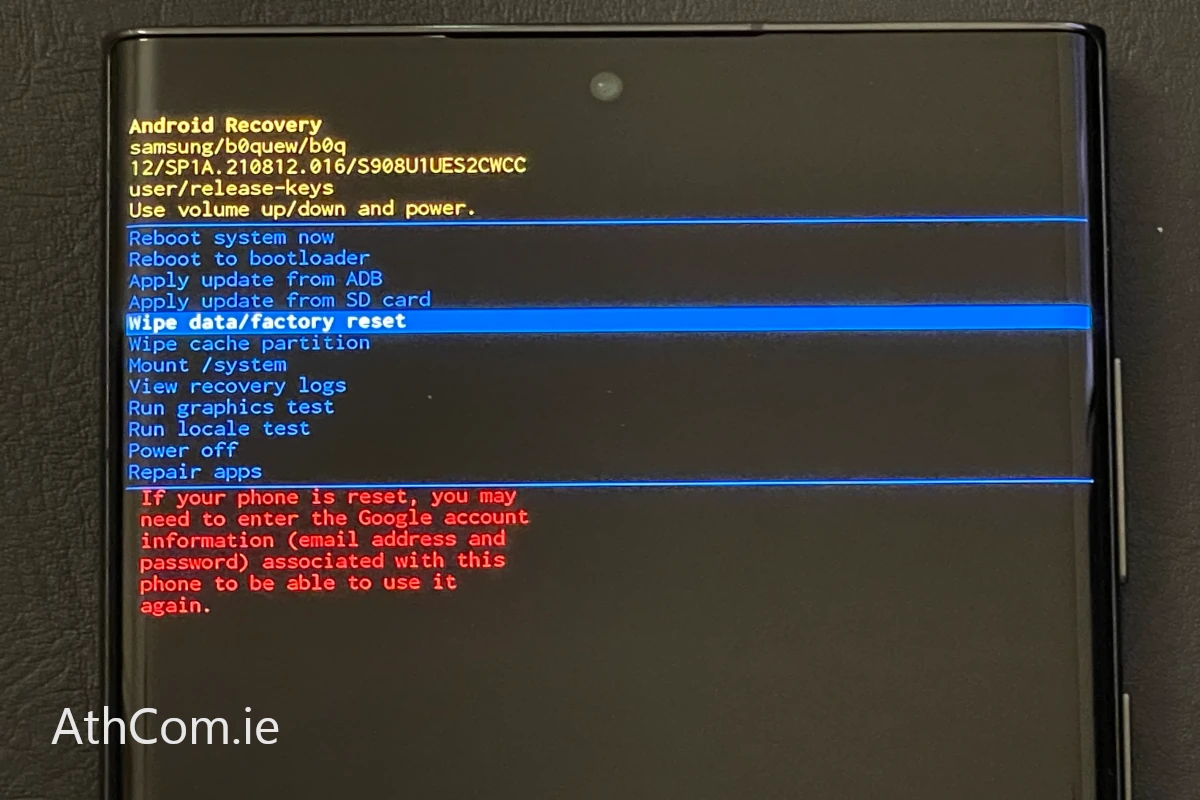
- Step 3: Navigating the Menu: Once the "No Command" screen appears (common on many Androids), hold the Power Button and tap Volume Up once. You will now see a list of commands. Use the Volume Up/Down keys to move the highlight and the Power Button to execute a selection.
- Step 4: Wipe Data: Select "Wipe data/factory reset." The system will ask for confirmation; select "Factory data reset."
- Step 5: Reboot: Once the process is complete, select "Reboot system now."
For iOS Devices (iPhone)
Apple does not have a "text-menu" recovery mode accessible solely via buttons like Android; instead, it uses Recovery Mode to interface with a computer.
- Step 1: Connect your iPhone to a Mac or PC.
- Step 2: For iPhone 8 and later: Press and quickly release Volume Up. Press and quickly release Volume Down. Then, press and hold the Side Button until the recovery mode screen (a cable pointing toward a computer) appears.
- Step 3: On your computer, open Finder (Mac) or iTunes (Windows). A prompt will appear stating there is a problem with the iPhone. Select "Restore." This will download the latest firmware and wipe the device.
Method 2: Remote Erase via Cloud Services
If your device is connected to Wi-Fi or cellular data, you can initiate a factory reset from any web browser. This is often the easiest method if you have another device handy.
Google Find My Device (Android)
Google provides a robust tool for managing lost or broken devices. You can access this via the Google Find My Device portal.
- Log in with the Google Account currently synced to the broken phone.
- Select the specific device from the list at the top of the sidebar.
- Choose the option "Erase Device."
- Confirm your selection. As soon as the phone pings a network, it will receive the command and begin the self-destruct sequence for the data.
Apple iCloud Find My (iPhone)
Similarly, Apple users can use the iCloud Find Devices page.
- Sign in with your Apple ID.
- Click "All Devices" and select the broken iPhone.
- Click "Erase iPhone."
- Enter your Apple ID password to confirm. If the device is offline, the erase will start the next time it connects to the internet.
Method 3: The USB Mouse and OTG Workaround
If your screen is visible but the touch functionality is dead, you don't necessarily need to perform a "blind" reset. You can use an USB On-The-Go (OTG) adapter to connect a standard computer mouse to your phone.
- How it works: A USB-C or Micro-USB OTG adapter plugs into your phone's charging port, providing a female USB-A port.
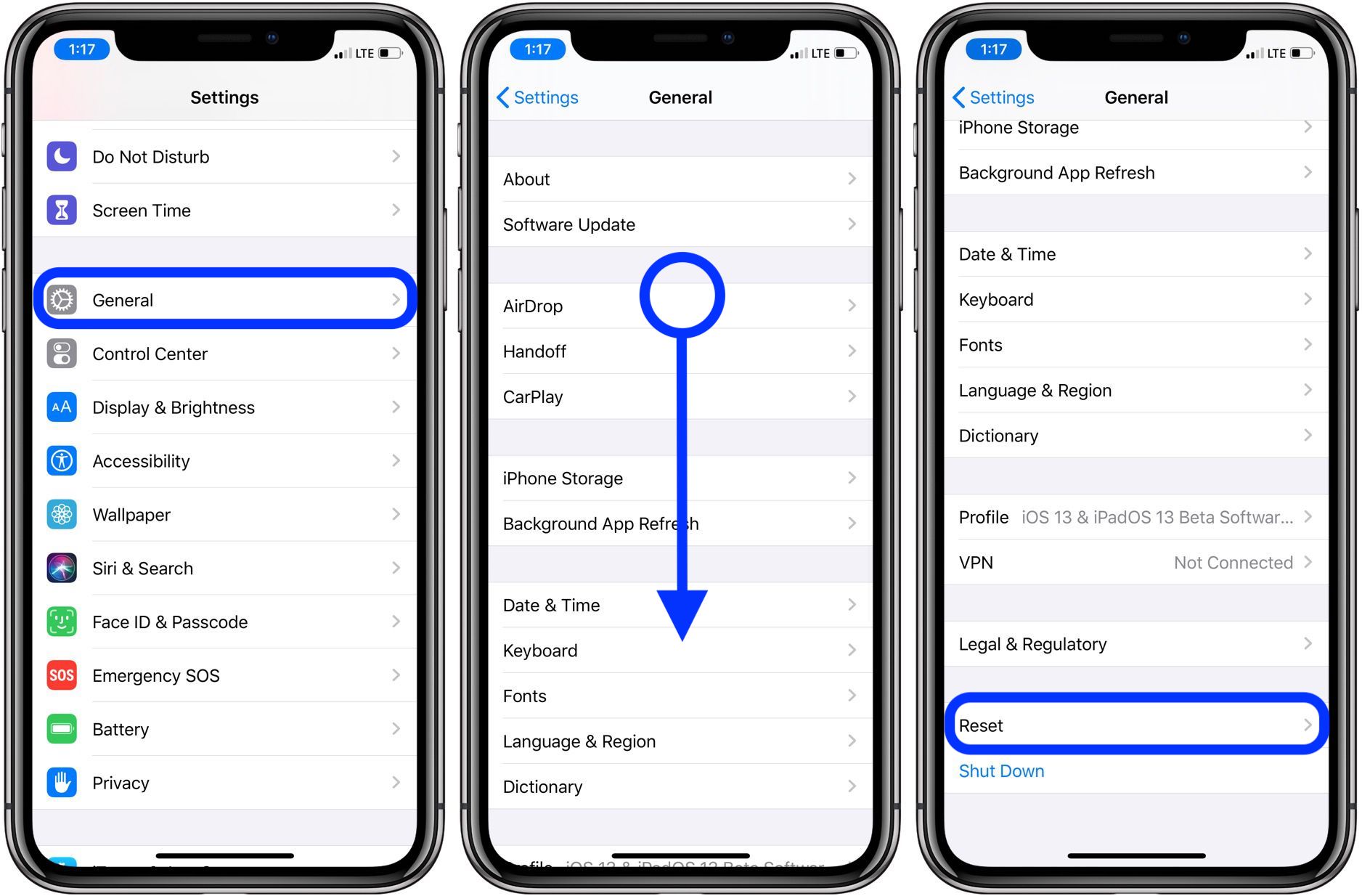
- Navigating: Once you plug in a wired mouse, a cursor will appear on the screen. You can then navigate to Settings > System > Reset options (Android) or Settings > General > Transfer or Reset iPhone (iOS - note: iOS support for mice requires relatively modern versions and specific settings, so this is more reliable on Android).
- Benefit: This method allows you to verify that a backup has been completed or to manually transfer files to a cloud service before wiping the device.
Technical Comparison of Reset Methods
The following table compares the most common methods for resetting a device when the touch interface is unavailable.
| Method | Best For | Requirement | Data Recovery Possible? |
|---|---|---|---|
| Hardware Buttons | Total touch failure; No PC available | Physical buttons must work | No, immediate wipe |
| Find My (Cloud) | Device is remote or touch/display dead | Internet connection; Logged-in account | No, immediate wipe |
| OTG Mouse | Broken digitizer but visible display | OTG Adapter + USB Mouse | Yes, before resetting |
| Computer (iTunes/ADB) | Software corruption; Boot loops | USB Cable + Mac/PC | No (Restore wipes data) |
| Manufacturer Tools | Specific brands (Samsung/Sony) | Brand account (e.g., Samsung Account) | Sometimes (depends on tool) |
Method 4: Using Android Debug Bridge (ADB)
For advanced users, the Android Debug Bridge (ADB) allows you to send commands from a computer to your phone via a USB cable. This is highly effective but has a significant catch: USB Debugging must have been enabled in the Developer Options before the screen broke.
If you previously enabled USB Debugging:
- Connect your phone to your PC and open a terminal/command prompt.
- Type
adb devicesto ensure the connection is recognized. - Type
adb shell recovery --wipe_dataoradb reboot recovery. - In some firmware versions, you can use
adb shell am broadcast -a android.intent.action.MASTER_CLEARto trigger a reset directly from the command line.
Troubleshooting Common Obstacles
The "No Command" Error
When entering Recovery Mode on Android, you might see a fallen Android robot with the text "No Command." This is a security layer. To bypass it, hold the Power Button and press the Volume Up button once. This should reveal the actual text-based recovery menu.
Two-Factor Authentication (2FA) Problems
When trying to use Google Find My Device or iCloud from a computer, the service might send a 2FA code to your broken phone. If you cannot see the code because the screen is dead, look for the "Try another way" option. You can often use a backup code (which you should have saved when setting up 2FA) or an SMS to a different trusted recovery number.
Broken Physical Buttons
If your touch screen is broken and your volume buttons are stuck, you are in a difficult position. In this case, the Remote Erase (Cloud) method is your only software-based option. If the device is not connected to the internet, a professional technician will likely need to temporarily connect a new screen to perform the reset or use specialized JTAG/ISP hardware tools to wipe the flash memory directly.
Final Recommendations and Next Actions
Resetting a phone without a touch screen is a straightforward process once you identify which "gate" is open. If you have internet access and the account logged in, the Cloud Reset is the most user-friendly. If you are tech-savvy or have no internet, Recovery Mode via hardware buttons is the most powerful.
Next Steps:
- Verify the Wipe: After performing a hardware reset, the phone should reboot to the initial "Welcome" or "Hello" setup screen.
- Hardware Assessment: If the reset was an attempt to fix "ghost touching" or unresponsive software and the issue persists on the setup screen, the problem is physical. In 2026, many manufacturers offer self-repair kits, or you can visit an authorized service provider to replace the digitizer assembly.
- Security: If you are selling the device, ensure you have removed it from your Google or Apple account list in your browser settings to ensure the new owner doesn't encounter Activation Lock.
For further technical documentation on device recovery, refer to the Android Open Source Project (AOSP) recovery guides or the official Apple Support page for iPhone restoration.
Frequently Asked Questions
Can I reset my phone using my voice assistant?
Generally, no. While assistants like Google Assistant or Siri can perform many tasks, security protocols prevent them from performing a factory reset via voice command to avoid accidental or unauthorized data wipes. You must use physical buttons or authenticated cloud portals.
Does a factory reset fix a broken screen?
A factory reset only addresses software issues. If the touch screen is unresponsive due to physical damage, such as a cracked digitizer or internal cable disconnection, a reset will not fix the problem. However, it is a necessary step before sending the device for repair to protect your privacy.
What if I don't remember my Google or Apple password?
If you perform a hard reset via hardware buttons and don't know your password, you will be stuck at the "Activation Lock" or "FRP" screen. You must recover your account through the provider's account recovery website (e.g., iforgot.apple.com) before you can use the phone again.
Can I use a Bluetooth mouse instead of an OTG mouse?
Only if the mouse was already paired with the phone before the screen broke. Since you cannot access the Bluetooth settings menu to pair a new device without a working touch screen, a wired USB mouse with an OTG adapter is the standard solution for this scenario.
Will a factory reset remove the SIM card lock?
No. A factory reset wipes the phone's internal storage and settings. It does not affect the SIM card's PIN lock or the carrier lock (which restricts the phone to a specific network).
Image Gallery