How to Change the Text Tone on iPhone: A Complete Guide to Sounds and Writing Styles
Changing the text tone on your iPhone involves two distinct processes: modifying the audible alert sound for incoming messages and adjusting the literary style of your outgoing messages using Apple Intelligence. You can update sound se...
Changing the text tone on your iPhone involves two distinct processes: modifying the audible alert sound for incoming messages and adjusting the literary style of your outgoing messages using Apple Intelligence. You can update sound settings via Settings > Sounds & Haptics or refine written sentiment using the Writing Tools feature in the Messages app.
Contents
The term "text tone" has evolved significantly. For over a decade, it referred exclusively to the chime or vibration you heard when a notification arrived. However, since the introduction of Apple Intelligence in iOS 18 and its subsequent refinements through 2026, "tone" also refers to the linguistic style—such as professional, friendly, or concise—applied to the text itself. This guide covers both technical interpretations to ensure your iPhone communicates exactly how you want it to, both audibly and stylistically.
Modifying Audible Text Alert Tones
The most common reason users seek to change their text tone is to personalize the sound that plays when an SMS or iMessage is received. This is essential for distinguishing your phone from others in a crowded room or identifying specific types of alerts without looking at the screen.
System-Wide Text Tone Settings
To change the default sound for every message you receive, follow these steps:
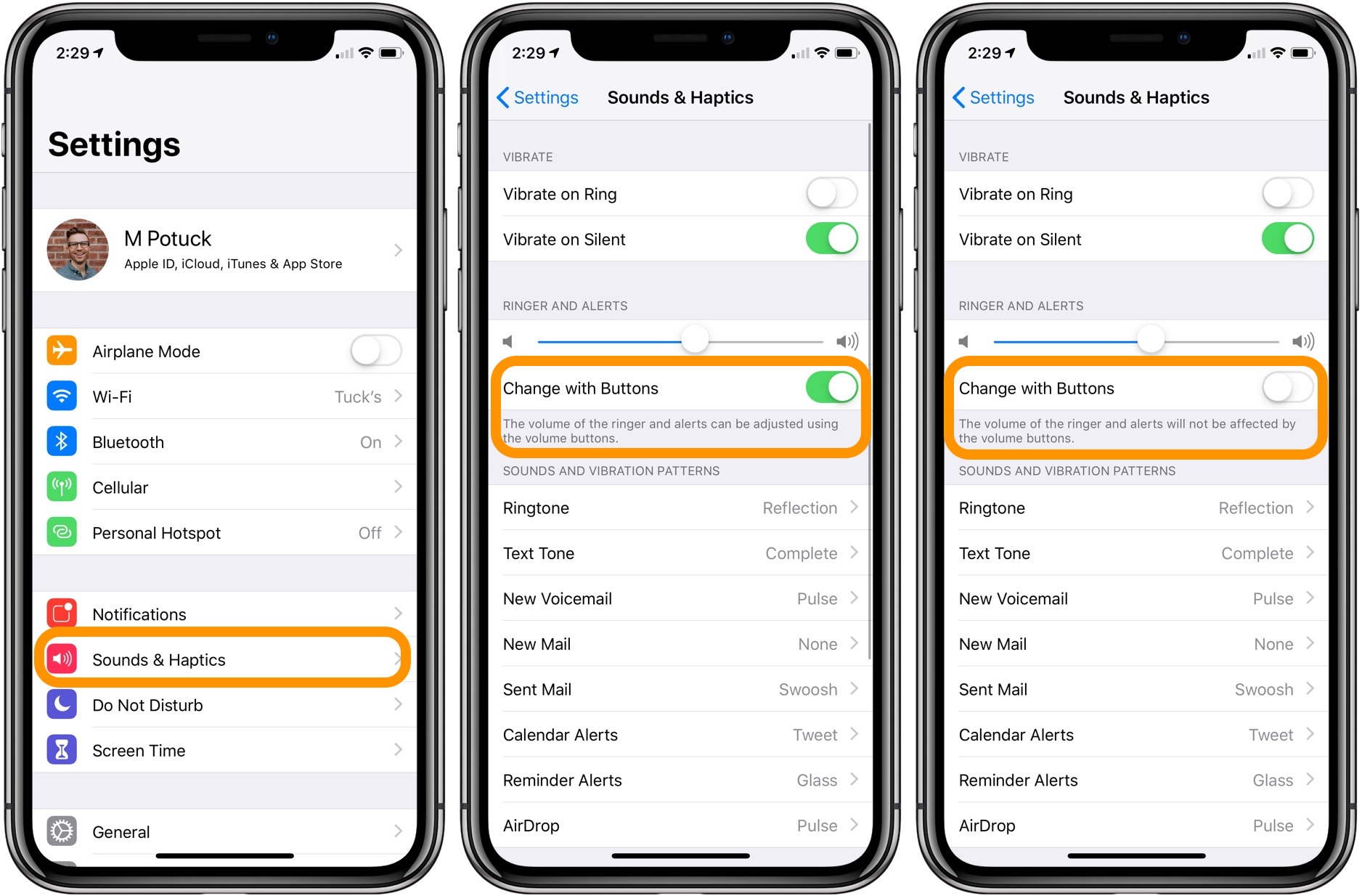
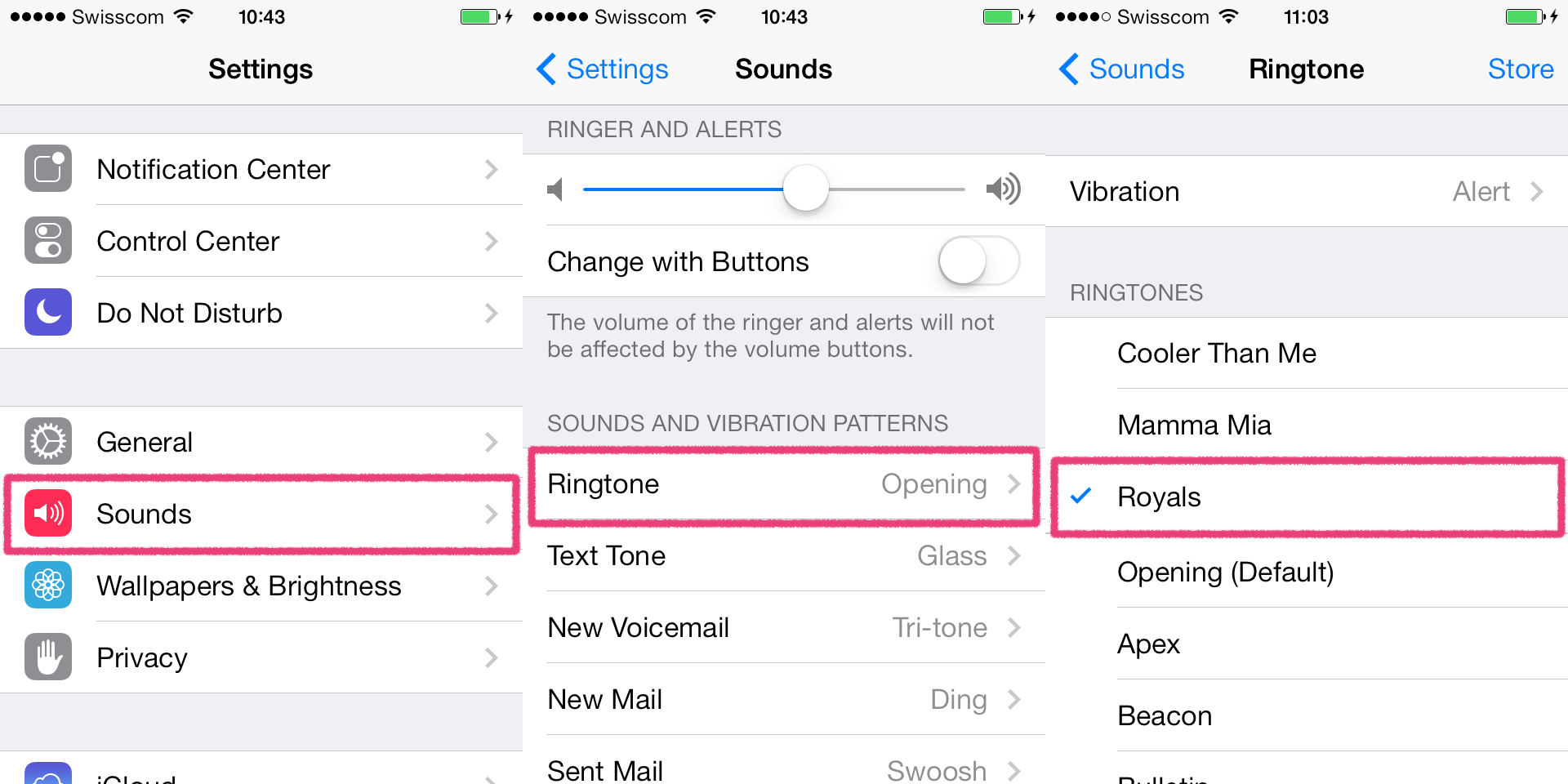
- Open the Settings app on your iPhone.
- Scroll down and tap on Sounds & Haptics.
- Under the Sounds and Haptic Patterns section, select Text Tone.
- Here, you will see a list of "Alert Tones" and "Ringtones." Tap on any sound to hear a preview.
- Once you find a tone you like, ensure the blue checkmark appears next to it.
- (Optional) Tap Haptics at the top of this screen to change the vibration pattern that accompanies the sound.
As of 2026, Apple has expanded the "Classics" folder, allowing users to access legacy sounds from older iOS versions while introducing new high-fidelity spatial audio alerts that take advantage of modern hardware.
Assigning Tones to Specific Contacts
A powerful way to manage notifications is by assigning unique text tones to specific individuals. This allows you to know who is messaging you based on the sound alone.
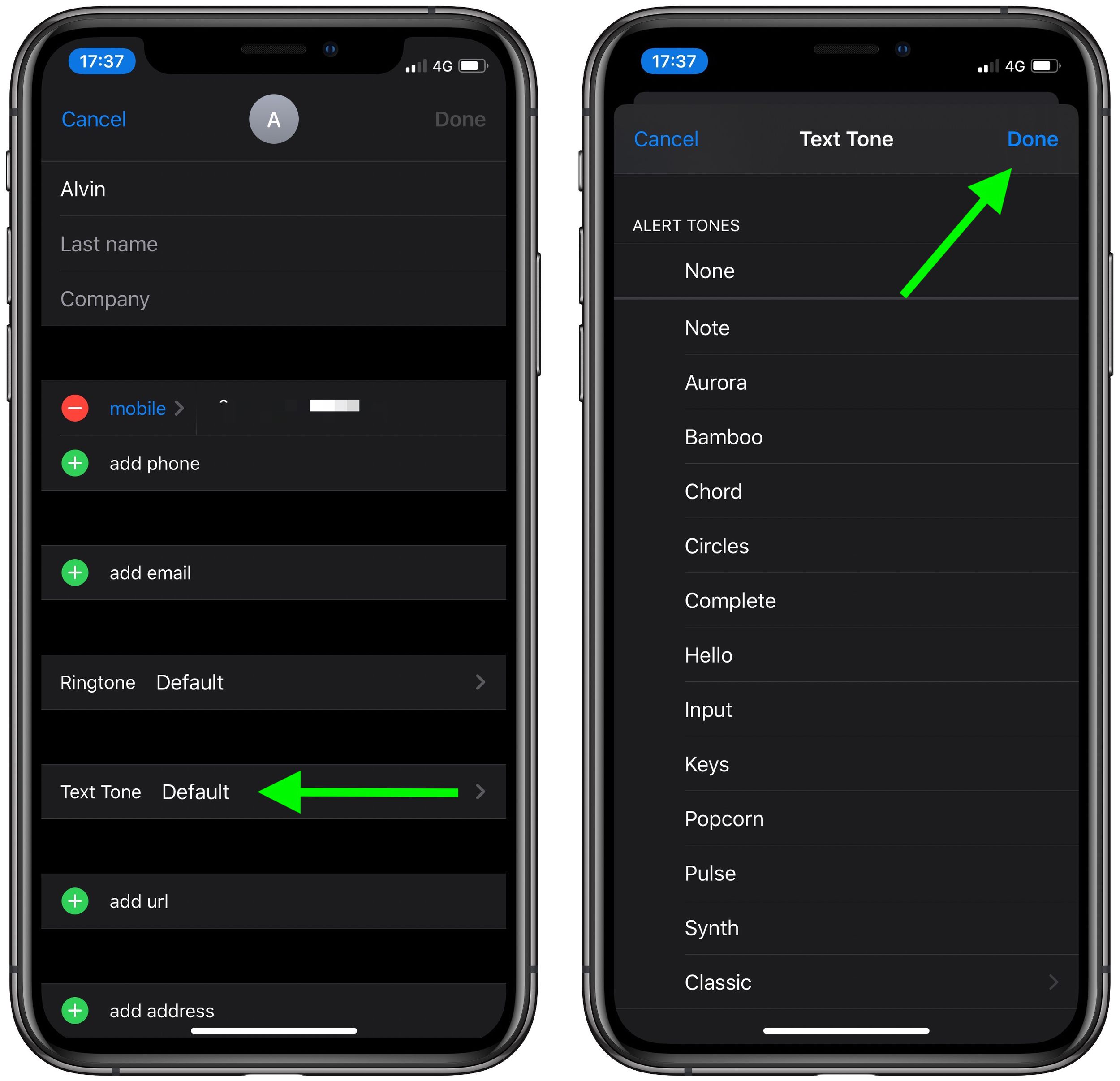
- Open the Contacts app (or the Phone app and tap the Contacts tab).
- Find the person you wish to customize and tap their name.
- Tap Edit in the top-right corner.
- Scroll down to Text Tone. It will likely say "Default" initially.
- Select a new sound and haptic pattern specifically for this contact.
- Tap Done to save the changes.
This feature is particularly useful for "Emergency Bypass." If you enable Emergency Bypass for a specific contact, their text tone will play even if your phone is on silent or if a Focus mode (like Do Not Disturb) is active.
Changing the Writing Tone with Apple Intelligence
With the maturation of Apple Intelligence, "changing text tone" now frequently refers to the AI-assisted Writing Tools. This feature allows you to rewrite a draft to sound more professional, friendly, or concise. This is a generative AI feature processed primarily on-device to maintain privacy.
Requirements for Writing Tools
As of 2026, these tools are standard across most modern iPhones, but they require specific hardware and software versions:
- Hardware: iPhone 15 Pro, iPhone 15 Pro Max, or any iPhone 16/17/18 series model.
- Software: iOS 18.0 or later.
- Language: The system language must be set to a supported Apple Intelligence language (initially US English, with broad global support added throughout 2025 and 2026).
How to Use Writing Tools to Change Message Tone
If you have written a draft in the Messages app and feel it isn't hitting the right note, you can use the following steps to transform it:
- Type your message in the text field of the Messages app.
- Double-tap or long-press the text to select the portion you want to change (or "Select All").
- In the floating menu that appears, tap on Writing Tools (or the Apple Intelligence icon).
- Choose from the available tone options:
- Professional: Turns casual language into formal prose suitable for work.
- Friendly: Adds warmth and positive phrasing to the message.
- Concise: Removes filler words to make the message direct.
- Review the preview provided by the AI. If you are satisfied, tap Replace to update your message.
This functionality extends beyond the native Messages app; it works in Mail, Notes, and many third-party apps that utilize standard iOS text fields.
Comparison of Text Tone Customization Options
| Feature | Primary Goal | Location in iOS | Privacy/Data Usage |
|---|---|---|---|
| System Text Tone | Change notification sound for all. | Settings > Sounds & Haptics | Local (Offline) |
| Contact Specific Tone | Identify caller/sender by sound. | Contacts > [Name] > Edit | Local (Offline) |
| Haptic Patterns | Physical vibration feedback. | Settings > Sounds & Haptics | Local (Offline) |
| Writing Tools (AI) | Change the "mood" of written text. | Text Selection Menu > Writing Tools | Private Cloud Compute / On-Device |
| Tone Store | Buy custom music/sound alerts. | Settings > Sounds > Tone Store | Apple Account / Paid |
Advanced Customization: Creating Custom Tones
If the default Apple library does not satisfy your needs, you can create your own audible text tones using the GarageBand app. This allows you to turn any audio file or recording into a 2-to-5-second alert.
The GarageBand Method
- Download GarageBand from the App Store.
- Open the app and choose the Audio Recorder (the microphone icon).
- Tap the Tracks icon (looks like bricks) to enter the timeline view.
- Use the Loop Browser or Files icon to import a short audio clip.
- Trim the clip to under 30 seconds (text tones are best at 2-5 seconds).
- Tap the downward arrow and select My Songs to save the project.
- Long-press the saved file, tap Share, and select Ringtone.
- Name it "My Custom Text Tone" and export it.
- Once exported, you can find this tone in the Settings > Sounds & Haptics > Text Tone list under "Ringtones."
Troubleshooting Common Issues
Why is my text tone not playing?
If you have set a custom tone but don't hear it, check the following:
- The Mute Switch/Action Button: Ensure your phone is not in Silent Mode.
- Focus Modes: Check if "Do Not Disturb" or "Work" focus is active. These modes often silence notifications unless the sender is in your "Allowed" list.
- Attention Aware Features: If you are looking at your phone when a message arrives, the iPhone will automatically lower the volume of the alert.
- Notification Settings: Go to Settings > Notifications > Messages and ensure "Allow Notifications" and "Sounds" are toggled on.
Why are Writing Tools not appearing?
If you cannot see the "Writing Tools" option to change the literary tone of your message:
- Ensure Apple Intelligence is turned on in Settings > Apple Intelligence & Siri.
- Check your internet connection. While much processing is on-device, initial setup or complex requests may require a connection to Private Cloud Compute.
- Verify that your device model supports these AI features. Models older than the iPhone 15 Pro do not have the NPU (Neural Processing Unit) capacity for these specific tools.
Frequently Asked Questions
Can I use a song from Apple Music as a text tone?
You cannot directly set a song from Apple Music as a text tone due to Digital Rights Management (DRM) restrictions. You must either purchase the tone from the iTunes Tone Store or create a custom tone using an unprotected audio file through the GarageBand method mentioned above.
How do I turn off text tones for a specific person?
To silence a single person without silencing everyone else, open your conversation with them in the Messages app. Tap their profile icon at the top, then toggle on Hide Alerts. This will stop the phone from playing a sound or vibrating for that specific thread, though you will still see the messages when you open the app.
Is there a difference between a Ringtone and a Text Tone?
Technically, they are both .m4r files. However, iOS categorizes them by length. Ringtones are designed to loop for up to 30 seconds during an incoming call, while Text Tones are brief alerts. You can use a ringtone as a text tone, but it may be disruptively long if you receive many messages.
Can I set different text tones for different SIM cards?
Yes. If you use Dual SIM (e.g., a physical SIM for personal and an eSIM for work), you can go to Settings > Sounds & Haptics > Text Tone and select different sounds for each "Line." This is a highly effective way to distinguish between personal and professional communications.
Are custom text tones free?
If you create them using GarageBand or use the built-in iOS sounds, they are free. If you purchase them through the iTunes Tone Store, they typically cost between $0.99 and $1.29.
Summary of Recommendations
To maximize your iPhone's notification system in 2026, start by setting a distinct, short sound for your general text tone in Settings. Use the Contacts app to assign unique sounds to family members and urgent work contacts so you can prioritize your responses without looking at the device. Finally, if you find yourself sending important emails or messages from your phone, utilize the Writing Tools to ensure your literary tone matches your intent, effectively bridging the gap between audible alerts and sophisticated communication.
Image Gallery