Mastering IHSS Electronic Timesheets: The Complete 2026 Guide for Providers and Recipients
The In-Home Supportive Services (IHSS) Electronic Services Portal (ESP) allows IHSS providers and recipients to securely submit, track, and manage timesheets online. This system replaces traditional paper timesheets, offering faster pr...
The In-Home Supportive Services (IHSS) Electronic Services Portal (ESP) allows IHSS providers and recipients to securely submit, track, and manage timesheets online. This system replaces traditional paper timesheets, offering faster processing, automated error checks, and direct visibility into payment statuses for home care workers across California.
Contents
Understanding the IHSS Electronic Services Portal Infrastructure
The transition from paper timesheets to electronic processing represents a significant operational shift for the California In-Home Supportive Services program, administered by the California Department of Social Services (CDSS). The IHSS Electronic Services Portal serves as the centralized web-based platform for timesheet submission, while its mobile counterpart, the IHSS Electronic Timesheet Mobile App, provides on-the-go access for compatible smartphone and tablet devices.
Designed to streamline payroll administration, the digital infrastructure reduces processing delays commonly associated with postal mail delivery and manual data entry by county payroll staff. By entering hours directly into the portal, providers benefit from real-time validation checks that flag potential violations—such as unauthorized overtime or conflicting work hours—before final submission. This proactive error-detection mechanism significantly decreases the likelihood of warrants being delayed or rejected due to common clerical mistakes.
Essential Prerequisites for Registration and Access
Before navigating the IHSS electronic timesheet system, users must satisfy specific administrative and technical requirements. Both providers and recipients must establish separate accounts, as each party holds distinct legal and operational responsibilities within the payroll workflow.
- Recipient Prerequisites: Must have an active IHSS case number, a valid social security number or individual taxpayer identification number, and a registered email address. Recipients must approve timesheets submitted by their providers.
- Provider Prerequisites: Must be fully enrolled, background-checked via Live Scan, and cleared by their respective county IHSS office. Providers need their unique provider number, a valid email address, and access to a secure internet-connected device.
- Technical Requirements: A modern web browser (such as Google Chrome, Apple Safari, Mozilla Firefox, or Microsoft Edge) with JavaScript enabled, or the official IHSS mobile application downloaded from the Apple App Store or Google Play Store.
Step-by-Step Registration Guide for New Users
Setting up an account on the IHSS Electronic Services Portal requires careful attention to detail to ensure proper linking between the recipient's case and the provider's profile. Follow this systematic workflow to establish credentials.
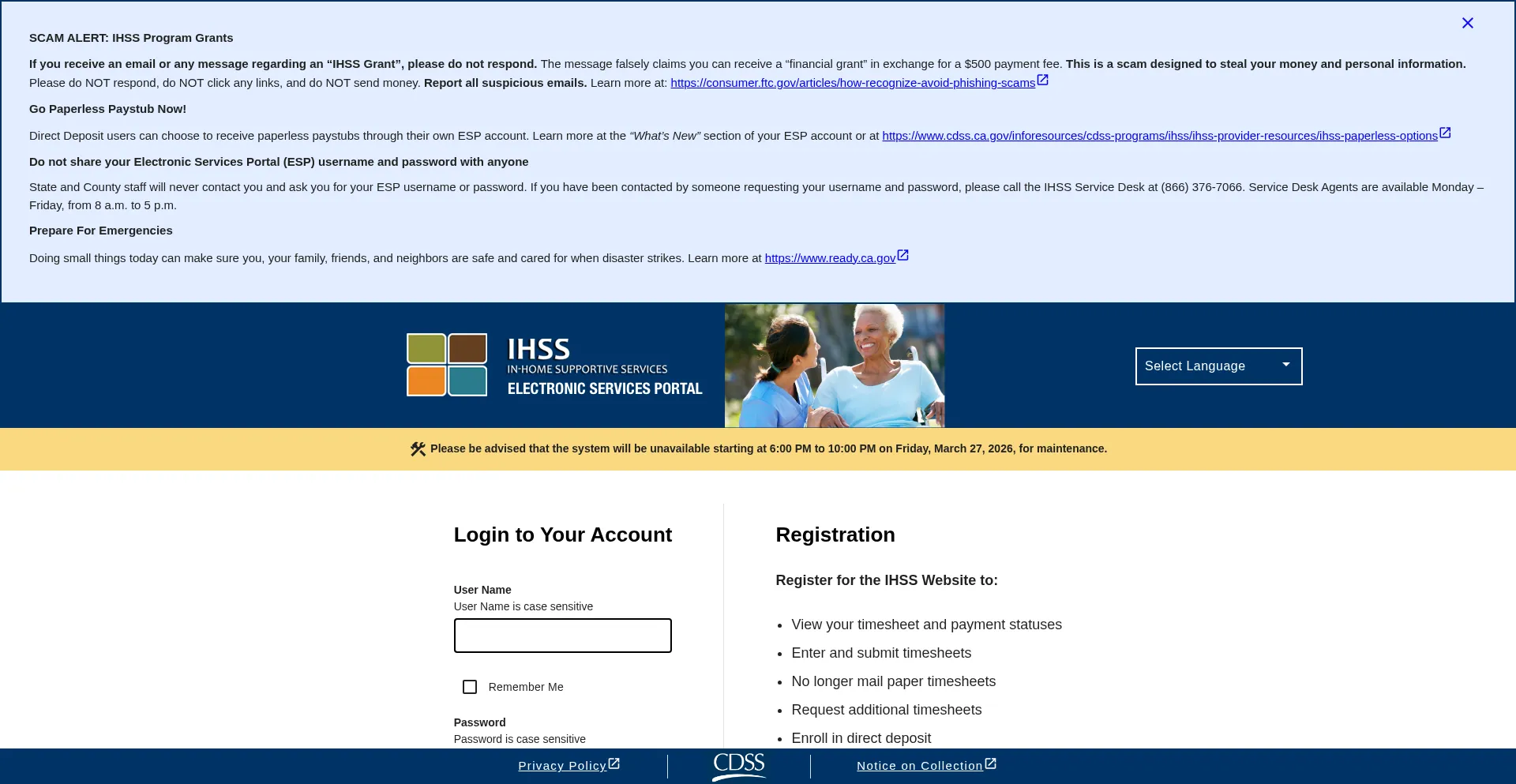
- Navigate to the Official Portal: Access the official CDSS IHSS Electronic Services Portal website through a secure browser connection.
- Select New User Registration: Click on the Register button located on the login page to initiate the profile creation wizard.
- Choose User Role: Designate whether you are registering as a Provider or a Recipient. Each role requires distinct identification numbers and verification parameters.
- Input Personal Identifiers: Enter your exact name as registered with the county, date of birth, social security number, and either your provider number or recipient case number.
- Establish Security Credentials: Create a secure password adhering to system complexity rules, and select password recovery security questions to protect your account.
- Verify Email Address: Click the confirmation link sent to your registered email inbox to activate the account and complete the registration sequence.
Navigating and Submitting Electronic Timesheets
Once registered, submitting a timesheet through the portal follows a standardized operational procedure designed to capture accurate work hours while maintaining compliance with state and federal labor laws.
- Log In Safely: Access the portal using your username and password. Avoid using public or unsecured Wi-Fi networks when handling sensitive payroll data.
- Select the Pay Period: Navigate to the Timesheet section and choose the specific semi-monthly pay period (1st through the 15th, or the 16th through the end of the month) you wish to submit.
- Input Daily Hours: Enter the exact times and total daily hours worked for authorized service categories, including domestic, personal care, and accompaniment services.
- Review for Accuracy: Carefully examine the cumulative hours against maximum weekly and monthly authorized allocations to prevent accidental overtime or program violations.
- Electronic Signature and Submission: Sign the timesheet electronically using your portal password and submit it. The system immediately routes the document to the recipient for their mandatory electronic approval.
Comparative Analysis: Electronic Timesheets vs. Traditional Paper Timesheets
| Feature / Metric | IHSS Electronic Services Portal (ESP) | Traditional Paper Timesheets |
|---|---|---|
| Submission Speed | Instantaneous digital transmission | Dependent on postal mail delivery (3-7 business days) |
| Error Detection | Real-time automated validation checks | Manual review by county staff; errors cause severe delays |
| Payment Processing | Typically faster direct deposit or warrant issuance | Slower processing due to manual data entry bottlenecks |
| Tracking Visibility | Live status updates (Submitted, Approved, Paid) | Limited visibility; requires calling the telephone timesheet center |
| Accessibility | 24/7 web and mobile application access | Restricted to physical paper forms and manual mailings |
Troubleshooting Common Errors and Portal Challenges
Users occasionally encounter technical or administrative hurdles while utilizing the IHSS electronic timesheet platform. Understanding these failure points and their corresponding remedies ensures uninterrupted payroll processing.
- Locked Accounts: Entering incorrect passwords multiple times locks the account for security purposes. Users can unlock accounts by utilizing the automated password recovery tool or by contacting the IHSS Help Desk.
- Recipient Approval Failure: Providers cannot receive payment until the recipient reviews and approves the timesheet. If a recipient is incapacitated or unavailable, alternative approval workflows, such as designated authorized representatives, must be established through the county social worker.
- Overtime and Travel Time Violations: The system blocks timesheet submission if reported hours exceed monthly maximums or violate the maximum weekly hours (MWH) rule. Providers must coordinate with their recipients and county workers to adjust schedules or secure prior authorization for authorized overtime.
- Browser Compatibility Issues: If pages fail to load or buttons become unresponsive, clear your browser cache, disable aggressive ad-blockers, or switch to an alternative supported browser.
Frequently Asked Questions
How do I reset my forgotten password on the IHSS Electronic Services Portal?
Click the Forgot Password link on the login page, enter your registered email address, and follow the instructions sent to your inbox to securely reset your credentials. The recovery workflow requires access to the email address originally linked to your user profile.
Can a recipient approve timesheets on behalf of multiple providers?
Yes, recipients with multiple authorized providers can review, manage, and approve timesheets for each distinct provider through their individual recipient portal dashboard. Each provider must be selected and reviewed separately before final submission to the county.
What should I do if my electronic timesheet is rejected by the county?
Review the rejection notice within the portal to identify the specific error code or administrative comment provided by county payroll staff. Correct the inaccurate data entries, obtain re-approval from the recipient if necessary, and resubmit the corrected timesheet.
Is a smartphone required to use the IHSS electronic timesheet system?
No, while the official mobile app is available for iOS and Android devices, users can fully access all features, submit timesheets, and track payments using any standard desktop or laptop computer via the web portal.
How long does direct deposit take after a timesheet is approved?
Once a timesheet receives final approval from both the recipient and the county processing system, direct deposit funds are typically transferred to the provider's designated bank account within two to three business days, subject to standard banking holidays.
Who should I contact for technical assistance with portal navigation?
For technical issues regarding login errors, password resets, or mobile app bugs, contact the IHSS Service Desk help line provided on the official CDSS website. For case-specific authorized hour questions, contact your local county IHSS social worker directly.
Practical Recommendations for Timely Payroll Processing
To maintain financial stability and ensure seamless compensation, IHSS providers and recipients should adopt proactive administrative habits. Submit timesheets immediately at the conclusion of each semi-monthly pay period rather than waiting until the final deadline. Coordinate closely with your recipient to ensure they approve submitted hours promptly, as county processing cannot begin until both parties complete their respective digital actions. Finally, verify that your direct deposit banking information remains current within the portal to eliminate avoidable payout delays.
Image Gallery