How to Pair Your Apple Watch with a New iPhone Quickly (2026 Guide)
To pair an Apple Watch with a new iPhone quickly, the most efficient method is using the iOS Quick Start feature during your new iPhone's initial setup. By placing the two iPhones side-by-side, your Apple Watch configuration is automat...
To pair an Apple Watch with a new iPhone quickly, the most efficient method is using the iOS Quick Start feature during your new iPhone's initial setup. By placing the two iPhones side-by-side, your Apple Watch configuration is automatically detected and migrated. If the iPhone is already set up, simply open the Watch app, select "All Watches," and follow the prompts to "Pair New Watch" using the viewfinder.
Contents
Moving your Apple Watch to a new device used to be a cumbersome process involving manual backups and resets. As of 2026, the integration between iOS 19/20 and watchOS 12/13 has streamlined this into a nearly background task. However, achieving a "quick" setup still requires adhering to specific technical prerequisites to avoid software hangs or data loss. This guide details the exact procedures for every scenario, whether you are migrating an existing watch or setting up a brand-new Series 11 or Ultra 3.
Essential Prerequisites Before You Begin
Before attempting to pair your watch, you must ensure your hardware environment is prepared. Most pairing failures occur not because of software bugs, but because of missed foundational steps.
1. Software Synchronization
Both devices must be running compatible software. While a newer iPhone can usually support an older watch, an older iPhone cannot support a watch running the latest watchOS. In 2026, ensure your iPhone is updated to the latest version of iOS. This ensures the handoff protocols—the digital "handshake" between devices—are utilizing the most recent security certificates and Bluetooth LE (Low Energy) profiles.
2. The Power and Connectivity Factor
Pairing is a processor-intensive task that involves significant data transfer. Ensure both the iPhone and the Apple Watch have at least 50% battery life, or ideally, are connected to their respective chargers. Additionally, both Bluetooth and Wi-Fi must be enabled on the iPhone. The watch uses Bluetooth for the initial handshake and Wi-Fi (or the iPhone’s bridge) for larger data payloads like app installations and library syncing.
3. Apple ID and Activation Lock
The Apple Watch is protected by Activation Lock, which ties the hardware to your Apple ID. If you are migrating a watch from an old iPhone, you must know your Apple ID password. If you are buying a used watch, the previous owner must have removed it from their "Find My" network, or the pairing process will be blocked immediately for security reasons.
Method 1: The "Quick Start" Migration (Best for New Phone Setup)
If you have just unboxed a new iPhone and have not yet completed the setup assistant, this is the fastest way to move your watch.
- Initiate iPhone Setup: Turn on your new iPhone and place it next to your old iPhone. Follow the Quick Start prompts to transfer data from the old device to the new one.
- The Watch Prompt: During the transfer process, the iPhone will ask if you want to use your Apple Watch with the new iPhone.
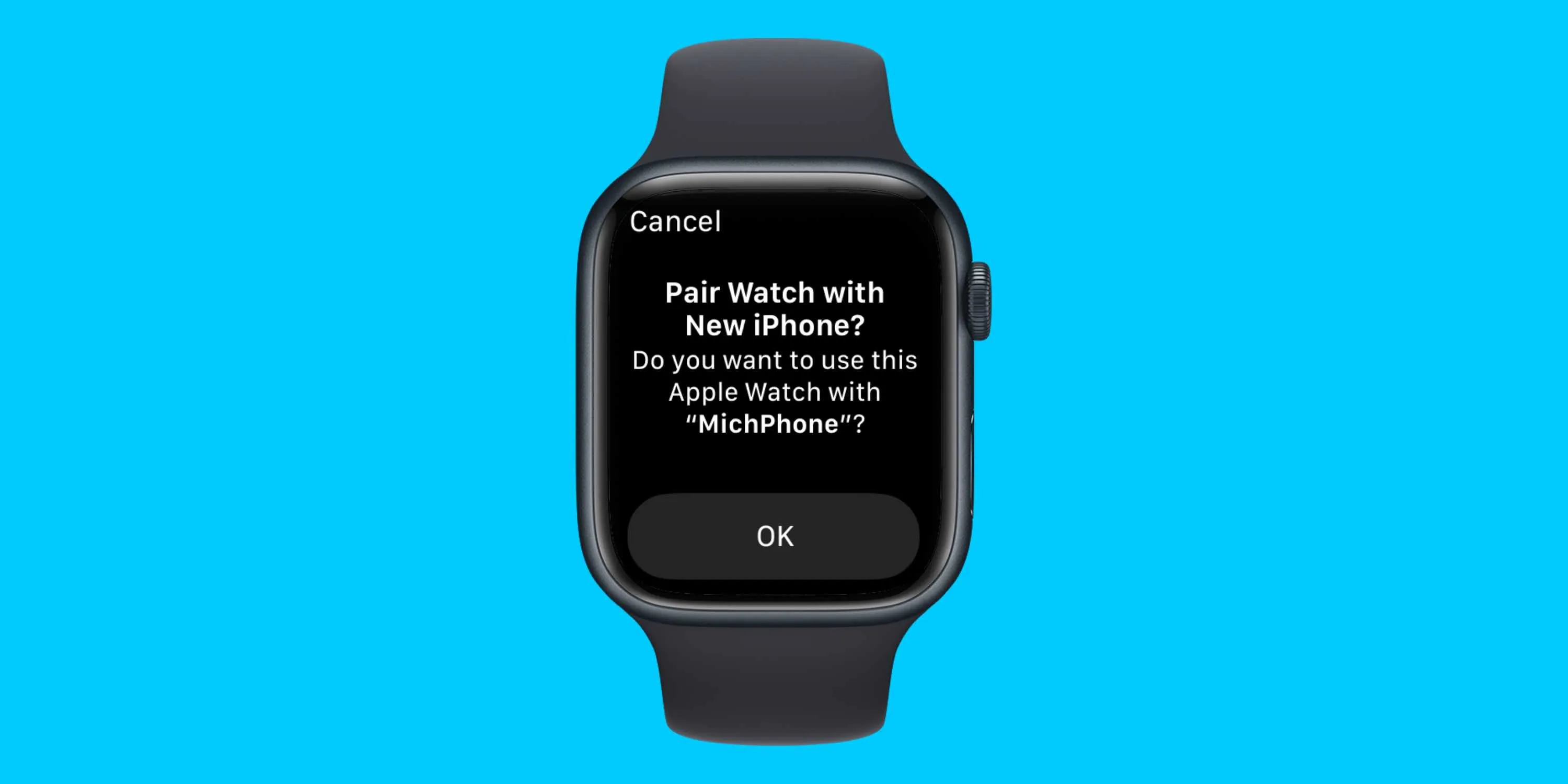
- The Continuity Handshake: Tap "Continue." On the Apple Watch, you may see a message asking if you want to pair with a new iPhone. Confirm this on the watch face.
- Verification: Keep the devices close together. The iPhone will securely migrate your health data, fitness history, and app layouts. This method avoids the need to "unpair" and "repair" manually, saving approximately 15 to 20 minutes of sync time.
Method 2: Manual Pairing (When iPhone is Already Set Up)
If you have already set up your iPhone as a new device or have already finished the migration, you will need to pair the watch through the dedicated app.
Step 1: Prepare the Watch
If the watch was previously paired to an old phone, you must first unpair it from the old device. Open the Watch app on the old iPhone, tap "My Watch," then "All Watches," and tap the "i" icon next to the watch. Select "Unpair Apple Watch." This step is crucial because it triggers a fresh backup of your watch data to the old iPhone, which then syncs to iCloud.
Step 2: Use the Viewfinder
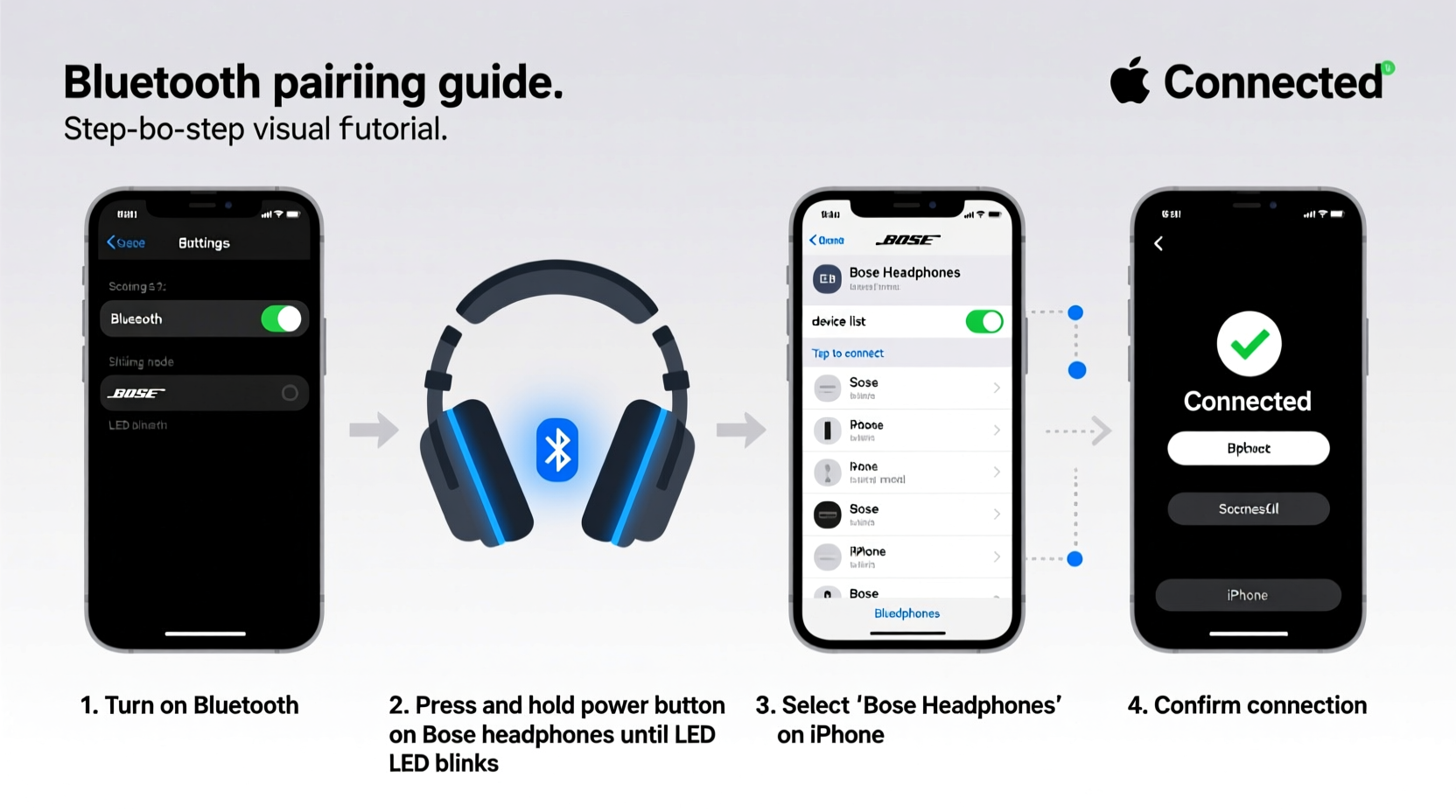
Turn on the Apple Watch. Once you see the language selection, the watch will display a swirling blue nebula animation. Open the Watch app on your new iPhone and tap "Start Pairing." Hold the iPhone over the watch so that the animation appears in the viewfinder on the screen.
Step 3: Restore from Backup vs. Set Up as New
The iPhone will offer two choices. For the fastest experience that preserves your data, select "Restore from Backup." Choose the most recent backup (dated today). If you want a "clean slate" and faster initial syncing, select "Set Up as New Apple Watch." Note that setting up as new will not delete your Health and Activity data, as that is tied to your Apple ID/iCloud, not the watch hardware itself.
Technical Requirements for Pairing (2026)
| Feature | Requirement | Reason |
|---|---|---|
| Bluetooth Version | Bluetooth 5.0 or higher | Ensures stable data transfer and low power consumption. |
| Wi-Fi Frequency | 2.4GHz or 5GHz | Necessary for downloading watchOS updates during setup. |
| iCloud Storage | Minimum 500MB free | Required for the temporary storage of watch backups. |
| Two-Factor Auth | Enabled on Apple ID | Mandatory for syncing sensitive Health and Keychain data. |
| eSIM Support | Carrier Compatibility | Needed if you are transferring a cellular plan to the new iPhone. |
Handling Cellular Plans and eSIMs
For users with Cellular-enabled Apple Watches (LTE/UMTS), moving to a new iPhone adds a layer of complexity regarding the eSIM. When you unpair your watch from the old iPhone, you will be asked whether to Keep or Remove your cellular plan.
- Select "Keep": If you intend to use the same watch with your new iPhone.
- Select "Remove": Only if you are giving the watch away or canceling your service.
When pairing with the new iPhone, the setup assistant will detect the existing eSIM on the watch and ask to link it to the new iPhone’s service. Most major carriers in 2026 support this "Carrier Transfer" seamlessly, but you may be prompted to log in to your carrier's portal (e.g., AT&T, Verizon, or T-Mobile) during the pairing process to authorize the move.
Troubleshooting Common Pairing Failures
Even with the advancements in 2026, pairing can occasionally fail. Here is how to resolve the most common issues:
"Could Not Connect to Apple Watch"
This usually indicates a Bluetooth interference or a software glitch. Toggle Airplane Mode on your iPhone for 10 seconds, then turn it off. Ensure the watch is not already paired to a different device in the Bluetooth settings.
The Software Update Loop
Sometimes, a new iPhone will insist on updating the Apple Watch before pairing can finish. If the update is stuck:
- Ensure your iPhone is on a stable Wi-Fi network (not a hotspot).
- Delete the update file from the Watch app (General > Storage) and restart the download.
- Check Apple’s System Status page to ensure the activation servers are online.
Activation Lock Issues
If the iPhone says the watch is linked to another Apple ID, you must enter the original ID and password. If you cannot reach the previous owner, the watch is essentially a "brick." There is no official way to bypass this without proof of purchase provided to Apple Support.
Third-Party Watches (Garmin, Samsung, Wear OS)
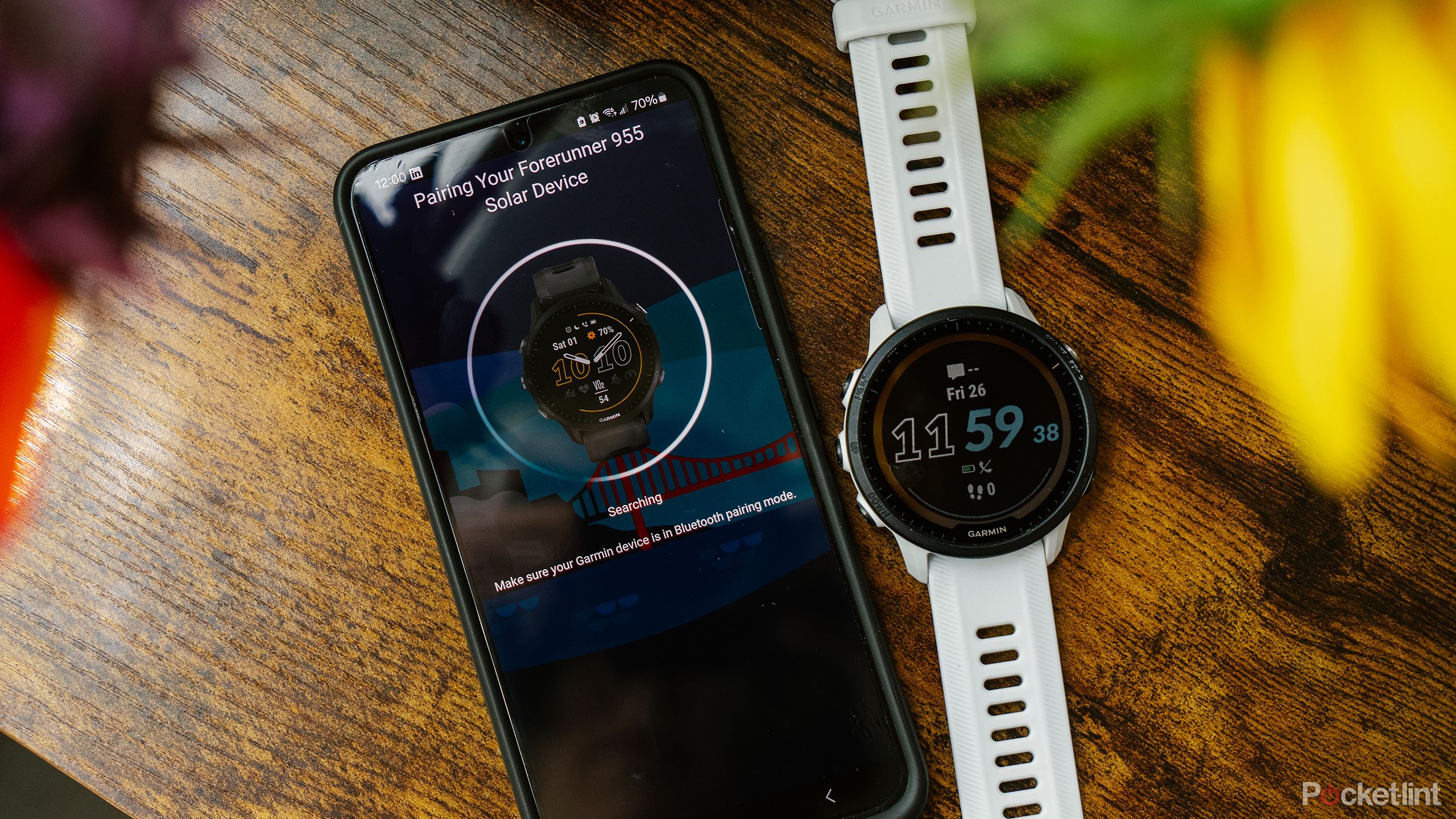
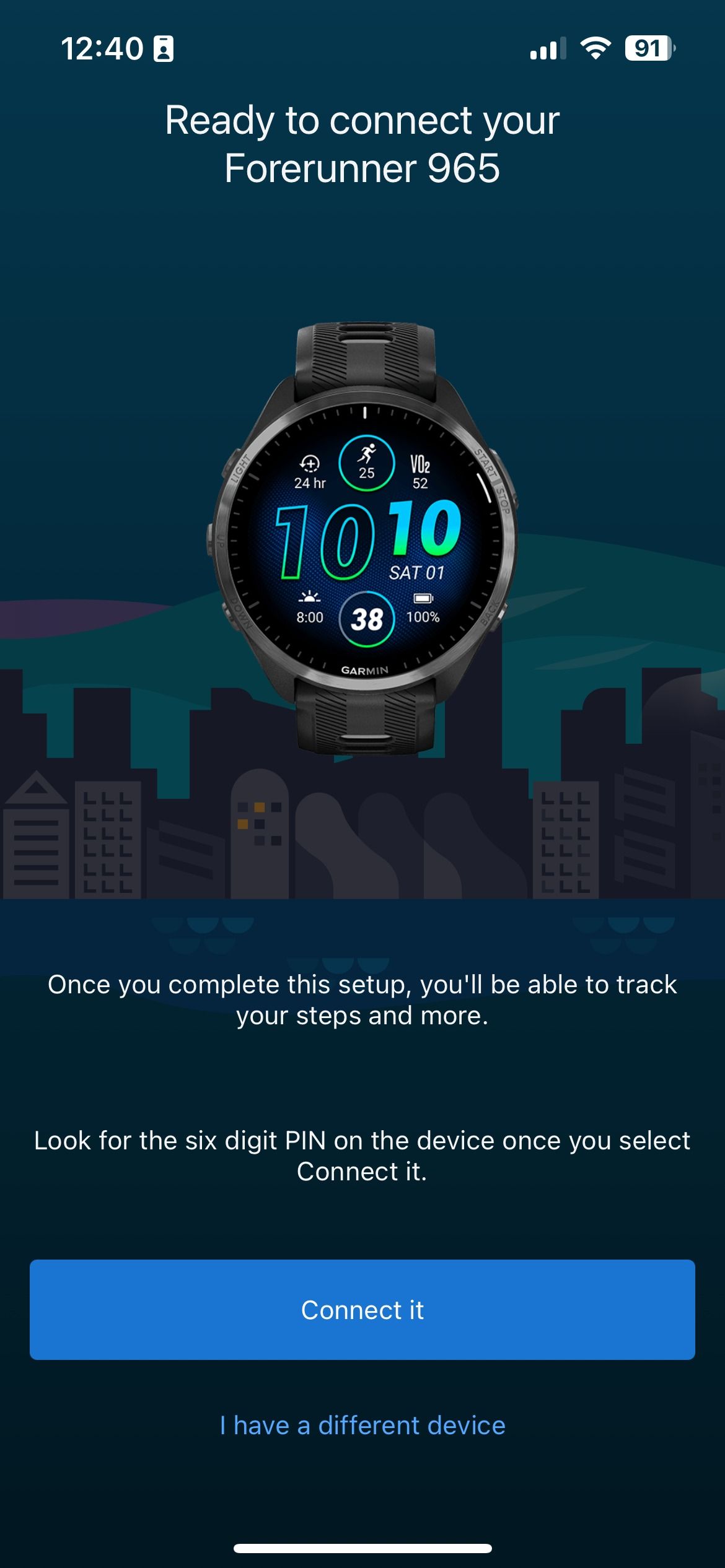
While "Watch" in the iPhone ecosystem almost always refers to the Apple Watch, users with third-party wearables like Garmin or Google Pixel Watch follow a different path. These do not use the iOS "Watch" app. Instead:
- Download the specific app (e.g., Garmin Connect or Wear OS by Google).
- On the watch, go to Settings > System > Disconnect & Reset (or "Transfer to New Phone" for newer Wear OS 4+ devices).
- Follow the in-app pairing instructions. Note that these devices do not benefit from the "Quick Start" system-wide migration and must be set up individually.
Frequently Asked Questions
Will I lose my Fitness and Activity data?
No. As long as you have Health toggled on in your iCloud settings, your activity rings, workout history, and health trends will sync to your new iPhone automatically. The watch simply acts as a display for the data stored in the iCloud encrypted database.
Do I need to unpair from my old phone first?
Ideally, yes. Unpairing creates a backup. However, if your old phone is broken or lost, you can reset the watch directly from the watch itself (Settings > General > Reset > Erase All Content and Settings). You can then pair it with the new phone and restore it from the last available iCloud backup.
Why is my watch taking so long to sync apps?
In 2026, many watch apps are standalone, but the iPhone still tries to sync "companion" data. To speed this up, choose "Install Later" when asked about apps during the pairing process. You can manually add apps through the Watch app later when you aren't in a hurry.
Can I pair two watches to my new iPhone?
Yes. iOS supports Auto Switch. You can pair multiple Apple Watches to one iPhone. The iPhone will automatically connect to whichever watch you put on your wrist and wake by raising it.
What if my new iPhone doesn't see the Apple Watch?
Check if the watch is in "Pairing Mode." If you see a clock face, it is already paired to something else. You must reset it or unpair it before it becomes "visible" to the new iPhone's Watch app.
Final Recommendation for a Smooth Setup
For the most reliable and quickest experience, always use the iCloud backup method. Before you even touch your new iPhone, go to your old iPhone, open the Watch app, and unpair your watch. This ensures that every heart rate measurement and customized watch face is saved to the cloud. Once you sign into your new iPhone, the "Restore from Backup" option will be waiting for you, making the entire transition feel like you never switched devices at all.
Image Gallery