How to Turn Off Spam Filter on iPhone Step by Step
To turn off the various spam filters on an iPhone, you must adjust settings across three specific areas: Mail, Messages, and Phone. There is no single "master switch." You can disable "Filter Unknown Senders" in the Messages settings,...
To turn off the various spam filters on an iPhone, you must adjust settings across three specific areas: Mail, Messages, and Phone. There is no single "master switch." You can disable "Filter Unknown Senders" in the Messages settings, toggle "Silence Unknown Callers" to off in Phone settings, and manually move emails from the Junk folder to the Inbox to "train" the iCloud Mail filter.
Contents
Understanding the iPhone Spam Filtering Ecosystem
As of 2026, Apple’s approach to spam prevention remains decentralized, integrated across different core applications to provide a multi-layered defense against unwanted communication. Users often search for a way to "turn off the spam filter" because they find that legitimate communications—such as two-factor authentication codes, client emails, or delivery notifications—are being incorrectly flagged and hidden.
On an iPhone, "spam filtering" actually refers to three distinct technologies:
- Server-Side Email Filtering: Managed by iCloud or your third-party email provider (like Gmail or Outlook).
- SMS/iMessage Filtering: Managed via the Messages app settings to sort messages from people not in your contacts.
- Call Silencing: A feature that automatically redirects calls from unrecognized numbers to voicemail.
To effectively "turn off" these protections, you must address each category individually. Disabling these features increases the visibility of all incoming traffic, but it also elevates the risk of encountering phishing attempts and telemarketing scams.
How to Disable the Spam Filter for iMessage and SMS
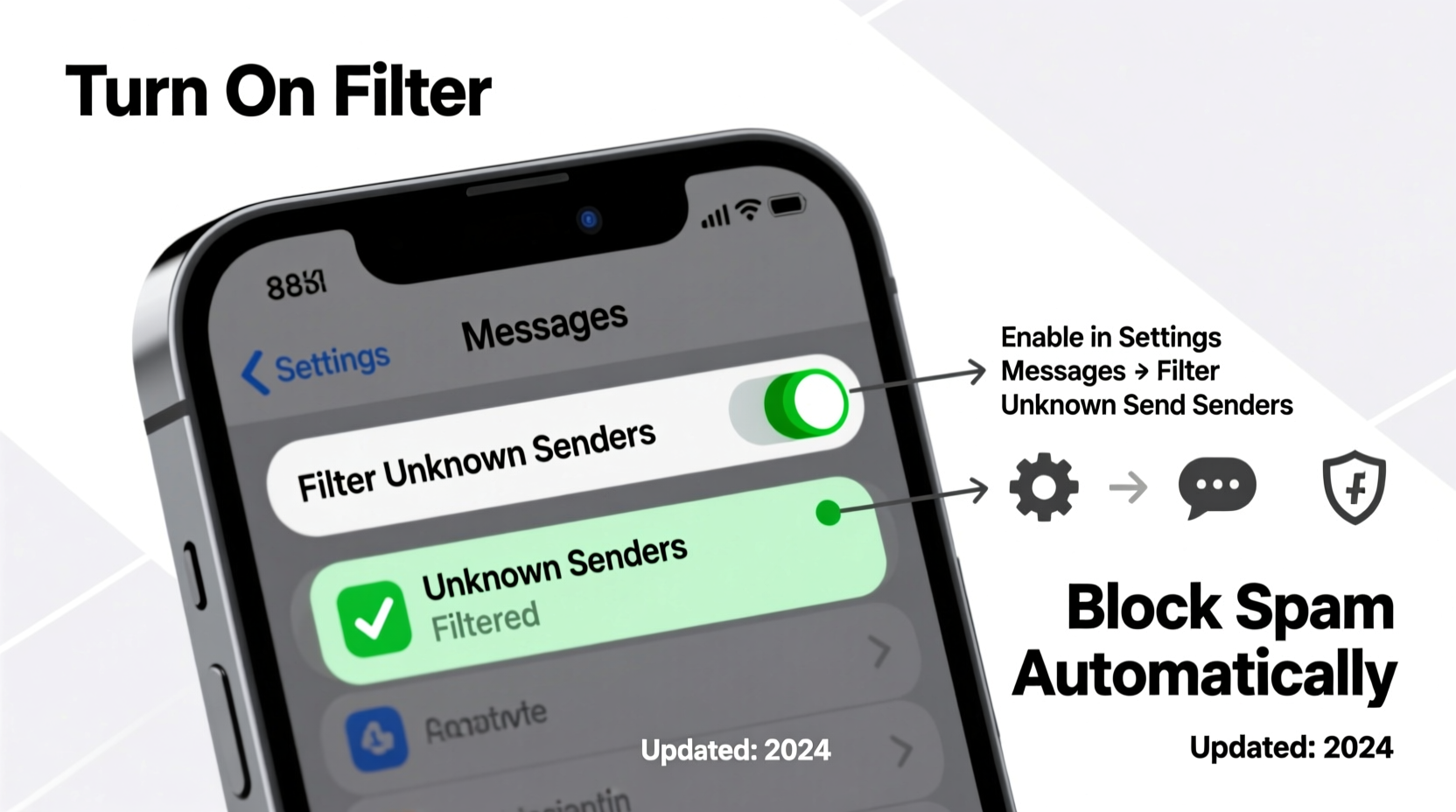
The "Filter Unknown Senders" feature is the primary mechanism for sorting messages on iOS. When enabled, it creates a separate tab in your Messages app for anyone not saved in your Contacts list. This often leads users to believe they are not receiving texts when, in reality, the texts are simply tucked away in a secondary folder.
Step-by-Step Instructions for Messages:
- Open the Settings app on your iPhone.
- Scroll down and tap on Messages.
- Navigate to the Message Filtering section.
- Tap on Unknown & Spam.
- Toggle the switch for Filter Unknown Senders to the Off position.
Once this is turned off, all messages—regardless of whether the sender is in your contact list—will appear in your primary "All Messages" list. If you were using a third-party spam filtering app (such as Truecaller or Hiya), you would also see them listed under the "SMS Filtering" header in this same menu. To fully revert to the default Apple experience, ensure no third-party apps are selected in this list.
How to Turn Off "Silence Unknown Callers"
If you are missing phone calls from legitimate businesses or individuals who are not in your contacts, the "Silence Unknown Callers" feature is likely the culprit. This is not technically a "spam filter" in the sense that it deletes calls; rather, it identifies any number not found in your Contacts, Mail, or Messages and sends them directly to voicemail without ringing your phone.
Step-by-Step Instructions for Phone Calls:
- Launch the Settings app.
- Scroll down to Phone and tap it.
- Locate the section titled Silence Unknown Callers.
- Tap the menu and select Off.
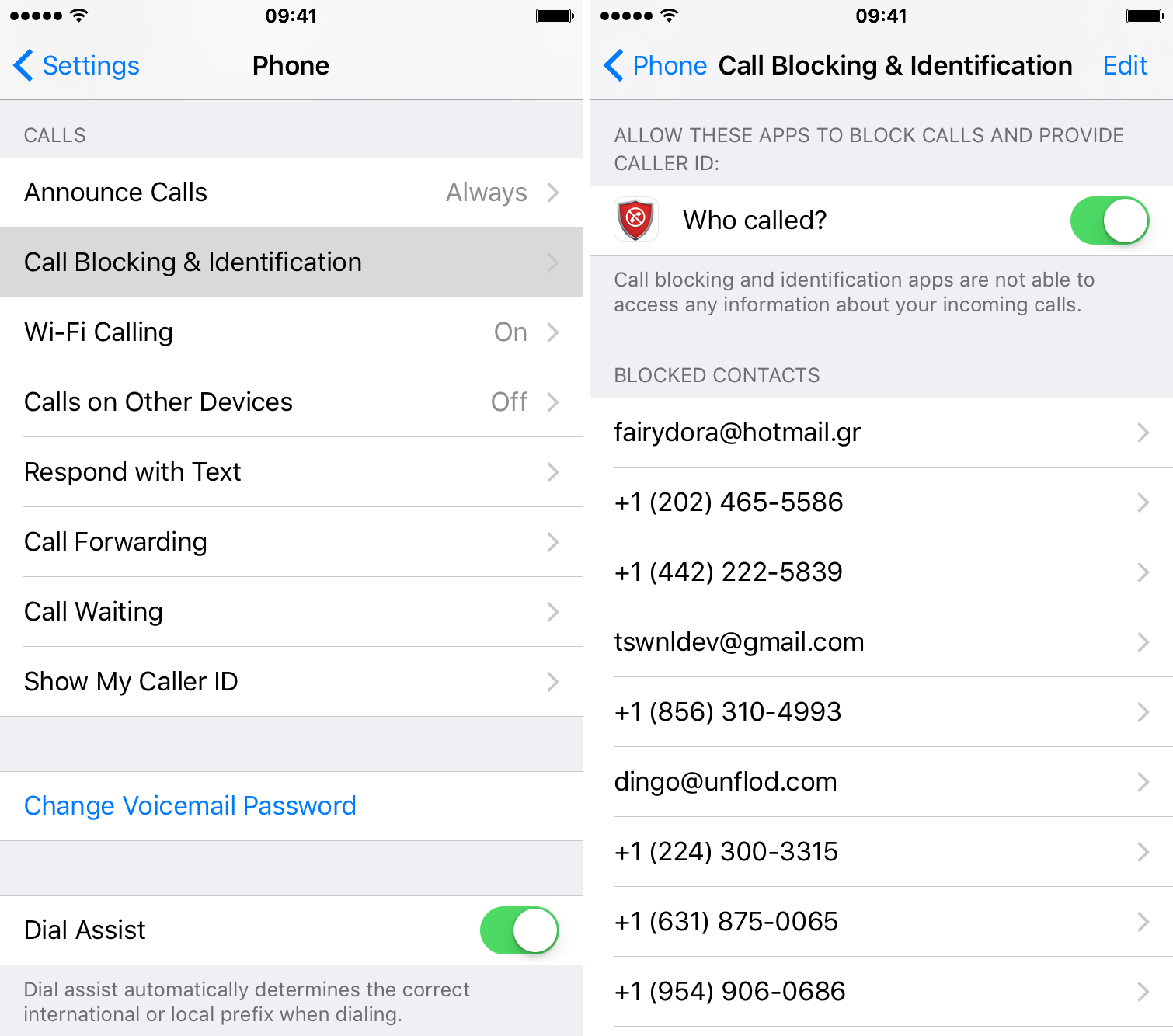
By disabling this, your iPhone will ring for every incoming call that is not blocked by your carrier or a specific blocked contact entry. It is important to note that if you have "Call Blocking & Identification" apps installed, you may need to disable their permissions within this same "Phone" settings menu to stop them from intercepting calls.
Managing the iCloud Mail Spam Filter
Unlike Messages and Phone calls, iCloud Mail does not have a simple toggle to "turn off" spam filtering. Apple uses server-side proprietary algorithms to detect junk mail before it even reaches your device. This is a security measure designed to protect users from malicious attachments and phishing links. However, you can effectively "disable" the impact of this filter by training the system to recognize that nothing should be treated as junk.
Training the Filter (The "Not Junk" Method)
To prevent iCloud from filtering specific senders or types of mail, you must manually correct the filter's mistakes.
- Open the Mail app.
- Go to your Mailboxes list and select the Junk folder.
- Swipe left on the message you want to "un-spam" or tap Edit and select multiple messages.
- Tap the Folder icon (Move) and select Inbox.
- Alternatively, open the specific email, tap the Reply arrow (or the "More" icon), and select Move to Inbox.
By moving messages out of the Junk folder, you are sending a signal to Apple's servers that the sender is trusted. Over time, this decreases the frequency of legitimate mail being caught in the spam net.
Creating a "No Filter" Rule via iCloud.com
For users who want to be more aggressive, you can log into iCloud.com on a web browser and create a rule that tells the server to move all incoming mail to the Inbox, effectively bypassing the junk folder.
- Log in to iCloud.com and open Mail.
- Click the Settings (gear icon) and select Rules.
- Add a new rule: "If a message is addressed to [Your Email], Move to Inbox."
- Note: This is a brute-force method and may lead to a very cluttered primary inbox.
Disabling Carrier-Level Spam Protection
Sometimes, the "spam filter" you are experiencing isn't an iPhone setting at all, but a service provided by your cellular carrier (e.g., Verizon’s Call Filter, AT&T ActiveArmor, or T-Mobile Scam Shield). These services operate at the network level, meaning the call or text is blocked before it even hits your iPhone.
| Carrier Service | Common Name | How to Manage/Disable |
|---|---|---|
| AT&T | ActiveArmor | Open the ActiveArmor app; toggle "Auto-Block" to off. |
| Verizon | Call Filter | Use the Verizon Call Filter app or log into your My Verizon account. |
| T-Mobile | Scam Shield | Dial #632# from your keypad or use the Scam Shield app. |
| Generic | Third-Party Apps | Settings > Phone > Call Blocking & Identification > Uncheck the app. |
If you have disabled all iOS-native settings and are still missing communications, you must check these carrier apps. Most carriers automatically enroll customers in basic "Scam Block" programs, which can be opted out of via their respective mobile apps or by calling customer support.
Common Mistakes When Managing iPhone Spam
One frequent error is confusing the "Blocked Contacts" list with the "Spam Filter." If you have previously blocked a specific person, their calls and messages will never reach you, regardless of your spam filter settings. To check this:
- Go to Settings.
- Go to Phone (or Messages).
- Tap Blocked Contacts.
- If a number is on this list, swipe left to Unblock it.
Another mistake is forgetting about Focus Modes. Features like "Do Not Disturb" or "Work Mode" can mimic the behavior of a spam filter by silencing notifications from people who are not on an "Allowed" list. If your phone isn't ringing, ensure that no Focus Mode is currently active in the Control Center.
Troubleshooting Persistent Spam Filtering Issues
If you have turned off "Filter Unknown Senders," "Silence Unknown Callers," and checked your "Blocked Contacts," but you are still not receiving certain messages, the issue may lie with your Apple ID Security Settings or Network Settings.
- Check "Send & Receive": In Settings > Messages > Send & Receive, ensure that your phone number and your Apple ID email are both checked. If a sender is texting your email address and it isn't selected, the message won't appear.
- Reset Network Settings: Occasionally, a glitch in the carrier settings can cause message delivery failures. Go to Settings > General > Transfer or Reset iPhone > Reset > Reset Network Settings. Note that this will also reset your saved Wi-Fi passwords.
- Update Carrier Settings: Go to Settings > General > About. If an update is available, a prompt will appear within a few seconds.
Frequently Asked Questions
Why is there no single button to turn off all spam filters on iPhone?
Apple prioritizes user privacy and security. By keeping the filters for Mail, Messages, and Phone calls separate, Apple allows users to customize their protection. For example, a user might want to block spam calls while still receiving all SMS messages. A single "Off" switch would significantly increase the risk of a device being overwhelmed by automated phishing attacks.
Will turning off the spam filter delete my existing junk mail?
No. Turning off the filters simply changes how future incoming communications are handled. Any messages already in your "Junk" or "Recently Deleted" folders will remain there until they are automatically deleted (usually after 30 days) or until you manually move them.
Can I turn off the "Report Junk" link in iMessage?
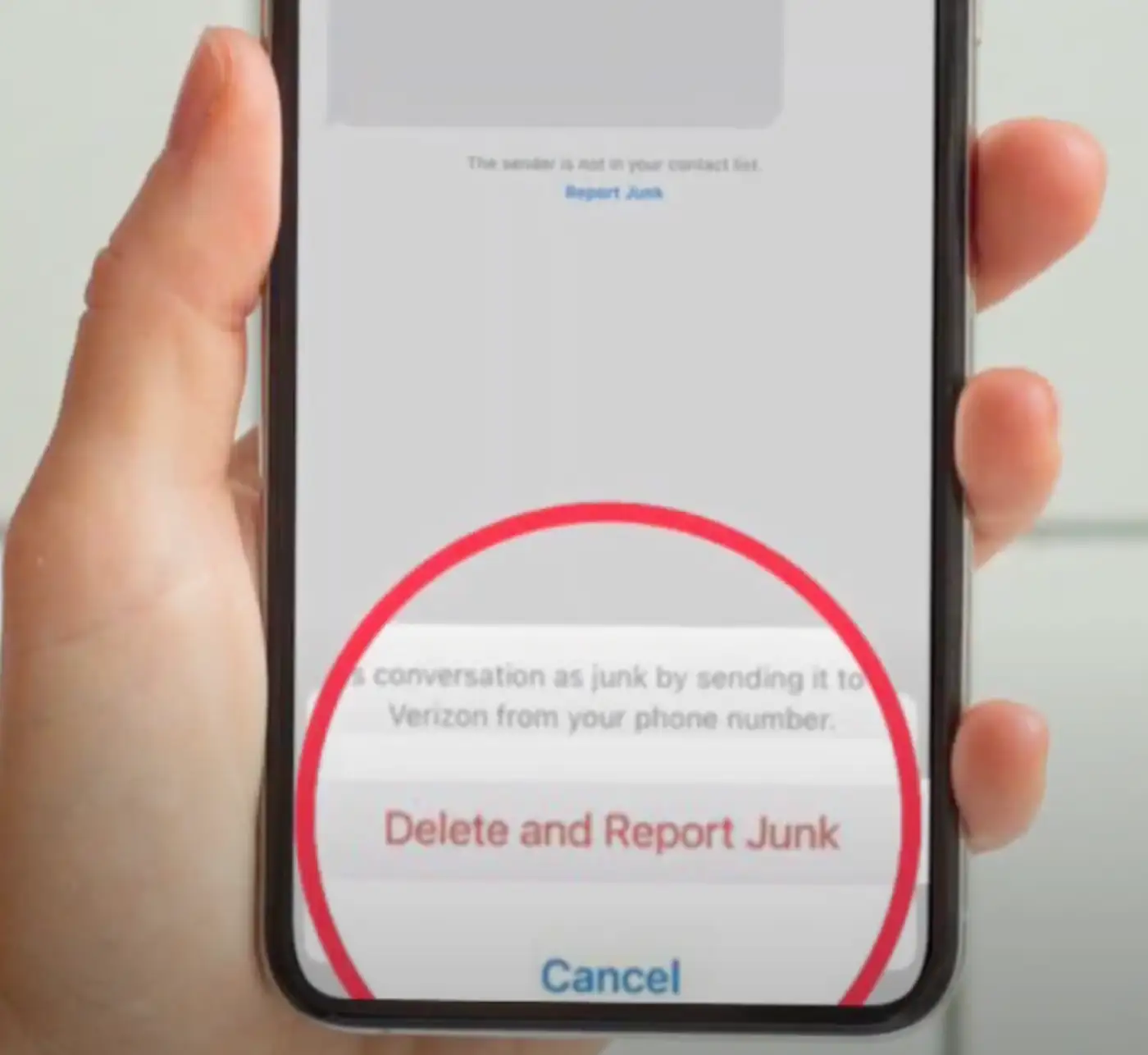
No, the "Report Junk" link is a permanent feature of the iMessage framework for messages received from unknown senders. Even if you turn off "Filter Unknown Senders," the option to report a message from an unrecognized number will still appear as a safety measure.
Does "Silence Unknown Callers" affect WhatsApp or FaceTime?
"Silence Unknown Callers" specifically affects the native Phone app and FaceTime. However, third-party apps like WhatsApp have their own internal privacy settings. To disable spam filtering in WhatsApp, you must navigate to WhatsApp Settings > Privacy > Calls and toggle "Silence Unknown Callers" there.
Is it safe to turn off all spam filters?
Generally, it is discouraged unless you are expecting important communications from numbers or addresses not in your contacts. Without these filters, you are significantly more likely to receive "spoofed" calls and smishing (SMS phishing) attempts. If you do turn them off, exercise extreme caution when clicking links in messages from unrecognized senders.
Practical Recommendation
If your goal is to ensure you don't miss important messages while still maintaining some level of protection, the best balance is to keep "Filter Unknown Senders" OFF but keep "Silence Unknown Callers" ON. This ensures you can see all incoming texts in your main inbox while preventing telemarketers from interrupting your day. If you find a legitimate call was silenced, it will still appear in your "Recents" list, allowing you to call them back immediately and add them to your contacts to prevent future silencing.
Image Gallery